

Booking documents
Every booking has a Documents card at the bottom of its detail page. It holds the PDFs you have generated for that booking — the invoice and any custom export template — and, when a signing provider is connected, tracks each one through electronic signing.
This is how you export a booking to PDF, or print or download a rental contract, agreement, or act for it. Open the booking, export it using one of your templates, and the finished PDF is saved here ready to print, email, or send for signature. The wording of each document comes from Custom export templates; this page is where the generated files live.
Before this existed, exporting a booking produced a download and nothing else: the agreement lived in someone's Downloads folder. Saved documents belong to the booking instead, so anyone on the team can pull the exact file that was handed to the client.
Saving a document to a booking
Documents are created from the same Export dialog you already use — from the per-row action button on Manage bookings, or from the booking detail page.
The dialog lists PDF Invoice first, then every custom export template, and offers two actions:
| Button | What it does |
|---|---|
| Quick Download | Generates the PDF and downloads it immediately. Nothing is stored — the previous behavior of this dialog. |
| Save | Generates the PDF, stores it on the booking, and takes you to the booking's detail page with the new row highlighted in its Documents card. |
Saved documents are named after what produced them and the booking number — Invoice #1042, Rental agreement #1042. Organizations working in Ukrainian get the localized invoice name (Рахунок-фактура #1042).
The Documents card
Each row shows a PDF icon, the document name, and when it was created together with its file size. Rows carry these actions on the right:
| Action | Shown when | What it does |
|---|---|---|
| Signing chip | The document has been sent for signing | Shows the provider mark and the current status. Clicking it opens the document in the provider's cabinet in a new tab; hovering shows the provider's own status text and, when several accounts are connected, the account the document was sent from. |
| Send for signing | A signing provider is active and the document has no signing in flight or completed | One button per active provider, marked with its logo. Opens the send dialog. |
| Download | Always | Downloads the stored PDF through a temporary signed link. |
| Delete | Always | Removes the document after confirmation. |
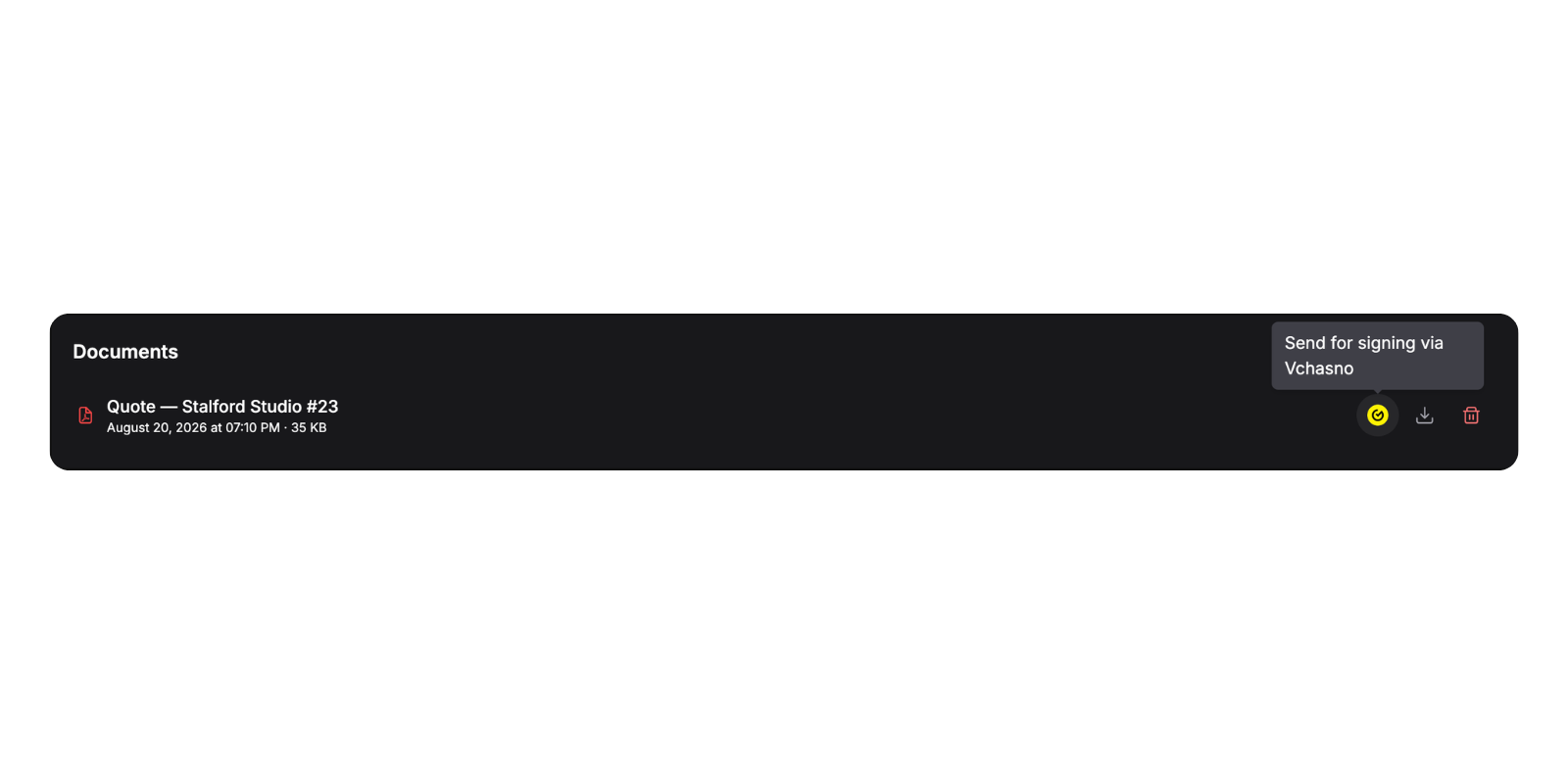
The row above carries a saved export template — its name ends with the booking number, and the generation date and file size sit underneath.
A refresh button in the card header appears once any document has been sent for signing; it re-checks pending statuses with the provider. Statuses are also refreshed automatically whenever the card loads.
When there are no documents yet, the card reads "No documents saved yet".
Sending a document for signing
Requires an active provider under Settings → Integrations → Document signing. Click the provider's button on the document row and fill in the dialog:
| Field | Notes |
|---|---|
| Send from | Shown only when the provider has more than one connected account. Preselected with the default account; pick another to send the document from that company's account. |
| Client code (EDRPOU / RNOKPP (IPN)) | The counterparty's registration code — 8 digits (EDRPOU) or 10 digits (RNOKPP / IPN). Digits only, required, and validated before the button becomes active. Prefilled from the client's ЄДРПОУ / РНОКПП (ІПН) system field when that field is configured on the Client level and filled in for this client. |
| Recipient email | Prefilled with the booking client's email. Required and validated as an email address. |
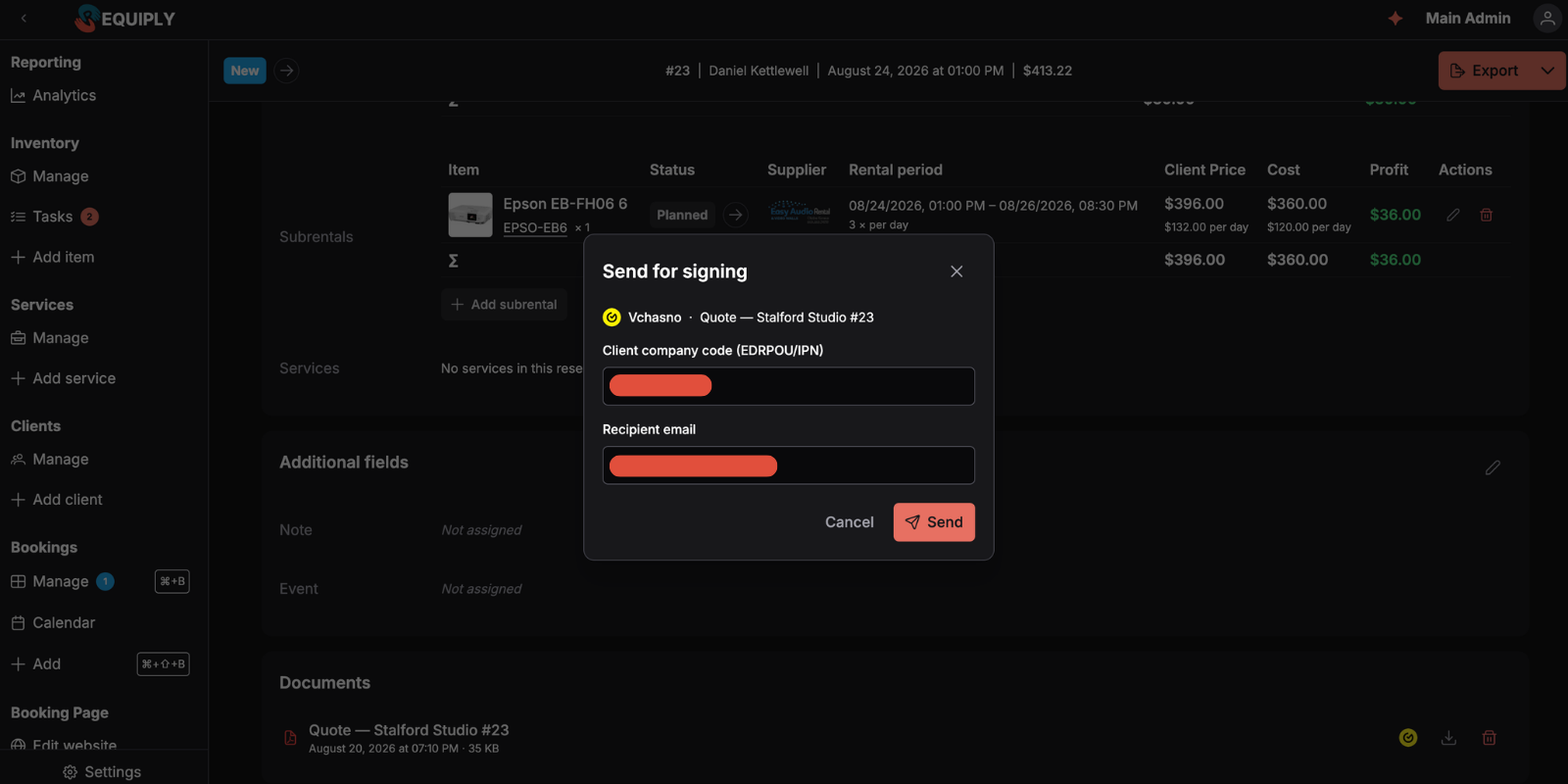
Send uploads the PDF to the provider and creates the signing record. Your organization signs first in the provider's cabinet, after which the document moves to the counterparty.
Signing statuses
| Chip | Meaning |
|---|---|
| Sent | Uploaded; the provider has not reported a signing state yet. |
| Awaiting your signature | Waiting for your organization to sign in the provider's cabinet. |
| Awaiting client | Your side is done; the client has not signed yet. |
| Signed | Fully signed. |
| Rejected | The counterparty declined it. |
| Error | The provider reported a failure. |
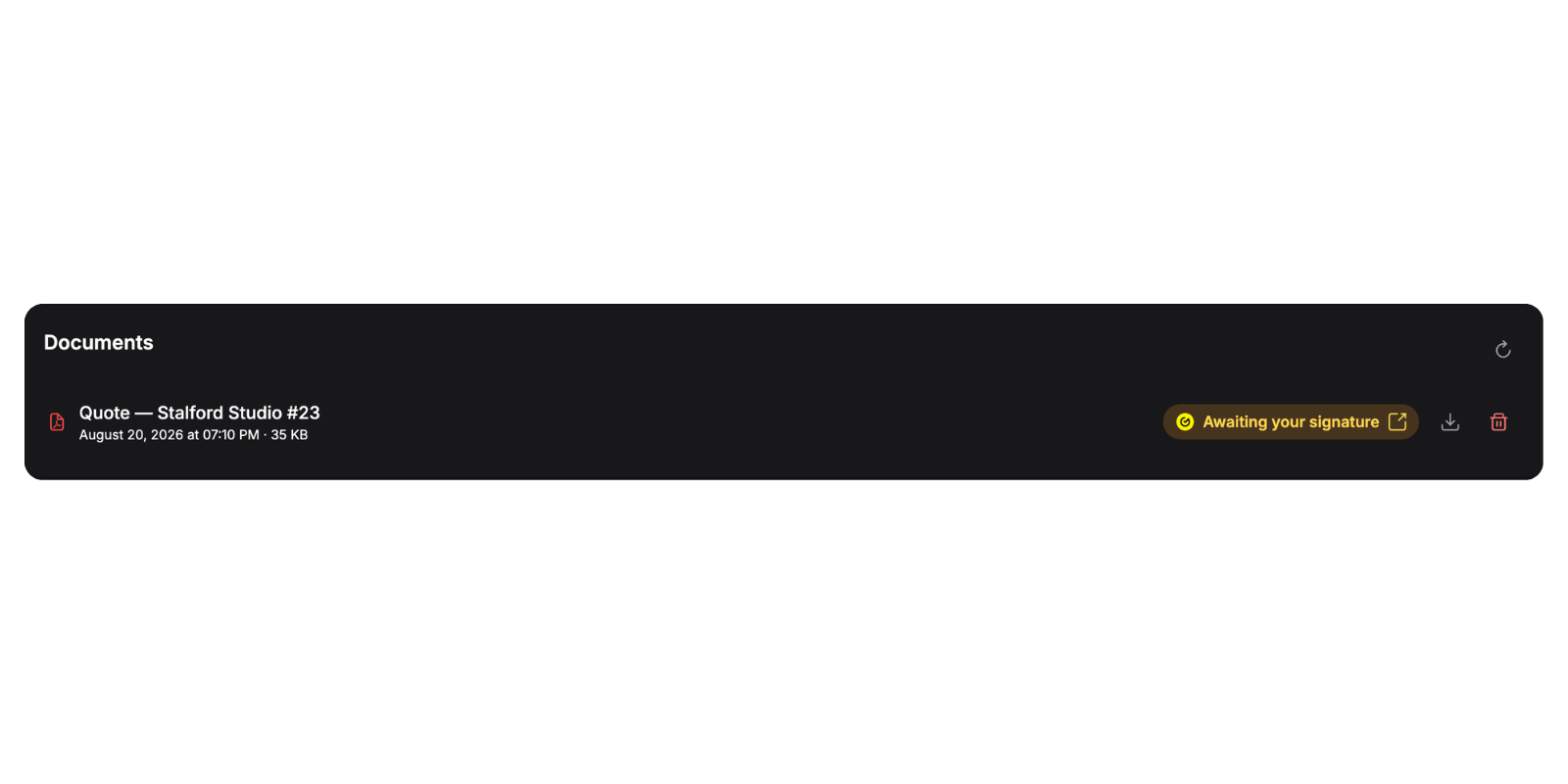
Because your organization signs first, a freshly sent document sits at Awaiting your signature until someone signs it in the provider's cabinet.
A document can have only one signing in flight per provider. The send button disappears once a document is sent or signed, and reappears only if the signing ended in Rejected or Error — so a declined agreement can be corrected and sent again, and the earlier attempt stays in the history.
Deleting a document
Delete asks for confirmation: "Are you sure you want to delete "{name}"? This cannot be undone."
If the document was sent for signing, the dialog adds a second line — "The document was sent for signing. Deleting it here does not remove it from the signing service." Cancel the document in the provider's cabinet as well when it should not be signed.
Where documents are stored
Saved PDFs live in a private storage bucket scoped to your organization, and are linked to the booking they were generated from. They are never publicly addressable: Download issues a short-lived signed link each time. Deleting a booking removes its documents with it.
Bundles on invoices and documents
When a booking contains a bundle, every generated document shows the bundle discount on its own line, so the item lines add up to the booking total. No template has to be changed.
Invoice. Under Subtotal, each bundle gets a row such as Bundle discount: Podcast duo kit (10%): with its negative amount, before the client discount and the booking cost adjustment.
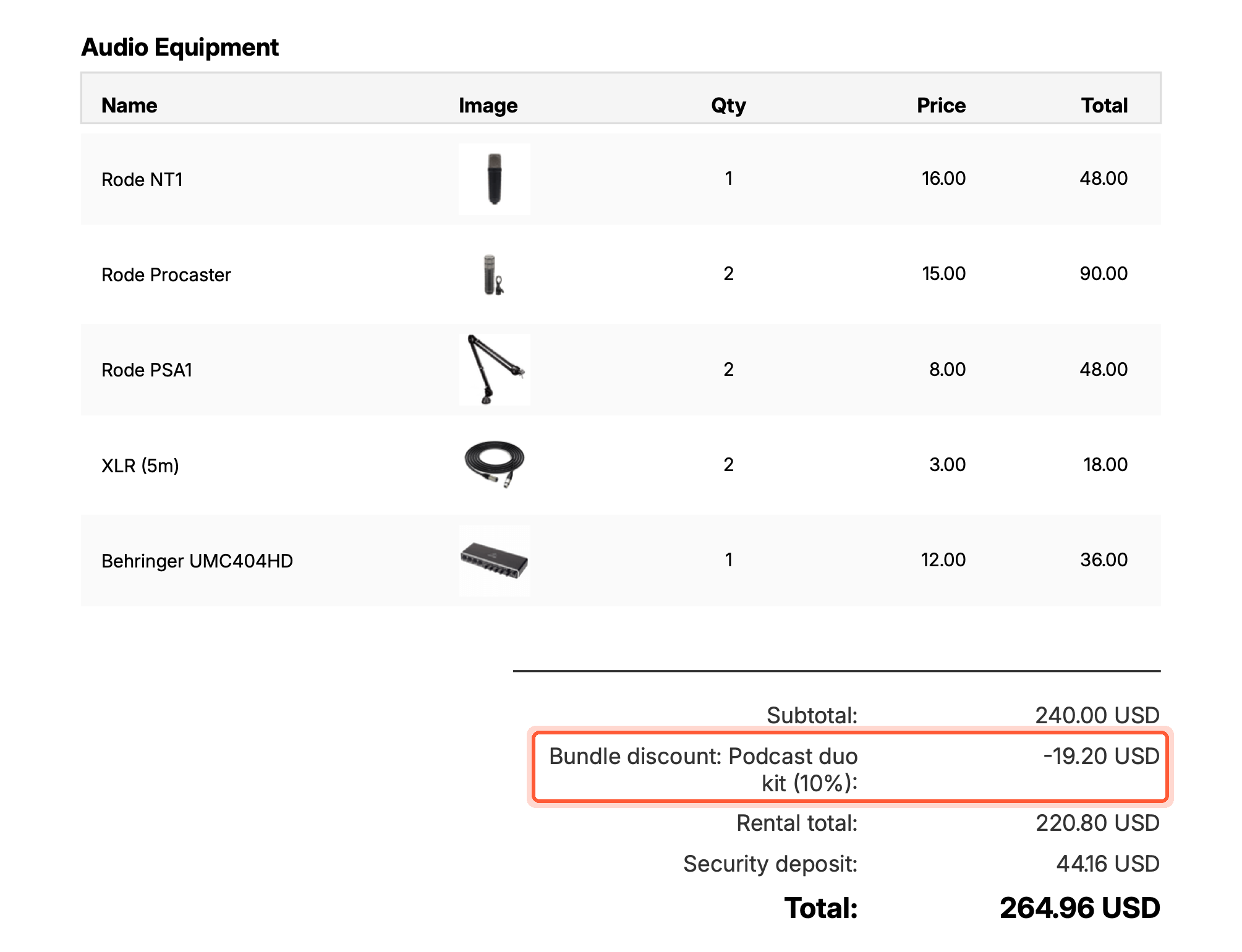
The invoice names the bundle and its discount instead of folding it into a generic price adjustment.
Documents from export templates. The {{bookingItems}} table ends with one row per bundle: Podcast duo kit: bundle discount 10%, the set's contents in small grey text, and the negative amount in the Total column. See Bundles in the items table.
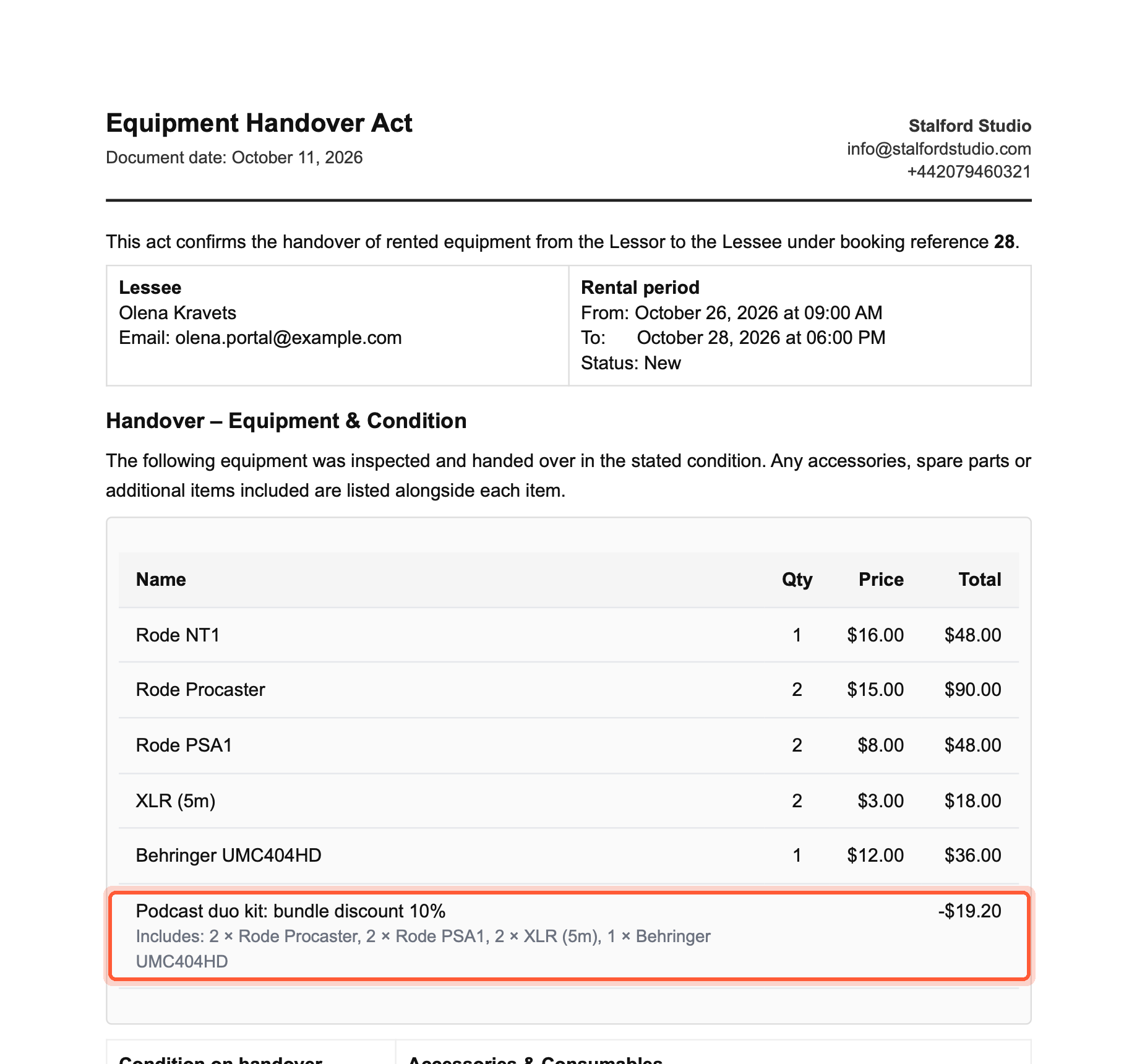
A handover act generated from an existing template: the bundle row is added on its own.
How this connects to the rest of Requiply
| Feature | Relationship |
|---|---|
| Manage bookings | The Export dialog on every row is where documents are created. |
| Custom export templates | Templates define what can be generated and saved. |
| Document signing | Provides the provider connection that turns a saved PDF into a signable document. |
| Message templates | Telegram templates can attach the invoice or a rendered export template to an automated message — generated at send time rather than taken from this card. |
| Invoices | The invoice PDF is one of the documents that can be saved and signed here. |
| Bundles | Each booked bundle adds a Bundle discount row to the invoice and a discount row to the {{bookingItems}} table of export templates, see Bundles on invoices and documents. |
| Sell items on a booking | Goods sold on the booking are printed on the invoice in a Sold items block, with Returned for goods that came back. Custom export templates can print them with {{bookingSaleItems}} and {{bookingSaleTotal}}. |
| Booking cost adjustment | When a booking has an adjustment, the invoice explains it in a summary row: Chargeable period adjustment (reason): −0.5 days for periods, Booking cost adjustment (−10%) (reason): −$14.69 for a percentage or flat amount. Custom export templates can print it with {{bookingAdjustment}}, {{bookingAdjustmentReason}}, and {{bookingAdjustmentAmount}}. |
Common scenarios
Handing over gear with a signed act
Export the handover act with Save, send it for signing from the Documents card, sign it on your side, and let the client sign from their side. The chip on the booking tells whoever is at the counter whether the paperwork is done.
Keeping the exact invoice a client received
Use Save rather than Quick Download when you email an invoice. Later price or date changes will not alter what is stored, so there is always a record of the document as it was sent.
Tips and cautions
Invoice groups
Split one booking's invoice into named sections such as event days, locations, or phases, so the customer sees a grouped breakdown instead of one long list.
Overview
Confirm every unit as it leaves the warehouse and as it comes back, by product, by unit, or with a barcode scanner, before the booking changes status. Record partial returns: units still with the client, returned damaged, or lost.