

Edit booking items
The Edit items page changes what a booking contains. Add a product someone forgot, drop one the client no longer wants, or change a quantity, with availability checked against the booking's dates and the total recalculated before anything is saved.
Before this page existed, a changed order meant cancelling and re-creating the booking, losing its payment history, comments, documents, and links. Now the booking keeps its identity: dates, client, services, subrentals, invoices, and comments all stay attached, and only the item lines change.
Its siblings, Edit booking dates and Edit booking services, do the same thing for the rental period and the services.
How to open it
Three ways in on the web, all leading to /reservation/{id}/edit-items, plus Actions → Edit items in the mobile app:
- From the Actions menu on the booking detail page: Edit items.
- From the per-row Actions menu on Manage bookings.
- From the pencil on the Items row of the booking detail page.
When items can no longer be changed
Items can be changed only until the goods leave. Requiply treats a booking as handed out as soon as there is evidence of it:
- a unit on the booking was scanned or ticked out at pickup,
- a pickup checklist for the booking was confirmed, or
- the booking is in a status whose Checklist field is set to Return checklist, such as the default Completed.
From that moment Edit items disappears from the booking's Actions menu, and opening the page any other way, from the pencil on the Items row or an old link, returns you to the booking. Record what happens next as a return (a partial return when only some units come back) or as a new booking.
| Booking state | Dates | Items | Services |
|---|---|---|---|
| Active, not handed out yet | Yes | Yes | Yes |
| Active, handed out | Yes | No | Yes |
| Completed lifecycle | Yes | No | No |
| Cancelled lifecycle | No | No | No |
A status of pickup kind does not lock items on its own. Moving a booking into Ready for pickup or In progress by hand, with checklists switched off and nothing scanned, leaves its items editable. See Booking statuses.
If the booking is locked while the page is open, saving fails with one of these:
| Message | Why |
|---|---|
| The items were handed out. Record a return or create a new booking instead. | The booking was handed out in the meantime. |
| This booking is completed, so its items can no longer be changed. | The booking is in a status with the Completed lifecycle. |
| This booking is cancelled and can no longer be changed. | The booking is in a status with the Cancelled lifecycle. |
What you'll see
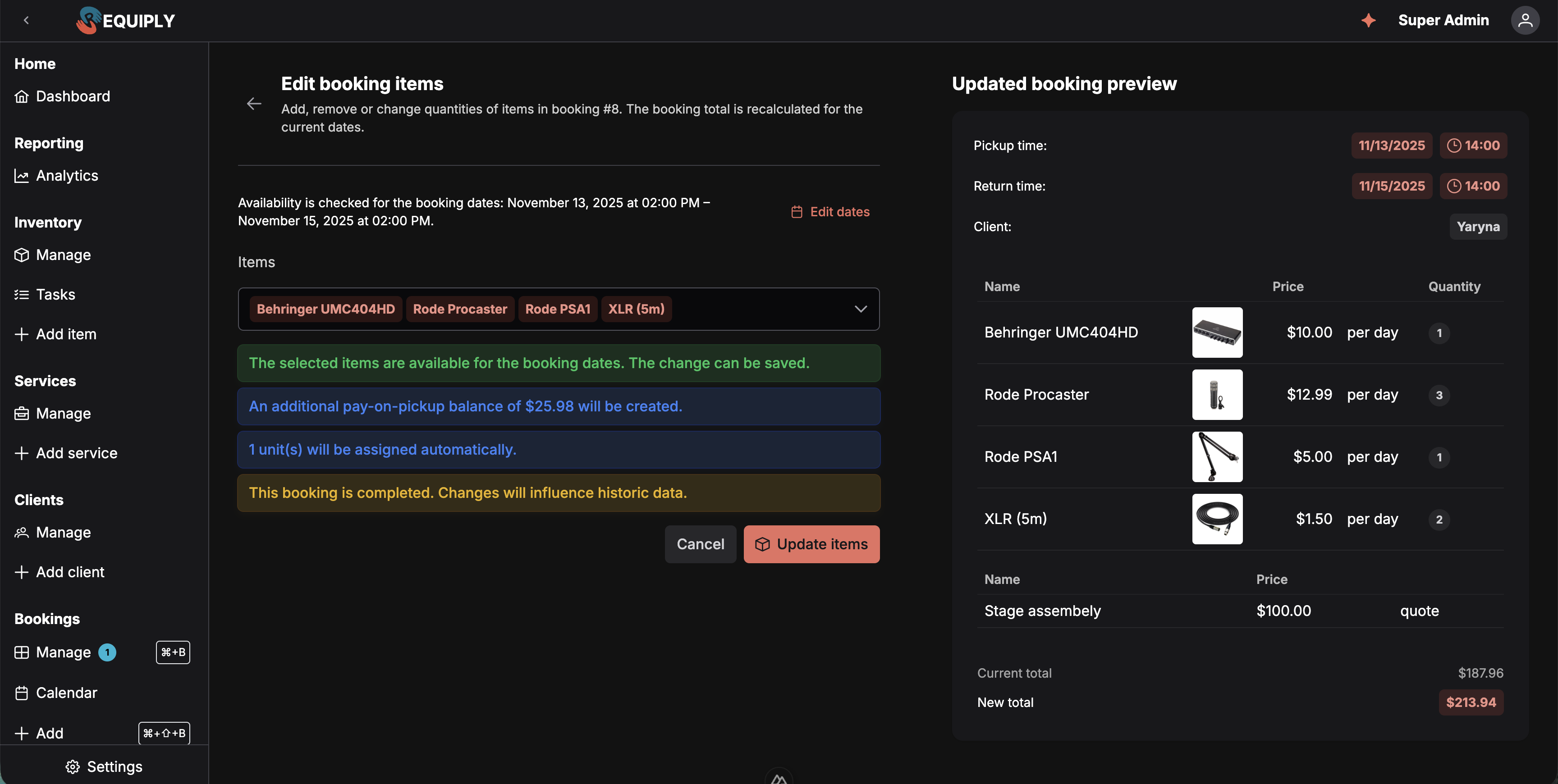
The left column changes the order; the right column shows what the booking becomes. Update items stays disabled until the check passes.
The page is split into two columns:
- Left, the form. A line reminding you which dates availability is being checked against, with an Edit dates link if those are what actually need changing, then the same product selector used on Add booking, pre-filled with what the booking currently holds. Below it, a live status area.
- Right, the updated booking preview. Pickup and return time, the client, then a table of every item with its image, price, rate, and quantity, followed by the services (change those on Edit booking services). At the bottom, Current total and New total sit one above the other, with the deposit alongside them when the booking has one.
Each product in the selector shows how many units of it the booking already has assigned, so you can see what you are about to release.
Bookings with bundles
When the booking contains a bundle, the bundle is one entry in the selector, ticked, with a Bundle chip in the field. Product chips count only the units booked outside bundles, the same way Add booking counts them.
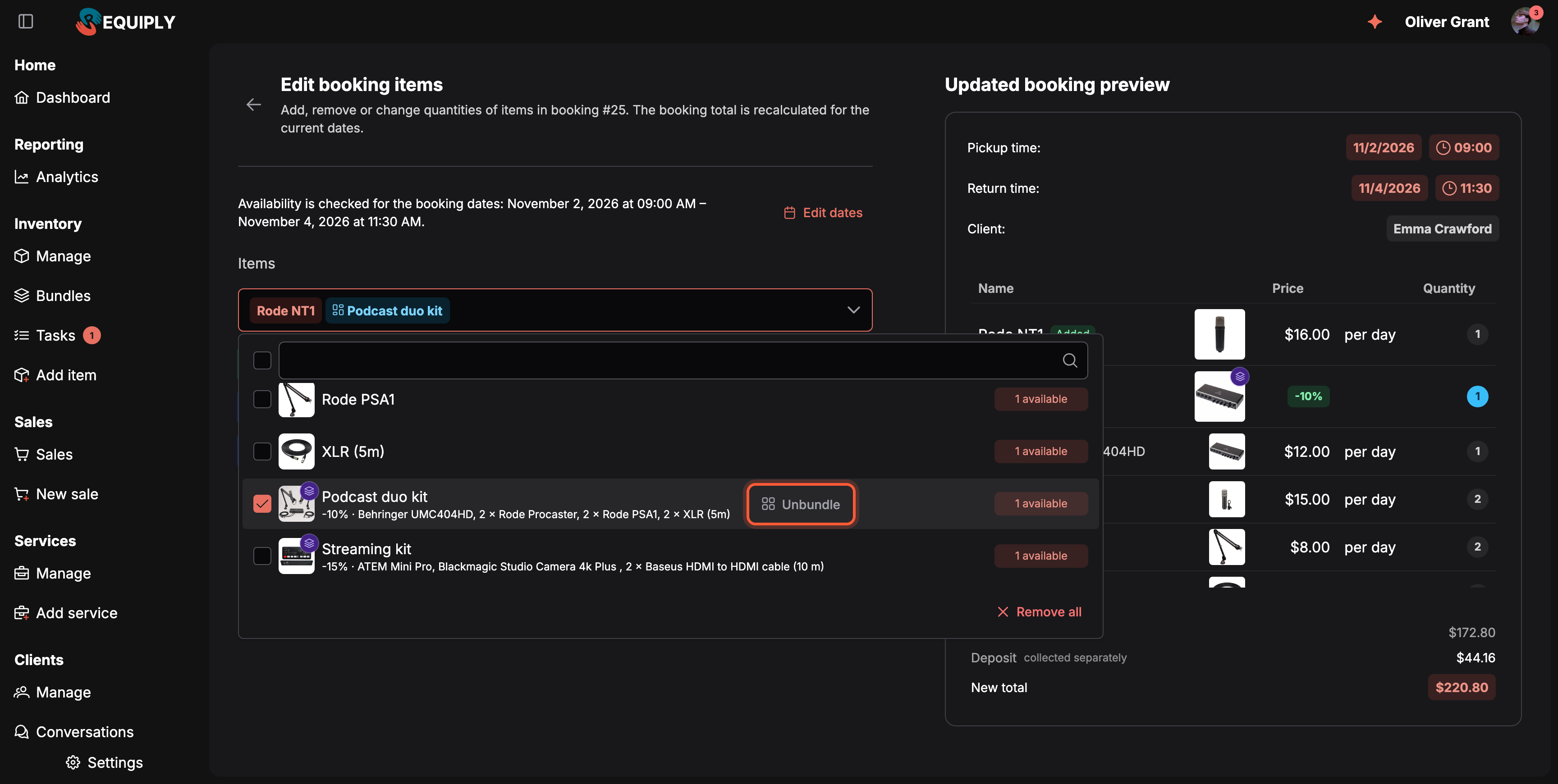
Unbundle appears on a ticked bundle. It keeps the units on the booking and drops the bundle discount.
- Tick a bundle to add a set. Units of its items that the booking already holds on their own are taken into the set first, so ticking the bundle for a client who already has the microphones adds only the missing pieces.
- Untick a bundle to remove the set and its units.
- Unbundle turns a ticked bundle into ordinary lines: the units stay on the booking at full price and the bundle discount goes.
- Each bundle shows how many sets are available for the booking dates, counting the sets the booking already holds.
The Updated booking preview marks every change against the booking as it was, so you can check the result before saving:
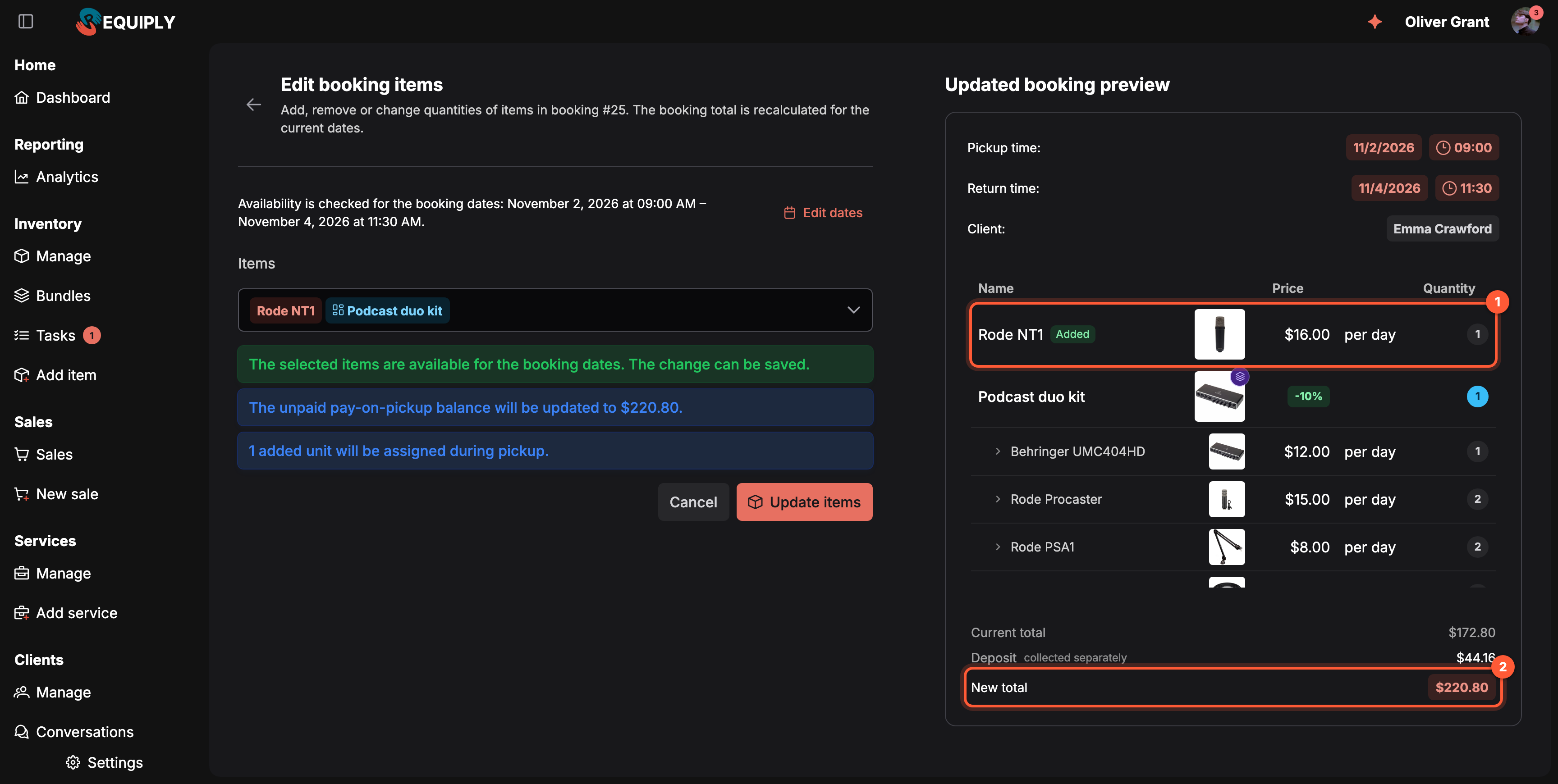
1 Changed rows carry an Added or Removed tag. 2 The new total, next to the current one.
- Added and Removed tags on the rows that changed, and the old and new quantity (for example 1 → 2) where only the quantity changed. Removed rows are struck through and dimmed.
- Unbundling marks only the bundle as Removed: its items keep their quantities.
In the mobile app, bundles have their own set steppers and item rows show 2 in bundles; at that floor the minus button is disabled. Unbundle under a bundle turns it into ordinary lines, and + on a bundle regroups units the booking already holds before adding new ones.
The live availability check
Every change re-checks with the server after a short pause and shows one of:
- "The selected items are available for the booking dates." The change can be saved.
- A conflict list: not enough inventory for the dates, itemized per product with the missing quantity, for example "Projector: 2 more unit(s) needed". The check is the same one Add booking uses: other bookings count with the start and end buffers from Booking duration, and quantities held for pickup-time assignment count as well as specific units.
- A blocking reason: the change cannot be made as it stands. See the table below.
Reasons a change is blocked
| Message | What it means |
|---|---|
| Change the items or their quantities. | Nothing has changed yet. |
| A booking needs at least one item. | You have emptied the selection. |
| One of the selected products no longer exists. | A product was deleted while you were editing. |
| Subrental products are managed in the Subrentals section of the booking. | Subrentals are not edited here. |
| Archived products can stay on a booking or be reduced, but not added or increased. | The product is archived. It can remain on the booking at its current quantity, or be lowered or removed. |
| Not enough inventory is available for the booking dates. | The conflict list beneath names the products and quantities. |
| The items are available, but the online payment link must be replaced or supplemented first. | An outstanding online payment has to be reissued before the order can change. |
| The cheaper booking needs a payment refund before its items can be changed. | The new total is below what has already been paid. Refund the difference through Full refund or Refund deposit in the booking's Actions menu, then come back. |
| The booking changed while you were editing. Reload and try again. | Someone else modified the booking. Reload rather than overwrite. |
What happens to the physical units
Below the availability result, the page reports the effect on assigned units before you commit to it:
The payment consequence is reported the same way, as its own line: "An additional pay-on-pickup balance of $25.98 will be created." See How the financials are recalculated for every case.
| Notice | Meaning |
|---|---|
| n assigned unit(s) will be released from this booking. | Quantities went down, so those units become free for other bookings over these dates. |
| n unit(s) will be assigned automatically. | Quantities went up and the organization assigns units at booking, so free units are allocated on save. |
| n added unit(s) will be assigned during pickup. | Quantities went up and the organization uses deferred assignment, so the booking holds the extra quantity and the units are bound at the pickup checklist. |
Warnings
Warnings explain a consequence. They never block the save.
| Warning | When it appears |
|---|---|
| A pickup checklist is open for this booking. | Added units appear in the open checklist for assignment, and removed units are dropped from it. |
| This booking is in progress. | Removed units are released immediately, and added units must be handed over separately. |
| This booking is completed. | The booking is historic, so the change influences historic data and reports. |
| The deposit stays at the amount already collected. | A payment has settled, so the deposit is frozen even though your deposit policy would suggest a different amount for the new item set. The suggested amount is named in the message. |
How the financials are recalculated
The total moves by the difference between the old and the new item set, the same rule as Edit booking services and Edit booking dates:
New total = current total + price of the new items − price of the old items
Both item sets are priced for the booking's existing dates, with pricing tiers, the client's pricing discount, and any booking cost adjustment saved on the booking. As a result:
- an agreed price or a manual change typed into the total stays the same amount, instead of being scaled,
- subrentals on the booking keep their share of the total untouched,
- added products get the client's current discount,
- the total never goes below zero.
Example: a booking stored at 150 for a camera that lists at 200 for its dates. Adding a second camera, also 200, gives 150 + 200 = 350.
In the preview table, products the booking already had show the price they were booked at; newly added products show today's price.
The deposit moves the same way, by the difference between what the deposit policy asks for the old and the new items, while nothing has been paid. Once any payment has settled it is frozen at the collected amount.
The payment balance is adjusted the same way Edit booking dates adjusts it: an unpaid balance is replaced, a partially paid booking gets an additional balance for the difference, a pending online link is cancelled and reissued, and a new total below what has already been paid blocks the change until you refund.
Saving
Update items is enabled only while the latest check says the change can be made. On save everything is applied atomically: the item lines, the recalculated total and deposit, the unit releases and allocations, and the payment adjustment. The change is recorded in the booking's comments so it stays visible in the booking's history, and you are returned to the booking detail page.
Who can use it
Anyone with Allow booking management through their permission group, the same permission that covers editing a booking at all. Without it the change is refused with Your permission group does not allow managing bookings.
Goods for sale are not changed here. Use Sell items, see Sell items on a booking.
In the mobile app
Open the booking and pick Actions → Edit items. The entry follows the same rules as the web: it is gone once the goods were handed out or the booking is completed or cancelled.
The Edit booking items screen says Add, remove or change quantities of items in booking #{number}. The booking total is recalculated for the current dates. and shows Availability is checked for the booking dates with an Edit dates link.
- Items lists what the booking holds, with − and + buttons and 2 not assigned for units not yet assigned.
- Add products has a search field and a + button per product, with how many are available.
- The check runs as you change things (Checking availability...), then says The selected items are available for the booking dates. The change can be saved., or shows the same blocking messages and warnings as the web.
- The Updated booking preview shows the new total. Update items saves: Booking items updated.
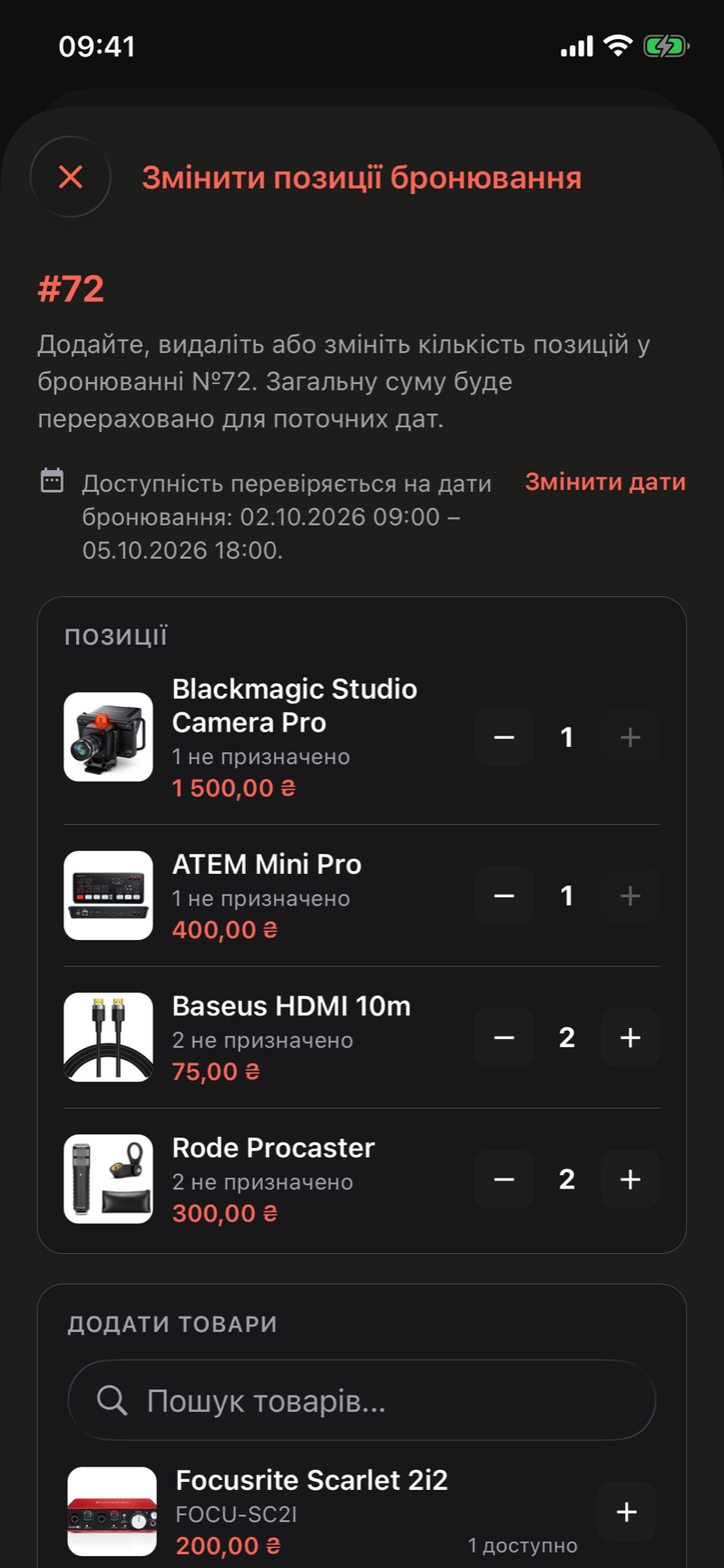
Edit booking items on iPhone, shown here in the Ukrainian interface. Quantities change with the buttons; new products come from Add products.
Common scenarios
The client wants one more of something
Open Edit items, raise the quantity, wait for the green availability message, and save. If the pickup time has already passed, the warning reminds you that the extra unit still has to be handed over separately. Once the goods have been handed out, the page is no longer offered: create a new booking for the extra unit instead.
A product came back as unsuitable mid-rental
Once the goods are out, items are locked, so record it as a return instead: run the return checklist, tick the unit that came back, and keep the rest Still with the client. If the client needs a replacement product, create a new booking for it.
The client drops a product before pickup
Lower its quantity. The assigned units are released immediately and the total drops. If the client had already paid in full, the save is blocked until you refund the difference.
The dates are the problem, not the items
Use the Edit dates link at the top of the page. Availability conflicts often disappear once the period moves.
Swapping one product for another
Do it in one edit: drop the old product to zero and add the new one. The preview shows the combined effect on the total and on the assigned units before you save.
Tips and cautions
Edit booking dates
Move, extend, or shorten an existing rental: change the pickup and return dates, check that the equipment is still free, and recalculate the price and deposit. Set a new return date for units a client still has after a partial return.
Edit booking services
Add or remove services such as delivery or setup on an existing booking, and set the agreed price of quote services, without cancelling and rebuilding the booking.