

Add booking
The Add booking page is where staff create a new booking by picking inventory, optional services, dates, a payment method, and (optionally) a client. Inventory can include owned units and, when enabled, reusable supplier-sourced subrental products. It is the primary manual entry point for bookings inside Requiply, separate from the client portal that customers book on themselves.
This page creates a new booking. To change one that already exists, do not rebuild it: use Edit booking dates to extend, shorten, or move a rental that is already out with the customer, and Edit booking items to add or remove equipment on it.
You can find this page under Bookings → Add booking in the main navigation, at /reservations/add. It also has a keyboard shortcut: Cmd/Ctrl + Shift + B from anywhere in the app.
/access-denied. The page also runs the auth and store-refresh middleware, so the organization context is always fresh on entry.Three parts of the form have their own pages: Booking dates, Scanning and pinning, and Client and booking details. How the total is calculated is explained in Money on a booking.
Why this page matters
This is the page that turns inventory and services into revenue. A booking created here:
- Reserves owned inventory for the selected date range, reducing availability for overlapping bookings. Supplier-sourced catalog products create procurement lines instead of assigning physical owned units.
- Generates an invoice / payment record based on the chosen payment method (pay on pickup, or one of the connected providers — Mono, LiqPay, WayForPay).
- Triggers booking-created workflows and notifies organization users who manage bookings.
- Counts toward the Setup Guide — creating two bookings completes the optional "Create booking" setup step.
- Feeds bookings into Manage bookings, Calendar, and the confirmation flow — those pages all use this one as their empty-state call to action.
If a business cannot create bookings here, the rest of the operations layer (calendar, manage list, confirmation, payments, notifications) has nothing to work with.
Who can use this page
- Any user whose role grants Bookings management. Anyone hitting the bookings area without that permission is redirected to
/access-denied. - Unlike Manage Clients, this page is not admin-only. Staff with the bookings permission can create bookings even if they cannot manage other organization settings.
- The page does not have a read-only mode. Anyone who can open it can submit bookings.
- Some parts of the form depend on extra permissions in the member's permission group: Allow booking outside of working hours, Allow assigning units on booking creation, and Allow booking cost adjustments. Each is described below.
What you'll see
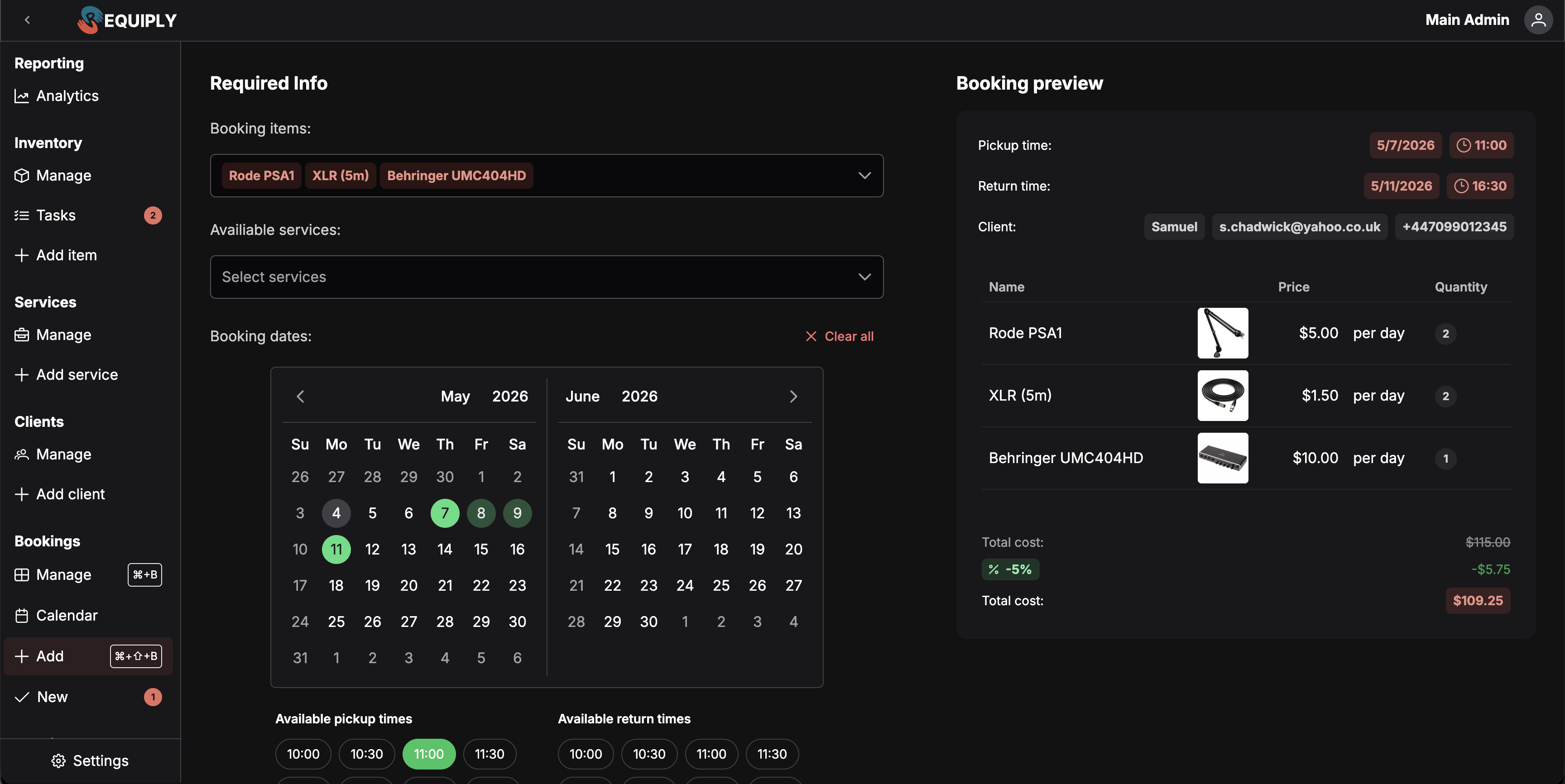
When inventory exists, the page is a two-column layout (single column below the xl breakpoint):
Left column: the booking form, with these sections. The order shown is for Start from items; see Choosing where to start for the other order.
- Required Info heading.
- A Start from items / Start from dates switch. It opens on the option chosen under Start from in Booking creation settings, Start from items unless an admin changed it.
- Booking items: multi-select with image, item name, available quantity tag, and a per-item quantity stepper for items whose total stock is greater than 1. Items with zero availability are shown faded out and are not selectable. Selected items are shown as chips and the dropdown footer has a Remove all button. Its search also takes unit codes and barcodes, see Adding items by scanning. There is no separate scan field.
- Pinned units, directly under Booking items, only once a unit has been pinned (see Assigning units on creation).
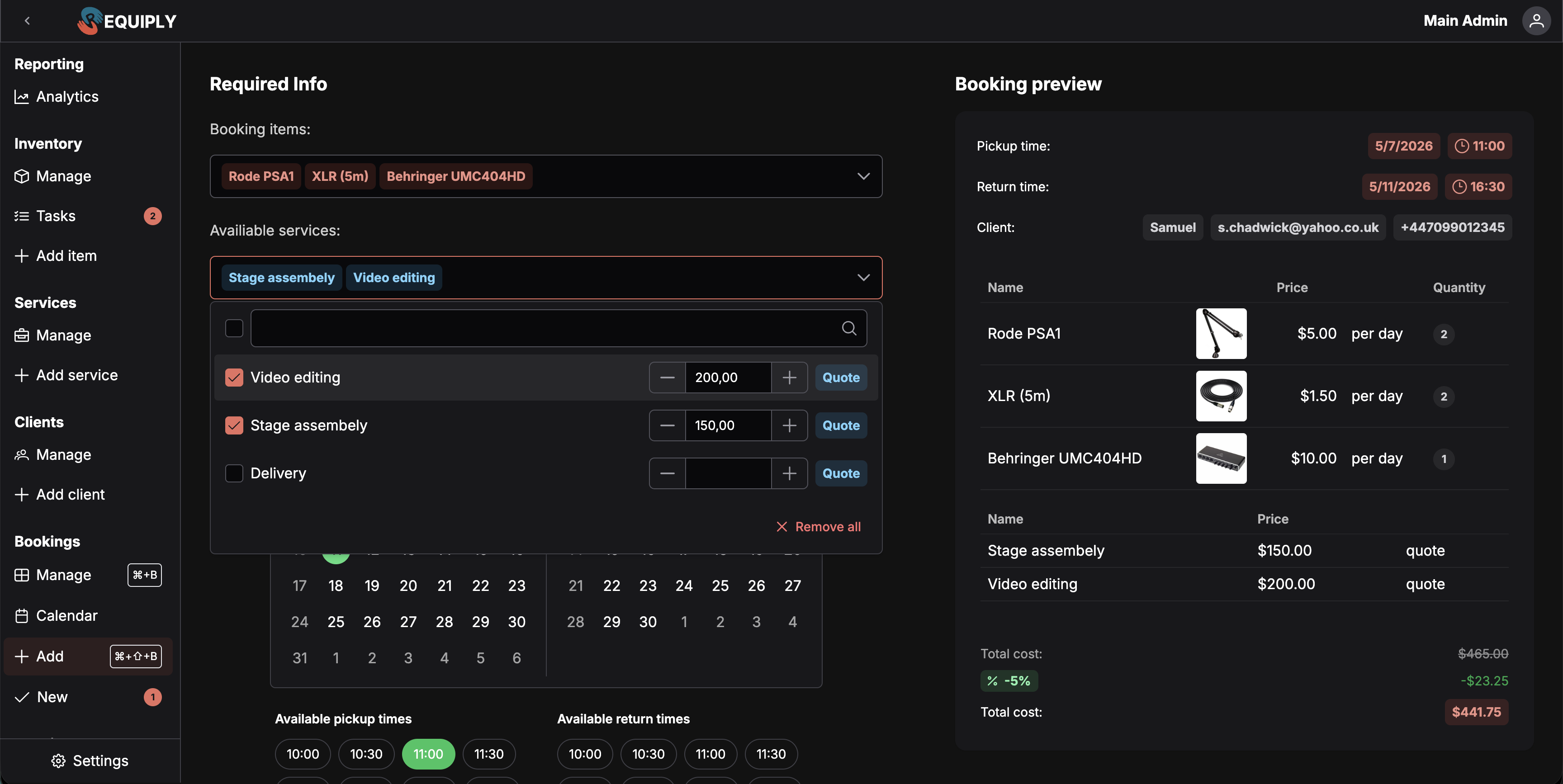
- Available services multi-select. Each service shows its price and its price type tag (per day, per hour, per month, or quote). For services priced as Quote, the staff member can edit the price inline before adding it. Other price types are read-only.
- Booking dates picker, rendered with one of two layouts depending on the org's setting (see Settings that control this page below). In Start from items mode the picker is disabled until at least one item is selected, because availability must be calculated against the chosen items. A Clear all button appears once any date is touched.
- Adjustments: row with the Price and Deposit buttons, under the booking dates. Shown only to members who can adjust what a booking is charged (see Adjusting the price or the deposit).
- Payment method dropdown.
- A divider, then Optional Info with an info-tooltip explaining "These fields can be completed later."
- Client search field that looks up your clients by name, email, or phone as you type, plus an inline Create client button that opens a dialog.
- Booking details: the booking custom fields that an admin marked Required or Show at creation on Level configurations, with the hint Fields marked with * are required. The section is hidden when no booking field is set up that way. See Filling in booking details.
- Create booking submit button at the bottom-right of the form.
Right column: booking preview (sticky on xl+ screens):
- A card showing pickup date and time, return date and time, and the selected client's name/email/phone tags.
- A Chargeable period row with the periods the dates produce. With a Periods adjustment, those periods are struck through next to the charged periods.
- A live preview table of the selected items and services. Units pinned to a product appear as SKU tags under the product name.
- A footer with the Total cost. If the selected client has a pricing discount, the subtotal is shown crossed-out, the discount percentage is shown as a green tag, and the final discounted total replaces it. With a booking cost adjustment, the price summary shows the adjustment row before Rental total, for example Percentage adjustment −$54.00 (−10%), with an info icon for the reason. A deposit adjustment adds a Deposit adjustment row under the deposit.
A Setup Guide FAB is also rendered (step "Create booking", calendar-plus icon) with two checklist todos pulled from the setup guide translations.
Empty state
If the organization has no item groups yet, the entire form is replaced by an empty-state placeholder:
- A box icon.
- Title: "Empty inventory".
- Subtitle: "Before making bookings you need to have inventory".
- Action button: "Add items" that navigates to the inventory add page.
There is no separate empty state for "no services" or "no clients" — those areas are simply optional and the dropdowns appear empty.
Main actions
Choosing where to start
The switch at the top of the form decides the order in which you fill it in:
| Mode | Order of the form | How it behaves |
|---|---|---|
| Start from items (default unless changed in Booking creation settings) | Booking items, pinned units, services, then dates | The date picker is disabled until an item is selected and shows availability for the chosen items. Adding or removing an item clears the dates. |
| Start from dates | Dates, then booking items, pinned units, and services | Booking items and services stay disabled until both dates are picked, and so do code search and scanning; the items dropdown shows Select dates first until then. Availability in the items dropdown is calculated for the chosen dates. Changing the dates clears the selected items and their pinned units. |
Switching between the two modes clears the items, services, dates, pinned units, and any price or deposit adjustment.
Selecting booking items
Open the Booking items dropdown and tick one or more items. For items where total stock is greater than 1, a stepper appears so you can pick the quantity (clamped between 1 and the available stock). Items at zero availability are shown but cannot be selected.
In Start from items mode, adding or removing an item resets the date picker, because availability must be recomputed against the new set of items. In Start from dates mode the dates stay put, and the dropdown only opens once both dates are picked.
When subrentals are enabled, supplier-sourced catalog products appear in the same selection flow with their marked-up client rate. They are elastically available rather than limited by owned unit counts. Creating the booking snapshots the supplier rate and resolved margin into a booking subrental record for procurement tracking.
Adding bundles
With the Bundles feature on, the Booking items dropdown also lists your bundles, with a blue Bundle tag, the discount and the items they contain, for example -10% · 2 × Rode Procaster, …, and a stepper for the number of sets. Once dates are set, each bundle shows how many sets are free. In the preview the bundle is one row with its items listed under it, and the price summary gets a Bundle discount row.
With Internal recommendations on, picking an item on its own that belongs to a bundle shows a hint offering the bundle instead:
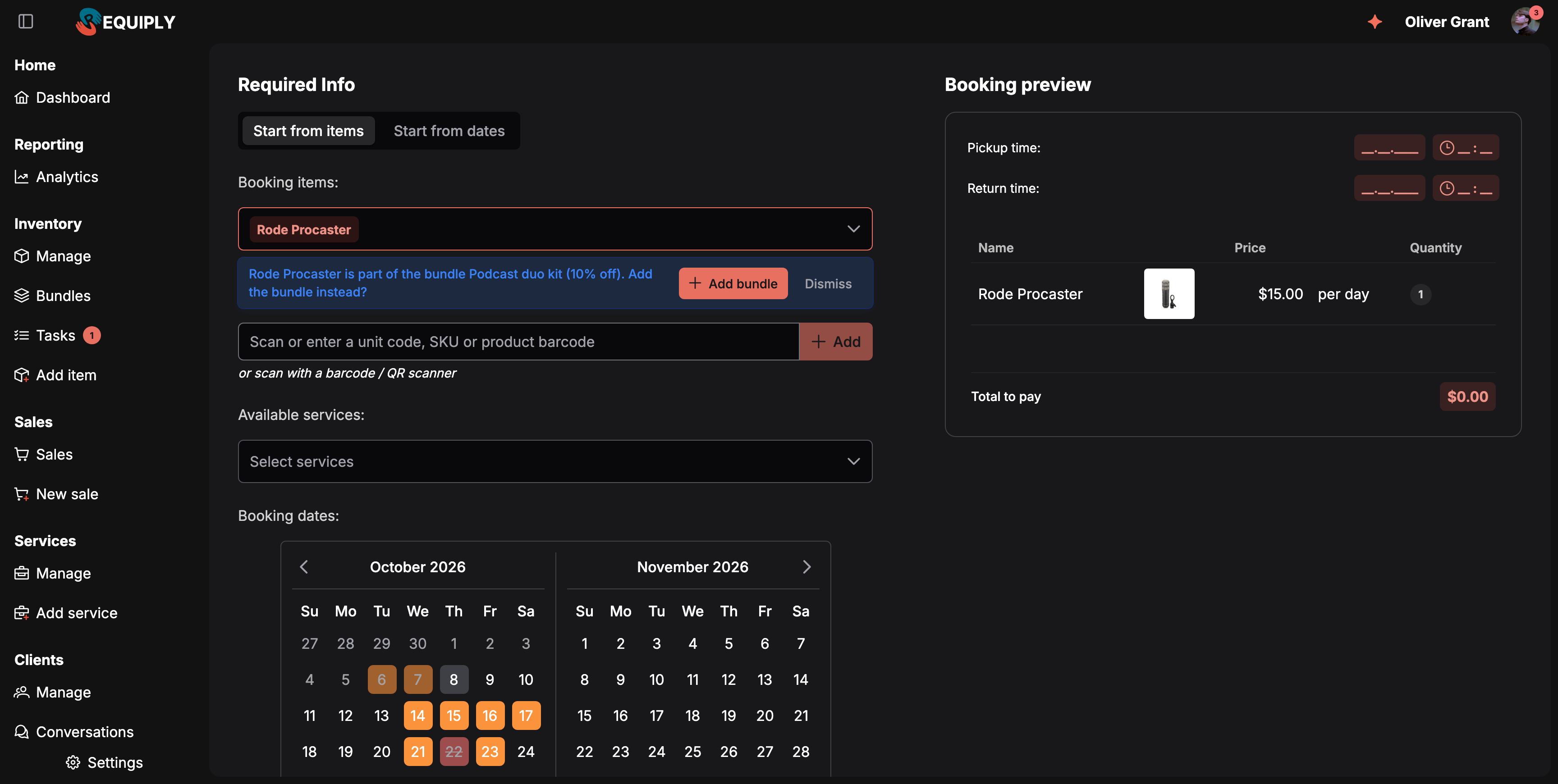
The bundle hint under Booking items.
Add bundle replaces that item line with one set; Dismiss hides the hint. See Bundles.
Adding goods for sale
When Sales is on and you have Allow selling items, the Booking items dropdown also lists your goods for sale, such as memory cards or batteries, with an orange For sale tag, a stock tag (17 in stock, or red Out of stock (0)), and a quantity field. Tick them like rental items.
- Goods do not depend on the dates and never block them. They are priced at their own Sale price, and client discounts and booking cost adjustments do not apply to them.
- The preview's price summary shows them in a Sold items row, inside the total.
- If a product would run out: Not enough in stock: {items}. The booking can still be created.
- On Create booking, the goods are taken off the stock and the booking gets a Sold items row. See Sell items on a booking.
Selecting services
Services come from the organization's services catalog (active services only). For services with a Quote price type, the staff member can override the unit price inline using the number stepper; the step size adapts to the org currency. Services do not affect inventory availability and therefore do not reset the date picker. In Start from dates mode the services dropdown is disabled until both dates are picked.
Adjusting the price or the deposit
Members see an Adjustments: row under the booking dates, above Payment method, when both of these are on:
- the organization feature Enable booking cost adjustments under Settings → Organization → Features, and
- the permission Allow booking cost adjustments in their permission group.
The row has two buttons. Both stay disabled until items and both dates are picked.
- Price opens the Price adjustment dialog: a discount or a surcharge on this booking. Depending on the Adjustment types your organization allows, pick Periods (charge fewer or more days or months, with the presets −¼, −½, and −1), Percentage (presets −5%, −10%, and −15%), or Amount (a flat sum). With a single type there is no picker.
- Deposit opens the Deposit adjustment dialog: lower, raise, or waive the security deposit, with the presets −25%, −50%, and No deposit. It appears once the selected items produce a deposit.
Each dialog has a Reason field (printed on the invoice for the price), and shows the figures as the server prices them: Without adjustment, the adjustment amount, and New total or New deposit. Click Apply to keep the adjustment on the form; the button then shows it, for example −10% on Price or the new deposit on Deposit. Reset in the dialog removes it. Switching between Start from items and Start from dates resets both adjustments.
For how each type is calculated and how to change it later, see Booking cost adjustment and Adjusting the deposit on one booking.
Choosing a payment method
The dropdown always includes Pay on pickup. Additional options (Mono, LiqPay, WayForPay) appear only when:
- A payment integration for that provider is active for the organization, and
- The provider supports the organization's currency.
Provider logos are shown beside the option label and adapt to light/dark mode.
Submitting the booking
The Create booking button is enabled only when:
- At least one item is selected, AND
- Both pickup and return dates are filled, AND
- No pinned unit carries a Booked #N conflict tag, AND
- Every required field under Booking details has a valid value.
Clicking it creates the booking with the selected items and pinned units, services, dates, optional client, organization, pickup delivery type (the page hard-codes pickup, with no in-page delivery toggle), the chosen payment type, and any price or deposit adjustment. If the pickup or return is outside working hours and the member's group allows that, the Outside of working hours confirmation dialog opens first.
On success:
- A success toast shows the new booking's organization-scoped ID.
- The user's bookings are reloaded.
- If this brings the org to 2 or more bookings and the "Create booking" optional setup step is still pending, that step is marked complete.
- If the user came from the Setup Guide (
?from=setupGuide) and the step was just finished, they are returned to the setup guide. Otherwise they are sent to the new booking's detail page.
On failure, an error toast shows the server's message, for example a working-hours or permission refusal, and the form stays open with its values intact.
Forms and fields
| Field | Required | Notes |
|---|---|---|
| Booking items | Yes | Must contain at least one product. Owned quantities are bounded by available stock; enabled supplier-sourced products are elastically available. In Start from dates mode, disabled until both dates are picked. |
| Pinned units | No | Only with unit assignment on creation, entered as a unit barcode or SKU in the Booking items search or by scanning. A pinned unit booked elsewhere for the dates blocks submission. |
| Services | No | Quote-priced services accept an editable unit price; others use the catalog price. |
| Dates (pickup/return) | Yes | Both endpoints required. In Start from items mode the picker is disabled until items are selected. Layout depends on the org's date-picker setting. Times must be inside working hours unless the member's group has Allow booking outside of working hours. |
| Price and Deposit adjustments | No | Only with the booking cost adjustments feature and permission. Charged periods, a percentage, or a flat amount, plus an optional reason. The price reason is printed on the invoice. |
| Payment method | Yes | Defaults to Pay on pickup. Provider options only appear when integrations are active and the currency is supported. |
| Client | No | Selecting a client with a pricing discount applies a percentage discount to the preview total. The server recomputes the total, the preview is informational. A client missing required client fields must be completed first, see Clients missing required details. |
| Booking details | Per field | The booking custom fields marked Required (must be filled in) or Show at creation (optional). The server checks them again when the booking is created and refuses a booking that misses a required one. |
Validation is enforced by the submit-enabled rules above and by the server-side handler when the booking is created.
Settings that control this page
Several organization-level settings change how this page behaves. None of them are configured here — they are configured elsewhere and consumed at render time.
| Setting | Where it's configured | What it changes here |
|---|---|---|
| Date picker type | Booking creation settings | Switches between a separate-pickup-and-return layout and a single-date variant. |
| Start from | Booking creation settings | Which side of the Start from items / Start from dates switch is selected when the page opens. |
| Allow assigning units on creation | Booking creation settings | Together with the permission below, lets a unit code in the Booking items search or a scan pin that exact unit. |
| Allow assigning units on booking creation (permission) | Permission groups, Booking creation section | Needed to pin units by code or scan. On for Administrators by default, off for new groups. |
| Allow booking outside of working hours (permission) | Permission groups, Booking creation section | Opens closed days and whole-day time pills in the picker, with outside-hours pills in orange and a confirmation before creating. On for Administrators by default, off for new groups. |
| Enable booking cost adjustments and Allow booking cost adjustments (permission) | Features and Permission groups | Both together show the Adjustments: row with the Price and Deposit buttons, and the matching preview rows. Adjustment types decides which of Periods, Percentage, and Amount are offered. |
| Unit assignment | Features, under pickup & return checklists | Decides whether the quantity beyond pinned units is assigned when the booking is created or during the pickup checklist. |
| QR codes & barcodes | Features | Lets a handheld scanner add items anywhere on the page, and enables code search in Booking items for everyone who creates bookings. Advanced plan. |
| Booking buffers and minimum duration | Booking buffer settings | Affects what dates are selectable in the picker (start/end buffers, minimum booking duration; default minimum is 1440 minutes / 24 hours). |
| Working schedule and Holidays and Closed Days | Organization → Date & time | Limits the picker to working days and hours and greys out holidays, except for members allowed to book outside working hours. |
| Organization date/time settings | Organization → Date & time | Drives the locale-aware date and time formatting in the preview card. |
| Currency | Organization settings | Controls price-step granularity in the Quote-price stepper and which payment providers appear in the payment method dropdown. |
| Active payment integrations | Integrations → Payments | Determines which provider options (Mono, LiqPay, WayForPay) appear next to Pay on pickup. |
| Pricing discounts assigned to a client | Clients → manage / edit | If a selected client has a discount, the preview shows the discounted total. The server applies it on submit. |
| Pricing tiers on item groups | Inventory → item group | Picked up automatically when calculating per-item totals for the preview and the server-side total. |
| Services catalog | Services | Populates the Available services dropdown. Inactive services are not shown. |
| Required and Show at creation on booking and client fields | Level configurations | Which booking fields appear under Booking details and must be filled in, which client fields the Create client dialog asks for, and whether a picked client must be completed first. |
How this page connects to the rest of Requiply
| Feature | How this page affects it |
|---|---|
| Manage bookings | Newly created bookings appear there immediately. After creating a booking you land on its detail page instead. |
| Calendar | The new booking shows on the calendar against the chosen item(s). |
| Booking creation settings | New bookings start in the Default status for new bookings, New unless you changed it, and may flow through confirmation depending on workflow setup. |
| Inventory availability | The booking decrements available counts of the selected items for the chosen date range. |
| Subrentals | Supplier-sourced catalog selections create snapshotted procurement lines and do not consume owned physical units. |
| Pickup checklists | Units pinned on this page are already assigned, so in Assign units at pickup mode the checklist only asks for the remaining quantity. |
| Booking cost adjustment | An adjustment set here is stored on the booking and used by the invoice, documents, and later date, item, or service changes. |
| Payments / invoices | The chosen payment method drives invoice creation and (for connected providers) hosted checkout link generation on the server. |
| Workflows | The server fires booking-created workflows after insert. |
| Notifications | Organization users with booking management get notified of the new booking. |
| Setup Guide | Reaching two bookings completes the optional "Create booking" step; the page redirects users back to the setup guide when they came from there. |
| Clients | Optional client selection is shown across all booking views; creating a client inline persists it to the clients store and the database. |
Common scenarios
Quick booking with an existing client
Pick the items, set quantity, choose the dates, leave payment as Pay on pickup, select an existing client from the dropdown, and submit. The preview shows the final total (with discount if the client has one) before you commit.
A customer asks what is free next weekend
Switch to Start from dates, pick the pickup and return, then open Booking items: availability is calculated for those dates. Add services and submit as usual.
Walk-in customer with no client record
Pick items, set dates, optionally pick a connected payment provider so a hosted payment link is generated, and submit without a client. The booking is created unattached. To add the client later, open the booking: its summary card shows a client search field with + (Create client) in place of the client details. Picking a client assigns it right away.
Walk-in customer who needs a client record first
Click Create client next to the client dropdown, fill out the dialog, save. The new client is selected automatically and a success toast confirms the addition. Continue with the rest of the form.
Handing over a specific unit on the spot
With unit assignment on creation allowed, scan the unit's label (or type its code into the Booking items search) before picking dates. The product is added with quantity 1 and the unit is pinned. Pick the dates and click Create booking: the unit is assigned to the booking immediately.
Pickup after closing time
If your group has Allow booking outside of working hours, pick the orange pill for the late pickup (or a closed day), click Create booking, and confirm in the Outside of working hours dialog.
Weekend rental picked up on Friday evening
With booking cost adjustments available, click Price under Adjustments:, pick Periods, click −½, enter a reason such as Early pickup Friday evening, click Apply, and check the new total in the preview before creating.
Quote-priced service
When a service is configured with the Quote price type, edit the unit price directly in the service option before adding it. This is the only place in the booking form where a service price can be changed at booking time.
Every booking must record the event name
An admin marks Event name and Event type as Required on the Booking tab of Level configurations. Staff now see both under Booking details with an asterisk, and Create booking stays disabled until they are filled in, on the web and in the mobile app.
Recovering from a payment provider outage
If a payment provider is not connected or does not support the org's currency, only Pay on pickup appears. Configure the provider under Integrations → Payments to expose more options here.
Tips and cautions
Calendar
See every rental on a month, week, or day timeline, spot free and busy periods at a glance, filter by client or equipment, and open a booking from the calendar.
Booking dates
Pick the pickup and the return on the Add booking calendar: availability colors, selecting a range in either direction, and booking outside working hours with the matching permission.