

Portal settings
Portal settings is the one screen that controls how your client portal looks, which methods customers can use to pay and to sign in, and whether they can cancel a booking themselves. Everything else the portal shows comes from your inventory, pricing, and organization settings.
This is where you change the look, design, and appearance of your booking website: its brand color, the corner style of its buttons and cards, the logos shown in light and dark mode, and the icon in the browser tab. It is the page to open whenever you want the portal to match your branding. You cannot change the portal's layout or write your own HTML and CSS; the page structure is fixed, and these settings restyle it.
You can find it under Booking Page → Edit website in the main navigation (/web/edit). The menu entry only appears for members whose permission group has Allow website management.
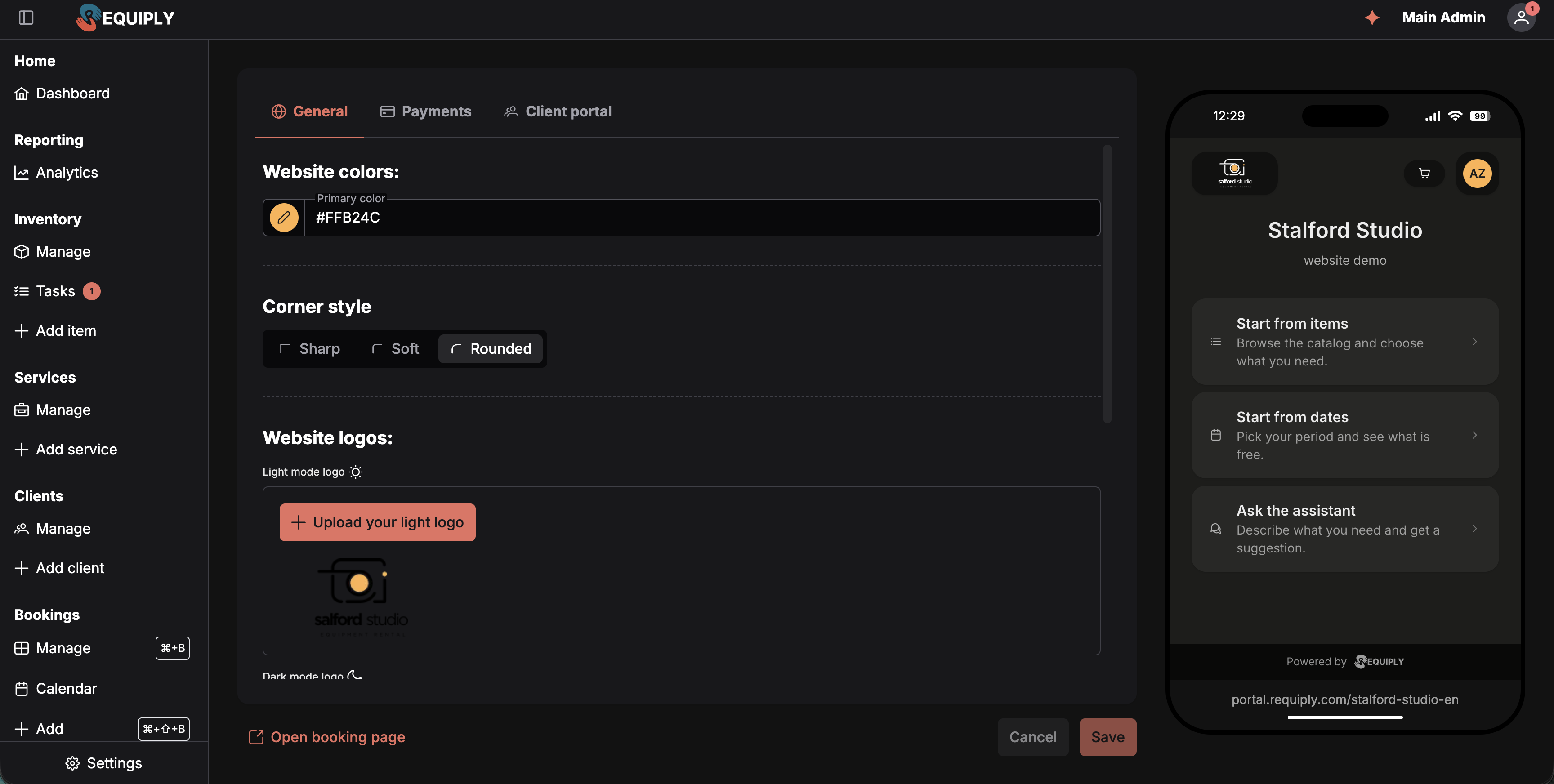
The editor on the left, the live portal on the right. The phone frame is the real portal, and the address under it is the one to share with customers. This organization has the AI chat switched on, so the entry page offers Ask the assistant as a third card.
What you'll see
The screen is split in two.
Left: the editor card with three tabs across the top, each with its own icon: General, Payments, and Client portal. Sections inside a tab are stacked one under another and separated by dashed dividers, and the card scrolls, so the lower sections of the General tab need a scroll to reach. The open tab is kept in the address as ?tab=general, ?tab=payments, or ?tab=portal, so a specific tab can be bookmarked or shared.
Right: a phone preview of your portal inside an iPhone-style frame, complete with a status bar. Your public address is printed under the frame, for example portal.requiply.com/yourcode. It loads your portal with ?preview=1 and repaints as you edit.
Under the editor sits the action row:
- Open booking page on the left, which opens the live portal in a new tab.
- A Cancel button and a Save button on the right, with an amber Unsaved changes note appearing beside them the moment something differs from what is stored. Until then both buttons are disabled, so you cannot save a no-op.
General tab
Website colors
One field, Primary color: a colored swatch button that opens the picker, next to a field holding the hex value (for example #FFB24C). You can drag the picker or type the hex straight in.
This is the accent color of the whole portal: buttons, links, selected dates, price highlights. The portal derives a full palette from it and picks readable text automatically, so a dark brand color keeps its buttons legible.
Corner style
A segmented control with three options. Each carries a small corner glyph that previews the radius it applies, so you can tell them apart without saving.
| Option | Look |
|---|---|
| Sharp | Square corners throughout, and a full-width header bar with a bottom border instead of the floating one. Suits technical and industrial brands. |
| Soft | Lightly rounded cards, controls, and chips. |
| Rounded | Generously rounded cards and controls, with pill-shaped chips and status tags. This is the default. |
The style applies to everything the portal draws: panels and sections, buttons and inputs, chips and status pills, and image frames.
Website logos
- Light mode logo (sun icon) and Dark mode logo (moon icon): shown in the portal header, each in its own color mode. Each has an upload button and shows the logo currently in use underneath it. Raster files open a crop dialog so you can frame them; SVG files are used as they are. Cancelling the crop restores the previous logo.
- Browser tab icon: the square icon shown in the browser tab, on bookmarks, and on a phone home screen. Beside the upload sits a small mockup of a browser tab with your organization name, so you can see the icon at real size. Without an icon of your own, the portal shows the Requiply icon.
Chat
The Chat with visitors switch adds a chat to the portal: a card on the entry page and a chat page where customers can ask about availability, prices, and pickup rules.
- AI assistant answers first (Advanced plan) lets the booking assistant answer, start bookings, and hand the conversation to your team when asked. The card then reads Ask the assistant. Answers consume AI credits.
- With the assistant off, or on the Core plan, visitors chat with your team directly: the card reads Chat with the team and their messages land in Conversations, where your team answers from the web app and the mobile app. This needs the Conversations inbox to be on.
- With the inbox off, the chat is the AI assistant only, so the switch needs the Advanced plan and shows a crown on Core.
- Switching the chat on prepares a chat key for your organization, which takes a moment and confirms with Chat key created. If that fails the switch goes back off and a message explains it.
The AI assistant answers first switch is shared with the AI web widget page.
Payments tab
Controls which payment methods appear at checkout. Each method is its own section with an Enabled switch.
- Pay in person: no integration needed. Customers pay your team when they collect the items. The portal calls this Pay on pickup at checkout.
- One section per online provider (Plata by mono, LiqPay, WayForPay), each with the provider's logo and its connection status next to the switch.
The status next to an online provider tells you whether it is ready:
| Status | Meaning |
|---|---|
| A green Setup successful | The provider is connected, so the switch can be turned on. |
| A Go to setup link | The provider is not connected. The link opens Integrations → Payments, and the switch stays off until you connect it there. |
A provider's switch is also held off when your organization currency is not one that provider supports, even after it is connected.
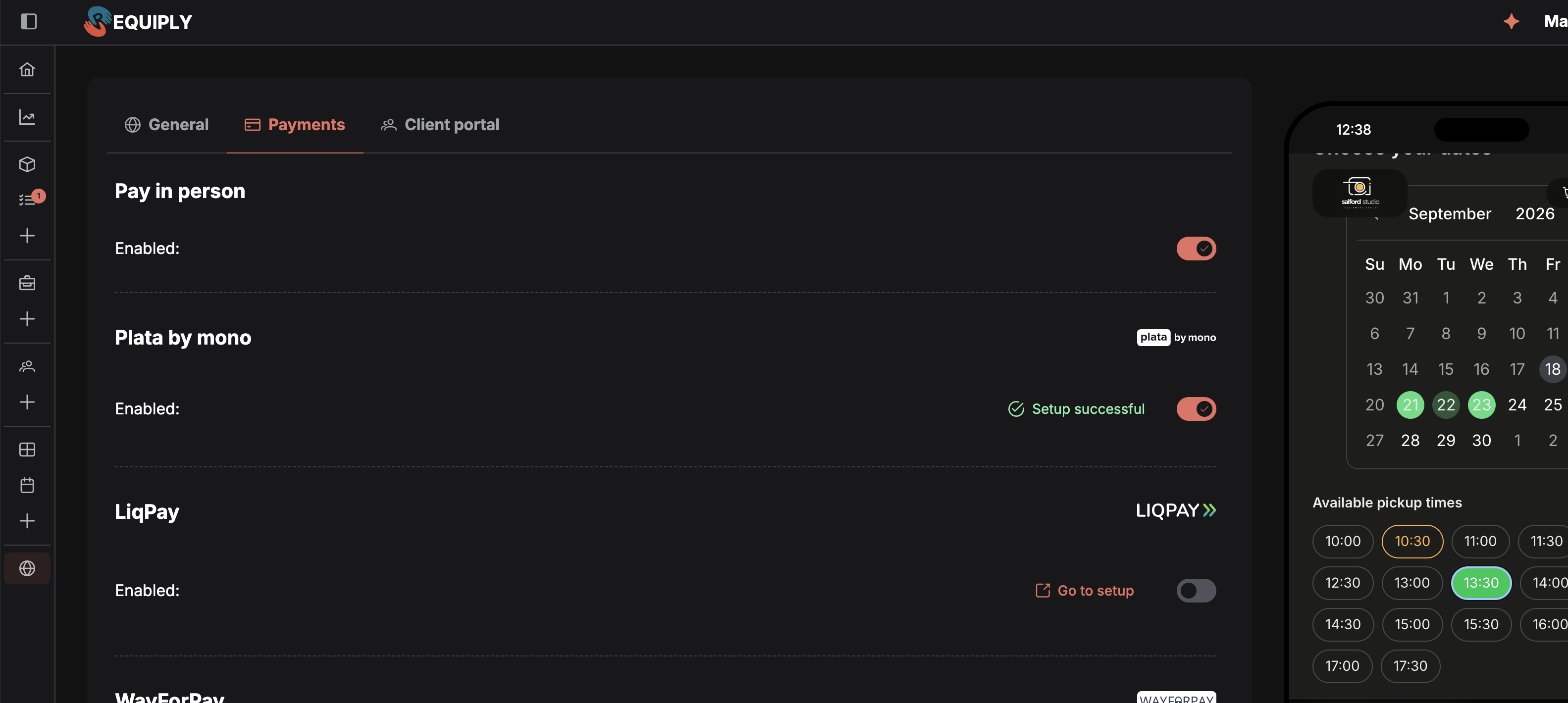
Plata by mono is connected, so its switch is live and customers can pay with it. LiqPay is not, so the only thing offered is a link to connect it first.
Client portal tab
This tab starts with the Portal address, then holds four sections: Sign-in methods, Actions, Cancellation, and Checkout services. Open it directly with /web/edit?tab=portal.
Portal address
The address customers open your portal at, as a link: portal.requiply.com/<your code>, or your own domain once one is live. Where customers open your client portal. Admins see Use your own domain (or Manage domains when a domain is connected), which opens Domains. On the Core plan a crown next to the label offers Upgrade to use your own domain.
Sign-in methods
Both methods are one-time codes, so no customer ever sets a password, and neither needs anything connected.
| Method | State |
|---|---|
| Email code (envelope icon) | Always on, marked with a grey Always on tag. Clients receive a one-time code by email to sign in to the portal. Its switch is on and cannot be moved. |
| SMS code (phone icon) | Optional, Advanced plan. Clients can also sign in with a one-time code sent by SMS. Turning it on adds a Phone number option on the portal sign-in page and a phone confirmation step at registration. On the Core plan the switch is disabled and a crown offers Upgrade to enable SMS sign-in. |
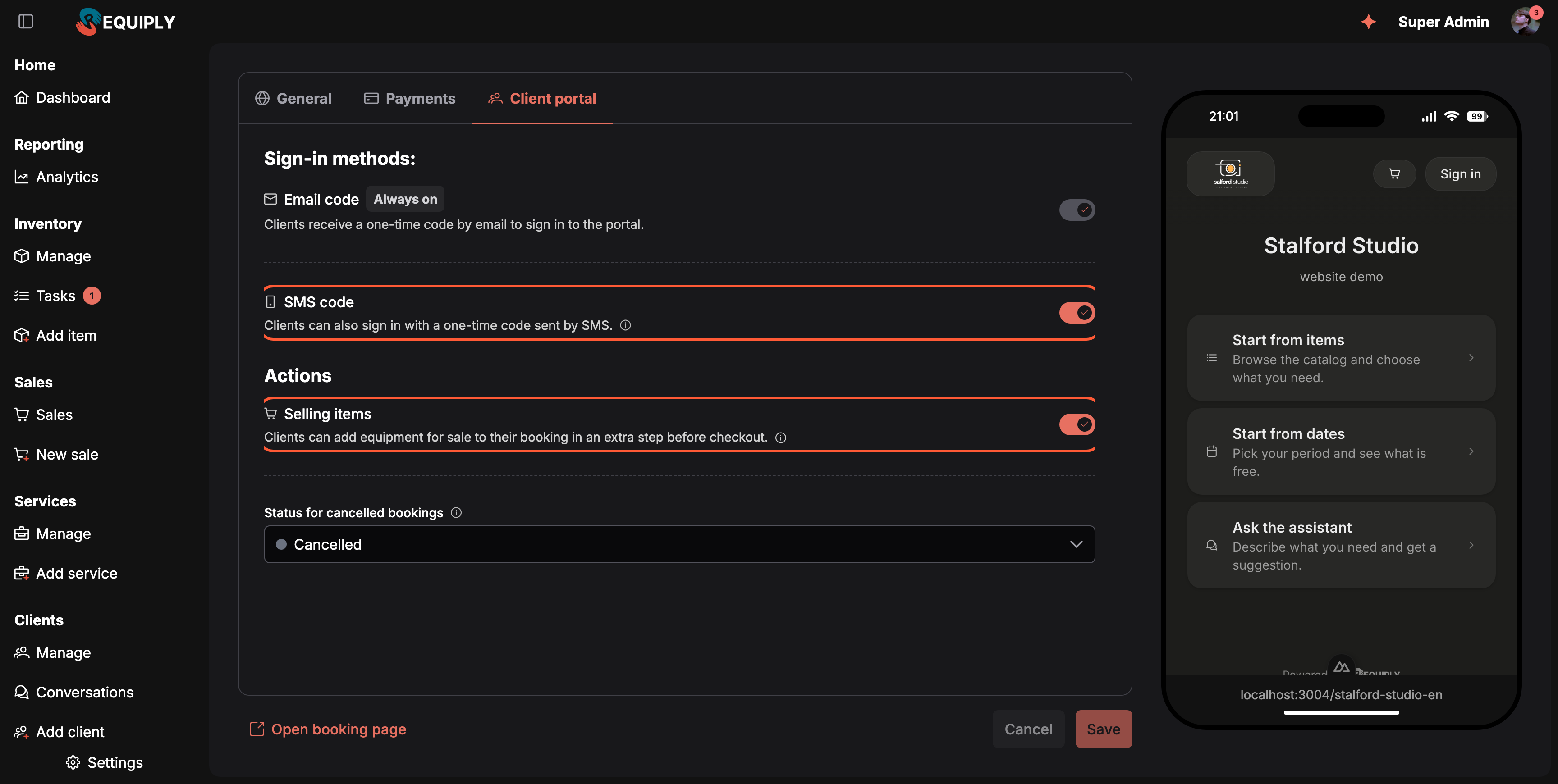
SMS sign-in and selling items, both switched on, with the cancellation status underneath.
Email codes stay available on every plan. SMS codes are sent from Requiply's own SMS provider; there is nothing to connect.
Actions
| Setting | What it does |
|---|---|
| Selling items | Clients can add equipment for sale to their booking in an extra step before checkout. Adds the Items to buy step. Only products of the Equipment for sale type are shown, out-of-stock ones greyed out, and the portal skips the step when nothing is left for sale. |
Selling items needs the Advanced plan and the Sales feature. The switch explains what is missing:
- On Core, a crown offers Upgrade to sell items in the client portal.
- With Sales off, Turn on Sales in Settings > Features to use this. with an Open features link.
- With no active product for sale, Add at least one item for sale to turn this on. with an Add item link.
- When it is on but every product is out of stock, All items for sale are out of stock. Clients see them greyed out.
The switch can always be turned off.
Bundles are not switched on here: the portal offers them when the Bundles feature has External recommendations on. See Bundles.
Cancellation
Clients can cancel their own upcoming bookings in the client portal. The booking moves to the status you pick here.
One field, Status for cancelled bookings, a dropdown with:
| Option | What customers get |
|---|---|
| Clients cannot cancel | No Cancel button anywhere in the portal. A booking page says Cancellation from the portal is not available for this organization. Please contact {your organization}. |
| One entry per status with the Cancelled lifecycle | A Cancel button on bookings that can still be cancelled. Confirming it moves the booking to the status picked here. |
Only statuses whose lifecycle is Cancelled are offered, because a client's cancellation must void the booking. Every organization starts with its Cancelled status selected. If you set up several cancellation statuses under Booking statuses, for example Cancelled by us and Cancelled by client, pick the one that should record a client's own cancellation.
Picking a status here does not make every booking cancellable. A customer can cancel only when the booking has not reached its pickup time, the goods have not been handed out, and your status flow allows a move from the booking's current status to the status picked here. See Cancelling online for every rule and the message the customer sees.
Checkout services
Customers can switch these services on at checkout, on the booking page and in the cart on your website. For example, carrying equipment to a taxi.
This is how you let customers add services at checkout: delivery, setup on site, carrying equipment to a car, insurance, cleaning. Pick the services from your service list in the Choose services field. The order you pick them in is the order customers see them in. Each option shows the price customers will pay, or No default price.
Customers then see an Additional services card at checkout, with one switch per service and its price:
- Services priced per day or per hour are charged for the length of the booking, like on a booking your team creates.
- Services with the Quote price type are charged their Default price once per booking. Set it on the service, see Add a service. A quote service without a default price is shown as Price on request and added at no charge, so your team can price it on the booking afterwards. The editor warns about it: Customers see services without a default price as "Price on request" and add them at no charge: {names}. Set a default price on the service page.
- The client's personal discount applies to a checkout service unless the service has Exclude from discounts on. Services are never part of the security deposit.
- The switched-on services are listed in the booking's price summary at checkout, on the booking in Requiply, and on the customer's booking page.
The same services appear as switches in the booking cart of the website embed, and what a customer switches on there is carried into checkout.
When you have no services yet, the field reads You have no services yet. with an Add a service link. Archived services drop out of checkout by themselves. If a customer has a service switched on that you stop offering while they check out, checkout asks them to refresh: One of the services is no longer offered. Refresh the page and try again.
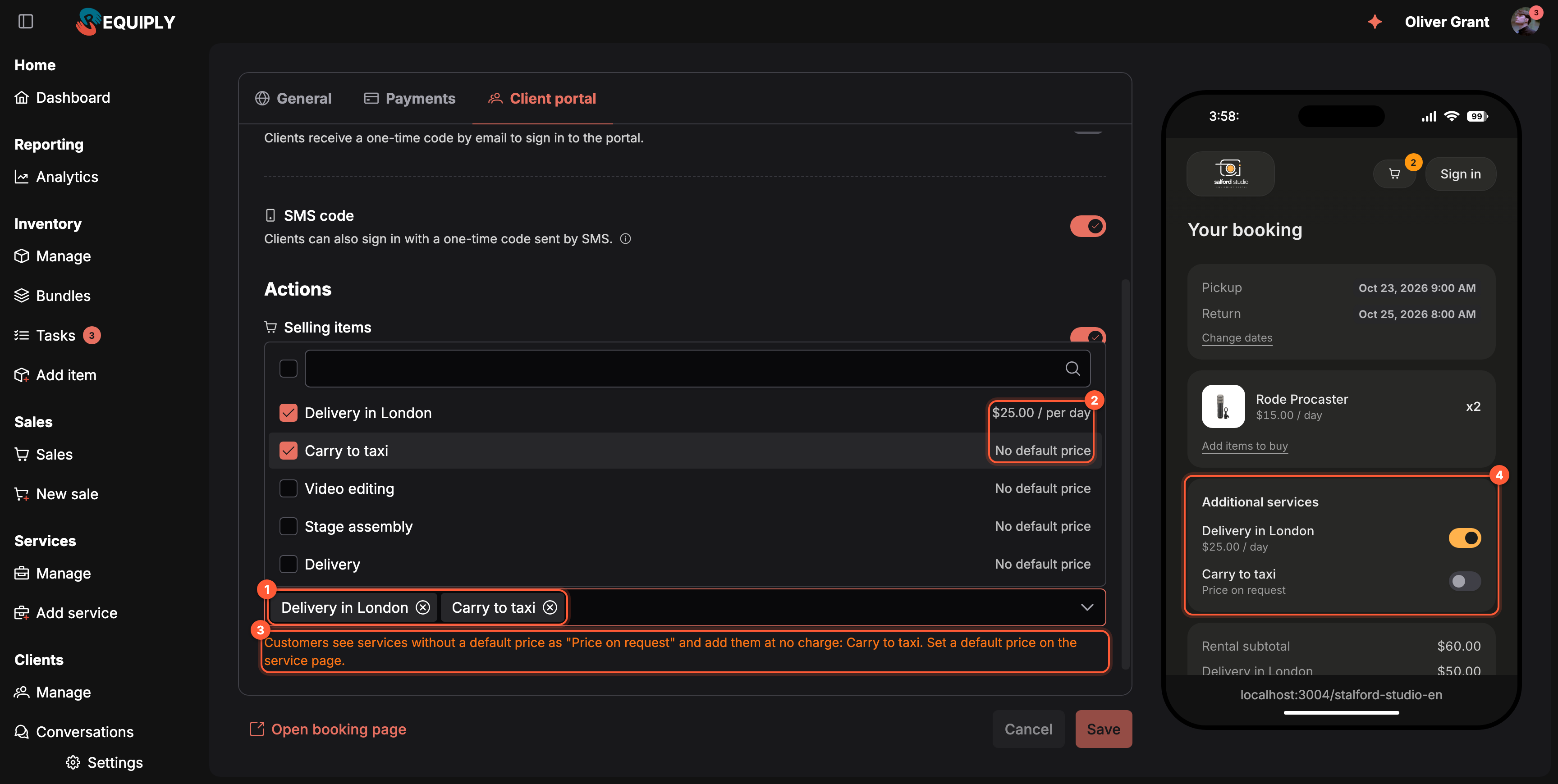
Pick the services in the order customers should see them (1); each shows its price (2), and services without a default price are flagged (3). At checkout customers switch them on in the Additional services card (4).
The live preview
The preview is not a mockup. It is your portal, loaded from portal.requiply.com in an iframe, with the settings you are editing pushed into it as you type. That means:
- Color, corner style, logos, and the assistant switch repaint immediately, without a reload and without writing anything to the database.
- A logo you have picked but not saved yet is shown in the preview too.
- You can click through the whole booking flow inside the frame. Links stay inside the preview.
- Confirming a booking is switched off in the preview and replaced with a note, so testing never creates a real booking.
- The preview's cart is never remembered, so it cannot leak into a real visit from the same browser.
Main actions
Save
Save uploads any newly picked logos and tab icon, then stores the color, corner style, image addresses, the AI chat switch, the sign-in setting, the cancellation status, the checkout services, and every payment toggle together. On success a toast confirms All changes saved and the unsaved note disappears. If it fails, nothing is stored and your edits stay on screen so you can retry.
Cancel
Cancel throws away every unsaved edit and puts the editor back to the last saved state, including pending logo uploads. It does not navigate away.
Leaving with unsaved changes
Navigating away while the unsaved note is showing opens Leave without saving?, explaining that your booking page changes have not been saved yet. Keep editing stays on the screen, Leave and discard drops the changes and continues.
Forms and fields
| Field | Type | Notes |
|---|---|---|
| Primary color | Hex value with a picker | Accent color of the whole portal. |
| Corner style | Sharp / Soft / Rounded | Default is Rounded. |
| Light mode logo | Image upload | Optional. Raster files are cropped, SVG is used as is. |
| Dark mode logo | Image upload | Optional. Same behavior as the light logo. |
| Browser tab icon | Square image upload | Optional. At least 64 px per side, ideally 256 px or more. |
| AI chat bot | Switch | Advanced plan. Uses AI credits. |
| Pay in person | Switch | No integration needed. Shown to customers as Pay on pickup. |
| Online provider | Switch per provider | Needs a connected integration (Setup successful) and a supported currency. |
| Email code | Fixed | Always on, cannot be switched off. |
| SMS code | Switch | Advanced plan. |
| Selling items | Switch | Advanced plan, Sales feature, at least one active product for sale. |
| Status for cancelled bookings | Dropdown | Clients cannot cancel, or one of your statuses with the Cancelled lifecycle. |
| Checkout services | Multi-select | Optional. Active services customers can switch on at checkout, in the order picked. |
How this page connects to the rest of Requiply
| Feature | How this page affects it |
|---|---|
| Booking flow | Color, corner style, and logos brand every step. Payment toggles decide what a customer can pick at checkout. |
| Customer accounts | The sign-in methods offered on the portal's sign-in page, and whether customers can cancel online, come from the Client portal tab. |
| Booking statuses | The cancellation dropdown lists your statuses with the Cancelled lifecycle, and your transitions decide which bookings can move to it. |
| Booking assistant | The AI chat switch is what makes the assistant appear for customers. |
| Payments | This page reflects integration status, it does not connect providers. Connect them there first. |
| Services | Checkout services come from your service list, priced by their price type or Default price. |
| Website embed | The brand color and corner style also style the booking buttons, date picker and cart on your own website, and checkout services appear in its cart. |
| Domains | The Portal address shows your own domain once it is live. |
| Organization info | The web URL code in your portal address, the organization name in the tab mockup, and the fallback logos come from there. |
| AI usage | Assistant answers draw on the organization's AI credit balance. |
| Permission groups | Allow website management decides who sees this screen at all. |
Common scenarios
Branding the portal before launch
- Set the primary color to your brand color and pick the corner style that suits it.
- Upload both logos, so the header looks right in light and dark mode.
- Upload a square tab icon and check the tab mockup beside it.
- Watch the preview, then click Save and open the live portal to confirm.
Adding an online payment provider mid-season
- Connect the provider under Integrations → Payments.
- Come back to Payments here. The setup indicator next to the provider now reports it as connected.
- Switch it on and click Save. The next checkout offers it.
The provider switch will not turn on
Either the provider is not connected, or your organization currency is not one it supports. Check the setup indicator first, then the organization currency under Organization info.
Stopping customers from cancelling online
Open the Client portal tab (/web/edit?tab=portal), set Status for cancelled bookings to Clients cannot cancel, and click Save. The Cancel buttons disappear from the portal, and customers are asked to contact you instead.
Recording client cancellations separately
Add a status such as Cancelled by client under Booking statuses with lifecycle Cancelled, and allow transitions into it from every status a customer may cancel from, for example Request, New, Confirmed, and Ready for pickup. Then pick it under Status for cancelled bookings here and click Save. Cancellations your team makes keep using your other cancelled status, so the two are easy to tell apart in filters and workflows.
Offering delivery at checkout
- Create a service such as Delivery in the city under Services. Use a per-day price if delivery is charged for the whole rental, or the Quote price type with a Default price for a flat fee.
- Open the Client portal tab (
/web/edit?tab=portal), pick it under Checkout services, and click Save. - Walk through checkout in the preview: the Additional services card offers the switch, and the total changes when you turn it on.
Undoing an experiment
Use Cancel rather than reloading the page. It restores the last saved state in one click, pending uploads included.
Tips and cautions
portal.requiply.com/<your code>.Client portal
The customer-facing site of your rental business: self-service booking, one-time-code sign in, an account where clients follow and cancel their bookings, booking buttons on your own website, and pages that Google and other search engines can find.
Booking flow
What a customer goes through on your client portal: the entry page, dates and items, the item page, bundles offered as a set, the optional step for buying items, checkout with the deposit and total to pay, and the confirmation screen.