

Accounts
The Accounts page is where you manage the team members who can log in and work inside your Requiply organization. Each account represents one person with their own login, and each account belongs to exactly one permission group that decides what they can see and do.
You can find this page under Settings → Organization → Accounts, or open it directly at app.requiply.com/settings/org/accounts/.
The two tabs
The page has two tabs, and they answer two different questions.
| Tab | Answers |
|---|---|
| Accounts | Who can sign in to this organization. |
| Account groups | What each of those people is allowed to do. |
Permissions are not set on a person. They are set on a group, and the person inherits them by being in it. Change a group and every member of it changes with it. See Permission groups.
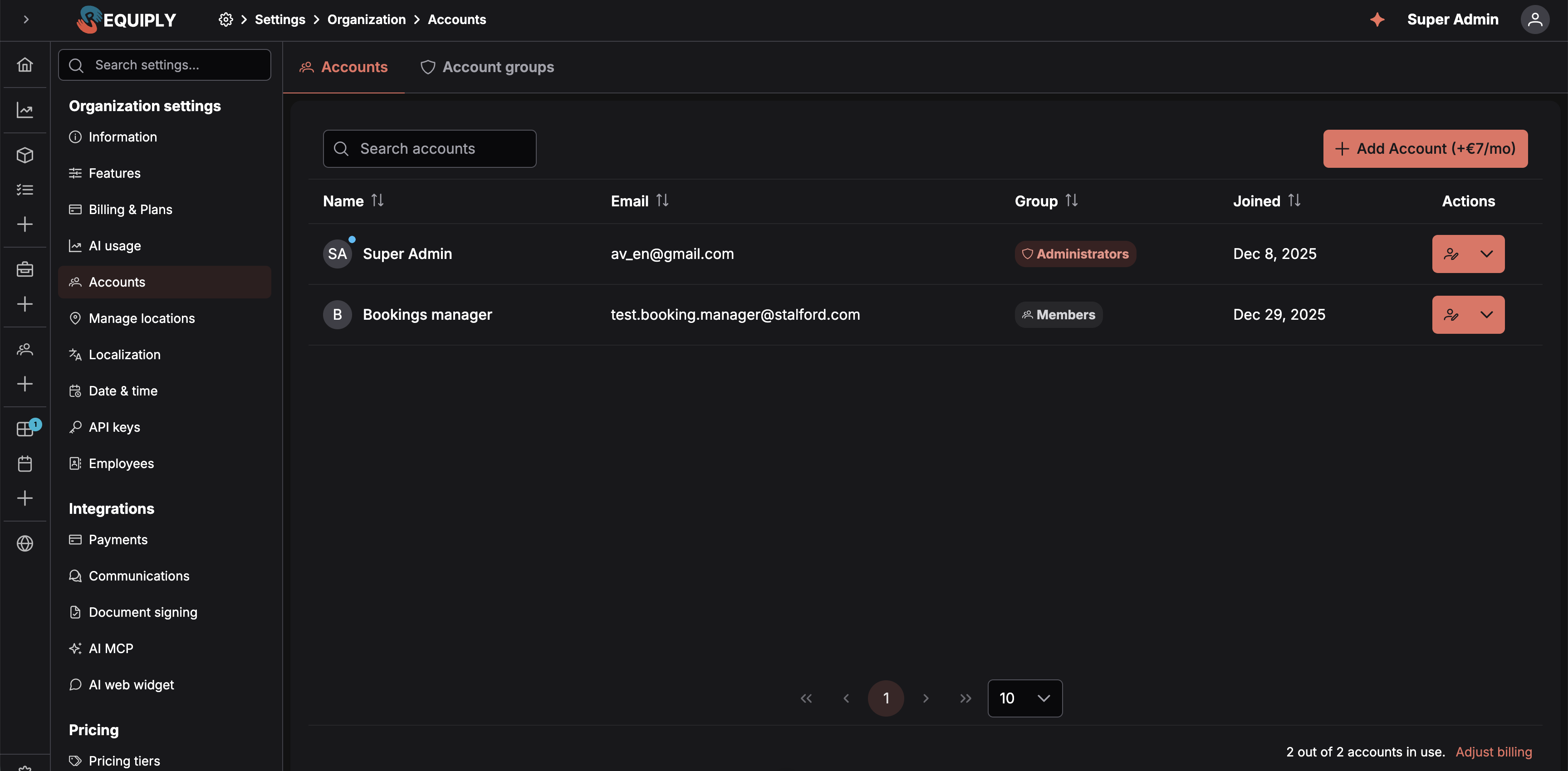
The Accounts tab. The Group column carries a shield icon for the Administrators group and a users icon for every other group.
The Accounts tab
A searchable, sortable, paginated table with one row per account.
| Column | What it shows |
|---|---|
| Name | Avatar and full name. A dot on the avatar marks your own account. An account that has not accepted its invitation yet shows its email in place of the name, plus an Invitation pending tag. |
| The address used to sign in and to receive notifications. | |
| Group | The permission group the account belongs to, as a tag. |
| Joined | When the person accepted their invitation. |
| Actions | Per-row menu: edit the account, resend or copy the invitation while it is pending, or delete the account. |
The search box filters across name, email, and group name at once. The footer summarizes how many of your purchased account slots are in use, with an Adjust billing link that opens Choose your plan on Billing & plans.
Inviting a team member
Click Add Account. What happens next depends on how many account slots your plan has free.
You have a free slot
The Invite a team member dialog opens. We'll email an invitation link. The person sets their own password, name and photo when they accept.
| Field | Notes |
|---|---|
| Required. The address the invitation is sent to and that the person will sign in with. It must not already belong to a Requiply account. | |
| Permission group | Required. The group the person joins, and therefore the permissions they get. The dialog defaults to the first non-administrator group. |
Under the group selector, a summary of that group's permissions is shown, so you can see what you are granting before you send anything. A Manage account groups link jumps to the Groups tab if none of the existing groups fit.
Send invitation creates the account, reserves its slot, and emails the person an invitation from Requiply, written in your organization's language, with an Accept invitation button. The dialog then confirms Invitation sent and also shows the invitation link with a copy button, in case you prefer to send it yourself over chat.
If the email could not be delivered, the dialog reads Invitation created instead and asks you to share the link directly. The account exists either way.
Possible errors:
- An account with this email already exists.
- Invalid email address.
- All accounts included in your plan are in use. Adjust billing to add more.
What the invited person sees
The link opens Set up your account with the note "You've been invited to join {organization} on Requiply". The person enters their first and last name, chooses a password (at least 8 characters, entered twice), optionally uploads an avatar, and clicks Finish setup to land in the app with the permissions of the group you picked.
Until setup is finished, the invitation stays pending and any attempt to open the app with that account is redirected to the setup page. An expired or already-used link shows "This invitation link is invalid or has expired. Ask your organization admin to send you a new invitation."
Pending invitations
While an invitation is pending, its row carries the Invitation pending tag and its actions menu gains two extra entries:
- Copy link generates a fresh invitation link and copies it to the clipboard.
- Resend invite generates a fresh link and emails it again.
A pending account can already be edited to change its group. The name fields are replaced by a note that the person will set their own name when they accept.
You've used all your slots
The button shows the price for one additional account (for example, Add Account (+€7/mo)). Clicking it opens Choose your plan, the same page as Adjust billing:
- Raise Accounts on your current plan card.
- Click Change plan and confirm in the Confirm plan change dialog.
- Paddle charges the prorated amount for the rest of the current billing period immediately, and the new slot is available right away.
Return to Accounts and invite the person. The full flow, including what the dialog shows, is described under Billing & plans.
You've reached your tier's maximum
Once you hit the account cap of your tier, adding accounts means moving to a bigger plan. Click Adjust billing, choose a plan that allows more accounts, and confirm. See the public pricing overview for what each tier includes.
| Tier | Included | Maximum |
|---|---|---|
| Core | 1 account | up to 2 accounts |
| Advanced | 1 account | up to 10 accounts |
| Scale | 1 account | no cap, available through Book a demo |
Editing an account
Open the row's actions menu and pick Edit to open the Edit account page, where you change the person's name and the group they belong to.
Deleting an account
Delete in the row's actions menu removes the account from the organization. You cannot delete your own account, and the organization must always keep at least one member of the Administrators group, so the last administrator cannot be removed or moved to another group.
Removing an account immediately frees its slot, so you can reuse it for a new team member without an extra charge.
Account usage and billing
The footer of the Accounts tab summarizes your usage:
"2 out of 2 accounts in use. Adjust billing"
- Accounts in use: how many people currently belong to your organization, pending invitations included.
- Total accounts: the maximum allowed by your plan plus any additional slots you have purchased.
When a reduction of accounts is scheduled for the next renewal, the footer also reads From {date} the limit is {maxAccounts} accounts.
Passwords and sign-in
- Invited people choose their own password during setup. Administrators never see or set it.
- Anyone who forgets their password uses Forgot password? on the web login page or in the mobile app. Requiply emails a reset link, in the language of the screen they asked from, that works on any device, once, for an hour. It opens Set a new password; after Update password the page says Password updated and Continue to Requiply opens the app. See Signing in and resetting your password.
Common scenarios
Inviting a new team member
- Go to Settings → Organization → Accounts (add an account slot through Adjust billing first if none are free).
- Click Add Account, enter the email, and pick the permission group.
- Check the permission summary under the selector, then click Send invitation.
- The person accepts from the email, or from the link you copied, and sets their own name and password.
The invitation email never arrived
Open the pending row's actions menu and click Resend invite, or Copy link and send it over chat. Only the most recently generated link works.
Swapping a team member
- Delete the leaving member's account.
- Click Add Account to invite the replacement. The freed slot is reused, so you avoid an extra charge.
Giving one person more access than the rest
Do not look for per-person toggles: there are none. Either move the person to a group that already has the access they need, or create a new group for that shape of access under Permission groups and move them into it.
Tips and cautions
Features
Turn optional Requiply functionality on or off for the whole organization: subrentals, QR codes and barcodes, pickup and return checklists, booking cost adjustments, sales of goods, the Conversations inbox (Beta), and bundles (kits, sets) with their recommendations.
Permission groups
Build sets of permissions once and assign people to them, instead of ticking the same toggles for every new hire.