

Import inventory
The Inventory Import page is where you bulk-add equipment and services to your Requiply organization by uploading a spreadsheet. It is used to onboard an existing catalog quickly instead of creating each item one at a time, and it feeds directly into the inventory list that powers bookings, pricing, and the client portal catalog.
You can find this page under Inventory → Import.
You must be signed in to use this page. Imported items are added to the organization you are currently signed into.
Why this page matters
Most businesses already have their catalog in a spreadsheet, an old system export, or a list provided by a vendor. Re-typing every item in the Add Item form is slow and error-prone. The Import page lets an admin bring in the entire catalog in one pass.
Items created here behave exactly like items added manually, so they immediately become available to:
- Bookings and the client portal catalog
- Pricing tiers and discounts
- Inventory categories and management
- Setup checklist progress (the Add Items optional setup step is auto-completed once at least two item groups exist)
Who can use this page
The page is gated by the standard auth middleware, so any authenticated user with access to the organization can open it. Imported items are created against the currently active organization (orgStore.id), so make sure the right organization is selected before importing.
There are no per-row plan-limit or billing prompts on this screen. Standard inventory limits from the organization's plan still apply on the server side when items are created.
What you'll see
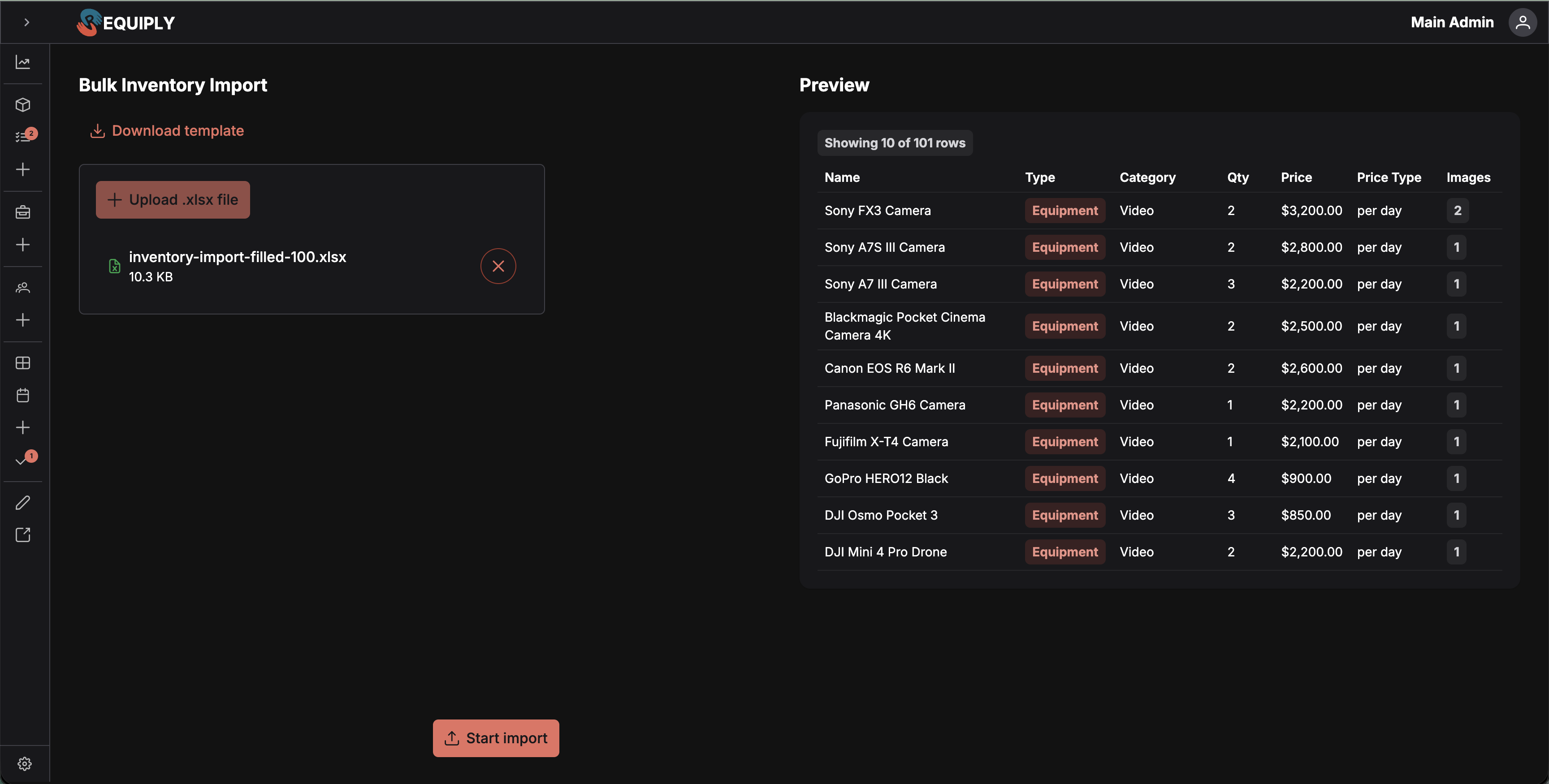
The page is split into two columns.
Left column — Import controls
- A page title: Import inventory.
- A Download template link that opens the template dialog.
- A file upload area that accepts a single
.xlsxor.xlsfile up to 5 MB. - A list of validation errors, shown as red messages, when the file has problems.
- A primary Start import button at the bottom that opens the confirmation dialog. It stays disabled until at least one valid row has been parsed.
Right column — Preview
- A Preview heading.
- When a file is loaded, a card showing the first 10 rows of the parsed file in a small data table, with a tag that reads "Showing X of Y" so you know how many rows the full file has.
- Columns: Name, Type (equipment or service, shown as a colored tag), Category (a subcategory path shows as Power Tools › Drills), Description (the first two lines, the full text on hover), Quantity, Price, Price type, and Images (a count badge if image URLs were provided).
- When no file is loaded, an empty state with a table icon and the message that a preview will appear here once a file is uploaded.
Empty state
Before any file is selected:
- The upload area shows an Excel icon and a prompt to choose a file.
- The preview area shows a faint table icon with the message that the preview will appear once a file has been uploaded.
- The Start import button is disabled.
There is no list of "previously imported files" — each visit starts fresh.
Main actions
Downloading the template
Click Download template to open the Inventory import template dialog. The dialog explains:
- The file includes an example row to copy from.
- A reference sheet inside the workbook documents the accepted values.
- An AI hint is provided to help generate rows.
Click Download to save the template to your computer. A progress bar animates while the file is being prepared. On success, a success toast appears and the file is saved as inventory-import-template.xlsx (or whatever filename the server returns). If the download fails, an error toast is shown and the dialog stays open so you can retry.
Uploading a file
Click Choose in the upload area and pick an .xlsx or .xls file up to 5 MB. Only one file can be uploaded at a time — once a file is attached, the Choose button is disabled until the file is removed.
As soon as the file is selected, Requiply parses it locally in the browser:
- It reads the first sheet only.
- It expects the first row to be a header row (row 1) and counts data rows starting from row 2.
- It validates each row and lists any errors with their row number.
- Valid rows appear in the preview on the right.
To replace the file, click the trash button next to the file name. This clears the file, the preview, the validation errors, and any progress.
Starting an import
Click Start import. A confirmation dialog opens that shows how many items will be imported and a hint that explains the operation cannot be undone.
Click Start import inside the dialog to begin. While the import runs:
- The dialog cannot be closed (close button, escape key, and click-outside are all disabled).
- A progress bar with a percentage updates after each batch finishes.
- The cancel button is disabled.
Items are sent to the server in batches: the first three batches contain 10, 15, and 25 rows so you see results quickly, then all remaining rows are sent in batches of 50. If a batch fails, every row in that batch is counted as failed and the import continues with the next batch.
When the run finishes:
- If at least one item was created, a success toast (or warning toast if some rows failed) summarizes the results, the inventory data is refreshed, the Add Items setup step is marked complete if you now have two or more item groups, and you are redirected to Inventory → Manage.
- If every row failed, an error toast is shown and you stay on the Import page so you can fix and retry.
Removing or replacing the file
Use the small red trash button beside the uploaded file to clear everything and start over with a different file. There is no separate "edit" flow — to change a row, fix it in the spreadsheet and re-upload.
Forms and fields
The spreadsheet must use these column headers (case-sensitive). Each row becomes one item.
| Column | Required | Notes |
|---|---|---|
name | Yes | Item name. Whitespace is trimmed. Empty names are rejected. |
type | Yes | Must be a valid item type (for example equipment or service). The value is lower-cased before checking. |
category | No | Optional category name. Use > for a subcategory: Power Tools > Drills puts the item in Drills under Power Tools. If empty, the item is imported without a category. |
description | No | The product description, up to 10,000 characters. It is shown on the booking page and synced to your website. See Product descriptions. |
quantity | Yes | Whole number, 1 or more. Decimals and zero are rejected. |
price | Yes | Number, at least 0.01. Negatives and non-numeric values are rejected. |
priceType | Yes | Must be perDay, perHour, or perMonth (case-insensitive). |
image1 … image5 | No | Up to five image URLs per item. Empty cells are skipped. |
Other rules enforced before import:
- The first sheet of the workbook is the only one that is read.
- An empty sheet is rejected with a parse error.
- Files with more than 1000 rows are rejected up front — split larger catalogs into multiple files.
- Row numbers in error messages match the row number in your spreadsheet (header row is row 1).
If a row fails validation, it is skipped and listed in the error panel. Valid rows in the same file are still imported.
How this page connects to the rest of Requiply
| Feature | How this page affects it |
|---|---|
| Inventory → Manage | New items appear here immediately. The user is redirected here after a successful import. |
| Bookings and the client portal | Imported items become bookable as soon as they are created, so they can be reserved by staff or customers. |
| Categories | A single category name is matched to an existing category of the same type, ignoring case, at any level, and is created at the top level if it does not exist yet. A path such as Power Tools > Drills is matched level by level from the top, and each missing level is created under the one before it. If a category cannot be created, its rows are imported without a category. |
| Pricing tiers and discounts | Imported items can be referenced by pricing rules just like manually created items. |
| Setup checklist | When an import results in two or more item groups in the organization, the Add Items optional setup step is automatically marked complete. |
| Images | Requiply downloads each image URL during the import, crops it to a square, converts it to WebP, and stores the copy with the item. |
Common scenarios
Onboarding a new business
A new customer has 200 items in a vendor spreadsheet. They download the template, copy their data into the matching columns, fix the price types, and upload. Items appear in Inventory → Manage within a couple of minutes and the Add Items setup step is checked off.
Migrating from another tool
A business exporting from another platform pastes the export into the template and renames the columns. Validation errors point them to rows where priceType does not match perDay / perHour / perMonth so they can fix only those rows.
Adding a seasonal batch of equipment
An existing organization adds 40 new rentals for the season. They upload a small file, confirm in the dialog, and the new items show up alongside their existing inventory.
Recovering from a partial failure
The import finishes with 180 successes and 20 failures. The warning toast shows both counts. The user fixes the 20 problem rows in the spreadsheet, removes them from the original list, and re-uploads only those 20 rows.
Tips and cautions
Tip: Always download a fresh template before a big import. The reference sheet inside the workbook is the source of truth for accepted
typeandpriceTypevalues.
Tip: Keep files under 1000 rows. Larger catalogs should be split into multiple imports — this also keeps each progress run short and easier to monitor.
Heads up: Imports cannot be undone from this page. If you import the wrong file, you will need to remove the items from Inventory → Manage individually. Double-check the preview before clicking Start import.
Heads up: Once an import is in progress, the confirmation dialog cannot be closed and there is no in-app cancel. Wait for it to finish before navigating away.
Heads up: Image URLs must be reachable from the server that processes the upload. Local file paths or URLs behind a login will not work.
Tip: Category names that do not exist yet are created automatically, so a typo creates a new category. Check category spelling before a big import.
Inventory tasks
Track maintenance, repairs, cleaning, and inspections on your equipment: every task gets its own number and page, the list filters by status, type, employee, dates and cost, and a completed task is final and puts the unit back in stock.
Overview
The non-inventory extras you charge for alongside rentals, such as delivery, pickup, setup, cleaning, insurance, or labor, and how they reach a booking total.