

Manage clients
The Manage clients page is where you view, search, and maintain the list of clients your business serves. It is the central place for keeping client records up to date and is reused across bookings, invoices, pricing discounts, and customer communication.
You can find this page under Clients → Manage, or at https://app.requiply.com/clients/manage.
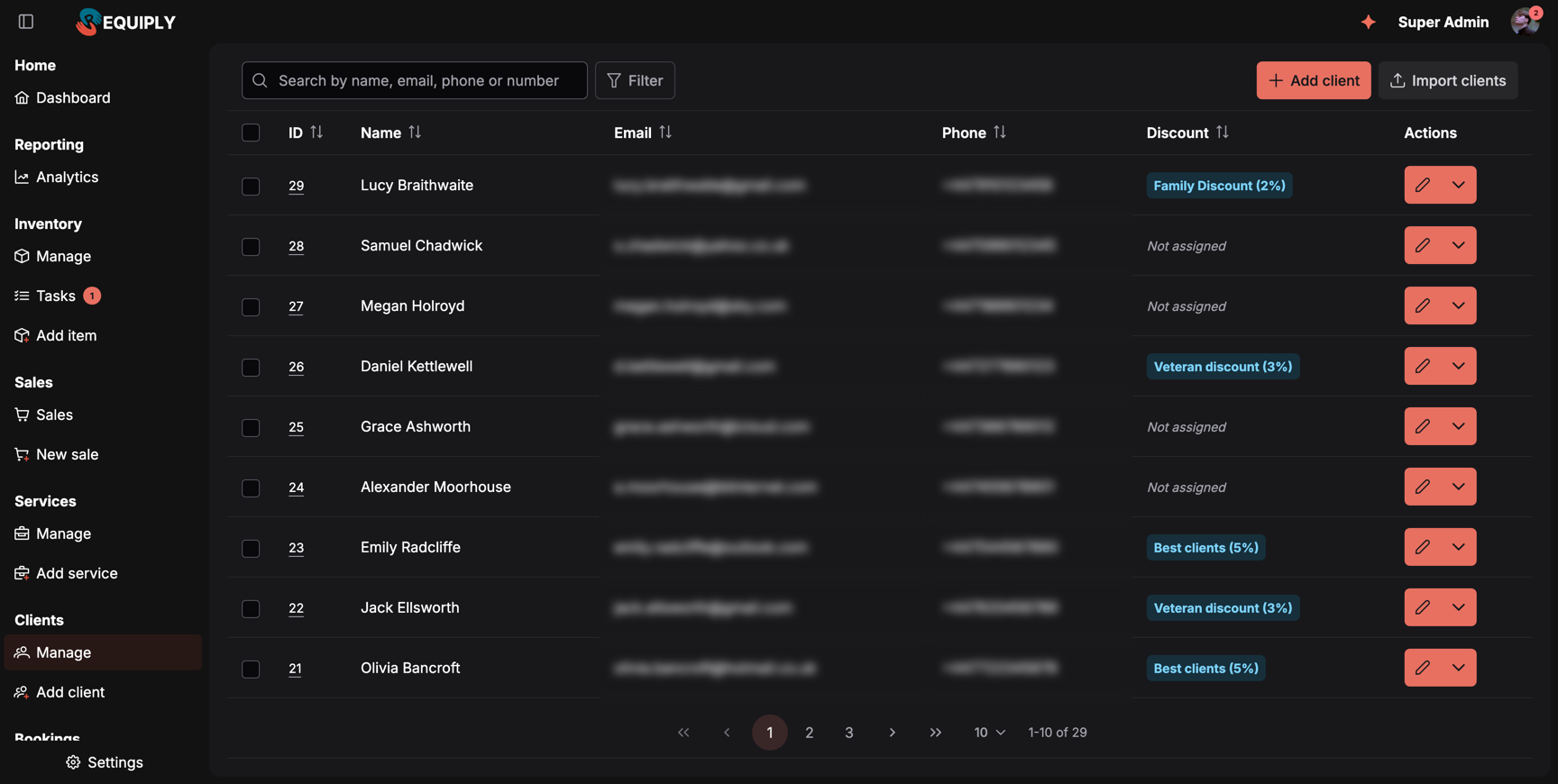
The clients list, newest client first. Search, filters, sorting, and the page are kept in the page address, and only the current page is loaded.
Why this page matters
Clients are one of the foundational records in Requiply. They feed into:
- Bookings — appointments and bookings are attached to clients.
- Invoices and payments — billing records reference the client's name, email, and phone.
- Pricing discounts — a client can be tied to a discount that affects the pricing they see.
- Custom entity fields — any custom fields your organization has defined for clients are surfaced and searchable on this page.
- Client lifecycle work — removing old records and applying a promotional discount to a whole group happen here.
If client data is wrong or missing, it affects bookings, communication, and billing downstream.
What you'll see
When clients exist, the page shows a single full-height card containing a paginated, scrollable table of all clients in your organization.
The table header changes depending on whether any rows are selected.
Default header (no selection):
- A search input with placeholder Search by name, email, phone or number.
- A Filter button, with a chip per active filter and Reset filters once anything is set. See Searching and filtering.
- A primary Add client button that navigates to the Add or edit client page.
- A secondary Import clients button that navigates to the Import clients page.
Selection header (one or more rows selected):
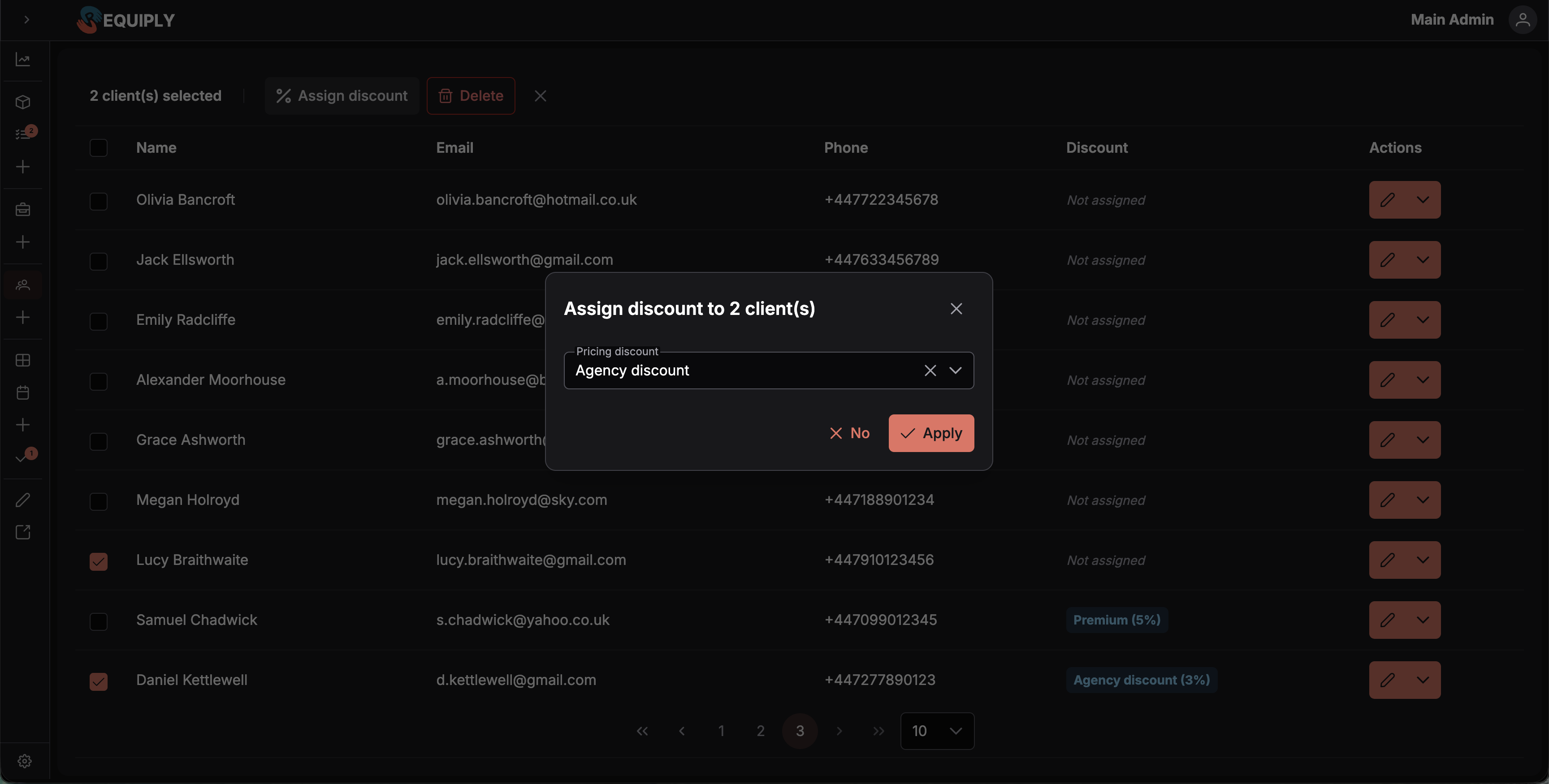
- A {count} client(s) selected label.
- An Assign discount action (percentage icon) that opens the bulk discount dialog.
- A small close button to clear the selection.
Table body:
- A multi-select checkbox column on the left.
- An ID column showing the client's organization-scoped number as a tag. Clicking it opens that client's Client details page.
- A configurable set of visible columns driven by the organization's table layout for the Client entity level. Standard columns include Name, Email, Phone, and Discount, plus an optional Client portal column.
- Custom entity fields defined for clients also appear as columns when the layout includes them.
- The Discount column shows a tag with the discount's name and percentage (for example
Premium (5%)); when no discount is assigned it shows a muted Not assigned label. - A frozen Actions column on the right with a split-button per row.
- Pagination controls at the bottom with page sizes of 10, 20, and 50 (default 10) and a counter such as 1-10 of 29.
Rows are sorted by ID descending, so the most recently added clients are at the top. Click the header of ID, Name, Email, Phone, Discount, or Client portal to sort by it; click again to reverse.
Since version 1.3.1 the list is loaded one page at a time from the server, so it stays fast with thousands of clients. While a page loads, grey placeholder rows keep the table's shape.
Empty state
When the organization has no clients yet, the table is replaced with an empty-state placeholder:
- A users icon.
- The title No clients yet.
- A primary call-to-action button Add client that navigates to the Add or edit client page.
This is what new organizations or freshly cleaned-up databases see. Adding the first client unlocks the table view.
Main actions
Adding a new client
Click Add client in the header (or in the empty state). This navigates to the Add or edit client page, where the full client form is presented. After saving, the new client appears in the table.
Importing clients
Click Import clients in the header. This navigates to the Import clients page for bulk import.
Opening a client's full details
Click the ID tag in any row. This opens the Client details page for that client — contact record, finance summary (revenue, profit, pending, debt), custom field values, and every booking they have made.
Editing a client
Each row's action column shows a split button. The pencil icon (the main button) navigates to the Add or edit client page for that row, where the client's general information, pricing discount, and custom fields can be updated.
Per-row actions menu
The split button's dropdown on each row exposes:
- Assign discount — opens the discount dialog scoped to that single client.
- Delete — opens a confirmation dialog for that client. The dialog first checks the client's bookings: with none, it asks for confirmation and the row is removed on Yes; with bookings, it lists them and blocks the deletion (see below).
Bulk actions
Select rows using the checkbox column, then use the buttons that appear in the table header:
- Assign discount — opens a dialog showing how many clients are selected and a discount picker. Selecting a discount applies it to all selected clients; selecting none removes the discount from those clients. A success toast confirms the change.
After any bulk action completes, the selection is cleared automatically and the table reloads.
Deleting a client with bookings
Deletion is blocked while a client still has bookings. The dialog shows a warning saying the client cannot be deleted because they have bookings, and that those bookings must be deleted first, followed by a scrollable list of the blocking bookings with their IDs and date ranges. The confirm button stays disabled.
This protects the booking history: a booking without its client would lose the name, contact details, and discount that produced it. When a client should simply stop appearing in day-to-day work, leaving their record in place is usually the right answer.
Searching and filtering
Search matches the client's name, email, phone, or client number. Every word you type must match, so emma crawford finds Emma Crawford but not every Emma. Press Enter or pause typing to search.
Filters are added with Filter: pick a field, set its value, and click Done. Each active filter shows as a chip; click it to change it or its × to remove it.
| Filter | How it works |
|---|---|
| Discount | Tick one or more pricing discounts, or Not assigned for clients without one. |
| Client portal | Has account or No account, see Customer accounts. |
| Custom fields | Every client-level custom field in your table layout. Text fields match what you type, number and date fields take a range, and choice and checkbox fields offer their options plus Not assigned. |
All filters combine. When nothing matches, the table says No clients match these filters with Reset filters. The search, filters, sort, and page are kept in the page address, so a filtered list can be bookmarked or shared.
Forms and fields
The add and edit experiences live on a shared Add or edit client page, but the fields visible elsewhere on this page include:
- First name and Last name — shown in the Name column (joined together).
- Email — shown in the Email column.
- Phone — shown in the Phone column.
- Pricing discount — shown as a tag in the Discount column when assigned, otherwise as a muted Not assigned label.
- Client portal — a green Has account tag for clients who signed up on your client portal, otherwise a grey No account. The column starts hidden: add it in Table column layout.
- Custom fields — any organization-defined client fields appear as their own columns when the table layout is configured to show them.
The exact column set is controlled by the table layout configured for the Client entity level, so different organizations may see slightly different columns.
How this page connects to the rest of Requiply
| Feature | How this page affects it |
|---|---|
| Bookings | Clients managed here are the same clients selected when creating bookings. Deleting a client removes them from future selection. |
| Client details | The ID column deep-links into the per-client view, including their finance summary and outstanding debt settlement. |
| Invoices and payments | Client contact details from this page are reused on billing documents and payment receipts. |
| Pricing discounts | The discount column reflects the discount applied to a client. Bulk-assigning a discount here changes the price that client sees on services. |
| Entity fields (custom fields) | Any custom fields defined for the Client entity level surface as searchable columns on this page. |
| Client portal | The optional Client portal column says who has a portal account. Clients are created automatically when someone checks out on the portal. |
| Client add/edit/import pages | The header buttons and per-row actions are the entry points to those flows. |
Common scenarios
Onboarding a new client
A staff member clicks Add client, fills in the client's general information and any required custom fields, and saves. The new record is immediately visible in the table and selectable for bookings.
Migrating clients from another system
The user clicks Import clients to bulk-load existing customer records, then returns to this page to verify the rows landed correctly and to spot-check missing fields using the search input.
Finding every client without a discount
Click Filter → Discount, tick Not assigned, and click Done. Select the rows and use Assign discount to give them one.
Running a promotion
The user selects a group of clients (for example, repeat customers) using the checkbox column, clicks Assign discount in the bulk header, picks the promotional discount, and applies it. The Discount column on each affected row updates with the new tag.
Cleaning up old records
The user searches or filters the table to find inactive clients and deletes them one at a time from the per-row menu. Clients who still have bookings cannot be removed: the dialog lists exactly what is blocking each one.
Tips and cautions
Overview
The customer records your bookings, invoices, payments, and discounts all read from: where client data lives and what each page in this section does.
Client details
Everything Requiply knows about one customer on a single page: contact details, total revenue and profit, what they still owe, and every booking they have made.