

Workflows
The Workflows page is where you set up automated actions that Requiply runs when something happens to a booking. It is used to send the right message to the right person at the right time without anyone on your team having to remember to do it, and connects directly to bookings, booking statuses, payment statuses, email and message templates, organization accounts, your custom fields, and your connected communications provider.
You can find this page under Settings → Workflows.
Why this page matters
Workflows are how Requiply turns booking events into outgoing communication. Instead of manually emailing a client when a booking is confirmed, alerting your team when payment goes through, or nudging a manager a day before an appointment, you define the rule once and Requiply handles every future booking automatically.
Workflows pull together several other parts of Requiply:
- Bookings — every workflow listens to something that can happen on a booking.
- Booking statuses — workflows can fire when a booking reaches a specific status (for example, Confirmed or Cancelled).
- Payment statuses — workflows can fire when a booking's payment reaches a state such as Completed or Refunded.
- Email templates — most workflow actions send an email built from a template you have already designed.
- Clients, internal recipients, and your team — workflows can email the booking's client, a fixed list of addresses, or your own organization accounts (and even push to their phones), or message the booking's client over SMS, Viber, or Telegram.
- Communications integrations — the Send message to client (SMS / Viber / Telegram) action delivers through the provider connected on the Communications page.
- Message templates — that action's wording, attachments, and buttons come from a message template, the messenger counterpart to email templates.
- Filters — every workflow can carry optional conditions that decide whether it actually runs for a given booking.
- Account groups: a push notification can go to everyone in one or more permission groups, as the groups stand when the workflow runs.
- Status changes: besides sending messages, a workflow can move the booking to another status, for example confirm it once the payment is completed.
If your email templates, booking statuses, or custom fields change, the workflows that reference them keep using the new values automatically.
Who can use this page
- Admins only. The page, the add screen, and the edit screen all require admin access.
- Workflows stay administrator-only. A group with Allow access to settings reaches the rest of Settings but does not see Workflows in the menu, and the route itself is gated to the Administrators group.
- The page itself does not have its own plan limit or paid add-on gate; it relies on the email templates and booking status features being available in the organization.
What you'll see
When the page loads, Requiply fetches all of the organization's workflows, all email templates, and the list of booking statuses in parallel. While that data is loading, you see three pulsing skeleton cards.
Once the data is ready, you see one of two layouts:
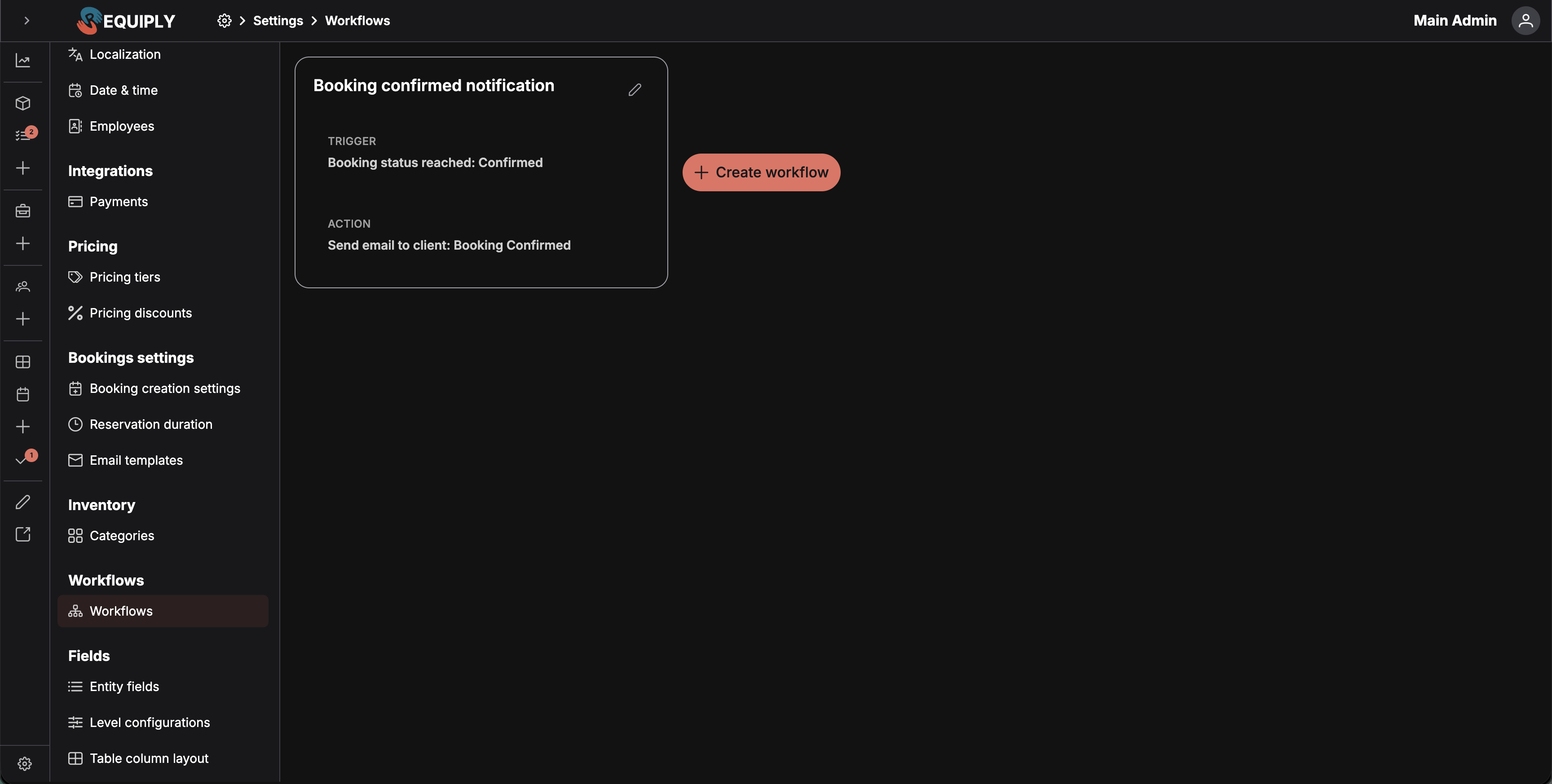
- If you have at least one workflow: a grid of workflow cards, followed by a dashed Create workflow tile with a + icon as the last card. Click the tile to start a new workflow.
- If you have no workflows yet: an empty-state placeholder with a sitemap icon, the title No workflows yet, and a single Create workflow button that takes you to the add screen.
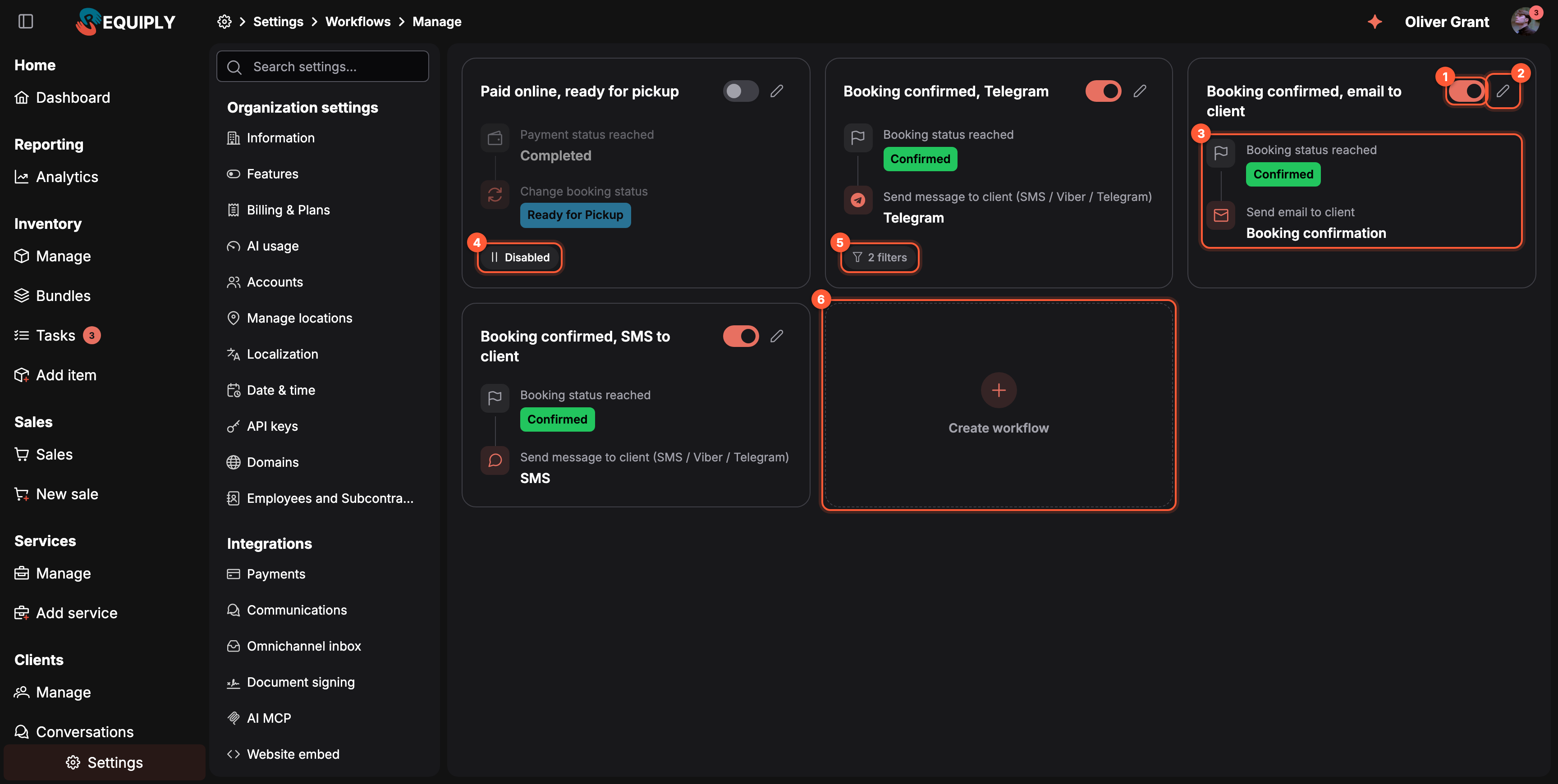
Each card has its own on/off switch (1) and an edit button (2), and reads as a trigger followed by an action (3). A switched-off workflow is faded and marked Disabled (4); a chip counts its filters (5). The dashed tile (6) creates a new workflow.
The workflow card
Each card reads top to bottom as a small flow:
- The header holds the workflow name, an on/off switch, and a pencil button, Edit workflow, that opens the edit screen.
- The trigger step, with an icon for its type: a flag for Booking status reached, a wallet for Payment status reached, a plus for Booking created, a clock for Relative time reached. A status trigger shows the status as a pill in that status's color; a payment trigger shows the payment status; a relative-time trigger shows the offset, for example 1 day before booking start time.
- The action step, with an icon for what it does: an envelope for the email actions, a bell for push notifications, a speech bubble (or the Telegram logo) for client messages, and two arrows for Change booking status. Under the action type you see the detail:
- For email actions, the template name. A workflow that still references the legacy built-in default email template shows it under its localized name rather than a raw ID. Send email to custom email list adds the addresses underneath, or No recipients configured.
- For Send email to organization accounts, the template name with the selected accounts underneath, each resolved to its full name (or email). If none resolve, No accounts selected.
- For Send push notification to organization accounts, the notification title with the selected accounts underneath.
- For Send push notification to account groups, the notification title with the group names underneath, or No groups selected when the groups are gone.
- For Send message to client, the channel, for example Telegram or Viber, with SMS fallback.
- For Change booking status, the target status as a colored pill.
- The footer appears only when it has something to say: a Disabled chip with a pause icon on a workflow that is switched off, and a chip such as 2 filters when the workflow has conditions. Hover the filter chip for 2 filters applied.
Turning a workflow on or off from its card
The switch in the card header turns a workflow on or off without opening it. Hover it to see what it does: On: runs automatically or Off: will not run.
- Flip the switch. A small spinner shows on the handle while Requiply saves the change, and a toast confirms Workflow "{name}" turned on or Workflow "{name}" turned off.
- A switched-off card fades and gets the Disabled chip. It keeps its trigger, filters, action and template, so turning it back on restores it exactly as it was.
- If the change cannot be saved, an error toast appears and the switch goes back to where it was.
The switch is the same setting as Enabled at the bottom of the add and edit forms. Turning a workflow off stops future runs only; messages it already sent are not recalled.
Empty state
The empty state appears the first time you open Workflows in a new organization. It uses a sitemap icon, the title No workflows yet, and one primary action, Create workflow, that opens the Add workflow screen. There is no secondary content: the goal is to push you straight into creating your first automation.
The first workflow most businesses set up is something like "send a confirmation email when a booking reaches Confirmed", because that single rule replaces a manual step that otherwise has to happen for every booking.
How a workflow is built
Every workflow is made of three building blocks, and the add/edit form is laid out in exactly this order:
- Trigger: when it fires. The booking event that wakes the workflow up (a status change, a payment change, a new booking, or a time relative to the booking).
- Filters: only when it should run (optional). Conditions that must be met for the workflow to actually fire on a given booking. Leave them empty and the workflow runs every time the trigger matches.
- Action: what it does. What Requiply sends, and to whom (an email to the client, an email to a typed list, an email to your team's accounts, a push notification to chosen accounts or to whole account groups, or a messenger/SMS message to the client), or which status it moves the booking to.
As you fill in the form, a live Preview panel shows the workflow as a sentence: the trigger card, then any conditions under an "Only when" heading, then the action card. Reading the preview is the fastest way to confirm a workflow does what you intend before you save it.
Each block has its own reference: Triggers, Filters, and Actions, with ready-made examples in Workflow recipes.
Adding a workflow
Clicking Create workflow (either the dashed tile at the end of the grid or the empty-state button) opens the dedicated Add workflow page at /settings/workflows/manage/add. The screen is a single form split into the sections described above, plus general info and an enabled toggle.
General info
- Name — required, up to 100 characters. This is the label shown on the workflow card.
Trigger, Filters, and Action
These three sections make up the body of the form and are documented in full in Triggers, Filters, and Actions.
Enabled toggle
A switch at the bottom controls whether the workflow is active. New workflows default to enabled. A disabled workflow stays in the list but does not run.
Saving
Pressing Save validates the form. If everything is valid, Requiply creates the workflow, shows a success toast with the workflow name, and returns you to the Workflows list. If creation fails, an error toast appears and you stay on the form. While the request is in flight, the entire screen is blocked so you cannot double-submit. Cancel returns to the list without saving.
Editing a workflow
Clicking the pencil button on a workflow card opens the Edit workflow page at /settings/workflows/manage/edit?id=…. The form looks the same as the add form, with a few differences:
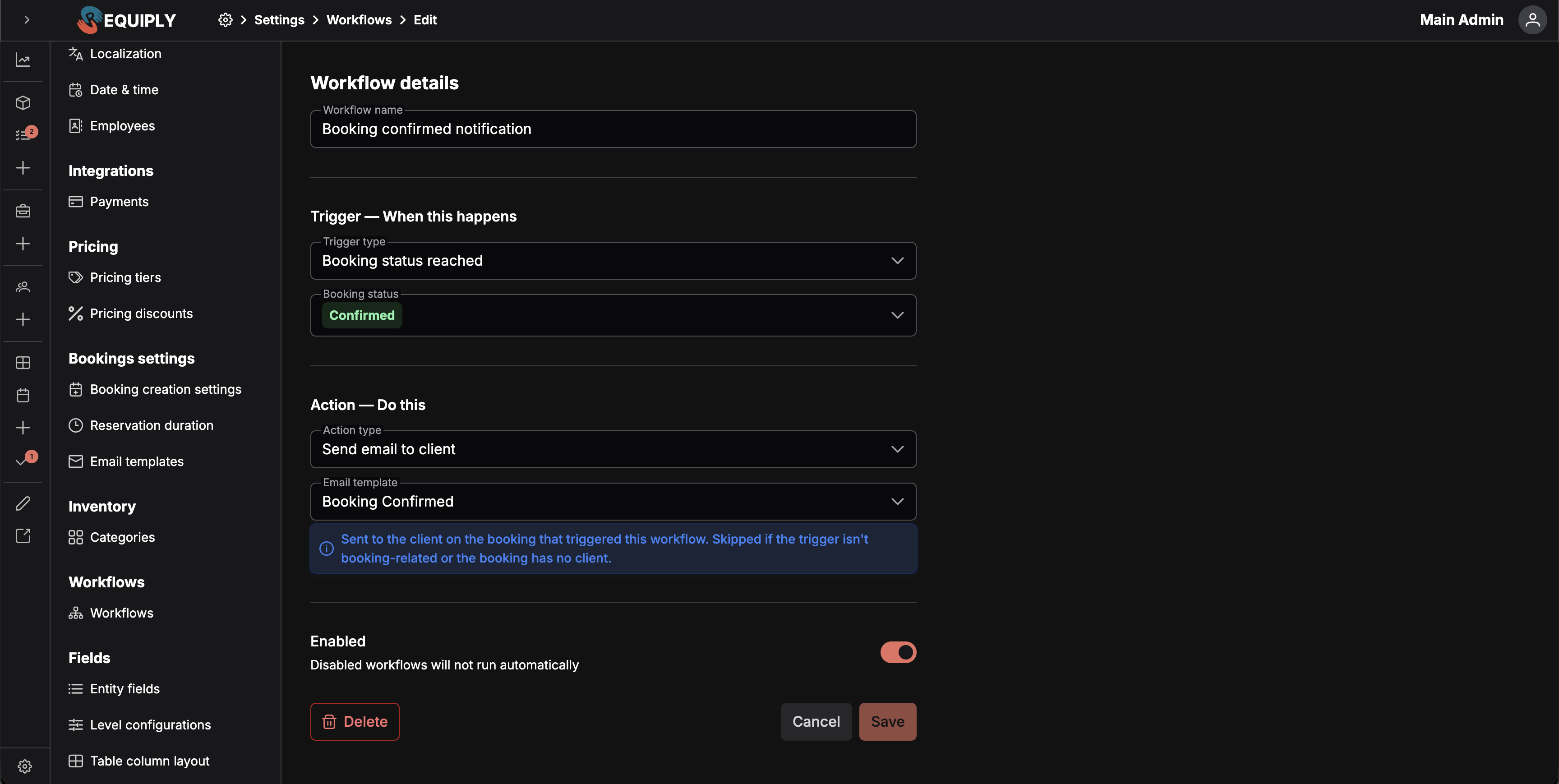
- The screen is blocked with a fullscreen overlay until the workflow has been loaded from the server. If the workflow can't be found, you see an error toast and are sent back to the list.
- The form is prefilled with the workflow's current name, trigger, filters, action, template or recipients, and enabled state. Time-based triggers also restore the original time unit so the offset displays naturally (for example, an offset stored as 1440 minutes is shown as 1 day).
- A Save button is disabled until you actually change something — a built-in dirty check compares the current form against the originally loaded workflow.
- A Delete button (red, outlined, trash icon) sits in the bottom-left. It opens a confirmation dialog showing the workflow's name. Deleting is permanent: the workflow stops firing immediately, and there is no undo. After deletion you are returned to the list with a confirmation toast.
- If the workflow was originally created with the legacy "default email template" (no longer offered to new workflows), an extra option called Default email template appears at the top of the template dropdown so the existing selection stays valid. Once you switch to a real template, that legacy option goes away.
Searching, filtering, or sorting the list
The Workflows list does not have search, filters, sorting, or pagination — all workflows are shown together as cards. This is intentional: most organizations have a small number of workflows, and the visual card layout makes them easy to scan.
Forms and fields
| Field | Required | Notes |
|---|---|---|
| Name | Yes | 1–100 characters. Used as the card label. |
| Trigger type | Yes | One of: Status reached, Payment status reached, Booking created, Relative time reached. |
| Status | Yes when trigger is Status reached | Picked from the organization's booking statuses; shown as a colored tag. |
| Payment status | Yes when trigger is Payment status reached | Picked from the available payment statuses. |
| Relative to | Yes when trigger is Relative time reached | Booking start time or Booking end time. |
| Direction | Yes when trigger is Relative time reached | Before or After. |
| Offset | Yes when trigger is Relative time reached | Number greater than zero, with a unit selector (minutes/hours/days). |
| Filters | No | Optional conditions. Empty = always run. See Filters. |
| Action type | Yes | Send email to client, Send email to custom email list, Send email to organization accounts, Send push notification to organization accounts, Send push notification to account groups, Send message to client (SMS / Viber / Telegram), or Change booking status. |
| Email template | Yes for the three email actions | Picked from your email templates. Not used by the push or client message actions. Cannot save an email action if no templates exist. |
| Custom emails | Yes when action is Send email to list | At least one email; entered as chips. |
| Account recipients | Yes for the two organization-account actions | At least one organization account; entered as chips. |
| Recipient groups | Yes when action is Send push notification to account groups | At least one permission group; entered as chips. Members are read when the workflow runs. |
| Notification title | Yes for both push actions | Supports booking template variables. |
| Notification body | No | Optional, for both push actions; supports template variables; saved empty if left blank. |
| Tap action | Yes for both push actions | Open booking #ID (default), Open client #ID, or Open booking list. |
| Change status to | Yes when action is Change booking status | One of your booking statuses. |
| Provider | Yes when action is Send message to client | A messaging provider your organization has actively connected on the Communications page. |
| Channel | Yes when action is Send message to client | SMS, Viber, Viber, with SMS fallback, or Telegram — limited to what the chosen provider supports. |
| Message template | Yes when action is Send message to client | Picked from the message templates compatible with the selected channel. Cannot save without one. |
| Enabled | Yes | Toggle. Defaults to on for new workflows. |
Switching the trigger type clears any fields that don't apply to the new type, so you can't accidentally save a status when the trigger is now Booking created.
How this page connects to the rest of Requiply
| Feature | How Workflows affects it |
|---|---|
| Bookings | Every workflow runs against booking events — status changes, payment changes, creation, or time-relative reminders. |
| Booking statuses | Status reached triggers, Booking status filters, and the Change booking status action reference the statuses configured in your organization. Renaming a status updates the labels shown. |
| Payment statuses | Payment status reached triggers fire when a booking's payment moves into the chosen state. |
| Email templates | The three email actions each send a template you've already designed. If templates are missing, you cannot save an email workflow. |
| Clients | Send email delivers to the booking's client automatically, and client fields (name, email, phone, pricing discount, Telegram connected) are available as filters. Client message attempts are logged on the client's details page. |
| Organization accounts and permission groups | Send email to organization accounts and Send push notification to organization accounts deliver to the team members you pick. Send push notification to account groups delivers to everyone in the chosen groups when the workflow runs. |
| Communications integrations | Send message to client delivers through the provider connected on the Communications page. Without a connected provider, the action is unavailable. |
| Message templates | Supplies the body, attachments, and buttons of the client message action. A template that a workflow uses cannot be deleted until the workflow is repointed. |
| Mobile app | Push notifications reach accounts that have the Requiply app installed; others are skipped. |
| Pricing discounts | A client's pricing discount can be used as a filter (for example, "VIP clients only"). |
| Custom fields | Any Booking-level or Client-level custom field you've configured becomes available as a filter. |
| External recipients | Send email to list delivers to a fixed list of addresses you maintain on the workflow itself. |
| Email template editor | The "no templates yet" panel links into the email template add screen and brings you back to the workflow form afterward. |
Tips and cautions
Domains
Connect your own domain, such as book.yourcompany.com, so customers open your client portal at your own address. One CNAME record, with steps for Cloudflare, GoDaddy, Хостинг Україна (adm.tools), Hostinger, Wix, Domeneshop, one.com and other DNS hosts.
Triggers and filters
The four events that start a workflow, and the optional conditions that decide whether it runs for a booking: AND of OR groups, the fields you can filter on, and the operators for each field type.