

AI web widget
The AI web widget integration lets you embed a Requiply AI chat bubble on your own website. Visitors can ask questions, and the assistant answers using your organization's public-facing Requiply data.
You can find this page under Settings → Integrations → AI web widget.
Who answers visitors
The AI assistant answers first switch on this page decides who replies in the widget:
- On (Advanced plan): the assistant answers with your catalog, prices and availability, creates bookings, and, with the inbox on, hands the conversation to your team when the visitor asks for a person. How it hands over is configured under Omnichannel inbox settings.
- Off: every message goes straight to your team in Conversations, and team replies appear in the visitor's widget.
The switch is shared with the client portal chat under Portal settings and is saved immediately. Widget conversations carry a chat bubble badge in the inbox, marked Website widget.
What the visitor sees in the widget:
- Formatting in assistant replies. Bold text, bulleted lists (shown with •) and links. Links open in a new tab.
- A note when the team takes over. When a visitor's message goes to your team without an answer from the assistant, for example after a handoff or while a team member handles the chat, the widget shows Your message went to our team. A manager will reply here. It appears once per wait and shows again only after the next reply.
- Team replies appear in the same chat as they arrive.
Why the web widget matters
The widget gives website visitors a self-serve way to ask about your rental business without leaving your site. It uses a public widget key, a controlled list of allowed origins, and the Requiply chat widget script.
Common uses include:
- Answering questions about locations, delivery options, payment methods, catalog details, and availability.
- Giving visitors a quick way to ask about rental options before they submit a booking request.
- Keeping the website chat experience visually aligned with your brand color and preferred theme.
- Letting admins rotate or revoke the widget key if the embed needs to be replaced.
What you'll see
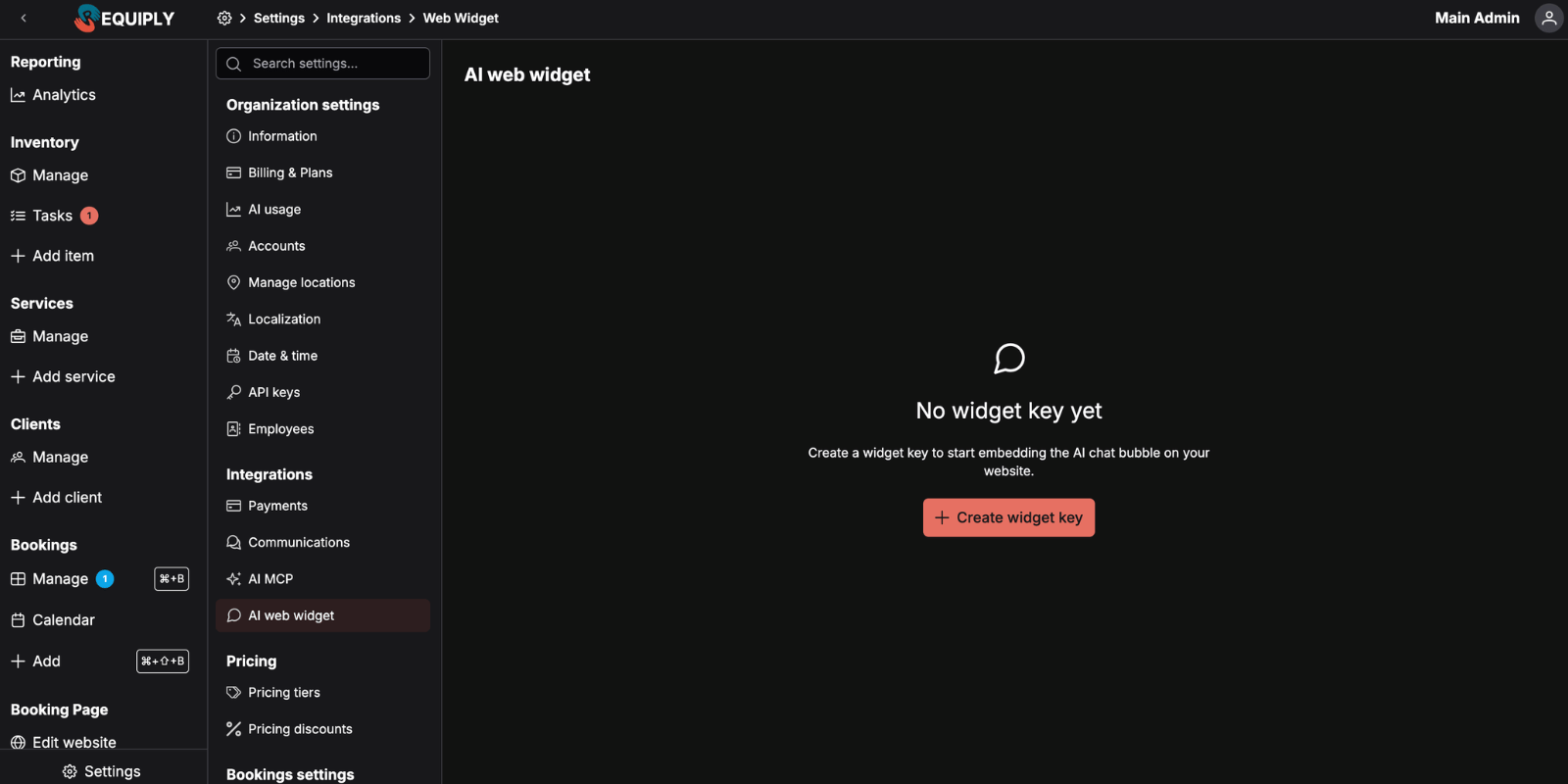
Before a key exists, the page shows an empty state with Create widget key. On non-Advanced plans, the same area shows Upgrade to create widget key.
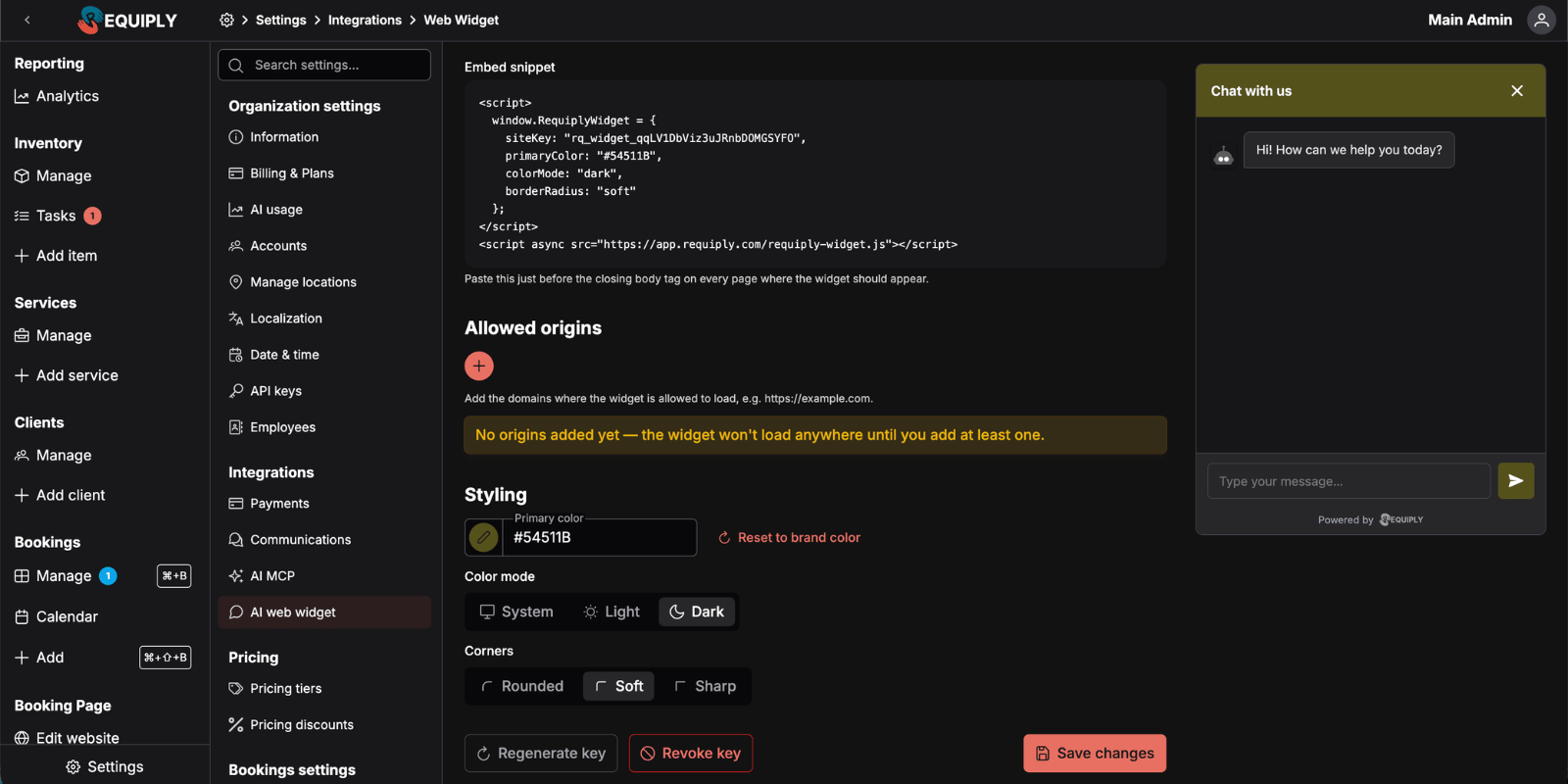
After a key exists, the page shows:
- Widget key - the active public site key and Active status badge.
- Embed snippet - the script block to paste into your website.
- Allowed origins - the website domains where the widget is allowed to load.
- Styling - primary color, color mode, and corner style controls.
- Actions - regenerate key, revoke key, and save changes.
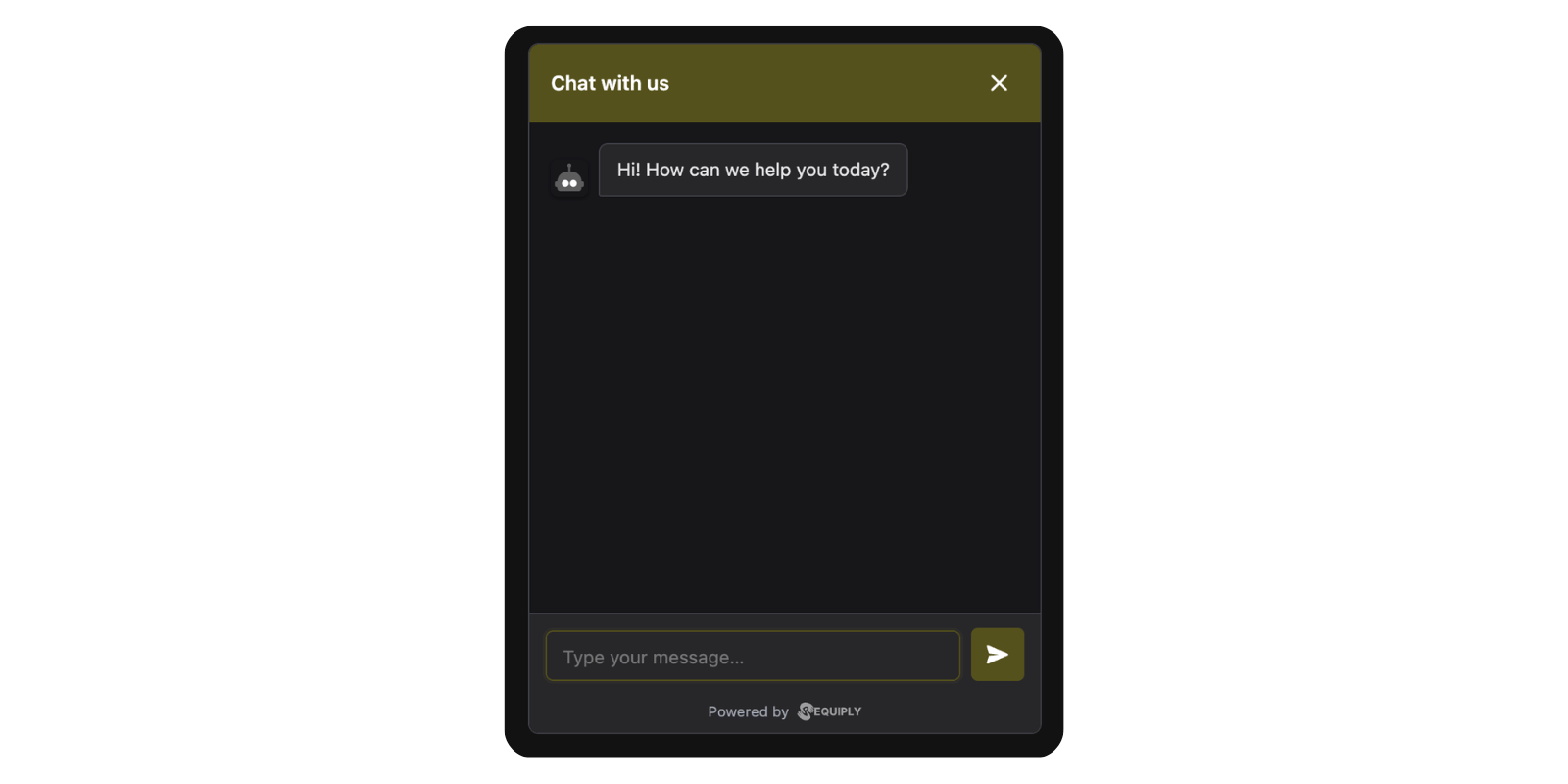
- Preview - a live iframe preview of the chat bubble and panel.
Create a widget key
Open the page
Go to Settings → Integrations → AI web widget.
Create the key
Click Create widget key. Requiply creates an active site key for the organization.
Add allowed origins
Add every website origin where the widget should be allowed to load, such as https://example.com and https://www.example.com.
Adjust styling
Choose the primary color, color mode, and corner style you want visitors to see.
Save changes
Click Save changes. The widget will not load anywhere until at least one allowed origin is saved.
Embed the widget
Copy the Embed snippet and paste it just before the closing </body> tag on every website page where the chat bubble should appear.
<script>
  window.RequiplyWidget = {
    siteKey: "rq_widget_example",
    primaryColor: "#016E88",
    colorMode: "light",
    borderRadius: "round"
  };
</script>
<script async src="https://app.requiply.com/requiply-widget.js"></script>
The snippet generated in Requiply includes your real site key and current styling choices.
Allowed origins
Allowed origins control where the public widget key can be used. Add the exact origin for each website where the chat bubble should appear.
| Example | Notes |
|---|---|
https://example.com | Allows the main domain. |
https://www.example.com | Add this separately if the www version is used. |
https://shop.example.com | Add each subdomain separately. |
Do not include paths such as /pricing or /booking. The origin is only the protocol, host, and optional port.
Styling
The styling controls change both the saved widget configuration and the live preview.
| Control | Options | What it changes |
|---|---|---|
| Primary color | Any hex color | Chat bubble, header, send button, and visitor message color. Defaults to your organization's brand color. |
| Color mode | System, Light, Dark | Whether the widget follows the visitor's system theme or forces a light/dark appearance. |
| Corners | Rounded, Soft, Sharp | Border radius for the panel, messages, input, and buttons. |
Use Reset to brand color if you want the primary color to match the organization brand color again.
Regenerate or revoke a key
Use these actions when the embed needs to be rotated or disabled.
Click Regenerate key to revoke the current site key and issue a new one.
After regenerating:
- Copy the new embed snippet.
- Replace the old snippet everywhere it is installed.
- Keep your allowed origins and styling up to date.
Click Revoke key to disable the widget everywhere it is embedded.
After revoking, the page returns to the no-key state and you can create a new key later.
Common scenarios
Launch the widget on a website
- Go to Settings → Integrations → AI web widget.
- Click Create widget key.
- Add your website origins.
- Set the primary color, color mode, and corners.
- Click Save changes.
- Copy the embed snippet.
- Paste the snippet before
</body>on each website page where the widget should appear. - Open the website and confirm the chat bubble appears.
Add the widget to another domain
- Add the new domain under Allowed origins.
- Click Save changes.
- Add the same embed snippet to the new site.
Rotate a leaked or old key
- Click Regenerate key.
- Confirm the dialog.
- Copy the new snippet.
- Replace the old snippet on your website.
Troubleshooting
The widget does not appear Confirm the page includes the generated snippet, the script URL loads, and the current website origin is listed under Allowed origins.
The widget appears on one domain but not another
Add each exact origin separately. https://example.com and https://www.example.com are different origins.
The preview changes but the website does not
Click Save changes, then refresh the website. Also confirm the website snippet contains the current primaryColor, colorMode, and borderRadius values.
Visitors see an assistant error Try again after a moment. If the issue persists, confirm your organization has AI credits available on AI usage.
Website embed
Put booking on your own website: rental prices, availability, a date picker and a booking cart on WordPress, WooCommerce or any other site, with checkout on your client portal. Download the WordPress plugin, copy your organization code, find product slugs and pick shortcodes.
Domains
Connect your own domain, such as book.yourcompany.com, so customers open your client portal at your own address. One CNAME record, with steps for Cloudflare, GoDaddy, Хостинг Україна (adm.tools), Hostinger, Wix, Domeneshop, one.com and other DNS hosts.