

Import clients
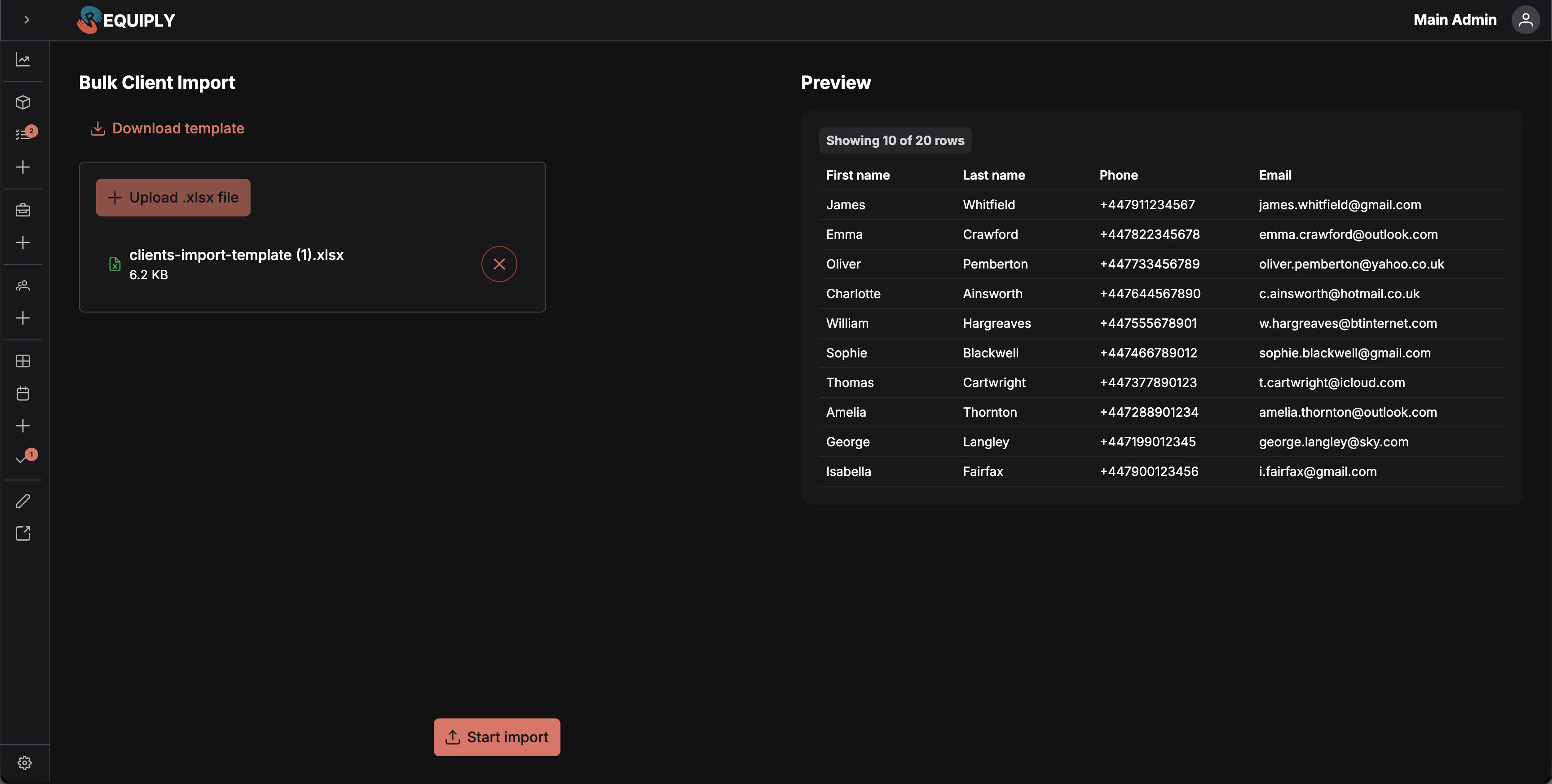
The Bulk Client Import page is where you bring a list of clients into Requiply from a spreadsheet. It is used to onboard existing customer data quickly instead of creating each client manually, and it feeds directly into the same client list used by bookings, invoices, and pricing discounts.
You can find this page under Clients → Import (it is also reachable from the Import clients button on the Manage clients page).
Why this page matters
Most organizations already have a client list in another system — a CRM, a spreadsheet, or an exported contacts file. This page exists so that data can be loaded into Requiply in one step rather than retyping each contact.
Once imported, those clients become the same records used everywhere else:
- Bookings — imported clients can immediately be selected when creating a booking.
- Invoices and payments — billing references the imported name, phone, and email.
- Pricing discounts — discounts can be applied to imported clients individually or in bulk from the Manage clients page.
- Custom client fields — imported clients gain the same custom-field structure as manually created ones (custom values are not part of the import file itself).
A clean import on day one saves a lot of cleanup later.
What you'll see
The page is split into two columns.
Left column — upload and controls:
- A page title Bulk Client Import.
- A text-style Download template button that opens a dialog explaining the template (see Downloading the template below).
- An advanced file uploader with the prompt Upload .xlsx file and the empty-state hint Drag & drop or click to browse (.xlsx).
- Accepts
.xlsxand.xlsfiles only. - Maximum file size is 5 MB.
- Single file at a time. Once a file is selected, the choose button is disabled until the file is removed.
- Accepts
- When a file is selected, it is shown as a row with an Excel icon, the file name, formatted size, and a red remove button to clear it.
- A list of validation error messages appears below the uploader if the file has problems. The list is scrollable when there are many errors.
- A Start import button at the bottom. It is disabled until at least one valid row has been parsed and is not active during an in-flight import.
Right column — preview:
- A Preview heading.
- When valid rows have been parsed: a card showing a Showing {shown} of {total} rows tag and a small data table with columns First name, Last name, Phone, and Email. The preview is capped at the first 10 rows.
- When no file has been parsed yet: a centered placeholder with a table icon and the message Upload a file to see preview.
Confirmation dialog:
When Start import is clicked, a modal opens with:
- Title Confirm import.
- A Ready to import {count} client(s) message and the hint The import runs in batches and may take a moment.
- During the import, a progress bar with a percentage and the label Importing clients.
- Footer buttons: Cancel (disabled while importing) and Start import.
Empty state
This page does not have a "no data" state in the usual sense — it is itself the entry point for getting data in. Until a file is uploaded:
- The validation error list is hidden.
- The preview area shows the empty placeholder described above.
- The Start import button is disabled.
Main actions
Downloading the template
Click Download template to open the Download import template dialog. The dialog explains:
- The template includes an example client row to follow.
- It contains a reference sheet describing limits and accepted values for each column.
- AI tools can be used to fill or transform existing data into the template format.
A success toast confirms the download; an error toast appears if the download fails.
Uploading a file
Drag a file into the upload area or click to browse. The page accepts .xlsx and .xls files up to 5 MB. As soon as a file is chosen, it is parsed in the browser and:
- Valid rows are added to the preview on the right.
- Invalid rows are reported in the validation error list on the left.
- The Start import button enables when there is at least one valid row.
To swap files, click the red × next to the selected file (or use the file uploader's remove control). This clears the file, the parsed rows, and any validation errors.
Starting the import
Click Start import. The confirmation dialog opens with the row count. Click Start import in the dialog to begin.
The import sends rows to the server in batches:
- The first three batches are intentionally small (10, 15, and 25 rows) so early failures show up quickly.
- After that, rows are sent in batches of 50 until the file is exhausted.
- The progress bar updates after each batch using the count of processed rows.
When the import finishes:
- If at least one row succeeded: a success toast (or a warning toast when some rows failed) is shown, the in-memory client list is refreshed, the dialog closes, and you are navigated to Manage clients.
- If every row failed: an error toast Import failed is shown and the dialog closes.
Forms and fields
Each row in the spreadsheet maps to a new client. Headers are matched case-insensitively and ignore underscores and dashes. Multiple aliases are accepted per column.
| Column | Required | Accepted headers | Validation |
|---|---|---|---|
| First name | Yes | first name, firstname, first_name, name | Must be present; max 25 characters. |
| Last name | Yes | last name, lastname, last_name | Must be present; max 25 characters. |
| Phone | Yes | phone, phone number, phone_number | Must be a full international number — + followed by a country code and 7–15 digits in total, for example +380951234567. Must be unique within the file and not already used by an existing client. |
| No | email, e-mail | If provided, must look like a valid email address, be unique within the file, and not already belong to an existing client. |
Additional rules enforced before the import runs:
- The file must contain a sheet with at least one row of data.
- The file may contain at most 1000 rows. Files larger than this are rejected with the error Maximum 1000 rows allowed.
- Duplicate phone numbers within the same file are flagged per row, and so are duplicate emails.
- Rows whose phone or email already belongs to a client in your organization are rejected with Phone already exists or Email already exists.
Each invalid row is reported as Row {n}: {reason} (where row numbers start at 2 to account for the header row). Invalid rows are skipped — the import continues with the rows that pass.
How this page connects to the rest of Requiply
| Feature | How this page affects it |
|---|---|
| Manage clients | After a successful import, you are navigated here automatically and the new clients appear in the table. |
| Bookings | Imported clients become immediately available when creating bookings. |
| Invoices and payments | Billing documents will use the imported name, phone, and email. |
| Pricing discounts | Imported clients can be selected in bulk on the Manage clients page to assign a discount. |
| Custom client fields | Custom field values are not part of the import file; they can be filled in later from the Add or edit client page. |
Common scenarios
Onboarding from a previous system
The user downloads the template, copies their existing client list into it, removes any rows that exceed the limits, and uploads. The progress bar shows the import working through batches; on completion the user lands on Manage clients with the new rows visible.
Importing a partially clean list
The user uploads a file where some rows are missing phone numbers or have invalid emails. The validation list on the left flags those specific rows by line number; the preview on the right shows only the rows that passed. The user runs the import for the valid rows now, fixes the rejected rows in the source file, and re-imports.
Splitting a large list
The organization has more than 1000 clients to import. The user sees the Maximum 1000 rows allowed error, splits the file into chunks under 1000 rows each, and runs successive imports.
Tips and cautions
+ — for example +380951234567. A national-format number is rejected with "Phone must include a country code, e.g. +380951234567", and spaces, dashes, and parentheses fail validation too. Reformat the column in your spreadsheet before importing.Calls
The organization-wide call log from Binotel: filter missed, incoming, outgoing, and unknown numbers, play recordings, call back, and turn unknown callers into clients, on the web and in the mobile app.
Conversations inbox
One inbox for every client chat: Telegram, OLX, Instagram Direct, the website chat widget and the client portal chat. Read and answer messages, edit or delete (unsend) your replies within each channel's limits, see workflow messages and shared posts and stories, take conversations over from the AI assistant, assign them, link them to clients and close them, on the web and in the mobile app.