

Booking statuses
The Status Configuration page is where you manage the statuses a booking can be in and the rules for moving between them. Every booking carries exactly one status. Statuses drive the status tags and progression arrows across the app, color the calendar, trigger workflows, decide through their Checklist field whether a pickup or return checklist has to be worked through first, and decide through their Lifecycle which bookings count as active, completed, or cancelled on the Dashboard and in reports.
You can find this page under Settings → Bookings → Status Configuration (/settings/reservations/statuses).
Why this page matters
Every organization owns its statuses. There are no built-in or locked statuses: each one, the seven you start with included, can be renamed, recolored, given different transitions, or deleted once nothing uses it. That lets you describe your own rental process in your own words, for example rename New to Inquiry, add an Awaiting inspection step, decide which steps can follow which, choose whether a step still holds inventory, and tell the rest of the app whether a booking in that step is still in progress, finished, or void.
What you'll see
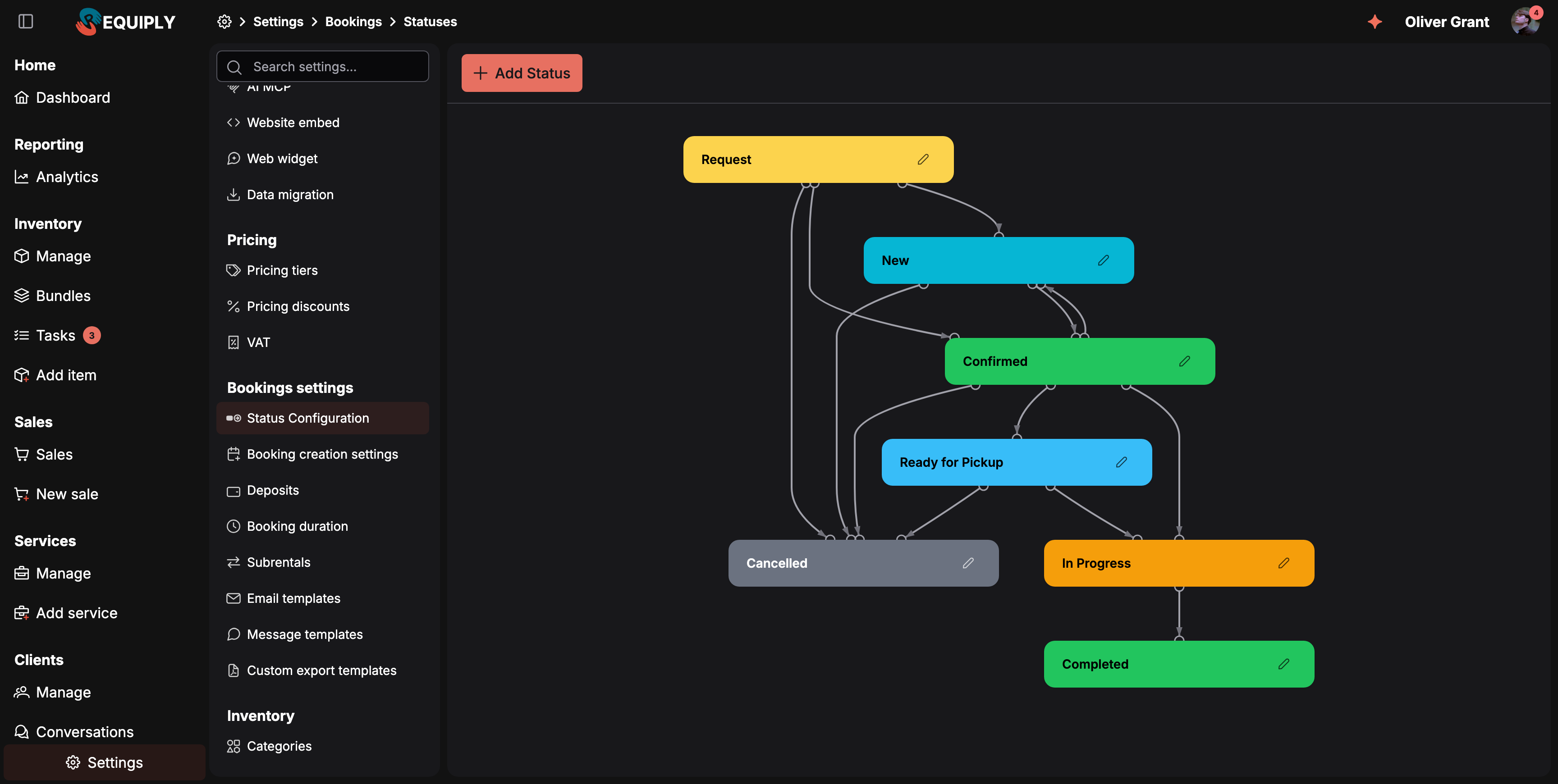
The seven statuses every organization starts with, drawn as a flow. Every pill has a pencil that opens it for editing, and none of them is locked.
Statuses are drawn as a flow diagram. Each status is a pill in its own color, and arrows show the allowed transitions. A pencil button on every pill opens its edit page.
The toolbar above the diagram holds one button: Add Status, which creates a new status.
The statuses you start with
Every new organization is created with seven statuses and eleven transitions, named in the organization's language (English or Ukrainian). They are ordinary statuses: change any of them the same way you would change one you added yourself.
| Status | Lifecycle | Checklist | Release availability | Typical meaning |
|---|---|---|---|---|
| Request | Active | No checklist | On | A booking request that waits for staff approval. It is the default Status for booking requests, so bookings from the booking assistant, the AI web widget, an outside assistant over MCP, or an API call made with asRequest: true land here. It holds no stock. |
| New | Active | No checklist | Off | Created but not yet confirmed. It is the default Default status for new bookings. |
| Confirmed | Active | No checklist | Off | Confirmed with the client. |
| Ready for pickup | Active | Pickup checklist | Off | The order is assembled and waiting for the client. Optional: the default transitions also allow Confirmed → In progress directly. |
| In progress | Active | Pickup checklist | Off | Items are with the client. |
| Completed | Completed | Return checklist | On | Items are back and the booking is finished. |
| Cancelled | Cancelled | No checklist | On | The booking is void. It is the default Status for cancelled bookings in the client portal. |
The default transitions are:
| From | Can move to |
|---|---|
| Request | New, Confirmed, Cancelled |
| New | Confirmed, Cancelled |
| Confirmed | Ready for pickup, In progress, Cancelled |
| Ready for pickup | In progress, Cancelled |
| In progress | Completed |
Three statuses with a special job
Three settings outside this page point at a status. They start on the defaults above, and you can point them at any status you like:
| Setting | Where it lives | What it decides |
|---|---|---|
| Default status for new bookings | Booking creation | The status a booking gets when your team creates it in the web app or the mobile app, when it is created through the API with a secret key, and when a customer checks out on the client portal. |
| Status for booking requests | Booking creation | The status a booking gets when it arrives as a request waiting for approval: from the portal's booking assistant, the AI web widget, an assistant connected over MCP, or an API call made with asRequest: true. |
| Status for cancelled bookings | Portal settings → Client portal | The status a client's own cancellation in the client portal moves the booking to. |
The two counters on the Manage bookings entry of the sidebar follow the first two: one counts the bookings in your default status, the other the bookings in your request status, each in that status's color.
Lifecycle
Every status has one of three lifecycles. The tooltip on the field sums it up: Active bookings stay in the pipeline and can become overdue. Completed bookings count as revenue. Cancelled bookings are excluded from revenue and outstanding balances.
| Lifecycle | What it means for the rest of Requiply |
|---|---|
| Active | The booking is still in progress. It appears in the dashboard's pickups and returns, can become overdue once its end date passes, and its unpaid balance counts toward Outstanding. |
| Completed | The booking is finished. Its payments count as revenue, and any deposit still held shows up under Deposits to refund. |
| Cancelled | The booking is void. It is excluded from revenue and from outstanding balances. |
Lifecycle is independent of Release availability. A custom On hold status might release inventory while staying Active, and a Returned, awaiting inspection status would be Completed whether or not it still blocks the unit.
Lifecycle is also how Requiply recognizes a finished or void booking. It never goes by a status's name, so renaming Completed to Returned or Cancelled to Void changes nothing about how those bookings are counted.
New statuses default to Active.
Checklist
A status can also represent a physical handover of the equipment. The Checklist field marks it:
| Value | What moving a booking into the status does |
|---|---|
| No checklist (default) | The status changes straight away. |
| Pickup checklist | Opens a pickup checklist listing every reserved unit. The booking changes status only after each unit has been confirmed. |
| Return checklist | Opens a return checklist listing the units confirmed at pickup, to be checked back in. |
The field's tooltip sums it up: Moving a booking into this status opens a per-unit pickup or return checklist that must be confirmed first. Requires the checklists feature in organization settings.
Out of the box, Ready for pickup and In progress are set to Pickup checklist and Completed to Return checklist, so an organization that keeps the default flow only has to turn the feature on. New statuses default to No checklist.
What the Checklist field does not do
Setting a status to Pickup checklist does not, on its own, mean the goods have left. Requiply treats a booking as handed out only when there is evidence of it:
- a unit on the booking was scanned or ticked out at pickup,
- a pickup checklist for the booking was confirmed, or
- the booking is in a status set to Return checklist.
This matters for editing items and for portal cancellation: both stop once the booking is handed out. A booking moved into In progress by hand, with checklists switched off and nothing scanned, still counts as not handed out.
Adding a status
Click Add Status. The form asks for:
| Field | Required | Notes |
|---|---|---|
| Status name | Yes | Up to 50 characters. Must be unique within your organization, regardless of upper or lower case. |
| Color | Yes | Pick from the color picker or type a hex value. Used for the status tag everywhere. |
| Lifecycle | Yes | Active (default), Completed, or Cancelled. See Lifecycle. |
| Checklist | Yes | No checklist (default), Pickup checklist, or Return checklist. See Checklist. |
| Release availability | No | When on, bookings in this status don't hold inventory: the units become bookable by others. |
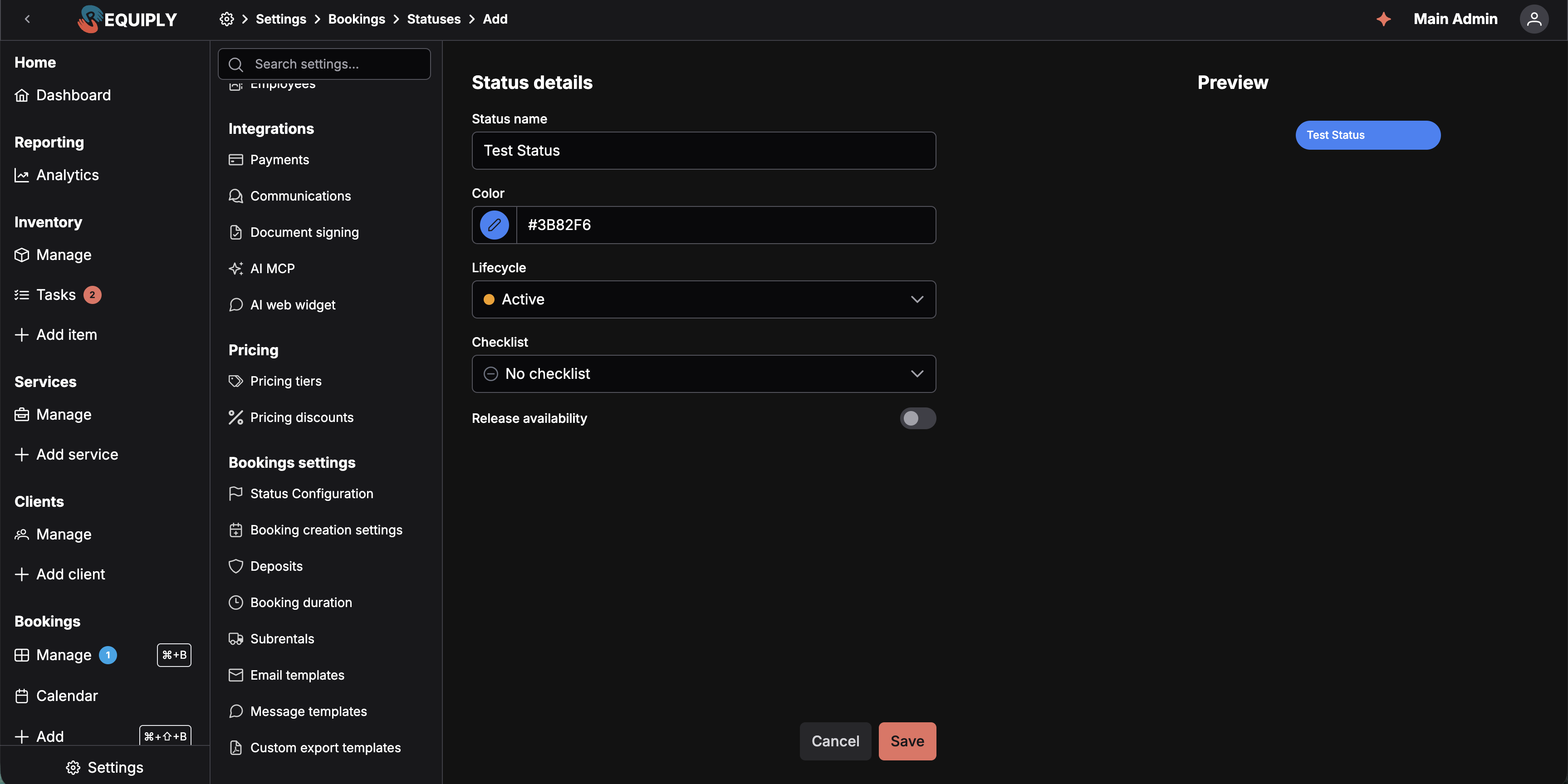
The Lifecycle and Checklist dropdowns are the two settings that change how the rest of Requiply treats a booking in this status. A new status starts out as Active with No checklist.
A Preview on the right shows the pill as it will look. Save creates the status and returns to the diagram.
Editing a status
Click the pencil on a pill. Every status opens the same edit page, with every field editable: name, color, lifecycle, checklist, release availability, and allowed transitions.
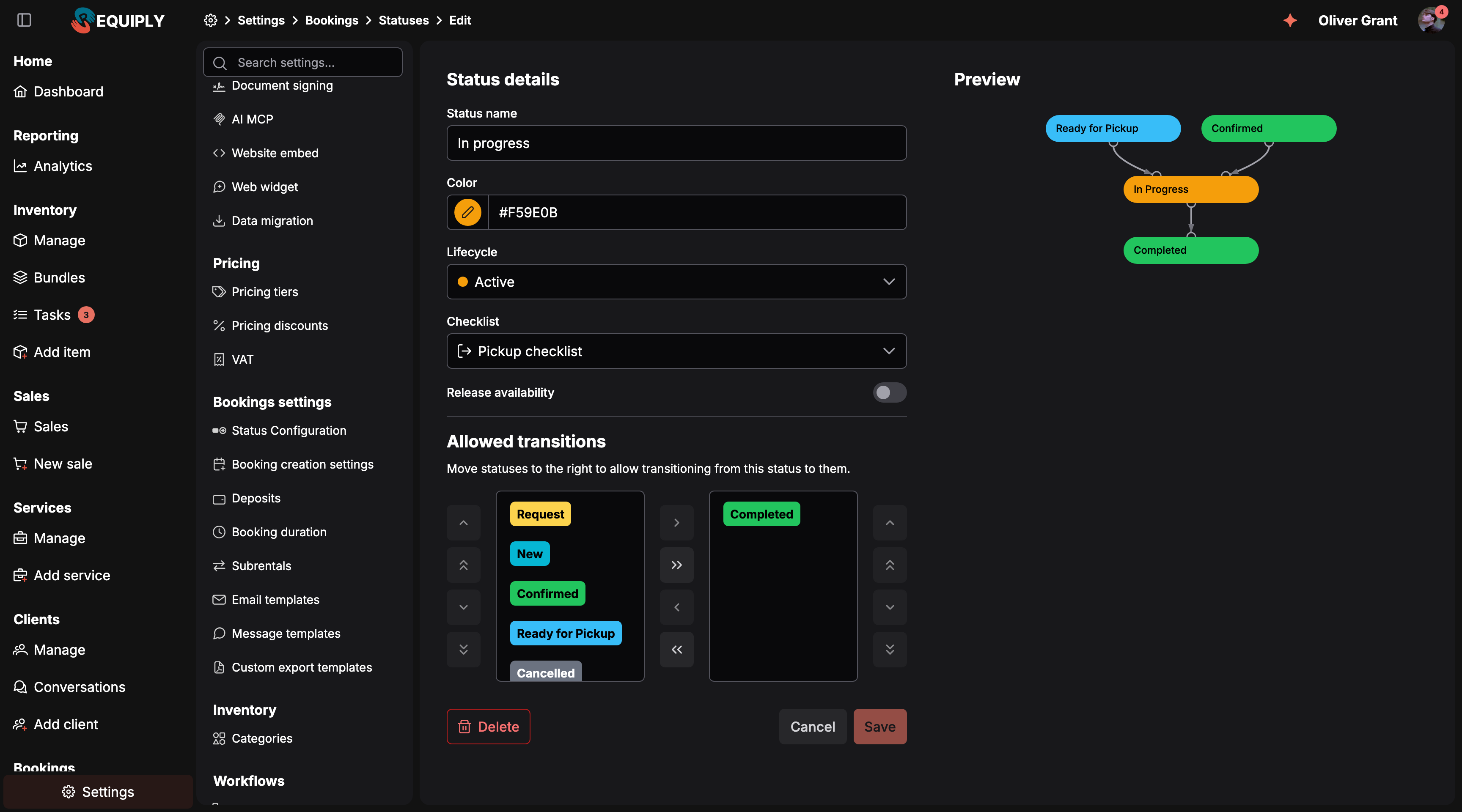
A status you start with is edited exactly like one you added. Moving a status into the right-hand column allows a transition to it, and the preview redraws the flow as you go.
Below the details is Allowed transitions, a two-column pick list: Move statuses to the right to allow transitioning from this status to them. The preview on the right redraws the status with its incoming and outgoing arrows as you change the list.
Save is enabled only after you change something. Changes take effect immediately: the progression popovers on Manage bookings and the dashboard offer exactly the transitions defined here, and the new name and color show everywhere the status appears.
Deleting a status
Any status can be deleted from the Delete button on its edit page, as long as nothing depends on it. Requiply first checks every place that uses the status and lists each reason in the Delete status dialog:
| Message | What to do |
|---|---|
| This status is used by {n} booking(s). Reassign them before deleting. | Move those bookings to another status first. |
| This status is referenced by {n} workflow(s): followed by the workflow names | Point those workflows at another status, or delete them. |
| New bookings are created in this status. Choose another default status in Booking creation settings before deleting it. | Change Default status for new bookings under Booking creation. |
| Booking requests arrive in this status. Choose another request status in Booking creation settings before deleting it. | Change Status for booking requests under Booking creation. |
| Bookings cancelled in the client portal move to this status. Choose another cancellation status in the Client portal settings before deleting it. | Change Status for cancelled bookings under Portal settings → Client portal, or choose Clients cannot cancel. |
| {n} pickup or return checklist(s) move bookings into this status. Statuses that checklists point to cannot be deleted. | Pickup and return checklists that target this status keep it in use. See the caution below. |
| We could not check where this status is used. Try again later. | The check itself failed. Nothing was deleted. |
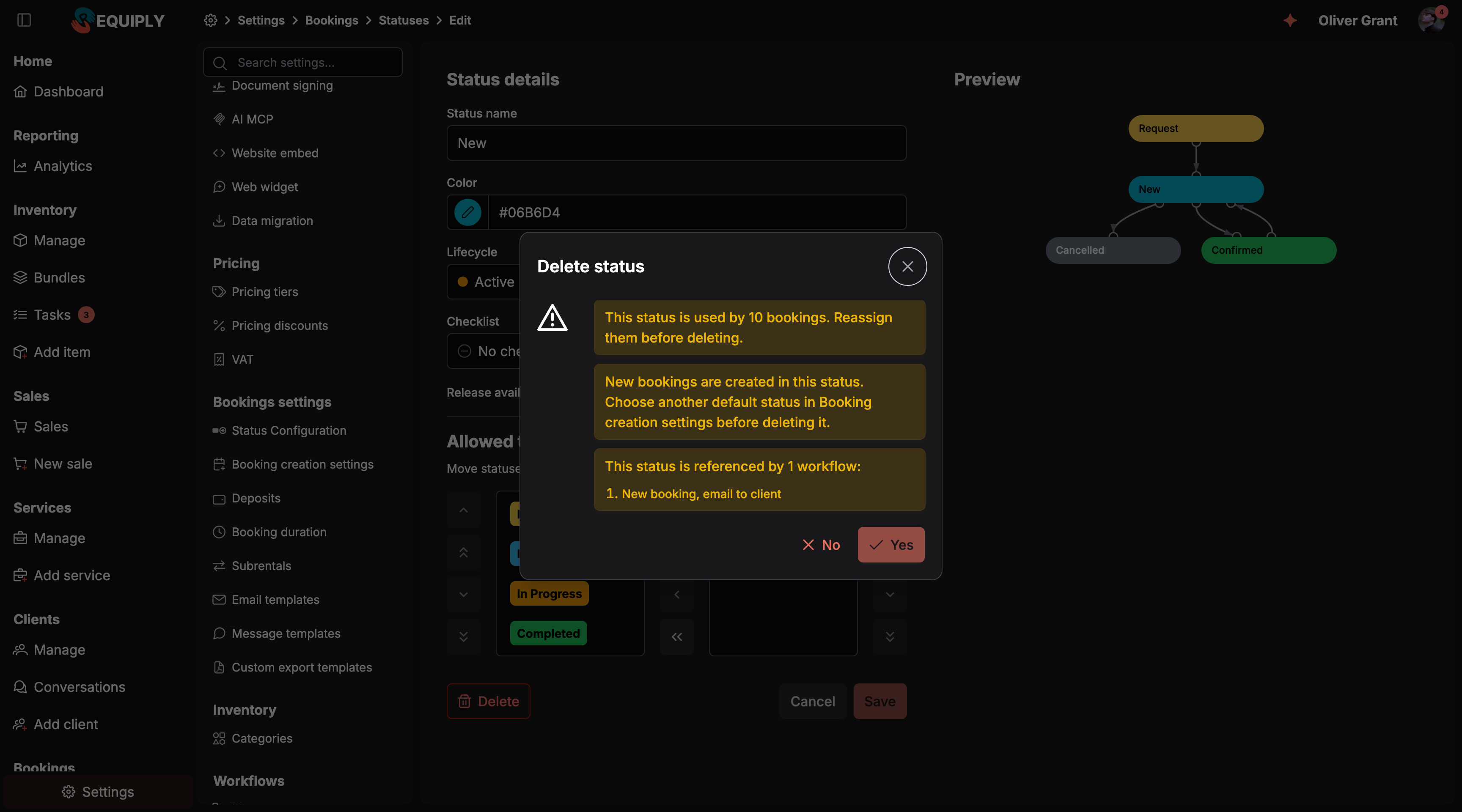
The dialog lists every reason at once, so you can clear them in one pass. The confirm button stays disabled until the list is empty.
When nothing depends on the status, the dialog asks Are you sure you want to delete "{name}"? and Yes deletes it.
How this page connects to the rest of Requiply
| Feature | How statuses affect it |
|---|---|
| Manage bookings | Status tags, the progression popover, and the status filter use these statuses and transitions. |
| Calendar | Booking bars are colored by status. |
| Dashboard | Lifecycle decides which bookings appear as pickups, returns, and overdue, and what counts toward outstanding balances and refundable deposits. |
| Analytics | Cancelled bookings are excluded from revenue. |
| Booking creation | Picks the status new bookings and booking requests start in. |
| Pickup and return checklists | The Checklist field decides which statuses open a per-unit checklist instead of changing straight away. |
| Edit booking items | A status set to Return checklist counts as handed out, so the items of a booking in it are locked. |
| Workflows | The Status reached trigger and the Booking status filter list these statuses. A status referenced by a workflow cannot be deleted. |
| Inventory availability | Release availability decides whether bookings in the status keep their units reserved. |
| Client portal | A portal checkout arrives in your default status. Customers see your status names, and the progress bar follows your transitions. They may cancel their own booking only when your transitions allow a move from its current status to the portal's cancellation status. |
| Mobile app | Shows the same statuses, names, colors, and transitions. |
Common scenarios
Renaming the default statuses to match your business
Open the status, change Status name, and click Save. For example, rename New to Inquiry and In progress to On hire. Bookings, workflows, the calendar, the mobile app, and the client portal all show the new name straight away, and nothing about how the bookings are counted changes.
Using the "Ready for pickup" step
Ready for pickup sits between Confirmed and In progress and is set to Pickup checklist. Use it when orders are assembled ahead of the handover: moving a booking into it opens the checklist where the concrete units are assigned and confirmed, and a workflow on Status reached → Ready for pickup can message the client that the order is waiting. Organizations that hand equipment straight over can skip it, because the defaults also allow Confirmed → In progress directly. If you never use it, remove it from the Allowed transitions of Confirmed and delete it.
Keep in mind that confirming the checklist into Ready for pickup already counts as a handover: from then on the booking's items are locked and the client can no longer cancel it from the portal, even though the order is still on your shelf.
Using your own handover status
If equipment leaves under a status of your own such as Handed over rather than In progress, open that status and set Checklist to Pickup checklist. Moving a booking into it then opens the pickup checklist first.
Tracking returns that still need inspection
Add Awaiting inspection with lifecycle Completed and Release availability off. The booking leaves the overdue list and counts as revenue, while the unit stays blocked until you move it on to Completed.
Pausing a booking
Add On hold with lifecycle Active and Release availability on, so the units can be booked by others while the client decides.
Skipping requests altogether
If you never want bookings to wait for approval, you still need a Status for booking requests, because AI and API requests have to land somewhere. Point it at a status your team checks every day, and keep in mind that a request status with Release availability off holds stock from the moment the request arrives.
Deleting a status you never use
Open it and click Delete. If the dialog lists reasons, clear them one by one: reassign the bookings, repoint the workflows, and change the default, request, or cancellation status if this is one of them. Then delete again.
Tips and cautions
Overview
The rules every rental follows: statuses and their transitions, how bookings are created, minimum duration and buffers, deposits, subrentals, and message templates.
Booking creation
Choose the status new bookings and booking requests start in, how the date picker behaves when staff create a rental, whether pickup and return times can be typed in, whether the booking form starts from items or from dates, and whether units can be scanned in at creation.