

Booking Creation Settings
The Booking Creation Settings page is where you choose how date and time pickers behave whenever a booking is created inside Requiply. It controls the default date picker style used across the app — both in internal booking flows and in customer-facing booking experiences — so bookings are always created with a consistent, predictable interface. It also sets the status a new booking starts in, the status a booking request arrives in, whether the staff booking form starts from items or from dates, and whether staff can scan specific units into a booking while creating it.
You can find this page under Settings → Bookings settings → Booking Creation Settings (/settings/reservations/booking-creation).
Why this page matters
Booking creation is the heart of Requiply. The date picker that appears on the booking form determines how staff and customers select booking dates and times — whether they pick a single date with separate time fields, or a date range with separate times.
Choosing the right picker style helps your team and your customers move through booking creation faster and with fewer mistakes. The selection here is reused across:
- Internal booking creation in the web app and the mobile app
- The client portal your customers book on
- Any other place in Requiply where a booking date picker appears
The two status fields decide where a booking enters your status flow: Default status for new bookings for bookings your team makes, and Status for booking requests for requests that wait for approval.
The Allow assigning units on creation toggle serves teams that hand over exactly the unit a customer asked for. Staff scan the unit while creating the booking, and it is pinned to the booking from the start instead of being chosen later.
Who can use this page
This page lives inside the Settings area, so it is intended for users who manage organization configuration (typically administrators).
The page itself does not show plan limits, paid add-ons, or upgrade prompts — it is a standard settings screen. Access is governed by the surrounding settings layout and authentication middleware rather than by per-feature billing rules.
What you'll see
The page is split into two halves:
Left side: settings form
- A page heading: Booking creation, with two sections: Defaults and Permissions.
- Under Defaults, a Booking dates picker dropdown, with a small question-mark icon next to it. Hovering the icon shows a tooltip explaining: "This date picker will be the default for all places in the app for booking creation."
- Under Defaults, a Start from dropdown with the options Start from items and Start from dates. See Choosing where the booking form starts.
- Under Defaults, a Default status for new bookings dropdown and a Status for booking requests dropdown, each listing your statuses with their colors and each with a question-mark tooltip. See Choosing the starting statuses.
- Under Permissions, an Allow assigning units on creation toggle, off by default. Its question-mark icon shows the tooltip: "Adds a field to the booking form where staff can scan or type a unit code. The scanned unit is pinned to the booking and its product line is added automatically. Members also need the "Allow assigning units on booking creation" permission in their group."
- Cancel and Save buttons at the bottom of the form. Save stays disabled until you change a dropdown or the toggle.
Right side: live preview
- A heading: Settings preview, with the subtitle "Date picker preview".
- A working preview of the date picker using the currently selected option, populated with a sample equipment item ("Preview equipment") so you can see exactly how the picker will look and behave before saving.
The preview follows your own permissions. If your permission group has Allow booking outside of working hours, the preview also lets you pick closed days and shows times outside the working schedule as orange pills, exactly as your own Add booking form does. Members without that permission see working hours only.
While the page is loading or saving, the entire view is blocked with a full-screen overlay so changes cannot be made mid-request.
Empty state
This page does not have an empty state. Every organization gets its booking creation settings the moment it is created: Inline dates with separate times, Start from items, New as the default status, Request as the request status, and Allow assigning units on creation switched off. The preview reflects those values until you change them.
Main actions
Choosing the date picker style
The Booking dates picker dropdown offers three options:
| Option | How dates and times are picked |
|---|---|
| Inline dates with separate times | An inline calendar for the start and end date, with pickup and return times chosen from half-hour pills. This is the default. |
| Inline one date with separate times | The same, for a single day: one date on the calendar, pickup and return times from pills. |
| Inline dates with typed times | The same calendar, but pickup and return are typed into a date field and a time field instead of picked from pills. |
Selecting an option immediately updates the preview on the right so you can try it out before committing.
Typed pickup and return
Inline dates with typed times suits teams that already know the exact handover time and find pills slow, and anyone who needs a time the pills do not offer: typed times accept any minute, while pills step in half hours.
The calendar above the fields behaves as it always does, fully booked days struck through in red and partly booked days in orange, and the fields are Pickup date and time and Return date and time, each a date box next to a time box. Under each pair sits the window it will accept, for example Available from 09:00 to 18:00, and the return fields stay disabled until a pickup date exists. The date format follows your localization settings.
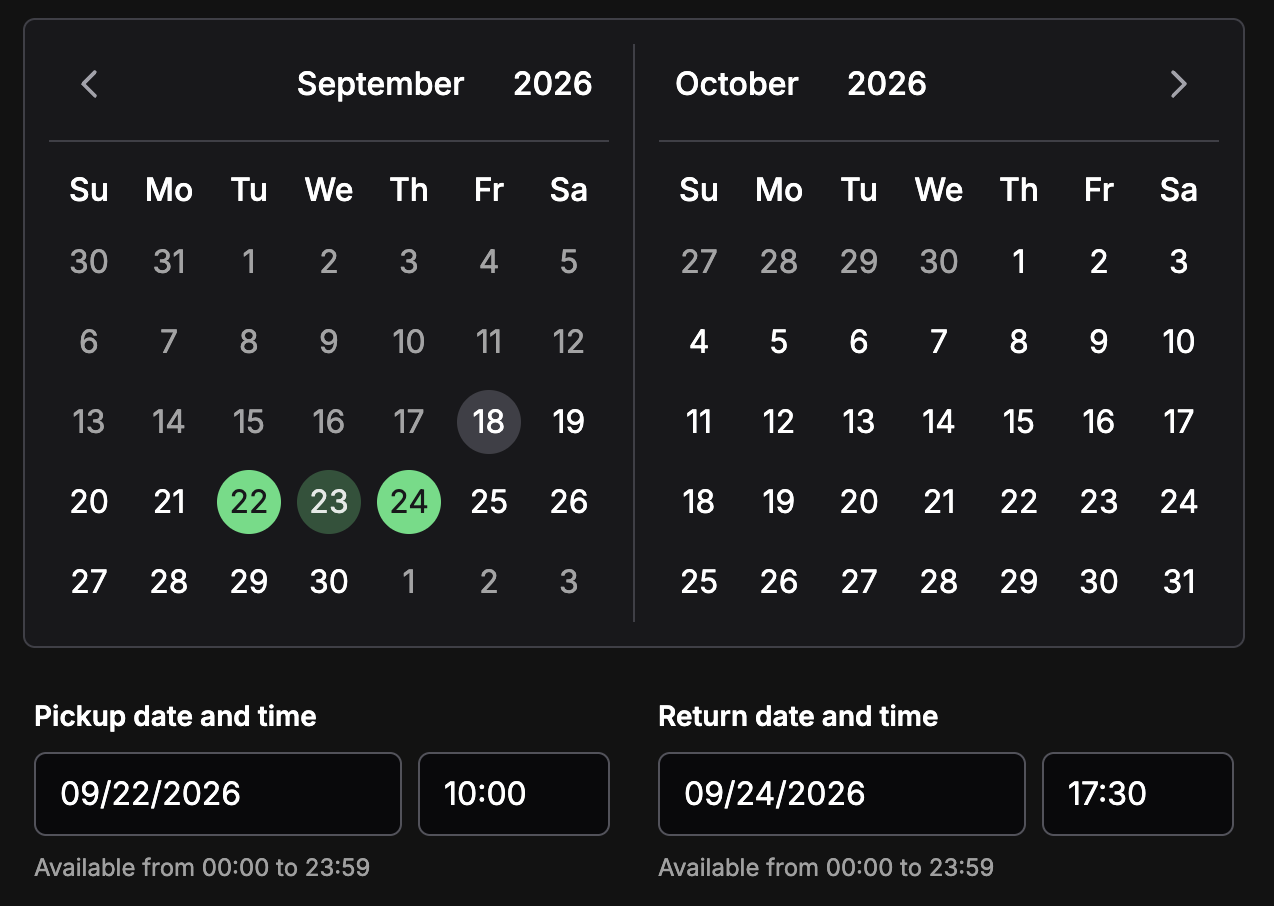
Dates are still picked on the calendar; the fields underneath take the exact times. This member may book outside working hours, so both windows open to the whole day.
Entries are checked as they are completed, and a rejected one leaves the previous value in place:
| Message | What it means |
|---|---|
| Enter a valid date / Enter a valid time | The text is complete but not a real date or time. |
| This date is not available for booking | The date is closed, in the past, or fully booked for the selected items. |
| Return must be on or after the pickup date | The return date is earlier than the pickup date. |
| Choose a time between {min} and {max} | The time falls outside the window the fields offer. |
Members whose group has Allow booking outside of working hours may type times outside the schedule, exactly as they may pick orange pills in the other two modes.
Choosing where the booking form starts
Staff can create a booking in two ways: pick the items first and then see which dates they are free, or pick the dates first and then see which items are free. Start from decides which of the two the booking form opens with:
| Option | The booking form opens with |
|---|---|
| Start from items | The item selector first, then the dates. This is the default. |
| Start from dates | The dates first, then the items that are free on them. |
The question-mark icon explains: "The booking form in the web and mobile apps opens with this option selected. Staff can still switch to the other one while creating a booking."
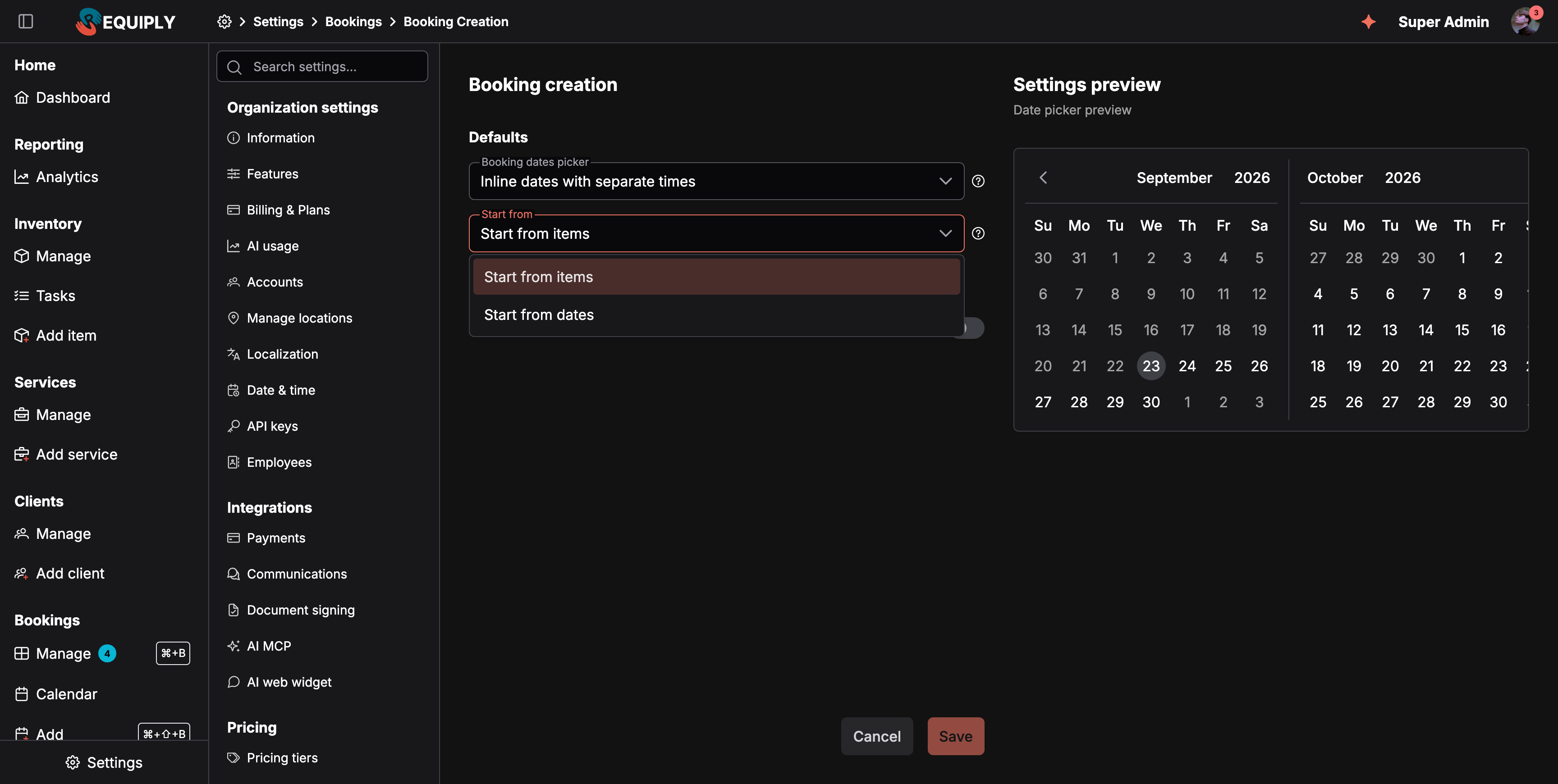
Start from sits under Defaults, next to the date picker style.
- On Add booking in the web app, the Start from items / Start from dates switch at the top is preselected with this option. Staff can still switch.
- In the mobile app, a new booking skips the How do you want to start? question and opens directly in this mode. The question still appears when staff go back from the first step or clear the draft, so they can pick the other mode. See Items first or dates first.
A team that mostly books by date, such as a studio or a venue, picks Start from dates. A team that builds orders around the equipment the client asks for keeps Start from items.
Choosing the starting statuses
Two dropdowns under Defaults decide which status a booking starts in. Both list every status of your organization, shown with its color, and both are required.
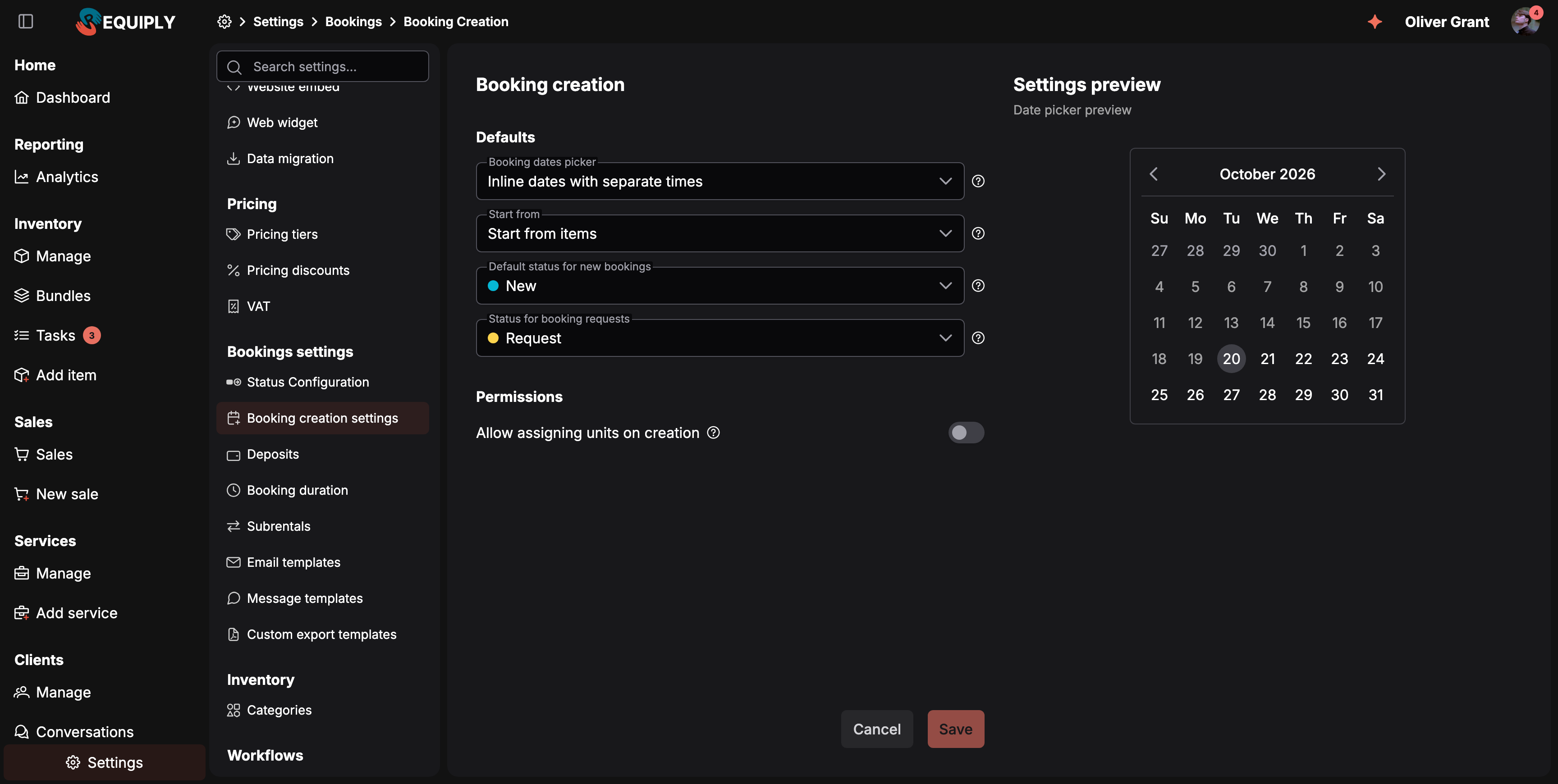
The two starting statuses sit under Defaults. Every organization starts with New and Request here.
| Field | Tooltip | Applies to |
|---|---|---|
| Default status for new bookings | Bookings that staff create in the web app, the mobile app, imports, the API or the AI assistant start in this status. | Add booking in the web app, booking creation in the mobile app, bookings created through the API or the TypeScript SDK with a secret key, and checkouts on the client portal. |
| Status for booking requests | Bookings that clients send as requests from the booking page, the client portal or the chat start in this status. Staff approve a request by moving it to another status. | Bookings from the portal's booking assistant, the AI web widget, outside AI assistants connected over MCP, and API calls made with asRequest: true. |
What else follows these two settings:
- Sidebar counters. The Manage bookings entry in the sidebar shows how many bookings are in your default status and, next to it, how many are in your request status, each counter in its status's color.
- Dashboard money. Bookings in the request status owe nothing yet, so they are left out of Outstanding on the Dashboard.
- Approving a request. Moving a booking out of the request status is what approves it.
- The client portal progress bar. A booking that is still in the request status starts its progress bar there; every other booking starts it at the default status.
- New workflows. A new Status reached workflow preselects the default status.
A status chosen here cannot be deleted. The delete dialog on Booking statuses says so and points back to this page.
Allowing units to be assigned on creation
Switch on Allow assigning units on creation to let staff pin specific units on Add booking. There is no separate field for it: staff type a unit code or SKU into the Booking items search (Name, SKU or unit code), or scan a label with a handheld scanner anywhere on the page, and the unit is pinned to the booking. If the unit's product is not on the booking yet, the product line is added automatically. With the toggle off, the same code only adds the unit's product, without pinning a unit.
The same toggle makes Scan and Enter code on the Inventory step of booking creation in the mobile app pin the scanned unit. See In the mobile app and Adding items to a booking.
Pinned units are assigned to the booking the moment it is created, in both Unit assignment modes under Features. Any remaining quantity follows that option as usual: assigned right away with Assign units at booking, or during the pickup checklist with Assign units at pickup.
The toggle alone does not show the field to anyone. Each member also needs Allow assigning units on booking creation in their permission group. That permission sits in the Booking creation section, is on for Administrators by default, and is off for new groups. The server checks both the toggle and the permission whenever a booking with pinned units is created.
Saving changes
Click Save to store the dropdowns and the toggle together. On success, a toast appears: "Booking creation settings have been saved successfully." If the save fails, an error toast appears and the form remains editable.
Cancelling changes
Click Cancel to discard unsaved changes and revert the dropdowns and the toggle to their last saved values. This does not navigate away from the page.
Forms and fields
| Field | Meaning | Required | Notes |
|---|---|---|---|
| Booking dates picker | The default date picker style used everywhere bookings are created. | Yes | Must be one of the three allowed options. Validation rejects anything else. |
| Start from | Whether the web and mobile booking forms open with the items or with the dates. | Yes | Start from items (default) or Start from dates. Staff can switch while creating a booking. |
| Default status for new bookings | The status a booking your team creates starts in. | Yes | Any of your statuses. New by default. Left empty, the form shows Choose a status. |
| Status for booking requests | The status a booking request arrives in, waiting for approval. | Yes | Any of your statuses. Request by default. Left empty, the form shows Choose a status. |
| Allow assigning units on creation | Lets members with the matching permission pin units on Add booking by entering or scanning a unit code. | No | Off by default. Members also need Allow assigning units on booking creation. |
The Save button is disabled until a dropdown or the toggle differs from its saved value, so you cannot save a no-op.
Billing, plans, and limits
This page has no plan limits, paid add-ons, or upgrade prompts. It is a standard configuration screen available to organizations using Requiply's booking features.
How this page connects to the rest of Requiply
| Feature | How this page affects it |
|---|---|
| Internal booking creation | The chosen picker becomes the default date/time selector when staff create a booking from the admin app. |
| Client portal | Customers get the same picker, single date or date range. Inline dates with typed times is a staff option: the portal falls back to the range picker with time pills. |
| Booking duration settings | Booking creation works alongside duration rules (minimum duration, start-date buffers). The picker selected here is the surface where those rules are applied during date selection. |
| Date and time settings | Localization and time-zone settings from the organization's date/time configuration are loaded together with this page so the preview renders with the correct localized format. |
| Add booking | New bookings start in the Default status for new bookings. With Allow assigning units on creation on, members with the permission pin units by entering or scanning their codes. |
| Booking statuses | The two starting statuses are picked from there, and a status chosen here cannot be deleted. |
| Booking assistant and AI integrations | Requests they create arrive in the Status for booking requests. |
| Permission groups | Allow assigning units on booking creation decides which members can pin units. Allow booking outside of working hours changes what the preview picker offers you. |
| Pickup checklists | Units pinned at creation are already assigned, so a pickup checklist in Assign units at pickup mode only asks for the remaining quantity. |
Common scenarios
Setting up booking creation for a new organization
When first configuring Requiply, open this page, try both options in the live preview, and pick the one that best matches how your team books work — single-day bookings versus multi-day rentals.
Switching from multi-day to single-day bookings (or vice versa)
If your business model changes — for example, moving from equipment rentals (date ranges) to appointments (single date) — update the picker here so all booking surfaces in the app match the new flow.
Verifying the experience before saving
Use the preview panel on the right to see exactly what staff and customers will see. Because the preview is interactive and uses a sample item, you can confirm the picker behaves as expected before clicking Save. With Inline dates with typed times this is also where you check that the typed format matches the one your team is used to: the date format follows your localization settings.
Renaming "New" and "Request" to your own words
You do not need this page for that. Rename the statuses themselves under Booking statuses: the settings here point at the status, not at its name, so they follow the rename.
Making staff bookings start confirmed
A team that confirms everything on the phone before creating the booking can skip New. Open this page, set Default status for new bookings to Confirmed, and click Save. Bookings created from then on start in Confirmed; bookings already in New stay there until someone moves them.
Sending requests to a status of your own
Create a status such as Awaiting approval under Booking statuses, with lifecycle Active and Release availability on so requests hold no stock, and give it transitions to the statuses your team approves into. Then set Status for booking requests to it here and click Save.
A studio that books by date
Clients call asking "are you free on Saturday?", not for a specific item. Set Start from to Start from dates and click Save. The booking form on the web and in the mobile app now opens on the calendar, and staff see which items are free once the dates are picked.
Letting counter staff scan units while booking
Switch on Allow assigning units on creation and click Save. Then open Permission groups, turn on Allow assigning units on booking creation for the counter staff's group, and save the group. The next time those members open Add booking, a unit code typed into the Booking items search or scanned with a handheld scanner pins that unit, and it is listed under Pinned units.
An administrator cannot pin units
Open this page and check Allow assigning units on creation. The matching permission is on for Administrators by default, so when a scanned unit code only adds the product, the toggle is almost always off. Switch it on and click Save. Then reload Add booking on the web, or close and reopen the mobile app. If units are still not pinned, work through the checklist.
Tips and cautions
Booking statuses
Rename, recolor, add and delete booking statuses, choose the allowed transitions, and decide which statuses hold stock, open a checklist, and count as active, completed, or cancelled. Every status is editable.
Booking duration
Set the shortest rental you accept and reserve buffer time before and after each booking for preparation, cleaning, or transport.