

Assigning and replacing at pickup
On a pickup checklist, staff can bind the units that actually go out, replace a reserved unit with another one of the same product, and see when a booking is short because a unit is out of service.
Assigning units at pickup
Without checklists, a booking is assigned its concrete units the moment it is created. Larger warehouses usually want the opposite: the booking reserves quantities ("3× Sony FX6"), and whichever physical units staff grab are bound at pickup. That is the Unit assignment option of the checklists feature, and turning checklists on selects it by default. Organizations that would rather keep assigning at creation switch the option to Assign units at booking; see Features.
With Assign units at pickup in effect, a booking shows its products and quantities but no SKUs until the pickup checklist runs. The booking's item list, its emails, and its documents all count the reserved quantity, and SKU tags appear on the rows only as units get bound. The checklist then opens with a Units to assign section on top: one row per product still short of units, with its image, {count} more to assign, and an orange assigned/required tag such as 1/2. It fills up as you go:
- Enter or scan the code of a unit of a reserved product in the code field. It is bound to the booking and checked in one step: Unit {sku} assigned to the booking.
- Assign all in the Units to assign heading lets Requiply pick free units for everything still open, the no-scanner shortcut: {count} units auto-assigned. The picked units are bound and checked in one step, and their SKUs appear under Units to hand out.
- The × button (Unassign unit) on a unit bound during this pickup unbinds it again if you picked the wrong one. Such a unit cannot be unticked with its checkbox, because the tick and the binding were the same action: unbinding it is the way to undo.
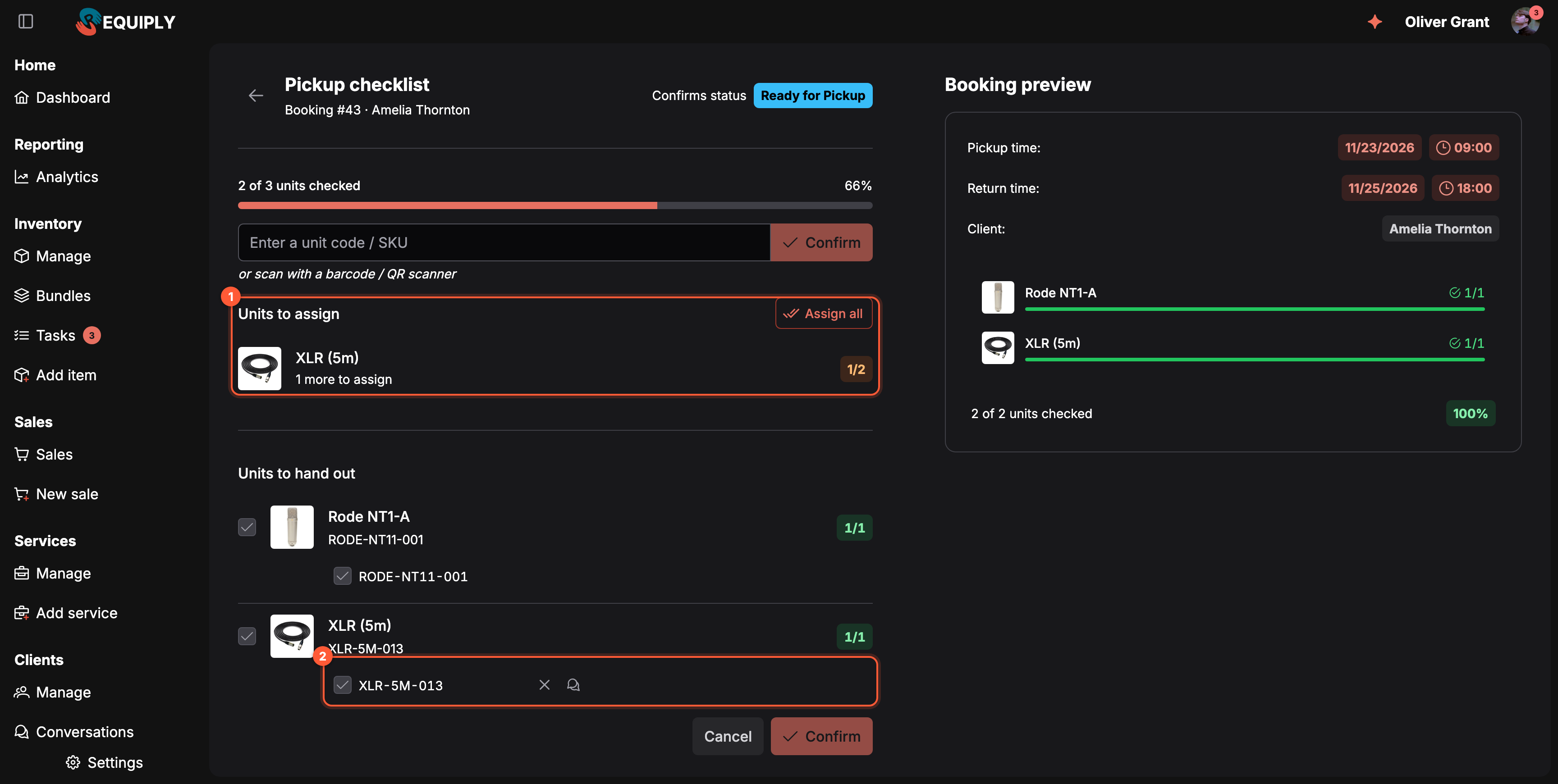
1 One XLR cable is still open: scan one, or click Assign all. 2 Units bound during this pickup carry the Unassign unit cross.
The progress counter at the top measures against the reserved quantity, so it reads 2 of 3 here while the Booking preview beside it counts only the units that are already bound. The two agree once nothing is left to assign. Mark all in the Units to hand out heading appears only after that.
Confirm stays disabled until every reserved quantity has a bound, checked unit. Availability is unaffected by when units are bound, because bookings hold their quantities either way, and every binding is recorded on the timeline. If the booking passes through two pickup checklists (for example Ready for pickup, then In progress), the units bound at the first one simply appear as the expected list of the second.
When Assign all cannot fill the checklist
Assign all tells you why it could not assign everything:
| Message | Why | What to do |
|---|---|---|
| Not enough available units. Out of service: CAM-004 (On Maintenance), CAM-005 (Lost). | The product has units on maintenance or lost, and without them there are too few for this booking. | Take a unit off maintenance or mark a lost one as found on Manage inventory, or scan a different product. |
| Not enough free units of these products for the booking dates. | Every free unit is held by other bookings for these dates. | Free a unit on another booking, or change this booking's items or dates. |
The mobile app shows the same reasons, for example Not enough available units of Sony FX6: CAM-004 is on maintenance.
Replacing a unit during pickup
When staff grab a different unit of the same product than the one the booking reserved, the checklist can swap it: the booking's line moves to the unit actually handed over, the checklist row is marked checked, and the timeline records "Unit replaced during pickup: SKU-A → SKU-B".
A replacement is accepted only when the new unit:
- belongs to the same item group as the one being replaced,
- is Available (not archived or on maintenance),
- is not already part of this booking, and
- is not booked by another booking over the same dates.
Replacement is available on pickup checklists only — a return confirms what actually went out.
On the checklist page, a replacement starts from the code field: enter or scan a unit that is not on the list but belongs to a reserved product whose quantity is already fully assigned, and the Replace a reserved unit dialog asks Unit {sku} is not reserved for this booking but belongs to the same product. Replace one of the pending units with it? Pick the Unit to replace and click Replace: Unit replaced with {sku}. If another booking holds the scanned unit for these dates, Requiply says This unit is booked by another reservation for these dates.
Unit shortages and units out of service
Bookings reserve quantities, and units are often bound only at pickup. So when a unit goes on maintenance or is lost, a booking can come up short without having that exact unit assigned. Requiply checks this per product, the same way availability is counted:
- On the booking page, until the goods are picked up, a warning Some items can't be handed over lists each product that is short: {product}: assigned unit CAM-004 is not available. or {product}: needs 3, available 2. Out of service: CAM-004 (On Maintenance). The mobile booking screen shows the same warning.
- When putting a unit on maintenance from Manage inventory, the confirmation lists the current and upcoming bookings that will be short without it.
- In the Unreturned units dialog of a return, choosing Returned damaged or Lost for a unit shows Without these units, 1 booking will be short. with the bookings affected, before you confirm.
A booking that is short can still be handed over for what is available. Fix it by returning a unit to service, swapping in another product with Edit items, or moving the dates.
Overview
Confirm every unit as it leaves the warehouse and as it comes back, by product, by unit, or with a barcode scanner, before the booking changes status. Record partial returns: units still with the client, returned damaged, or lost.
Returns
What the return checklist lists, how to confirm a return with units still out, damaged, or lost, and how a partly returned booking holds availability until the rest comes back.