

Manage inventory
The Manage Items page is where you browse, search, and act on owned and supplier-sourced inventory groups. It is the day-to-day workspace for keeping the catalog organized: assigning categories, attaching pricing tiers, drilling into owned units, and running bulk clean-up operations.
You can find this page under Inventory → Manage, or at https://app.requiply.com/inventory/manage.
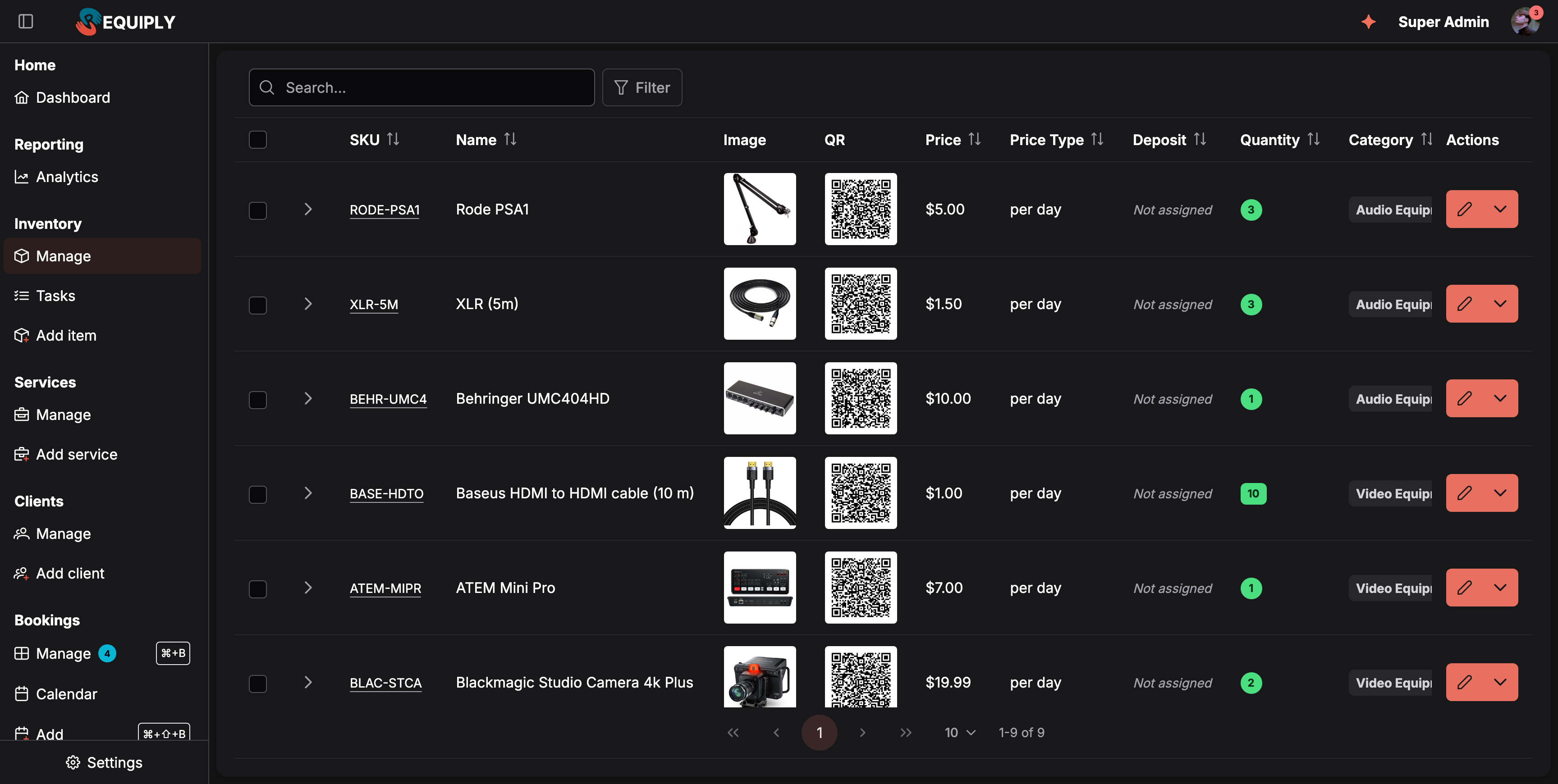
Each row is a product (item group). Expand a row to see its physical units and where each one is.
Access: Only users whose account has the Inventory Management permission can see the Inventory section in the side navigation or open this page. Without that permission the route is blocked at the auth middleware. Inventory is not gated by a plan limit.
Why this page matters
Inventory groups in Requiply are the source of truth for everything you sell, rent, or track. Other parts of the product reuse this data:
- Bookings — items reserved or rented to clients are pulled from these groups.
- Subrentals — supplier-sourced groups provide reusable supplier, cost, billing-unit, and margin defaults for procurement lines.
- Pricing tiers — tier groups assigned here drive how the item is priced for different client segments.
- Categories — categories control which custom entity fields appear on the item and how it is grouped in reports.
- Item detail and item-group detail pages — every SKU on this page links into its own page for deeper history, expenses, and edits.
- Add Items — the empty state and the per-row "Add items" action both feed into the same add flow.
Keeping this list accurate means downstream booking, pricing, and reporting screens stay accurate.
Who can use this page
- Visible only to accounts with the Inventory Management permission.
- The page itself does not show read-only or restricted variants — once a user is in, they can edit, bulk-update, and delete.
- There is no trial, unpaid, or upgrade-prompt state on this page.
What you'll see
When inventory exists, the page renders as a single full-height card containing one paginated data table:
- A toolbar with a search box, a Filter button, a chip for each active filter, Reset filters once something is set, and a New item button on the right that opens Add item. See Searching, filtering, and sorting.
- A table of item groups, one row per group, with selectable checkboxes and an expander column.
- Pagination at 10 / 20 / 50 rows per page, with a counter such as 1-9 of 9. Only the current page is loaded, so large catalogs stay fast. Without a chosen sort, the newest products come first.
- Column set comes from the saved table layout for the Item Group level, so the visible columns can be customized per organization. Typical columns include SKU, Image, Name, Price, Price Type, Quantity, Category, Pricing Tier, plus any custom entity fields configured for item groups. A QR column exists for groups and QR and Barcode columns for units; they are hidden by default and only render when QR codes and barcodes are enabled for the organization.
- A frozen Actions column on the right with a per-row split button.
- An expansion panel under owned rows that lists the individual physical items belonging to that group, ten at a time. See Browsing the units of a product. Supplier-sourced groups are marked as subrentals and have no physical-unit expansion.
When the inventory is completely empty, the table is replaced by a full-page empty placeholder with a box icon, the Empty inventory title, and an Add items button that links to /inventory/add.
Selection mode
Selecting one or more rows replaces the search and filter toolbar with a bulk-action toolbar showing the selection count, the bulk actions, and a clear-selection button.
The selection is kept when you move to another page or change the sort, so you can tick products across several pages and act on all of them at once. Changing the search or a filter clears it, so a bulk action never touches products you can no longer see.
Empty state
If no item groups exist yet, the table is hidden entirely and the page shows the Empty inventory placeholder with a single Add items call-to-action that opens the add flow at /inventory/add. Adding the first group is important because almost every other inventory feature — bookings, pricing, expenses, custom fields — only becomes useful once at least one group exists.
Main actions
Searching, filtering, and sorting
Search finds products whose SKU, name, or category name contains what you type.
Filters work like on Manage bookings: click Filter, pick a field, set its value in the editor that opens, and click Done. Each active filter becomes a chip; click a chip to change it or its × to remove it. Reset filters clears the search and all filters.
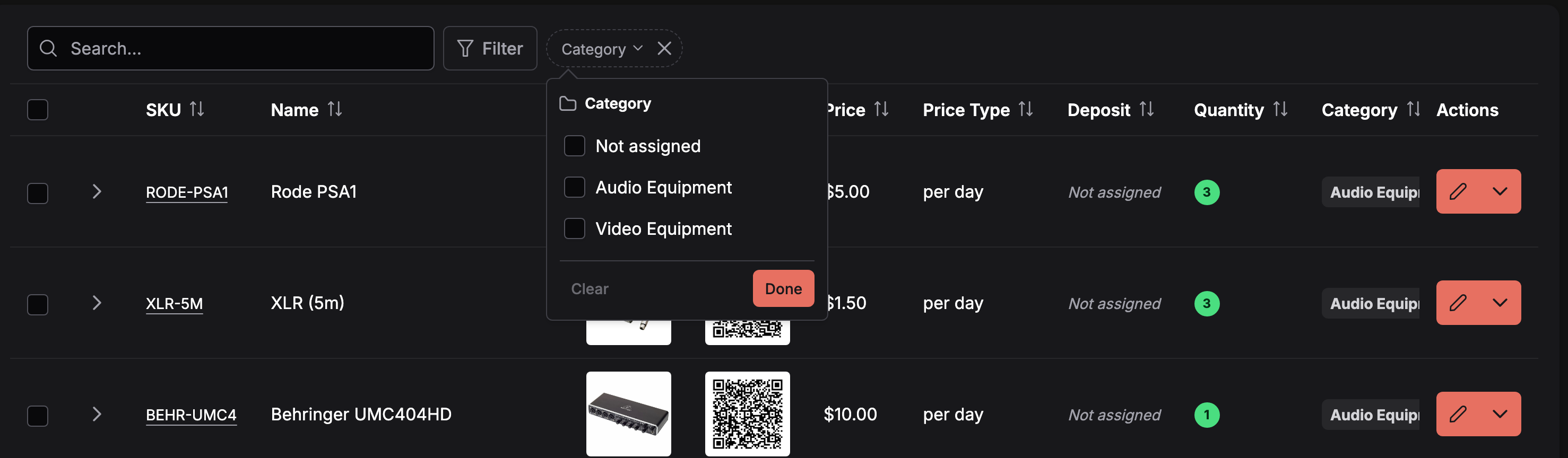
Filter by category. Not assigned finds products that have no category yet.
| Filter | How it works |
|---|---|
| Category | Tick one or more categories, or Not assigned. Subcategories are listed with their full path, such as Audio Equipment › Microphones. A parent category also finds the products in all of its subcategories. |
| Pricing tier | Tick one or more pricing tier groups, or Not assigned. |
| Price type | Per hour, per day, per month, and so on. |
| Price, Deposit, Quantity | A minimum, a maximum, or both. Quantity counts the product's units that are not archived. |
| Stock source, Supplier, Margin, Client price | Only when subrentals are enabled: owned or subrental, the supplier (or Not assigned), and ranges for the margin and the marked-up client price. |
| Custom fields | Every item-group custom field in your table layout, filtered by its type. |
Click a column header to sort by it: SKU, Name, Price, Price type, Deposit, Quantity, Category, Pricing tier, and, with subrentals, Stock source, Supplier, Margin, and Client price. The search, filters, sort, and page are kept in the page address, so a filtered view can be bookmarked or shared.
Opening an item group or an individual item
- Clicking the SKU tag on a group row navigates to the item-group detail page at /inventory/item-group-{id}.
- Expanding a group row shows its physical items; clicking the SKU tag on an item row navigates to the item detail page at /inventory/item-{id}.
Browsing the units of a product
Units load page by page, so a product with hundreds of units opens as fast as one with three.
- In the expansion on this page, a product shows 10 units per page, oldest first.
- On the product page (/inventory/item-group-{id}), the Individual Items card shows 20 units per page.
- Once a product has more units than fit on one page, a search box appears above its units with the placeholder SKU, serial number or barcode. Type part of a unit's SKU, its manufacturer serial number, or any of its barcodes (Requiply code, EAN-8 or a tied manufacturer code). Several words must all match. × clears the search.
- A pager under the units moves between pages and shows how many units there are.
Archived units are not listed. When nothing matches, the expansion reads No units match your search.
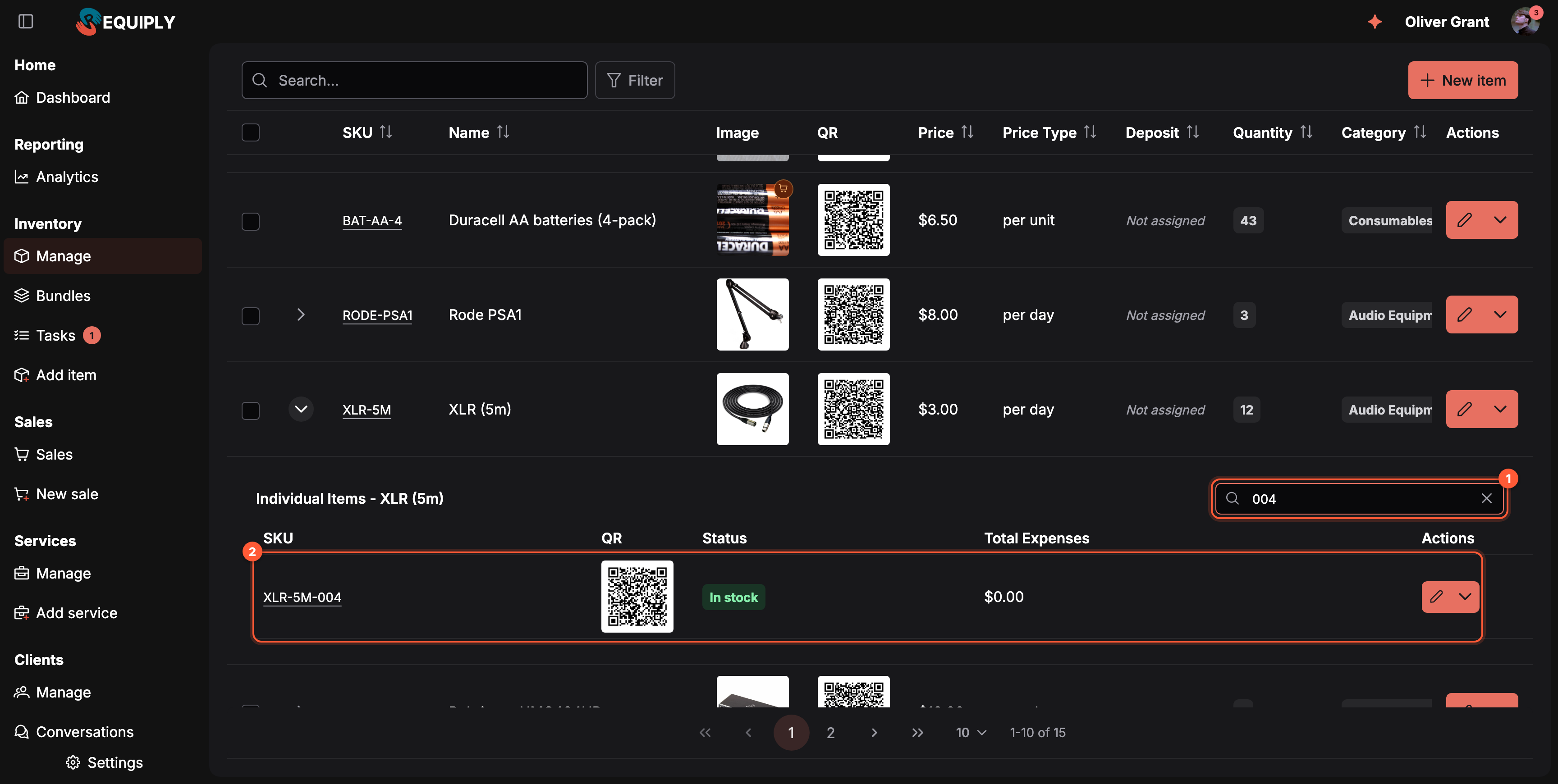
1 Search the units of one product by SKU, serial number or barcode. 2 The matching unit. The search and a pager for the units appear only when the product has more units than one page holds.
Per-group actions (right-side split button)
The split button on each item-group row exposes group-level operations such as editing the group, adding more items into it, and deleting the group. After any of these complete the table refreshes automatically.
Per-item actions (inside the expansion)
Each individual item row inside the expanded view has its own split button for item-level operations, including editing the item, putting it on maintenance, exporting its barcode label (when QR codes and barcodes are enabled), opening its comments, and deleting it. A unit marked Lost also gets Mark as found at the top of the menu, see Lost units and Mark as found. Status changes are reflected immediately in the status badge.
Putting a unit on maintenance
Choosing maintenance in a unit's menu opens the Put item on maintenance dialog: Are you sure you want to put item {sku} on maintenance? An info note explains: The unit can't be handed over or added to bookings until it is taken off maintenance.
Before you confirm, Requiply checks which current and upcoming bookings still need the unit. It counts per product, so bookings that reserved a quantity without a specific unit are included:
- No current or upcoming bookings need this unit. Safe to go ahead.
- This unit is needed by 2 current or upcoming bookings. They will be short without it. Each booking is listed with its number (opens in a new tab), client, dates, and why: Unit CAM-004 is assigned to this booking or Needs 3, only 2 available.
- Couldn't check which bookings need this unit. The check failed; you can still confirm.
Put on maintenance confirms. The warning never blocks the change. The bookings that come up short then show Some items can't be handed over on their page until you fix them, see Unit shortages. The mobile app shows the same check as an alert, This unit is needed by bookings, when you send a unit to maintenance.
Unit status and presence
The Status column of the expanded unit rows shows where each physical unit is right now. It combines the unit's own status with the bookings it is on:
| Tag | Meaning |
|---|---|
| In stock (green) | In your warehouse and free. |
| Reserved (blue) | Assigned to a booking that is running now or starts within a day, and not picked up yet. |
| Out (orange) | Handed over at a pickup checklist and not returned yet. A unit the client kept after a partial return also shows Out. |
| Overdue (red) | Handed over, and the booking's planned return has passed. |
| Maintenance (orange) | On maintenance, for example after it came back damaged. |
| Lost (red) | Marked lost at a return, or by hand. |
| Archived (grey) | No longer rented out. |
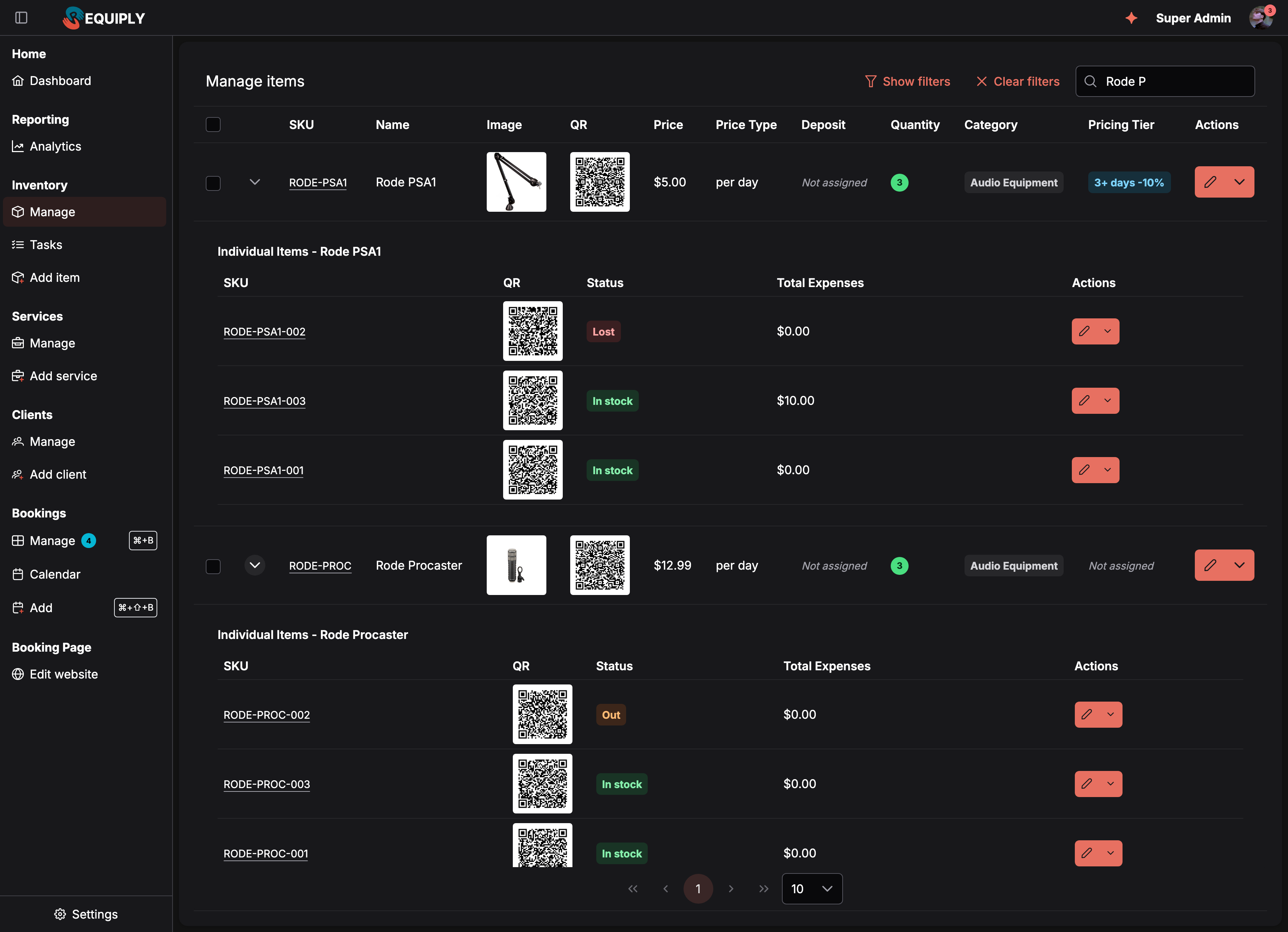
Each unit shows where it is. RODE-PROC-002 is still with a client, and RODE-PSA1-002 was lost at a return.
Out and Overdue depend on the pickup checklist, so they appear only when pickup and return checklists are on. The same tag shows in the Status row of the unit's own page. The unit table on the item group's page still shows the stored status only (Available, On Maintenance, Lost, Archived).
Lost units and Mark as found
A unit becomes Lost when a return checklist records it with the Lost outcome. A lost unit:
- is not counted in the available quantity of its product, so it cannot be booked,
- cannot be handed over at a pickup checklist,
- keeps its history, comments, and the note written when it was lost.
If it turns up again, open the unit's split button and click Mark as found. There is no confirmation step: the unit goes back to Available right away and Requiply shows Unit {sku} is back in stock.
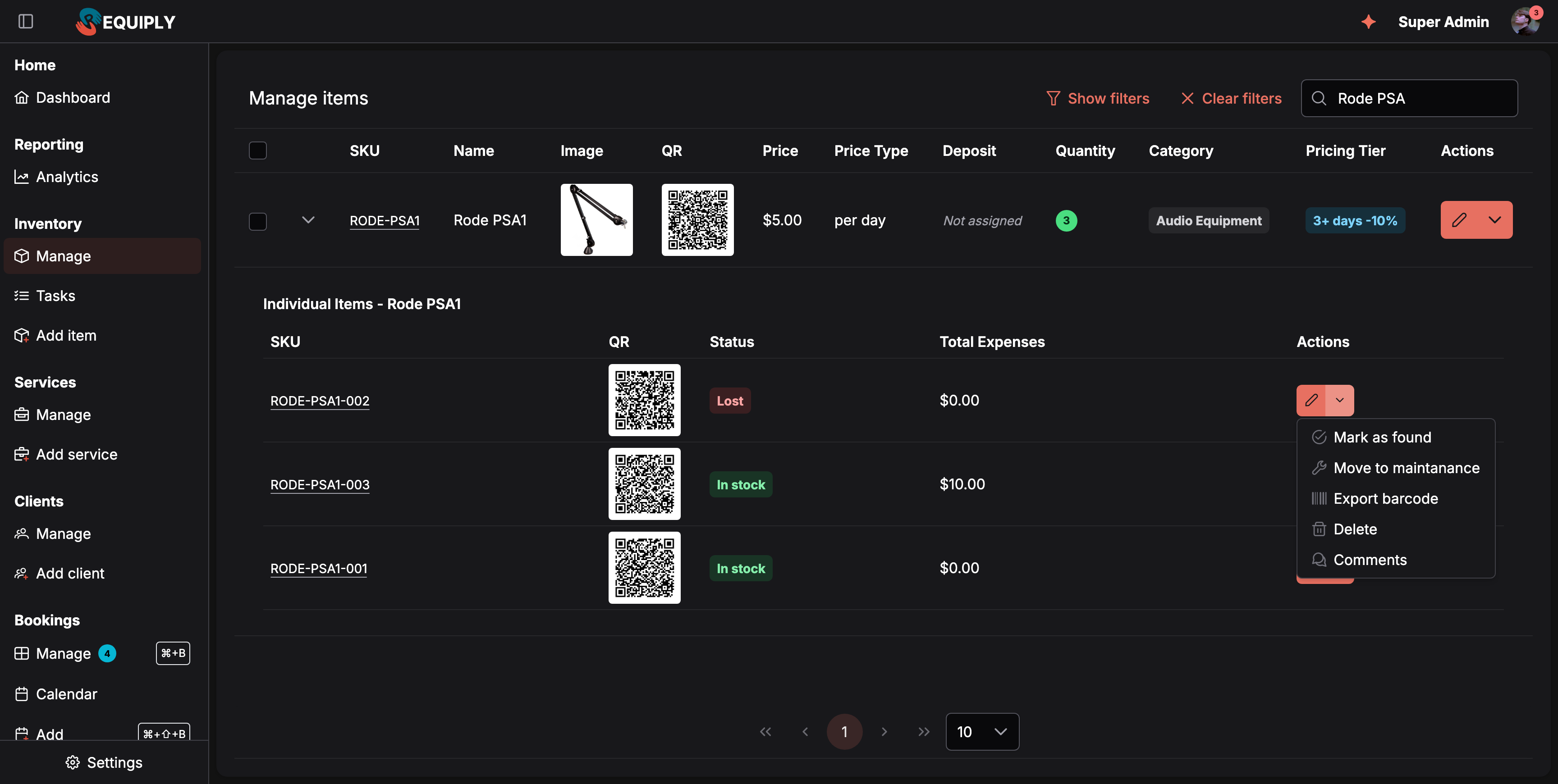
Mark as found appears only on units whose status is Lost.
Mark as found is available in the web app only.
Bulk actions
Selecting one or more groups reveals the bulk actions in the header:
- Assign Pricing Tier — opens a dialog to attach a pricing tier group to every selected item group at once.
- Change Category — opens a dialog to move every selected item group into a chosen category.
- Export QRs — generates a printable PDF of QR stickers for every unit in the selected groups. Shown when QR codes and barcodes are enabled; on the Core plan a crown button takes its place and leads to the subscription page.
- Export barcodes — generates a label-printer PDF with one barcode label per unit at a chosen label size. Shown only when QR codes and barcodes are enabled.
- Delete — opens a confirmation dialog and bulk-deletes the selected groups.
After any bulk action completes, the selection clears and the table reloads.
Goods for sale in the table
When Sales is on, products of the type Equipment for sale are listed in the same table:
- an orange cart badge on the photo (hover: Equipment for sale),
- per unit in the Price Type column,
- the stock count in Quantity, in a grey tag like every other row, turning red at zero or below,
- no expand arrow, because goods for sale have a stock count instead of units.
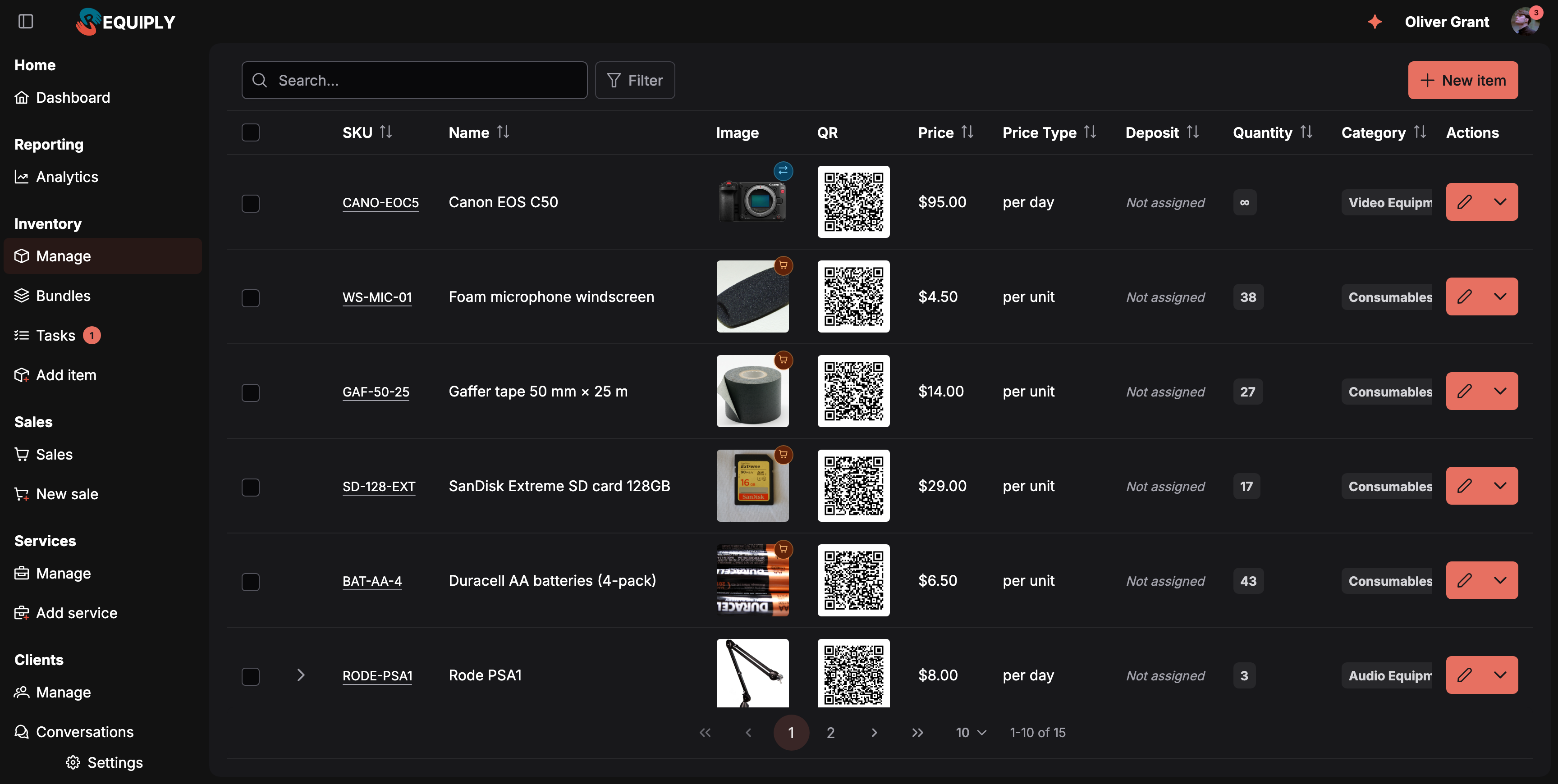
Goods for sale sit next to rental products: a cart badge, a per unit price, and a stock count instead of units.
Members without a Sales permission do not see these rows. Stock changes and sales figures are on the product's page, see Sale items and stock.
Forms and fields
This page itself is not a form — its inputs are filters and bulk-action dialogs. Field meanings on the rows:
- SKU — the human-readable identifier for the item group; rendered as a tag and used for search and navigation.
- Image — the default image for the group; falls back to a placeholder when none is set.
- Name — the display name of the group.
- Price — the base price of the group, formatted in the organization's currency.
- Full price: what the equipment cost you to buy. Optional and informational only: it never affects what a client is charged. Hidden by default; add it under Table column layout.
- Price Type — how the price is interpreted (for example fixed, hourly, daily); displayed using the localized price-type label.
- Quantity: a grey tag with the number of units of the product that are not archived. Subrental products show ∞, because their stock is elastic. Goods for sale show their stock count, in red at zero or below.
- Stock source — distinguishes individually tracked Owned stock from elastic Subrental products when the organization feature is enabled.
- Category — the category the group belongs to. Shows a tag when assigned and an italic Not assigned hint when not.
- Pricing Tier — the pricing tier group attached to the group, with the same not-assigned fallback.
- Custom fields — any entity fields configured at the Item Group level appear as additional columns. A custom field that is not applicable to the row's category renders as
-. To create a new custom field, on items or on any other record, go to Entity fields; this page only displays fields that already exist.
Inside the expansion, individual item rows additionally show:
- Status: where the unit is right now, as a colored badge (In stock, Reserved, Out, Overdue, Maintenance, Lost, or Archived). See Unit status and presence.
- Serial number: the manufacturer's serial number of that physical unit. Optional, edited on the unit itself, and separate from the SKU: the SKU is your organization's identifier, the serial number is the maker's. It can be printed per unit in documents through the
serialcolumn of the items table macro. - Total Expenses — the sum of expenses logged against the item, formatted as currency.
- Custom item-level fields — any entity fields configured at the Item level.
Billing, plans, and limits
Inventory on this page is not metered by the subscription plan, and no upgrade prompts or paid add-on banners appear here. Access depends on the Inventory Management account permission only.
How this page connects to the rest of Requiply
| Feature | How this page affects it |
|---|---|
| Item group detail page | The SKU tag on each group row links into the group's full detail page, where deeper edits and history live. Which rows that page shows is set under Detail page fields. |
| Item detail page | SKU tags inside the expansion link into the individual item detail page, whose rows — SKU, status, QR, barcodes, custom fields — are ordered under Detail page fields. |
| Add Items | The empty state and per-group "add items" action both lead into the inventory add flow. |
| Subrentals | Supplier-sourced groups prefill supplier and pricing information when added to a booking. |
| Categories | The Change Category bulk action and the Category column reflect categories defined elsewhere in settings. Changing a group's category can affect which custom fields apply to it. |
| Pricing tier groups | The Assign Pricing Tier bulk action attaches pricing tiers to groups, which then drive prices used in bookings and quotes. |
| Custom entity fields | The columns and per-cell rendering depend on the Entity Field configuration for Item Group and Item levels. |
| Table layout configuration | The exact columns shown — for both the group table and the per-item expansion — come from the layout saved under Table column layout for the Item Group and Item levels. |
| Inventory tasks | Items put on maintenance or otherwise flagged feed into the Inventory → Tasks view. |
| Comments | Each unit row exposes a comments shortcut that opens the shared timeline — manual notes, activity panels, and expense rows all in one place. |
| Bundles | With the Bundles feature on, Bundles appears under Inventory in the sidebar. If an item that belongs to a bundle is archived or is no longer owned, the bundle turns Incomplete and is hidden from bookings until you replace that item. Deleting an item group removes it from its bundles, so check them afterwards. |
| QR codes and barcodes | The QR and Barcode columns, the bulk export actions, and the per-unit Export barcode action appear here once the feature is enabled under Organization → Features. |
Common scenarios
Onboarding the first batch of inventory
Open the page, see the empty state, click Add items, then return to Manage to see the new group appear. Use the row's split button to add more individual units into the group.
Reorganizing after a category restructure
Select every group that belongs in the new category, click Change Category, choose the destination, and apply. The category tag updates on every selected row at once and any category-specific custom fields become applicable.
Rolling out a new pricing tier
Select all item groups that should follow a new pricing tier, click Assign Pricing Tier, pick the tier group, and apply. Future bookings using these groups will price against the new tier.
Cleaning up legacy SKUs
Add the Category filter or search by name, select obsolete groups (the selection survives paging), click Delete, and confirm. The bulk delete removes the selected groups; downstream features that referenced them should be reviewed afterward.
A lost unit turns up again
Search for its SKU, expand the group, open the unit's split button, and click Mark as found. The unit is back in stock and can be booked again.
Investigating a single SKU
Use the global search or the SKU column filter to find the row, click the SKU tag to open the group detail page, or expand the row to inspect each physical item and its status.
Finding one unit among many
A client returns a cable without its label, but the serial number is readable. Expand XLR (5m), type the serial number into the unit search box, and the matching unit is the only one left. Scanning its barcode into the same box works too.
Tips and cautions
Tip: Configure your categories and custom entity fields before importing large amounts of inventory. The columns shown here, the filters that appear, and the fields that are applicable to each row all depend on those settings.
Tip: Use the Category filter when working through a large catalog. Combined with bulk selection, which is kept across pages, it makes pricing-tier and category roll-outs fast.
Heads up: Bulk Delete removes the selected item groups and their relationship to the rest of the system. Review bookings, pricing, and reports that depend on a group before removing it.
Heads up: Custom fields shown as
-are not unset — they are not applicable to that row's category. Reassigning the category through Change Category can make them applicable (or hide them) on the next refresh.
Overview
The equipment, vehicles, properties, and supplier-sourced stock you rent out: where the catalog lives and how it feeds bookings, pricing, and the client portal.
Add item
Create a new product in your rental catalog: name, category or subcategory, description, photos, price (0 allowed), deposit, quantity of units, and whether you own the stock or source it from a supplier.