

Custom export templates
The Custom export templates page is where admins design the printable PDF documents Requiply generates from a booking — rental agreements, handover and return acts, pickup checklists, internal packing sheets, or any other paperwork your business hands to a client or files internally.
This is where a rental contract comes from. Write the wording once here, and every booking can then be printed or emailed as a finished contract with the customer's name, dates, items, and prices already filled in. To print one for a particular booking, open the booking and export it: see Booking documents.
You can find this page under Settings → Bookings → Custom export templates.
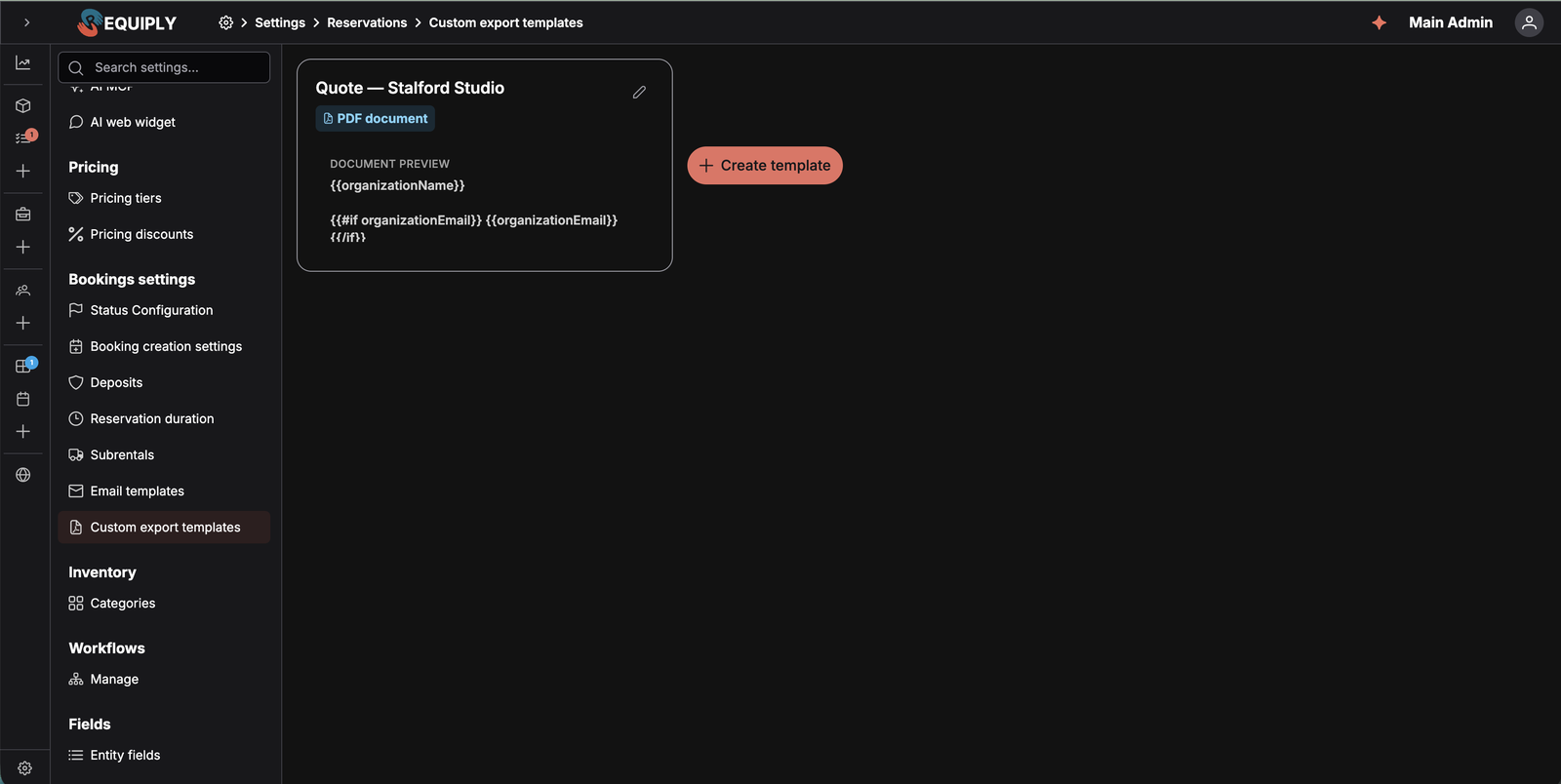
Each template appears as a card with a PDF document badge and a plain-text preview of its body.
Why this page matters
Requiply already generates an invoice from every booking. Export templates cover everything else. Once a template exists, it appears in the Export dialog on any booking, and staff can produce a filled-in, print-ready PDF for that specific booking in one click — no copying booking data into a Word file.
Typical documents organizations build here:
- A rental agreement listing the parties, booking dates, equipment table, charges, deposit, and signature lines.
- A handover and return act with condition notes and acknowledgements for both directions.
- A pickup or packing sheet for the warehouse team.
- A damage or incident report pre-filled with the booking and client details.
Who can use this page
- Admins only. Users without the admin role are redirected to the access-denied screen.
- There is no plan limit or feature flag on templates — every organization can create as many as it needs.
- Using a finished template is not admin-restricted. Anyone who can open a booking's Export dialog can generate the document.
What you'll see
The page loads the templates for the current organization and shows them as a wrapping grid of cards. While loading, three skeleton placeholders appear in the same layout.
Each template card shows:
- The template name (truncated with a tooltip on hover).
- A PDF document badge.
- A Document preview box containing the first lines of the document body rendered as plain text.
- An edit (pencil) button that opens the Add or edit export template page.
After the cards, a rounded Create template button with a plus icon opens the add page.
Empty state
Requiply ships no built-in export templates. A new organization starts with zero, and the booking Export dialog offers only PDF Invoice until the first template is created.
When the list is empty, the page shows a centered placeholder with a PDF icon, the title "No custom export templates yet", the subtitle "Create printable documents like rental agreements or handover acts, filled with booking data on export", and a Create template action.
Main actions
Adding a template
Create template — from either the plus button or the empty state — opens the Add or edit export template page. After saving, you return to the list and a toast confirms Document template "<name>" created.
Editing a template
The pencil icon on a card opens the same page in edit mode, with Save and Delete actions.
Deleting a template
Deletion happens from the edit page behind a simple confirmation dialog. Unlike email templates, export templates are not referenced by workflow automations, so there is no reference check — the delete goes through immediately once confirmed.
Available variables
The document body is plain HTML with {{variable}} tokens. At export time Requiply replaces each token with data from the booking the document is generated for.
Booking, client, and organization variables
| Variable | Replaced with |
|---|---|
{{documentDate}} | The date the document is generated (today, in the organization's timezone). |
{{clientName}} | The client's full name. |
{{clientFirstName}} | The client's first name. |
{{clientLastName}} | The client's last name. |
{{clientEmail}} | The client's email address. |
{{clientPhone}} | The client's phone number. |
{{bookingId}} | The booking number as shown in Requiply. |
{{bookingStartDate}} | The booking's start date. |
{{bookingStartDateTime}} | The booking's start date and time. |
{{bookingEndDate}} | The booking's end date. |
{{bookingEndDateTime}} | The booking's end date and time. |
{{bookingDays}} | Chargeable rental days: the booking period counted in started 24-hour periods, the way per-day prices are charged, with a cost adjustment in periods already applied. Pickup on Friday at 10:00 and return on Monday at 10:00 prints 3, or 2 with a −1 period adjustment. |
{{bookingStatus}} | The booking's current status name. |
{{bookingTotal}} | The booking total, formatted in the organization's currency. |
{{bookingDeposit}} | The security deposit amount (empty when there is no deposit). |
{{bookingTotalCharged}} | Rental total plus deposit. |
{{bookingBundleDiscount}} | What the booked bundles save in total, for example $19.20, already inside {{bookingTotal}}. Empty when the booking has no bundle. |
{{bookingAdjustment}} | The booking's cost adjustment: −1 period or +2 periods for charged periods, −10% for a percentage, the plain number such as −25 for a flat amount. Empty without an adjustment. Not in the variable picker, type it by hand. |
{{bookingAdjustmentReason}} | The reason given for the adjustment. Not in the variable picker. |
{{bookingAdjustmentAmount}} | The money effect of a percentage or flat adjustment, for example −$9.00. Empty for charged periods. Not in the variable picker. |
{{bookingItems}} | A full HTML table of the booked items. Prints SKU, name, quantity, price, and total by default; see Choosing the table columns. Booked bundles add a discount row at the end, see Bundles in the items table. |
{{bookingItemsQuantity}} | How many units are booked in total, for example 7 for 4 chairs and 3 tables. Units not assigned yet count too. Empty when the booking has no items. |
{{bookingItemsTotal}} | The rent of the booked items for the booking period, after bundle discounts. Services and sold goods are not included. It is the same amount as the total cell of the items table's totals row. Empty when the booking has no items. |
{{bookingItemsFullPriceTotal}} | The full prices of every booked unit added up, that is what the rented equipment cost you, for example for a liability or insured-value clause. Empty when no booked product has a full price. |
{{bookingServices}} | A full HTML table of the services on the booking. Prints name, price, and total by default; see Choosing the table columns. |
{{bookingSaleItems}} | A table of the goods sold on the booking (Sales), net of returns. Prints name, quantity, price, and total by default; see Sold items table columns. Empty when nothing was sold. |
{{bookingSaleTotal}} | Total of sold items: the net total of the goods sold on the booking, already included in {{bookingTotal}}. Empty when nothing was sold. |
{{bookingRentTotal}} | Booking total without sold items: {{bookingTotal}} minus the sold goods, that is the rent, services, discounts, and adjustments. On a booking without sold goods it equals {{bookingTotal}}. Use it with {{bookingSaleTotal}} to show rent and goods as separate lines above the amount to pay, see Splitting rent and sold goods in the summary. |
{{organizationName}} | The organization's name. |
{{organizationEmail}} | The organization's contact email. |
{{organizationPhone}} | The organization's contact phone number. |
{{organizationLogoUrl}} | The web address of the light mode logo from Organization info, for use inside an image tag: <img src="{{organizationLogoUrl}}">. Empty when no logo is uploaded. See Putting your logo on a document. |
{{bookingItems}} and {{bookingServices}} insert a complete table, not a value. Put them on their own line rather than inside a sentence. Their column headers are localized to the organization's language, and prices use the organization's currency.Choosing the table columns
Written plainly, {{bookingItems}} prints its default columns. Add a column list in square brackets and the table prints exactly the columns you name, in the order you name them:
{{bookingItems[index, name, serial, qty, price, total]}}
Entries are comma separated and unquoted. An unknown entry is ignored. Without brackets the defaults are used: SKU, name, quantity, price, and total for items, and name, price, and total for services.
Your own column headers
Every column prints a standard header in the organization's language, such as Name or Qty. To use your own wording, write it after the column name with a colon:
{{bookingItems[index, name:Equipment, qty:Units, total:Amount]}}
The header is free text in any language, so a Ukrainian contract can print {{bookingItems[name:Найменування, qty:Кількість]}}. It works for every column in all three tables, custom field columns included: groupField_weight_kg:Weight (kg).
] ends the list, so qty:Qty, pcs prints a column headed Qty and drops the unknown pcs entry. Write qty:Qty (pcs) instead, and leave out quotes.Item table columns
| Column | Prints |
|---|---|
index | Row number. |
image | The product's photo as a small square thumbnail: the photo marked as default on the product, otherwise its first photo. It has no header unless you give it one, for example image:Photo. |
sku | SKU, the organization identifier. |
serial | The unit's manufacturer serial number. |
name | Product name. |
category | Category. |
qty | Quantity. |
price | Price per unit. |
priceType | Rate: per day, per hour, per month, or fixed. |
deposit | Deposit per unit. |
full_price | Full price, what the equipment cost you. |
full_price_total | Full price multiplied by the quantity, for example $2,400.00 for two cameras that cost $1,200.00 each. |
total | Line total. |
itemField_<field key> | A custom field defined on the unit level. |
groupField_<field key> | A custom field defined on the product level. |
blank:Label | An empty column with Label as its header, for cells filled in by hand. |
totals | Not a column: adds a summary row at the bottom of the table, see Totals row. |
Item rows follow the order the products were added to the booking, and every export of the same booking prints them in the same order. Products saved together, such as everything picked when the booking was created, are listed by name, with numbers compared as numbers (Light 2 before Light 10). Products added to the booking later come after them, in the order they were added. The units of one product are sorted by SKU.
Totals row
Add totals anywhere in the column list and the table ends with a summary row. The name column reads Total: (in a table without name, the first column that has no sum of its own), and every column that can be added up shows its sum:
{{bookingItems[index, name, qty, deposit, full_price_total, total, totals]}}
| Column | Sum in the totals row |
|---|---|
qty | All booked units. |
deposit | Deposit per unit times quantity, added up over all rows. |
full_price_total | The full price of everything booked, the same amount as {{bookingItemsFullPriceTotal}}. |
total | The rent of all items after bundle discounts, so it matches the rows above including any bundle row, and equals {{bookingItemsTotal}}. |
itemField_… and groupField_… on a Number field | The field value times the quantity of each row, added up. A product weighing 2.5 kg booked 4 times counts as 10. |
Other columns, such as price, full_price, or text fields, stay empty in the totals row. totals on its own, {{bookingItems[totals]}}, prints the default columns with a summary row. The label follows the organization's language: Total: in English documents, Всього: in Ukrainian ones.
totals works in the other two tables as well: {{bookingServices[name, total, totals]}} sums the service totals, and {{bookingSaleItems[name, qty, total, totals]}} sums the quantity and total of the goods sold.
Bundles in the items table
A booking with a bundle gets one extra row per bundle at the end of every {{bookingItems}} table, whatever columns you picked:
- The name column (or the first column when the table has no
name) reads Podcast duo kit: bundle discount 10%, with Includes: … in small grey text under it. - The
totalcolumn holds the negative amount, for example -$19.20. A table without atotalcolumn puts the amount in the label instead: Podcast duo kit: bundle discount 10% (-$19.20). - The other cells stay empty, and the row has no row number.
The item rows keep their full prices, so the table adds up to {{bookingTotal}} once the bundle row is counted. Templates written before bundles existed need no change.
Service table columns
index, name, price, priceType, total, and blank:Label, plus totals for a summary row with the sum of total.
Sold items table columns
index, sku, name, qty, price, total, and blank:Label, plus totals for a summary row with the sums of qty and total. Without brackets it prints name, qty, price, and total, for example {{bookingSaleItems[index, sku, name, qty, price, total]}}.
serial and any itemField_* column describe one physical unit, so including either prints one row per unit instead of one row per product line. A line of 3 tripods becomes three rows, each with its own serial number.image, sku, serial, full_price, and full_price_total are dropped from the printed table when no row has a value, so a document does not carry a column of blanks. A booking where no product has a photo prints no image column, and SKUs and serials appear once units are assigned. blank:Label is the exception: it is meant to be empty and always prints.blank:Condition and blank:Signature turn an items table into a handover act that staff and client fill in with a pen at the counter.Custom field variables
Every custom field configured on the Client, Booking, or Organization level is also available as a variable. Requiply builds the token from the field's key with a level prefix:
| Entity level | Token pattern | Example |
|---|---|---|
| Client | {{clientField_<field key>}} | {{clientField_passport_number}} |
| Booking | {{bookingField_<field key>}} | {{bookingField_delivery_notes}} |
| Organization | {{organizationField_<field key>}} | {{organizationField_vat_number}} |
These appear in the Insert variable dropdown alongside the built-in ones, labelled with the field name and its level — for example Passport number (Client). Checkbox fields render as a localized Yes/No, and multiselect fields render as a comma-separated list.
Date and number fields print in the document's language, the same as the itemField_ and groupField_ table columns:
| Field type | English document | Ukrainian document |
|---|---|---|
| Date | 10/13/2026 (month first) | 13.10.2026 |
| Date holding a time | 10/13/2026 14:30, 24-hour time in the organization's timezone | 13.10.2026 14:30 |
| Number | 2.5, a decimal point | 2,5, a decimal comma |
Numbers print with up to two decimals and without a thousands separator: 12500 stays 12500.
See Entity fields to create a field and Level configurations to attach it to the Client, Booking, or Organization level.
Product and unit field totals
A numeric custom field on the product or unit level can be added up over everything on the booking, for example the total weight to plan transport, or the total power draw of the lighting:
| Token | Adds up |
|---|---|
{{groupFieldTotal_<field key>}} | A product-level field, counted once per booked unit. A product weighing 2.5 kg booked 4 times adds 10. |
{{itemFieldTotal_<field key>}} | A unit-level field, each booked unit with its own value. A unit not assigned to the booking yet counts with the field's default value. |
<p>Total weight: {{groupFieldTotal_weight_kg}} kg</p>
The result is a plain number in the document's format, for example 1,234.5 in English and 1 234,5 in Ukrainian. It prints nothing when no booked unit has a value in that field, so wrap it in {{#if groupFieldTotal_weight_kg}}…{{/if}} when the sentence around it should disappear too.
Use a Number field: values that do not read as a number are skipped. These tokens are not in the Insert variable dropdown, type them by hand. To show the sum under a table column instead, add the groupField_ or itemField_ column and totals to an items table, see Totals row.
Conditional blocks
Export templates support one piece of logic: an optional block that only prints when a variable has a value.
{{#if bookingDeposit}}
  <p>Security deposit held: {{bookingDeposit}}</p>
{{/if}}
The block content is kept when the variable resolves to a non-empty value and removed entirely when it does not. Blocks can be nested. There are no else branches, loops, or comparisons — anything else is left in the document as literal text.
How documents are generated
When someone exports a document from a booking:
- Requiply loads the template and the booking.
- Conditional blocks are resolved, then every token is substituted with the booking's data. Text values are HTML-escaped so a client name or note cannot break the layout; the item and service tables are inserted as HTML.
- The result is rendered to an A4 PDF with 15 mm margins.
- The file downloads as
<template name>-<booking number>.pdf.
Dates and times are formatted in the organization's timezone from Date & time settings, and amounts use the organization's currency. Table headers, the Total: label of a totals row, Yes/No values, and the format of custom date and number fields follow the organization's language.
Where templates are used
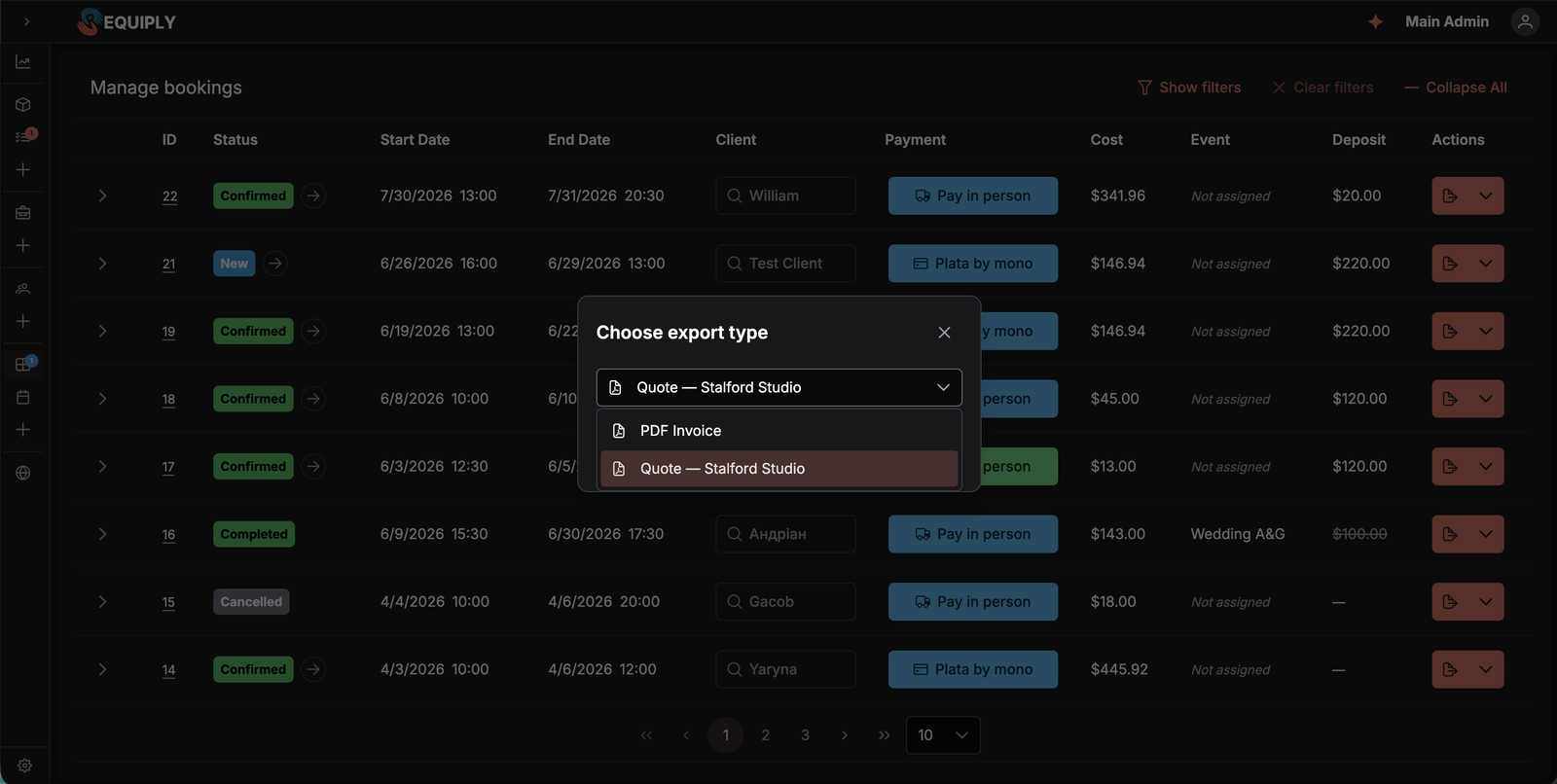
The Choose export type dialog lists the PDF invoice first, then every export template by name.
Templates appear in the Export dialog, which staff reach from:
- The per-row Export split button on Manage bookings.
- The export action on a booking's detail page.
The dialog is headed Choose export type and lists PDF Invoice first, followed by every export template by name. Picking a template and confirming generates and downloads that document for the booking.
Common scenarios
Building a rental agreement
- Open Create template and name it
Rental agreement. - Leave the body editor in HTML mode and lay out the sections: parties, booking period, equipment, charges, responsibilities, signatures.
- Insert
{{organizationName}},{{clientName}},{{bookingStartDateTime}},{{bookingEndDateTime}}, and{{bookingItems}}from the Insert variable dropdown. - Wrap the deposit paragraph in
{{#if bookingDeposit}}…{{/if}}so it disappears on deposit-free bookings. - Check the live preview, then save.
Putting your logo on a document
Upload a light mode logo under Organization info, then add it to the top of the template inside an image tag:
{{#if organizationLogoUrl}}
  <img src="{{organizationLogoUrl}}" alt="{{organizationName}}" style="max-height:60px;">
{{/if}}
The {{#if …}} block keeps the template tidy for an organization without a logo. The live preview has no logo, so the block stays hidden there: export a real booking to see it.
Printing a packing list with photos and total weight
- Create a Number field such as Weight (kg) with the key
weight_kgon the product level and fill it in on your products (see Entity fields). - Create a template named
Packing listand add the items table with photos, your own headers, and a totals row:{{bookingItems[index, image:Photo, name:Item, qty:Qty, groupField_weight_kg:Weight (kg), blank:Packed, totals]}} - Under the table, add
{{#if groupFieldTotal_weight_kg}}<p>Total weight: {{groupFieldTotal_weight_kg}} kg</p>{{/if}}and<p>Units to pack: {{bookingItemsQuantity}}</p>.
The rows come out in the order the products were added to the booking, and the totals row under the weight column shows the weight of everything on the booking.
Stating the rental period and insured value in a contract
Write the period and the value of the equipment in words the client signs:
<p>Rental period: {{bookingDays}} days, from {{bookingStartDateTime}} to {{bookingEndDateTime}}.</p>
<p>Rent for the equipment: {{bookingItemsTotal}}.</p>
{{#if bookingItemsFullPriceTotal}}
  <p>Total value of the equipment handed over: {{bookingItemsFullPriceTotal}}.</p>
{{/if}}
Splitting rent and sold goods in the summary
When a booking includes goods sold through Sales, such as memory cards or batteries, many clients want the rent and the purchase on separate lines. Both totals are in the Insert variable dropdown as Booking total without sold items and Total of sold items:
<table>
  <tr><td>Rent and services</td><td>{{bookingRentTotal}}</td></tr>
  {{#if bookingSaleTotal}}
    <tr><td>Goods sold</td><td>{{bookingSaleTotal}}</td></tr>
  {{/if}}
  <tr><td><strong>Total to pay</strong></td><td><strong>{{bookingTotal}}</strong></td></tr>
</table>
The two lines always add up to {{bookingTotal}}. The {{#if …}} block hides the goods line on bookings without sold goods, so one template works for every booking.
Letting the assistant draft it
Click Create with Requiply Assistant next to the body editor and describe the document you need. The assistant returns a complete print-ready draft with the correct tokens already in place, which you apply to the editor in one click. See Requiply Assistant.
Capturing business-specific data
If your agreement needs a passport number, a VAT code, or a delivery address that Requiply does not store by default, create it as a custom field on the Client, Booking, or Organization level first. It then shows up in the Insert variable dropdown for every template.
Tips and cautions
{{#if …}} for anything optional — deposits, delivery notes, custom fields that are only sometimes filled in. It keeps one template usable for every booking instead of maintaining several near-identical ones.totals to a table instead of typing the sums into the text around it. The summary row always matches the rows above it, bundle discounts included.Add or edit message template
Write an SMS, Viber, or Telegram message: its text, merge variables, conditional blocks, and any attachments or buttons the channel supports.
Add or edit export template
Build a printable rental document: give it a name, lay out the body, and insert booking, customer, item table, and organization variables.