

Returns and partial returns
A return checklist confirms what comes back from the client. It can be confirmed with units missing: Requiply asks what happened to each one and keeps the booking open while units are still out. For how checklists work in general, see Pickup and return checklists.
What the return checklist expects
A pickup checklist lists every unit reserved on the booking.
A return checklist lists the units that were actually confirmed at pickup and have not been returned yet. This matters when a different physical unit went out than the one originally reserved, and after a partial return: the next return checklist lists only the units still out. If the booking never had a confirmed pickup checklist (for example, the feature was switched on mid-rental), the return checklist falls back to every reserved unit.
A unit marked Lost cannot be handed over at pickup: scanning it shows Unit {sku} is Lost and cannot be handed over. Mark it as found on Manage inventory first.
Partial returns: units that did not come back
Not every return is complete. A client keeps one microphone for two more days, a stand comes back with a broken clamp, a cable is lost at the venue. On a return checklist, tick the units that came back in good condition, leave the others unticked, and click Confirm.
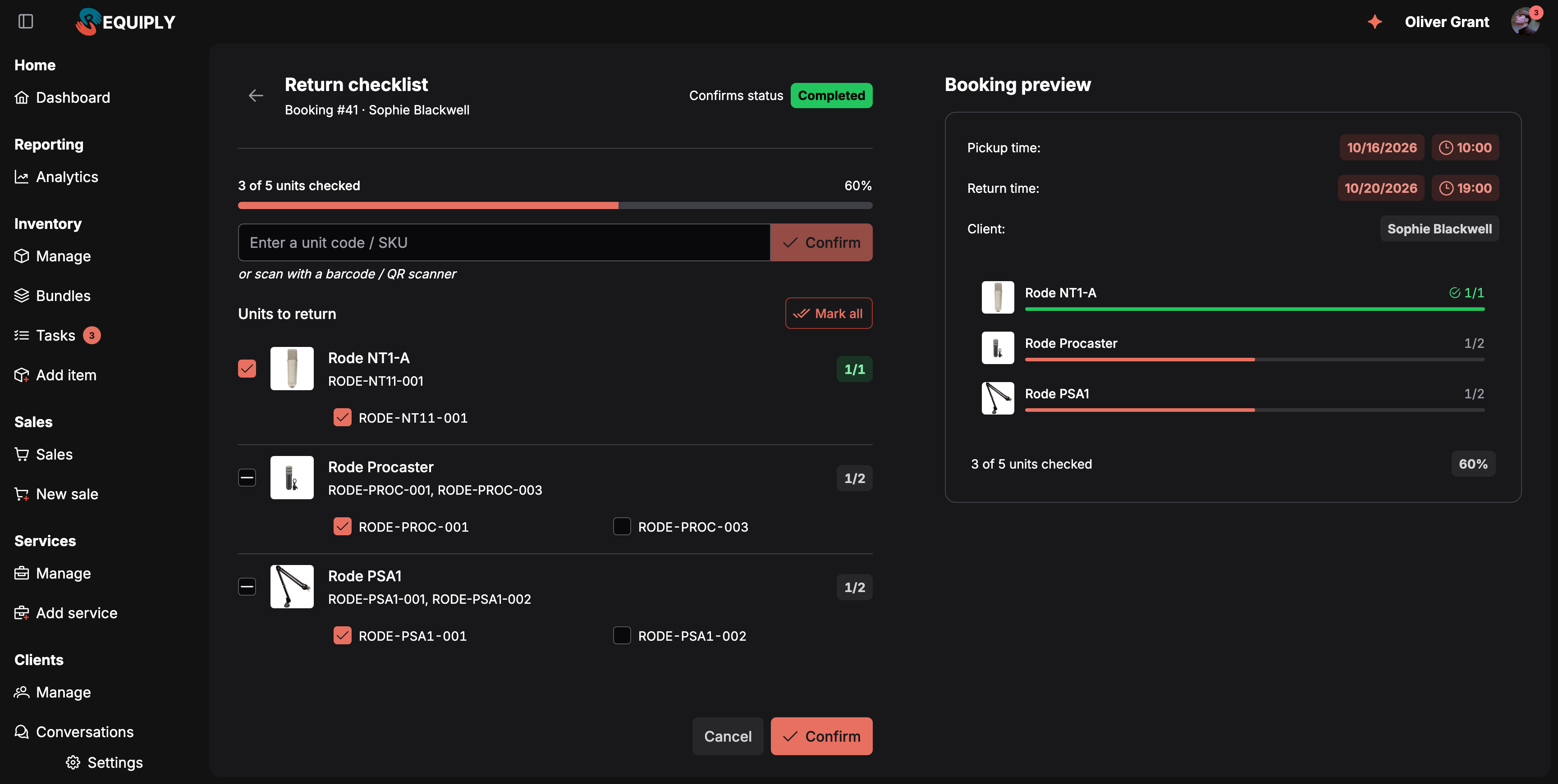
Three of five units came back. Confirm is available even though two units are unticked.
The Unreturned units dialog opens with one row per unticked unit: 2 units were not marked as returned. Choose what happened to each one. Each row shows the unit image, name, and SKU, an outcome dropdown, a comment button, and, for damaged and lost units, a camera button. Pick an outcome for each:
| Outcome | Use it when | What Requiply does |
|---|---|---|
| Still with the client (the default) | The client keeps the unit longer. | The unit stays on the booking and keeps holding availability until it comes back. The booking keeps its current status. |
| Returned damaged | The unit came back, but broken. | The unit counts as returned and is released from the booking. It is put on maintenance, and a maintenance task in To Do is created with your comment and photos. |
| Lost | The unit will not come back. | The unit is released from the booking and its status becomes Lost, so it can no longer be booked. Your comment and photos are saved as an internal comment on the unit. |
Comments and photos. Click the comment button (Add comment) on a row to describe what happened. The placeholder asks What is damaged? or What happened?. A comment is optional for every outcome, but it is what your team reads later on the maintenance task or the unit. For Returned damaged and Lost, click the camera button (Add photo) to attach pictures, for example of the damage. Photos show as thumbnails under the row, each with a remove cross.
Several units at once. With two or more unticked units, each row has a checkbox and the top of the list has Select all. Once units are selected, a bar shows {count} selected with one button per outcome, so you can set Lost on ten cables in one click. Comment in the same bar opens one text field: type the comment and click Apply to put it on every selected unit. The cross clears the selection.
When damaged or lost units would leave another booking short, the dialog warns Without these units, {count} booking will be short. and lists those bookings with their dates and clients: Unit CAM-004 is assigned to this booking or Needs 2, only 1 available. The warning never blocks the return. See Unit shortages.
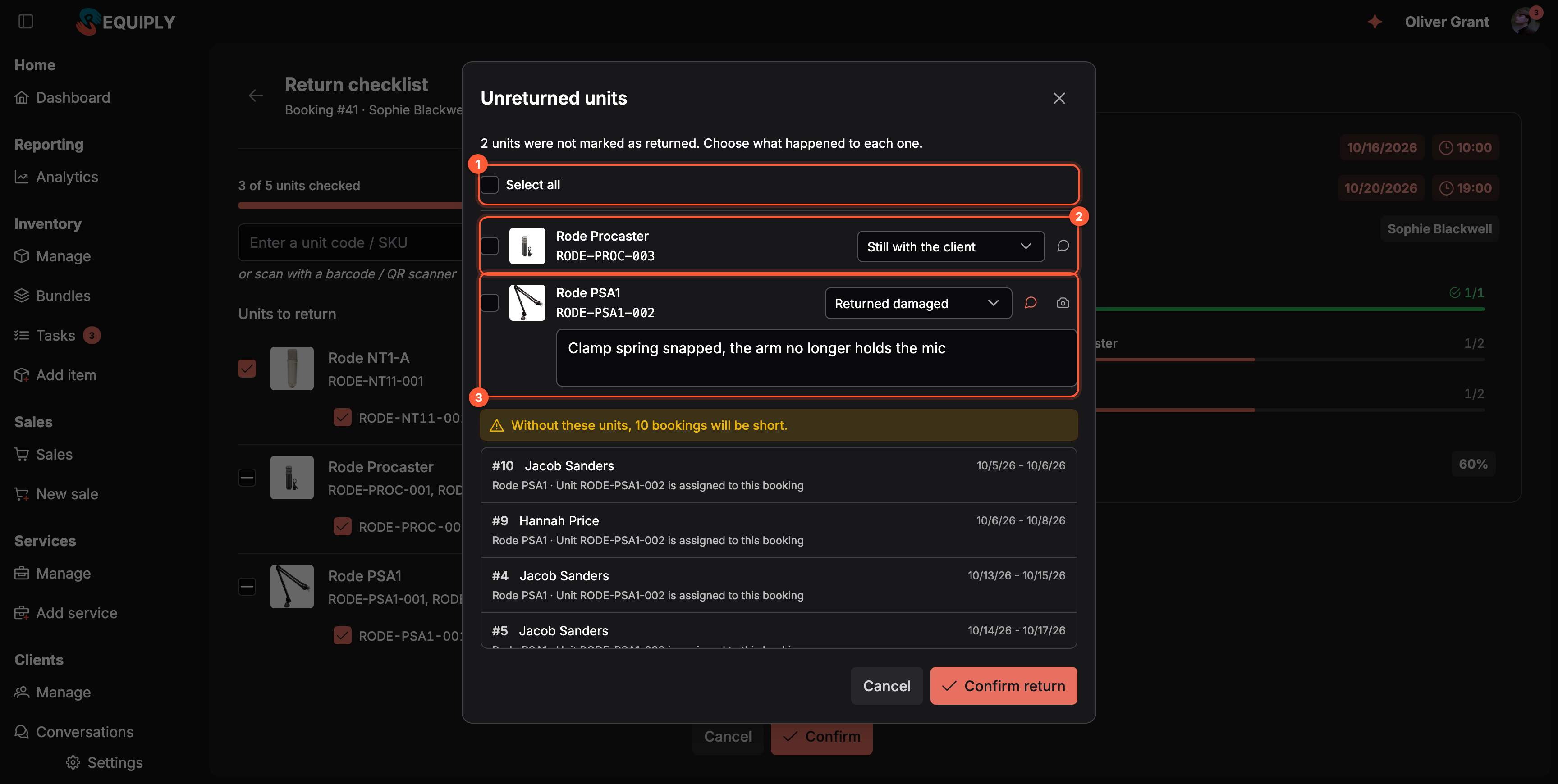
1 Select several units to set one outcome or one comment for all. 2 A unit the client keeps. 3 A damaged unit with a comment (a photo can be added too), which goes to maintenance.
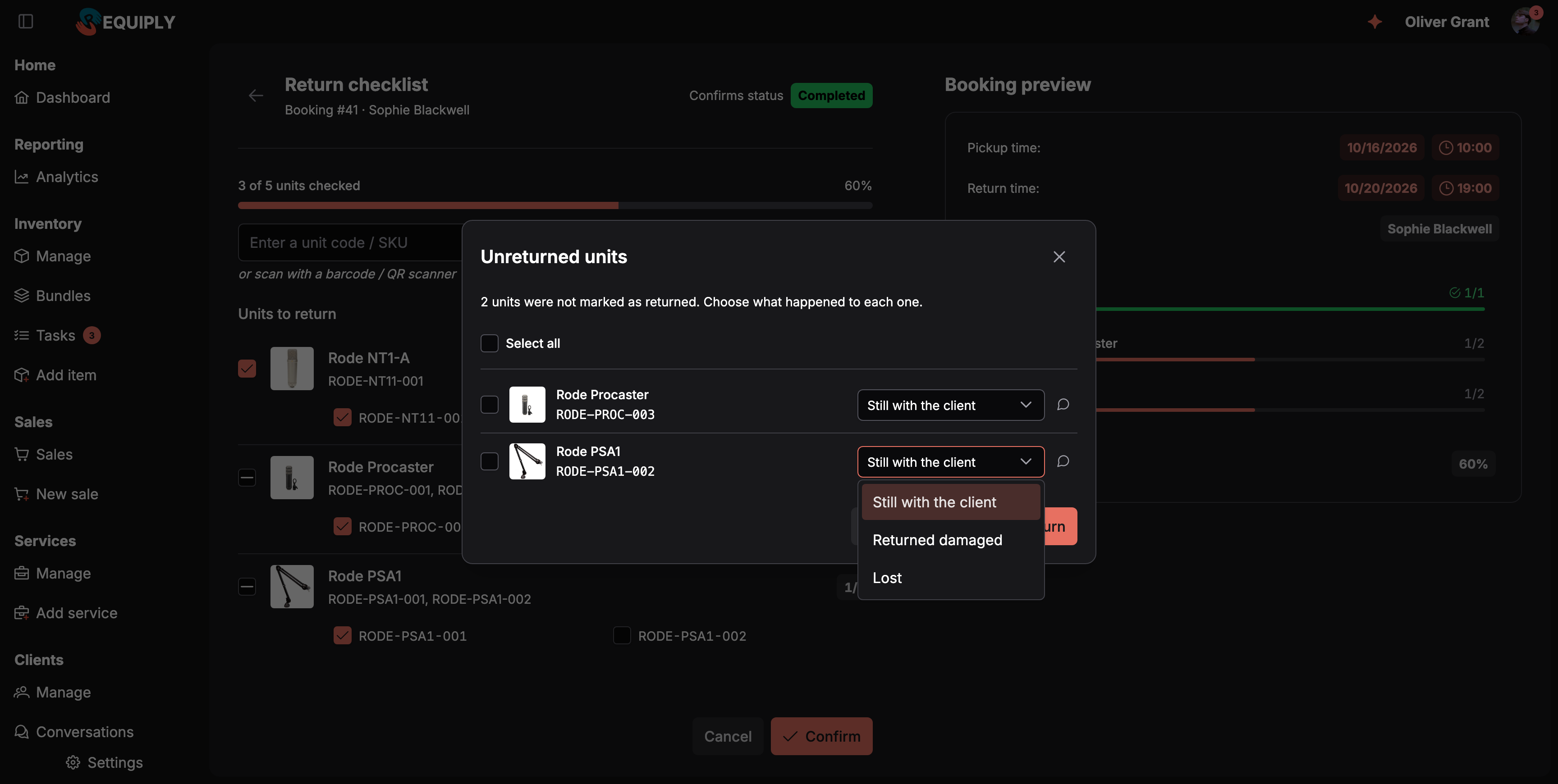
The three outcomes. A ticked unit is simply Returned.
Click Confirm return. What happens next depends on whether any unit is still with the client:
- No unit is still with the client (every unticked unit is damaged or lost): the booking moves to the checklist's status, for example Completed, as usual.
- At least one unit is still with the client: the booking keeps its status, for example In progress, and Requiply shows Returned 3 of 5 units, 1 is still with the client. It then opens Edit booking dates in return mode, so you can set when the remaining units are expected back.
The timeline entry, written in your organization's language, lists what happened to each unit, for example Return checklist confirmed: 3/5 units. Returned: RODE-NT1-001, RODE-PROC-001, RODE-PSA1-001. Lost: RODE-PSA1-002. Still with the client: RODE-PROC-002. The count covers ticked units only.
Units still with the client
While units are still out, the booking detail page shows a notice above the details:
- 1 unit is still with the client, expected back on {date}. while the planned return is in the future,
- 1 unit is still with the client. The planned return passed on {date}. once it has passed.
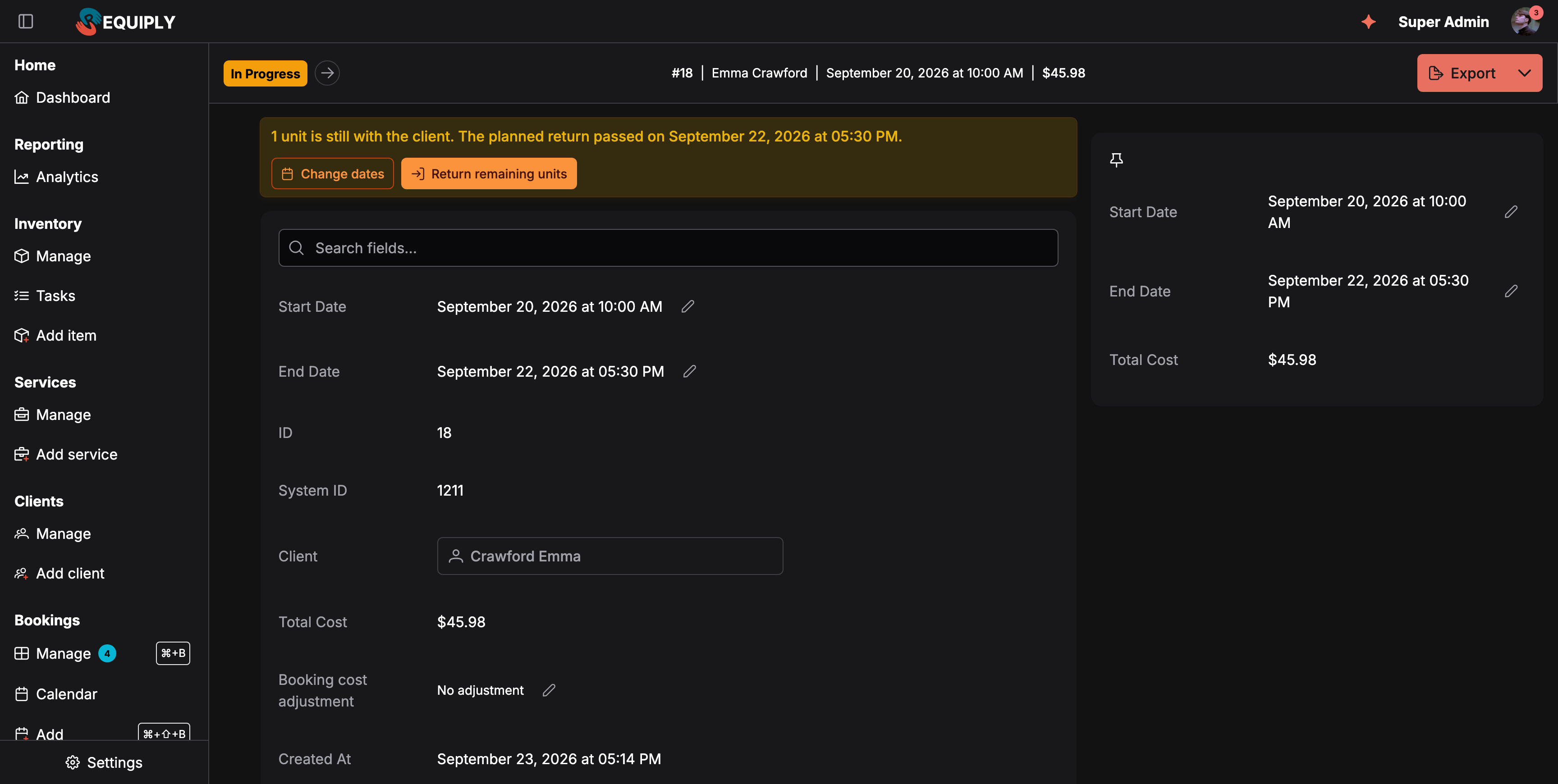
A partly returned booking stays In progress and shows how many units are still out.
The notice has two buttons:
- Change dates opens Edit booking dates in return mode. It appears once the planned return has passed.
- Return remaining units opens a new return checklist that lists only the units still out. Confirming it with every unit ticked moves the booking to Completed.
The Items table of the booking marks every unit with its return state: Returned (green), Damaged (orange), Lost (red), or Still out (orange).
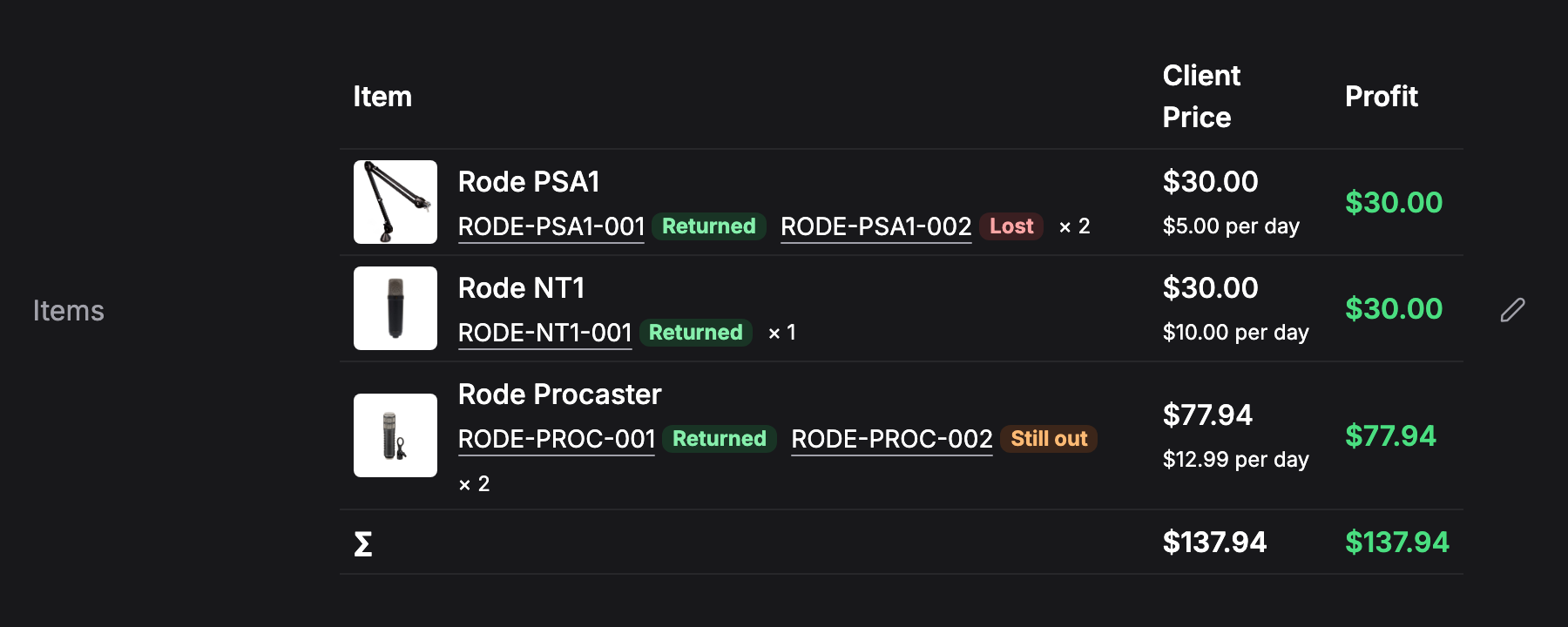
Each unit's SKU carries its return state.
How partial returns affect availability
- A returned, damaged, or lost unit stops holding the booking the moment the return is confirmed, so it can be booked again (unless it is on maintenance or lost).
- A unit still with the client keeps holding availability, even after the booking's planned end date, until it comes back or you set a new return date. Other bookings cannot take it by accident.
- A lost unit and a unit on maintenance are not counted in the available quantity of their product.
On Manage inventory, each unit shows where it is: In stock, Reserved, Out, Overdue, Maintenance, Lost, or Archived.
Common scenarios
Receiving equipment back
From the Dashboard's Returns list, move the booking to Completed. The checklist lists exactly what went out. Scan or tick items off as you unpack, or click Mark all when everything is back, and confirm. A unit that came back broken stays unticked and gets the Returned damaged outcome in the dialog, which puts it on maintenance with your note.
The client keeps one unit longer
Tick everything that came back, leave the unit the client kept unticked, and confirm. Keep Still with the client in the dialog and click Confirm return. The booking stays In progress, Requiply opens the date editor to set the new expected return, and the unit keeps holding availability. When it comes back, click Return remaining units on the booking.
A unit is lost
Leave it unticked, pick Lost, and describe what happened. The unit's status becomes Lost and it disappears from the available stock. If it turns up later, use Mark as found on Manage inventory.
Ten cables lost at a venue
On the return checklist, tick everything that came back and click Confirm. In Unreturned units, click Select all, then Lost in the selection bar, then Comment, type Left at the venue, client informed, and click Apply. Click Confirm return: all ten units are marked lost with the same comment.
Assigning and replacing at pickup
Bind physical units to a booking during the pickup checklist, let Assign all pick free units, swap in another unit of the same product, and handle units that are on maintenance or lost.
Subrentals
Rent equipment you do not own by sourcing it from a supplier for one booking: set the default margin (markup) and your suppliers, track what the gear costs you, and charge the customer your own marked-up rate.