

Add item
The Add item page is where you create a new inventory item group in Requiply. An item group represents a product or asset your business rents out (for example, Canon R9 or Lakeside Cabin). Owned groups create individual bookable units; supplier-sourced subrental groups are reusable catalog products with elastic availability.
Adding equipment you do not own and hire in from another company for a single booking works differently: see Subrentals.
Goods you sell rather than rent, such as memory cards or batteries, are added here too, with the type Equipment for sale. They get a stock count instead of units: see Sale items and stock.
You can find this page under Inventory → Add item. It is also the destination of the Add your items step in the setup guide and the default landing page after onboarding when no inventory exists yet.
Access: Requires the Inventory Management permission. Users without this permission do not see the menu entry, and the route is blocked at the auth middleware. The user must also be signed in with an active organization context.
Why this page matters
Inventory is the foundation of almost everything else in Requiply. Until you add at least one item group, your team has nothing to book, invoice, or schedule maintenance for.
Items created here are reused across:
- Bookings — items appear in the booking flow and on the calendar so staff can reserve specific units.
- Services — services and pricing tiers attach to item groups.
- Invoices and payments — the price and price type set here drive line-item amounts on invoices.
- Client portal — items become bookable on your customer-facing portal.
- Tasks and maintenance — individual units inside a group can be put on maintenance and tracked under Inventory → Tasks.
- Categories — categories created or selected here filter inventory across the manage page and reports.
Booking pages display empty-state CTAs that point users back to this page when no inventory exists.
Who can use this page
- Users with the Inventory Management permission (admin or staff with the appropriate role). Users without that permission do not see the menu entry.
- The page is gated by the
authandstore-refreshmiddleware, so a signed-in user with an active organization context is required. - Inventory size is not capped on this page directly. If your plan or billing state restricts inventory, those checks happen elsewhere in the app.
What you'll see
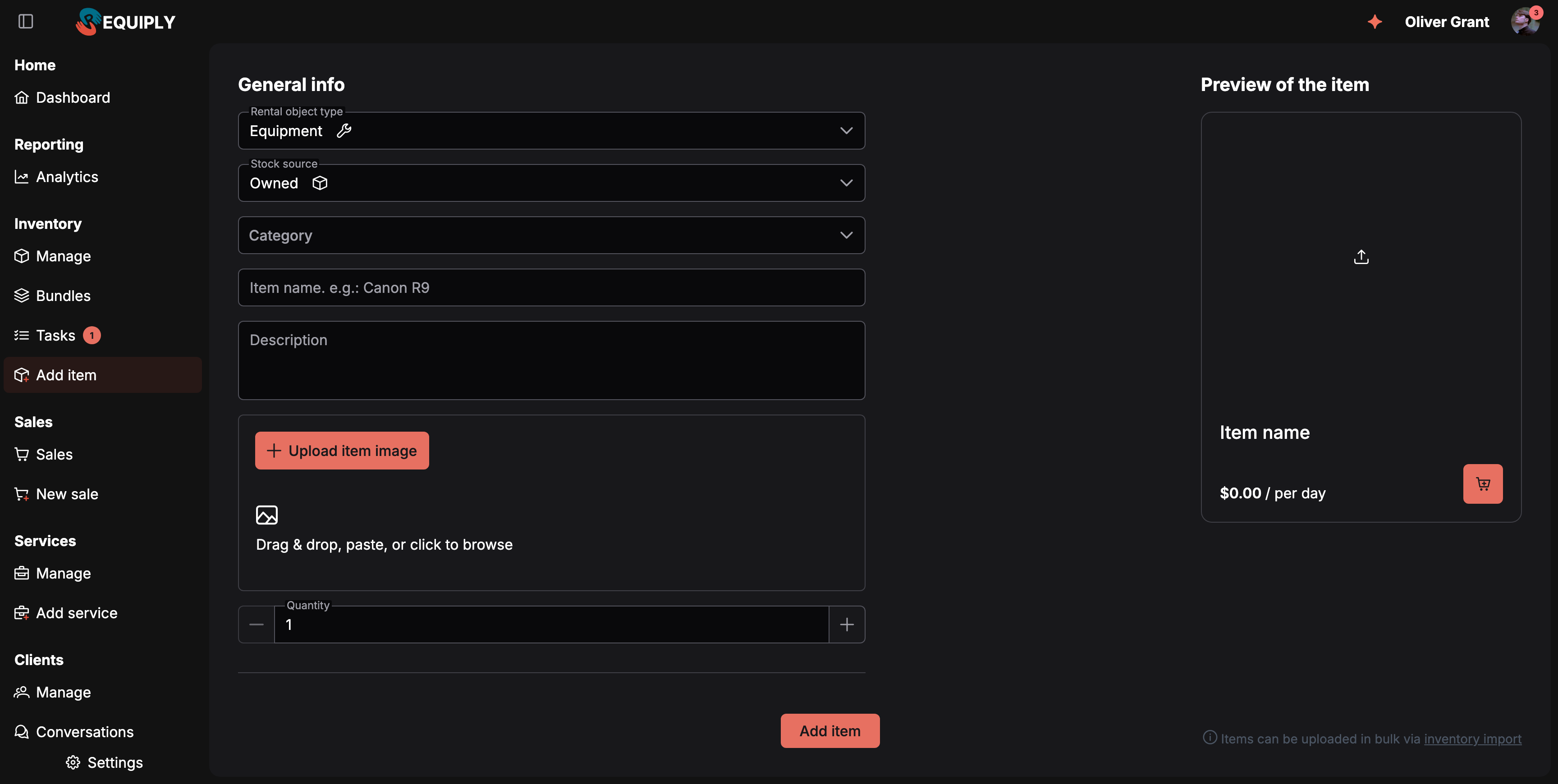
The page uses a two-pane layout.
Left pane — the form (scrollable):
- A General info section with:
- Rental object type: a dropdown showing each item type with an icon (Equipment uses a wrench icon, Property uses a home icon) and a tooltip explaining what each type is for. While Sales is on it also offers Equipment for sale (cart icon), which switches the form to a sale product: Stock now instead of Quantity, a flat price without price type, Net cost, and Barcode.
- Stock source — Owned or Subrental. This field appears only when an admin has enabled subrentals.
- Supplier and Margin — shown for subrental stock. Pick or create a supplier and optionally override the organization's default margin.
- Category: a tree of the categories of the selected item type, with subcategories under their parents and a search box once there are more than eight. A product can be placed at any level. The Add new footer button creates a category without leaving the page.
- Item name — a free-text field with the placeholder Item name. e.g.: Canon R9.
- Description: a text box with the placeholder Description that grows as you type. See Description.
- Image uploader — multi-image upload supporting up to five images, drag and drop, paste from clipboard, click to browse, and square cropping. One image can be marked as the default.
- Quantity — a number input with plus and minus buttons for owned stock; hidden for elastic subrental stock.
- A Pricing section with:
- Price — for owned stock, the client price; for subrental stock, the rate charged by the supplier. The client-facing rate is the supplier rate plus the resolved margin.
- Price type — a segmented control with Per hour, Per day, and Per month. Per day is selected by default.
- Security deposit override: a per-item-group override that takes priority over the org-wide policy. Leave it empty to fall back to the Deposits settings; set a value to always charge that exact amount per unit, even when the org policy is "No deposit".
- A Custom fields block at the bottom — any organization-defined entity fields configured for item groups (and matching the selected category) appear here automatically.
- An Add item submit button anchored to the bottom right of the form.
Right pane — live preview (sticky):
- A card that mirrors what the item will look like once saved, including the image gallery (with paged indicators), the item name, the formatted price, the price type label, and a disabled cart button.
- An info hint in the bottom right reading Items can be uploaded in bulk via inventory import with a link to the bulk import page.
A floating Setup guide button is shown when the Add your items optional setup step is still in progress, with two todos:
- Add first item with 1–2 quantity in stock
- Add an item with more than 1 item in stock
While the form is submitting, the entire page is blocked by an overlay and the submit button shows a loading spinner.
Empty state
This is a creation page, not a list page, so it has no traditional empty state. Instead:
- The image gallery in the preview card shows a centered upload icon when no images have been added.
- The category dropdown shows No categories have been created yet when the selected item type has no categories. The footer Add new button opens a quick-create dialog so the user can keep going without leaving the page.
- The item name in the preview falls back to the short placeholder Item name until the user types one.
Main actions
Adding an item group
- Pick a Rental object type (Equipment or Property). Switching the type clears the category and reloads the categories list for the new type.
- Pick or create a Category. Open a parent to see its subcategories. Clicking Add new in the picker footer opens a quick-create dialog scoped to the selected item type.
- Enter an Item name, and optionally a Description.
- Optionally add up to five images. Images can be uploaded by clicking, dragging, or pasting — paste is wired up at the page level, so users can paste a screenshot directly while the page is open. One image can be marked as the default and will be the first one shown in the preview gallery.
- Set the Quantity — this becomes the number of individual units created inside the item group.
- Set the Price and Price type. A price of 0 is allowed, for example for a cable you hand out free with every camera.
- Fill any custom fields shown under the entity-fields block. The fields displayed depend on the chosen category and the organization's entity-field configuration.
- Click Add item.
For supplier-sourced stock, choose Stock source: Subrental, select or create the supplier, and enter the supplier rate and optional margin override. Quantity is not requested because no physical units are created. The live preview shows both the supplier rate and the calculated client rate.
On submit:
- The item group is created with the chosen quantity of individual items.
- If images were added, they are uploaded to the new group and the chosen default index is preserved.
- Custom (entity) fields are saved against the new group.
- A success toast appears: {itemName} added.
- The image uploader is cleared and the user is navigated to /inventory/manage.
- If this submission completes the Add your items setup step (two or more item groups now exist) and the user arrived from the setup guide, the user is redirected back to the setup guide instead of the manage page.
If the item group is created but image upload fails, a warning toast is shown and the item group is preserved. If custom fields fail to save, an error toast is shown and the user is sent to the edit page for the new group so they can retry.
Creating a category inline
The Add new button at the bottom of the category picker opens a small dialog that asks for a name. The new category is created at the top level of the selected item type and is selected for the product straight away. To make it a subcategory, move it under its parent on Categories afterwards.
Description
The Description is the text customers read about the product on the client portal and on your website: what is in the case, what the equipment is good for, what to know before renting it.
- Up to 10,000 characters of plain text.
- A blank line starts a new paragraph on the portal; a single line break stays inside the paragraph.
- The first 160 characters also become the product page's description for search engines.
- Change it later on the product's edit page, or fill it in bulk with the
descriptioncolumn of the import template.
Inside Requiply the description appears only on the add and edit forms.
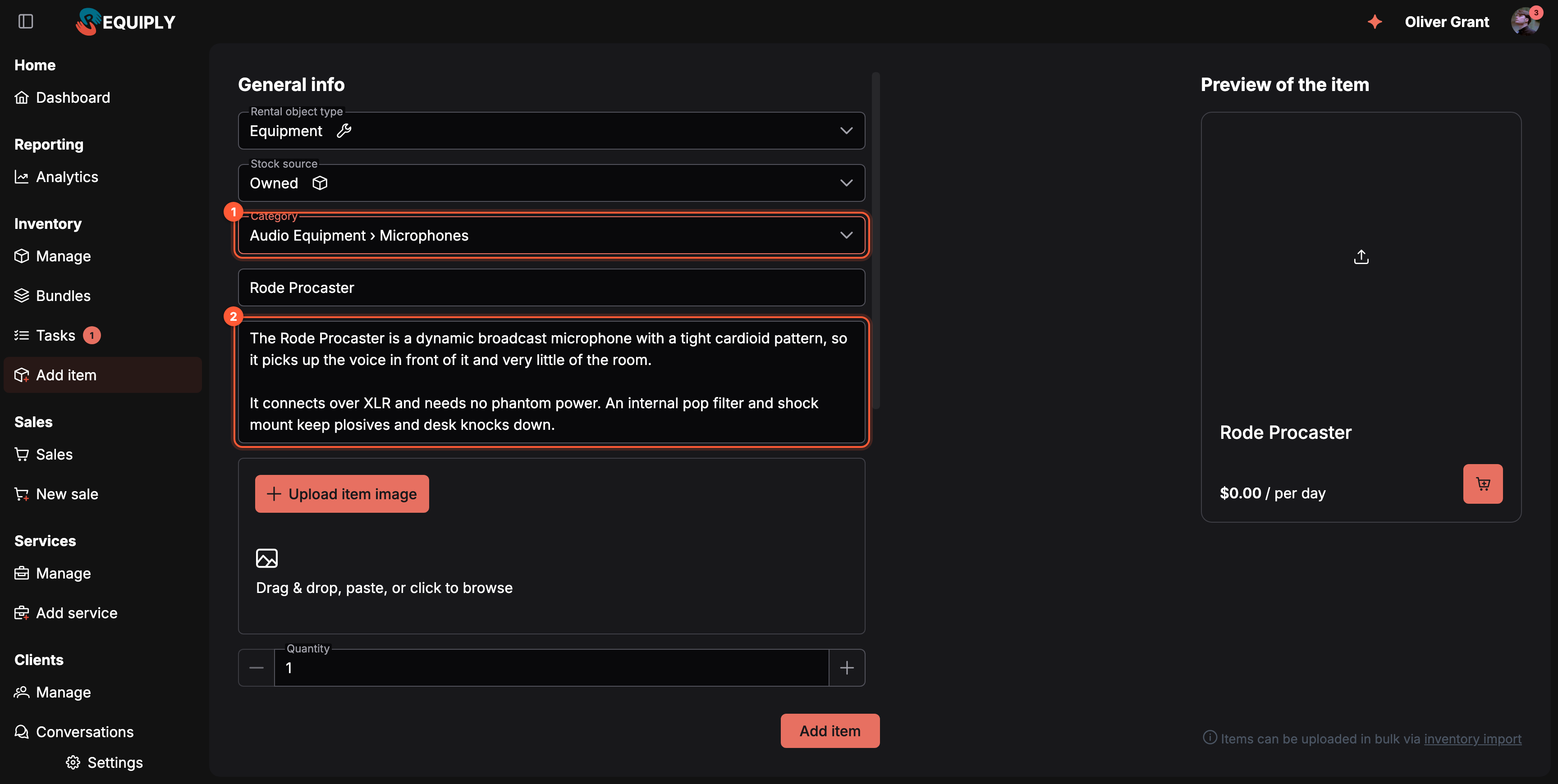
1 Pick a subcategory, or the parent itself; the field shows the path. 2 The description customers read on the product page.
Customer-facing details such as brand or connector type belong in product specifications: custom fields that customers can also filter by.
Bulk uploading instead
The hint in the lower right links to the bulk import page. Use that page when you need to load many items at once from a spreadsheet rather than entering them one at a time here.
Forms and fields
| Field | Required | Notes |
|---|---|---|
| Rental object type | Yes | Defaults to Equipment. Switching this clears the selected category. Equipment for sale appears while Sales is on and uses the Equipment categories. |
| Stock source | Yes when shown | Owned or Subrental. Available only when subrentals are enabled. |
| Supplier | No | Shown only for subrental stock; can be created inline. |
| Subrental margin | No | Overrides the organization default. Leave empty to use the value in Subrental settings. |
| Category | No | A tree of the categories of the selected item type, at any level. Inline Add new available. |
| Item name | Yes | Validated as a non-empty string. |
| Description | No | Up to 10,000 characters. Shown to customers on the portal product page and on your website. |
| Images | No | Up to five images, square crop, paste from clipboard supported. One can be marked as default; that is the photo the image column of the items table macro prints in documents. |
| Quantity | Owned stock only | Whole number, minimum 1. Determines how many individual units are created. Subrental stock is elastic. For Equipment for sale it becomes Stock now (minimum 0), recorded as the first delivery. |
| Net cost | No | Equipment for sale only. What you pay the supplier per unit, used for margins. |
| Barcode | No | Equipment for sale only, with QR codes and barcodes on. The manufacturer code on the package. Must not match any unit code or SKU. |
| Price | Yes | Client price for owned stock; supplier rate for subrental stock. 0 is allowed for every item type, negative prices are not. Step size and formatting follow the organization's currency. |
| Price type | Yes | One of Per hour, Per day, Per month. Defaults to Per day. |
| Security deposit override | No | Optional per-unit deposit that overrides the org-wide policy. See Deposits. |
| Full price | No | What the equipment cost you to buy, labelled Full price with the hint "Price of the item as it was purchased for." Purely informational: it never affects what a client is charged. It can be shown as a column on Manage inventory, and printed in documents through the full_price and full_price_total columns of the items table macro or the {{bookingItemsFullPriceTotal}} variable. |
| Custom (entity) fields | Depends on field config | Driven by the organization's entity-field configuration for item groups. A field limited to a category also shows for products in its subcategories. Fields marked Filter on the booking page and website are the product's public specifications. |
Billing, plans, and limits
This page does not display plan-limit or upgrade UI in its own template. Subscription and seat enforcement are handled at higher levels of the app. If your plan restricts inventory size, those gates appear around inventory management as a whole rather than on this form.
The Setup guide integration here is not a billing feature, but completing the Add your items step (alongside the other optional steps) unlocks an extended trial — up to 30 days total — per the setup guide subtitle.
How this page connects to the rest of Requiply
| Feature | How this page affects it |
|---|---|
| Manage inventory | Newly created item groups appear here immediately. Users are redirected here after a successful save. |
| Item group detail and edit | If custom fields fail to save, the user is sent here to finish setup. Pricing tiers, archiving, SKU edits, and per-unit changes happen on this page. |
| Bookings | Item groups become selectable in the booking flow and on the calendar. Quantity controls how many simultaneous bookings are possible. |
| Subrentals | Supplier-sourced groups create snapshotted procurement rows when booked and do not assign physical units. |
| Categories | Categories created via the inline dialog are reused across inventory filters, reports, and bulk category changes. |
| Client portal | Items added here are eligible to appear in the portal catalog customers browse. |
| Setup guide | Adding two or more item groups completes the optional Add your items step and contributes to unlocking the extended trial. |
| Currency and org settings | Price formatting and step size follow the organization's currency, so changing currency in org settings affects how prices entered here are displayed. |
| Entity fields configuration | Any custom entity fields configured for item groups (and matching the chosen category) appear at the bottom of the form. |
Common scenarios
New business setup
A new customer lands on the Add item page straight after onboarding when their org has no inventory yet. They add their first one or two item groups, completing the Add your items setup step and unlocking extra trial days.
Adding equipment in bulk by hand
A rental shop receives five new identical drones. They create a single item group named DJI Mini 4 with quantity 5; Requiply then provisions five individual bookable units inside that group.
Listing a vacation property
A property manager switches the Rental object type to Property, picks (or creates) a Cabins category, names the listing Lakeside Cabin, uploads photos, sets a per-day price, and saves. The cabin then becomes available across bookings, the calendar, and the booking page.
Spreadsheet-driven onboarding
A larger business with dozens of items follows the inventory import link instead of using this form one item at a time.
Adding a category mid-flow
A user starts adding an item but realizes the right category does not exist yet. They open the category dropdown, click Add new, create the category in the dialog, and continue without losing any of the form state they had already entered.
Tips and cautions
Tip: You can paste images directly from the clipboard while the page is open — useful if you have just taken a screenshot of a product photo. Up to five images can be attached per item group.
Tip: Set quantity to match how many real-world units you actually own. Each unit becomes individually bookable, so getting this right up front avoids overbooking later.
Tip: Need a free accessory that still has to be tracked and handed over, like a cable or a case? Add it with a price of 0.
Tip: Choose the right Rental object type before saving. The category list and any category-scoped custom fields depend on it, and switching type clears the selected category.
Heads up: After saving, you are taken to Manage inventory, not back to this form. If you need to add several items in a row, expect to navigate back to Add item between each one — or use Inventory → Import for bulk entry.
Heads up: If image upload fails after the item group is created, the item group is still saved. You'll see a warning toast and can re-upload images from the item group's edit page.
Manage inventory
Browse, search, and filter your rental catalog, assign categories and pricing tiers, drill into individual units and see where each one is (in stock, out, overdue, lost), and run bulk clean-up on items you no longer rent.
Bundles
Bundles (kits, sets, packages) group items that are rented together, like a podcast kit or a camera set, into one fixed set with one discount. Create them with an AI product photo, book them on the web, in the mobile app and in the client portal, and see the bundle discount on invoices, documents, emails and messages.