

Sale page
Every sale has its own page with its number, for example Sale #4. It shows what was sold, what the client paid, and what came back, and it is where you collect the payment, change the products, record a return, or cancel the sale.
Open it by clicking the number in the Sales list, the Sale #N link on a booking's Sold items, a Sale #N entry in a product's stock history, or directly at https://app.requiply.com/sales/{sale id}. It needs Allow viewing sales. A sale that does not exist, or one you cannot see, shows This sale does not exist or you cannot see it with Back to sales.
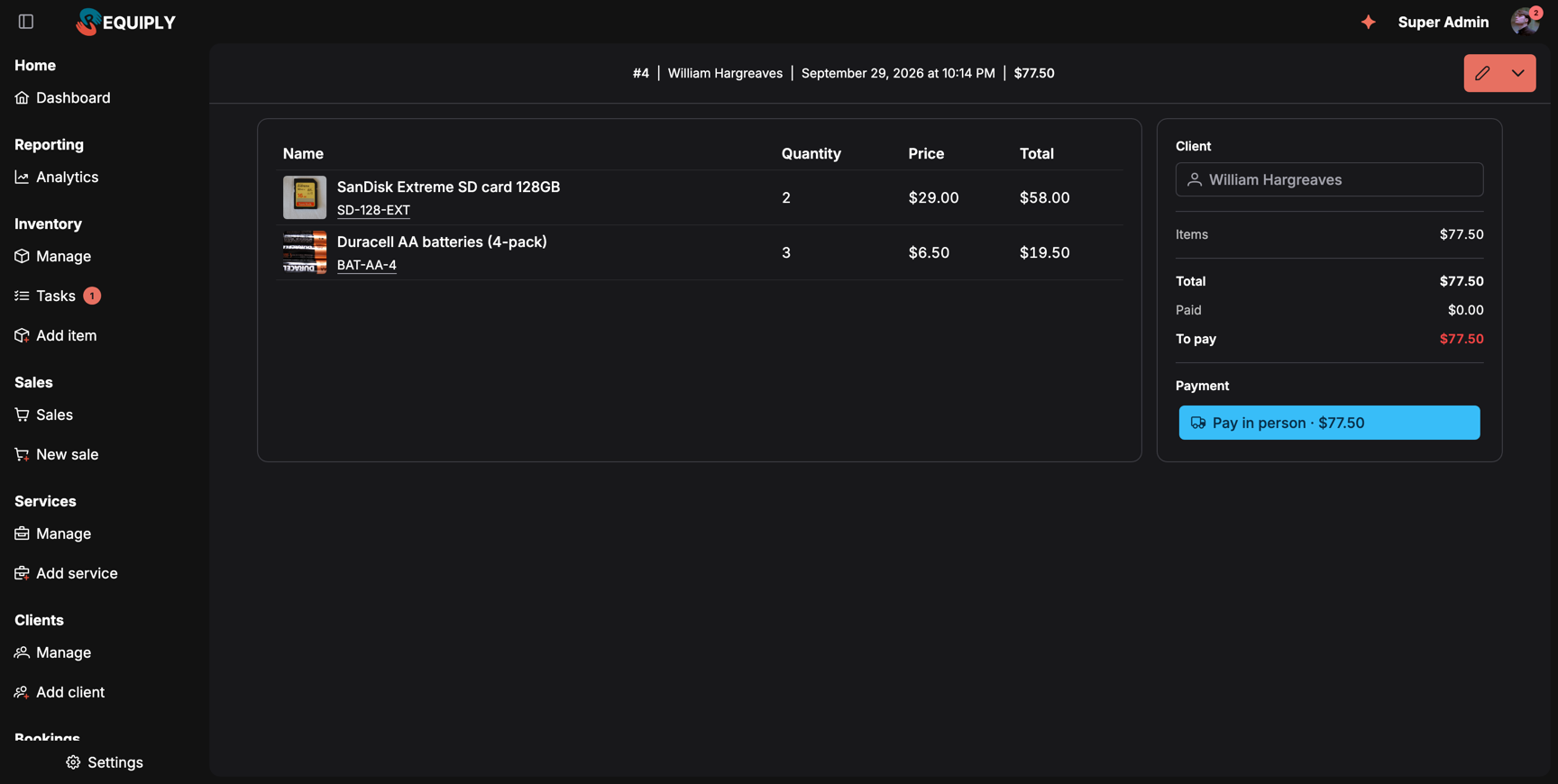
A standalone sale waiting for payment. The payment button opens the status, the payment link, and the method.
What you'll see
The header shows a Cancelled or Returned tag when that applies, then the sale number, the client, the booking (for a sale on a booking), the date and time of the sale, and its total. On the right is the actions button, see Actions.
The lines table: each product with its image, name, and SKU (click the SKU to open the product), Quantity, Price per unit, and Total. A line with returns shows 2 returned under the name.
The side card:
| Row | Meaning |
|---|---|
| Client | The client with the client hover card, or No client. |
| Items | The sum of the lines. |
| Returned | What was credited for returned goods, shown once there is a return. |
| Total | Items minus returns: what the client owes for the goods. |
| Paid / To pay | Standalone sales only: what was received and the balance, in red while something is due. |
| Payment | The payment button, or the combined invoice note for a sale on a booking. |
Returns: once goods came back, a Returns card lists each return with its date, the products and quantities (SanDisk Extreme SD card 128GB × 1 (not back to stock) when they were not restocked), the credited amount, and the note.
Payments
Standalone sales
A standalone sale is paid on its own. The Payment button shows the method, its status color, and the amount, for example Pay in person · $77.50. Click it for the payment popover:
- Status: change it, for example to Completed once the client paid at the counter. Requiply shows Payment moved to Completed.
- Total: the amount of this payment.
- For an online payment: the Payment URL: with a copy button, Open, and Generate payment link / Regenerate payment link.
- Change payment method with Save, to switch between pay in person and a connected provider. With LiqPay, the sale needs a client with an email.
When the sale has a balance but no open payment, the button reads Collect payment: choose a method and Save to open one. With nothing to pay, it reads No payment yet.
Online payments are settled by the same provider webhooks as booking payments, so Paid updates by itself when the client pays through the link. An unpaid or partly paid standalone sale with a client counts toward that client's Debt on Client details. Debt settlement does not include sales, so collect the sale from its own Payment button.
Sales on a booking
A sale made on a booking has no payment of its own. The Payment section shows Combined invoice: Booking #20 collects the rental and these items in one payment, with a link to the booking. Its goods total is already inside the booking's Total Cost, and the booking's payment button appears here for convenience. See Sell items on a booking.
Actions
| Action | Shown when | What it does |
|---|---|---|
| Edit items (pencil) | A standalone sale that is not cancelled, for members with Allow selling items. | Opens Editing the items. |
| Edit on booking (pencil) | A sale on a booking, same conditions. | Opens the booking's Sold items page. |
| Booking #N | A sale on a booking. | Opens the booking. |
| Return items | The client still has goods from this sale, for members with Allow selling items. | Opens Returning goods. |
| Cancel sale | A standalone sale that is not cancelled, for members with Allow selling items. | See Cancelling a sale. |
Editing the items
Edit items opens Edit sale items at /sales/{id}/edit, under the title Sale #4. Change quantities, add products from the list or by scanning, or remove products. The client and the payment method stay the same.
The preview on the right shows the Current total, Items, Returned and Paid if any, and the new Total to pay. The note under the items explains the payment:
- Pay in person: The amount to pay follows the new total.
- Online: The amount to pay follows the new total, and a new payment link is created.
Save items saves the change: Sale #4 updated. The stock moves by the difference (Sold for added units, Sale undone for removed ones).
| Message | Why |
|---|---|
| Change the items or their quantities | Nothing changed yet. |
| Archived items cannot be sold | You added an archived product, or raised its quantity. An archived product already on the sale can only be reduced. |
| A line cannot go below the quantity already returned | Some of that product came back, so the quantity cannot drop under the returned amount. |
| A line with returned items cannot be removed | Remove only products that have no returns. |
| The sale changed while you were editing. Reload and try again. | Someone else changed the sale. Reload the page. |
Products already on the sale keep the price they were sold at. Newly added products take their current Sale price.
Returning goods
Return items opens Return sold items. It lists each product the client still has: 2 with the client, $29.00 each.
For each product:
| Field | What it does |
|---|---|
| Quantity to return | How many come back. Zero leaves the product out of the return. |
| Back to stock | On by default. Turn it off for opened or damaged goods: the return is recorded, but the stock does not go up. |
| Refund | The amount credited for this product. It starts at quantity × price and can be lowered, for example for an opened package. It cannot exceed what the client paid for the returned goods. |
Add an optional Note, check the Refund total, and click Return.
- For a standalone sale: The refund is taken off the sale total. The balance or the online payment amount follows the new total.
- For a sale on a booking: The refund is taken off the booking total. Money already paid is refunded from the booking.
- When money was already received, Requiply says Return recorded. $29.00 was already paid and needs a refund. Give the money back the way it was paid: in cash, or through your payment provider's cabinet for an online payment.
Restocked goods get a Returned entry in the product's stock history. You cannot return more than the client holds: You cannot return more than was sold.
Cancelling a sale
Cancel sale asks Cancel this sale?: Items the client still has go back to stock. The sale stays in the list as cancelled. Confirm with Cancel sale. The sale keeps its number and shows Cancelled, and each product gets a Sale undone entry in its stock history.
Only standalone sales can be cancelled. For a sale on a booking, remove the goods with Sell items on the booking, or cancel the booking: cancelling a booking returns its goods to stock, and moving it out of the cancelled status takes them again.
In the mobile app
Tap a sale in the Sales tab. The screen shows the number and state, the lines with returns, Items, Returned, Total, Paid, and To pay, the payment rows, and the returns. The actions button offers Edit (standalone) or Edit on booking, Return items, Cancel sale, and the booking link.
- Edit sale: Change the items or their quantities. The client and the payment method stay the same. It shows Current total and New total.
- Return items: choose quantities under With the client, Back to stock, Refund, and an optional note, then Return: Return recorded: $29.00.
- Tap the payment to change its status or method, the same as on the web.
Common scenarios
The client paid cash for an unpaid sale
Open the sale, click Pay in person · $77.50, and set Status to Completed. To pay drops to zero and the sale shows Paid in the list.
One of two memory cards comes back unopened
Open the sale, Actions → Return items, set Quantity to return to 1 on the card, keep Back to stock, leave the refund at the full price, and click Return. If the sale was paid, give the client the money back.
A sale was recorded twice by mistake
Open the duplicate and pick Cancel sale. The goods return to stock, and the cancelled sale stays in the list for the record.
Tips and cautions
New sale
Record a standalone sale of goods such as memory cards or batteries: pick or scan the products, choose pay in person or an online payment link, attach a client if you want, and see the total and margin before you save.
Sale items and stock
Add goods you sell (Equipment for sale) with a sale price, net cost, barcode, and opening stock, then keep the stock count right with deliveries, write-offs, and stock counts, and see sales and margin on the product page.