

Booking cost adjustment
A booking cost adjustment changes what one booking is charged, without touching your prices, pricing tiers, or the client's discount. There are three types:
- Periods: charge fewer or more days or months than the dates produce. The classic case is a weekend rental picked up on Friday evening: the dates count three days, but you charge two and a half.
- Percentage: take a percentage off the booking, for example −10% for a returning client, or add one on top.
- Amount: move the booking total by a flat sum in your currency, for example −€50 to match a quote you sent by email.
The adjustment is stored on the booking together with a reason. The booking total, the deposit, the invoice, saved documents, and every later change to the dates, items, or services all use it.
The security deposit has an adjustment of its own, with the same types: lower it, raise it, or waive it on one booking without touching the price. See Adjusting the deposit.
Why it matters
Rental prices are counted from dates, but deals are made with people. Without this feature, a manager who promised "half a day off" or "10% off this time" had to edit the total by hand, the invoice showed a price that no longer matched the lines, and moving the dates later recalculated the deal away.
With the adjustment:
- the deal is expressed the way it was agreed: in periods, as a percentage, or as an amount,
- the reason travels with the booking and is printed on the invoice,
- later date changes, item changes, and service changes keep applying it.
Before you start
| Requirement | Where | Notes |
|---|---|---|
| Enable booking cost adjustments | Settings → Organization → Features, /settings/org/features | Off by default. Available on every plan. |
| Adjustment types | Same card, under the switch | Charged periods, Percentage, Flat amount. Pick at least one. |
| Allow booking cost adjustments | Permission groups, Booking creation section, /settings/org/accounts?tab=groups | On for Administrators by default and can be switched off for them. Off for new groups. |
| Items priced per day or per month | Add item | Only for the Periods type. Percentage and amount work on any booking. |
The three types
| Type | Picker label | What it changes | Example |
|---|---|---|---|
| Charged periods | Periods | The number of days or months charged for every line priced per day or per month. | 3 days → 2.5 days for a Friday evening pickup |
| Percentage | Percentage | A percentage of the booking total, applied after the client's pricing discount. Negative takes off, positive adds on top. Limited to −100% … +100%. | −10% for a loyal client |
| Flat amount | Amount | A fixed sum in your currency, added to or taken off the booking total. | −€50 to match a quote |
A booking holds one adjustment at a time. Switching the type in the editor discards the value but keeps the reason.
How the adjustment is calculated
Charged periods
- Which lines are affected. Only lines priced per day or per month, both items and services. Hourly and quote-priced lines keep their price. Services marked Exclude from discounts are billed on the real period.
- Periods from the dates. Per day counts started 24-hour periods on your organization's local clock: a booking from Friday 18:00 to Monday 10:00 is 64 hours, which is 3 days, and a daylight-saving change in between does not add or remove a day (see Date & time settings). Per month counts whole months, with a minimum of one.
- Charged periods. Periods from the dates plus the adjustment, in steps of 0.25, rounded to two decimals, and never below 0. There is no upper limit.
- Pricing tiers. A fractional period is priced in the pricing tier of the period it started. 2.5 days is priced with the tier that applies to day 3.
- One unit at a time. The editor only works when every per day or per month item on the booking uses the same type. Items priced per day and per month cannot be adjusted together.
Percentage and flat amount
Requiply calculates the total in this order:
- The line prices (with a Periods adjustment, if that is the type).
- The bundle discount on the units booked as part of a bundle, when the booking has one.
- The client's pricing discount on the discountable part of the booking.
- The Percentage or Flat amount adjustment on what remains of the discountable part.
So with a 10% client discount and a −10% adjustment on a $600 rental, the client discount takes $60 off, and the adjustment takes 10% of the remaining $540, which is $54.
- Services marked Exclude from discounts are never reduced by a percentage or an amount.
- A reduction can never take the discountable part below zero.
- A flat amount has no upper limit.
- Goods sold on the booking (Sell items on a booking) are never adjusted. They are added after the adjustment, at their own price.
What follows the adjusted price
| Where | What happens |
|---|---|
| Booking total | Always includes the adjustment. |
| Deposit | A percentage deposit follows Periods and Percentage adjustments. A Flat amount does not change the deposit. Fixed deposits and per-item overrides never change. A deposit adjustment, if any, applies on top. |
| Invoice PDF | Line totals include a Periods adjustment, and a summary row explains every type (see On the invoice and in documents). |
| Later changes | Edit booking dates, Edit booking items, and Edit booking services keep the stored adjustment. |
Adding an adjustment when creating a booking
On Add booking, members with the permission get an Adjustments: row under the booking dates, above Payment method, with two buttons:
- Price opens the Price adjustment dialog for the booking cost.
- Deposit opens the Deposit adjustment dialog. It appears once the booking has a deposit, see Adjusting the deposit on one booking.
Both buttons stay disabled until items and both dates are picked, because the dialog needs a price to work from.
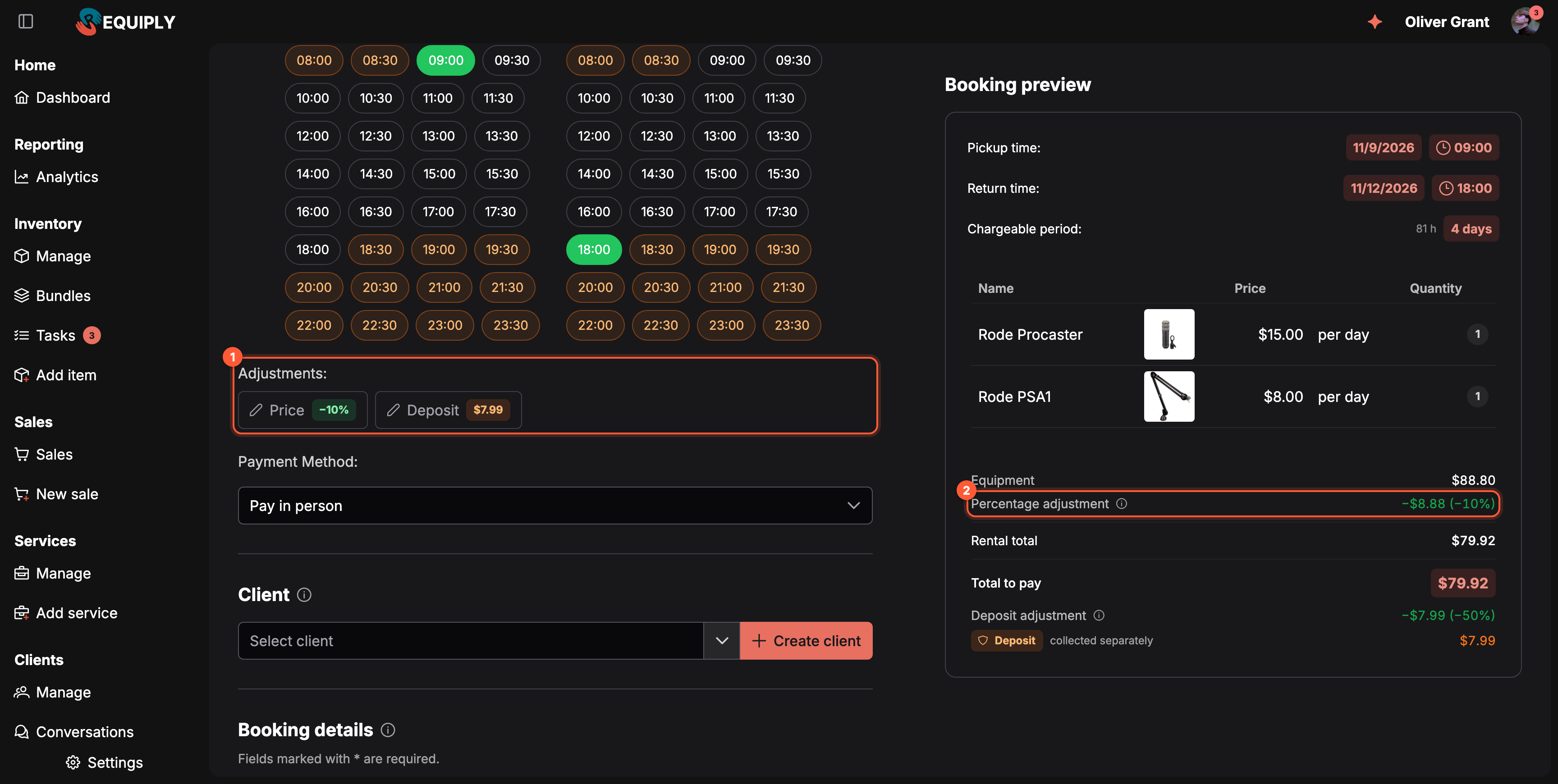
1 The Price and Deposit buttons show the adjustment that is set. 2 The preview lists the adjustment row before Rental total.
- Select the items and the dates.
- Click Price.
- If your organization allows more than one type, pick Periods, Percentage, or Amount. With a single type, the editor for that type is shown with no picker.
- Set the value:
- Periods: the tag shows what the dates produce, for example 3 days · 64 h. Change Charged days (or Charged months) with the stepper, or use a preset: −¼, −½, or −1. A tag shows the difference, green for a reduction and orange for a surcharge.
- Percentage: type a value from −100 to 100, or use −5%, −10%, or −15%.
- Amount: type the sum in your currency. Use a minus sign for a reduction.
- Enter a Reason, for example Returning client, third booking this month. Up to 500 characters. It is printed on the invoice.
- Check the figures at the bottom of the dialog: Without adjustment, the adjustment amount, and New total. They come from the server, so they match what the booking will store.
- Click Apply. The Price button now carries the adjustment, for example −10%, and the booking preview shows it.
- Click Create booking.
To remove the adjustment, open the dialog again and click Reset. The adjustments also reset when you switch between Start from items and Start from dates.
In the preview's price summary the adjustment is one row with the money first and what you entered in brackets, for example Percentage adjustment −$54.00 (−10%). When there is a reason, an info icon next to the row shows it on hover. A Periods adjustment also changes the Chargeable period row at the top of the preview.
| Message in the dialog | Meaning |
|---|---|
| Select the dates and items first | Periods type: pick dates and at least one item. |
| Only items priced per day or per month can be adjusted | Periods type: the selected items are hourly or quote-priced. Use Percentage or Amount instead. |
| Items priced per day and per month cannot be adjusted together | Periods type: keep one price type on the booking, or use Percentage or Amount. |
Changing the adjustment on an existing booking
The adjustment is changed in the same dialog, right on the booking page. There are two ways to open it:
- The pencil next to the booking total in the summary card (Adjust the price).
- The pencil in the Booking cost adjustment row of the details card.
The summary card shows a stored adjustment under the total, for example −$27.63 (−10%), with an info icon for the reason. The Booking cost adjustment row shows the same line, or No adjustment. The pencils and the row are visible only to members with the permission, while the feature is on and the booking can still be changed.
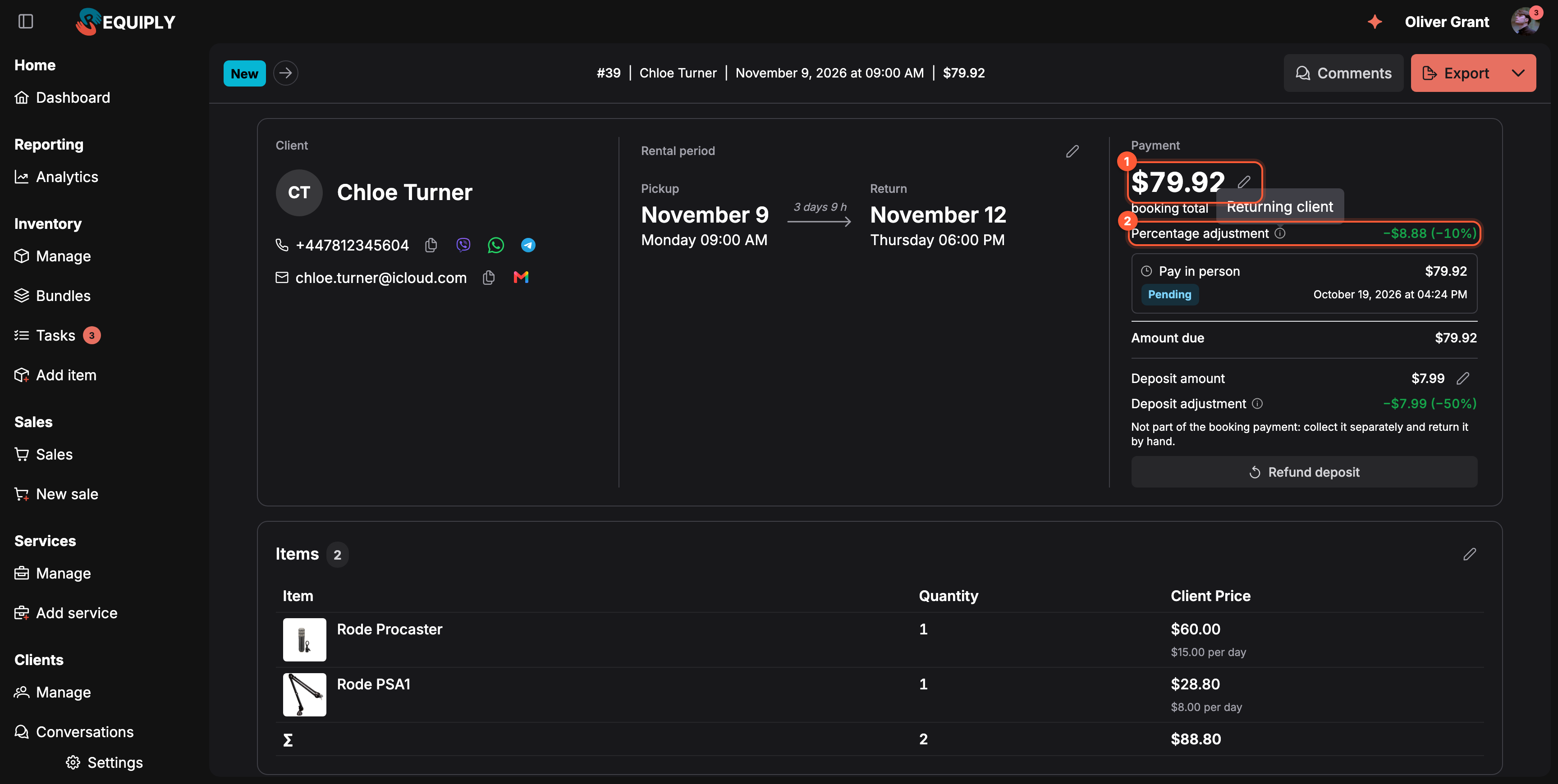
1 The pencil next to the total opens the Price adjustment dialog. 2 The stored adjustment, with its reason behind the info icon.
- Click a pencil. The Price adjustment dialog opens with the stored adjustment.
- Change the type, the value, or the reason.
- About a third of a second after each change, Requiply prices the new value on the server. Availability and working hours are not checked, because the dates do not change.
- Read the figures: Without adjustment, the adjustment amount, and New total. Above them a note says what happens to payments, for example The unpaid pay-on-pickup balance will be updated to $260.90., or a warning explains why the change cannot be saved.
- Click Apply. Requiply shows Adjustment saved and the booking page updates. Reset removes the adjustment and saves right away. Cancel closes the dialog without changes.
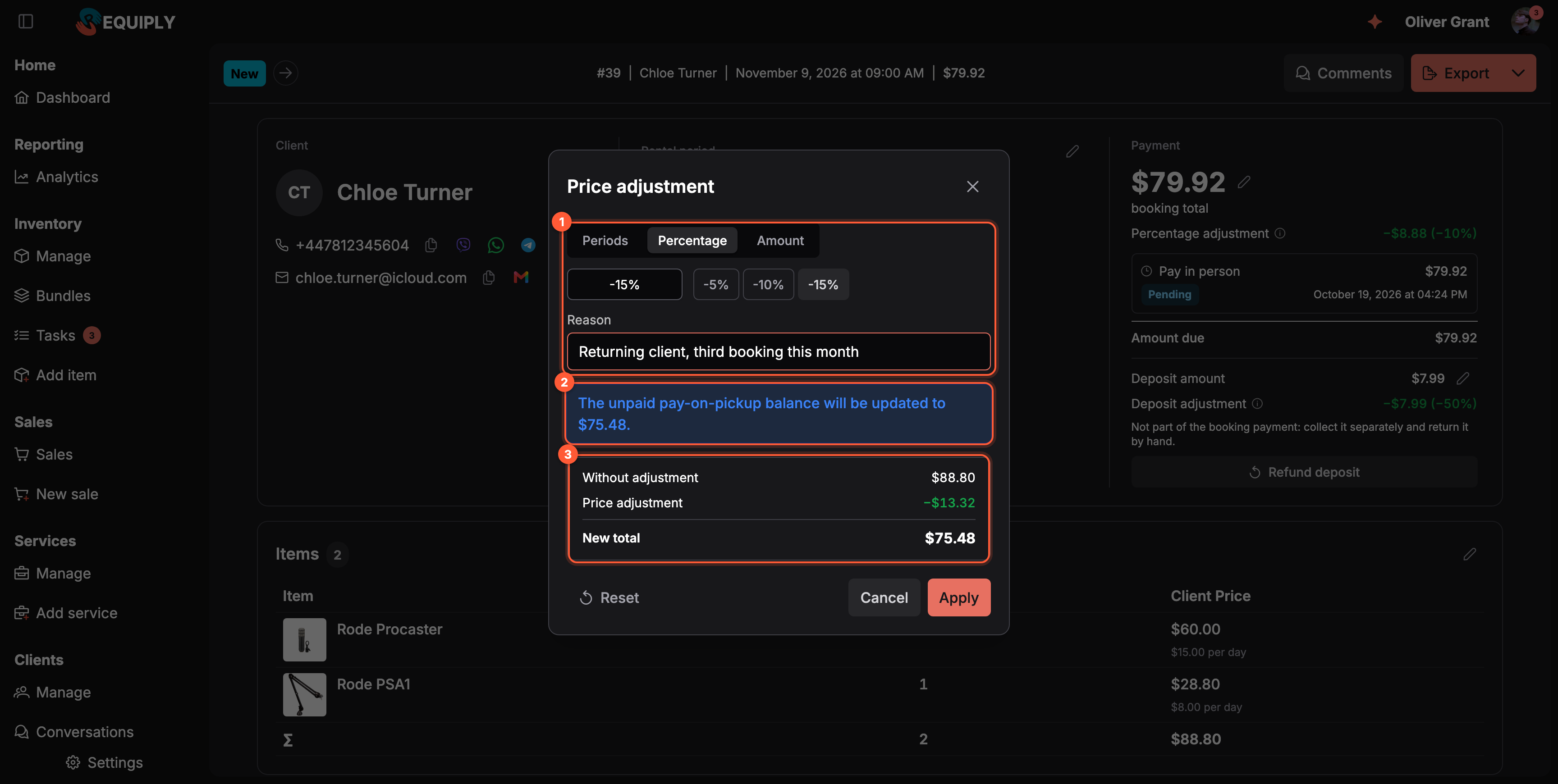
1 Type, value, and reason. 2 What happens to the payment balance. 3 The total before and after, priced by the server.
Payments are adjusted exactly as on Edit booking dates: an unpaid pay-on-pickup balance is replaced, an online payment link is replaced or supplemented, and a new total below what has already been paid is blocked until you refund the difference. This also applies to completed bookings: the total and the payment balance are always recalculated here.
Every change made here posts an automatic comment on the booking, in your organization's language, for example Booking cost adjustment changed: -10% → -15% (Returning client, third booking this month). Periods are written as a plain number (0 → -0.5) and amounts without the currency. Creating a booking with an adjustment does not post a comment.
Goods sold on the booking are never adjusted: a −10% applies to the rental, and the Sold items row is added after the rental total at full price.
When the type is no longer offered
If your organization later unticks the type a booking uses, for example Flat amount, the booking keeps its adjustment and it stays in force. The dialog shows it read-only with the hint This adjustment type is no longer offered in your organization. The adjustment stays in force until you replace or reset it. Click Replace to switch to an allowed type (the reason is kept), or Reset to remove it.
Adjusting the deposit
The deposit has its own adjustment, separate from the price: lower it for a trusted client, waive it with No deposit, or raise it. It uses the same feature switch, permission, and types, and opens from the Deposit button on Add booking or the pencil next to the deposit on the booking page. See Adjusting the deposit on one booking.
In the mobile app
The mobile app offers both adjustments while creating a booking and on an existing booking.
While creating a booking:
- On the Confirm step, members with the permission see two chips, Price and Deposit.
- Tap one to open the Price adjustment or Deposit adjustment screen. With more than one allowed type, pick Periods, Percent, or Amount at the top.
- Periods: From the dates, the Charged days or Charged months stepper in 0.25 steps, and the −¼ / −½ / −1 presets.
- Percent and Amount: a minus/plus toggle for the direction, then the value. Percent has the −5% / −10% / −15% presets for the price and −25% / −50% / No deposit for the deposit.
- Enter the Reason and check the before and after figures.
- Tap ✓ to apply, or ✕ to close without changes.
On a booking: the total and the deposit at the top of the booking screen carry a pencil, and the actions menu has Adjust price and Adjust deposit. A stored adjustment shows as one line under the figure; tap the info icon to read the reason.
On the invoice and in documents
- Periods: line totals already include the adjustment, and a summary row explains it: Chargeable period adjustment (Early pickup Friday evening): −0.5 days. The unit reads months only when every line on the booking is priced per month.
- Percentage and Flat amount: a row after the client discount and before Rental total shows the amount: Booking cost adjustment (−10%) (Returning client): −$14.69. A flat amount has no percentage in brackets. Subtotal is printed whenever the booking has an adjustment.
- Custom export templates can print the adjustment with three macros. They are not in the variable picker, so type them by hand:
| Macro | Prints |
|---|---|
{{bookingAdjustment}} | The adjustment: −1 period, +2 periods, −10%, or the plain amount such as −25. |
{{bookingAdjustmentReason}} | The reason. |
{{bookingAdjustmentAmount}} | The money effect of a percentage or flat amount, for example −$9.00. Empty for periods. |
Through the API and the AI assistant
The public API and the MCP tool bookings_manage accept one adjustment when creating a booking or asking for a quote:
"adjustment": { "type": "percent", "value": -10, "reason": "Returning client" }
type is units (periods), percent, or amount. The value is signed: negative discounts, positive surcharges. Only secret API keys may send it, the key's permission group needs Allow booking cost adjustments, and only the types your organization enabled are accepted. Publishable keys and the website widget never can.
A deposit adjustment cannot be sent through the public API or the MCP tool yet. Set it in the web or mobile app.
Turning the feature off
Switching Enable booking cost adjustments off hides the Adjustments: buttons, the pencils, the Booking cost adjustment and Deposit adjustment rows, and those rows in Detail page fields. Adjustments already saved on bookings keep applying: totals, invoices, documents, and later date, item, or service changes still use them, and the invoice still prints the adjustment row.
Messages
| Message | Meaning |
|---|---|
| Booking adjustments are not enabled for this organization | The feature is off under Features. |
| Your permission group does not allow adjusting a booking price | The member's group lacks Allow booking cost adjustments. |
| Adjustment type "percent" is not offered by this organization | The type is not ticked under Adjustment types. |
| The booking changed while you were editing. Reload and try again. | Someone else changed the booking. Close the dialog, reload the page, and try again. |
| The shorter booking needs a payment refund before its dates can be changed. | The new total is below what the client already paid. Refund the difference first. |
| The dates are available, but the online payment link must be replaced or supplemented first. | An online payment link is pending. Handle the link first. |
| This booking is cancelled and can no longer be changed. | Cancelled bookings keep their figures. |
| The deposit was paid together with the booking. Return part of it with a deposit refund instead. | Deposit adjustment only: the deposit went through the payment provider. Use Refund deposit. |
Apply stays disabled while the value and reason are the same as the ones saved on the booking.
How this feature connects to the rest of Requiply
| Feature | Relationship |
|---|---|
| Features | Organization-wide switch and the list of allowed types. |
| Permission groups | Allow booking cost adjustments in the Booking creation section. |
| Pricing discounts | The client's discount applies first. A percentage or amount adjustment applies to what remains. |
| Add booking | The Price and Deposit buttons set the adjustments on a new booking. |
| Edit booking dates / items / services | Keep the stored adjustment when recalculating. |
| Pricing tiers | A fractional period uses the tier of the period it started. |
| Deposits | A percentage deposit follows periods and percentages, not flat amounts. The deposit also has its own adjustment. |
| Booking documents | The invoice prints the adjustment row. |
| Detail page fields | The Booking cost adjustment and Deposit adjustment rows can be moved or hidden. |
| Comments | Changes on existing bookings are recorded automatically. |
Common scenarios
Half a day off for a Friday evening pickup
A client picks up a camera kit on Friday at 18:00 and returns it on Monday at 10:00. The dates produce 3 days. On Add booking, click Price, pick Periods, press −½, enter Early pickup Friday evening, and create the booking. The client pays for 2.5 days, and the invoice explains why.
10% off for a returning client
A regular client books for the third time this month and you promise 10% off, just this once. Click Price, pick Percentage, press −10%, enter Returning client, click Apply, and create the booking. The percentage is taken after their usual pricing discount, if they have one.
Matching a price you quoted by email
You quoted a client €450 for a package that Requiply prices at €500. Click Price, pick Amount, enter −50, and add the reason Price as quoted on 12 September.
A late return that costs an extra day
A client returns a projector six hours late. Open the booking, click the pencil next to the total, pick Periods, raise Charged days by 1, enter Late return, and click Apply. The unpaid balance is updated to the new total.
Half the deposit for a regular client
On the booking, click the pencil next to the deposit, pick Percentage, press −50%, and click Apply. The price stays as it is. See Deposits.
Tips and cautions
Edit booking services
Add or remove services such as delivery or setup on an existing booking, and set the agreed price of quote services, without cancelling and rebuilding the booking.
Money on a booking
How a booking's total is built from prices, discounts, and adjustments, how the security deposit is shown, adjusted, and refunded on one booking, and how deposits appear on invoices and in analytics.