

Inventory tasks
An inventory task is one job on one unit: a repair, a maintenance round, a cleaning, an inspection. It records who works on it, when it started and finished, and what it cost, so you know when a damaged or dirty item is ready to rent again.
This is where a damaged, broken, or dirty item goes after it comes back from a rental. Putting the unit on maintenance creates the task for you; assign whoever is fixing it, log what the repair cost, and mark the task Completed when the unit is ready.
You can find this page under Inventory → Tasks, or at https://app.requiply.com/inventory/tasks. The Tasks entry in the sidebar carries a badge with the number of tasks that are not completed yet.
Access: Only accounts with the Inventory Management permission see the Inventory section, including this page. Tasks are available on every plan.
Where tasks come from
Tasks are created from the unit, never typed in on this page:
| How | Task created |
|---|---|
| Sending a unit to maintenance from its menu, see Putting a unit on maintenance | A Maintenance task in To Do, starting now. The unit goes On Maintenance. |
| A unit recorded as Returned damaged at a return checklist | A Maintenance task in To Do with the comment and photos from the return. The unit goes On Maintenance. |
Every task gets a number in your organization, counted up from #1. Tasks created before numbering existed were numbered in the order they were created. The number appears in the list, in the page address, on the task page, and in the Tasks table of an employee's detail page, where it links to the task.
The task list
The list holds every task, open and completed. Without a chosen sort, In Progress tasks come first, then To Do, then Completed, each group with the newest start date on top. It shows 10, 20 or 50 rows per page.
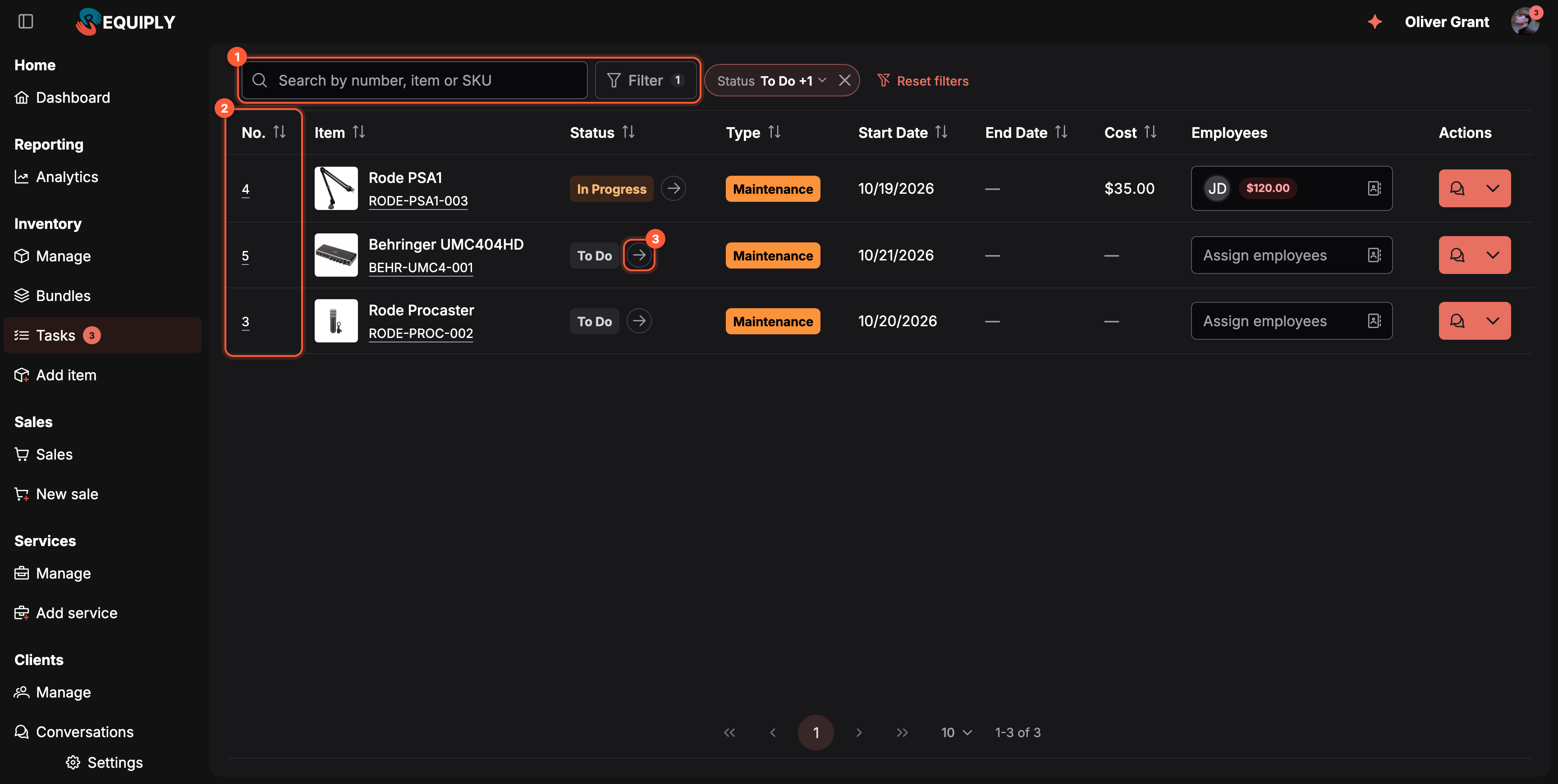
1 Search and filter the whole task history. 2 The task number opens the task page. 3 The arrow next to a status moves the task on.
| Column | What it shows |
|---|---|
| No. | The task number. Click it to open the task page. |
| Item | Photo, product name and unit SKU. The name opens the task page, the SKU tag opens the unit. |
| Status | To Do, In Progress or Completed, with an arrow to change it. |
| Type | The task type as a colored tag, such as Maintenance. |
| Start Date, End Date | When the work started and finished. A dash while there is no end date. |
| Cost | The total of the expenses added to the task. |
| Employees | Who works on it, with each person's payout. See Assigning employees and their pay. |
| Actions | Comments, and a menu with Add expense and Delete. |
Click a column header to sort by it. Every column except Employees and Actions can be sorted.
Searching and filtering
Search takes the task number (12 or #12), the product name, the unit or product SKU, or the task type. With several words, every word has to match.
Click Filter to add a filter. Each one becomes a chip; click it to change it or its × to remove it. Reset filters clears the search and all filters.
| Filter | How it works |
|---|---|
| Status | Tick one or more of To Do, In Progress, Completed. Tick the first two for open work only. |
| Type | One or more task types. |
| Employees | Tasks assigned to any of the ticked people, or Not assigned for tasks nobody has picked up. |
| Start Date, End Date | A date range. |
| Cost | A minimum, a maximum, or both. |
The search, filters, sort and page are kept in the page address and for the rest of your session, so a filtered list can be bookmarked or sent to a colleague. When nothing matches, the table reads No tasks match these filters.
When the organization has no tasks at all, the page shows No tasks yet with Tasks are created when a unit is sent to maintenance. and a Go to inventory button.
The task page
Click a task number or name to open the task on its own page at https://app.requiply.com/inventory/tasks/{number}, for example https://app.requiply.com/inventory/tasks/4.
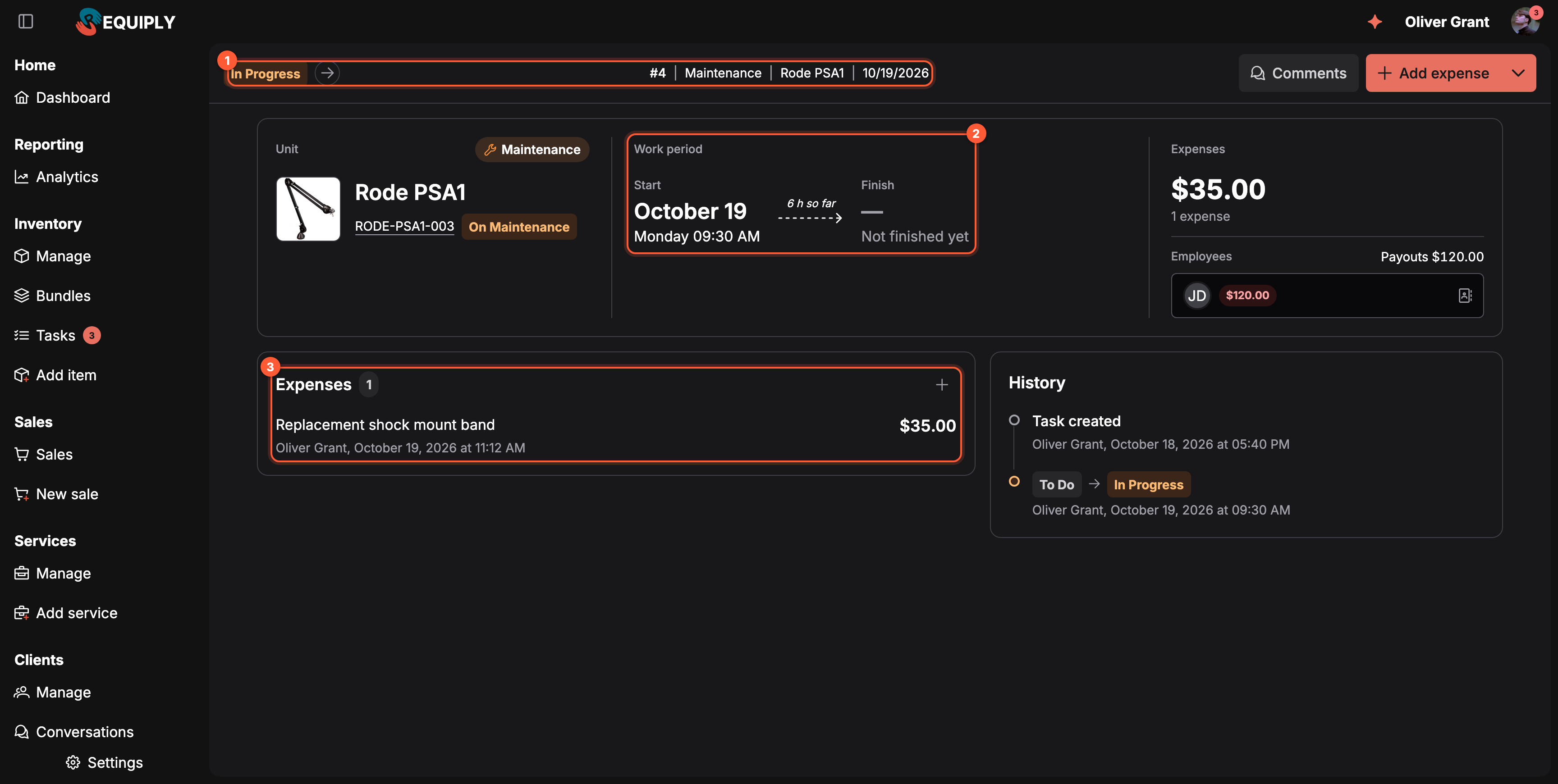
1 Status, number, type, product and start date at a glance. 2 How long the work has taken so far. 3 Every expense on the task, with who added it.
| Part | What it shows |
|---|---|
| Header | The status with its arrow, then the number, type, product name and start date. On the right, Comments and, while the task is In Progress, Add expense with a menu holding Delete. |
| Unit | Photo, product name (opens the product page), unit SKU (opens the unit), the unit's current status, and the task type. |
| Work period | Start and Finish with date and time. Until the task is completed, Finish reads Not finished yet and the arrow between them shows the time so far. |
| Expenses | The total cost and the number of expenses. While the task is still To Do: Adding expenses is possible when status is "in progress". |
| Employees | The assignees with their payouts, the total as Payouts {amount}, and the picker to change them. |
| Expenses card | Each expense with its description, the person who added it and when, and its attachments. Shown once the task has an expense. |
| History | Task created and every status change (To Do → In Progress), each with who did it and when. |
A link to a task that was deleted, or that belongs to another organization, shows Task not found with Back to tasks.
Working on a task
Changing the status
Click the arrow next to the status and pick where the task goes next. The change is saved at once.
| From | Can move to |
|---|---|
| To Do | In Progress, Completed |
| In Progress | Completed, To Do |
| Completed | Nothing. A completed task is final. |
Moving a task to Completed asks first: Complete Task, Have you added all expenses for this task? Click Mark as Completed to confirm. Completing a task:
- stamps the End Date with the current time,
- puts the unit back to Available, so it can be booked again,
- removes the task from the sidebar badge count.
Assigning employees and their pay
The Employees field, in the list or on the task page, shows who works on the task, each with their payout for it. Click the field to open the list of employees and subcontractors, tick the people or companies doing the work, and click Save at the bottom of the list. Discard changes closes it without saving.
Each assignee has their own rate on the task. Click the pencil next to a name to change it:
| Rate type | Payout on this task |
|---|---|
| Fixed | The rate value, once for the task. |
| Hourly | Rate value × Worked hours. The tag next to the name shows the sum, for example 3 hrs * $40.00 = $120.00. |
| None | Nothing tracked in Requiply. |
A newly ticked assignee starts at their profile rate, a percentage rate included. A task has no price, so a percentage rate pays 0 on a task: A task has no price yet, so a percentage rate pays 0. Switch the assignee to a fixed or hourly rate to pay for the work. Assignees who have the mobile app get a push notification when they are put on a task, see Notifications.
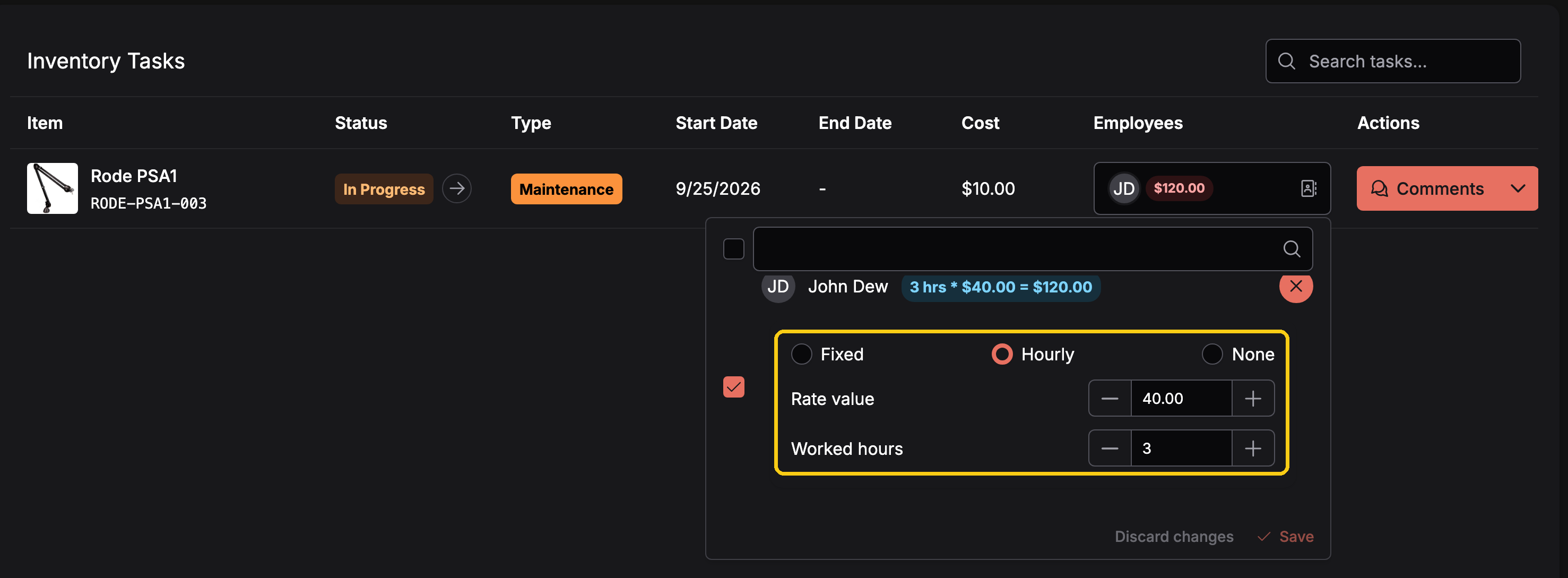
John is paid by the hour for this repair: 3 worked hours at $40.00 gives a $120.00 payout.
Task payouts appear on the person's detail page under Owed so far and in the Tasks table, and they count as expenses in Analytics. They are separate from the task's Cost (the expense for parts or outside repair, added with Add expense).
Adding an expense
Add expense is in the row menu of the list and in the header of the task page. It works only while the task is In Progress. For a task in To Do or Completed, a message explains Adding expenses is possible when status is "in progress" instead, and the task page shows Add expense in its header only while the task is in progress.
The new expense is added to the task's Cost, to the Expenses card of the task page, and to the running expense total of the unit.
Comments and photos
Comments opens the comments drawer of the task, headed with the product name and task number. Use it for photos of the damage, notes for the next technician, or the repair invoice.
Deleting a task
Delete is in the row menu and in the header menu of the task page. After you confirm, the task is removed together with its attachments and comments, and the list and badge update.
How tasks connect to the rest of Requiply
| Feature | How tasks affect it |
|---|---|
| Units | Sending a unit to maintenance creates a task; completing the task puts the unit back to Available. |
| Task types | The colored type tag comes from the organization's task types. |
| Employees and subcontractors | Assignees and their payouts show on each profile's detail page, with the task number linking back here. |
| Expenses | A task's expenses add to the unit's running expense total, shown as Total Expenses on the unit. |
| Comments | Comments and photos on a task are tied to the task and the unit. |
| Sidebar badge | Counts every task that is not Completed, updated live. |
Common scenarios
A microphone comes back with a broken mount
At the return checklist the unit is recorded as Returned damaged. Task #4 appears in To Do with the photos from the return. The technician moves it to In Progress, adds the replacement part with Add expense, logs 3 worked hours, and marks it Completed. The unit is back in stock.
Morning check of open work
The manager opens Inventory → Tasks, adds the Status filter with To Do and In Progress, and bookmarks the result. In-progress work is on top; tasks with Employees: Not assigned are the ones nobody has picked up yet.
Finding what a repair cost last year
Search for the unit's SKU and filter Status: Completed. Each task shows its Cost, and its page lists every expense with who added it.
Sending a task link to a colleague
Open the task and copy the address, for example https://app.requiply.com/inventory/tasks/4. Anyone in the organization with Inventory Management opens the same task.
Tips and cautions
QR codes and barcodes
Label every unit with a scannable QR code or barcode, print sticker sheets and label-printer PDFs, scan a code to open the unit, and tie a manufacturer's existing barcode to a unit.
Import inventory
Bulk-upload your existing equipment catalog from an Excel or CSV spreadsheet instead of adding each product by hand.