

Customer accounts
A customer can book on your client portal without an account. An account is what lets them come back later: see every booking they have made with you, follow its progress, pay an outstanding balance, cancel what has not started yet, and keep their own contact details current.
There is nothing to switch on. Accounts are part of every plan, and a portal account is never a staff account: it costs you no seat, appears in no permission group, and gives no access to the Requiply app.
Signing in
Sign-in uses one-time codes, so no customer ever chooses a password and your team never resets one.
Enter a contact
The Sign in button in the portal header opens portal.requiply.com/<your code>/login, a card headed Sign in to {your organization} with your logo above it and the line We send a one-time code, no password needed. The customer types their email address and presses Send code. When you have switched on SMS codes under Portal settings, a channel toggle above the field lets them pick a phone number instead.
Receive the code
A six-digit code is sent to that address or number.
Confirm
The verify screen shows Code sent to ... and takes the six digits. Send a new code becomes available after a short countdown, and Use a different contact goes back a step.
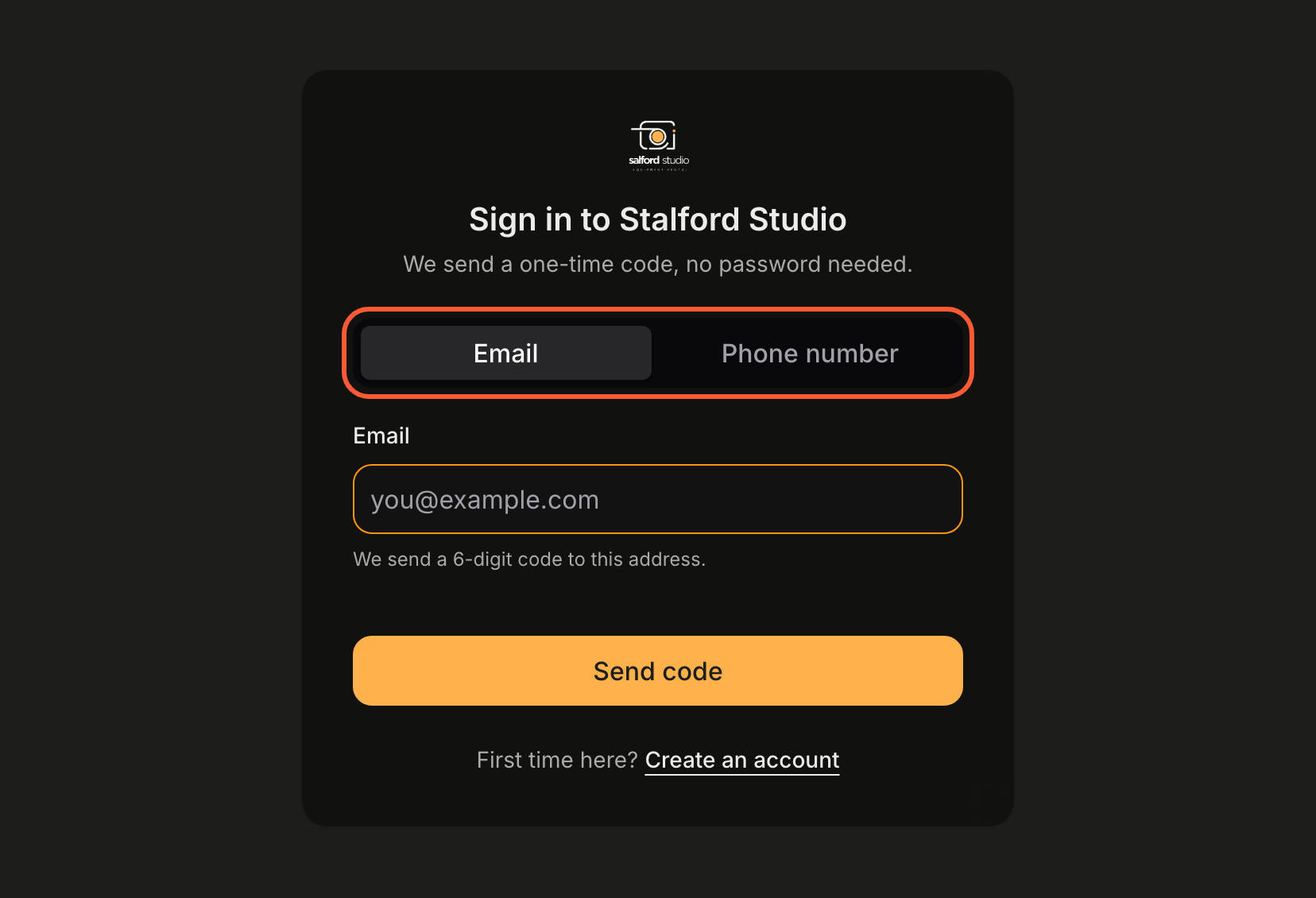
With SMS sign-in on, the customer picks Email or Phone number above the field.
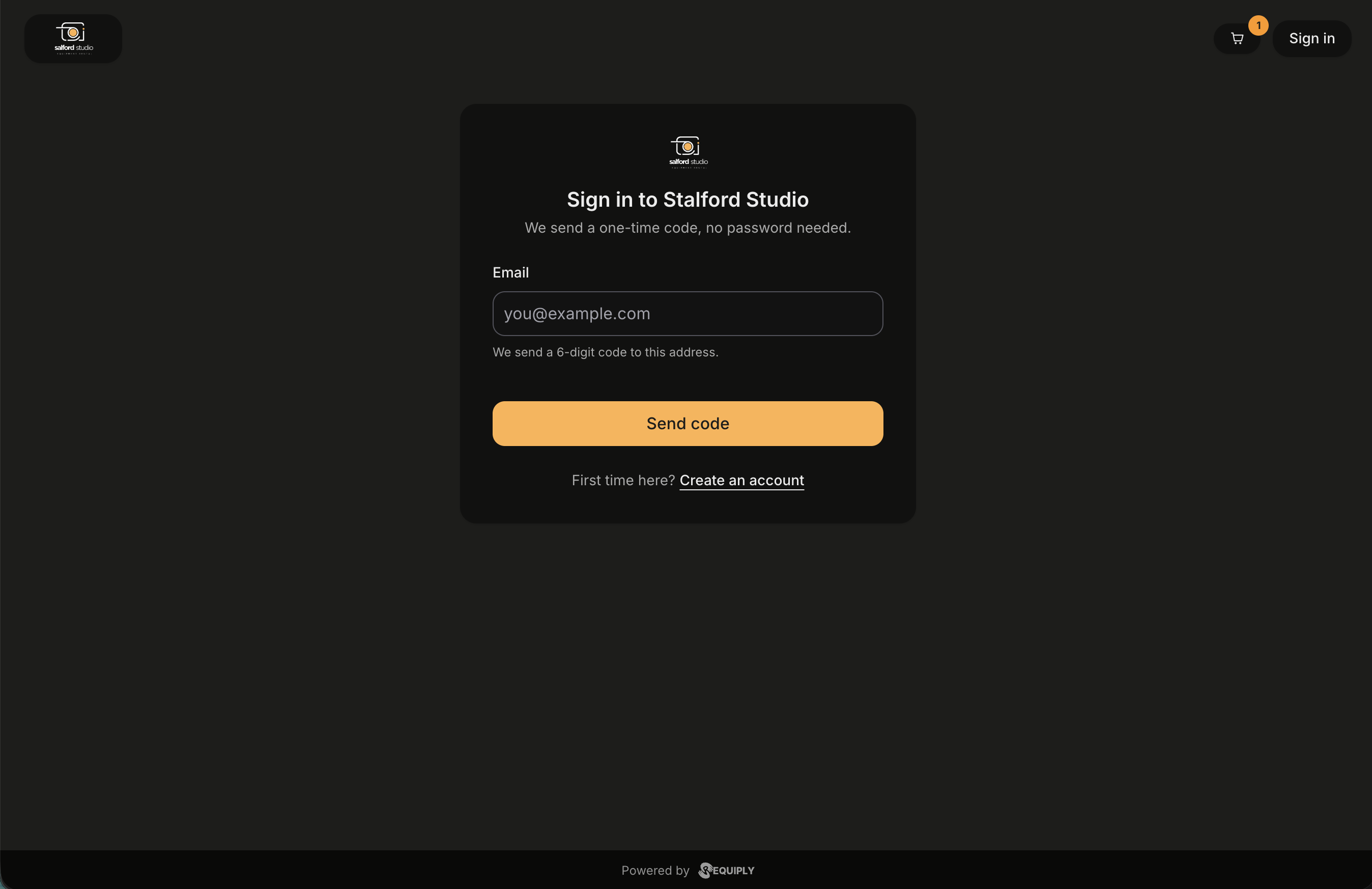
Sign-in with SMS codes switched off: one field and one button. With SMS on, a channel toggle sits above the field so the customer can pick email or phone.
Signing in from the middle of a booking returns the customer to where they were, so a sign-in during checkout does not lose the cart.
Creating an account
First time here? Create an account sits under the button, and a contact with no account yet is turned back with We could not find an account for this contact. Create one first. The register screen asks for:
| Field | Required |
|---|---|
| First name | Yes |
| Last name | No |
| Yes, the code is sent here | |
| Phone number | No, with the country code |
The phone field has a Country code picker in front of the number, and a hint under it: Used to reach you about your bookings. When your organization has SMS sign-in on, the hint reads We will text you a code to confirm it, so you can also sign in with your phone. The sign-in and profile screens use the same picker.
A short line explains that the details are used by your organization to manage the customer's bookings. Registration confirms with the same six-digit code flow.
Confirming the phone. When your organization has SMS sign-in on and the customer entered a phone number, the email code is followed by Confirm your phone: We sent a code to {number}. Once it is confirmed, you can sign in with this number. After the code the page says Your phone is confirmed, and the customer can sign in with either the email or the phone from then on. A number already used by another account is refused with This number is already used by another account. You can keep signing in with your email. Skip for now under the card lets the customer carry on to where they were heading without confirming the number. They can confirm it later from the profile.
Signing in without a company link
A customer who lost your link, or who rents from more than one company that uses Requiply, can start at the bare address, portal.requiply.com.
Signed out, the page explains that it is the entry point of the Requiply client portal and offers Sign in to find your bookings. That opens portal.requiply.com/login, a sign-in card that is not tied to any company:
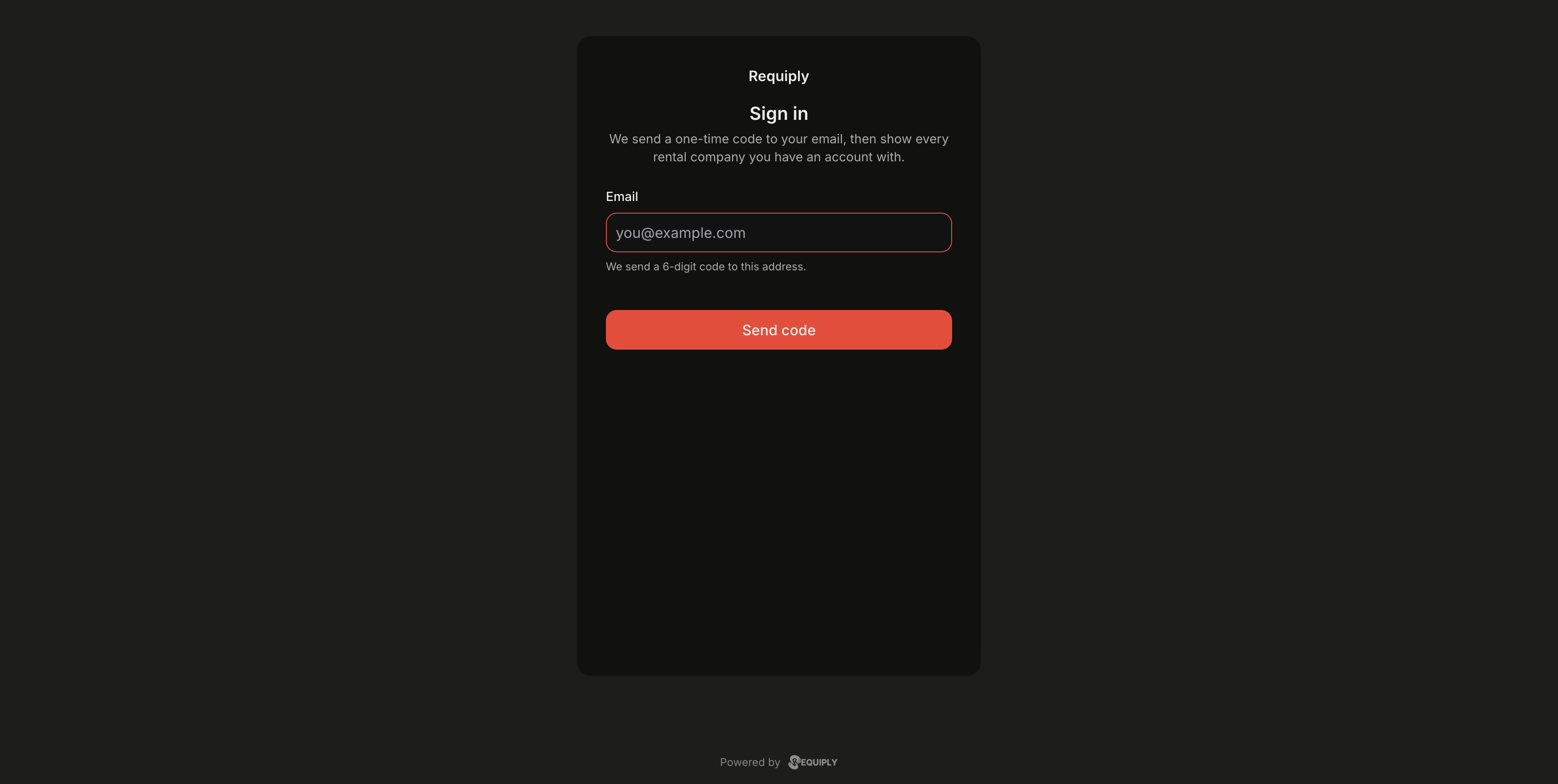
The company-independent sign-in. It takes an email address only.
- It accepts an email address only. SMS codes are a setting of each company, so they are offered only on a company's own sign-in page.
- It cannot create an account. An email with no account gets We could not find an account for this contact. Create one first. Accounts are created on a company's portal, when booking or through Create an account.
- The code step is the same as on a company's portal: six digits, Send a new code after 60 seconds, and Use a different contact.
After the code, the customer lands on Your rental companies: one card per company they have an account with, with its logo and name, the most recently used first. Clicking a card opens that company's portal on Your bookings.
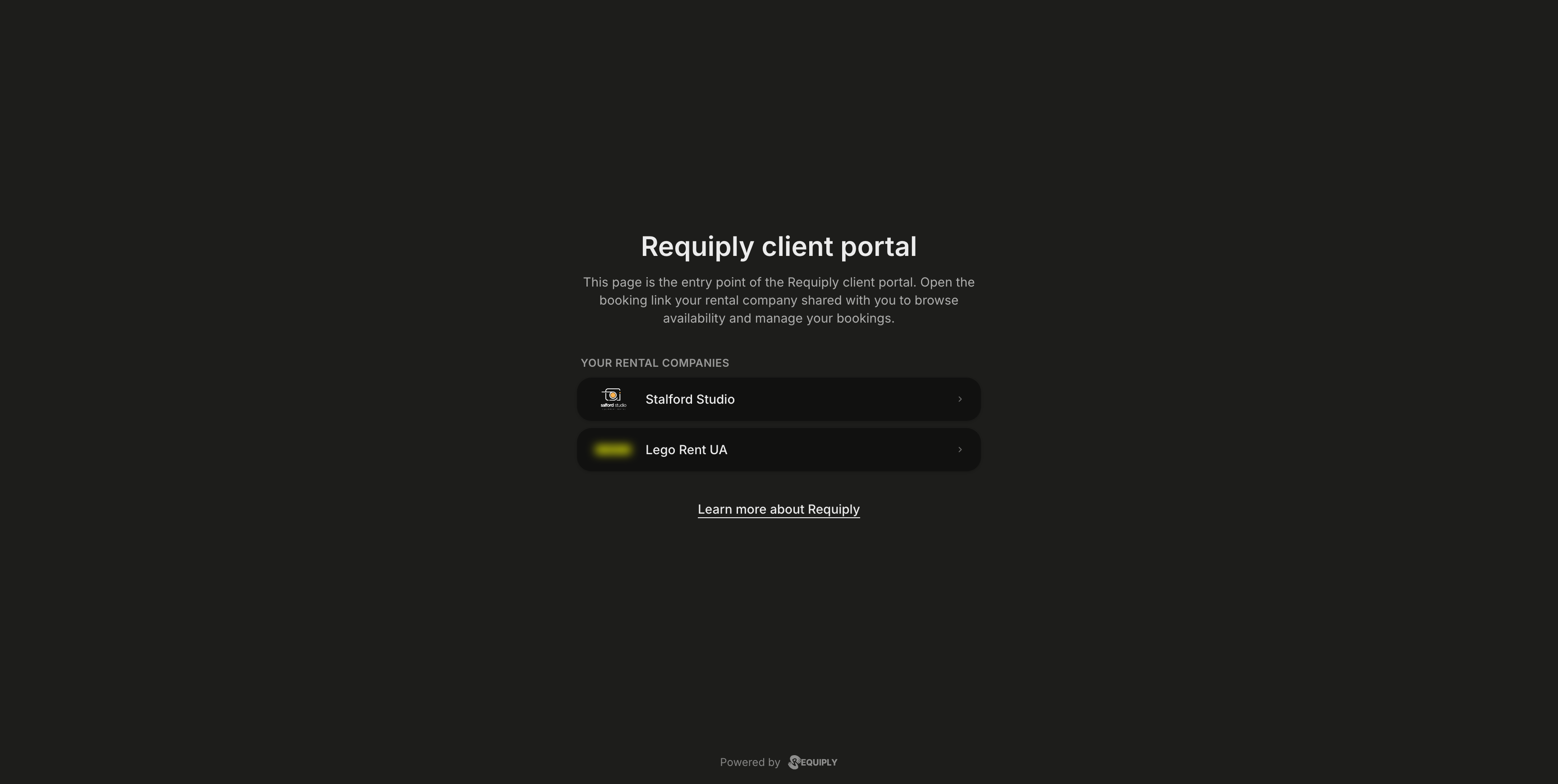
A customer with accounts at two rental companies sees both, and picks where to go.
| What the customer sees | Meaning |
|---|---|
| No rental company is linked to this account yet. | They are signed in, but have never booked or registered with a company. A Sign out button is shown. |
| We could not load your rental companies. Check your connection and try again. | The list could not be loaded. Try again retries, Sign out signs out. |
Only companies with a web URL code in Organization info appear in the list.
Your bookings
The account opens on Your bookings, split into Upcoming and Past. A side navigation lists Bookings and Profile, with a Book again button under them that drops the customer back into the catalog. On a phone that navigation becomes a tab strip.
Each booking is a card carrying its number and status pill, the total, a one-line summary of the items with their quantities, the rental period, and a View button, with Cancel beside it while cancelling is allowed. With nothing to show, the list says so and offers Book now.
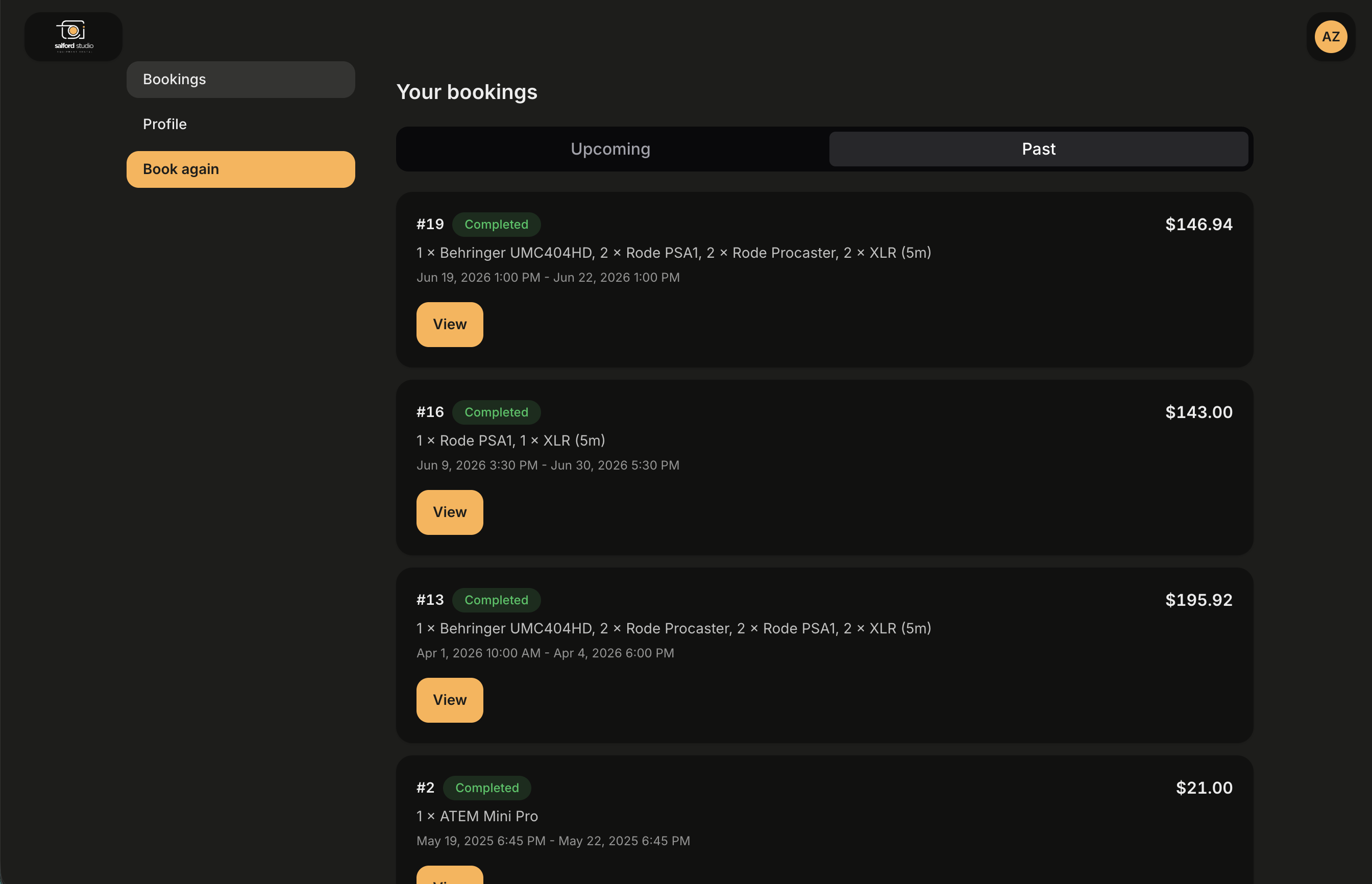
The Past tab of a customer who rents regularly. Each card answers the usual question, what did I book and what did it cost, without opening anything.
The status pill always shows your own status name exactly as you named it under Booking statuses, in your colors, whatever language the customer uses. Since version 1.3.1 the portal no longer swaps in built-in labels such as Confirmed or In progress, so a status you called Готово до видачі shows as Готово до видачі in the English portal too. Name your statuses the way you want customers to read them.
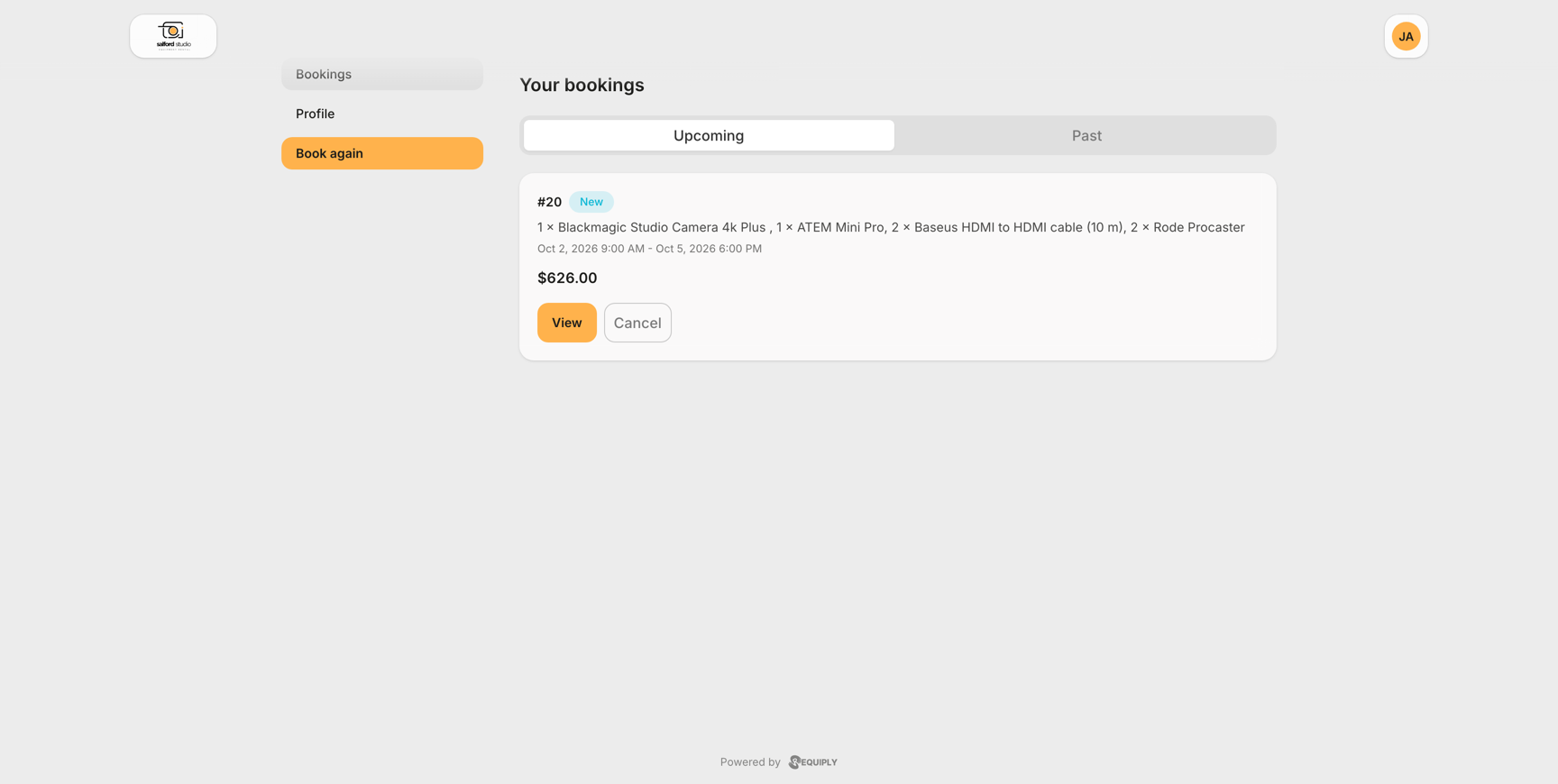
An upcoming booking in the light theme. The New pill is the organization's own status name, and Cancel shows because the booking has not started.
A single booking
A Back to bookings link sits above the heading, which reads Booking #{number} with the status as a colored pill beside it. Everything the customer might phone you about is then stacked in labelled cards.
- Progress: a stepper built from your own status flow, with completed steps ticked, the current one highlighted, and later ones dimmed. See How the progress bar is built.
- Dates and pickup: the rental period, the pickup location with its address and an Open in Google Maps link, and when the booking was placed.
- Items: each item with its photo, its quantity times the rate (for example
2 × $5.00 / day), and the line total, then the booking total and the security deposit. When your organization keeps the deposit out of booking payments, the deposit carries the note Paid separately, not as part of this payment. It is returned after the items come back. A booking that contains a bundle lists it first as Podcast duo kit × 1 with its discount, for example 10% off, and Includes: …, and adds a Bundle discount line above the total, so the line totals add up to what the customer pays. - Services: whatever your team added to the booking, with prices. Customers cannot add services themselves.
- Payments: every charge and refund with its method and status, the amount paid, and the outstanding balance. A pending online payment carries a Pay now button that opens the provider's payment page.
- Cancel this booking: shown only while cancelling is allowed, with the deadline spelled out.
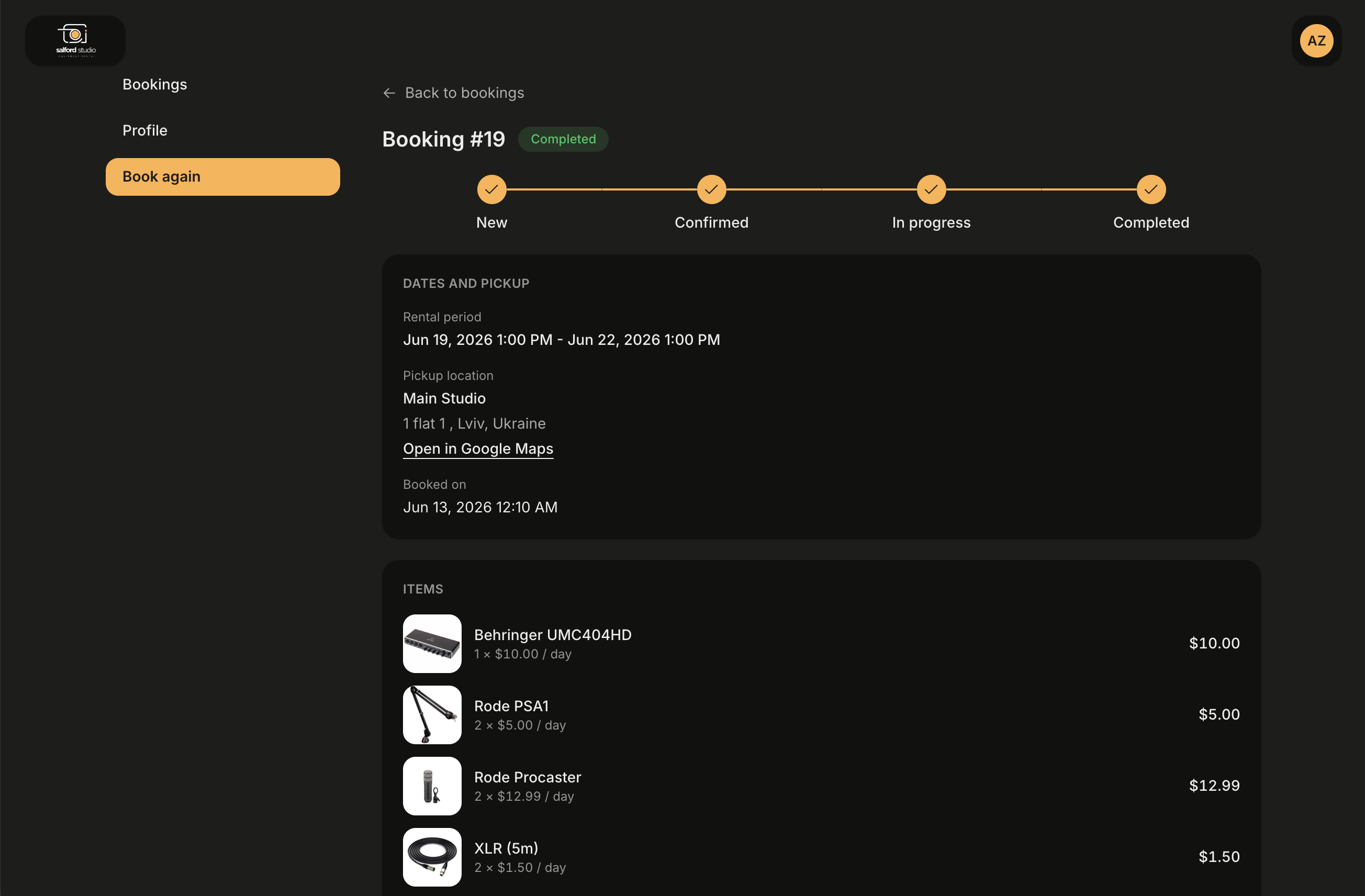
A finished booking: every step of the flow is ticked. There is no Cancel this booking section here, because a completed booking can no longer be cancelled.
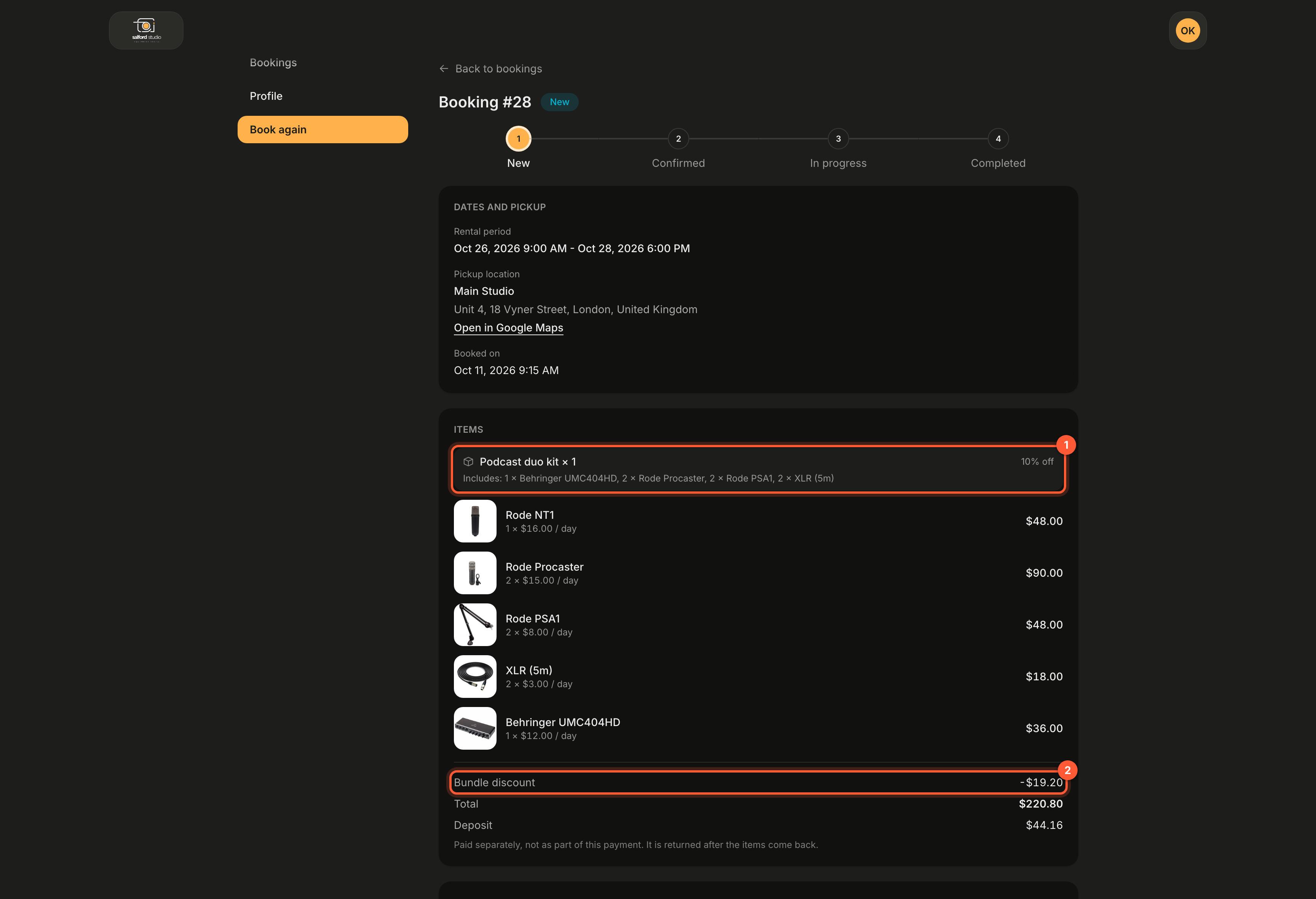
A booking with a bundle: 1 the set and what it includes, 2 its saving. The line totals minus the bundle discount give the total.
How the progress bar is built
The progress bar shows your organization's own pipeline, not a fixed list of stages, and every step carries the name you gave the status under Booking statuses.
- Where it starts. A booking still waiting in your Status for booking requests starts at that status. Every other booking starts at your Default status for new bookings. Both are set under Booking creation.
- Up to now. From the starting status, the bar follows the shortest route through your allowed transitions to the booking's current status.
- What is ahead. From the current status, it continues along the shortest route to the nearest status with the Completed lifecycle.
So with the default statuses, a booking in Confirmed shows New, Confirmed, In progress, Completed, while one moved into Ready for pickup shows New, Confirmed, Ready for pickup, In progress, Completed. A step the booking skipped is not shown.
A few cases worth knowing:
| Case | What the bar shows |
|---|---|
| The booking is finished (a Completed lifecycle status) | Every step ticked. |
| The booking is cancelled | The route it would have taken, every step still ahead, next to the cancellation note. Statuses with the Cancelled lifecycle are never a step. |
| No transition leads to the booking's current status | The bar starts at the current status. |
| No route leads on from the current status to a completed status | The bar ends at the current status. |
Cancelling online
Whether customers can cancel at all is set under Portal settings → Client portal with Status for cancelled bookings. With Clients cannot cancel chosen there, the portal shows no Cancel button at all.
Otherwise, a customer may cancel their own booking when all of the following are true:
- The booking's status has the Active lifecycle, so it is not already completed or cancelled.
- The goods have not been handed out: no pickup checklist was confirmed for the booking, and its status is not one set to Return checklist.
- The pickup time has not passed yet. The deadline shown on the page is the pickup time itself.
- Your status flow allows a move from the booking's current status to the status chosen as Status for cancelled bookings.
Cancelling asks for confirmation first, explaining that the items go back on offer to everyone else and that it cannot be undone. The booking then moves to your Status for cancelled bookings in Requiply, its stock is freed, the booking timeline gets the comment Cancelled by the client from the portal, and your status workflows fire as usual.
When cancelling is not possible, the page explains why in the customer's own words:
| What the customer sees | Why |
|---|---|
| This booking has started, so it can no longer be cancelled online. | The goods were handed out: a pickup checklist was confirmed, or the booking is in a status set to Return checklist. |
| Cancellation from the portal is not available for this organization. Please contact {organization}. | Status for cancelled bookings is set to Clients cannot cancel. |
| This booking has already started. | The pickup time has passed. |
| This booking is completed. | The status has the Completed lifecycle. |
| This booking is already cancelled. | The status has the Cancelled lifecycle. |
| This booking can no longer be cancelled online. Please contact {organization}. | Your status flow has no transition from the booking's current status to your Status for cancelled bookings. |
Profile
The profile screen holds three cards:
- Profile: first name, last name, and phone number, all editable and saved with Save changes, which stays disabled until something is actually edited. Changes land on the client record your team sees. When the account has no first name yet, a warning on top asks for one: Add your first name so we know who is booking. With SMS sign-in on, Phone for sign-in shows the confirmed number or Not confirmed, with a Confirm {phone} for sign-in button.
- Your discount: the percentage in large type with the name of the pricing discount you assigned under it, for example 5% and Premium, plus the line Applied automatically to your bookings. The card is not shown when the client has no discount.
- Sign-in details: the email the account signs in with, plus the line Your email comes from the way you sign in. Ask {your organization} to change it. Sign out sits under the cards.
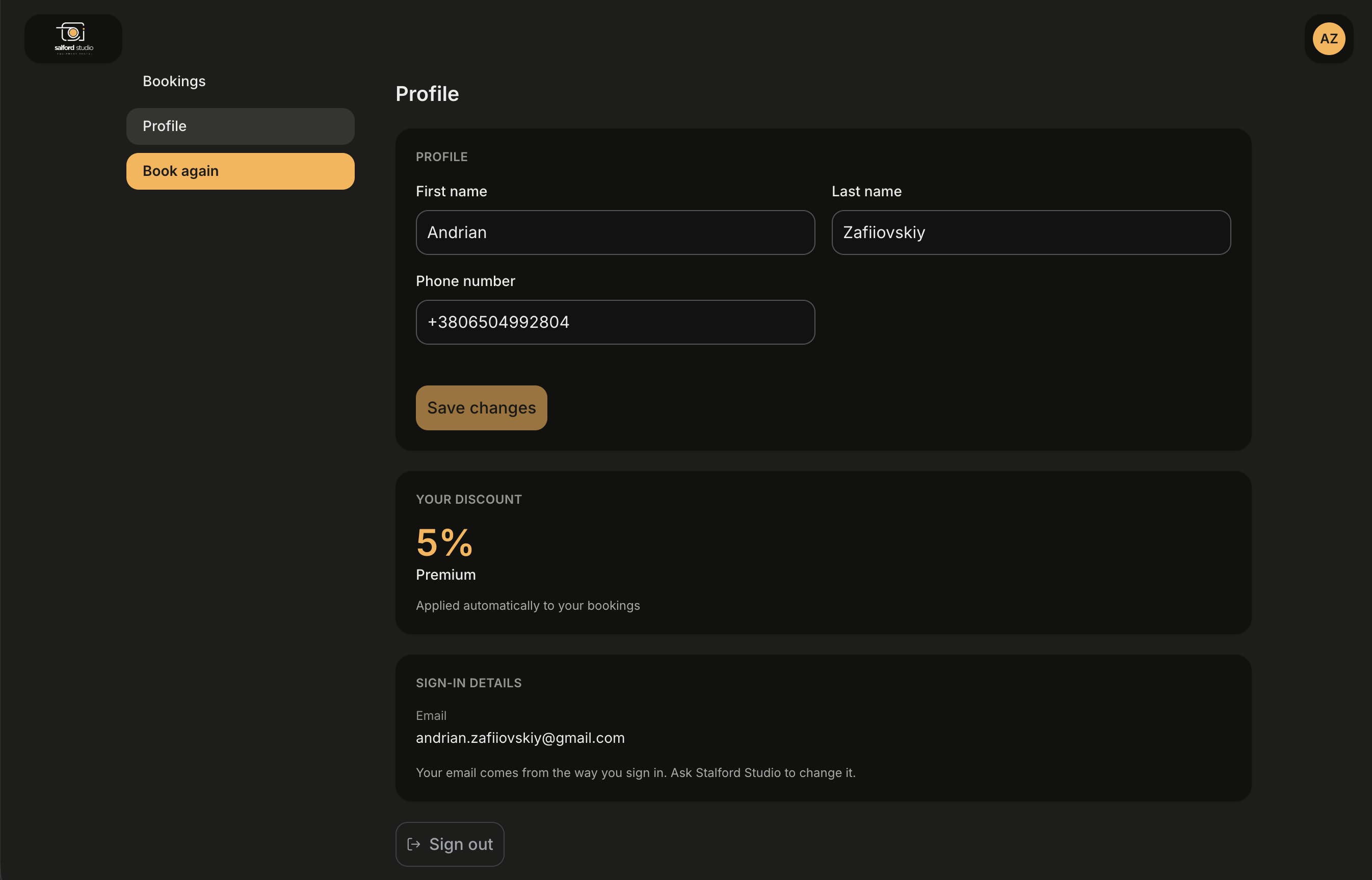
The only things a customer can change about themselves are their name and phone number. The email is tied to how they sign in, and the discount is yours to set.
What your team sees
Add the optional Client portal field for the Client level to see accounts in the app:
- On Manage clients, a Client portal column reading Has account or No account. Add it under Table column layout.
- On Client details, a Client portal row with Account since and Last seen. Add it under Detail page fields.
Both start hidden, so nothing changes in your tables until you add them.
A customer's account is tied to your organization. The same person can hold an account with several Requiply businesses using one email address, and each business only ever sees its own client record.
Common scenarios
A customer did not get their code
Ask them to check the spam folder first, then use Send a new code on the verify screen. Codes expire, and an expired one reports That code is wrong or has expired. Too many attempts in a row are rate limited with Too many attempts. Please wait a moment and try again.
A customer wants to change the email they sign in with
They cannot do that themselves. Update the email on their client record in Add or edit client; the next sign-in with the new address links to the same client.
A customer cancelled but expects money back
Cancelling online frees the booking and the stock, nothing else. Open the booking in Manage bookings and refund the payment or the deposit there if your policy says so.
A customer says they cannot cancel although pickup is days away
Check the message on their booking page against the table in Cancelling online, then:
- Open Portal settings → Client portal and check that Status for cancelled bookings is not Clients cannot cancel.
- Open Booking statuses, open the booking's current status, and check that the status picked in step 1 is in its Allowed transitions. Organizations that pruned their transitions, or added a status of their own, can end up with a status that cannot be cancelled from.
- Check whether a pickup checklist was already confirmed for the booking. Once goods are handed out, only your team can cancel.
The progress bar shows steps we do not use
The bar follows your allowed transitions. If it shows a status your team never uses, remove the transitions into that status under Booking statuses, or delete the status. If it shows New for bookings that start elsewhere, check Default status for new bookings under Booking creation.
Tips and cautions
portal.requiply.com/<your code>/account in your booking confirmation email template. Customers who follow their own booking phone you less.Booking flow
What a customer goes through on your client portal: the entry page, dates and items, the item page, bundles offered as a set, the optional step for buying items, checkout with the deposit and total to pay, and the confirmation screen.
Booking assistant
The optional AI chat on your client portal: it answers catalog, availability and price questions in your customer's language, can send a booking request, and lets customers ask about an item, edit or unsend their messages and chat with your team.