

Booking duration
The Booking Duration Settings page is where you control how long bookings must last and how much buffer time is reserved around them. It is used to keep your team's schedule realistic by enforcing a minimum booking length and blocking out preparation or recovery time before and after each booking.
You can find this page under Settings → Bookings → Booking Duration.
Why this page matters
Bookings rarely consume only the time slot the customer selects. A business may need preparation time before a booking starts, cleanup time after it ends, or a guaranteed minimum length for the booking to be worthwhile.
This page centralizes those rules so they are applied consistently:
- Bookings — availability calculations subtract buffer time, so customers cannot pick slots that overlap with another booking's buffer.
- Booking page — the public booking flow respects the same minimum duration and buffers when showing available times.
- Date changes: Edit dates checks the new dates against the same buffers and minimum duration.
- API and AI assistant: bookings and booking requests created through the Public API or the AI assistant are refused when shorter than the minimum duration. The reply explains the minimum and gives the earliest return that would be accepted for that pickup, so the assistant can suggest it. The refusal is written in your organization's language (English or Ukrainian).
- Calendar / staff schedules — buffer time is reflected when bookings are placed on the schedule.
- Booking duration preview — a live visual preview on this page shows how the configured buffers and minimum duration look on a timeline.
Who can use this page
This page is part of the organization settings area and requires authentication and an active organization context. Anyone who can reach the Settings → Bookings area can view and modify these values.
While the page is loading or saving, the entire screen is blocked with a full-screen overlay so values cannot be changed mid-request.
What you'll see
The page is split into two columns.
Left column — the form
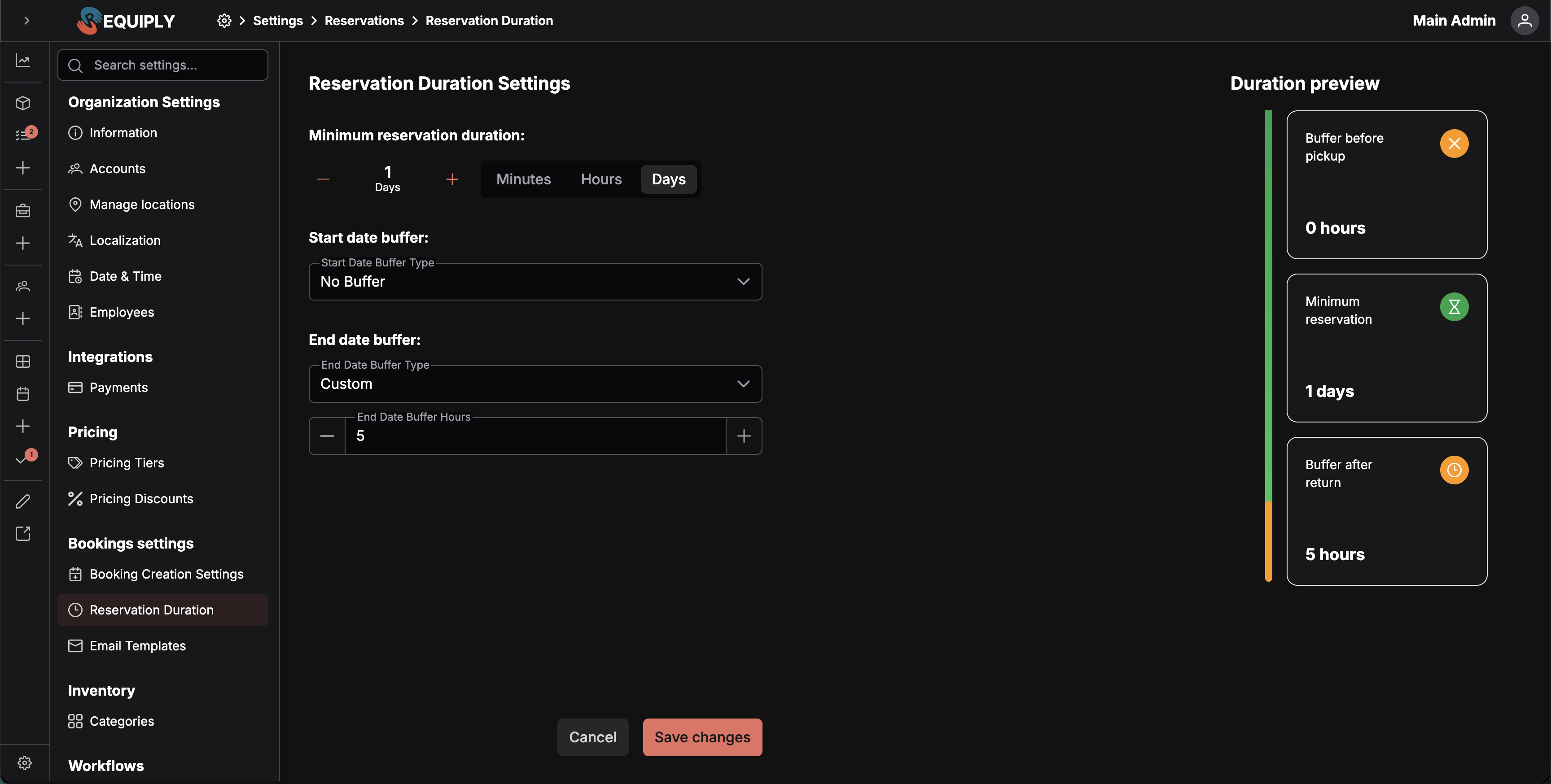
- A heading: Booking Duration Settings.
- A Minimum booking duration control. It uses a number selector with a unit switch (Minutes, Hours, Days) so you can express the minimum however makes sense for your business. The default is 1 day (1440 minutes).
- A Start date buffer section with:
- A Start Date Buffer Type dropdown (No Buffer, Custom, Full Day).
- When Custom is selected, a Start Date Buffer Hours number input appears (range 0–72, increment/decrement buttons).
- An End date buffer section with:
- An End Date Buffer Type dropdown (No Buffer, Custom, Full Day).
- When Custom is selected, an End Date Buffer Hours number input appears (range 1–72).
- Cancel and Save changes buttons at the bottom. Save changes is disabled until you actually change a value, and shows a loading state while saving.
Right column — the preview
- A heading: Duration preview.
- A vertical meter that visually represents the start buffer, the booking itself, and the end buffer based on the values currently in the form. It updates live as you change the form.
Empty state
There is no traditional empty state. The page always loads existing settings from the server. Every organization has a saved buffer setting: new organizations get No Buffer on setup, and organizations that never saved this page were given No Buffer in October 2026, so the calendars, the client portal, and the server always agree. If no settings have been configured yet, defaults are used:
- Minimum booking duration: 1 day (1440 minutes).
- Start date buffer type: No Buffer.
- End date buffer type: No Buffer.
- Buffer hours: 0.
Main actions
Updating the minimum booking duration
Use the Minimum booking duration control to set how short a booking is allowed to be. Switch the unit (Minutes / Hours / Days) to enter the value in the most natural form. The minimum recognized value is 15 minutes — a smaller value will cause a validation error on save.
Configuring the start date buffer
Choose how time before a booking should be blocked off:
- No Buffer — bookings can start back-to-back with another booking.
- Custom — block a specific whole number of hours (0–72) before each booking. Fractional hours are not supported.
- Full Day: block the rest of the pickup day, from the opening time of that day in Date & time settings. If the pickup falls on a closed day, the buffer reaches back to the opening time of the previous working day. See How the Full Day buffer works.
When Custom is selected, the Start Date Buffer Hours field becomes visible and required.
Configuring the end date buffer
Mirrors the start buffer, but applied after the booking ends. The Custom option exposes an End Date Buffer Hours field with a range of 1–72 whole hours. Full Day holds the equipment until the closing time of the return day, or of the next working day when the return falls on a closed day.
How the Full Day buffer works
A Full Day buffer is measured against your working days, not against 24 hours:
| Buffer | Pickup or return on a working day | Pickup or return on a closed day |
|---|---|---|
| Start Date Buffer: Full Day | The equipment is held from the opening time of the pickup day. | Held from the opening time of the previous working day. |
| End Date Buffer: Full Day | The equipment is held until the closing time of the return day. | Held until the closing time of the next working day. |
Closed days are the weekdays switched off in the Working Schedule and the dates listed under Holidays and closed days. For example, with Monday to Friday open 10:00 to 18:00 and December 25 listed as a holiday, a return on Friday December 25 holds the unit until Monday December 28 at 18:00, so it cannot go out again on the weekend before your team has checked it. A return on Thursday December 24 still ends that Thursday at 18:00.
A pickup or return can only fall on a closed day when a member with Allow booking outside of working hours set it. Requiply looks up to 7 days ahead or back for a working day. When the closure is longer than that, for example a two-week summer break, that booking gets no Full Day buffer on that side.
Saving changes
Click Save changes to persist the configuration. On success, a green toast confirms Booking duration settings have been saved successfully and the form's "changed" baseline is reset (the Save button becomes disabled again until the next edit).
If saving fails, an error toast appears and the form keeps your edits so you can retry.
Cancelling
Click Cancel to leave the page without saving.
Forms and fields
| Field | Meaning | Notes |
|---|---|---|
| Minimum booking duration | The shortest booking length allowed. | Stored in minutes. Must be ≥ 15 minutes. Default 1440 (1 day). |
| Start Date Buffer Type | How buffer time is applied before a booking. | One of No Buffer, Custom, Full Day. |
| Start Date Buffer Hours | Hours blocked before each booking. | Only used when type is Custom. Range 0–72. |
| End Date Buffer Type | How buffer time is applied after a booking. | One of No Buffer, Custom, Full Day. |
| End Date Buffer Hours | Hours blocked after each booking. | Only used when type is Custom. Range 1–72. |
Validation message shown if a Custom buffer is selected but no valid hours are entered, or if the minimum duration is below 15 minutes:
Buffer hours must be provided when custom buffer type is selected, and minimum duration must be at least 15 minutes.
How this page connects to the rest of Requiply
| Feature | How this page affects it |
|---|---|
| Booking creation (internal) | The minimum duration and buffers are enforced when staff create or edit bookings. Available time slots take buffers into account. |
| Client portal | Customers selecting times on the portal only see slots that satisfy the minimum duration and buffer rules. |
| Calendar / availability | Buffer windows are treated as unavailable around each booking, preventing overlapping bookings. |
| Date picker components | Inline date pickers used during booking pull from the same shared booking buffer settings. |
| Bookings booking-creation settings | Lives alongside this page under Settings → Bookings and shares the same underlying buffer configuration. |
Common scenarios
Service business that needs setup time
A photo studio needs an hour to set up before each shoot and an hour to reset afterwards. Set both Start Date Buffer Type and End Date Buffer Type to Custom with 1 hour each, so the studio is not double-booked back-to-back. Buffers are configured in whole hours, so round up if your prep time is shorter than an hour.
Equipment rental with a same-day turnaround
An equipment rental company wants to inspect and clean items before they go out again. Set End Date Buffer Type to Full Day: a unit returned at 11:00 is not offered again until the next working day, because it stays held until closing time on the return day.
Returns on a public holiday
A podcast studio closes on December 25 and lists it under Holidays and closed days. With Full Day end buffers, a microphone that a manager lets a client return on the holiday (with Allow booking outside of working hours) stays held until closing time on the next working day. Customers cannot pick the holiday as a return day at all.
Minimum overnight stay
A short-term rental requires at least one full night. Leave the minimum booking duration at the default of 1 day (or increase it to 2 days for a weekend minimum).
No buffers needed
A tutoring business runs sessions back-to-back. Leave both buffer types on No Buffer and only set a minimum duration that matches the shortest lesson offered.
Tips and cautions
Booking creation
Choose the status new bookings and booking requests start in, how the date picker behaves when staff create a rental, whether pickup and return times can be typed in, whether the booking form starts from items or from dates, and whether units can be scanned in at creation.
Deposits
Set the organization's security deposit policy: no deposit, a fixed amount, or a percentage of the rental, keep it out of online payments or include it, and override it per product.