

Analytics
The Analytics page is where you see how your business is performing across owned rentals, subrentals, services, bookings, revenue, expenses, and profit for a chosen time period. It pulls together data from bookings, items, services, supplier procurement, activities, and employee payouts so you can answer "How are we doing this month?" at a glance.
You can find this page under Reports → Analytics.
Why this page matters
Analytics is the single place where Requiply summarizes what is happening across the rest of the product. It depends on data created elsewhere:
- Bookings — drive utilization, booking counts, and revenue.
- Services, owned items, and subrentals — show up in the top performers table and the revenue-by-category chart.
- Activities — provide expense data tied to specific items.
- Employee and subcontractor payouts: what employees and subcontractors earn on booking services and on inventory tasks, counted as expenses.
- Supplier spend — cost from non-cancelled subrentals is counted as an expense.
- Categories — group items in the revenue donut chart.
- Clients — feed into the repeat customer rate for the selected period.
If any of those areas are missing data (for example, no end dates set on activities, or no categories on item groups), the totals on this page will reflect that.
Who can use this page
Any signed-in user with access to the organization can open this page. There are no role checks, plan gates, or upgrade prompts on this page. Summary metrics, including repeat customer rate, are scoped to the selected period.
What you'll see
The page is laid out top-to-bottom as a single scrollable view:
- Header bar with the page title, a period dropdown, an optional custom date picker, and a refresh button.
- Period badge showing the exact start–end date range used by period-scoped metrics.
- Six summary cards in a two-row, three-column grid.
- Two charts: a wide Revenue by month column chart and a Revenue by category donut beside it.
- Top items, services, and subrentals table at the bottom.
While data is loading, summary cards show skeleton placeholders. The charts animate into place, and when you change a period they slide and resize to the new values instead of redrawing. The refresh button at the top right re-fetches every section at once.
Choosing a period
The period dropdown at the top right controls every summary card, the revenue-by-category chart, and the profitability table. The revenue-by-month chart uses its own lookback selector.
Available options:
- This month (default)
- Last month
- This year
- Last year
- Custom range — reveals a date range picker next to the dropdown so you can choose any start and end date.
The selected range is shown as a tag below the header in dd.mm.yyyy – dd.mm.yyyy format. When you switch to a custom range, the picker is pre-filled with the current month.
Summary cards
The grid shows six metrics for the selected period.
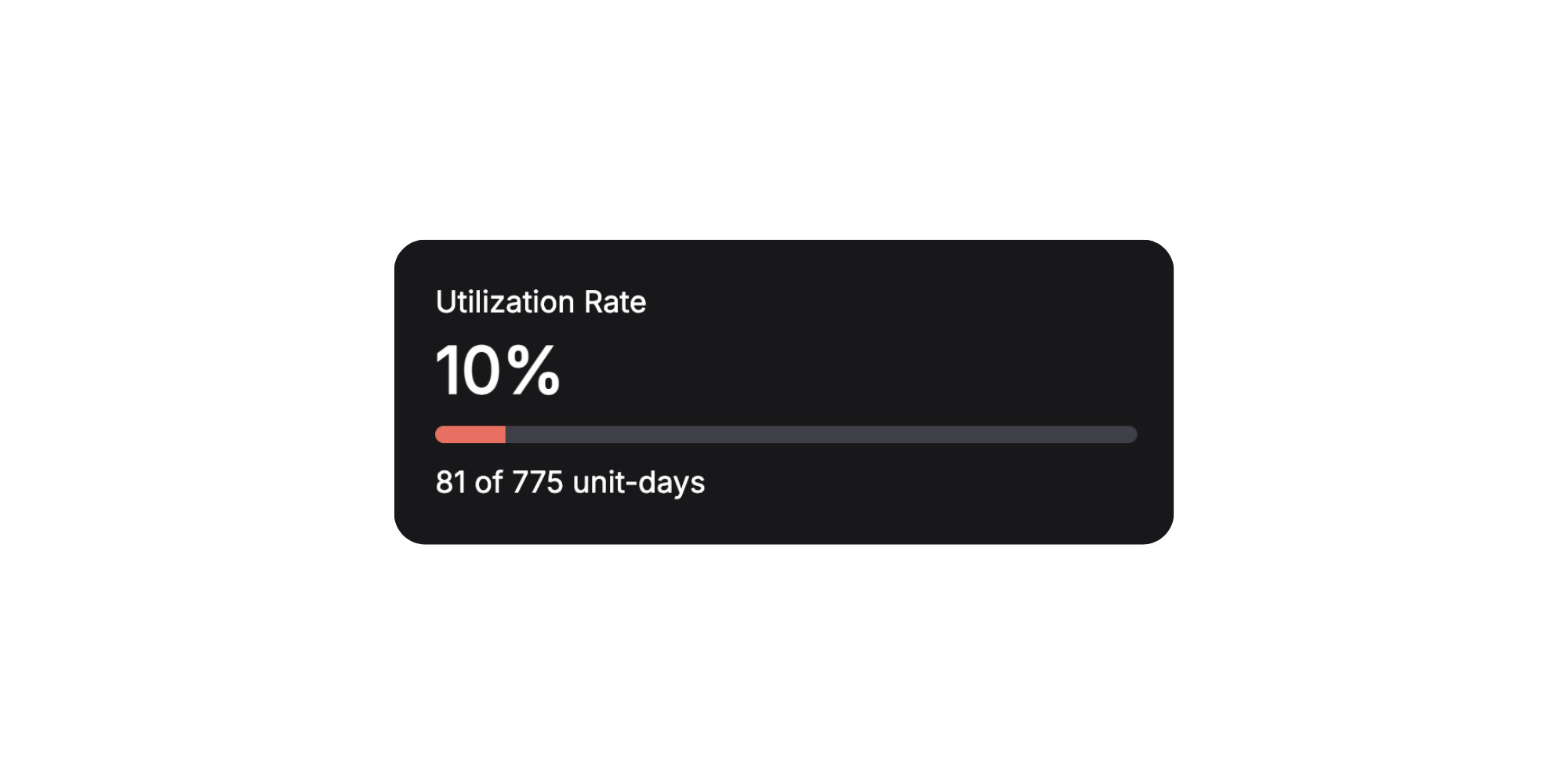
Utilization rate
The percentage of available unit-days that were rented during the period. Each item in each item group counts as one unit, and a unit is "available" for every day in the period. The card shows the percentage, a progress bar, and the underlying numbers — for example 120 / 600 unit-days.
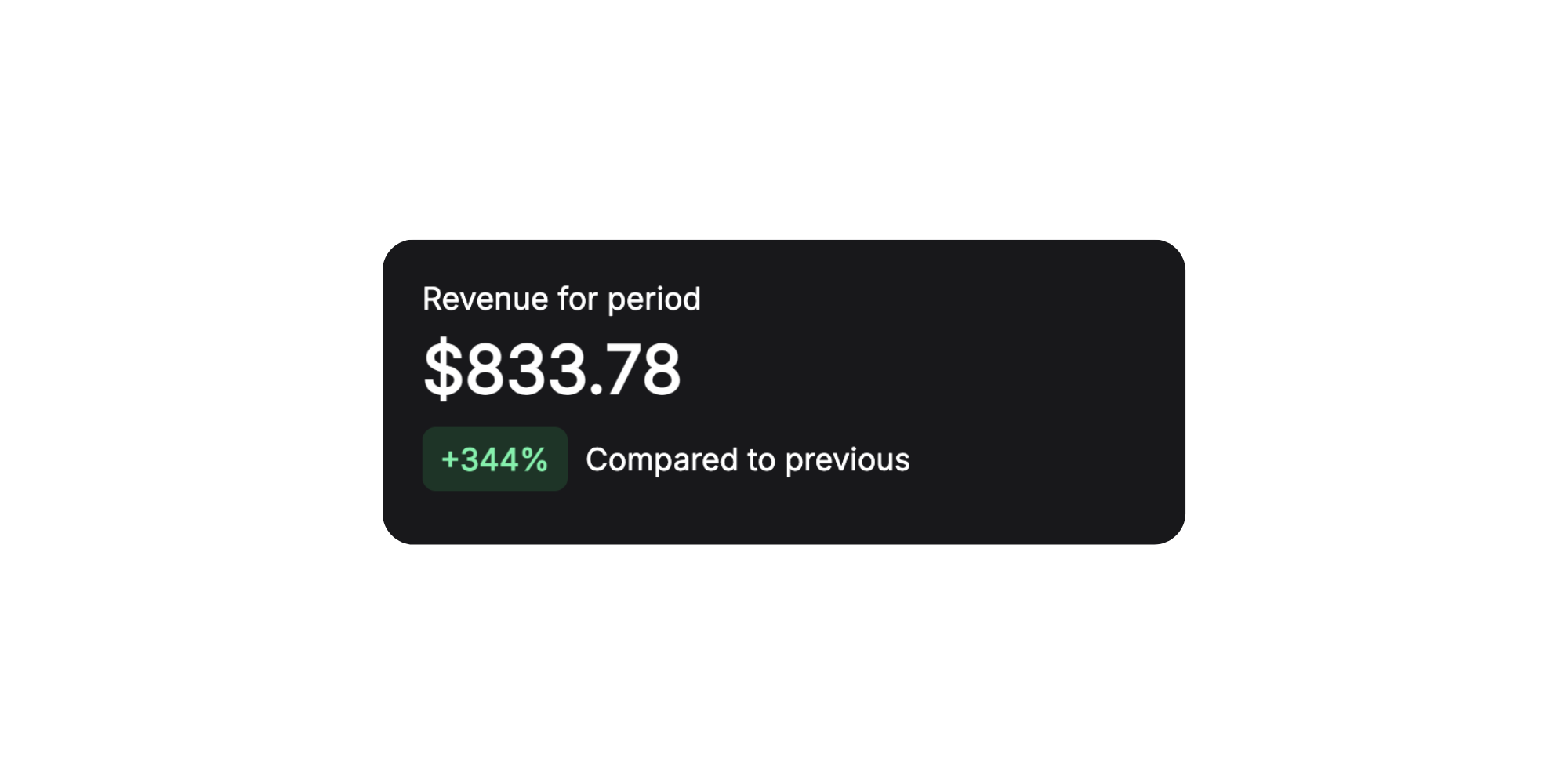
Period revenue
Total revenue from bookings whose end date falls inside the selected period (accrual basis, using the booking's stored total cost). A green or red tag shows the percentage change versus the previous period of the same length. For custom ranges, the comparison label includes the previous range's exact dates.
Top performer
The owned item, service, or subrental with the highest profit inside the period. Shows the name, profit, and number of rentals. Displays "No data" when nothing was rented.
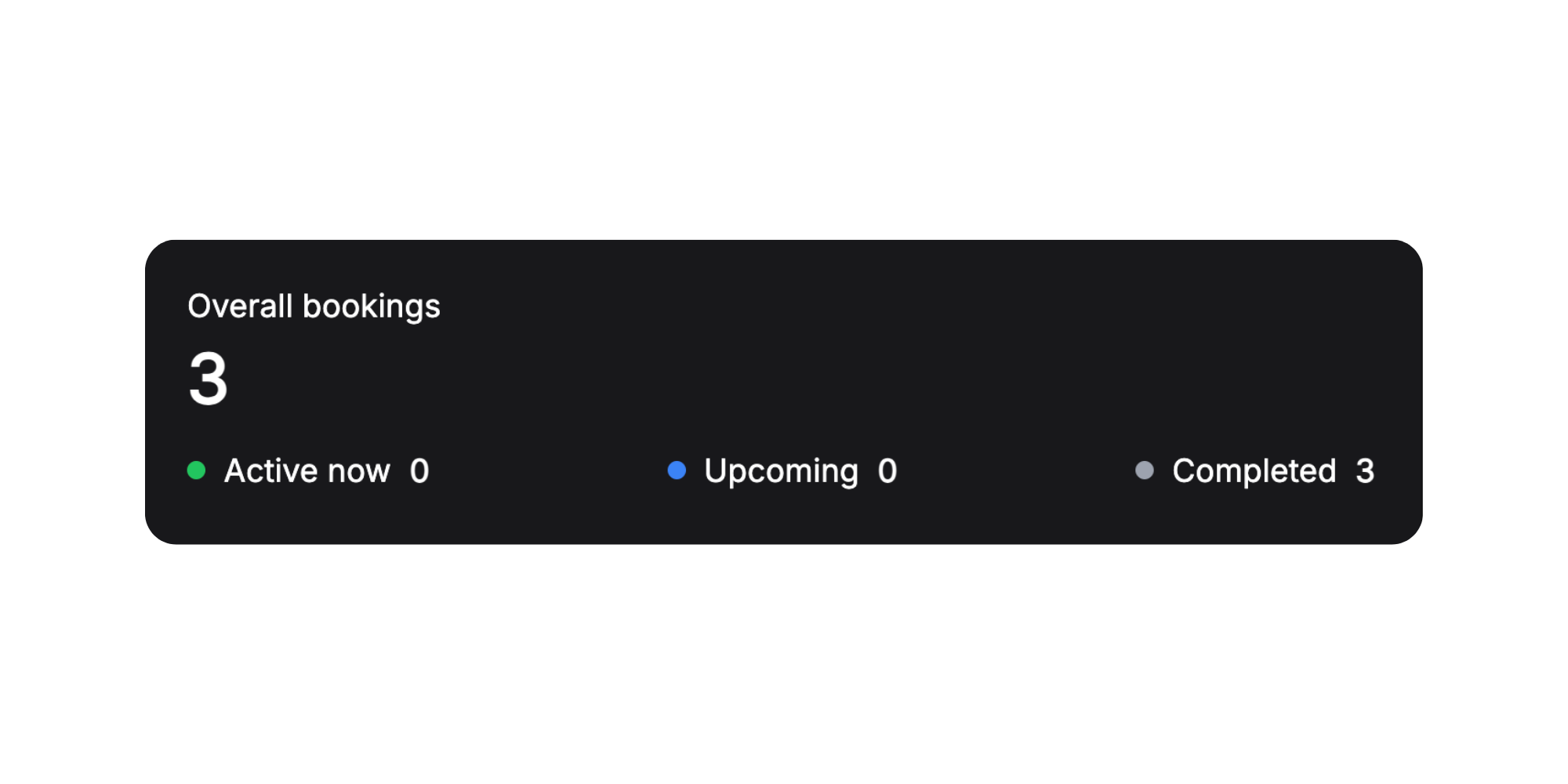
Bookings overview
The total number of bookings whose dates overlap the period, broken down into three counts:
- Active now — bookings currently in progress (start in the past, end in the future).
- Upcoming — bookings starting after now.
- Completed — bookings that already ended.
Period profit
Revenue minus combined period expenses. Expenses include activity costs, employee and subcontractor payouts (booking services and tasks), and supplier spend on non-cancelled subrentals. A tag compares profit with the immediately preceding equivalent period.
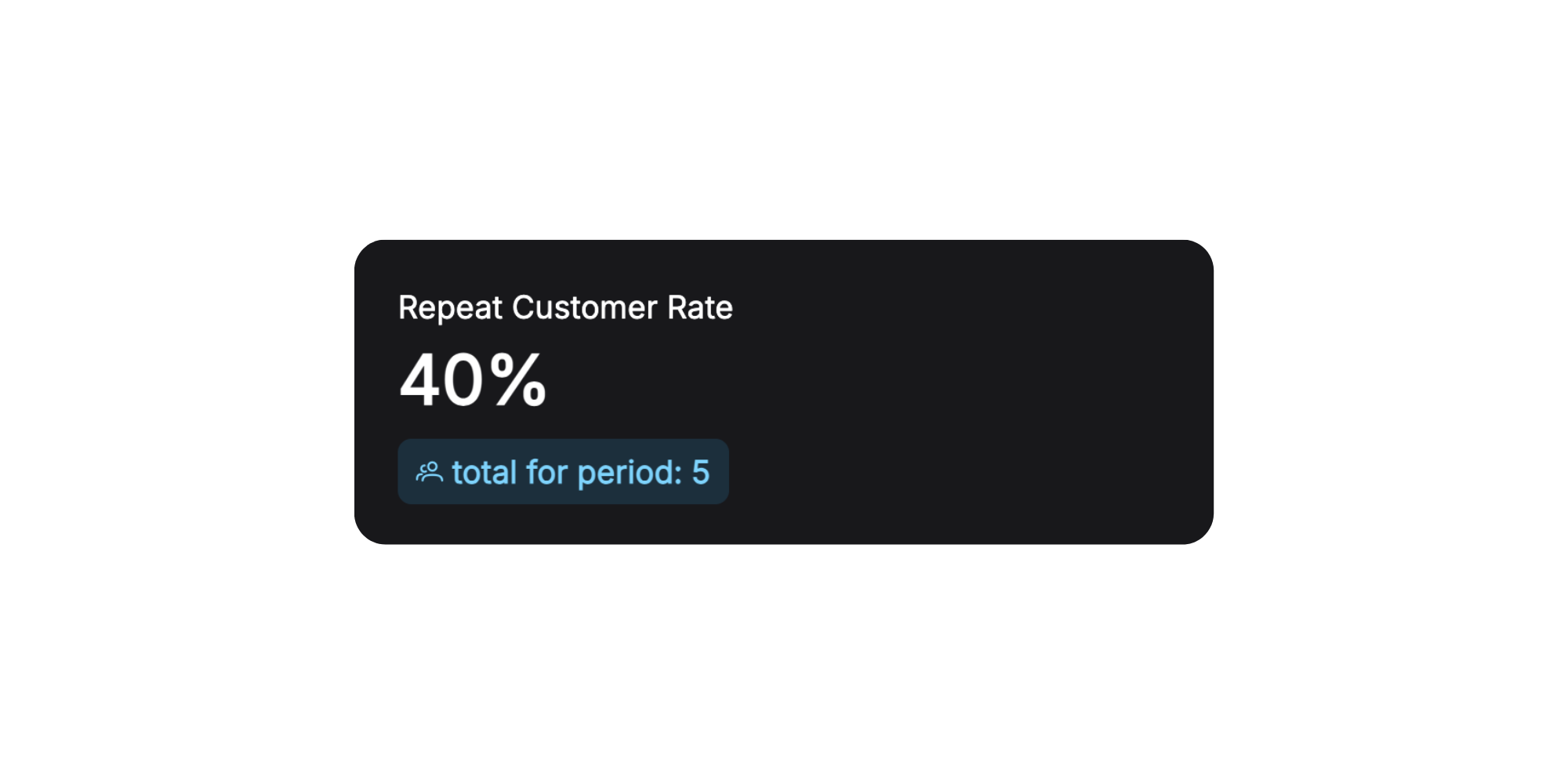
Repeat customer rate
The percentage of clients in the selected period who have more than one overlapping booking in that same period. The card also shows repeat clients and total unique clients as a secondary tag.
Charts
Revenue by month
A column chart of accrual revenue, one column per month, grouped by the month each booking ended. A switch next to the title picks the lookback window:
- 3 months
- 6 months (default)
- 12 months
This chart always counts back from the current month: it is not affected by the period dropdown at the top of the page.
- The total above the chart adds up every column, for example $48,200 over 6 months.
- A dashed line marks the monthly average, with Average $8K a month in the legend under the chart. The current month is left out of the average because it is not over yet.
- The current month is drawn hatched, with Current month in progress in the legend, so a half-finished month does not look like a bad one.
- Hover a column (or move to it with the keyboard) for its tooltip: the month and year, the full revenue in your currency, and the change against the month before, for example +12% vs previous month. The current month's tooltip says Month in progress instead.
The axis shows compact values in your organization's currency, for example $12K.
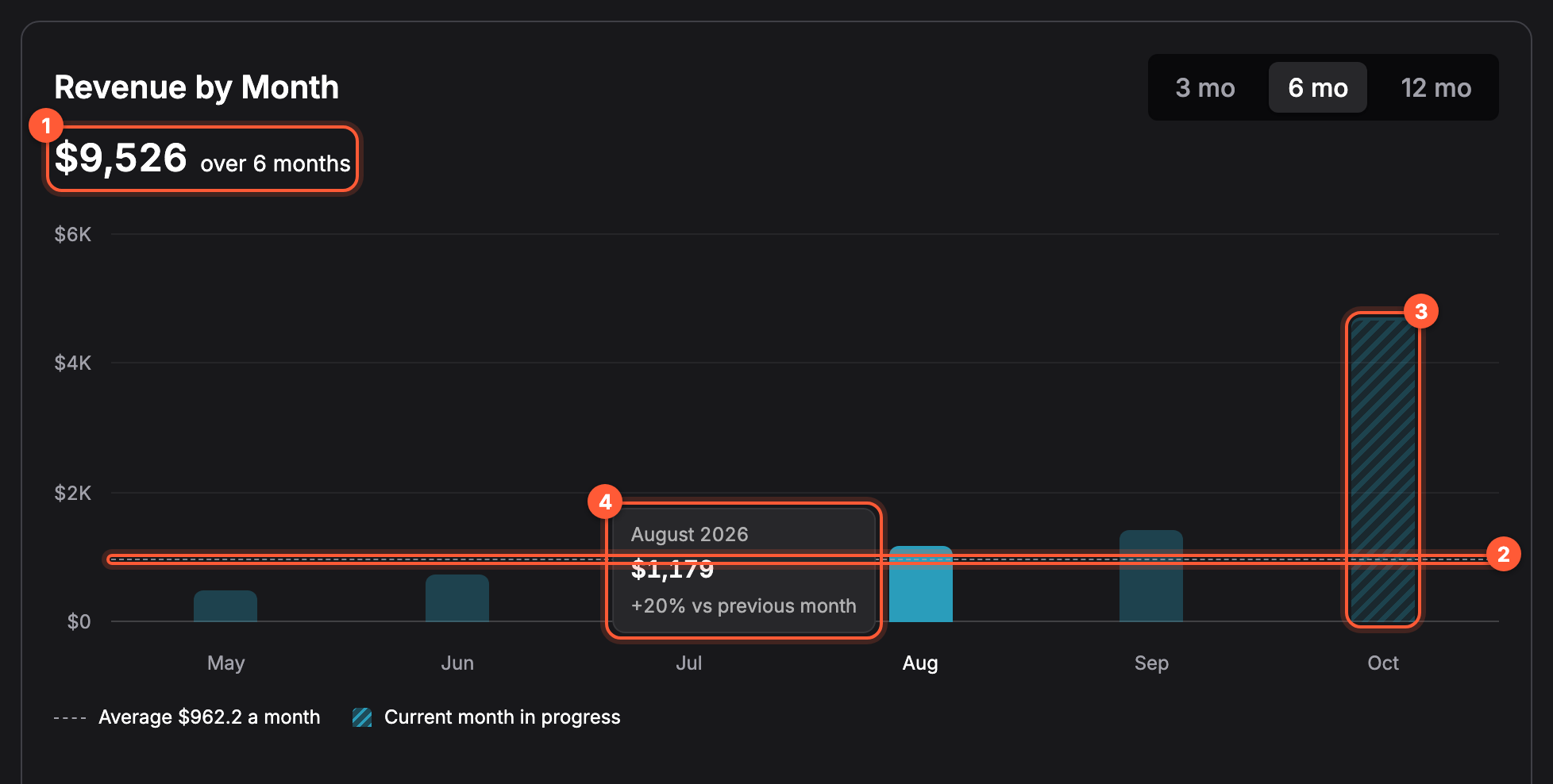
The total for the window (1), the dashed monthly average (2), the hatched current month (3), and a column tooltip with the change against the previous month (4).
Revenue by category
A donut chart that splits the revenue of the selected period by item category, plus a Services segment for booking services and a Subrentals segment for one-off subrentals. Catalog-backed subrentals count toward their product's category, and items without a category are grouped as Other.
- The four biggest categories get their own colors. Everything smaller is folded into one grey slice, Other categories, so the chart stays readable however many categories you have.
- The legend under the donut lists each slice with its revenue and its share of the total.
- Hover a slice or a legend row (or move to a row with the keyboard) to show that category in the middle of the donut: its name, its revenue, {share} of revenue, and how its share moved against the previous period, for example a green arrow chip with +4% and was 21%, or no change.
- Without a hover, the middle of the donut shows one insight about the period:
- Share grew the most with the category whose share of revenue grew the most since the previous period, when one grew by at least one percentage point.
- Otherwise, when revenue is concentrated, for example 2 categories bring 78% of all revenue.
- Otherwise, the Total revenue of the period.
The previous period is the one the summary cards compare with: the same number of days directly before the selected range. Share changes are shown in percentage points, written with a % sign.
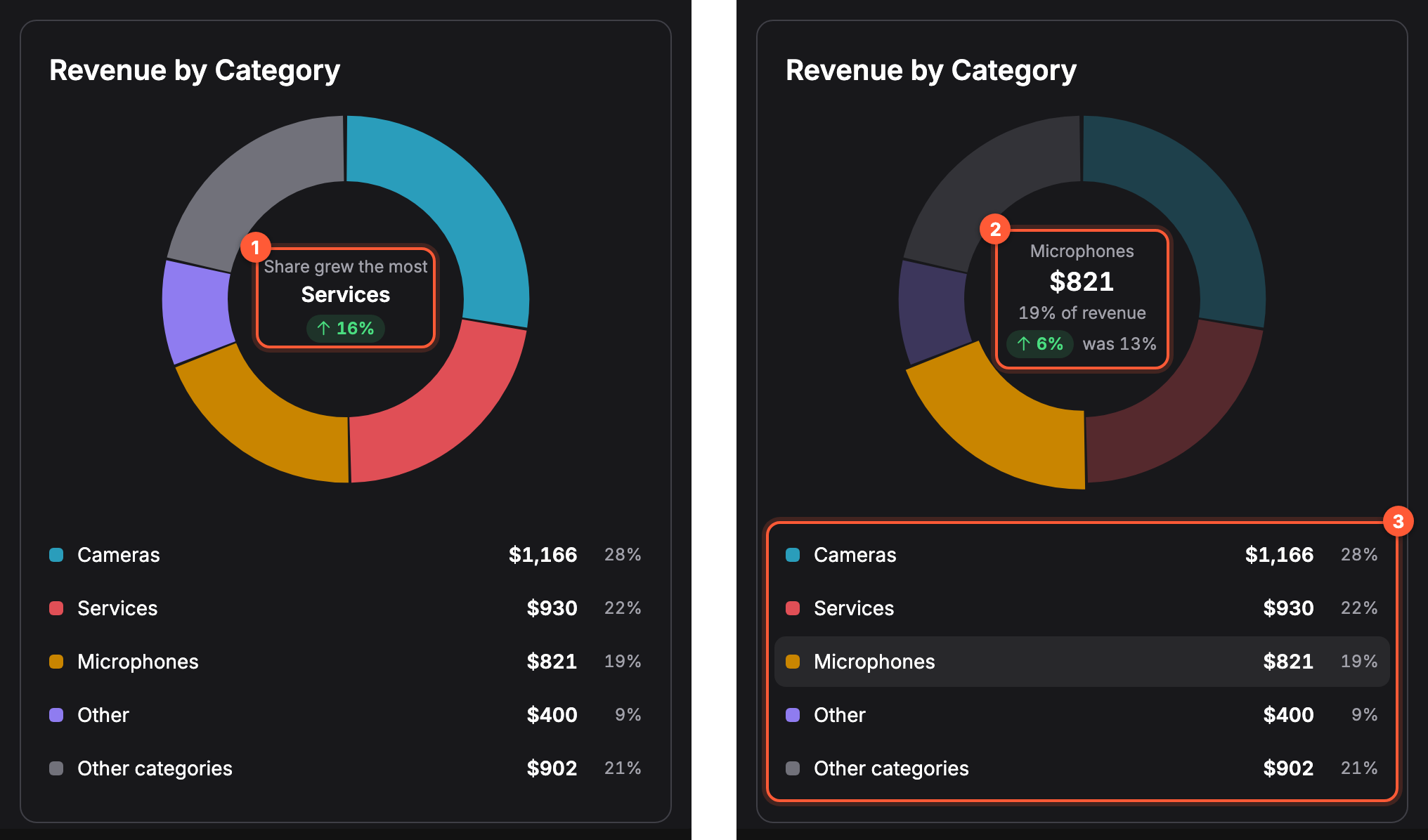
The insight shown when nothing is selected (1), a hovered category with its share change against the previous period (2), and the legend with revenue and share per slice (3).
How category revenue is counted
The donut and the top items table split revenue by what each booking was actually charged:
- Only the part of a booking inside the period counts. A two-week booking that crosses into next month adds the days inside the selected range to its categories here, and the rest to next month. This is different from the Period revenue card, which counts whole bookings by their end date, so the donut total can differ from that card.
- Discounts, pricing tiers, bundles and booking adjustments are included. Each booking's lines and services are scaled so they add up to the booking's stored total, so a category never shows list-price revenue the client was not charged.
Top items, services, and subrentals
A sortable, paginated table (10 rows per page) showing the top positions inside the selected period. Owned items, services, and subrentals appear in one list. Service and subrental rows have their own badges, and the table sorts by profit by default.
Columns:
- Name — the product, service, or one-off subrental name.
- SKU — shown for catalog-backed products; empty for services and one-off subrentals.
- Category — category for owned and catalog-backed subrental products; Subrentals for one-off procurement.
- Rentals — how many booking lines included this item or service in the period.
- Utilization — shown only for owned items. Supplier stock is elastic, so utilization does not apply to subrentals.
- Revenue: period revenue for the row, in the organization's currency. Like the category donut, it counts only the days inside the period and follows what the booking was actually charged, discounts and adjustments included.
- Expenses — activity expenses for owned items, employee payouts for services, and supplier spend for subrentals in the selected period.
- Profit —
revenue - expenses. Green when non-negative, red when negative. The table is sorted by profit (descending) by default.
When the period has no owned rentals, service bookings, or subrentals, the table shows a centered "No data" message.
In the mobile app
The mobile app has its own Analytics tab with the same figures, loaded from the same source as the web page. Turn it on under More if it is not in your tab bar, see Choosing the tabs. The tab is offered to members whose permission group has Allow access to reporting.
Periods
Pills at the top pick the period: Month (this month), Last Mo. and Year (this calendar year). The calendar button next to them opens the Custom period sheet:
- Quick picks: Last 7 days, Last 30 days, Last 90 days (each ending today) and Last year (the previous calendar year).
- A calendar to pick your own range: Tap the first day, then Tap the last day, or apply one day. The picked range and its number of days are shown above Apply.
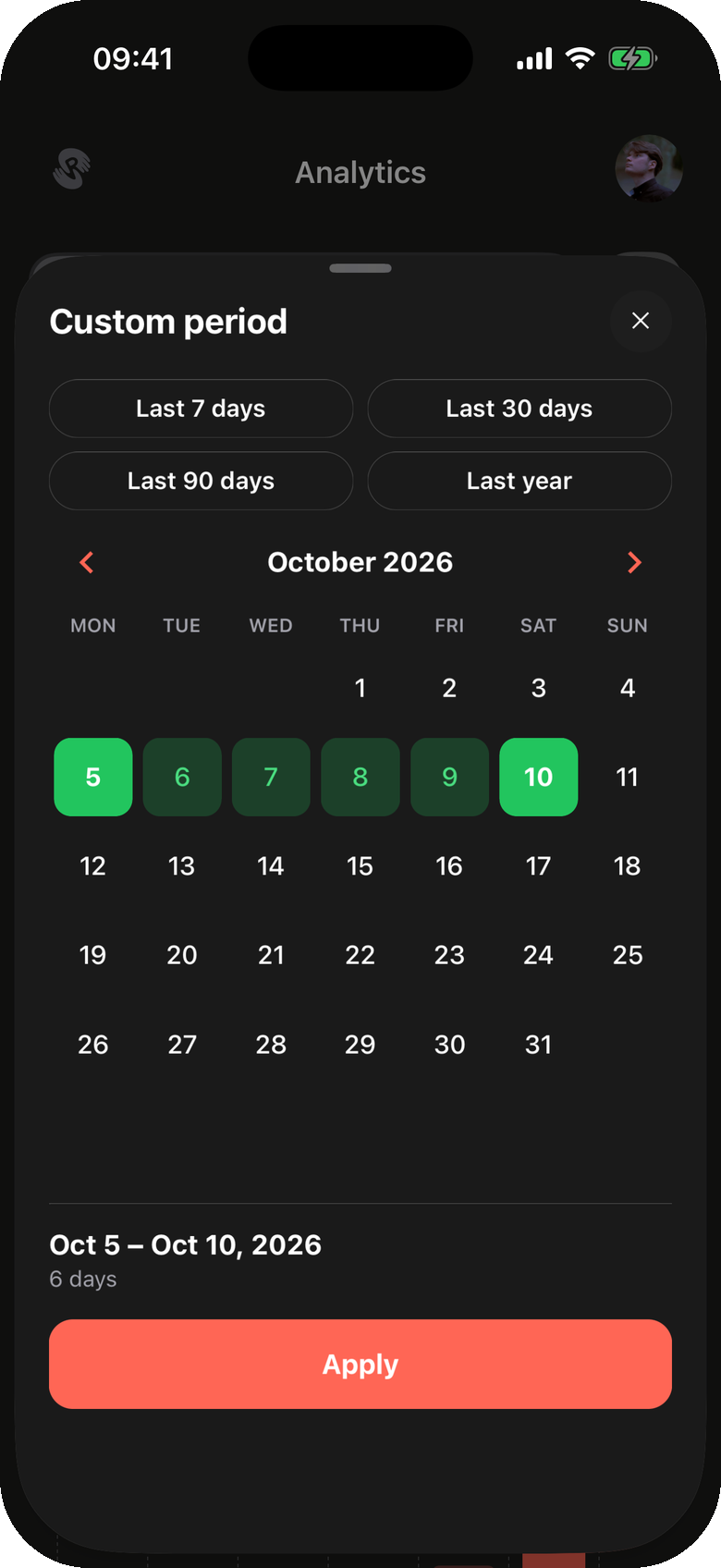
The Custom period sheet in the mobile app.
What the tab shows
- Revenue for the period in large type, with a comparison caption such as vs Sep 1 – Sep 30, 2026: the previous period of the same length. Expenses and Profit sit under it, each with its own change.
- Utilization Rate and Repeat Customers, with %{repeat} of %{total} clients, for example 3 of 12 clients.
- Bookings: Active, Upcoming and Completed.
- Revenue by Month with its own 3M, 6M and 12M switch.
- Revenue by Category: a donut with the four biggest categories and the rest folded into Other categories, the same way as on the web. The middle names the category whose share grew the most, or how few categories bring most of the revenue. Tap a slice or a legend row to see that category's revenue, {share} of revenue and its share change (from 21%); tap the middle to clear it. Press and hold the ring, then drag around it, to move from slice to slice with a light vibration on each.
- Top Items & Services: sort pills Revenue, Profit, Rentals and Util. (utilization sorts owned items first, then services and subrentals by revenue). The first five rows are shown; Show all (n) expands the list and Show less collapses it.
If the figures cannot be loaded, the tab shows Could not load analytics with Try again.
Empty state
The page does not have a dedicated empty state for "new organization." Instead, every section degrades individually:
- Summary cards show
0or0%. - The top performer card shows "No data."
- The category donut is replaced by a "No data" message.
- The top items table shows a centered "No data" row.
How this page connects to the rest of Requiply
| Feature | How this page affects it |
|---|---|
| Bookings | Every revenue, utilization, booking-count, and top-performer figure comes from booking records. Bookings with missing or incorrect end dates will be miscategorized in the period. |
| Items and item groups | Items are grouped by item group for utilization and top-performer calculations. Each item in a group counts as one rentable unit. |
| Services | Service revenue contributes to period revenue, the combined Services slice, and the profitability table; employee payouts contribute to expenses. |
| Subrentals | Client revenue and supplier spend contribute to revenue, expenses, profit, category reporting, and the profitability table. Cancelled subrentals are excluded. |
| Activities | Activities provide the expense data for items. Only activities with a non-null total expense and an end date inside the period are counted. |
| Employee payouts | Service payouts whose booking ends in the period, and task payouts whose task ends in the period, reduce period profit. Service payouts also appear in the per-service expense column; task payouts are counted in the period total only. |
| Item categories | Categories are used as the slices of the revenue donut chart. Items without a category are grouped under "Other". |
| Clients | The repeat customer rate counts unique and repeat clients from bookings overlapping the selected period. |
Common scenarios
Reviewing the current month
Open the page and leave the default This month selection. Glance at the six cards to compare revenue and profit with last month, then scroll down to see which owned items, services, and subrentals drive the result.
Comparing two custom ranges
Switch the period selector to Custom and pick a date range — for example a marketing-campaign window. The previous-period comparison automatically uses the matching window directly before your selection (same number of days), and the comparison label shows the exact previous dates so it is clear what is being compared.
Spotting unprofitable items
Scroll to the profitability table and sort by Profit (the default). Red rows are losing money in the selected period. For subrentals, compare the supplier spend and marked-up client revenue; for owned items and services, review activity expenses or employee payouts.
Multi-year overview
Switch the revenue chart's toggle to 12 months to see a longer trend without changing the page-level period. This is useful for spotting seasonality independent of the metric cards.