

Pickup and return checklists
A pickup checklist is the list staff work through as equipment leaves the warehouse, and a return checklist is the one they work through as it comes back. Each unit on the booking is ticked off, by hand or by scanning, before the booking is allowed to move on.
A checklist turns a status change into a physical check. When a booking moves into a status flagged as a pickup or a return, Requiply opens a per-unit checklist first: staff tick off each unit as it is handed over or received, and only then does the booking change status. Progress is saved as you go, so a checklist can be left half-finished and picked up later, and every confirmation is recorded on the booking's timeline.
Checklists are an opt-in organization feature. Until an admin turns them on, statuses change directly the way they always have.
Two parts have their own pages: Assigning and replacing at pickup and Returns and partial returns.
Turning checklists on
Two settings work together:
- The feature — an admin turns on Enable pickup & return checklists under Settings → Organization → Features. Available on every plan.
- The statuses — each booking status carries a Checklist field: No checklist, Pickup checklist, or Return checklist. See Booking statuses.
Out of the box the default statuses that represent the physical handover are already flagged. They are ordinary statuses of your organization, so you can rename them or change their Checklist field:
| Status | Checklist |
|---|---|
| Ready for pickup | Pickup checklist |
| In progress | Pickup checklist |
| Completed | Return checklist |
| Request, New, Confirmed, Cancelled | No checklist |
So for most organizations, switching the feature on is enough — moving a booking to In progress opens the pickup checklist and moving it to Completed opens the return one. Organizations that assemble orders ahead of time can route bookings through Ready for pickup first: its checklist is where the units are gathered (and, with deferred assignment, bound to the booking), and the second checklist into In progress becomes a quick per-unit verification at the door.
Opening a checklist
Checklists open from the ordinary status arrow next to a booking's status tag: on Manage bookings, on the booking detail page, and on the Dashboard's pickup and return lists. Pick a status that carries a checklist and, instead of changing the status on the spot, Requiply opens the checklist page for that booking at https://app.requiply.com/reservation/{id}/checklist.
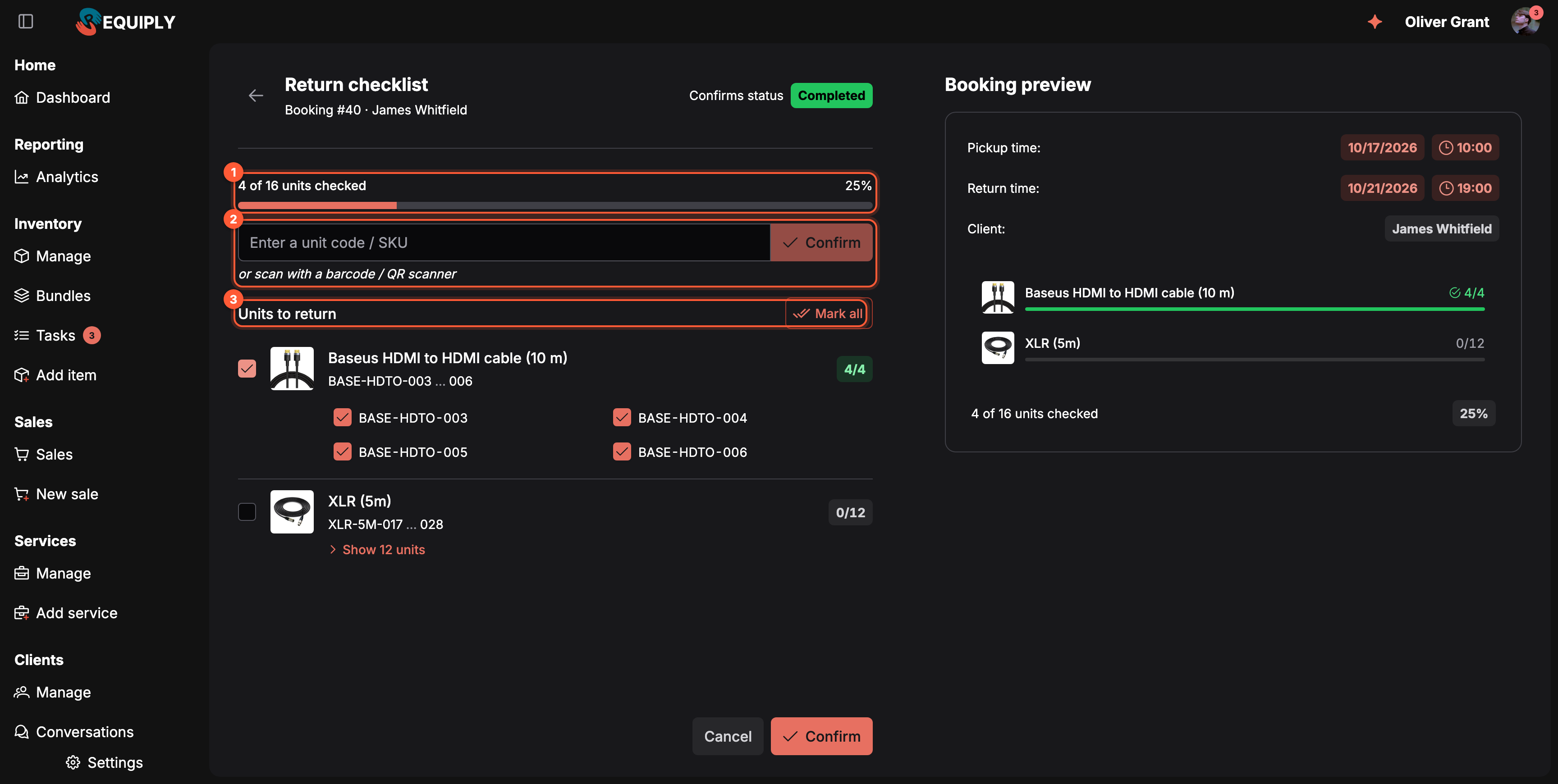
1 Progress against every unit on the booking. 2 The code field, for typed codes and barcode scanners. 3 One line per product, with Mark all to tick everything at once.
The page header shows:
- Pickup checklist or Return checklist as the title.
- Booking #{id} · {client} underneath.
- Confirms status with the status tag the checklist leads to.
- A progress bar: {n} of {m} units checked with a percentage. It reaches 100% only when every unit is checked.
If the booking can no longer move to that status, for example because a colleague changed it meanwhile, a warning says The booking cannot move to this status from its current one. and Confirm stays disabled.
Working through the units
The list is grouped by product, under the heading Units to hand out on a pickup checklist or Units to return on a return checklist. Each product line shows:
- a checkbox that ticks or unticks every unit of that product at once (Check all units: {product}). It shows a dash while only some units are ticked,
- the product image and name,
- the SKUs of its units, shortened into ranges such as XLR-5M-001…012,
- a counter tag such as 4/12, which turns green once every unit of the product is checked.
Under the product line come its units:
- Up to 6 units: listed right under the product, one row per unit with a checkbox, the SKU, and a comments button.
- More than 6 units: a Show {count} units button opens a dialog with the product name as its title, the {n} of {m} units checked count, a Find SKU search, and Mark all / Unmark all for that product. The search shows No SKUs match when nothing fits.
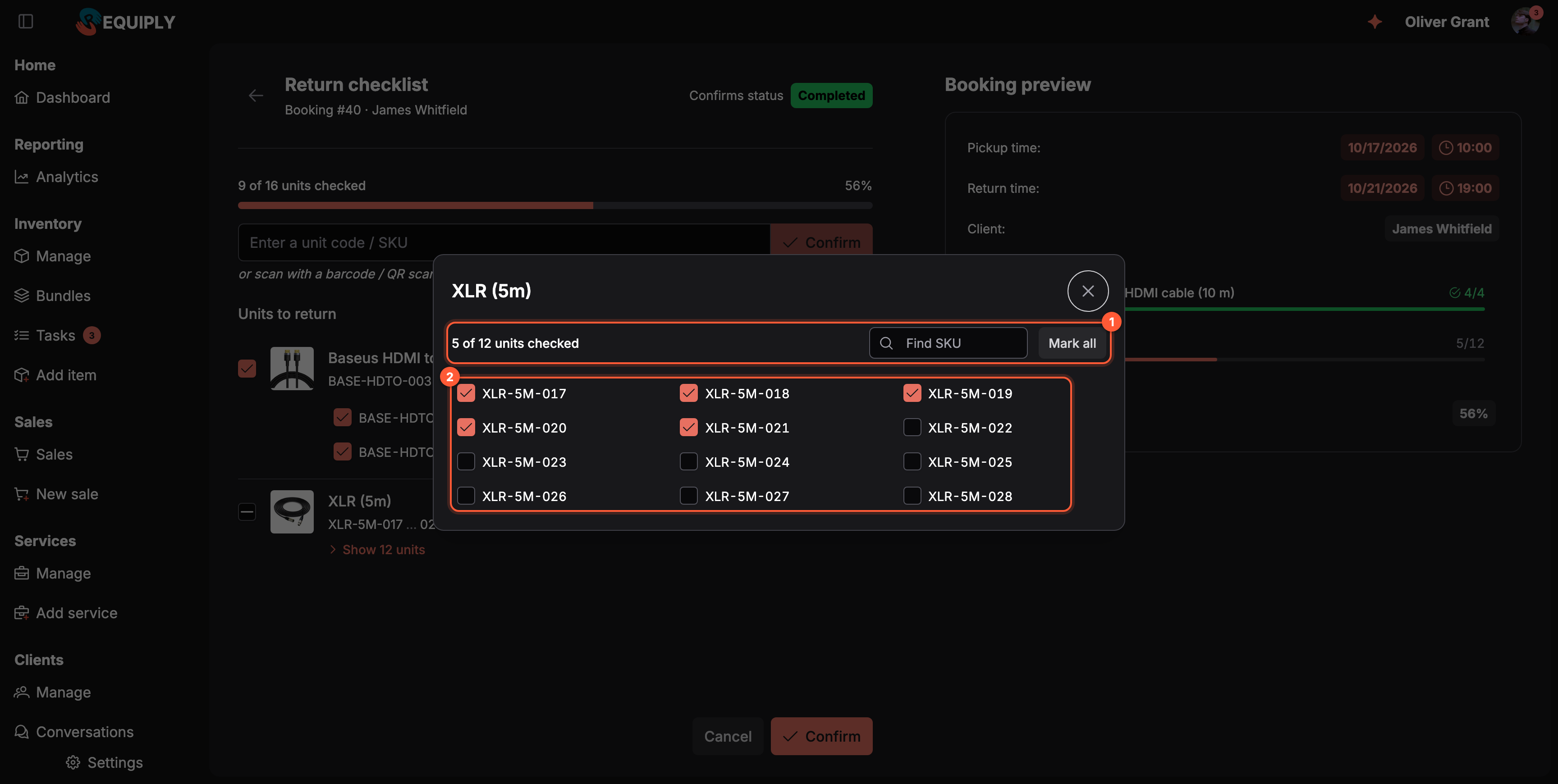
A product with more than six units opens its units in a dialog. 1 Count, SKU search, and Mark all for this product. 2 One row per unit.
Ways to check units:
- Tick a unit's checkbox to confirm it. The change is saved immediately, there is no separate save step. Untick it to put the unit back to pending if you ticked the wrong row.
- Tick the product checkbox to confirm all units of that product, for example a box of 12 identical cables.
- Mark all in the section heading ticks every unit on the checklist. It is shown while something is unticked and nothing is left to assign.
- Enter or scan a code. The field above the list takes a unit code, barcode, or SKU: type it and press Enter or Confirm. With QR codes & barcodes on, the hint or scan with a barcode / QR scanner appears under it and a handheld scanner fills and submits it for you. The matching unit is ticked as Scanned, the list scrolls to it, and the row flashes. For a product with more than 6 units, its dialog opens on the unit. The field works on pickup and return checklists alike.
| Message after a code | Meaning |
|---|---|
| No unit matches this code. | The code belongs to no unit of your organization. |
| This unit is already checked. | Nothing to do. |
| This unit is not part of this booking. | On a return: the unit did not go out on this booking. On a pickup: it is not reserved and cannot be assigned or swapped in. |
| Unit {sku} is {status} and cannot be handed over. | Pickup only: the unit is on maintenance, lost, or archived. |
The comments button on each unit row opens that unit's comments drawer, so damage, missing accessories, or a photo can be recorded against the unit itself while it is in your hands.
The Booking preview panel on the right shows the pickup and return time, the client, and one line per product with its checked/total count and a small progress bar. A product turns green with a check mark once all its units are confirmed. Click a product in the preview to scroll the checklist to it.
Each confirmation stores who checked the unit, when, and whether it was confirmed by hand or by a scan.
Confirming
On a pickup checklist, Confirm is disabled until every unit is checked. On a return checklist you can confirm with units left unticked: Requiply then asks what happened to each of them, see Partial returns. When every unit is ticked and you confirm:
- The booking moves into the checklist's target status.
- A system entry is written to the booking's timeline, in your organization's language: Pickup checklist confirmed: 2/2 units.
- You are returned to the booking, with a toast naming the new status.
- After a pickup checklist, the booking counts as handed out: its items can no longer be changed on Edit booking items, and the client can no longer cancel it from the portal.
Cancel goes back to the booking without changing the status. Anything you already ticked is kept.
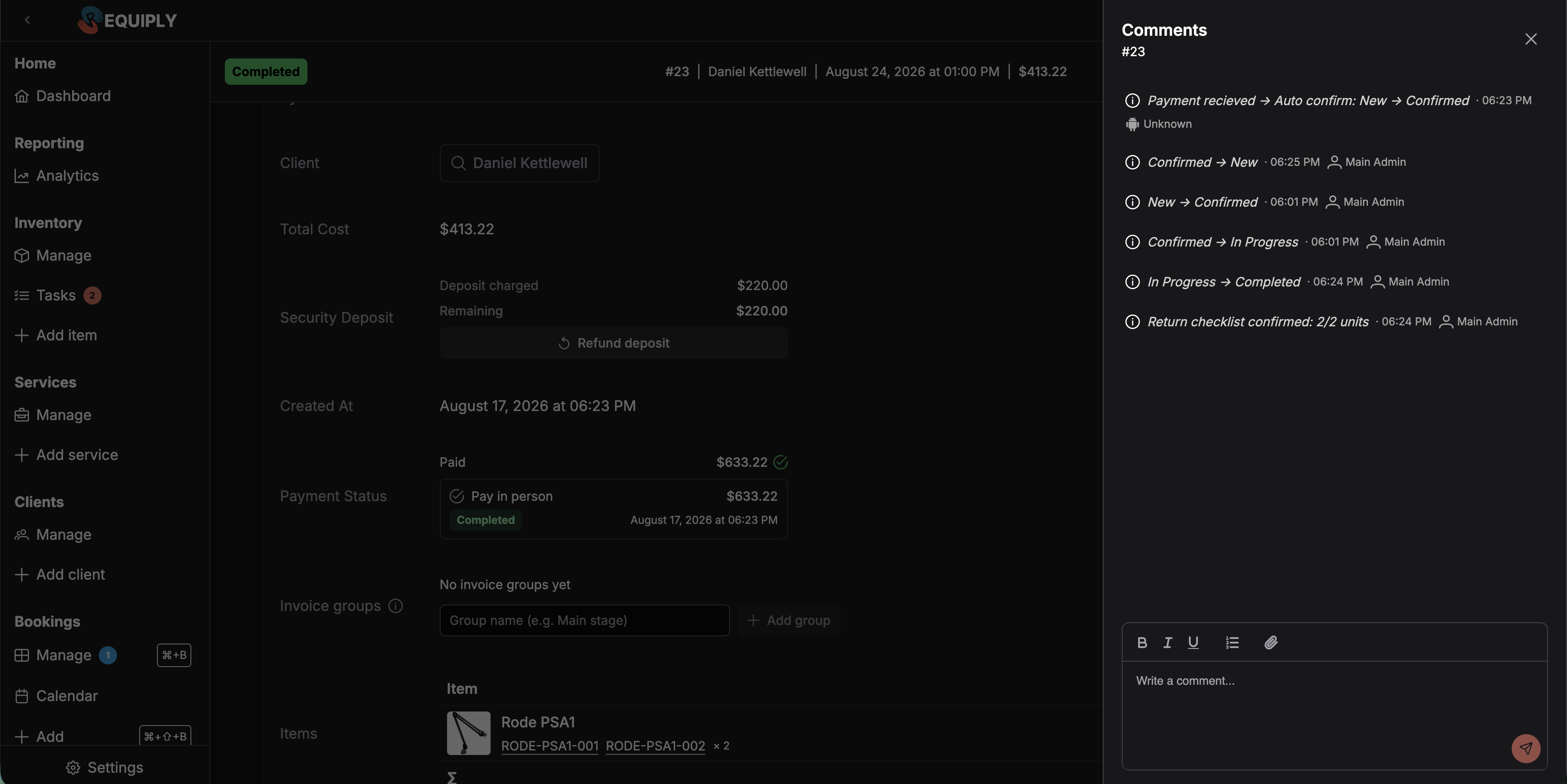
Every confirmation is recorded on the booking timeline next to the status change it caused — here the return checklist and the move to Completed land together, both attributed to the user who confirmed them.
Checklists in the mobile app
The mobile app shows the same checklist. The list has one line per product with its photo, name, SKU ranges, and a checked/total badge, plus Mark all and, on a pickup with units still to assign, Assign all. Tap a product to open its units on a separate screen and tick them there. Scan opens the camera to check units by barcode or QR code, and Enter code takes a typed code.
Confirm a return checklist with unticked units, and the Unreturned units screen asks for an outcome per unit: With client, Damaged, or Lost. Each unit has a menu for the outcome and an optional comment, and damaged and lost units take Camera or Gallery photos. Select all and the selection marks let you set one outcome or one comment for several units, with a running tally such as With client: 1. Damaged: 1. Lost: 0. When a unit is still out, the app shows Return saved and a Set return date button that opens the date editor in return mode.
Pausing and resuming
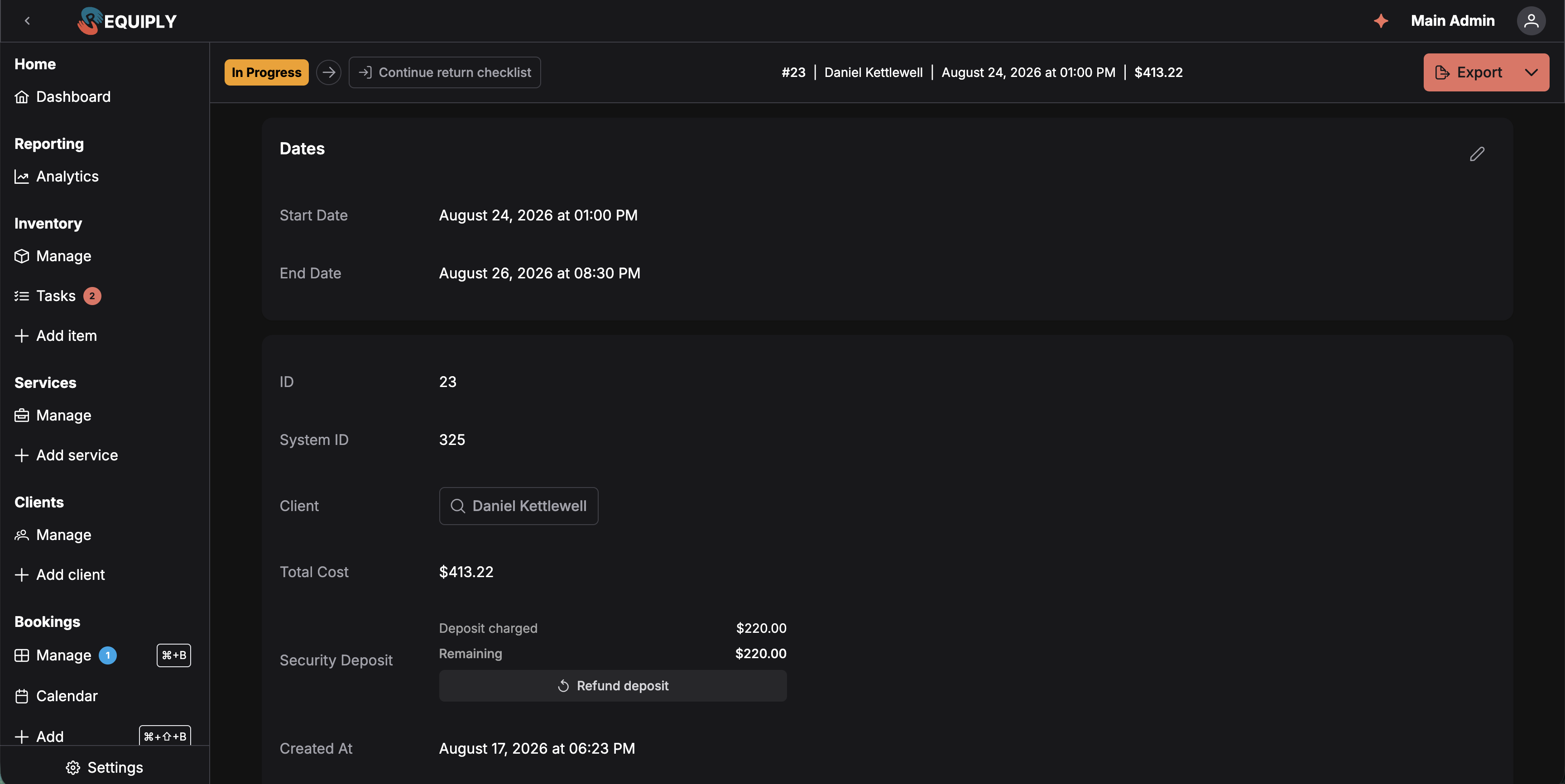
An unconfirmed checklist surfaces as a button beside the booking's status tag. Booking #23 here is mid-return: it still reads In Progress, and Continue return checklist picks the list back up where it was left.
A checklist that has been opened but not confirmed stays open. On the booking's detail page, a Continue pickup checklist / Continue return checklist button appears next to the status tag and takes you straight back to where you left off, with every unit you already ticked still checked.
A booking has at most one open checklist per kind, so re-opening the pickup checklist always resumes the same one rather than starting over.
The button only appears while the booking can still move to the checklist's status. If the booking was moved another way meanwhile, for example cancelled, or moved past that status with the arrow, the half-finished checklist is no longer offered.
When the feature is off
With Enable pickup & return checklists switched off, the status flags are ignored entirely: the status arrow changes the booking's status directly, exactly as before. Nothing is lost by turning the feature off — checklists already confirmed stay on the timeline.
Who can use checklists
Anyone with the Allow booking management permission, the same permission that lets a user change a booking's status. Checklists are not admin-only, though configuring which statuses open them is, since that lives in Booking statuses.
Common scenarios
Handing equipment to a client
Open the booking (or find it in the Dashboard's Pickups list), click the status arrow, and pick In progress. Work down the checklist as you load the van: scan each label, or tick a product line when every unit of it is in the van. If a case is scratched, open its comments and note it before ticking. Confirm when the last unit is on board, and the booking flips to In progress.
A large order with hundreds of units
An event order has 200 identical chairs and 40 cables. Each product is one line, so the list stays short. Scan a few labels to spot-check, then tick the product checkbox for the chairs once the pallet is loaded. To check single units of a big product, click Show 200 units and use Find SKU. With Assign units at pickup, click Assign all first if you do not scan every unit.
A pickup interrupted halfway
Tick what you have loaded and leave the page. The booking still shows its old status, and Continue pickup checklist on the booking brings the half-finished list back when you return.
Adding a checklist to your own status
If your workflow uses a custom status such as Handed over instead of In progress, open it under Booking statuses, set Checklist to Pickup checklist, and save. Moving a booking into it now opens the checklist.
Tips and cautions
Booking documents
The PDFs saved against a rental, such as the invoice and your rental agreement or handover act, and how to send one to the customer for an electronic signature.
Assigning and replacing at pickup
Bind physical units to a booking during the pickup checklist, let Assign all pick free units, swap in another unit of the same product, and handle units that are on maintenance or lost.