

Table column layout
The Table column layout page is where admins choose which columns appear, and in what order, on the main data tables in Requiply. It controls how items, item groups, clients, and bookings are presented to everyone in the organization, so the most relevant information shows up first across the app.
You can find this page under Settings → Fields → Table column layout.
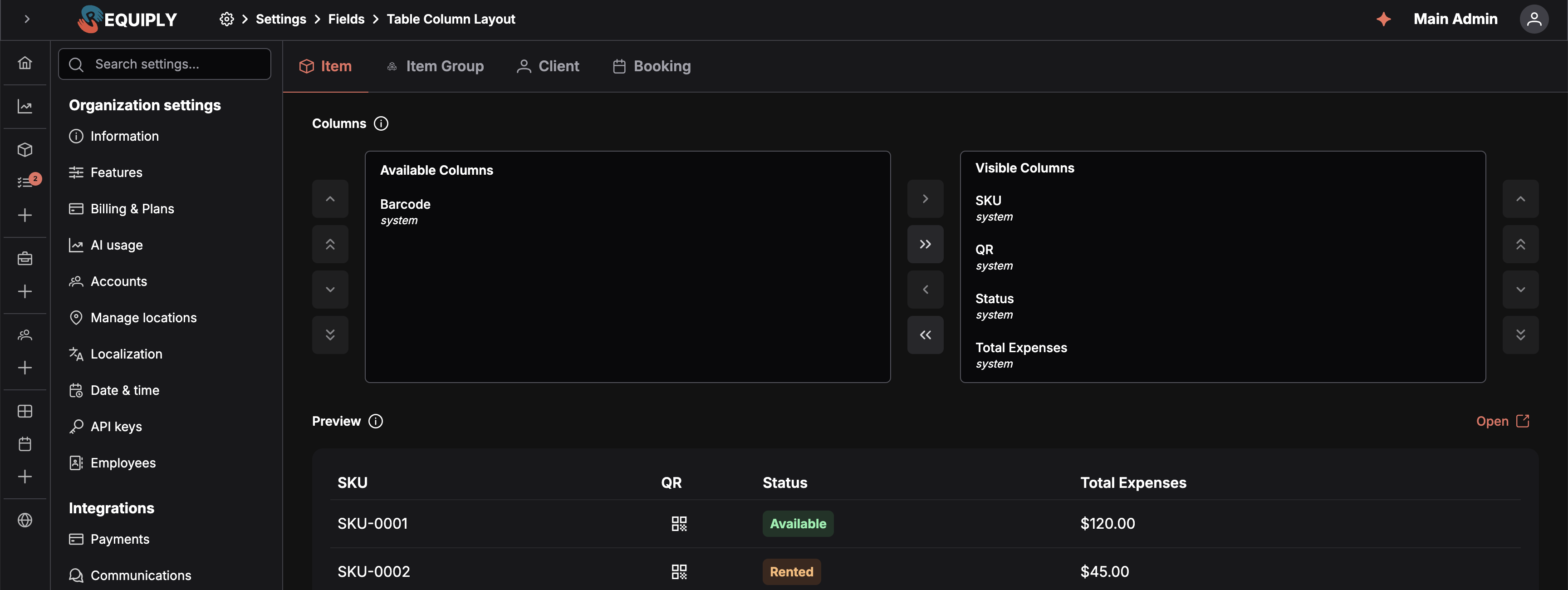
The visible columns, in order, and the table they produce. This organization has left Barcode out, so it waits on the Available Columns side while QR is shown.
Why this page matters
Requiply lists records in tables across many areas of the product — the inventory list, item group list, client list, and booking list. Each table has a default set of columns, but different businesses care about different details. This page lets an organization tailor those tables once, in a single place, instead of having every user adjust their own view.
Because the configuration is saved per organization and per entity level, the chosen layout affects:
- The Items table.
- The Item Groups table.
- The Clients table.
- The Bookings table.
Custom fields defined for each entity level are also offered here, so business-specific data (not just the built-in system fields) can be promoted into the visible columns.
Who can use this page
- The page is restricted to administrators. The route uses the
adminmiddleware, which checks the current user's membership role and redirects anyone who is not an admin. - A
store-refreshmiddleware also runs to ensure the latest organization data is loaded before the page is shown.
There are no plan or billing restrictions on this page.
What you'll see
The page is laid out as a single card with the title Table Column Layout and the following sections:
- Entity level tabs at the top, one tab per supported table:
- Item (inventory items)
- Item Group
- Client
- Booking
The active tab is reflected in the URL as?tab=..., so a specific level can be linked to or refreshed without losing context. - Columns section with a small info icon. Hovering the icon explains that this controls the order and visibility of columns on the selected level.
- A pick list with two sides:
- Available Columns (left) — columns that exist for this level but are currently hidden from the table.
- Visible Columns (right) — columns that will be shown in the table, in the order they appear here.
Each row shows the column label and a small subtitle indicating whether the column is a system field (built into Requiply) or a custom field (defined by the organization on this entity level).
Two system columns deliberately start on the Available Columns side, so they only appear once you ask for them:Column Level What it shows Client portal Client Whether the client has an account on your client portal. Origin Booking The channel the booking came through: Web app, Mobile app, Booking page, AI assistant, API, or Unknown. - A live Preview underneath the pick list, rendering the table with the visible columns in their current order using sample data. It updates as you move and reorder columns, before anything is saved. An Open button in the preview header opens the real list page in a new tab.
- Reset to defaults and Save buttons at the bottom right.
While saving or resetting, the entire page is blocked with a full-screen overlay so the configuration cannot be edited mid-operation.
Empty state
There is no dedicated "no data" empty state — every entity level has at least a default set of columns. However, two near-empty situations exist:
- If a level has no default layout and no custom fields, the pick list shows two empty lists. This is unusual in normal use.
- If a level has only system defaults and no custom fields have been added yet, the Available Columns side may be empty until either columns are removed from the visible side or custom fields are created.
Main actions
Choosing which columns are visible
Move columns between Available Columns and Visible Columns using the pick list controls. Anything on the right side will appear as a column in that table; anything on the left side will be hidden.
Reordering visible columns
Within the Visible Columns side, columns can be reordered. The order saved here is the order used when the table is rendered elsewhere in Requiply.
Switching between entity levels
Click a tab to switch to another level (Item, Item Group, Client, Booking). Each tab loads its own saved configuration and its own custom fields. Unsaved changes on the current tab are not carried over — only the saved layout for the new tab is loaded.
Saving changes
Click Save to persist the current layout for the active level. Saving stores the full list of columns: visible columns are saved with their order and marked as visible, and the columns left on the Available side are saved as hidden so future custom field additions are detected correctly.
On success a toast confirms Column layout saved successfully. On failure a generic error toast is shown and the previous state remains.
The Save button is disabled when there are no changes compared to the last loaded state, or while a save or reset is in progress.
Resetting to defaults
Click Reset to defaults to restore Requiply's out-of-the-box column set and order for the active level.
- If a saved configuration exists for this level, resetting deletes that saved configuration and reloads the default layout from the server.
- If there is no saved configuration but the on-screen state has been changed, resetting just restores the default columns in the local view (no server call is needed).
A success toast Column layout reset to default appears on success. The button is disabled when the current state already matches the default and there is no saved override to clear.
Searching, filtering, or sorting
This page does not provide search, filtering, or sorting controls — it only configures the column layout itself.
Forms and fields
The page is not a typical form, but the items in the pick list represent column definitions:
- Column label — the user-facing column name. If the column has a translation key, the translated label is used; otherwise an explicit header text or the column's id is shown.
- System / custom field indicator — clarifies whether the column is built into Requiply or comes from a custom field defined on that entity level.
There are no text inputs or required fields to fill in. Validation only enforces that the configuration can be saved; if the save fails, the page shows an error toast.
How this page connects to the rest of Requiply
| Feature | How this page affects it |
|---|---|
| Items table | Controls which inventory item columns are shown and in what order. |
| Item Groups table | Controls which item group columns are shown and in what order. |
| Clients table | Controls which client columns are shown and in what order. |
| Bookings table | Controls which booking columns are shown and in what order. |
| Custom fields | Custom fields defined for an entity level become available here as columns. Hiding a custom field on this page does not delete it; it only removes it from the table view. |
| Level configurations | The set of available columns is influenced by which entity levels are in use, configured under Level configurations. Only fields with Available for table view switched on are offered here. |
| Detail page fields | Independent of this page — Detail page fields controls what a single record shows when opened. A column can be visible in the table and hidden on the detail page, or the other way round. |
| Features | Columns belonging to an optional feature — the QR and barcode columns, the subrental columns — are only offered while that feature is enabled under Features. Saving while a feature is off does not discard its columns; they reappear when it is switched back on, though possibly at the end of the list. |
Because the configuration is stored at the organization level, changes are visible to every user in the organization the next time the corresponding table is loaded.
Common scenarios
New business setup
Right after onboarding, an admin opens this page and trims each table down to the columns the team actually uses (for example, hiding internal IDs and showing the fields most relevant to the business). The team then sees a focused, business-specific layout from day one.
Promoting a new custom field
After adding a custom field to clients (for example, "Loyalty tier"), an admin opens the Client tab here and moves the new field from Available Columns into Visible Columns, placing it next to the client name. From then on, the loyalty tier is visible directly in the clients table.
Cleaning up after a layout experiment
An admin tries a new arrangement on the Booking tab, decides it is not better than the original, and clicks Reset to defaults to remove the saved configuration and return the bookings table to Requiply's standard layout.
Tips and cautions
Level configurations
Decide which custom fields apply to items, item groups, clients, bookings or the organization, their order on forms, and which client and booking fields are required or shown when a new client or booking is created.
Detail page fields
Choose which rows appear on the detail page of an item, client, or booking, and which booking rows stay pinned beside the details.