

Localization
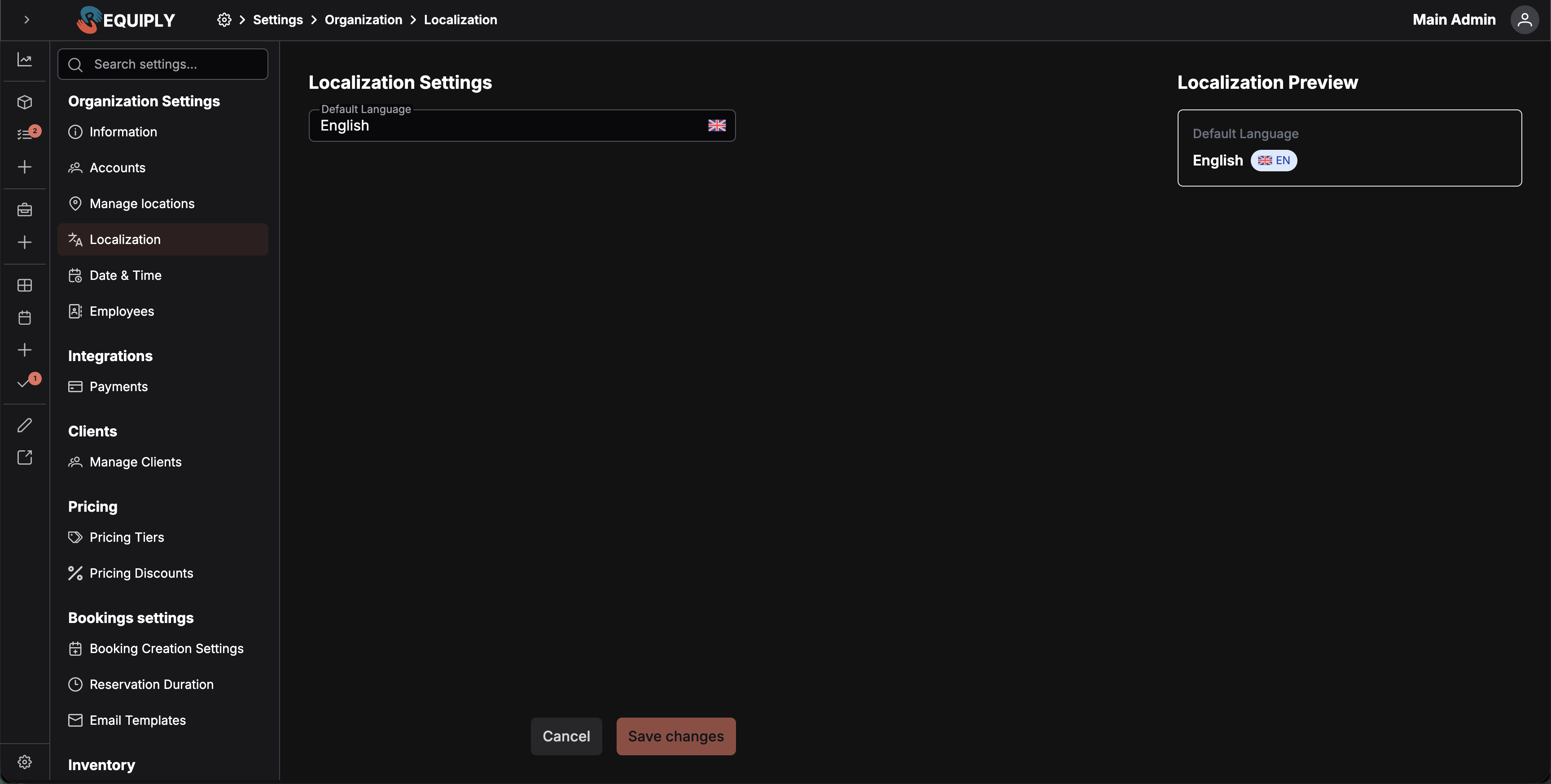
The Localization page is where you choose the default language for your Requiply organization. This setting controls the overall language used across the internal system, invoices, the client portal, and customer-facing documents.
Language is the only setting on this page. If you are looking for where to change your currency, see Currency below: it is chosen once during setup and cannot be edited afterwards.
You can find this page under Settings → Organization → Localization, or open it directly at app.requiply.com/settings/org/localization/.
Why this page matters
Localization is the language source of truth for your organization. Whenever Requiply needs to show system text, customer booking content, invoice labels, or generated documents, it uses this setting as the default language.
Setting the right language means:
- Your internal Requiply interface opens in the language your team expects.
- Your invoices use the correct language for customer-facing labels and document text.
- Your client portal shows customers the right language by default.
- Your customer-facing pages and documents stay consistent with the rest of your organization.
- Automated content uses the same language baseline unless a specific feature later adds its own override.
If you leave the setting unchanged, Requiply uses the organization's current saved language. New organizations default to English.
What you'll see
The page has one setting on the left and a preview card on the right.
- Default Language - the dropdown where you select the organization's saved language.
- Localization Preview - a card showing the selected language name, flag, and language code.
- Cancel - leaves without saving and returns you to Settings → Organization → Information.
- Save changes - saves the selected language when it differs from the currently saved value.
Fields
Default language
The primary language for your organization. This is the only localization setting available right now, and it controls the overall system language, including customer-facing areas and documents.
Changing the dropdown updates the saved organization language and switches the current interface locale after the change is saved.
Available languages:
- English
- Ukrainian
Localization Preview
The right side of the page shows a Localization Preview card. It displays the selected language name, flag, and language code so you can confirm what you are about to save before applying it across the organization.
Saving changes
- Save changes activates only when you've selected a different language.
- Cancel leaves without saving and returns you to Settings → Organization → Information.
- A success toast appears after the localization setting is saved.
- If saving fails, you'll see an error toast and the previous saved language remains in place.
Where this setting is used
| Feature | What it controls |
|---|---|
| Internal system | Default interface language for the organization |
| Invoices | Invoice labels, generated document text, and language-sensitive formatting |
| Client portal | Customer-facing booking language |
| Customer-facing pages | Default language for public organization content |
| Documents | Generated customer-facing document language |
| Email templates | Language baseline for localized customer communication |
Currency
Your organization's currency is not set on this page. You choose it once, during initial setup, on the screen that also asks for your organization name and web code.
Requiply supports 14 currencies. The setup dropdown lists them by code, each with its flag and name, and its search box finds a currency by code or by name (typing krone shows DKK and NOK).
| Code | Currency |
|---|---|
| CHF | Swiss franc |
| DKK | Danish krone |
| EUR | Euro |
| GBP | British pound |
| INR | Indian rupee |
| ISK | Icelandic króna |
| JPY | Japanese yen |
| MKD | Macedonian denar |
| NOK | Norwegian krone |
| PLN | Polish złoty |
| RON | Romanian leu |
| TRY | Turkish lira |
| UAH | Ukrainian hryvnia |
| USD | US dollar |
Amounts follow each currency's own conventions: INR with Indian digit grouping (₹1,25,000.50), JPY and ISK without decimals.
The currency that is preselected depends on how you arrived at sign-up. You can pick any other one before you click Next.
| How you signed up | Preselected currency |
|---|---|
| In Ukrainian | UAH |
| From the Spanish version of requiply.com | EUR |
| Any other way | USD |
That choice is then used everywhere money appears: item and service prices, booking totals, deposits, invoices, payment links, the client portal, and the figures on Analytics.
Requiply does not price a single organization in several currencies at once. If you rent in two countries and need separate price lists and invoices per country, run a separate Requiply organization for each.
Common scenarios
Serving mostly English-speaking customers
Choose English so the booking flow, invoices, and customer documents are shown in English by default.
Serving mostly Ukrainian-speaking customers
Choose Ukrainian so customers see the portal, invoices, and documents in Ukrainian by default.
Updating the language after setup
You can return to this page at any time, choose a different default language, and save. New customer-facing content will use the updated language going forward.
Add or edit location
Add a branch, warehouse, or pickup point, or edit an existing one: its name, address, Google Maps link, and whether customers can collect from it.
Date & time settings
Set your timezone, weekly opening hours, and public holidays or other closed days, so nobody books a pickup or return when you are closed, and control who may book outside those hours.