

Signing in and resetting your password
Every team member logs in with their own account: an email and a password, or a Google account. This page covers logging in, the Forgot password? flow on the web and in the mobile app, and what to check when the reset email does not come.
Logging in
- Web: open https://app.requiply.com/login, enter Email and Password, and click Log In, or use Log in with Google.
- Mobile app: open the Requiply app for iOS or Android and log in with the same account.
After logging in on the web, a short screen says Preparing your amazing inventory (the last words rotate: professional bookings, best clients, seamless rentals, smart pricing, perfect schedule) while Requiply loads your organization, then opens your startup page.
The mobile app shows the same kind of screen after logging in (Preparing your ...). It loads your account, organization, booking statuses, and tabs before the first screen appears, so the app opens on the right tab without flicker.
Already signed in?
If you open https://app.requiply.com/login while this browser is still signed in, Requiply does not show the login form. The card says You're already signed in and shows the account it is signed in with:
- the profile photo, or the first letter of the name,
- the full name (or the email, when the account has no name) and the email,
- the organization, next to a building icon.
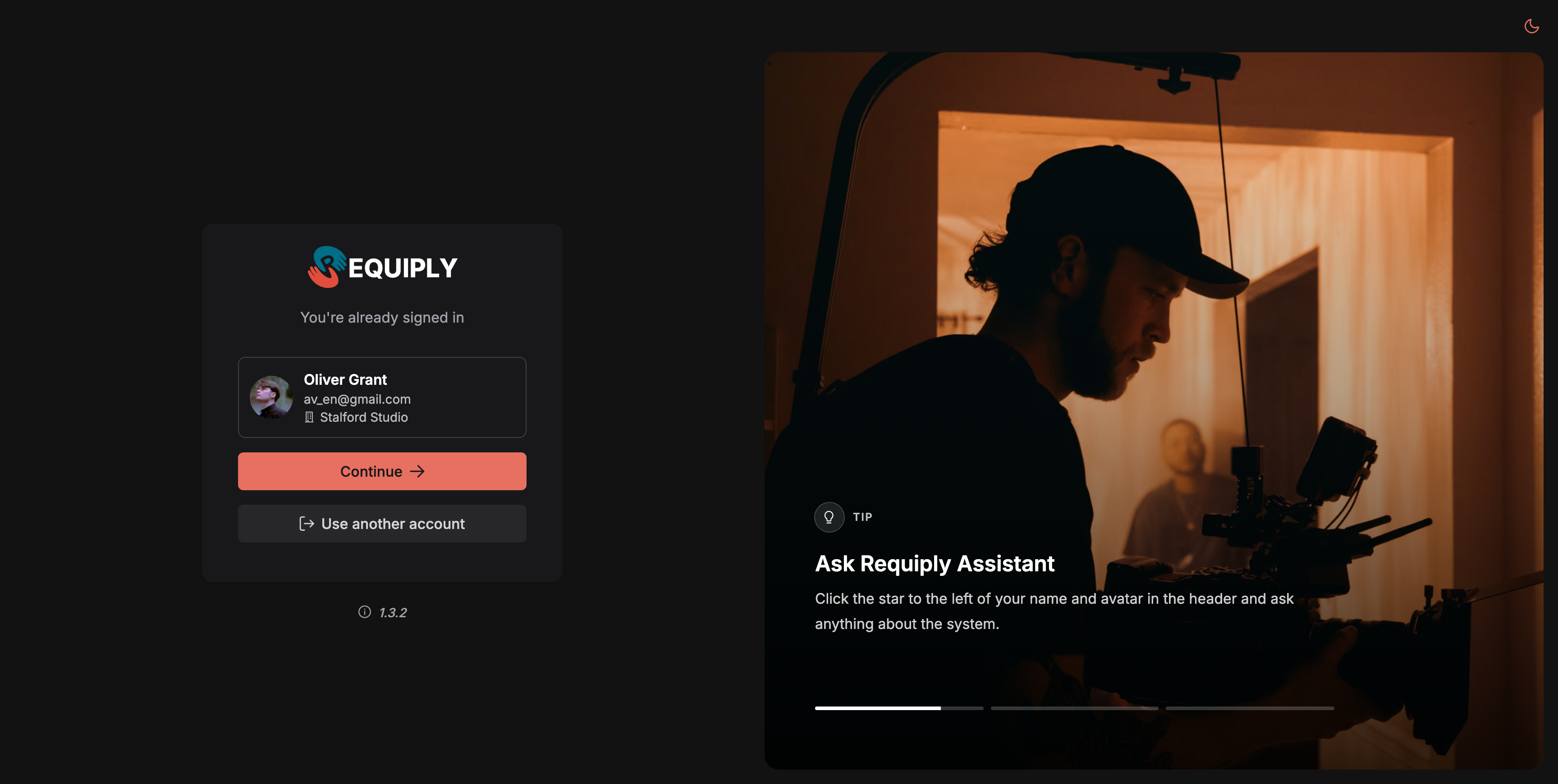
Opening the login page in a browser that is already signed in.
- Continue opens the app with that account, through the usual Preparing your ... screen. If you came from a link to a specific page, that page opens.
- Use another account signs this browser out, clears the data Requiply kept in it, and shows the normal login form. Other devices and browsers stay signed in. The next Log in with Google always asks which Google account to use, so you can pick a different one.
Opening the Register page while signed in takes you into the app instead of starting a second sign-up.
New to Requiply? See First setup checklist. Invited by a colleague? Accept the invitation email instead of registering, see Accounts.
Forgot your password on the web
- On the login page, click Forgot password? (Ukrainian interface: Забули пароль?). It opens https://app.requiply.com/forgot-password.
- Reset your password: Enter your email address and we will send you a link to reset your password. Type your Email and click Send reset link.
- The page changes to Check your email: We sent a password reset link to {email}.
- Open the email Reset your Requiply password (Ukrainian: Скидання пароля в Requiply) and click Reset password. The email comes in the language of the screen you asked from.
- The link opens Set a new password at
https://app.requiply.com/reset-password. Enter the New password (at least 6 characters) and click Update password. - Password updated: Use your new password to log in on the web or in the Requiply mobile app. Click Continue to Requiply.
Forgot your password in the mobile app
- On the login screen, tap Forgot password?.
- Reset password: Enter the email you use for Requiply. We will send you a link to set a new password. Type the email and tap Send reset link.
- Check your email: We sent a reset link to {email}. Open it on any device, set a new password, then log in here.
- Open the email, set the new password in the browser page it opens, and come back to the app to log in. Back to log in returns to the login screen.
When the link has expired
Opening a link a second time, or more than an hour after it was sent, shows This link has expired: Reset links work once and expire after an hour. Request a new one to continue. Click Request a new link and repeat the steps.
When the email does not arrive
- Wait a minute and check spam. The email comes from Requiply and can land in spam or promotions.
- Check the address. For privacy, Requiply shows Check your email whether or not an account exists for that address, so a typo does not produce an error. Make sure you typed the email you log in with.
- You signed up with Google. If you always use Log in with Google, you may not have a password yet. Keep using Google, or request a reset to set one.
- Too many requests. Requiply sends at most one reset email per address per minute and five per hour, and limits how often one network can ask. Asking too often shows Too many requests. Please try again in a few minutes. (mobile: the same text). Wait and try again.
- Still nothing? Ask an administrator of your organization to check your email under Accounts. Administrators cannot see or set your password, but they can confirm the address.
Your profile and connection in the mobile app
Edit your name and photo. Tap your avatar in the top bar, then the pencil at the top of the profile sheet. On Edit profile, change the photo (Choose from library or Take photo) or your First name and Last name, both required, and tap Save. The app confirms with Profile updated. The change shows on the web too, since it is the same account.
The badge on your avatar. A small badge on the corner of your avatar shows the connection. A red crossed-out Wi-Fi badge means No internet connection or No connection to Requiply. A blue badge, with or without a spinning ring, shows only when Keep data on this phone is on and means the app is working from, or updating, the copy on the phone. With a good connection there is no badge. Tap the badge to see what works right now. See The badge on your avatar for details.
Common scenarios
Switching to a colleague's account on a shared computer
Open the login page. The card shows who is still signed in. Click Use another account, then log in with the other email or pick the other Google account. The first person stays signed in on their own phone.
A new staff member forgot the password they chose at setup
They click Forgot password? on the login page or in the app, follow the email, and log in with the new password. Nothing needs to change on the admin side.
Resetting from the phone
Tap Forgot password? in the app, open the email on the phone, set the new password in the browser, then return to the app and log in.
Tips and cautions
Your first booking
A walkthrough of one rental from the first click to the last, for new teams, with a link to the full page behind each step.
Overview
Where rentals are created, scheduled, tracked, and invoiced: what each page in the Booking section does and how bookings feed payments, documents, and reports.