

Calls
The Calls page is your organization's call log. Once a telephony provider is connected under Communications, every call that goes through it lands here: matched to a client by phone number, with the employee who handled it, the result, the talk time, the recording, and a one-click call back.
Binotel is currently the only supported telephony provider. The page is built so other providers can be added later, which is why every row carries a Provider column.
You can find the page in two places:
- Web: Clients → Calls in the main menu, at
https://app.requiply.com/clients/calls. - Mobile app: More → Calls, or as its own tab in the bottom tab bar.
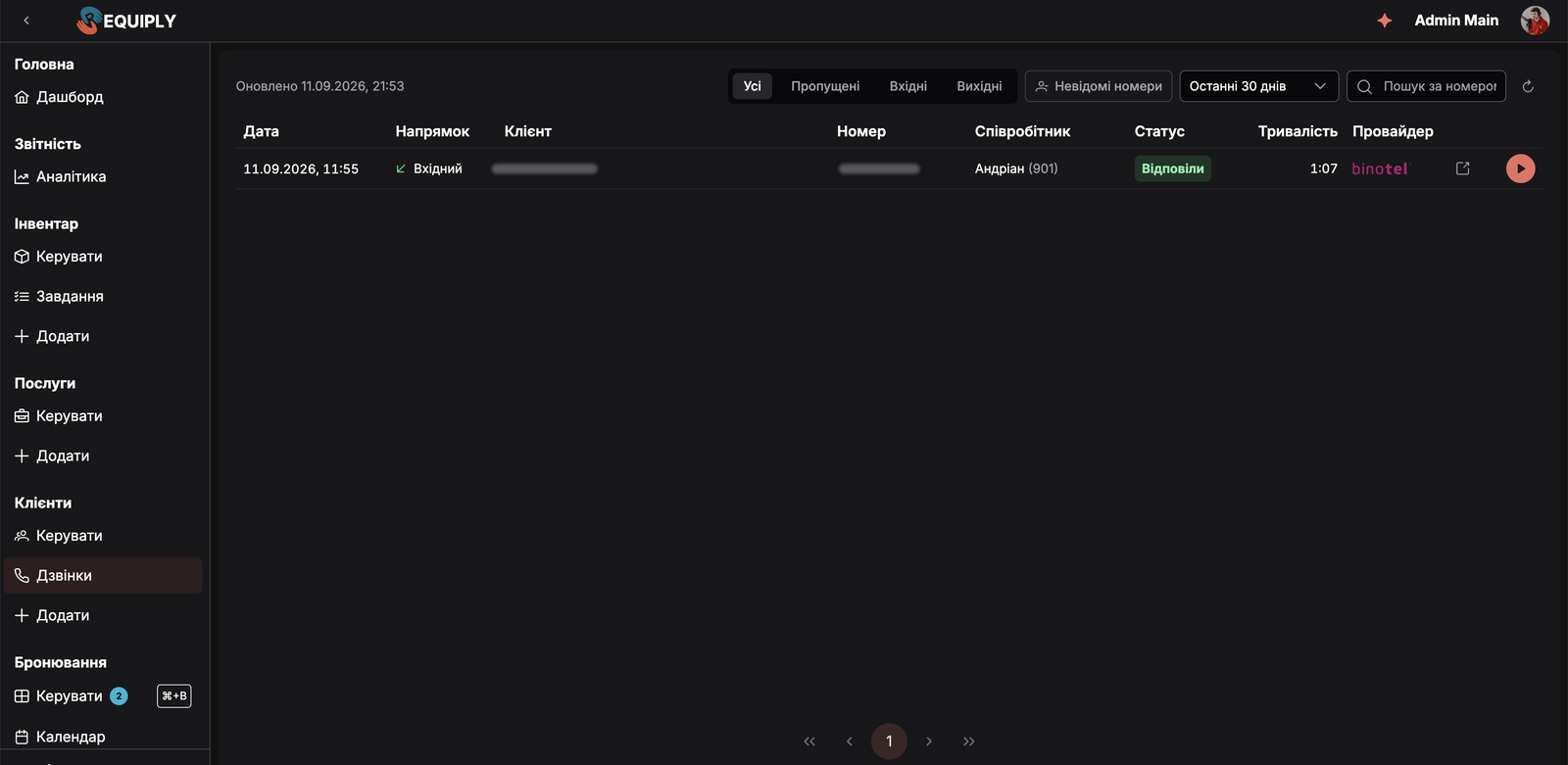
The web Calls page. The client name and number are hidden in this screenshot.
Why the Calls page matters
Rental businesses take most of their orders and questions by phone, but the phone system and the CRM usually live apart. A missed call from a client who wanted to extend a booking stays in the PBX, and nobody in the rental software knows about it.
With Binotel connected, Requiply brings those calls next to the client records:
- Missed calls do not get lost. The menu shows how many missed calls still need a call back, and Call back dials the number from your own line.
- New leads become clients. A call from a number that is not in Requiply is marked Unknown number and has a Create client button with the number already filled in.
- Conversations can be checked. Recordings play right in the list, so a disputed price or return date can be verified in seconds.
- The same log is on the phone. Staff at the counter or on a delivery see the same calls in the mobile app.
Before you start
| Requirement | Why it matters |
|---|---|
| An active trial or a paid Core plan or higher | The Binotel integration is part of the Core plan and above. |
| Binotel connected under Settings → Integrations → Communications | The Calls menu entry, the mobile tab, and the page content only appear while a telephony provider is active. |
| Allow client management in the member's permission group | The Calls page is part of client management. Without it, the menu entry and the mobile tab are hidden. |
| A Binotel employee with the same email as the member's Requiply account | Needed only for Call back and Call. Requiply finds the member's Binotel line by matching emails. Seeing calls and playing recordings work without it. |
| Phone numbers on client records | Calls are matched to clients by phone number. A client without a phone never gets calls linked. |
When no telephony provider is connected, the page shows Connect a telephony provider to see calls here with an Open integrations button that leads to Communications.
When the integration was turned off
If Binotel rejects your company's account itself (for example, Binotel reports the company as disabled), Requiply turns the integration off and stops loading calls. The page then shows a ban icon, the title Telephony integration turned off and the text The provider rejected the account: {reason}. Calls are no longer loading. Once the account is active again, save the integration to reconnect it. Open integrations leads to Communications, where an administrator opens the Binotel card and presses Save once Binotel has reactivated the account.
In the mobile app the same situation reads Binotel was turned off: {reason}. Reconnect it in Settings in the web app.
How calls get into Requiply
Requiply keeps its own copy of the call log and refreshes it from Binotel, so the page opens fast and keeps working for a moment even if Binotel is slow.
- First open. The first time anyone in the organization opens the call log, Requiply loads the last 30 days of calls from Binotel.
- Every open after that. Opening the page on the web or in the mobile app pulls new calls, at most once a minute. Several people opening the log at the same time share one pull.
- Refresh icon. Pulls new calls immediately, ignoring the one-minute gap.
- Late calls. Each pull re-reads the last two hours, so a call that was still in progress during the previous pull is picked up once it ends.
The header shows when the list was last updated, for example Updated 11.09.2026, 21:53. If Binotel cannot be reached, the stored list stays visible with the warning Could not refresh from the provider, the list may be out of date and the provider's error.
How a call is matched to a client
Every call is matched to a client by the caller's phone number. Requiply compares every phone format of your clients, so +380979112868, 380979112868, and 0979112868 all match the same client.
A call with no matching client is marked Unknown number. Unknown calls are checked again after every pull and right after a client is created, so as soon as a client with that number exists, their earlier calls link to them automatically.
What you'll see on the web
Filters
| Filter | What it does |
|---|---|
| All, Missed, Incoming, Outgoing | Shows calls of one type. Missed means incoming calls that nobody answered. |
| Unknown numbers | Shows only calls from numbers that do not belong to any client. |
| Period | Today, Last 7 days, Last 30 days (the default), or All time. |
| Search by number | Finds calls with a specific phone number. Only digits are compared, so any format works. |
| Refresh icon | Pulls the latest calls from Binotel right away. |
Columns
Calls are listed newest first, 25 per page.
| Column | What it shows |
|---|---|
| Date | When the call started. |
| Direction | Incoming or Outgoing, with a colored arrow: green for answered, red for missed. |
| Client | The matched client's name, which opens their Client details page. Unmatched calls show an Unknown number tag and a Create client button. |
| Number | The external phone number, followed by quick actions: Copy phone, and Chat in Viber, WhatsApp, or Telegram with that number. |
| Employee | Who handled the call and their internal line, for example Andrian (901). For unanswered calls, how long the caller waited, for example waited 12 s. |
| Status | The result of the call, see the table below. |
| Duration | How long the conversation lasted. |
| Provider | The telephony provider logo, currently Binotel. |
At the end of each row:
- Link icon opens all calls with this number in your Binotel cabinet (
my.binotel.ua). - Play opens the recording right under the row. The player shows a waveform you can click or drag to jump to any moment, the current position and full length, a playback speed button, and a download button. The play button turns into an X that closes the player. Calls without a recording in Binotel have no play button.
- Call back appears on missed calls when you have a Binotel line. See Calling from Requiply.
Call statuses
| Status | Meaning |
|---|---|
| Answered | The conversation took place. |
| Transferred | The call was answered and passed to another employee. |
| Missed | An incoming call that nobody answered. |
| Busy, No answer, Cancelled | An outgoing call that did not connect. |
The missed calls badge
The Calls entry in the menu shows a badge with the number of missed calls that still need a call back. The same number appears as a badge on the Calls tab in the mobile app.
A missed call counts toward the badge when all of these are true:
- it is an incoming call that was not answered,
- it came in today, counted from the start of the day in your organization's timezone, and
- there has been no later outgoing call to that number and no later answered call from it.
Calling the client back, from Requiply or from any phone on your Binotel account, clears the call from the badge as soon as that call reaches the log. Missed calls from earlier days are still in the log and under the Missed filter, they simply no longer sit on the badge, so the number reflects the calls that still need attention today.
Turning an unknown number into a client
- Filter by Unknown numbers, or find a row with the Unknown number tag.
- Click Create client. The Add client form opens with the phone number already filled in.
- Fill in the name and any other fields, and save.
- Requiply returns you to the Calls page and links every call from that number to the new client.
Calling from Requiply
Call back on the Calls page, and Call on a client's Binotel calls field, start a call through Binotel:
- Binotel rings your Binotel line first.
- When you pick up, Binotel dials the client.
- Requiply shows Calling: pick up on line {line}.
Requiply finds your line by matching the email of your Requiply account to an employee in Binotel. If no Binotel employee has that email, the call buttons are disabled and their tooltip reads Your account email does not match a Binotel employee, so there is no line to call from. To fix it, set the same email on your employee profile in Binotel, or ask your Binotel administrator to do it.
In the mobile app
Opening the Calls page
Go to More and tap Calls to open the page directly. The More screen lists every section of the app with a drag handle and a toggle:
- Turn on the toggle next to Calls to pin it to the bottom tab bar, next to More and search.
- Hold a row by its handle and drag it to change the order of the tabs.
The Calls row only appears for members with Allow client management, and only while a telephony provider is connected.
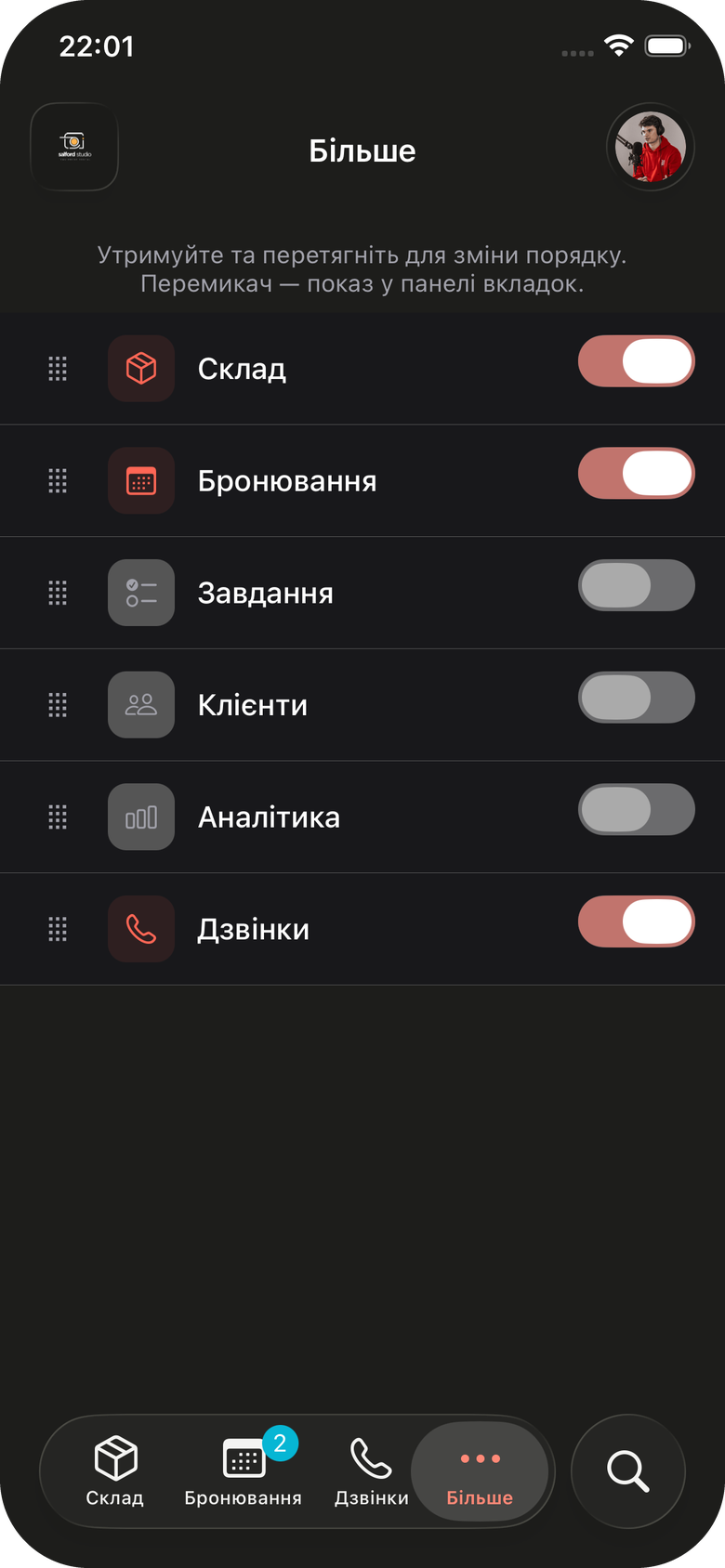
The More screen with Calls pinned to the tab bar.
The mobile Calls page
Each call is a card with the direction, date and time, provider, status, client, employee with their internal line, and duration. The page has the All, Missed, Incoming, and Outgoing filters, and under them two dropdown pills that always name their current choice:
| Pill | Options |
|---|---|
| Numbers | All numbers, Clients only (calls from numbers that belong to a client), Unknown only (calls from numbers that do not). |
| Handled by | All employees, My calls only (calls on your own Binotel line). Shown only when your account is linked to a Binotel employee line. |
A pill changed from its default is tinted in your accent color. The list shows 20 calls at a time: tap Load more at the bottom for the next 20. There is no period filter or number search on mobile. Pull the list down to refresh it.
On each card:
- tap the client's name to open the client, or Create client for an unknown number,
- tap Play to listen to the recording inside the card, with a seek slider and a playback speed toggle,
- tap the link icon to open the calls with this number in Binotel,
- tap Call back on a missed call.
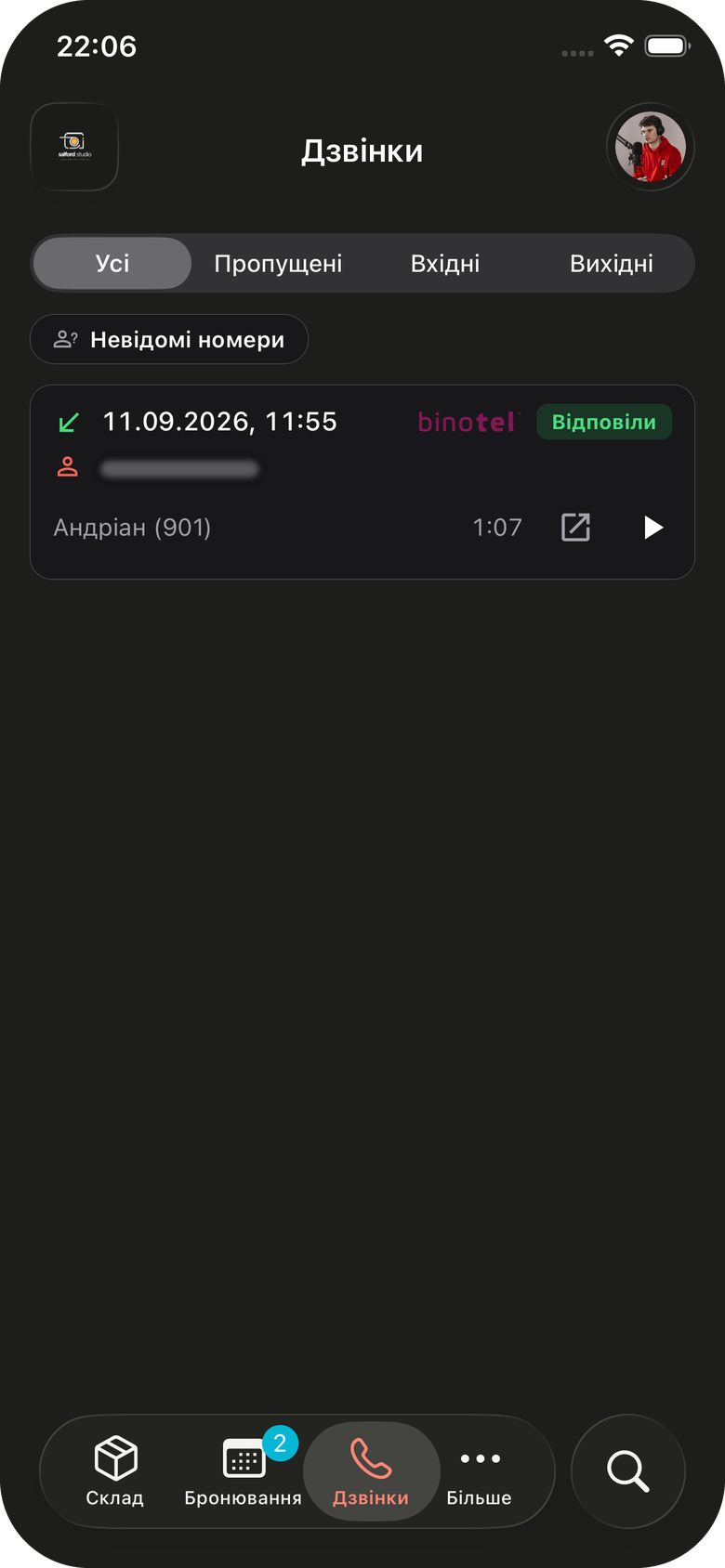
The mobile Calls page. The client name is hidden in this screenshot, which predates the Numbers and Handled by pills: the Unknown numbers chip shown here is now the Unknown only option.
Calls from a client page
Open a client whose phone number matches the number in Binotel. Below the contact details and messenger buttons, the client page shows a Calls with Binotel row. Tapping it opens the Binotel calls screen for that client:
- a card with the client's name in Binotel, the employee they are Assigned to, and the number of calls, missed calls, and minutes of talk,
- a Binotel button that opens the client in your Binotel cabinet,
- a phone button in the top right corner that calls the client from your Binotel line,
- the All, Missed, Incoming, and Outgoing filters, and call cards with the recording player, the Binotel link, and Call back for missed calls.
When your email does not match a Binotel employee, the card explains that there is no line to call from and the phone button stays disabled.
The Calls with Binotel row needs the Allow access to client call history permission, the same one that controls the web Binotel calls field.
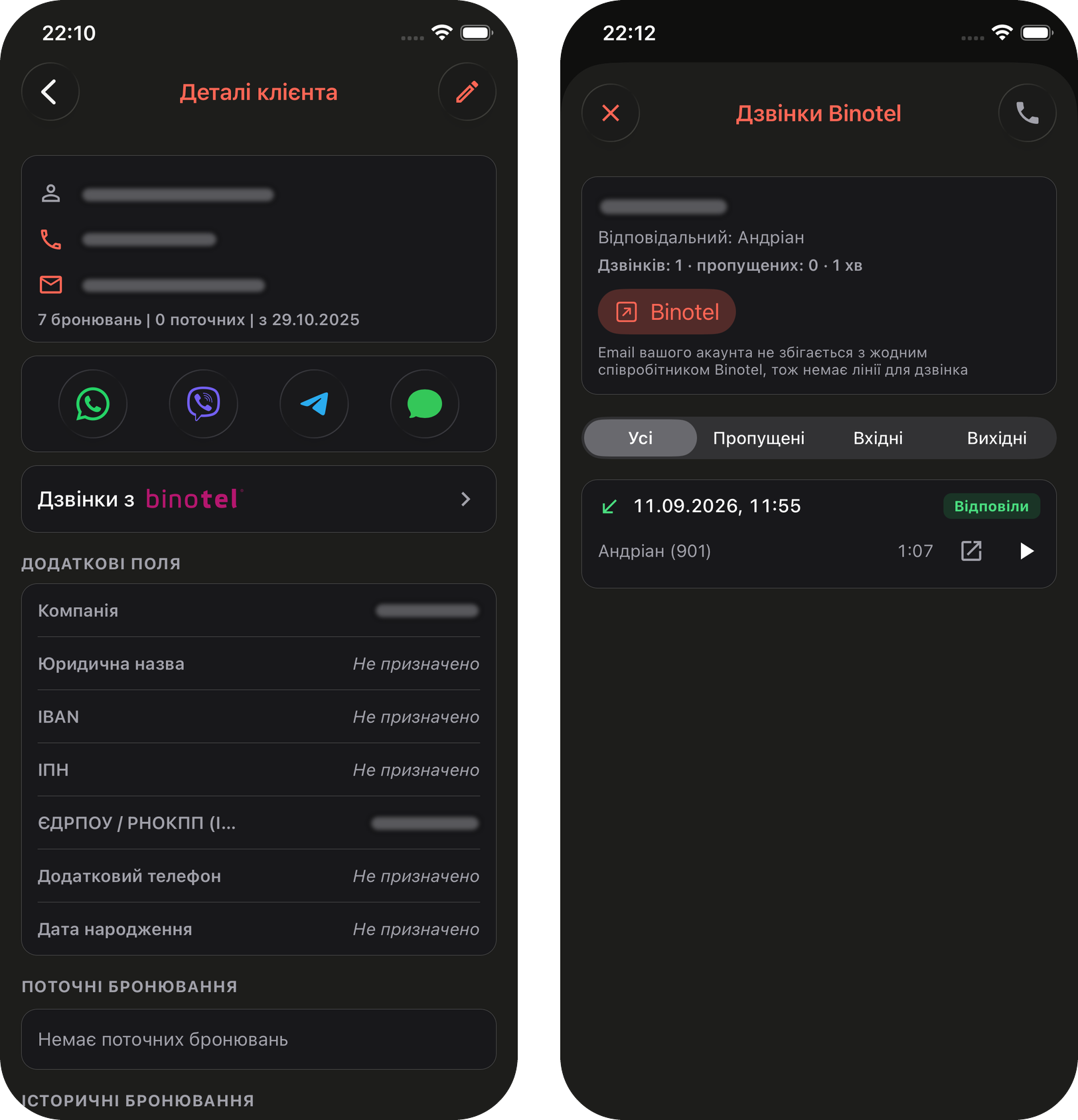
The client page on mobile and the Binotel calls screen it opens. Client details are hidden in this screenshot.
Who can see what
Two permissions are involved, and they cover different screens:
| Screen | Permission needed |
|---|---|
| Calls page on the web, Calls tab on mobile, their recordings and call back | Allow client management |
| Binotel calls field on the web client page, Calls with Binotel on the mobile client page, and Call from there | Allow access to client call history |
| Connecting or replacing Binotel | Administrators only |
How this page connects to the rest of Requiply
| Feature | Relationship |
|---|---|
| Communications | Where Binotel is connected. Without an active provider the page is empty and hidden from the menu. |
| Client details | Shows the same calls for one client in the Binotel calls field. Client names on this page link there. |
| Add or edit client | Create client opens it with the phone prefilled, and earlier calls link to the new client after saving. |
| Permission groups | Allow client management opens this page; Allow access to client call history opens the per-client call history. |
| Detail page fields | Where an administrator adds the Binotel calls field to the client page. |
| Binotel tutorial | Step-by-step setup from registering with Binotel to the first call. |
Common scenarios
Calling back everyone who could not get through
At the end of the day, open Clients → Calls, select Missed, and work down the list with Call back. Each returned call disappears from the menu badge once it reaches the log.
A new lead called while you were busy
Select Unknown numbers, find the call, and click Create client. The phone is filled in for you, and after saving, the missed call is linked to the new client, so the next person who opens the client sees it.
Checking what was agreed on the phone
A client says they were promised a different price. Search the number, press Play on the call, and jump through the waveform to the part where the price was discussed.
Taking calls on the road
A driver pins Calls to the tab bar in the mobile app, sees the missed call badge between deliveries, and taps Call back. Binotel rings their own line first, so the client sees the company number.
Tips and cautions
+380951234567. Local 0… numbers also match, but a number with typos or missing digits never links to the client.Debt settlement
Collect everything one customer owes across several unpaid bookings in a single payment or one online payment link, instead of chasing each booking separately.
Import clients
Bulk-import your existing customer list from an Excel or CSV spreadsheet when moving to Requiply from another system.