

Sale items and stock
Goods you sell are products of the type Equipment for sale: Goods you sell to clients, like memory cards or batteries. They have a stock count instead of individual units. They live in your normal inventory, next to your rental equipment, but they have no units, no rental rate, no deposit, and no pricing tiers. They never appear in availability checks, the calendar, or the rental items of a booking.
This page explains how to add them, how the stock count works, and what the product page shows. Selling them is covered in New sale and Sell items on a booking.
Adding a product for sale
Open Inventory → Add item at https://app.requiply.com/inventory/add and set Rental object type to Equipment for sale (cart icon). The form changes:
| Field | For Equipment for sale |
|---|---|
| Stock source | Locked to Owned. Goods for sale cannot be subrented. |
| Category | The same categories as Equipment, so a Consumables category works for both. |
| Item name, Images | As for any product. |
| Stock now | Replaces Quantity. How many you have on the shelf today, zero allowed. Recorded as the first delivery. |
| Price | The sale price per unit. Flat price per unit. Client discounts do not apply. There is no price type. |
| Net cost | Optional. What you pay the supplier. Only members who manage stock see it. Once filled, the hint shows Margin per unit: $11.00 (38%). |
| Barcode | Optional, shown with QR codes and barcodes (Advanced plan). The manufacturer code on the package, so a scan finds this product. |
Security deposit override and Full price are hidden, because they do not apply to goods.
Click Add item. Requiply creates the product and records Stock now as a Delivery with the note Opening stock, using the net cost as its unit cost. If that last step fails, the product is still saved and Requiply says The item was saved, but its opening stock could not be recorded. Record a delivery on its page.
To change the price, net cost, barcode, or name later, use Edit on the product, the same as for rental equipment.
A product created as rental equipment with units cannot be turned into Equipment for sale, and a product for sale that already has stock movements or sales cannot be turned back into rental equipment. Create a new product instead.
In the inventory table
Manage inventory lists goods for sale together with rental equipment:
- an orange cart badge on the photo, labelled Equipment for sale on hover,
- per unit in the Price Type column,
- a stock tag in the Quantity column: 17 in stock, or red Out of stock (0) at zero or below.
Members without a Sales permission do not see these rows.
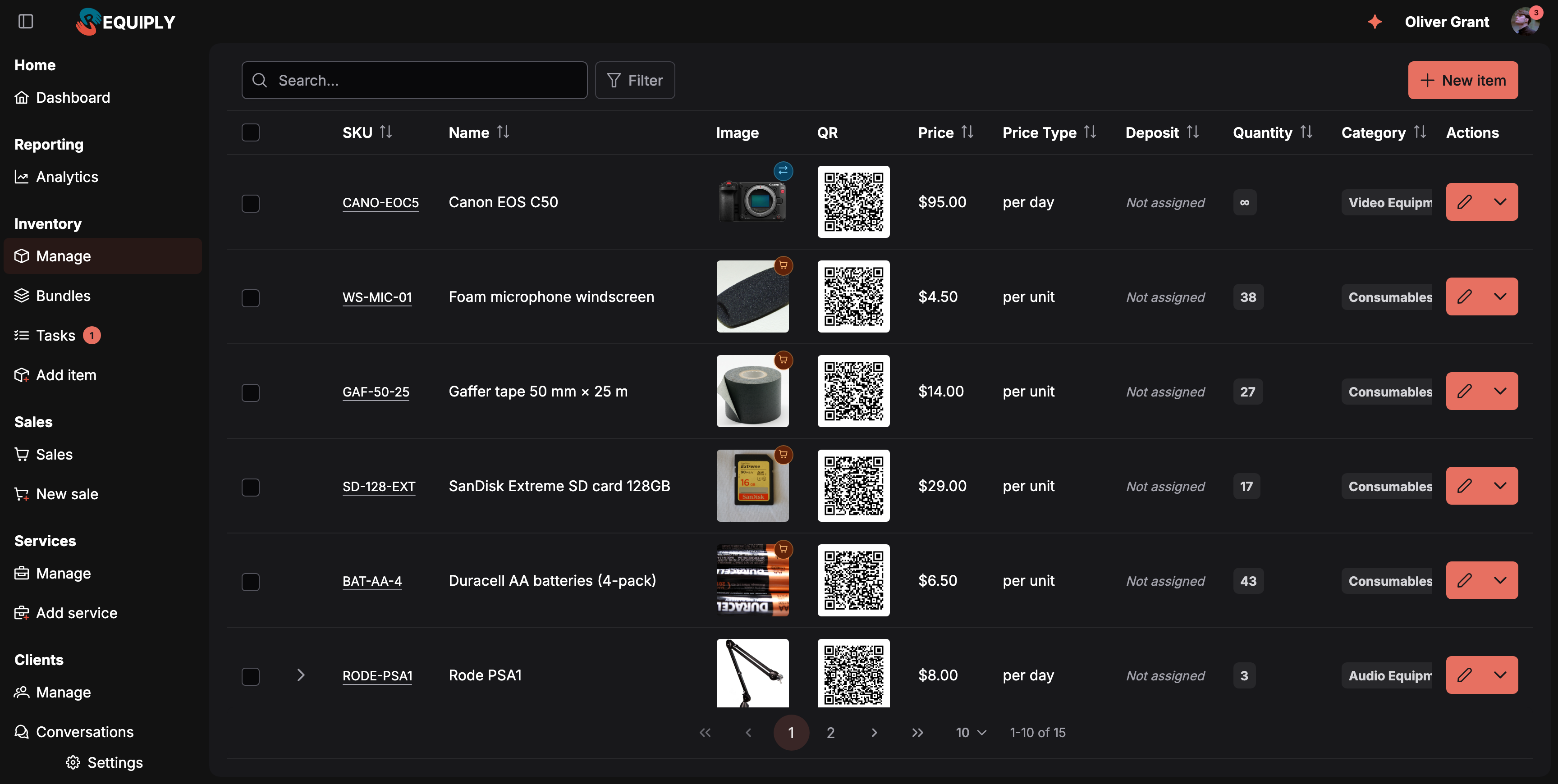
Goods for sale carry a cart badge, a per unit price, and a stock count instead of units. Rental products below them still expand into their units.
The product page
Click a product to open its page at https://app.requiply.com/inventory/item-group-{id}. The details list shows the image, SKU, QR code, name, category, Price, and Quantity as a stock tag. Rental-only rows (price type, deposit, pricing tiers, full price) are not shown.
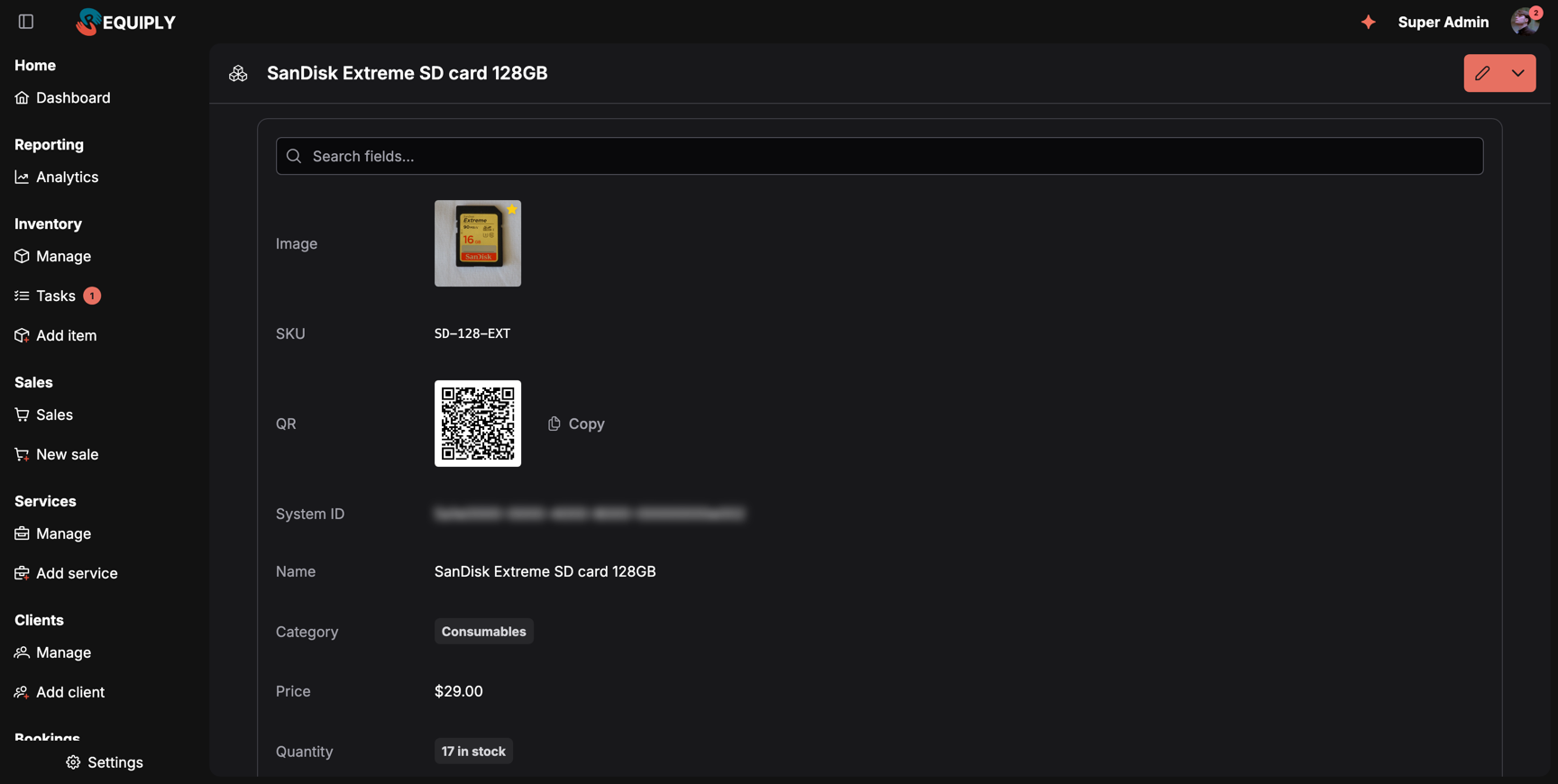
A product for sale shows its price and stock count; the units table of rental equipment is replaced by Stock and sales further down.
Below the details, the Stock and sales card replaces the units table:
| Part | What it shows |
|---|---|
| In stock | The current stock count. |
| Sold in 30 days | Units and revenue of the last 30 days, and Sold in total: 3. |
| Sale price | The price, and for stock managers Cost $18.00, margin 38%. |
| Sold per month | A bar chart of units sold per month over the last year, shown once the product has sold. |
| Stock history | Every stock movement, newest first, with Load more for older ones. |
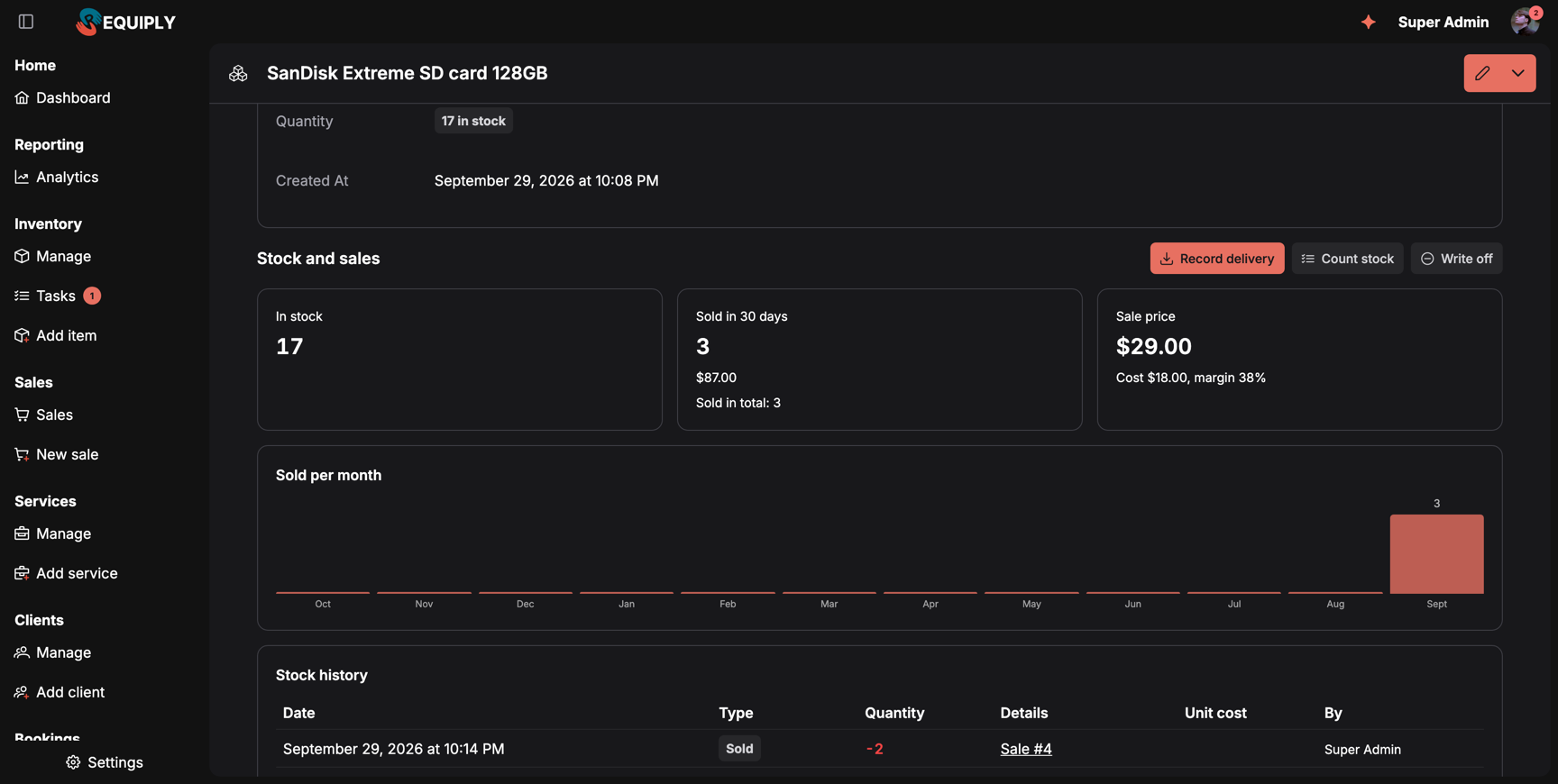
Three cards sold this month. The history links each sale to its sale or booking, so you can trace every change of the count.
The Stock history table has the columns Date, Type, Quantity (+ or −), Details (a link to Booking #20 or Sale #4, and the note), Unit cost (for deliveries, visible to stock managers only), and By.
| Type | Recorded when |
|---|---|
| Delivery | You record a delivery, including the opening stock. |
| Sold | A sale or a booking takes the goods. |
| Sale undone | A sale is cancelled or edited down, or a booking with goods is cancelled or deleted. |
| Returned | A client returns goods with Back to stock on. |
| Stock count | You count the shelf and correct the number. |
| Write-off | You write off broken, lost, or used-up goods. |
The history cannot be edited or deleted. A mistake is corrected with a new movement, usually Count stock.
Stock movements
Members with Allow managing stock see three buttons on Stock and sales (not on archived products). Each opens the Stock of {product} dialog with the matching type selected:
| Button | Type | What you enter |
|---|---|---|
| Record delivery | Delivery: Goods that arrived from a supplier. They are added to the stock. | Quantity, optional Purchase price per unit (Becomes the product's cost for margin figures.), and a Note such as the supplier or invoice number. |
| Count stock | Stock count: Enter what is on the shelf. The stock is set to that number. | Counted on the shelf, and a note on why the count differs. |
| Write off | Write-off: Goods that were broken, lost or used up. They are taken off the stock. | Quantity and what happened. |
The dialog shows Now in stock: 17 and, as you type, Stock: 17 → 27. Save records it: Stock updated. Now in stock: 27.
A delivery with a purchase price updates the product's Net cost, so margins follow your latest buying price.
How the stock count moves
- A sale or a booking with goods takes them off the stock when it is saved, even if the booking is only a request and its rental items are not held yet.
- Editing a sale or a booking's sold items moves the stock by the difference.
- Returns put goods back only when Back to stock is on.
- Cancelling a standalone sale returns everything the client still had. Cancelling a booking does the same for its goods, and moving the booking back out of a cancelled status takes them again. Deleting a booking returns its goods.
- The count may go negative. Selling is never blocked by the count. Screens warn instead: Stock short by 2, Not enough in stock: {items}. The booking can still be created., or on the product Out of stock (-2).
In the mobile app
Open the product from the inventory or by scanning its barcode. For a product for sale the screen shows In stock, Barcode, Net cost (stock managers), Sold in 30 days, and the Stock history. Under Actions, members with inventory access and barcodes enabled can Tie barcode, Change barcode, or Remove barcode with the camera (Point the camera at the barcode on the package. Every scan of it then adds one unit of this product.).
Scanning an unknown barcode anywhere in the app offers to link it: Barcode {code} is not linked to any product or SKU yet. Link it now? Pick the product for sale in the list to link it.
Deliveries, stock counts, and write-offs are recorded on the web.
Common scenarios
A box of 20 memory cards arrives
Open the product, click Record delivery, enter Quantity 20, the Purchase price per unit from the supplier invoice, and the invoice number as the note. The stock rises by 20 and the net cost follows the new price.
The shelf count does not match
Count what is physically there, click Count stock, and enter the number under Counted on the shelf with a short reason. The history keeps the correction, so you can see later how far off the count was.
A battery pack is damaged in storage
Click Write off, enter 1, and note what happened. The pack leaves the stock without a sale.
Tips and cautions
Sale page
The page of one sale of goods: its products, total, payment, and returns. Collect or change the payment, edit the products, record a return with a refund and restock, or cancel a standalone sale.
Dashboard
The home page of your Requiply workspace: today's pickups and returns, overdue bookings, and what Requiply did for you this month.