

QR codes and barcodes
Requiply can label every inventory unit with a scannable code — a QR code that opens the unit or group in the app, and one or more barcodes that identify the unit — print them as stickers or label-printer PDFs, and scan them to jump straight to the matching unit. Third-party barcodes already printed on your equipment can be tied to a unit too, so a manufacturer's label works as a Requiply label.
Availability
QR codes and barcodes are an Advanced plan feature, switched on per organization.
- Advanced plan — an admin turns on Enable QR codes & barcodes under Settings → Organization → Features. Organizations that were already on Advanced when the feature shipped have it enabled automatically.
- Core plan: the codes are hidden. On the product page and the unit page, the codes slot (labelled Codes on the product page) shows a blurred sample barcode with the Advanced crown. Hovering sharpens it and shows QR and barcodes are available on the Advanced plan; clicking it opens the subscription payment page. Elsewhere, such as the bulk actions on Manage inventory, a crown button does the same.
- Advanced with the feature off — the codes, columns, exports, and the mobile scanner are hidden entirely.
Choosing a primary barcode type
Under the Enable QR codes & barcodes toggle on the Features page sits Primary barcode type. It decides which kind of barcode your organization works with day to day:
| Primary barcode type | What it means |
|---|---|
| Code 128 (default) | Every unit carries only its Requiply code — RQ followed by 10 characters — encoded as Code 128. Read by virtually every scanner, and it encodes any value. |
| EAN-8 | Every unit additionally gets a short, digits-only EAN-8 code. Eight digits fit on small labels, which suits compact gear and retail-style scanners. |
Switching to EAN-8 generates a code for every existing unit in the organization straight away, and every unit created afterwards gets one on creation. Switching back to Code 128 stops generating new EAN-8 codes but keeps the ones already issued — labels printed from them are already on your equipment and keep scanning.
RQ… code is always present and never replaced, so it remains the stable fallback whatever you choose.The codes a unit carries
An item group carries one QR code. An individual unit carries a QR code plus up to three kinds of barcode:
| QR code | Requiply code | Generated EAN-8 | Tied third-party code | |
|---|---|---|---|---|
| Exists for | Groups and units | Every unit | Every unit, while EAN-8 is the primary type | Units you tie a code to |
| Content | A Requiply link that opens the group or unit | RQ + 10 characters, as Code 128 | 8 digits with a GS1 check digit | Whatever is printed on the equipment — usually EAN-13, EAN-8 or UPC |
| Unique | Across all of Requiply | Across all of Requiply | Within your organization | Within your organization |
| Created | Automatically | Automatically, always | Automatically, when the setting is on | By you, when you tie it |
| Best for | Stickers scanned with any phone camera | The durable, never-changing identity of a unit | Small labels and retail-style scanners | Using labels the manufacturer already applied |
Nothing is configured per item. A printed code never changes, even if you later rename the SKU — the SKU is printed as human-readable text beside the code so the label still makes sense to people.
Which code is the primary one
When a unit has several barcodes, Requiply picks one as its primary code — the one shown on the unit's page and printed on its label. The order is:
- A tied third-party code, if the unit has one. Tying a code is a deliberate statement about what is physically on that unit, so it always wins.
- Otherwise, the unit's own code that matches the organization's primary barcode type.
- Otherwise, the generated EAN-8, then the Requiply
RQ…code.
Every other code the unit holds stays valid and keeps scanning — it is simply not the one on the label.
Where you'll see them
Item and item group pages
- The item group page shows the group's QR code.
- The item (unit) page shows its QR code and a Barcodes row.
The Barcodes row shows the unit's primary code as a scannable image with a Copy button, and — if that primary code is a tied third-party one — an × to untie it. Below it are two controls:
- Tie external barcode — opens the dialog described under Tying third-party barcodes.
- Other codes (n) — expands the unit's remaining codes as plain text, each with its symbology beside it (
EAN8,CODE128). Tied codes here can be untied; Requiply's own codes and generated EAN-8 codes cannot be removed.
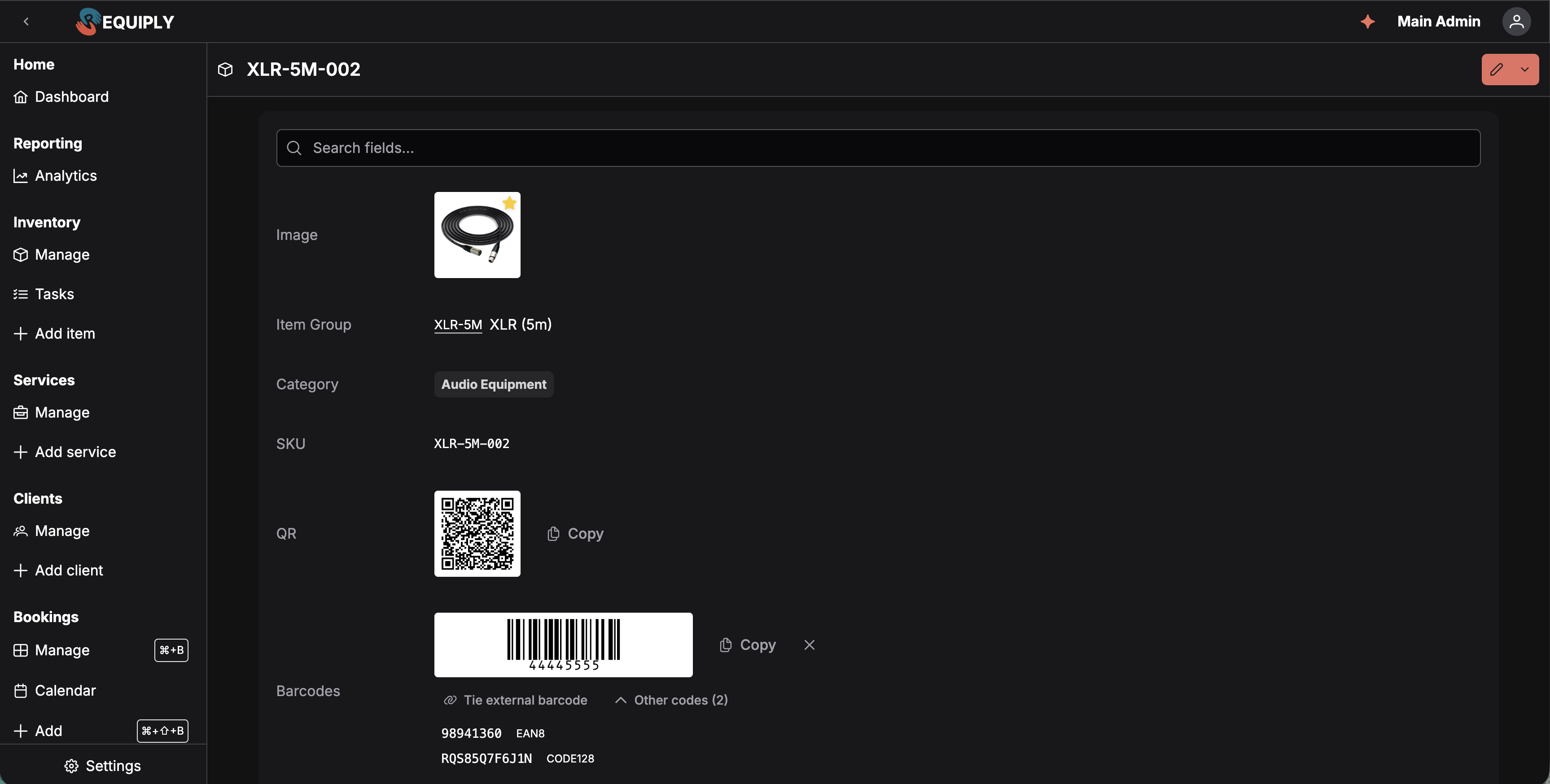
This unit carries three barcodes, and the tied third-party code 44445555 wins the top slot — note the × beside it, which only a tied code gets. Its generated EAN-8 and its permanent Requiply code sit under Other codes (2), still scannable, just not on the label.
Both rows are configurable: an admin can move or hide QR and Barcodes on the Detail page fields page, just like any other row.
Manage inventory
On Manage inventory:
- QR and Barcode columns are available in the table layout — QR for groups, QR and Barcode for units. They are hidden by default; enable them under Table column layout.
- Selecting groups reveals two bulk actions next to the usual ones: Export QRs and Export barcodes.
- Each unit's action menu includes Export barcode for a single label.
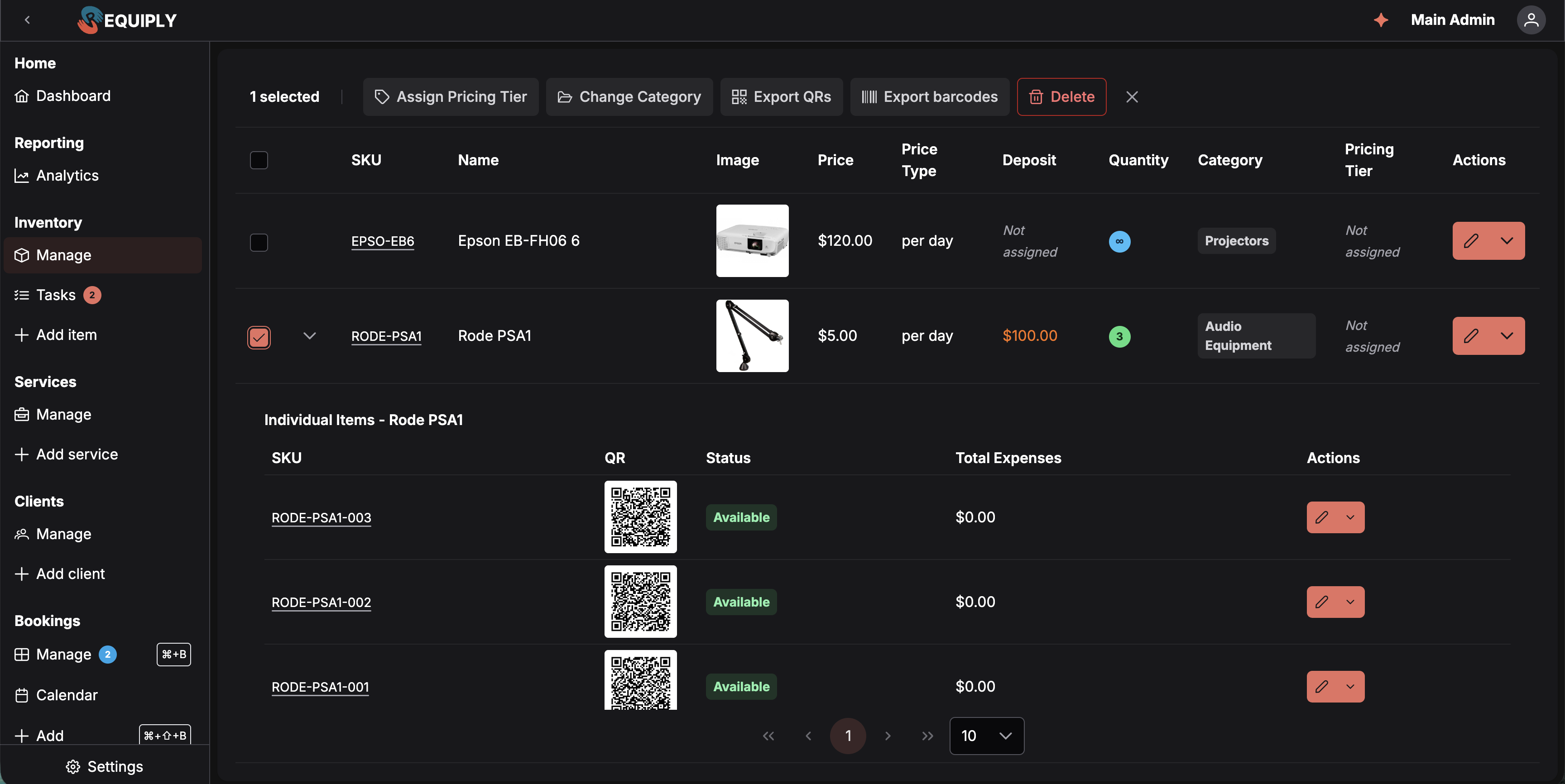
With rows selected, the two export actions join the usual bulk actions in the header. The expanded group underneath shows its individual units — this organization has switched the QR column on for them.
Printing labels
QR stickers
Export QRs builds a printable PDF of QR stickers for every unit in the selected groups, each labelled with its SKU.
Barcode labels
Export barcodes (or Export barcode on a single unit) opens the Export barcode labels dialog. Each unit gets one label carrying its primary code, drawn in that code's own symbology. A line at the top of the dialog states what is about to be generated — the SKU when you export a single unit, the number of selected groups when you export in bulk.
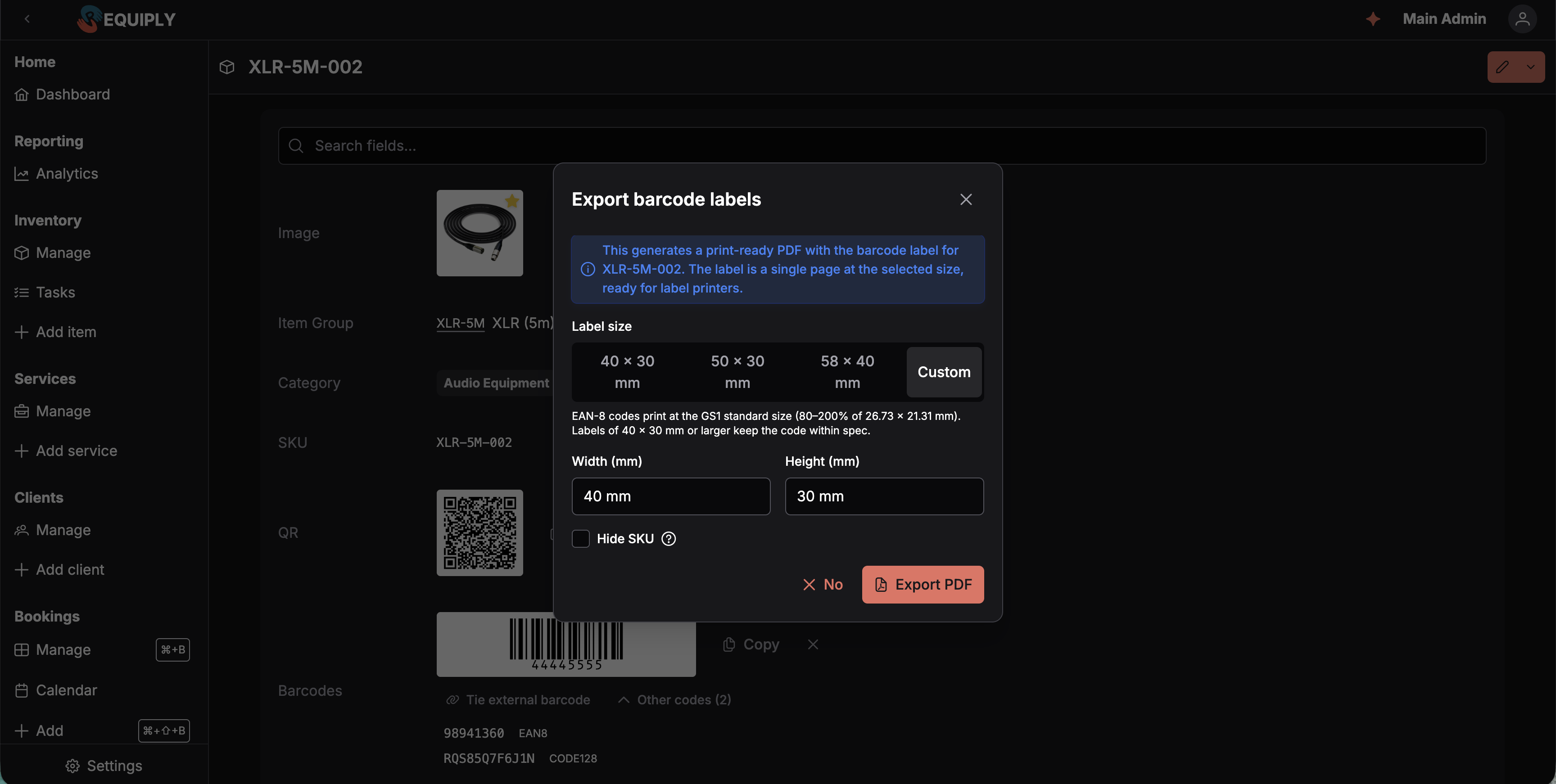
Custom is selected here, so Width and Height appear underneath the presets. The hint above them is the EAN-8 one, because this organization runs EAN-8 as its primary type.
Label size offers three presets — 40 × 30 mm, 50 × 30 mm, 58 × 40 mm — plus Custom, where you type a width and a height in millimetres (20–150 mm wide, 15–150 mm high). The preselected preset follows your primary barcode type: 40 × 30 mm for EAN-8, 50 × 30 mm for Code 128.
A hint under the size selector explains how the size is used:
- Code 128 — the bars scale with the label, so wider labels print wider bars that are easier to scan.
- EAN-8 — codes print at the GS1 standard size, between 80% and 200% of 26.73 × 21.31 mm. Labels of 40 × 30 mm or larger keep the code within spec, and picking something smaller raises a warning that the bars will fall below 80% magnification and may not scan reliably.
Hide SKU drops the human-readable SKU line so the barcode itself uses the label's full height — worth switching on for small labels where height is tight.
Export PDF generates one label per page at the chosen physical size, ready to send to a label printer, and downloads requiply-barcodes.pdf. A progress bar tracks generation.
Archived units are skipped. If the selection has nothing to print, the dialog reports "The selection has no barcodes to print."
Tying third-party barcodes
A code already printed on your equipment can be tied to a unit, after which scanning the manufacturer's label opens that unit. You can do this from the web app or from the mobile scanner.
From the item page
Tie external barcode opens a dialog with a single input. Scan the code with a handheld scanner or type it and press Enter. Requiply detects the symbology from the content — EAN-8 and EAN-13 are recognised by their check digit — and shows what it detected under the field.
Requiply-format codes (RQ…) cannot be tied; the dialog says so and refuses.
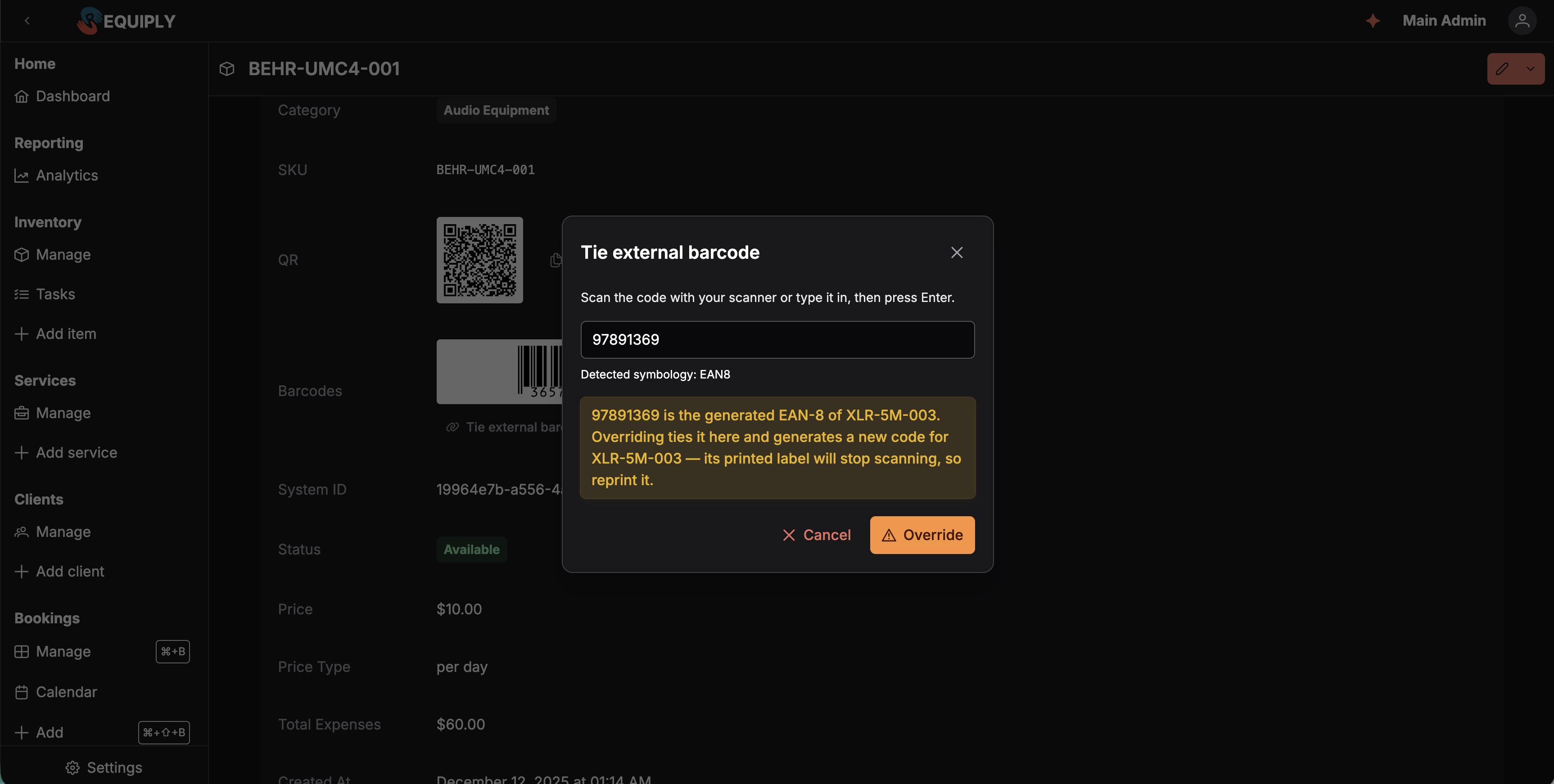
The code entered here already belongs to another unit, so the dialog explains the consequence before letting you proceed — and replaces Confirm with an amber Override. See When the code is already in use.
From the mobile scanner
When the mobile app scans a barcode it does not recognise, it offers to link it. Accepting lists your active units — search by SKU or group name — and ties the code to the one you pick.
From a unit in the mobile app
Open a unit (SKU) in the mobile app and tap Tie barcode in its Actions menu. The Tie barcode screen opens the camera with the hint Point the camera at a barcode that is unique to this unit, such as a serial number or asset tag. You can also type the code under Or type the code and tap Continue.
Requiply does not tie the first code the camera sees, because rental gear often carries several barcodes (a product EAN next to the serial number). It shows the code it read with Detected: {symbology} and Check that the code matches the label on the unit., then waits for Tie to {sku}. Scan another code starts over. Conflicts are explained the same way as on the web, see When the code is already in use, with Override where overriding is allowed. QR codes and Requiply codes cannot be tied here.
The unit screen also has a Barcodes card: the unit's codes drawn as scannable barcodes, each tagged Requiply, Generated, or Third-party, with Primary on the one your organization prints. Tap a code to show it large, Copy code to copy it, and Unlink on a third-party code to remove the tie (Scanning {code} will no longer open this unit.). Tying and unlinking need Allow inventory management.
When the code is already in use
A code can belong to one unit at a time within your organization. If the code you enter is taken, the dialog says which SKU has it and what overriding would do:
| The code currently is… | What happens |
|---|---|
| A tied third-party code on another unit | "{code} is already tied to {sku}. Overriding moves it to this unit." Override moves the tie. |
| The generated EAN-8 of another unit | "…Overriding ties it here and generates a new code for {sku} — its printed label will stop scanning, so reprint it." Override hands the code over and issues the other unit a fresh EAN-8. |
| The Requiply code of another unit | It cannot be overridden. Nothing to do but use a different code. |
In the two cases you can override, the Confirm button is replaced by an amber Override — a deliberate second decision rather than the same click. For a Requiply code no override is offered at all.
12-digit UPC-A codes are stored in their 13-digit EAN form, so a label scans the same way whichever format the scanner reports.
Barcodes of goods for sale
Goods for sale (Sales) have no units, so they carry one package barcode on the product itself: the manufacturer code printed on the box. Enter it in the Barcode field when you add or edit the product, or in the mobile app with Tie barcode on the product's Actions menu (later Change barcode or Remove barcode).
- The code must not match any unit code, unit SKU, or product SKU, so a scan always means one thing.
- Scanning it on New sale, on Sell items, or in the scan field of Add booking adds one of the product. Scanning it with the mobile scanner opens the product.
- An unknown code scanned in the mobile app can be linked to a product for sale straight away: Barcode {code} is not linked to any product or SKU yet. Link it now?
Scanning with the mobile app
The Requiply mobile app has a scan button that opens a full-screen camera scanner (it asks for camera permission the first time). It reads QR codes and the common retail and industrial barcodes: EAN-13, EAN-8, UPC-A, UPC-E, Code 128, Code 39, Code 93, ITF-14 and Data Matrix. Tap the flashlight button (Turn on flashlight) to scan in a dark warehouse or van.
What happens after a scan:
| You scanned | Result |
|---|---|
| A Requiply QR code | The booking, client, product or unit it points to opens. |
| Any barcode belonging to a unit in your organization: Requiply code, generated EAN-8, or a tied third-party code | The unit opens. |
| A barcode containing one of your SKUs | The unit opens. |
| The package barcode of a product for sale | The product opens. |
| A Requiply barcode from another organization | This Requiply code belongs to another organization; scanning continues. |
| An unknown third-party barcode | The app offers to link it to one of your units or products for sale. |
| Any other QR code | Not a Requiply code; scanning continues. |
Next to every Scan button in a new booking, a handover checklist or a new sale there is an Enter code button: type the code printed under the barcode, or the SKU, when a label is torn or a Bluetooth scanner types it in.
On the Core plan the scan button shows a crown and explains that scanning needs the Advanced plan. When an Advanced organization has the feature switched off, the button is hidden. For every place you can scan in the app, see Scanning barcodes and QR codes.
Common scenarios
Labelling a new delivery
Add the units, select their groups on Manage inventory, and Export barcodes at the size your label printer takes. Stick one label per unit; the SKU on the label tells staff what it is without scanning.
Moving to small labels on compact gear
Set Primary barcode type to EAN-8 under Features. Every existing unit gets an eight-digit code, and export at 40 × 30 mm — or smaller with Hide SKU on, watching the size warning.
Using the labels already on the equipment
Tie the manufacturer's barcode to the unit — from the item page with a handheld scanner, or from the mobile app's camera scanner — and skip printing altogether.
Checking a unit at pickup
Scan the label on the case to open the unit and confirm it is the one on the booking.
Tips and cautions
RQ… code, which is unique across all of Requiply.Add or edit category
Create or rename a category, choose whether it holds equipment, property or goods for sale, and place it under a parent category to make it a subcategory.
Inventory tasks
Track maintenance, repairs, cleaning, and inspections on your equipment: every task gets its own number and page, the list filters by status, type, employee, dates and cost, and a completed task is final and puts the unit back in stock.