

Edit account
This page is where you update an existing account: the person's name, and the permission group that decides what they can see and do across the web and mobile apps.
You reach it from Settings → Organization → Accounts through the Edit entry in an account row's actions menu. New accounts are not created here: use Add Account on the Accounts page, which sends the person an invitation so they can set their own password.
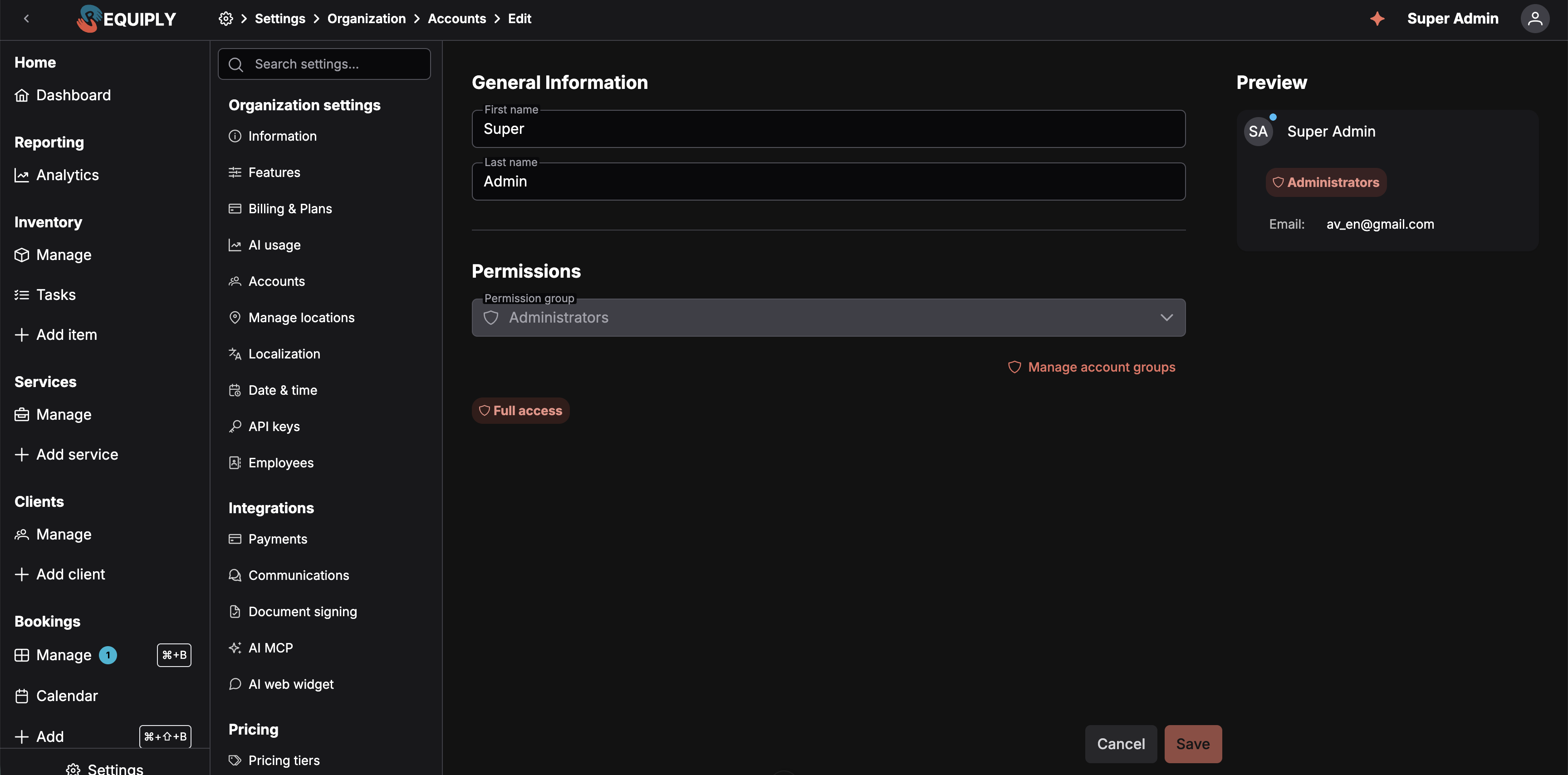
The account form carries no permission toggles of its own. Everything the person can do comes from the group named in Permission group.
The form has two sections, General Information and Permissions, with a live Preview card on the right showing how the account will appear in the Accounts table: avatar, name, group tag, and email.
General Information
First name / Last name
The person's display name, split into two fields. Both appear together in the accounts table and anywhere the person is referenced across Requiply. Editable at any time.
For an account whose invitation is still pending, the two fields are replaced by the note "The name will be set by the user when they accept the invitation." You can still change the group below.
Not shown on this form. The email cannot be changed once an account exists. It appears on the preview card and in the accounts table. To move a person to a different address, delete the account and send a new invitation.
Permissions
Permission group
The single control that decides this person's access. Pick any group in the organization, including Administrators. Underneath the selector, a summary of the selected group's permissions updates as you change it, so you can see what the person will get before saving.
There are no per-account permission toggles. A Manage account groups link sits under the selector: if no existing group is the right fit, follow it to Permission groups, build one, and come back.
| Change | When it's allowed |
|---|---|
| Into Administrators | Anytime. |
| Out of Administrators | Only when more than one administrator exists. If this is the organization's only administrator, the selector is disabled: Requiply requires at least one at all times. |
Deleting an account
Deletion happens from the account row's actions menu on the Accounts page, not from this form. You cannot delete your own account, and the last member of the Administrators group cannot be removed.
Common scenarios
Correcting a misspelled name
Open the account, fix First name or Last name, and save. Nothing about the person's access changes.
Promoting a member to administrator
Change Permission group to Administrators and save. There is no separate role field.
Taking Settings away from one person
Do not look for a toggle on this page. Either move them to a group without Allow access to settings, or create one under Permission groups. Editing their current group would take Settings from everyone else in it too.