

Workflow actions
The action is the last part of a workflow: what Requiply does once the trigger and filters match.
Actions
The Action section decides what the workflow does and who it reaches. There are seven action types, listed in this order in the Action type dropdown:
| Action | What it does | Uses |
|---|---|---|
| Send email to client | Emails the booking's client. | An email template |
| Send email to custom email list | Emails a fixed list of addresses. | An email template |
| Send email to organization accounts | Emails chosen team members. | An email template |
| Send push notification to organization accounts | Sends a push to chosen team members' phones. | The title and text you write |
| Send push notification to account groups | Sends a push to everyone in chosen permission groups. | The title and text you write |
| Send message to client (SMS / Viber / Telegram) | Messages the booking's client through your messaging provider. | A message template |
| Change booking status | Moves the booking to another status. | Nothing else |
Send email (to the client)
Sends the chosen email template to the client on the booking that triggered the workflow. An info note explains the exact behavior: "Sent to the client on the booking that triggered this workflow. Skipped if the trigger isn't booking-related or the booking has no client."
- Email template — required.
Send email to list
Sends the chosen template only to a custom list of email addresses you enter as chips (the booking's client is not included). Use this for notifications to addresses that aren't Requiply accounts — for example a shared inbox. The list cannot be empty when saving.
- Email template — required.
- Custom emails — at least one address, entered as chips.
Send email to organization accounts
Sends the chosen template to one or more of your organization's accounts (your own team members), rather than to the client or to free-typed addresses. You pick the recipients from your account list.
- Email template — required.
- Account recipients — a chip/multi-select picker of organization accounts. At least one account is required; trying to save with none shows the error toast "Select at least one organization account."
- An info note reads: "Sent to the email of each selected organization account."
Use this when the recipients are real Requiply accounts — for example, email the assigned manager when a booking is confirmed. (This is the difference from Send email to list, which goes to arbitrary typed addresses that don't have to be accounts.)
Send push notification to organization accounts
Sends a mobile push notification to selected organization accounts' registered devices. It uses no template: you write the title and text on the workflow itself.
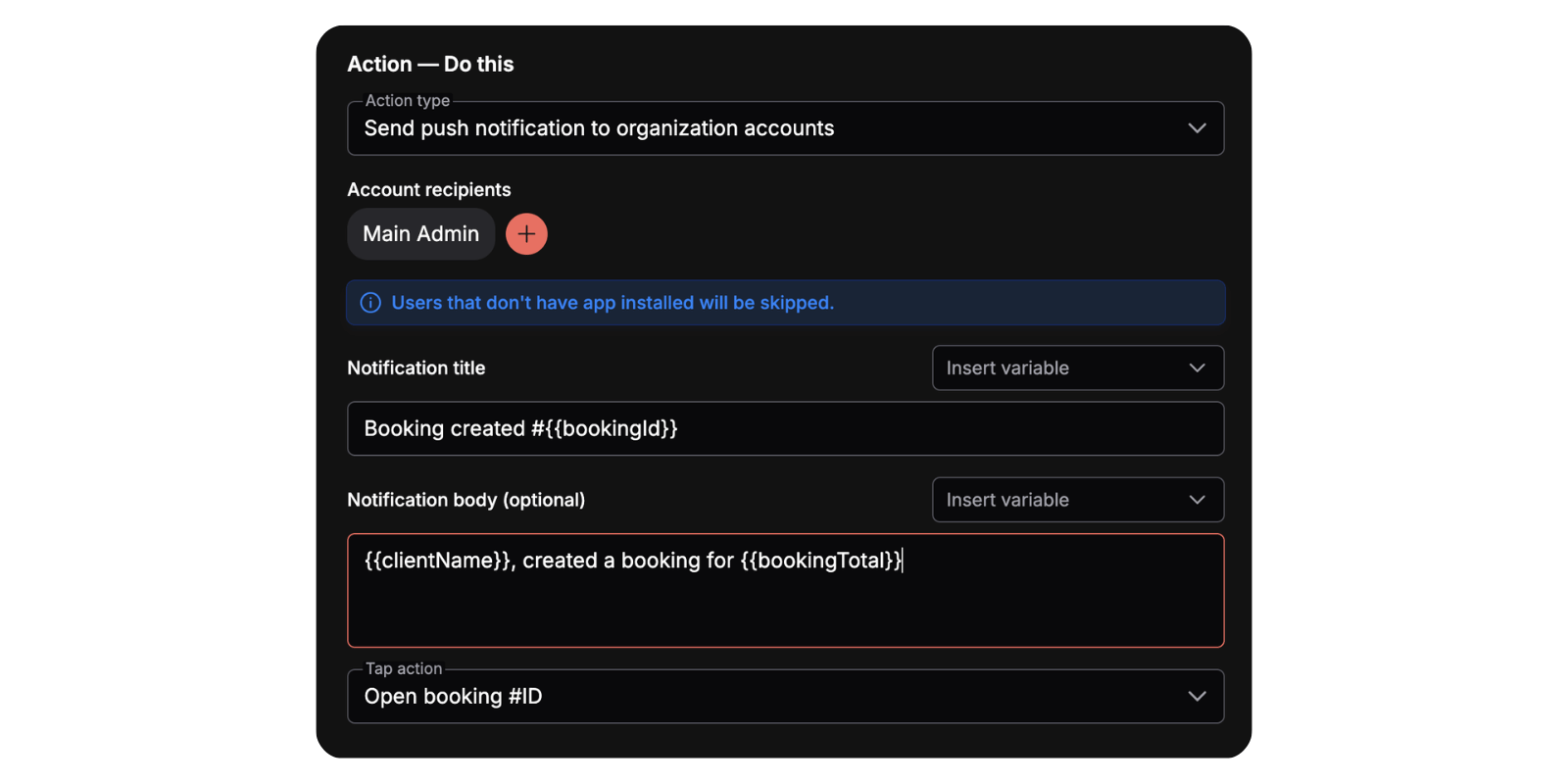
- Account recipients — the same account picker as above; at least one required.
- Notification title — required. You can insert booking template variables into it with the Insert variable picker (for example
#{{bookingId}}). - Notification body — optional free text, also supports template variables (such as
{{clientName}}and{{bookingTotal}}). Left blank, it's saved as empty. - Tap action — where the notification opens when tapped:
- Open booking #ID — the triggering booking (default).
- Open client #ID — the booking's client.
- Open booking list — the bookings list.
- An info note reads: "Users that don't have app installed will be skipped."
There is no email template field for this action.
Send push notification to account groups
Sends the same kind of push notification as the action above, but to account groups instead of named accounts. Use it when a whole team should know, for example everyone in Warehouse, without listing people one by one.
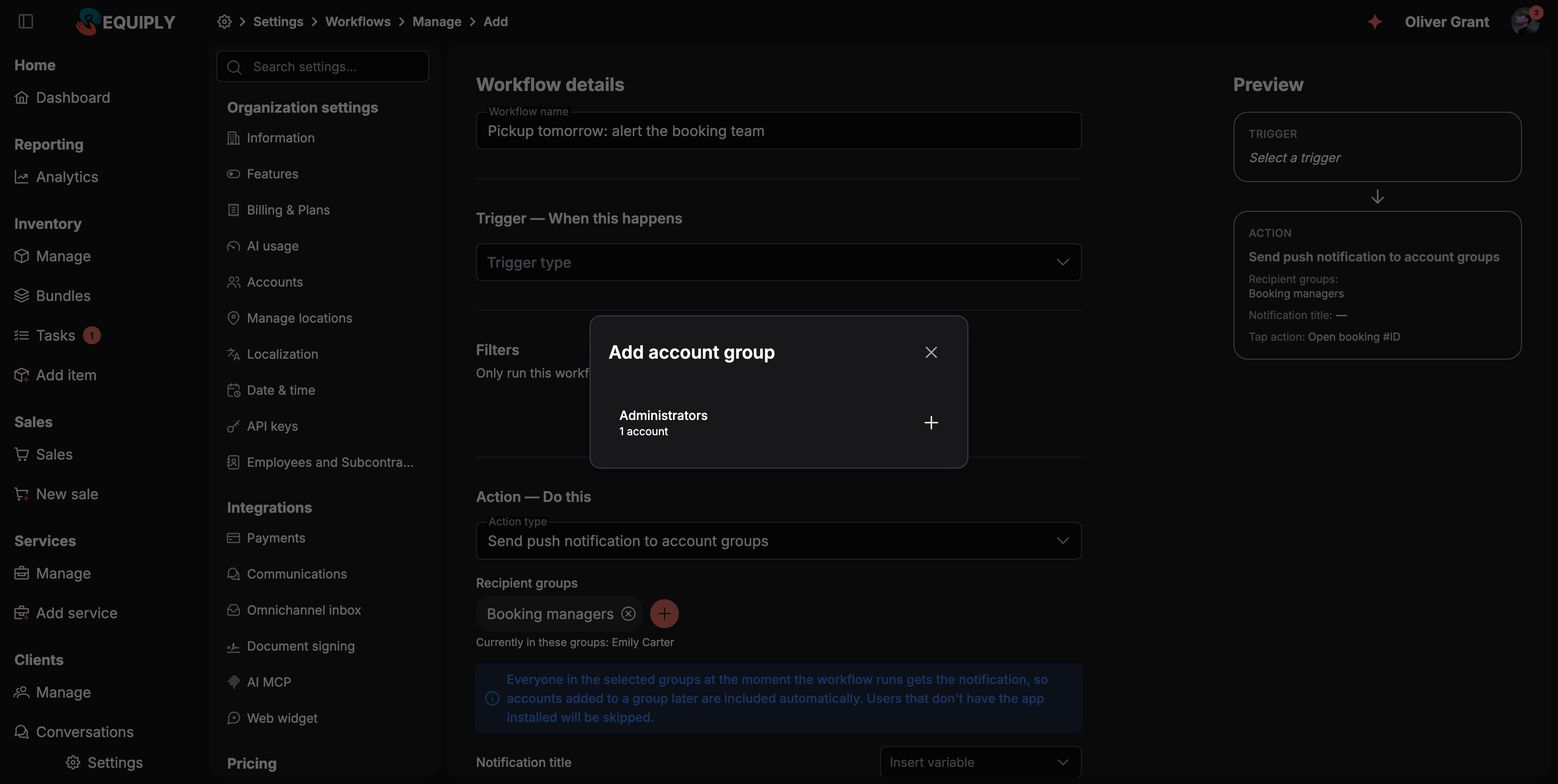
Adding a second group from the Add account group dialog. The line under the chips lists who is in the selected groups right now.
- Recipient groups: required. Click + to open Add account group, which lists each permission group with its number of accounts. Picked groups appear as chips; remove one with its ×. When every group is already picked, the dialog says All account groups are selected.
- Under the chips, Requiply shows who is in those groups now: Currently in these groups: {names}, or The selected groups have no accounts yet.
- Notification title, Notification body (optional), and Tap action work exactly as in Send push notification to organization accounts, booking variables included.
- An info note reads: "Everyone in the selected groups at the moment the workflow runs gets the notification, so accounts added to a group later are included automatically. Users that don't have the app installed will be skipped."
Saving without a group shows the toast Select at least one account group. The Preview column lists the Recipient groups, then the push title, body, and tap action.
Workflow pushes are not combined with other pushes: each run sends its own notification. The text is the one you wrote, the same on every phone whatever its language.
Send message to client (SMS / Viber / Telegram)
Sends a message to the client on the booking that triggered the workflow, over SMS, Viber, or Telegram, through the messaging provider connected on the Communications page. The wording comes from a message template, not from the workflow itself.
Once at least one provider is connected, you'll see:
- Provider — required. A dropdown listing only the providers your organization has actively connected (each with its logo). Other catalog providers are not selectable.
- Channel — required. Scoped to what the chosen provider supports. TurboSMS offers SMS, Viber, and Viber, with SMS fallback; Kyivstar and Twilio offer only SMS; Telegram offers only Telegram. The default is Viber, with SMS fallback when the provider supports it; otherwise it switches to that provider's first supported channel.
- Message template — required. A dropdown of your message templates, each tagged with its format. Only templates compatible with the selected channel are listed: plain Text templates work everywhere, Telegram templates only on the Telegram channel, and Viber templates on the Viber channels. Changing the channel clears a selection that no longer fits.
An info note reads: "Sent to the client via your configured messaging provider. The message content comes from the selected message template."
If no compatible template exists yet, the picker is replaced by a warning — "No message templates match the selected channel yet." — with a Create a template link that opens the message template editor and returns you here afterwards.
Because the action needs a real booking and client, it pairs with the booking-related triggers (Status reached, Payment status reached, Booking created, and Relative time reached — ideal for reminders). It is skipped when the booking has no client, when an SMS/Viber recipient has no phone number, or when a Telegram recipient has never connected to your bot. Every attempt — successful or not — is recorded on the client's Messaging card with the reason for any failure.
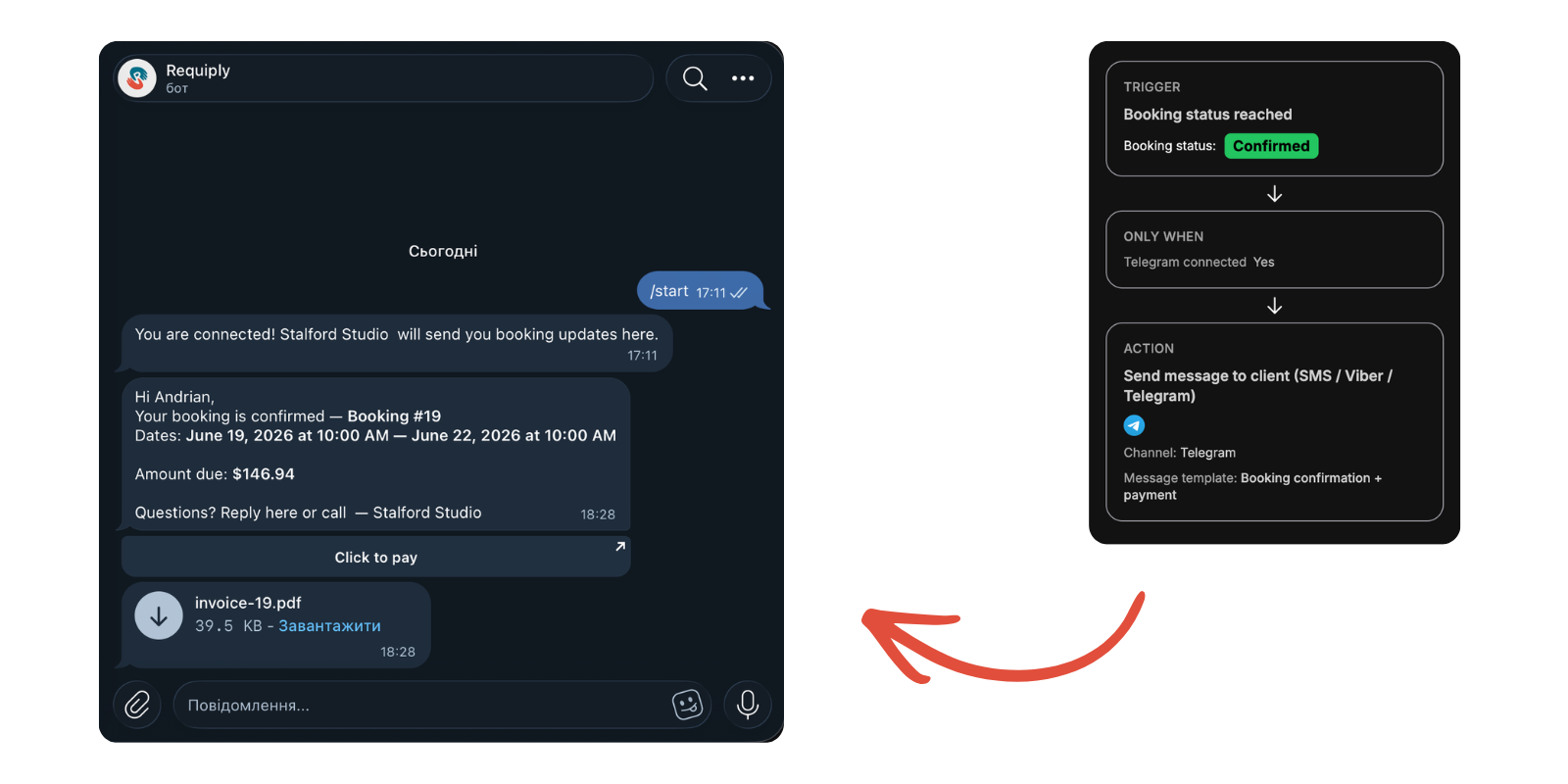
The preview column summarises the rule — trigger, filters, action, template — and the message on the left is what the client actually receives: the rendered template with its link button and the invoice attached.
Change booking status
Moves the booking that triggered the workflow to the status you pick. Use it to automate a step your team would otherwise click by hand, such as confirming a booking once it is paid.
- Change status to: required. A dropdown of your booking statuses, each shown as a colored tag.
- An info note reads: "Sets the booking that triggered this workflow to the selected status. Use the Filters above (e.g. Booking status is New) to control which bookings are changed."
The Preview column shows Change status to: with the status tag.
What happens when the workflow runs:
- The allowed transitions do not apply. The workflow can move a booking to the chosen status from any status, even where your booking statuses allow no such step by hand. Use Filters, for example Booking status is New, so only the right bookings are moved.
- A booking already in that status is left as it is.
- Inventory is checked as for a manual change. When the new status holds inventory again and some of the booking's units were taken by another booking in the meantime, they are swapped for free units of the same item group. When the new status is a pickup status, units are assigned to the booking first. If there are not enough free units, the status is not changed and the workflow does not try again.
- The booking's history records it. The comments timeline gets a system entry with the workflow name and the change, for example Auto-confirm: New -> Confirmed, plus any unit swaps or assignments.
- Other workflows react to the new status. Status reached workflows for the new status run as usual, so a confirmation email still goes out. Other Change booking status workflows are not triggered by it, so one status change cannot set off a chain of others.
Template fields across actions: the three email actions require an email template; the client message action requires a message template; the two push actions and Change booking status use neither. Each dropdown lists every template of its kind in the organization and shows a loading state while they are being fetched. When none exist, the email actions disable the field and offer a Create template button, and the client message action offers its Create a template link. Both remember where you came from so you can return.
Triggers and filters
The four events that start a workflow, and the optional conditions that decide whether it runs for a booking: AND of OR groups, the fields you can filter on, and the operators for each field type.
Recipes
Ready-made workflows for common jobs: confirmation emails, reminders before pickup, messages over SMS, Viber, or Telegram, staff alerts, confirming paid bookings, and targeting with filters.