

Edit booking dates
The Edit dates page moves, extends, or shortens an existing booking without rebuilding it. It is how you prolong a rental that is already out with the customer when they call to keep the equipment longer, and how you bring a return date forward when they finish early. Change the pickup and return dates, see immediately whether the inventory is still available, and let Requiply recalculate the total, deposit, and payment balance for the new period — all before anything is saved.
Before this page existed, changing dates meant cancelling and re-creating the booking, losing its payment history, comments, and links. Now the booking keeps its identity: items, services, subrentals, client, invoices, and comments all stay attached; only the dates (and, optionally, the financials) change.
How to open it
There are three ways in, all leading to /reservation/{id}/edit-dates:
- On the booking detail page, click the pencil next to Start Date or End Date, in the details card or in the pinned card when an admin has pinned the dates.
- From the Actions menu on the booking detail page: Edit dates.
- From the per-row Actions menu on Manage bookings: Edit dates.
After a partial return, the page also opens by itself in return mode, see Changing the return date for units still out.
The page runs the auth and store-refresh middleware, and the underlying API endpoints require organization membership.
What you'll see
The page is split into two columns:
- Left — the form. The same date picker used on Add booking (respecting the picker type configured under Booking creation), pre-filled with the booking's current dates. Range selection works as described in Selecting the dates on the calendar. Unlike booking creation, past dates are allowed — you can correct historic records. Members whose group has Allow booking outside of working hours can also pick closed days and times outside the working schedule, shown in orange (see Times outside working hours). Below the picker sit up to two toggles (described next) and a live status area with the availability result.
- Right — the updated booking preview. A card showing the new pickup and return date and time, the client, every booked item and service (including active subrentals), the current total, the deposit, and the new total side by side.
Changing the return date for units still out
When a return checklist was confirmed with units still with the client, the booking is partly returned: some units are back, others are not. Edit dates then works in return mode, which sets when the remaining units are expected back. It opens:
- automatically, right after you confirm the partial return,
- from Change dates in the notice on the booking detail page,
- from any of the usual entry points, as long as the booking is partly returned.
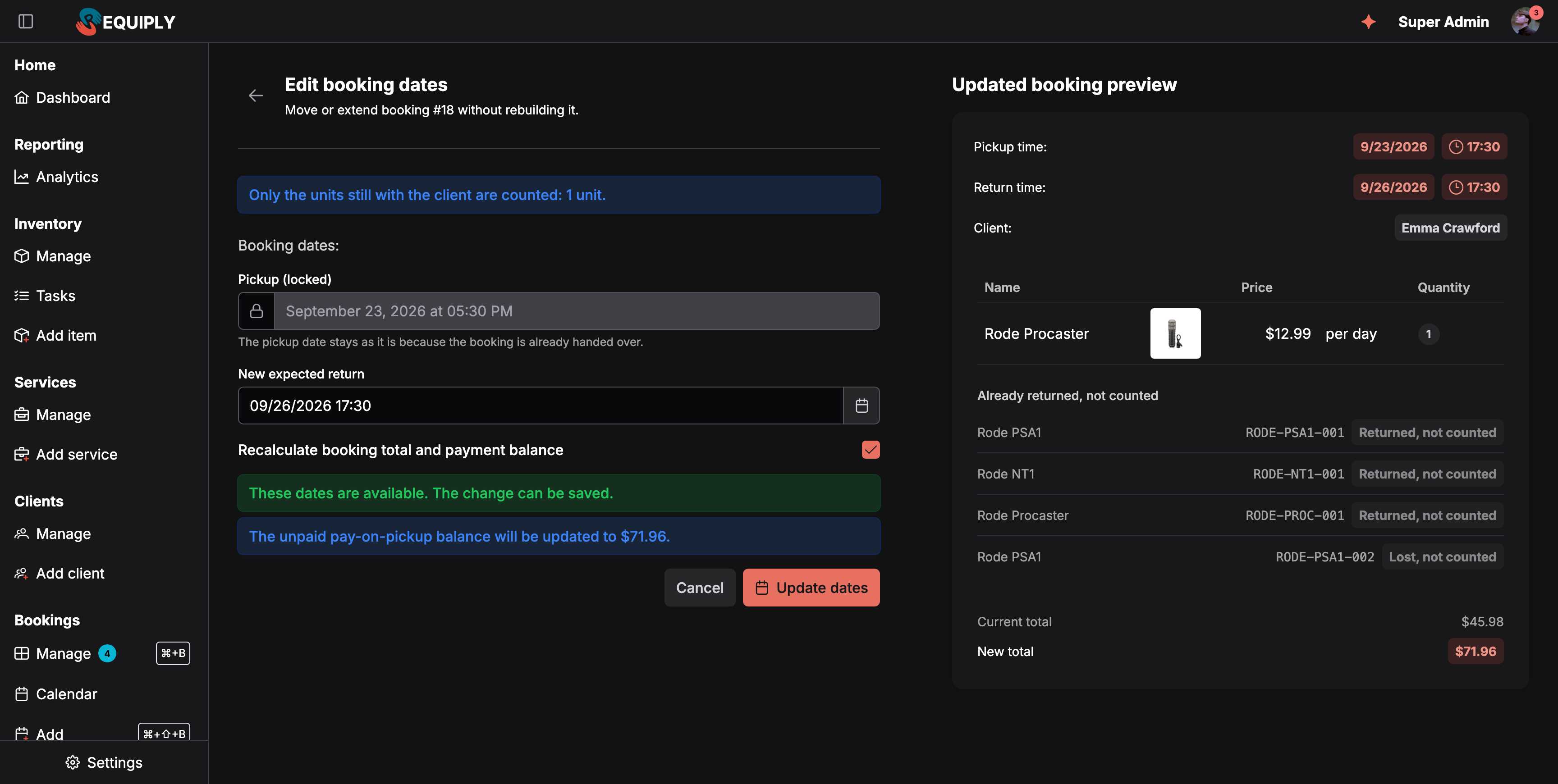
Return mode: the pickup is locked, and only the unit still with the client is priced for the extra days.
In return mode:
- The banner reads Only the units still with the client are counted: 1 unit.
- Pickup (locked) cannot change: The pickup date stays as it is because the booking is already handed over.
- New expected return takes a date and time in the future. If the planned return has already passed, the field starts empty.
- The preview lists the counted units first, then Already returned, not counted with a tag per unit: Returned, not counted, Damaged, not counted, or Lost, not counted.
- Price: only the units still out are charged for the change. The new total is the current total plus the price difference of those units between the old and the new return date. Services and the deposit do not change.
- Units the client still has cannot be swapped for other units. If one of them is booked by someone else in the new period, the change is blocked with Not enough inventory is available for the selected dates.
Click Update dates to save. The units keep holding availability until the new expected return, and until they are actually returned after that.
Options
Match subrental dates to the new booking dates
Shown only when the booking has active (non-cancelled) subrentals. Off by default: subrental dates are agreements with suppliers, so they are not silently moved. Leave it off and the page warns that linked subrental dates must be changed separately; turn it on and the subrental dates are set to the new booking dates when you save.
Recalculate total and payment balance
Controls whether the change is purely calendrical or also financial:
- On (default, completed bookings included): the booking total is recalculated for the new rental period, the deposit follows your deposit policy, and the payment balance is adjusted (see below). Extending a booking after it ended therefore charges the extra days.
- Off: only the dates move. Totals, deposit, and payment history stay exactly as they are. Turn it off when you fix a record after the fact and the client was charged correctly.
The live availability check
Every time you change the dates or a toggle, the page re-checks with the server (after a short pause) and shows one of:
- "These dates are available." — the change can be saved.
- A conflict list — not enough inventory for the new period, itemized per item group with the missing quantity (e.g. "Projector: 2 more unit(s) needed").
- A reassignment notice — the dates work, but only by automatically swapping some booked physical units for other free units of the same item group. The swap happens on save; the booking's item groups and prices are unchanged.
- Another booking switches units: Booking #N will switch from unit A to B so this booking keeps the unit the client already has. This appears when you prolong a booking whose units are already with the client and the next booking of the same unit has not been handed out yet. On save that next booking gets the free unit B, and both bookings get a comment explaining the swap. If the next booking's pickup checklist already includes the unit, nothing is switched and the change is blocked as a conflict instead.
- Warnings — informational, they don't block saving:
- In progress — the booking has already started; change the end date for prolongation, or move it entirely if it was created by mistake.
- Completed — the booking is historic; changes will influence historic data (and reports).
- Subrentals — reflects the state of the match-subrentals toggle.
- Deposit preserved — a payment has already settled, so the deposit stays at the collected amount even though the deposit policy would suggest a different amount for the new dates.
The check also validates the new pickup and return times against the organization's working hours from Date & time settings, the same way booking creation does, unless the member's group has Allow booking outside of working hours.
Availability follows the same rules as Add booking: other bookings count with the start and end buffers from Booking duration, and the check counts booked quantities per item group as well as the specific units. Bookings whose units are assigned only at pickup are therefore checked too. The new dates must also be at least the Minimum booking duration from the same settings page. The preview and the save run exactly the same check, so a change the page shows as available is not refused on save unless someone else took the inventory in between.
Times outside working hours
By default the picker only offers the working hours from Date & time settings, and the server rejects anything else. Members whose permission group has Allow booking outside of working hours get the same picker as on Add booking:
- Closed days can be picked.
- Time pills cover the whole day, 00:00 to 23:59. Pills outside the working schedule are light orange with the tooltip Outside of working hours, and a selected one is solid orange instead of green.
- The pickup time is preselected at the opening time and the return time at the closing time.
When the new pickup or return is outside working hours, Update dates first opens an Outside of working hours dialog: Are you sure you want to move this booking so that pickup or return is outside of working hours? Click Save dates to apply the change, or Cancel to go back to the form.
Holidays and closed days
Dates listed under Holidays and closed days are greyed out in the picker, the same as a weekday switched off in the working schedule. Hovering one shows its name, for example Christmas Day. Members allowed to book outside working hours can still pick them.
- The new pickup and the new return cannot fall on a holiday. The rental itself can run through one: prolonging a booking from December 23 to December 28 is fine with December 25 closed.
- In return mode, a holiday cannot be the New expected return either. Pick the next working day.
- The server checks this too, also for date changes made through the API, and names the holiday in its refusal: Booking end falls on a non-working day "Christmas Day" (friday 2026-12-25, timezone Europe/Kyiv). Nearest working day for the return: monday 2026-12-28, 10:00-18:00.
- Members whose group has Allow booking outside of working hours can pick a holiday. Its time pills are orange, and Update dates asks for confirmation first, as described in Times outside working hours.
A holiday added after a booking was made does not move that booking. If an existing pickup or return lands on a new holiday, open the booking here and move it to a working day.
How the financials are recalculated
When Recalculate total and payment balance is on:
- Total. Requiply works out what the items and services cost for the old period and for the new period, and moves the booking's stored total by exactly that difference (never below zero). The client's discount and any booking cost adjustment are part of both calculations, so a percentage discount stays a percentage of the new total. A difference that was typed into the total by hand, such as an agreed price or a delivery fee, stays the same amount. Example: a camera at 100 per day, booked for 2 days (200 by the price list) at an agreed 150. Extending it to 4 days gives 400 minus 50, so 350. Changing items or services on a booking follows the same rule.
- Subrentals. Subrented equipment follows the new dates only when Match subrental dates is on. Otherwise its share of the total stays as it was, because the supplier period does not change.
- Days on the local clock. Days are counted on your organization's local time from Date & time settings, so a Saturday 10:00 to Monday 10:00 booking is always 2 days, also over a daylight-saving change.
- Booking cost adjustment. A booking cost adjustment saved on the booking is kept and applied when the new total is calculated.
- Bundles. Bundles on the booking are kept, and their discount is applied again to the items priced for the new dates. A bundle's free sets are checked like any other item.
- Deposit. While no payment has been completed, the deposit moves the same way: by the difference between what the deposit policy asks for the old and for the new period. Once any payment has settled, the deposit is frozen at the amount already collected; the page then shows the deposit preserved warning with the amount the policy would have suggested.
- Payment balance. Based on what has been paid and what is still pending, the page tells you exactly what will happen to payments before you save:
| Situation | What happens on save |
|---|---|
| Nothing paid, no pending payment | A pay-on-pickup balance for the new amount is created. |
| Pending pay-on-pickup balance | The unpaid balance is replaced with the new amount. |
| Partially paid, remainder due on pickup | An additional pay-on-pickup balance for the difference is created. |
| Pending online payment link | The old link is cancelled and replaced with a new link for the outstanding amount (for Stripe, the old Checkout Session is expired). |
| Fully paid online, new total is higher | A new payment link for the additional amount is created. |
| New total is lower than what has been paid | The change is blocked. Refund the difference first (via Full refund / Refund deposit in the booking's Actions menu), then change the dates. |
When the toggle is off, none of this happens — the payment records are untouched.
Saving
Update dates is enabled only while the latest check says the change can be made. If the new pickup or return is outside working hours, the confirmation dialog from Times outside working hours opens first. On save, everything is applied atomically: the dates, the recalculated total and deposit, any physical-unit reassignments, matched subrental dates, and the payment adjustment. An automatic comment is posted to the booking's comments recording the old and new dates, so the change is visible in the booking's history. On success you're returned to the booking detail page.
If someone else modified the booking while you were editing (dates, totals, or availability), the save is rejected with a "reservation changed while you were editing" message instead of silently overwriting — reload the page and try again.
Who can use it
Anyone with Allow booking management through their permission group, the same permission that covers Edit booking items and Edit booking services. Without it the change is refused with Your permission group does not allow managing bookings.
When the change is blocked
Dates stay editable on active and completed bookings. A booking in a status with the Cancelled lifecycle cannot be changed at all: Edit dates disappears from its Actions menu, and a save attempted while it was being cancelled fails with This booking is cancelled and can no longer be changed.
- The return date is not after the pickup date.
- The dates are identical to the current ones.
- The pickup or return time falls outside the organization's working hours, and the member's group does not have Allow booking outside of working hours.
- Not enough inventory is available, even after automatic reassignment.
- A pending online payment link needs to be replaced but the recalculation toggle is off, or the payment provider adjustment cannot be prepared.
- The new total is lower than what has already been paid (refund required first).
- The booking changed concurrently while you were editing.
- The new dates are shorter than the Minimum booking duration from Booking duration: The new dates are shorter than the minimum booking length.
- The items are already with the client and the new pickup is later than now: The items are already with the client, so the pickup cannot move later than now. The return date can still change. Moving the pickup earlier, or changing only the return, still works.
- In return mode: Some units are already returned, so the pickup date cannot change. Only the return date can be moved.
- In return mode: The new return date must be in the future.
How this page connects to the rest of Requiply
| Feature | Relationship |
|---|---|
| Booking detail | Entry point (Dates card pencil, Actions menu) and the destination after saving. |
| Manage bookings | Entry point via the per-row Actions menu. New dates appear in the table immediately. |
| Calendar | The booking bar moves to the new dates. |
| Subrentals | Optionally matched to the new dates; otherwise a warning reminds you to adjust them separately. |
| Deposits | The deposit policy drives recalculation until a payment settles, after which the deposit is frozen. |
| Payments | Pending online payment links are replaced; increases produce a new link for the difference. |
| Date & time settings | Working hours validate the new pickup and return times, unless the member's group has Allow booking outside of working hours. |
| Permission groups | Allow booking outside of working hours lets a member pick closed days and times outside the working schedule, after confirming. |
| Booking cost adjustment | An adjustment saved on the booking is kept and applied to the new total. |
| Pickup and return checklists | A partial return opens this page in return mode for the units still with the client. |
| Comments | Every date change leaves an automatic comment on the booking. |
| Reports | Changing dates on completed bookings shifts historic revenue and utilization data. |
Common scenarios
A client calls to prolong an ongoing rental
Open the booking → Actions → Edit dates, move the return date later. The page confirms availability (reassigning units if needed), shows the increased total, and creates a balance or payment link for the difference. The in progress warning is expected — you're changing the end date, which is exactly the prolongation case.
If the next booking was made for the very unit the client has, and another unit of that item group is free, the page tells you that the next booking will switch to the free unit. Save, and prepare the other unit for that next pickup.
Moving an upcoming booking to next week
Change both dates. With nothing paid yet, the pending balance or payment link is simply replaced with the recalculated amount. If some units are already booked by others next week, the automatic reassignment keeps the booking intact as long as the item groups have free units.
Fixing a data-entry mistake on a completed booking
Past dates are allowed (except in return mode). Recalculate total and payment balance is on by default, so switch it off if the client was charged the right amount and only the dates were wrong. Heed the completed warning: reports read from these dates.
The client keeps one unit two more days
Confirm the return checklist with that unit unticked and Still with the client selected. The page opens in return mode: set New expected return two days later and click Update dates. Only that unit is charged for the extra days.
A client wants to return on a public holiday
The return day is greyed out with the holiday name. Agree on the next working day and pick that. If your team will be there anyway and your group has Allow booking outside of working hours, pick the holiday, choose an orange time pill, and confirm the Outside of working hours dialog.
A client wants to return after closing time
If your group has Allow booking outside of working hours, pick the later return pill (it is orange), click Update dates, and confirm with Save dates. Without the permission the picker stops at the closing time, so ask a colleague whose group has it.
Tips and cautions
Client and details
Pick or create the client for a new booking, complete a client who is missing required details, and fill in the booking fields your organization asks for at creation.
Edit booking items
Add, remove, or requantify the products on an existing booking without cancelling and rebuilding it.