

Conversations and comments
On the phone you answer clients in the conversations inbox and talk to your team in comments, with a long-press menu on every message like in a messenger. Hold a message to copy it, reply to it, or edit and delete your own reply where the channel allows it.
The conversations inbox
The Conversations tab is the same inbox as on the web: Telegram, Instagram, OLX, the website widget and the booking page in one list. It is offered when the conversations inbox is on and your permission group allows conversations. Switch it on under More if it is not in your tab bar. The badge on the tab counts conversations waiting for an answer.
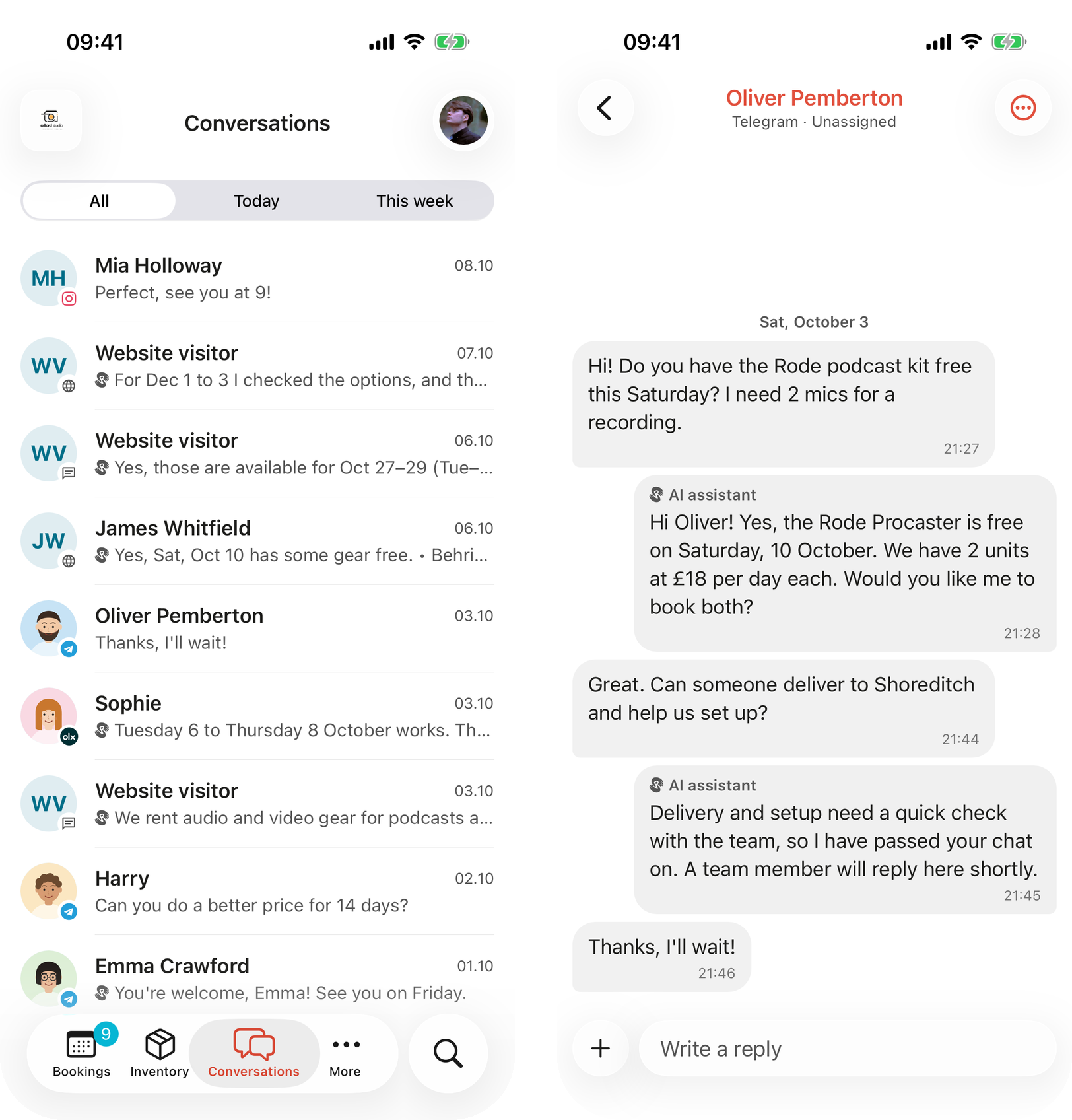
The inbox and a Telegram conversation where the AI answered first and handed the chat to the team.
- All, Today and This week narrow the list. Pull down to refresh.
- In a conversation, type in Write a reply and send. The attach button adds a File, a Camera photo or a photo from the Gallery.
- While the AI assistant handles a conversation, the thread says The AI assistant is answering. Your reply takes the conversation over.
- If a teammate is already handling it, sending asks Another team member is replying with Send and take over.
What each channel allows, and how the AI assistant hands conversations over, is in Conversations inbox and AI assistant and handoff.
The conversation actions
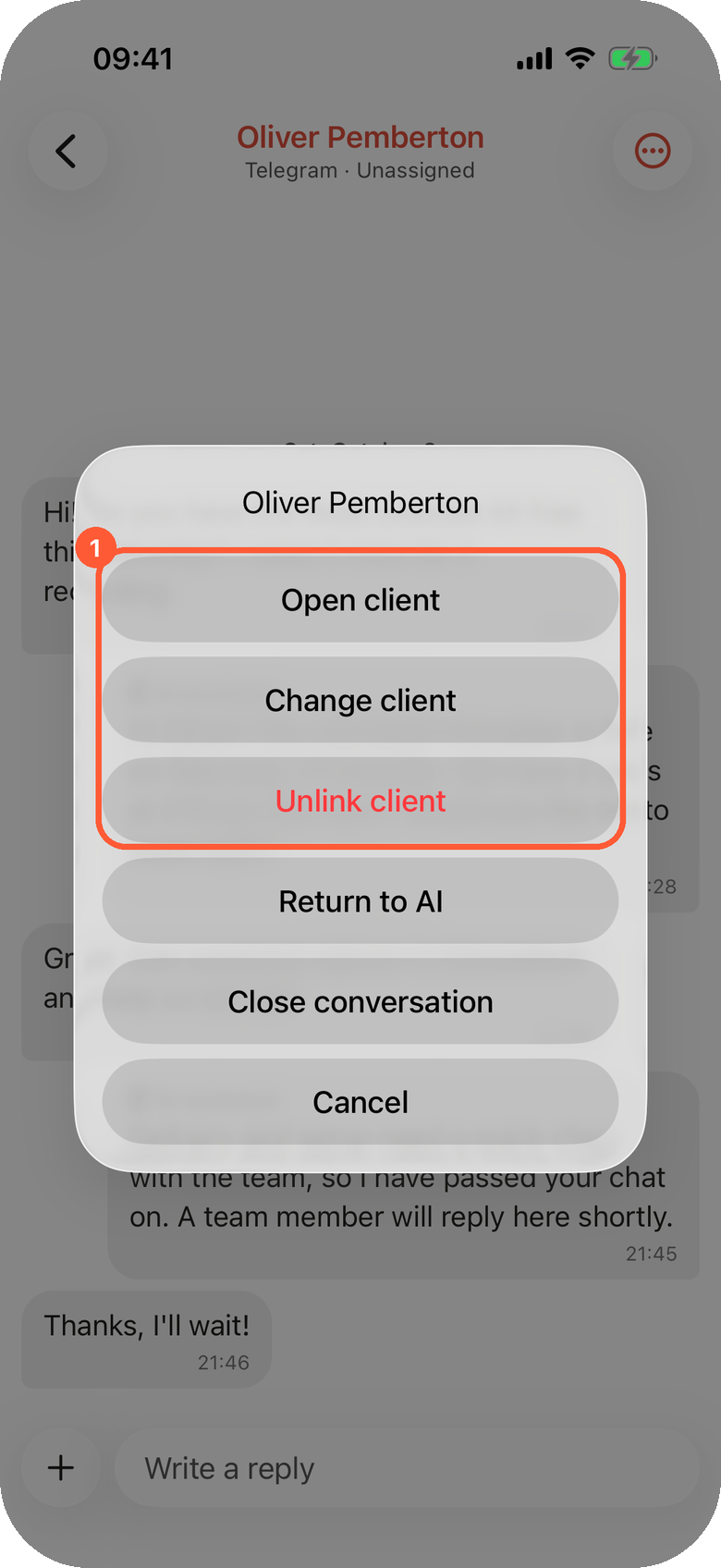
1 Open, change or unlink the client this conversation belongs to.
Tap ⋯ in the top right corner of a conversation:
| Action | What it does |
|---|---|
| Open client | Opens the linked client's page. |
| Link client | Search your clients and pick the one this conversation belongs to. |
| Change client | Links a different client. |
| Unlink client | Asks Unlink the client?: Booking updates will stop going to this chat. |
| Take over | Takes the conversation from the AI assistant or from nobody. |
| Return to AI | Hands the conversation back to the AI assistant. |
| Close conversation / Reopen conversation | Closes a finished conversation, or opens it again. |
When the client's phone or name matches one of your clients, a banner says This looks like {name} with Link. Linking matters: booking updates for that client then go to this chat, and the client page lists the conversation.
The long-press menu
Hold a message for a moment. The phone gives a short vibration, the message lifts above a blurred background, and a menu opens next to it.
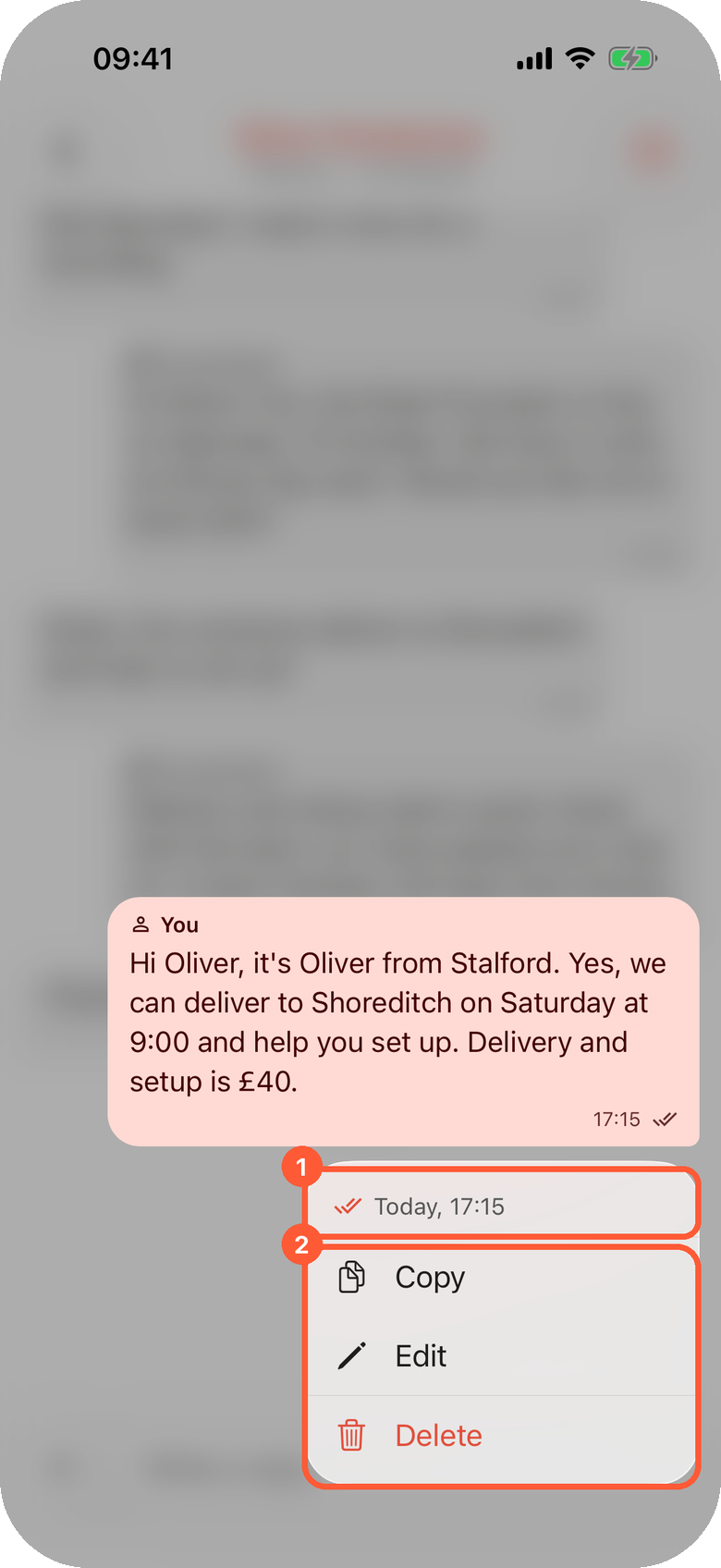
1 When the message was sent and whether it was read. 2 The actions this message allows.
The menu header shows the day and time the message was sent, edited if it was changed, and for your team's replies how far it got: sending, sent, delivered, read (blue ticks) or not delivered (red).
| Action | In conversations | In comments |
|---|---|---|
| Copy | Any message with text | Any comment with text |
| Reply | Other people's comments and your own | |
| Edit | Your team's own replies, where the channel allows | |
| Delete | Your team's own replies, where the channel allows |
Editing and deleting your replies
Whether a reply can be changed depends on the channel, because the change has to reach the client's app too:
| Channel | Edit | Delete |
|---|---|---|
| Telegram | Text replies without files, at any time | Within 48 hours of sending |
| Website widget and booking page | At any time | At any time |
| Instagram, OLX | No | No |
A reply that was never delivered can be deleted at any time on channels that allow deleting. The menu only offers what is possible, so Edit or Delete is simply missing when the channel does not allow it.
Edit puts the text back in the composer with an Editing banner, like in a messenger. Change it and tap the check to save, or Cancel editing. The message then shows edited in the thread.
Delete asks Delete this message?: The client will no longer see it. The thread keeps a note that it was deleted. The thread shows You deleted this message in its place.
If the channel refuses the change, the app says The channel refused the change.
Comments
Bookings, tasks and units have internal comments for the team. On the booking page, the Comments section shows the latest ones; See all opens the full thread. During a checklist, Unit comments opens the comments of one unit.
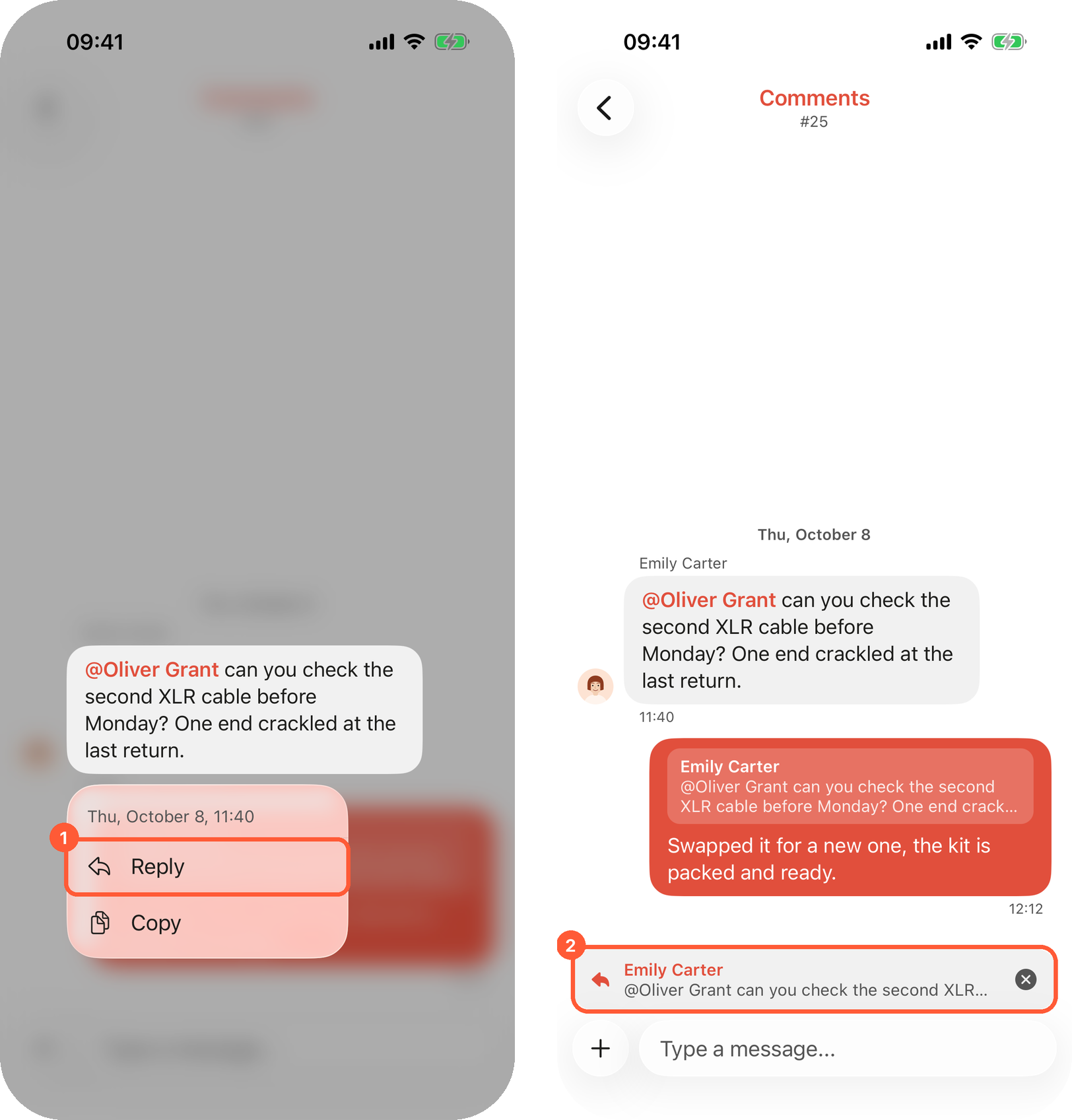
1 Hold a comment and tap Reply. 2 The quoted comment above the composer; tap the cross to cancel.
- Write in Add a comment… and tap Send. Attach adds files or photos.
- Type @ to mention a teammate; they get a push notification.
- Hold a comment and choose Reply or Copy. The reply banner has Cancel reply. Tap the quote in a posted reply to jump to the original.
How mentions and replies notify people is in Comments.
Viewing photos
Tap a photo in a comment to open it full screen:
- Swipe left or right to move between the photos of the same comment.
- Pinch or double-tap to zoom in.
- Swipe up or down to close.
- Tap once to hide or show the buttons.
- Share opens the phone's share sheet, so you can save the photo or send it on.
The Assistant tab
The Assistant tab is Requiply Assistant on the phone: ask about bookings, debts, availability or how a feature works. Switch it on under More. Screenshots in its answers open in the same photo viewer. See Requiply Assistant.
Push notifications
New conversations, conversations handed to the team and new messages arrive as push notifications, if you switched them on under Account → Notifications on the web. Mentions and replies in comments always send a push. Tapping a push opens the conversation or the comment. See Notifications.
Common scenarios
Fixing a typo in a Telegram reply
Hold your reply, tap Edit, correct the text in the composer and tap the check. The client sees the corrected text in Telegram.
A message went to the wrong client
Hold it and tap Delete within 48 hours on Telegram. The client no longer sees it; the thread keeps You deleted this message.
Copying an address from a client's message
Hold the message and tap Copy, then paste the address into the maps app.
Showing a teammate the damage on a returned item
Open the booking's comments, attach a photo with the camera, and type @ with your teammate's name. They get a push and open the photo full screen.
Tips and cautions
Slow internet and no connection
How the Requiply mobile app keeps working on a weak signal, EDGE or a congested network during a power outage, and with no connection at all: the avatar badge, the Keep data on this phone switch, and what needs a connection.
Overview
The map of everything you can configure in Requiply: organization details, team access, integrations, pricing, booking rules, fields, and automations.