

Add or edit location
This page is where you create a new organization location or update an existing one. Use it to manage the location's name, address, Google Maps link, and pickup setting.
You reach it from Settings → Organization → Locations by clicking Add location or the edit icon on an existing location card.
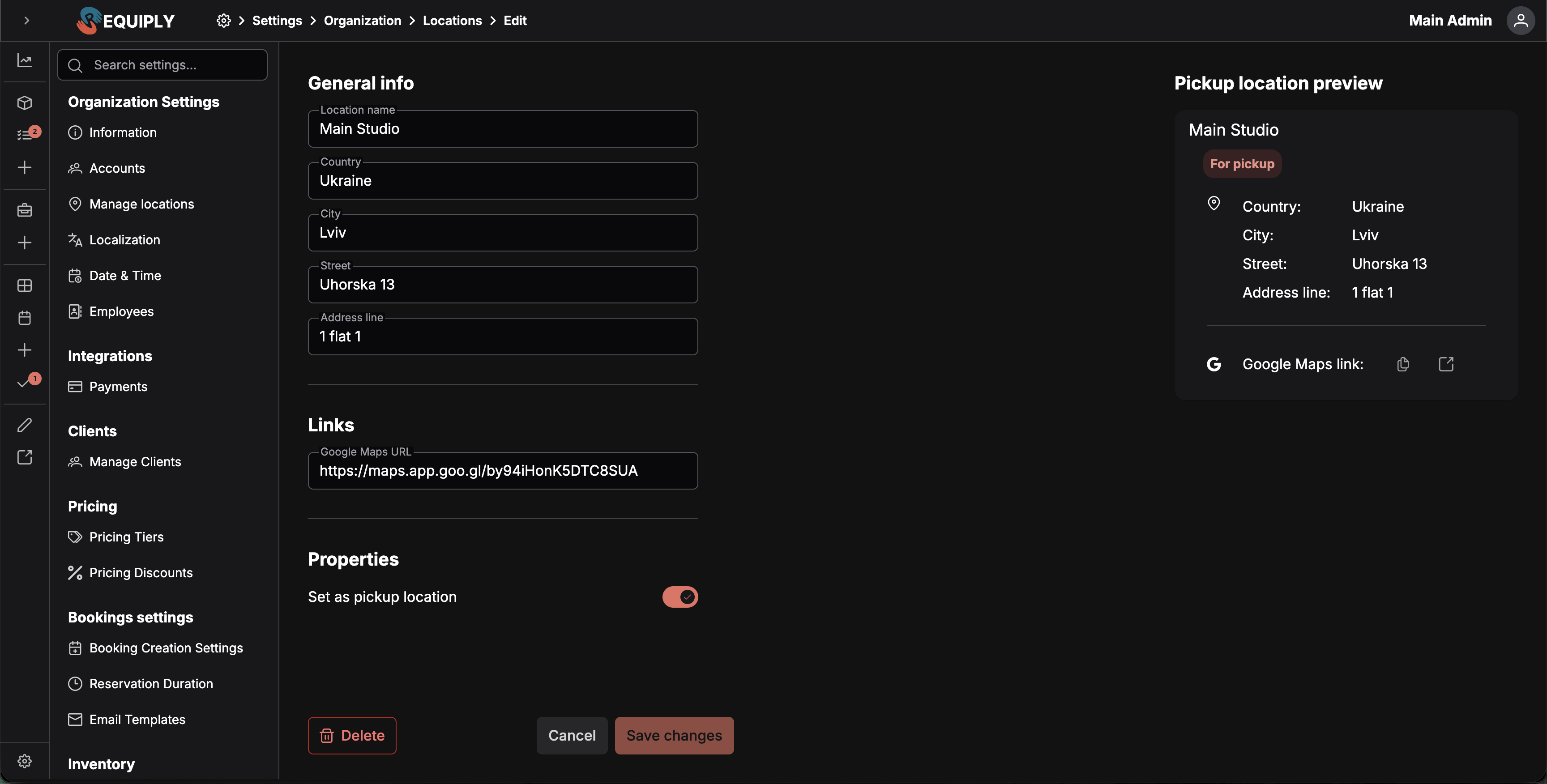
The form is split into the editable fields on the left and a live Preview card on the right. The preview updates as you type so you can check how the location will appear on the Locations page before saving.
Add vs. edit
The same page is used for adding and editing locations.
| Mode | What happens |
|---|---|
| Add location | Creates a new reusable organization location. |
| Edit location | Updates the selected location's saved details and shows the Delete action. |
When the page is loading or saving, the form is blocked so the location cannot be submitted twice or changed mid-save.
General Info
Name
The display name for the location. This defaults to the organization name when creating a new location, but you can change it to something more specific, such as Main Studio, Downtown Office, or Warehouse Pickup.
- Required
- Appears on the location card and anywhere the location is selected
Country
The country where the location is based.
- Required
- Shown on the location card
City
The city where the location is based.
- Required
- Shown on the location card
Street
The street address for the location, such as the street name and building number.
- Optional
- Shown on the location card when filled in
Address Line
Extra address information such as apartment, floor, suite, unit, entrance, or delivery instructions.
- Optional
- Shown on the location card when filled in
Links
Google Maps URL
An optional link to the location in Google Maps. Use the full Google Maps share URL so staff and customers can open directions to the exact place.
- Optional
- Must be a valid URL when filled in
- Adds copy and open-link actions to the location card
Properties
Pickup Location
Turn this on when the location should be treated as a pickup point.
Use it for places where customers can collect items, such as a storefront, warehouse, front desk, or dedicated pickup address. Leave it off when the location is only an internal branch, service area, office, or non-pickup operating address.
Validation
The form validates before saving:
- Name is required.
- Country is required.
- City is required.
- Google Maps URL must be a valid URL when provided.
Validation errors appear under the affected field so you can fix them before saving.
Pickup location preview
The right side of the page shows a live Pickup location preview card. It mirrors the card shown on the Locations page, including:
- Location name.
- Pickup badge when Pickup Location is enabled.
- Country, city, street, and address line.
- Google Maps link actions when a URL is present.
Use the preview to check spelling, address formatting, and whether the pickup badge is correct before saving.
Saving changes
Click Save or Save changes to store the location.
On success:
- A success toast appears.
- The location is added or updated.
- If you arrived from another setup flow, Requiply returns you to that flow.
- Otherwise, you return to Settings → Organization → Locations.
If saving fails, an error toast appears and the form stays open so you can try again.
Deleting a location
When editing an existing location, the page includes a Delete action at the bottom of the form.
Use delete only when the location should no longer be available in your organization. If a location is referenced by active bookings, pickup flows, invoices, or other records, review those workflows before removing it.
Cancelling
Click Cancel to leave without saving. Requiply returns you to Settings → Organization → Locations.
Common scenarios
Create a normal branch
- Enter a clear location name.
- Fill in the country and city.
- Add street and address line details if needed.
- Leave Pickup Location off unless customers can collect items there.
- Save the location.
Create a pickup location
- Enter the pickup point's name and address.
- Add a Google Maps URL if you want directions available from the card.
- Turn on Pickup Location.
- Save the location.
Add directions to an existing location
- Open the location with the edit icon.
- Paste the Google Maps share link into Google Maps URL.
- Confirm the preview shows the link actions.
- Save changes.
Overview
The addresses you operate from, such as branches, warehouses, shops, pickup points, and service areas, used on bookings, invoices, and customer directions.
Localization
Choose the default language for your workspace, invoices, documents, and client portal. Currency is chosen once during setup and is not edited here.