

Conversations inbox
Conversations is one inbox for every chat your clients start with you. Messages from your Telegram bot, from your OLX listings, from Instagram Direct, from the chat bubble on your website and from the chat in your client portal all land in the same list, so your team answers them from one place instead of five apps.
Open it from Clients → Conversations in the main menu, at https://app.requiply.com/conversations, or from the Conversations tab in the mobile app.
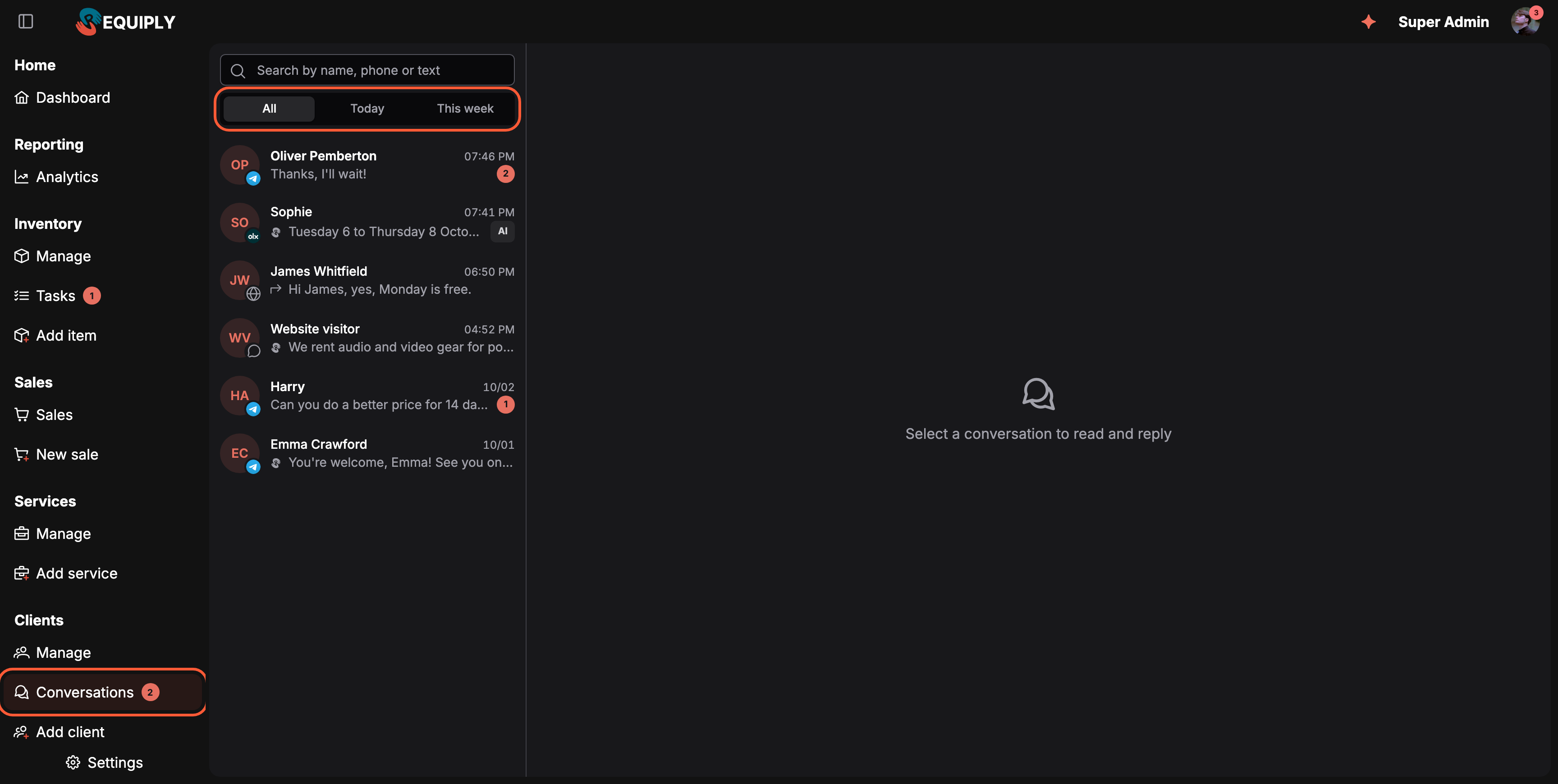
The inbox: every channel in one list, newest first. The small badge on each avatar shows where the conversation came from.
Why the inbox matters
Rental clients ask the same questions wherever they find you: is the camera free on Saturday, how much is the deposit, can you deliver. Without the inbox those questions sit in a Telegram account on one phone, in the OLX app on another, and in a website chat nobody watches at night.
- Nothing gets missed. Every channel feeds one list with unread counts and a badge in the menu, on the web and on the phone.
- The AI assistant answers first, the team takes over. On the Advanced plan the AI assistant answers with your real catalog, prices and availability, and hands the conversation to your team when the client asks for a person or the question needs one.
- Every chat is tied to a client. Conversations link to client records, so the client page shows every chat next to their bookings, and booking updates can reach them in the messenger they already use.
- The whole team works the same inbox. One member handles a conversation at a time, and Requiply warns anyone else before they reply over a colleague.
Before you start
| Requirement | Why it matters |
|---|---|
| Enable conversations inbox switched on under Organization features | Without it the menu item, the mobile tab and the settings page are hidden. |
| Allow access to conversations in the member's permission group | Members without it do not see Conversations. Administrators have it by default. |
| At least one channel | The website and portal chats work out of the box. Telegram, OLX and Instagram are connected under Omnichannel inbox settings. |
| Advanced plan, only for the AI assistant | The inbox, every channel and answering by hand work on every plan. Letting the AI assistant answer first is part of Advanced. |
Where conversations come from
| Channel | Badge on the avatar | How clients reach you |
|---|---|---|
| Telegram | Telegram logo | They write to your own Telegram bot, the one set up under Communications. |
| OLX | OLX logo | Buyers write to you about one of your OLX listings. See OLX. |
| Instagram logo | They send a Direct message to your Instagram Business or Creator account, reply to your story, or write from one of your ads. Beta on request, see Instagram. | |
| Website widget | Chat bubble | They use the chat bubble from the AI web widget on your own website. |
| Booking page | Globe | They use the chat in your client portal. |
One person on one channel has one conversation (on OLX, one per listing they ask about). When they write again days later, the same conversation reopens, so the whole history stays in one thread. Each separate request inside it is marked in the thread with a divider when it ends, for example Closed by Lidia Mayne or answered by the AI assistant.
The conversation list
- Search by name, phone number or message text.
- All, Today and This week narrow the list by the time of the last message, counted in your organization's time zone. This week starts on Monday. Open and closed conversations are listed together, newest first, 20 at a time with Load more at the bottom.
- A red number shows unread client messages. An AI tag means the AI assistant is answering that conversation right now.
- The preview shows the last message. A small assistant icon marks a reply from the AI assistant, and an arrow marks a reply from your team.
- The Conversations menu item and the mobile tab carry a badge with the number of conversations waiting for your team.
Reading and replying
Click a conversation to open it. The thread sits in the middle, and a panel on the right shows who you are talking to.
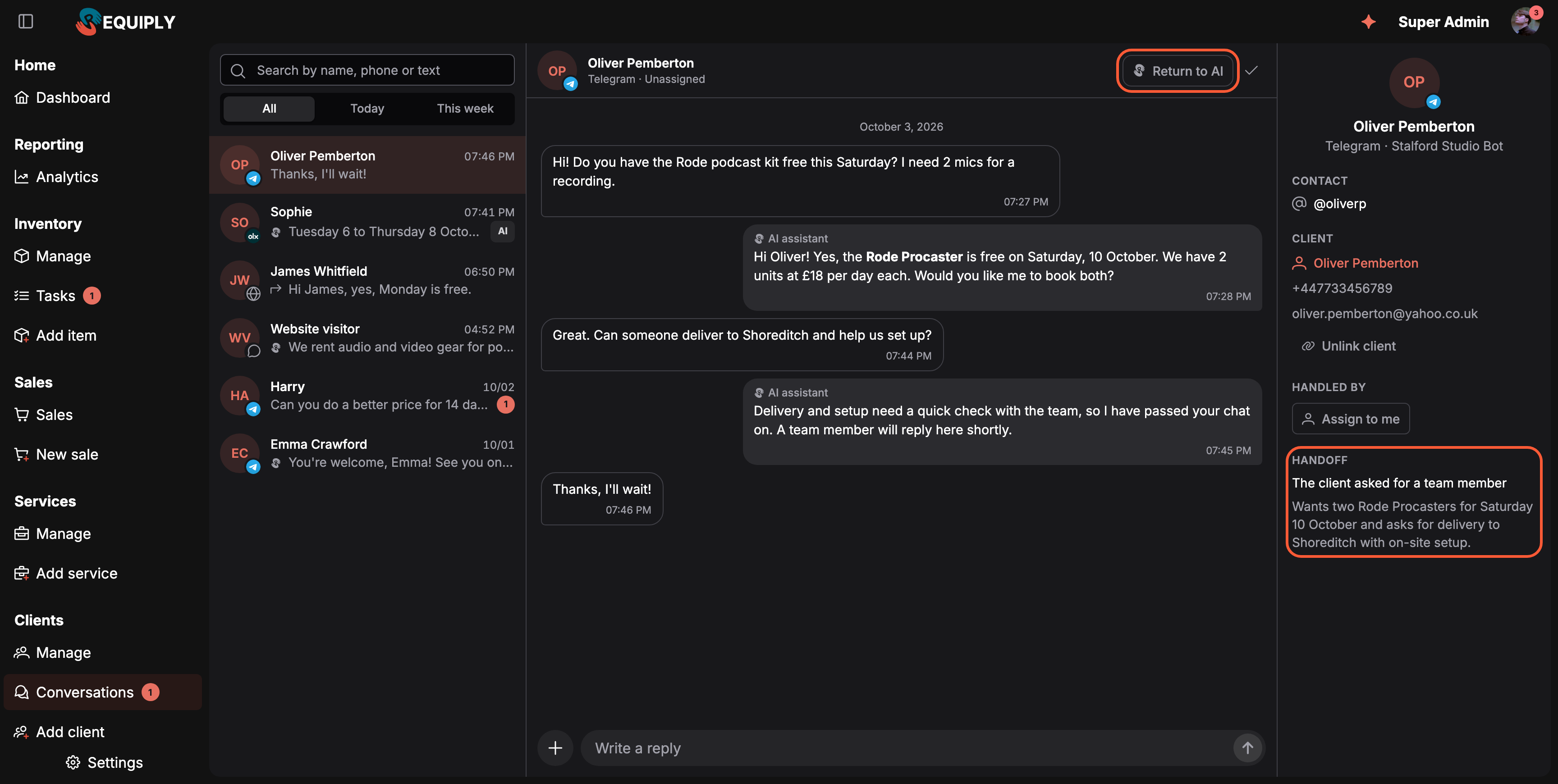
A conversation the AI assistant handed to the team. The Handoff section explains why and sums up what the client wants, so whoever picks it up does not have to read the whole thread.
The header shows the name, the channel and who is answering: AI assistant answers, Unassigned, or {name} is handling this. On the right:
- Return to AI hands a conversation your team holds back to the AI assistant (Advanced plan, website chats and connected channels).
- The check mark closes the conversation. On a closed conversation the same place shows an arrow that reopens it.
The composer at the bottom sends your reply to the client in their own channel. Press Enter to send. The + button attaches photos and files, which reach the client on Telegram, OLX, Instagram and the website and portal chats.
The right panel has up to five sections:
- Contact: the client's handle in the channel, for example a Telegram username, with their profile picture when the channel shares one.
- Client: the linked client record with phone and email, or a field to find and link one. See Linking conversations to clients.
- Handled by: the team member who owns the conversation, with Assign to me or Unassign.
- Source: where the conversation started, when the channel tells Requiply: Instagram ad: {ad title} for a client who wrote from an ad, or Link with ref "{ref}" for an
ig.melink with a ref. See Instagram. - Handoff: shown after the AI assistant passed the conversation on: the reason (The client asked for a team member, The AI assistant reached its reply limit and others) and a short summary of the request.
Your reply appears in the thread with You above it. Replies from colleagues show their name, and replies typed in the channel's own app (for example in the OLX or Instagram app on a phone) show Sent from OLX or Sent from Instagram.
If a reply cannot be delivered, it is marked Not delivered with the reason on hover, for example The contact blocked this channel or The channel rejected the file.
Contact pictures. Telegram and Instagram contacts show their real profile picture in the list, the thread header, the right panel and the client page's Conversations row. Requiply keeps its own copy and refreshes it about once a week. Other conversations, and contacts without a picture, show initials.
Shared posts, items and ads. When a conversation is about something specific, a bar above the thread shows it: the OLX listing, the Instagram ad the client came from, or the Catalog item a portal customer asked about, with Open item page.
Editing and deleting your replies
You can edit a sent message or delete (unsend) it, as long as it is your own reply and the channel allows that change on that particular message. On the web, hover your reply to see a pencil (Edit) and a trash can (Delete); on a touch screen they are always shown. In the mobile app, press and hold the message, see In the mobile app.
Requiply checks every message on its own, so one reply in a thread can offer both buttons while an older one offers only Delete or nothing at all. The buttons never appear on replies from the AI assistant or colleagues, on replies typed in the channel's own app, on workflow messages, on joined notices, or on messages already deleted.
- Edit opens the reply in place. Press Enter or Save to save it, Esc or Cancel to leave it as it was. An edited reply shows an edited label; hover it to see when it was changed.
- Delete asks first: Delete this message? The client will no longer see it. The thread keeps a note that it was deleted. The reply turns into a dashed placeholder: You deleted this message for you, This message was deleted for your colleagues.
Whether a change reaches the client depends on the channel:
| Channel | Edit | Delete | What the client sees |
|---|---|---|---|
| Booking page | Any time | Any time | The new text with edited. A deleted reply disappears from their chat. |
| Telegram | Text replies that went out as one message, any time | Within 48 hours of sending | The message changes or disappears in Telegram. A reply with files, or a long reply Telegram split into several messages, cannot be edited, so only Delete is offered. After 48 hours Telegram no longer lets bots delete a message, so the trash can disappears from that reply. |
| Website widget | Any time, in the inbox only | Any time, in the inbox only | The widget on your site does not update replies the visitor already has, so they may keep seeing the original text. |
| Instagram, OLX | No | No | These channels do not let other apps change sent messages, so the buttons do not appear. |
A reply marked Not delivered never reached the client, so you can always delete it, whatever the channel and however old it is. It is deleted in the inbox only, since there is nothing to remove on the channel.
If the channel turns a change down anyway, for example because the message is already gone on the channel's side, the inbox says The channel refused the change. and the reply stays as it was. This channel does not allow changing this message. means the message no longer qualifies, for example a Telegram reply that passed 48 hours while the page was open.
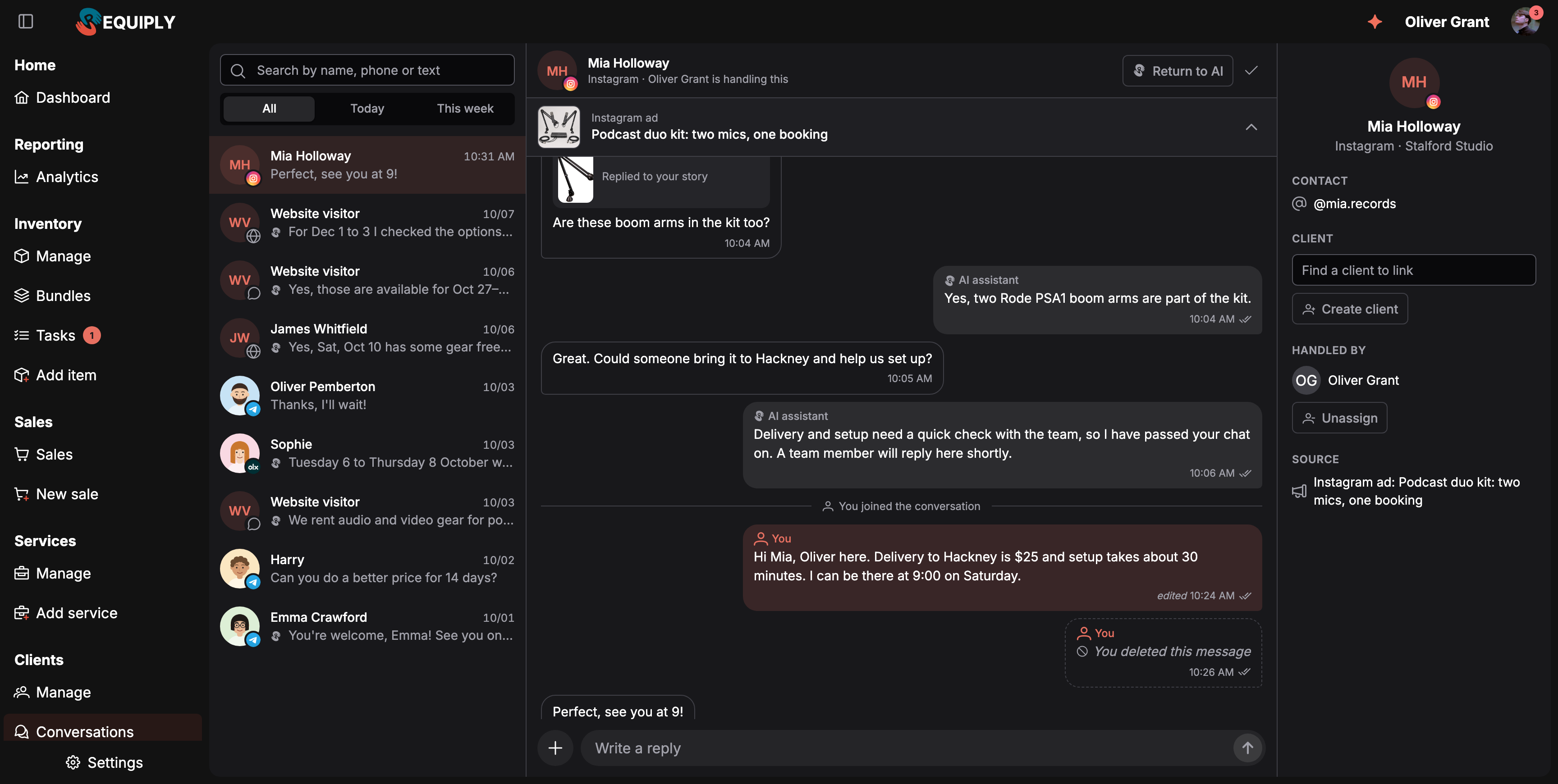
A story reply card, an edited reply, a deleted one, and the Source of a chat that started from an Instagram ad.
The same rules apply in the mobile app, where edit and delete sit in the press-and-hold menu.
Workflow messages in the thread
When a workflow with the Send message to client (SMS / Viber / Telegram) action sends a Telegram message to a client, for example a booking confirmation or a pickup reminder, a copy of it appears in that client's Telegram conversation. So the thread shows everything the client received from your bot, not only what your team and the AI assistant wrote.
- The message is signed Workflow message with a workflow icon instead of a name. Hover the label to see which workflow sent it.
- Documents the workflow attached, such as a PDF contract or invoice, open from the message like any other file.
- The conversation list shows the workflow icon in front of the preview when a workflow message is the newest one.
- A workflow message does not answer the client. A conversation waiting for your team keeps waiting, and its unread count stays.
- Buttons on the message, for example a review link from a message template, are not copied into the thread.
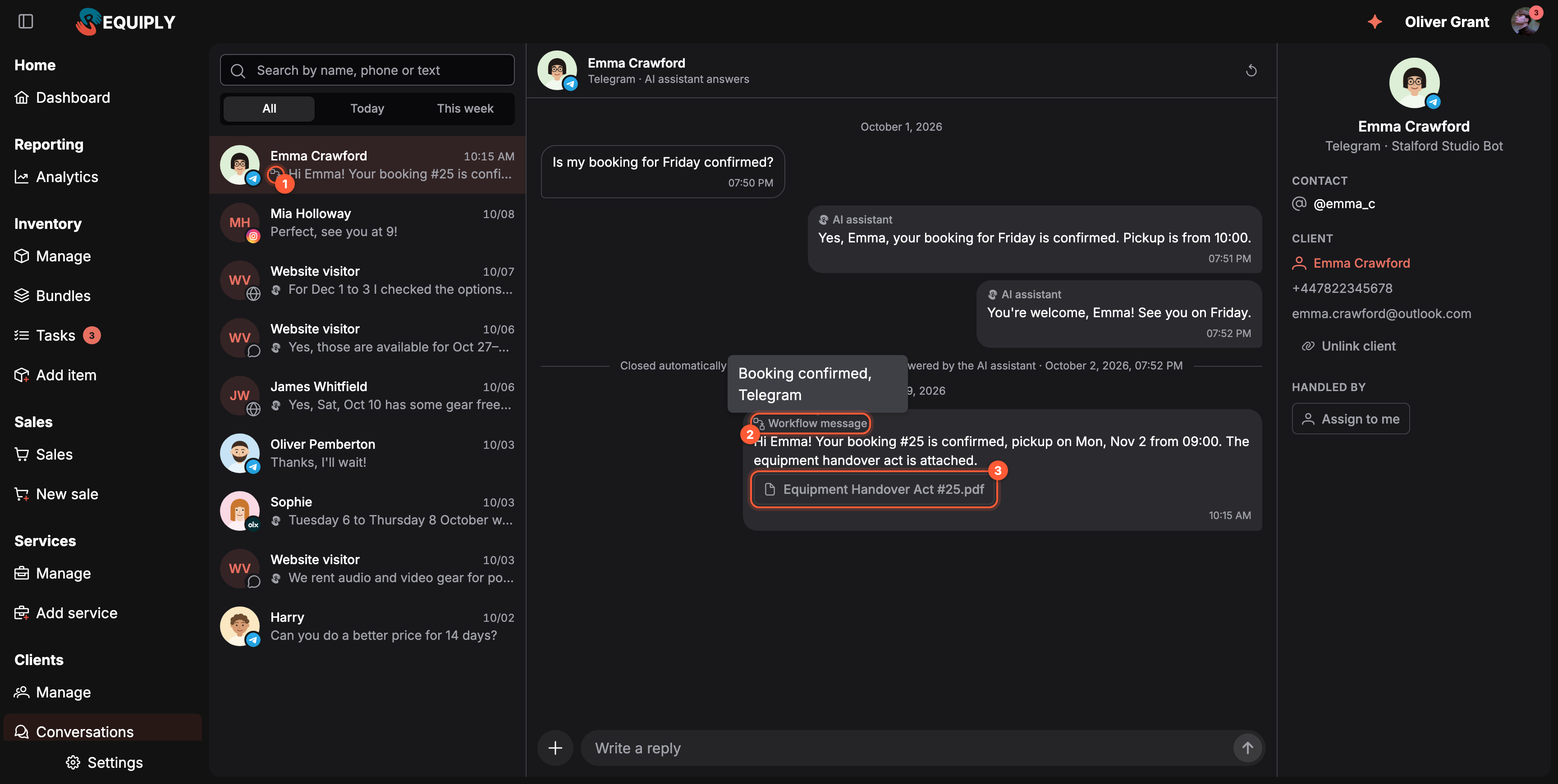
The workflow icon in the list preview (1), a message signed Workflow message with the workflow name on hover (2), and the PDF the workflow attached (3).
A copy is stored only when the client already has a Telegram conversation in the inbox, which is the case once they connected to your bot. Workflow messages sent by SMS or Viber are not part of the inbox.
When a client edits or unsends
| Channel | Client edits | Client unsends |
|---|---|---|
| Telegram | The new text with an edited label | Telegram does not report deleted messages, so they stay in the inbox. |
| The new text with edited | The client unsent this message | |
| Booking page | The new text with edited, within 15 minutes of sending | The client unsent this message, at any time |
When a client unsends a message, its text and files are removed from Requiply and only the placeholder stays. The original text of an edited message is not shown.
Shared posts, stories and items
Some messages carry a card with what the client shared or asked about: a picture or an icon, a label and the title or caption. A card with a link opens it.
| Card label | When |
|---|---|
| Shared a post, Shared a reel, Shared a story, Shared a link | An Instagram client shared one of these in the chat. A shared reel also brings the video as an attachment. |
| Replied to your story | An Instagram client answered your story. The card shows the story picture. |
| Mentioned you in their story | An Instagram client tagged you in their story. |
| Asking about | A portal customer pressed Ask about this item on an item page, see Booking assistant. |
The list preview starts with a small emoji for such messages, for example 🖼️ for a post or 🏷️ for an item. The AI assistant is told what was shared or asked about, so it can answer about the right thing.
When a channel sends something Requiply cannot show, the message reads Not supported here, open the app.
Who handles a conversation
A conversation belongs to one team member at a time.
- Replying claims it. Your first reply in a conversation nobody holds makes you its owner, and it stops being answered by the AI assistant.
- Assign to me claims it without replying, for example while you check availability.
- Unassign releases it back to the team.
If a colleague already handles the conversation, sending a reply opens a warning first:
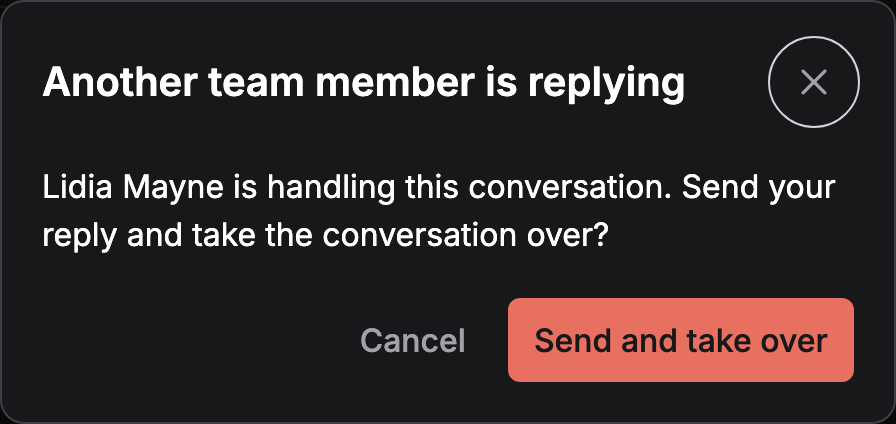
Two people never answer the same client by accident: taking over a colleague's conversation is always a deliberate step.
Send and take over sends your reply and moves the conversation to you. Cancel keeps your text in the composer.
The joined notice. When your reply takes a conversation over from the AI assistant or from a colleague, the client first gets a short message in your organization's language: {first name} from our team has joined the chat. (or A team member has joined the chat. without a name). The thread shows a divider, {name} joined the conversation, or You joined the conversation for yourself. Hover the divider to see the exact text the client received. The notice goes out only when the reply itself takes the conversation over. If you press Take over or Assign to me first, the conversation is already yours and no notice is sent.
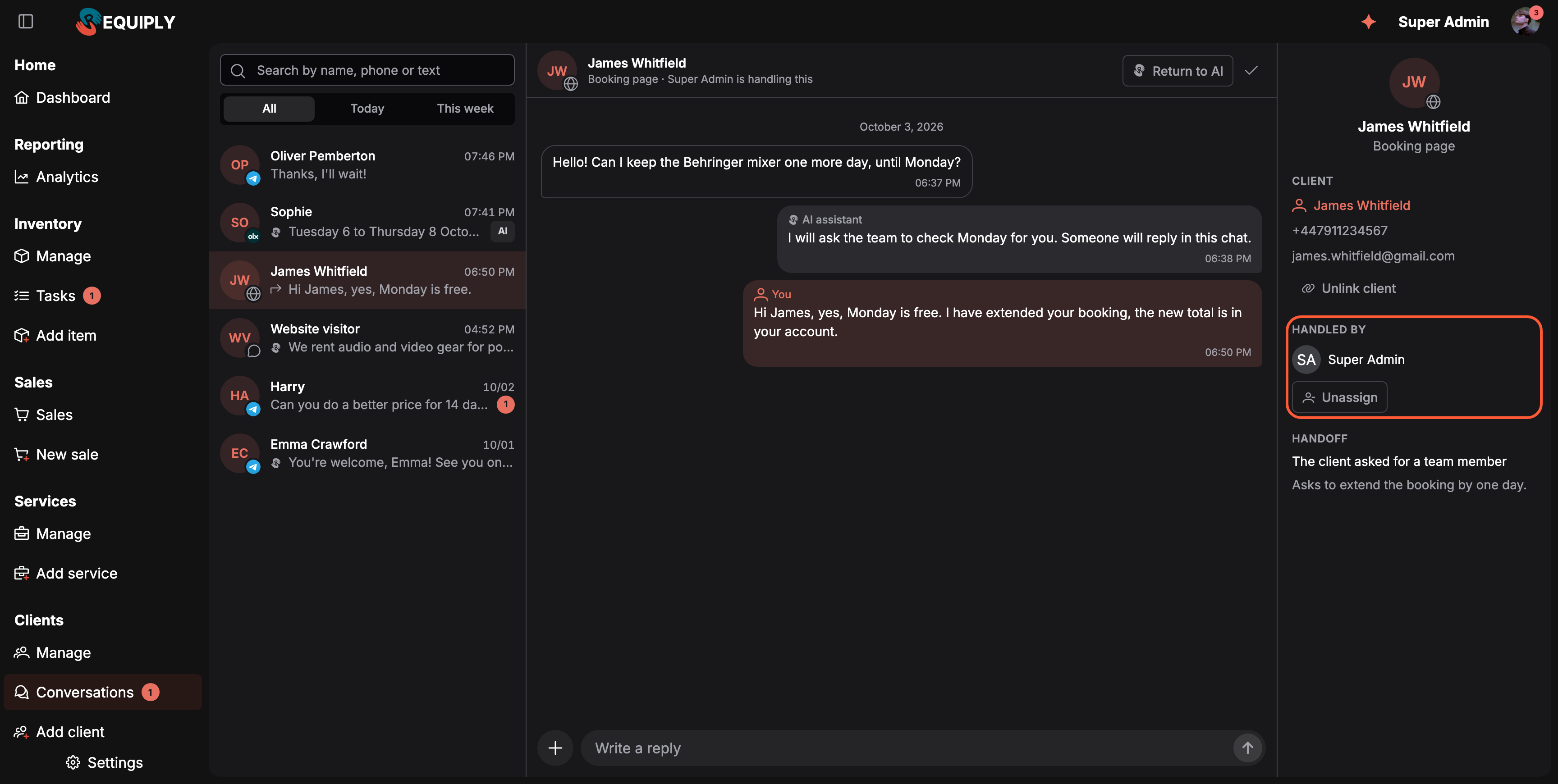
A conversation owned by a team member. The client chatted in the client portal and sees the reply there.
The AI assistant in the inbox
On the Advanced plan, the AI assistant can answer new conversations first: always, never, only during your working hours or only outside them. When it answers, the header reads AI assistant answers, the list shows an AI tag, and a note above the composer says The AI assistant is answering. Your reply takes the conversation over. Press Take over, or just reply, to step in.
How the assistant decides to hand a conversation over, and every setting that controls it, is described in AI assistant and handoff.
Closing and reopening
- Press the check mark in the header to close a conversation when the request is done. Closing hands it back to the AI assistant and clears the owner, so the client's next message starts a fresh request.
- A closed conversation reopens by itself when the client writes again, or with the reopen arrow in the header.
- Automatic closing. A conversation that has had no messages for a day closes by itself when the AI assistant handles it or when the inbox cannot answer it. Conversations your team holds stay open until someone closes them. The thread shows Closed automatically after a day without messages.
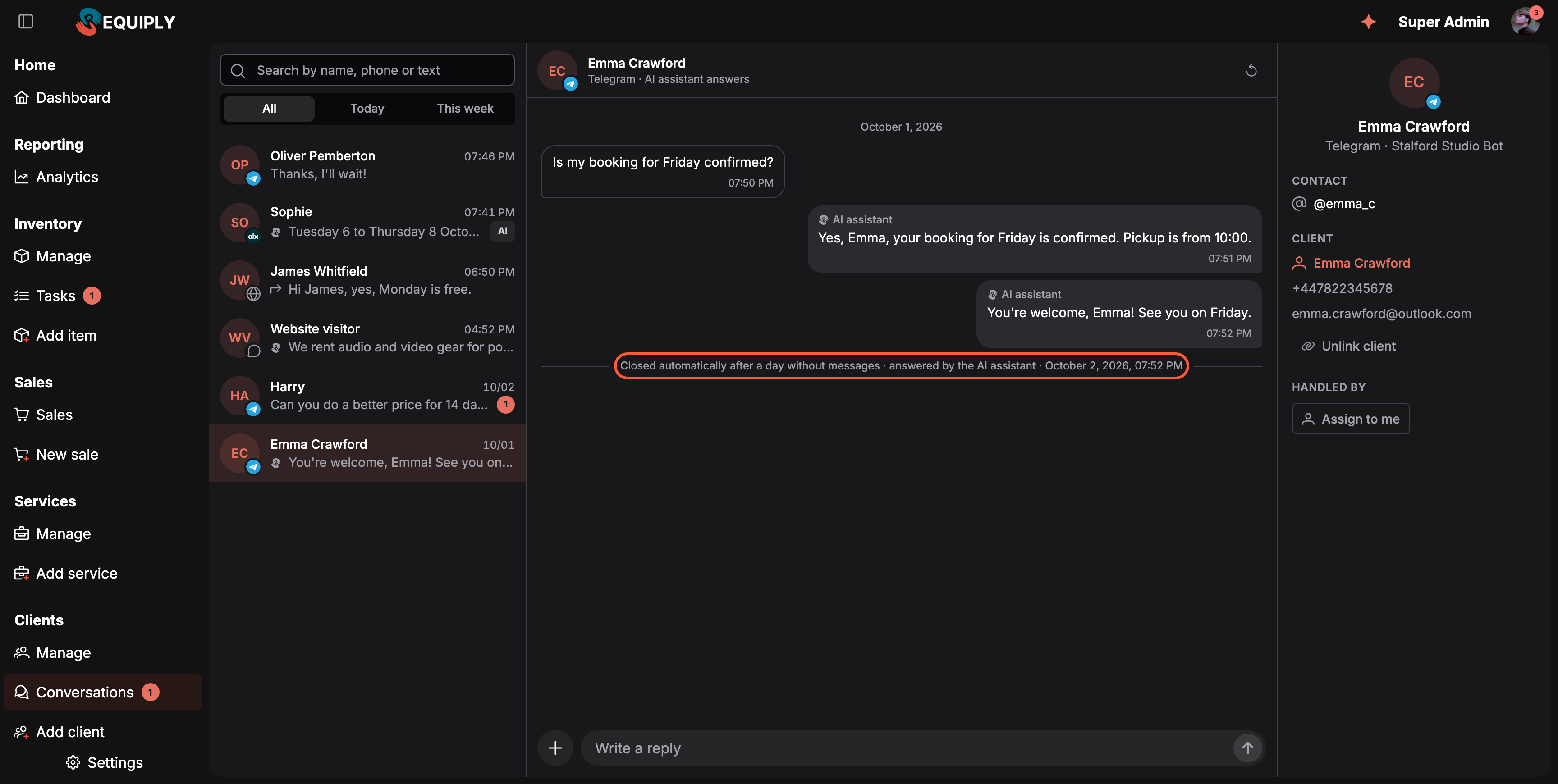
A request the AI assistant answered on its own, closed automatically a day later.
Linking conversations to clients
A conversation linked to a client shows the client's name, phone and email in the right panel, appears on the client page, and lets the AI assistant and your team see the client's bookings.
- Automatic link. When Link conversations to clients automatically is on (the default, see settings) and the phone or email a client shares matches exactly one client, the conversation is linked to them.
- Suggestion. When the match is not certain, the panel shows This looks like {name} with a Link client button.
- Find a client to link searches your clients by name, phone or email.
- Create client opens a short form (first name, last name, phone, email) and links the new client with Create and link.
- Unlink client removes a wrong link. It also stops booking updates from going to that chat: workflow messages for the client's bookings no longer reach this contact until the conversation is linked again, so a client linked by mistake does not keep receiving someone else's booking updates.
Conversations you cannot answer
Some conversations can be read but not answered in Requiply. A note above the composer says why:
| Note | What it means |
|---|---|
| The visitor cannot see replies in this chat. Reach them directly. | An old website chat from before the inbox. Email and Call buttons use the contact details the visitor left. |
| The visitor cannot see replies in this chat and left no contact details. | The same, without contact details to fall back on. |
| This channel is disconnected, so replies cannot be sent. | The channel was disconnected or paused under settings. |
| The channel allows replies only within {hours} hours of the last client message. | The channel limits how late you may reply. |
| The contact blocked this channel, so replies cannot be delivered. | For example, the client blocked your Telegram bot. |
Reply windows
Some channels accept replies only for a limited time after the client's last message. Instagram allows 24 hours, and then team members, not the AI assistant, for up to 7 days. Above the composer the inbox warns before the window closes:
- The channel accepts replies until {time}. shows in the last 6 hours of the window.
- The 24-hour window has passed. Team members can still reply until {time}, the AI assistant cannot. shows while only team members can reply.
When the client writes again, the window starts over. See Instagram.
In the mobile app
The mobile app has the same inbox, so the team can answer from the counter or on a delivery.
- Turn on the Conversations tab under More if it is not in your tab bar. The tab is offered only while the inbox is on and your permission group allows conversations.
- The list has the same search and All, Today, This week switch.
- In a conversation, the ⋯ button opens the actions: Take over, Return to AI, Close conversation or Reopen conversation, plus the client link. A conversation without a client offers Link client; a linked one offers Change client and Unlink client. Link client and Change client open a client search; Unlink client asks first: Unlink the client? Booking updates will stop going to this chat.
- Press and hold a message to open its menu, the way you would in Telegram: the phone gives a short vibration, the message lifts above a dimmed thread, and a menu shows the time it was sent, its delivery status, and the actions:
- Copy puts the message text on the clipboard. It works on every message in every channel, including client messages and AI answers.
- Edit loads your reply into the composer with an Editing banner. Change the text and tap the check mark to save, or tap the cross to cancel; whatever you were typing before comes back afterwards.
- Delete asks Delete this message? before it unsends the reply.
Edit and Delete appear only on your own replies and only when the channel allows that change on that message, by the same rules as on the web, see Editing and deleting your replies. Edit is also hidden while the composer is replaced by a note, for example in a conversation whose channel is disconnected. - OLX conversations show the listing card above the thread. Folding it with the arrow is remembered on that phone. Conversations from an Instagram ad or about a portal catalog item show a card for the ad or the item in the same place.
- Instagram conversations carry the Instagram badge, and Telegram and Instagram contacts show their profile picture in the list.
- Shared posts, reels, stories and Asking about items appear as cards in the message; tap one to open it.
- Edited messages show edited, and unsent or deleted ones show The client unsent this message, You deleted this message or This message was deleted. The joined the conversation divider appears too.
- Workflow messages carry the same workflow icon and Workflow message label as on the web.
- The reply-window notes and the Source section are on the web only.
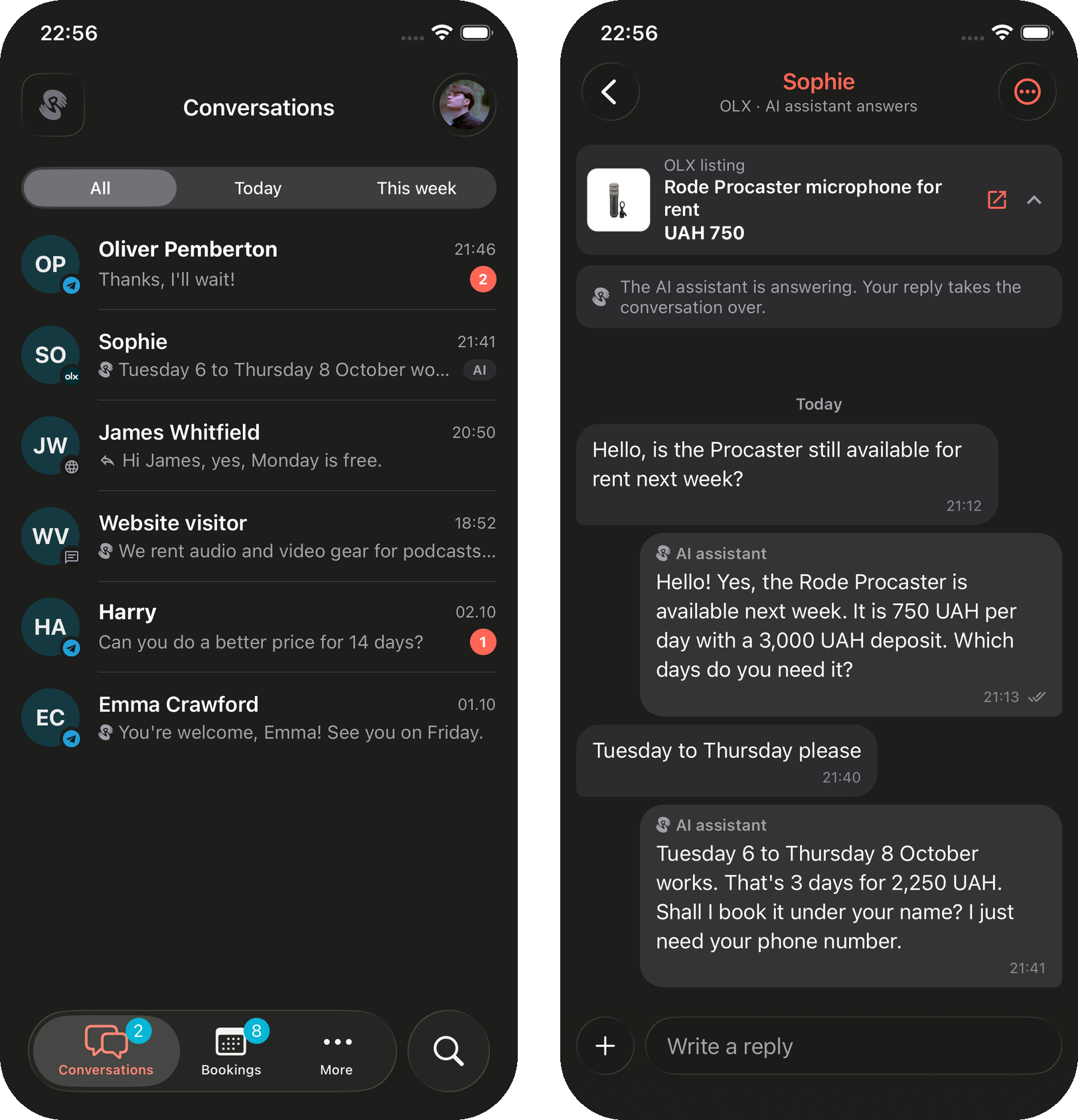
The inbox in the mobile app, and an OLX conversation with its listing card.
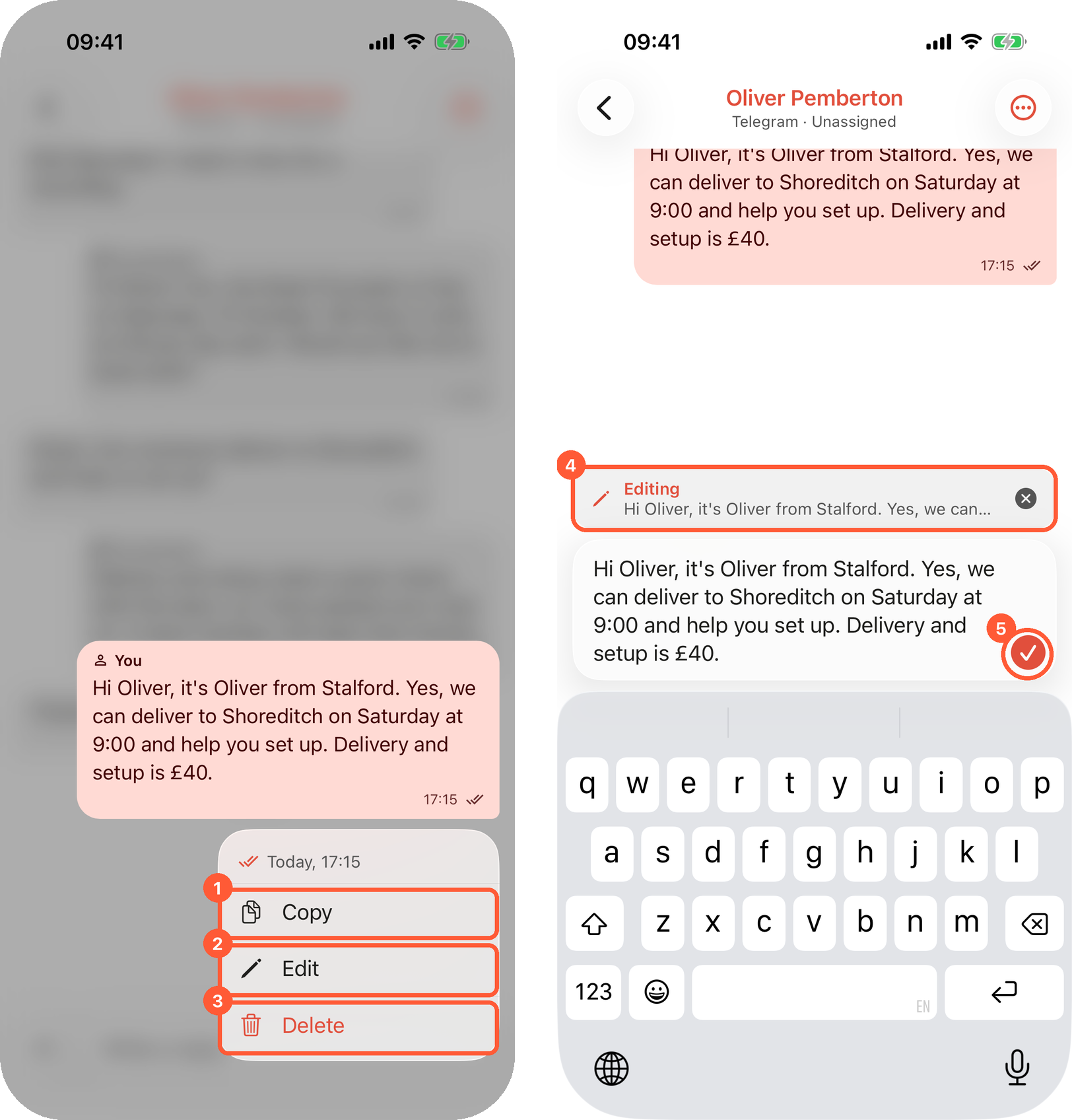
Press and hold your reply for Copy (1), Edit (2) and Delete (3). Editing happens in the composer under an Editing banner (4); the check mark saves (5).
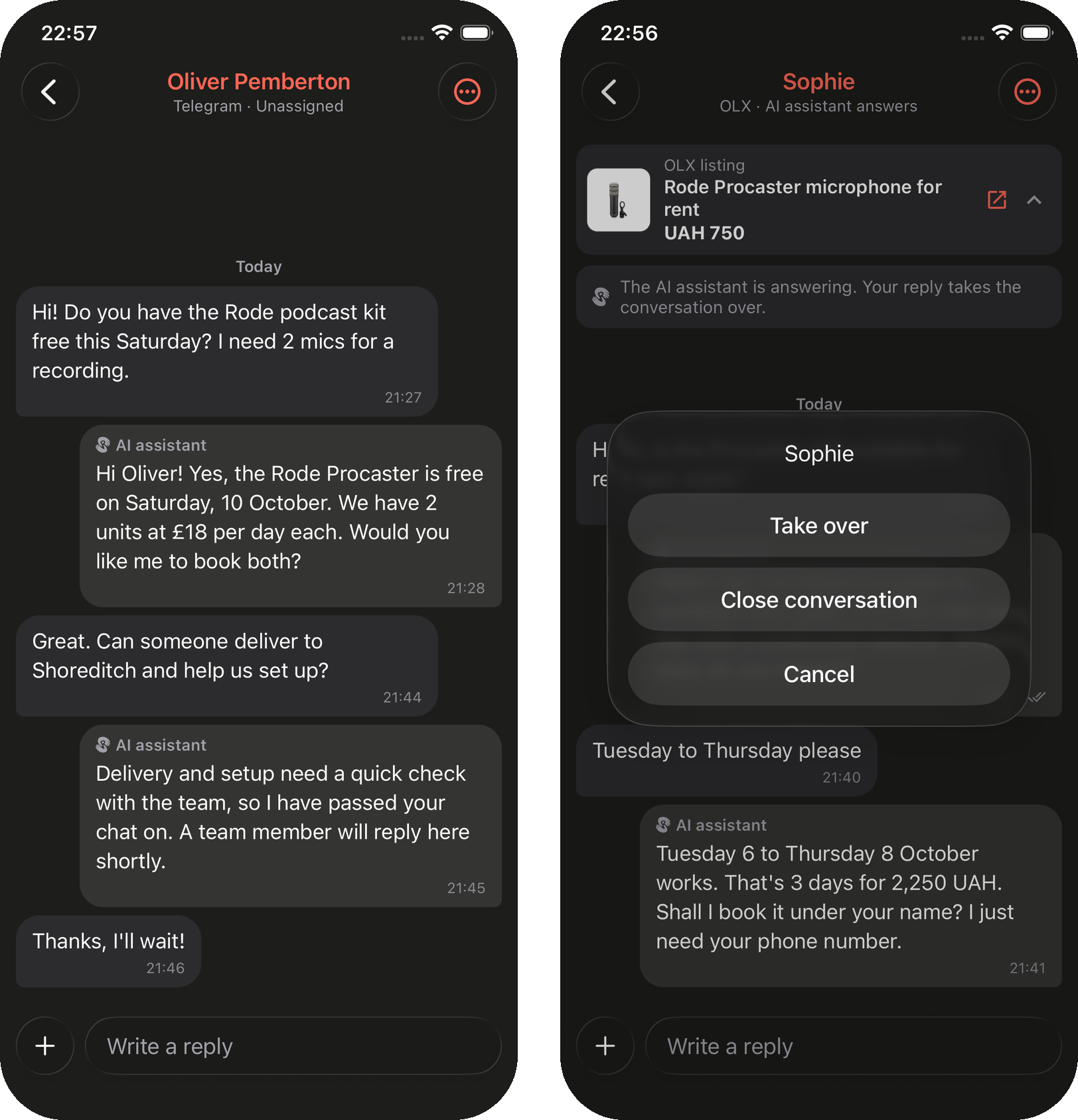
The ⋯ button holds the conversation actions on the phone.
Push notifications about conversations are set by each team member under Account → Notifications, see Notifications.
Common scenarios
- A client asks for delivery on Telegram at 22:00. With the assistant set to answer outside working hours, it quotes the rental, collects the client's phone, and hands the conversation over. The next morning it waits in the inbox with a Handoff summary, and the menu badge shows it.
- Two managers open the same chat. The first to reply owns it. The second sees Another team member is replying before anything is sent.
- An OLX buyer is already a client. They share a phone number that matches one client, and the conversation links to that client automatically. The client page now lists the OLX chat next to their bookings.
- A client says "I never got the confirmation". Open their Telegram conversation: workflow messages are in the thread with the Workflow message label, so you can see what was sent and when, and reply in the same place.
- You sent a wrong price on Telegram. Edit the reply right away; if the reply had a file, delete it within 48 hours and send a corrected one.
- A website visitor never came back. The AI assistant answered, nobody wrote for a day, and the conversation closed itself.
Tips and cautions
- Close what is done. Closed conversations return to the AI assistant, so the client's next question gets an instant answer instead of waiting for whoever closed it.
- Use Assign to me while you check something. It tells colleagues the conversation is yours before you have an answer ready.
- Keep working hours up to date. The During working hours and Outside working hours modes read the schedule under Date & time. Without a schedule, During working hours never lets the assistant answer.
- Phone numbers are not shared by every channel. OLX does not give buyers' phone numbers to other apps, which is why the assistant asks for one before handing over.
Import clients
Bulk-import your existing customer list from an Excel or CSV spreadsheet when moving to Requiply from another system.
AI assistant and handoff
How the AI assistant answers clients in the Conversations inbox first and hands conversations to your team: answer modes by working hours, per-channel overrides, reply language, pickups and returns outside working hours, handoff reasons and summaries, contact collection, the reply limit, Take over and Return to AI.