

Omnichannel inbox settings
The Omnichannel inbox page connects the messengers your clients write to and decides how the AI assistant works in them. Their conversations appear in Conversations next to the website and portal chats.
Open Settings → Integrations → Omnichannel inbox, at https://app.requiply.com/settings/integrations/omnichannel. The page is shown while the Enable conversations inbox feature is on, see Organization features, and only to administrators.
It has two tabs: Channels and AI assistant. Changes on the AI assistant tab are saved with Save; Cancel restores the last saved values.
Channels tab
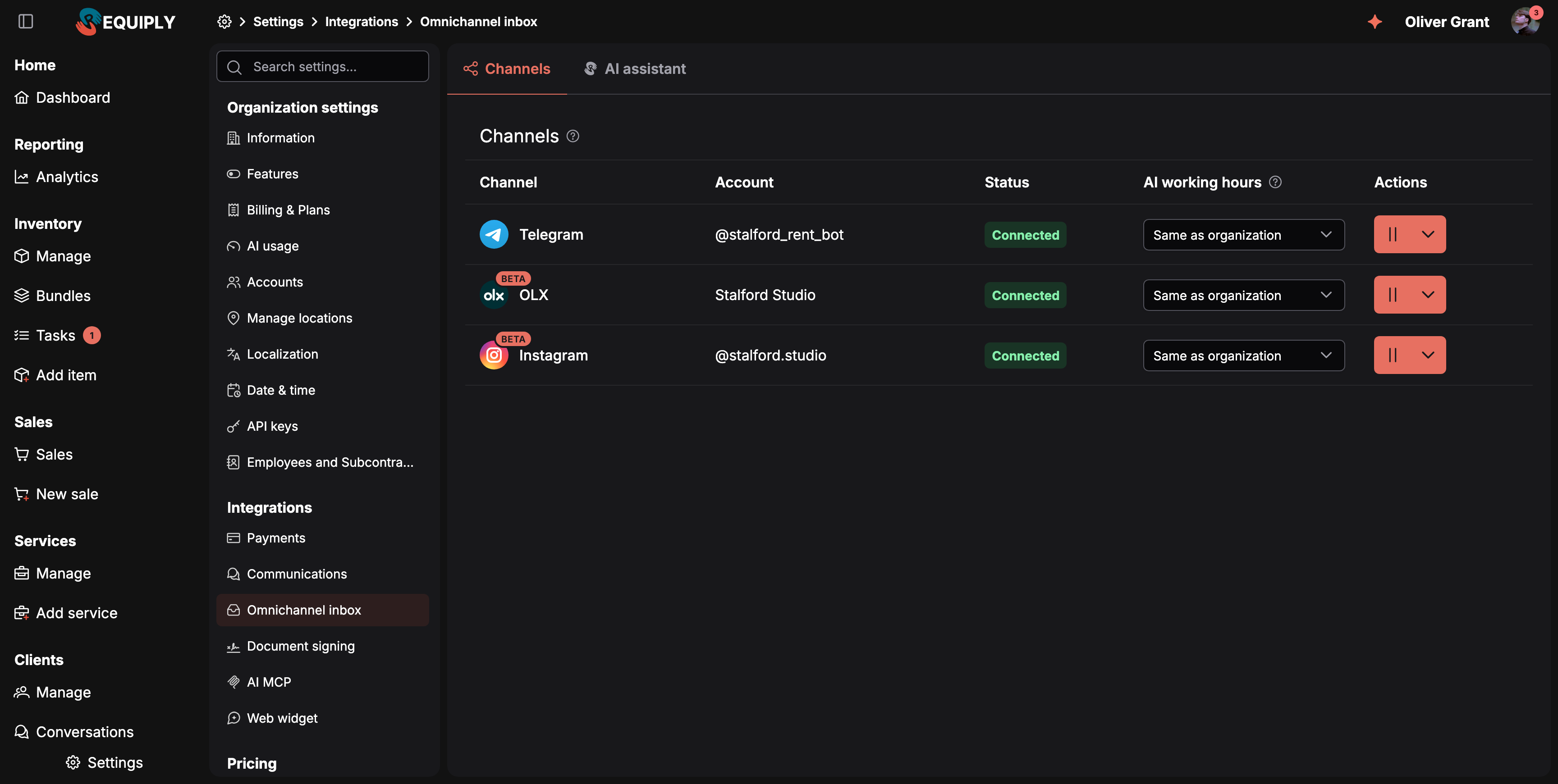
Each connected channel with its account, status and its own AI working hours.
| Column | What it shows |
|---|---|
| Channel | Telegram, OLX or Instagram. A Beta pill on the logo marks channels in beta, see Beta channels. |
| Account | Your Telegram bot's username, the name of your OLX account, or your Instagram @handle. A channel that is not connected yet shows how to connect it instead. |
| Status | Connected, Paused, Needs attention (the channel stopped accepting the connection; hover for details) or Not connected. |
| AI working hours | When the AI assistant answers in this channel. Same as organization follows the mode on the AI assistant tab; any other choice overrides it for this channel only. Hover an option to see how it works. Shown with an Advanced badge on the Core plan, and as Activate AI with a lock until the AI assistant is activated, see Activate the AI assistant. |
| Actions | Pause channel / Resume channel, and Disconnect in the dropdown. Sign in again appears when OLX or Instagram stopped accepting the sign-in. |
Connecting Telegram
The Telegram channel uses your own bot, the one set up under Communications.
- Set up the bot under Communications first. Without it, connecting shows Set up the Telegram bot first, then connect the channel.
- On the Channels tab, press Connect in the Telegram row.
- From now on, messages clients send to your bot land in Conversations.
Clients who connected to your bot for booking notifications keep getting them. While the inbox is off, the bot works for notifications only, as before.
Connecting OLX
OLX accounts are connected with Sign in with OLX on the Communications page. The Channels row then shows the account. Everything specific to OLX is described on the OLX page.
Connecting Instagram
Instagram accounts are connected with Sign in with Instagram on the Communications page, or with Connect in the Instagram row here. Both open Instagram's own sign-in. The account must be a Business or Creator account, and Instagram is a beta on request. Requirements, errors and everything specific to Instagram are on the Instagram page.
Beta channels
Channels in beta carry a Beta pill on their logo, here and on the Communications page. Hover it to see what it means:
| Channel | Tooltip |
|---|---|
| OLX | Beta. This channel works, and we keep improving it based on your feedback. |
| Beta on request. Email our team at info@requiply.com with your Instagram account tag and we will add you to the beta testers of this feature. |
Connecting Instagram before your account is on the beta list shows the same on-request text instead of an error.
Pausing and disconnecting
- Pause channel stops replies and AI answers in that channel without removing it. Resume channel turns it back on.
- Disconnect asks first: New messages from this channel will stop arriving. Existing conversations stay in the inbox as history.
The website chat and the client portal chat are not in this table. They are switched on with Chat with visitors in the booking page settings and on the AI web widget page.
AI assistant tab
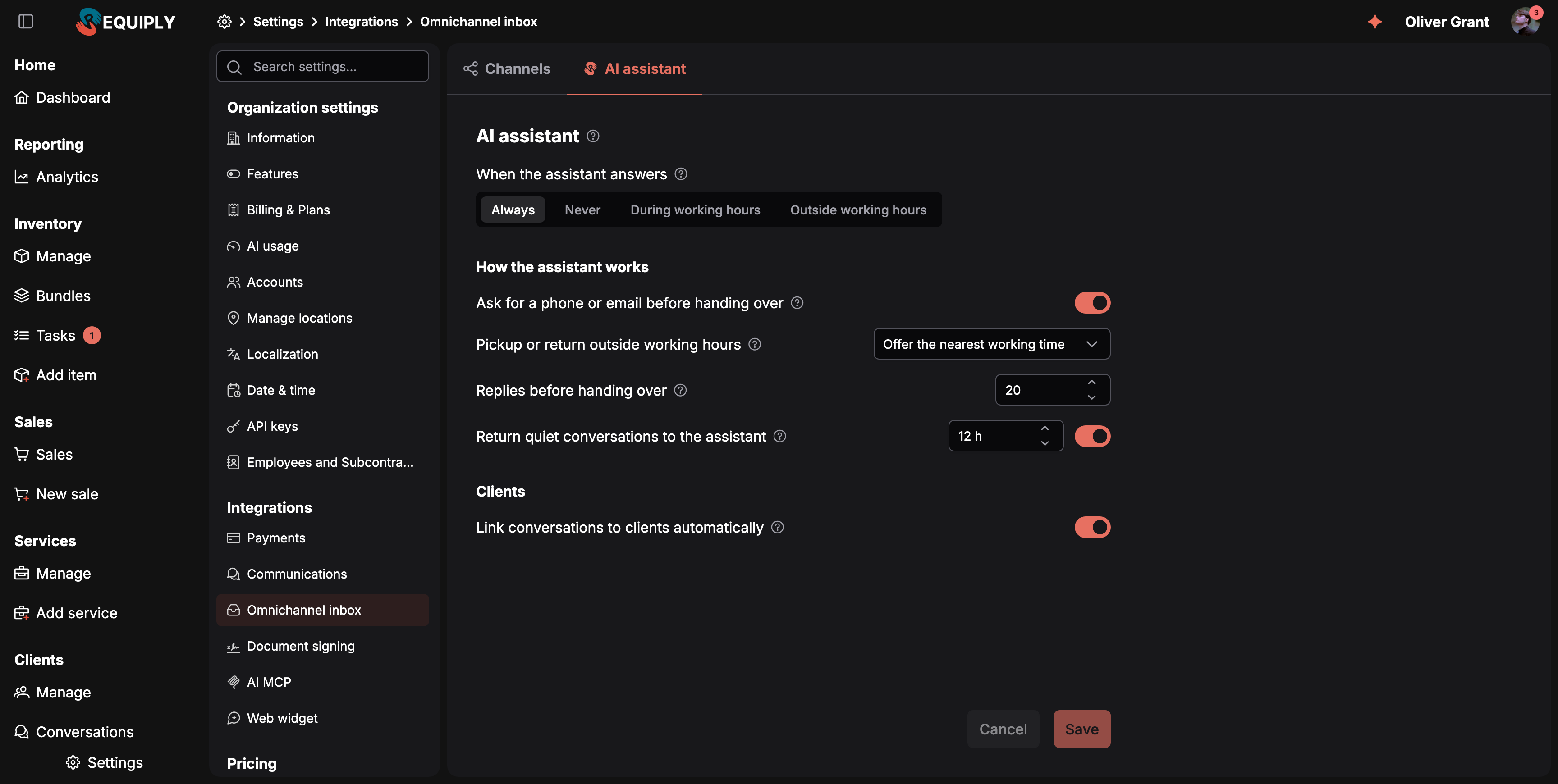
One place for how the assistant behaves in every connected channel.
This tab needs the Advanced plan. On Core it shows Let the AI assistant answer first with Upgrade to Advanced, and only the Clients section stays editable.
| Setting | Default | What it does |
|---|---|---|
| When the assistant answers | Always | Always, Never, During working hours or Outside working hours. Applies to the connected channels; the website chat has its own switch. See AI assistant and handoff. |
| Ask for a phone or email before handing over | On | The assistant asks once so your team can reach the client and find their record. |
| Pickup or return outside working hours | Offer the nearest working time | What the assistant does when a client asks to pick up or return gear on a closed day or outside your hours: Offer the nearest working time or Pass to the team to arrange. See Outside working hours requests. |
| Replies before handing over | 20 | After this many assistant replies the conversation goes to your team. |
| Return quiet conversations to the assistant | On, 12 h | When a conversation your team handled stays quiet this long, the next client message goes to the assistant again. |
| Link conversations to clients automatically | On | When the phone or email from a conversation matches exactly one client, the conversation is linked to them. Otherwise you get a suggestion to confirm. |
The settings under How the assistant works are hidden while When the assistant answers is Never. Pickup or return outside working hours also applies to the website chat and the booking page chat.
The working-hours modes read the schedule under Date & time. With no schedule set, During working hours never lets the assistant answer.
Activate the AI assistant
On the Advanced plan, the assistant needs a public API token before it can answer. Until one exists, the tab is blurred behind the card Activate the AI assistant: Before using the AI assistant, generate a public API token. The assistant answers your clients under this token in the connected channels, the website chat and the booking page.
Press Generate public API token. The toast AI assistant activated. You can now set it up and switch it on for your channels. confirms it, and the tab unlocks. Until then, the AI working hours column on the Channels tab shows Activate AI with a lock and the tooltip Generate the public API token on the AI assistant tab so the assistant can answer in this channel. Clicking it opens this tab.
Organizations that already created a key for the AI web widget are activated already and never see this card.
Tips and cautions
- Set different hours per channel. A marketplace like OLX often deserves instant answers around the clock, while Telegram clients may expect a person.
- Pause instead of disconnecting when you only need a break, for example during a stocktake. Disconnecting stops new messages from arriving at all.
- Push notifications are personal. Each team member picks their own under Account → Notifications, see Notifications.
AI assistant and handoff
How the AI assistant answers clients in the Conversations inbox first and hands conversations to your team: answer modes by working hours, per-channel overrides, reply language, pickups and returns outside working hours, handoff reasons and summaries, contact collection, the reply limit, Take over and Return to AI.
Connect your Instagram Business or Creator account so Instagram Direct messages arrive in the Conversations inbox: beta access, the Connected tools setting, sign in with Instagram, shared posts, reels and story replies, ads, the 24-hour reply window and the limits of the Instagram integration.