

Workflow triggers and filters
A workflow starts from one trigger and can carry filters that decide whether it runs for a given booking. Both sit at the top of the add and edit forms, above the action.
Triggers
You pick one trigger type, and the form then reveals only the fields that apply to it.
- Status reached — fires when a booking enters a specific status. You pick the status from the list of statuses configured for your organization; each option is shown as a colored tag using the status's own color. Defaults to your Default status for new bookings (New unless you changed it under Booking creation) the first time this trigger type is selected.
- Payment status reached — fires when a booking's payment reaches a specific state (for example Completed, Refunded). The dropdown shows each payment status as a colored tag. Defaults to Completed.
- Booking created — fires once, when a new booking is created. No extra configuration.
- Relative time reached — fires at a configured offset before or after a booking's start or end time. You choose:
- Relative to — Booking start time or Booking end time.
- Direction — Before or After (a segmented button, must have a value).
- Offset — a number with a time unit picker (the number selector remembers the unit so an offset saved in minutes can still be edited as hours or days). Must be greater than zero.
These four are the only trigger types. Whichever you pick, the workflow's optional Filters are checked right after the trigger matches and immediately before the action fires.
Filters: "Only run this workflow when…"
Filters are an optional conditions block on each workflow. They sit between the Trigger and Action sections of the form, under a Filters heading with the hint "Only run this workflow when these conditions are met. Leave empty to always run." In the live Preview, the conditions appear under an "Only when" heading between the trigger card and the action card.
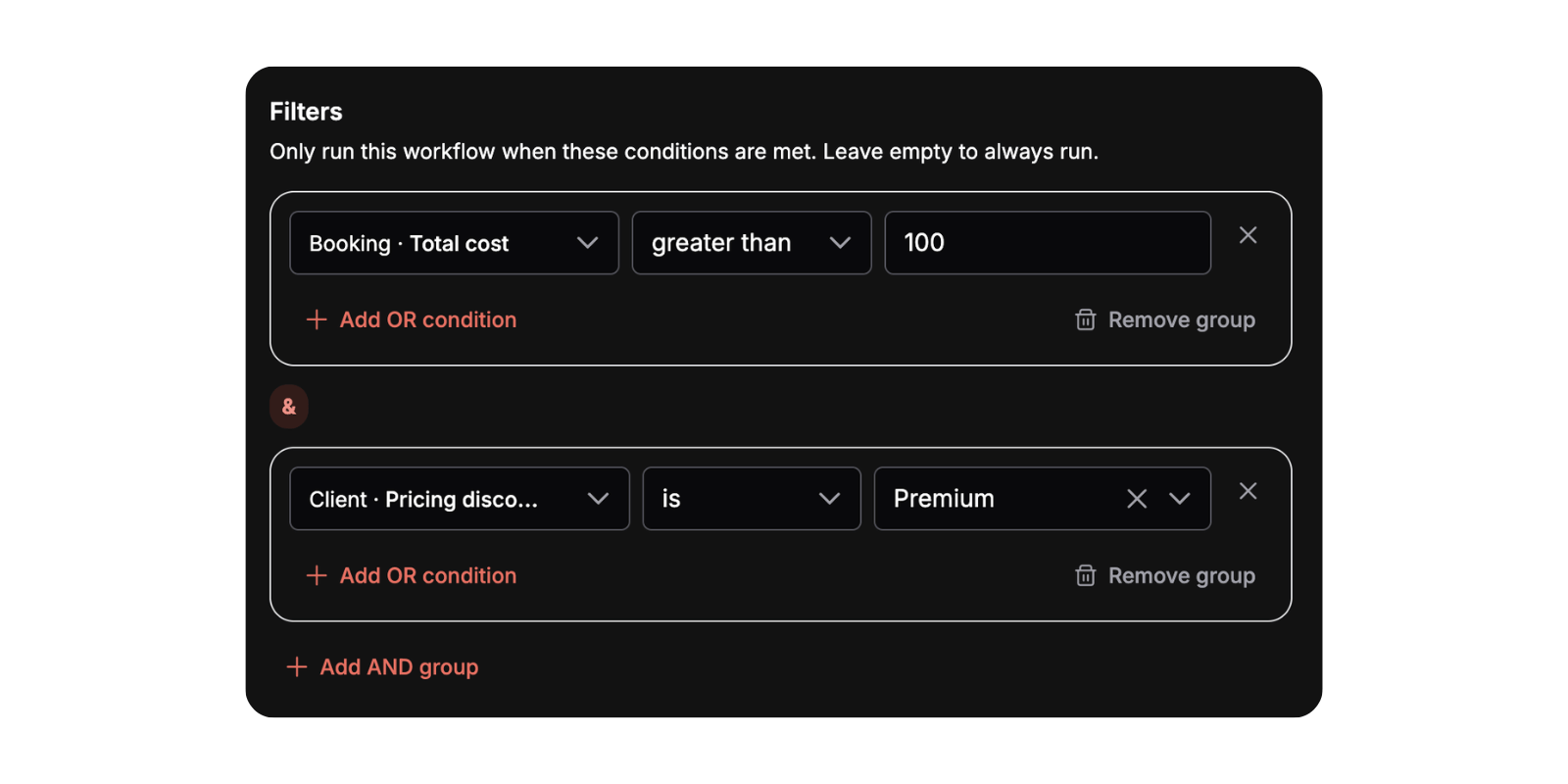
How the matching works: AND of OR-groups
Filters are organized into groups:
- Conditions inside the same group are combined with OR — any one of them matching satisfies the group. The builder shows an OR connector between rows.
- Separate groups are combined with AND — every group must be satisfied. The builder shows an
&/ AND divider between groups.
So the overall rule reads as (A or B) and (C or D). This is exactly how Requiply evaluates it on the server: each group needs at least one matching condition, and all groups must pass.
Filters are checked for every trigger type — including relative-time workflows that are processed later by a background job — after the trigger matches and just before the action fires.
What you can filter on
Fields are grouped into Booking and Client, each with built-in (native) fields plus any custom fields you've configured.
Booking (built-in):
| Field | Type | Notes |
|---|---|---|
| Booking status | Select | Options are your organization's booking statuses, shown with their status colors. |
| Total cost | Number | |
| Start date | Date | |
| End date | Date | |
| Created at | Date |
Client (built-in):
| Field | Type | Notes |
|---|---|---|
| First name | Text | |
| Last name | Text | |
| Text | ||
| Phone | Text | |
| Pricing discount | Select | Options are your organization's pricing discounts. |
| Telegram connected | Checkbox | Whether the client has connected to your Telegram bot. Use it to send Telegram only to clients who can actually receive it. |
Custom fields: any entity field you've configured at the Booking or Client level also appears, grouped under Booking custom fields / Client custom fields. Each one's input type (text, number, date, select, multiselect, or checkbox) follows the custom field's own type.
Operators by field type
The operators available depend on the field's kind:
| Field kind | Operators |
|---|---|
| Text | contains, is, is not, is empty, is not empty |
| Number | is, is not, greater than, less than, is between, is empty, is not empty |
| Date | is before, is after, is between, is empty, is not empty |
| Select | is, is not, is any of, is none of, is empty, is not empty |
| Multiselect | contains any of, contains all of, is empty, is not empty |
| Checkbox | Yes, No |
The value input adapts to the field and operator you choose:
- is empty / is not empty, and the checkbox operators Yes / No, show no value input at all.
- is between (number or date) shows two inputs (a min/max pair, or a date range).
- is any of / is none of (Select) and the Multiselect operators show a multi-select chip picker.
- Anything else shows a single text, number, date, or select input matched to the field.
Changing the field resets the operator to that field kind's default and clears the value; changing the operator on its own clears the value.
Things worth knowing about how conditions match
- Text comparisons (is, is not, contains) are case-insensitive, and a contains with an empty value never matches.
- Number and date values that can't be read are treated as not matching, so a workflow never fires on a value it couldn't parse.
- Select conditions store the option's underlying value (for example, a status id); the preview resolves it back to the readable label for you.
- A condition whose value you leave blank simply doesn't match — it won't accidentally let the workflow run.
Building and editing filters
- With no conditions yet, you see a single Add filter button.
- Once you've added one, each group is a card of OR rows. Inside the card are an Add OR condition button and a Remove group button; below the cards is an Add AND group button to start a new group, with an
÷r between groups. Each individual row also has an × to remove just that condition. Field labels in the dropdown are prefixed with their source, e.g. Booking · Total cost or Client · Pricing discount. - When you save, empty groups are pruned. If nothing is left, the workflow saves with no filters and goes back to running on every matching trigger.
Overview
Automate what happens when a rental changes: send an email or message, notify staff, or update a booking automatically when a trigger and its conditions match. Turn a workflow on or off right from its card.
Actions
The seven things a workflow can do once its trigger and filters match: three email actions, two push notification actions, a client message, and a status change.