

Locations
The Locations page is where you manage the places your organization operates from, such as branches, offices, warehouses, pickup points, service areas, or virtual locations. Locations are a reusable source of truth for the address and direction details Requiply needs across bookings, pickup flows, services, invoices, notifications, and customer-facing pages.
You can find this page under Settings → Organization → Locations.
Why locations matter
Locations keep your operating addresses consistent across the workspace. Instead of typing the same address separately for every booking, pickup flow, service, or invoice, you create the location once and select it wherever it applies.
Locations can help power:
- Client portal - the pickup location shown to customers at checkout and on their own booking, with a link to the map.
- Services - each service can be tied to the places where it is available.
- Bookings - customers and staff can see the selected location for the booking.
- Pickup workflows - locations marked for pickup can be used when customers need to collect items.
- Staff and internal setup - teams can keep branch, pickup point, and service-area details consistent.
- Invoices and notifications - customer-facing documents and messages can include the correct location details.
If your business has one operating address, create one location. If you work from multiple branches or pickup points, add each place separately so it can be managed independently.
What you'll see
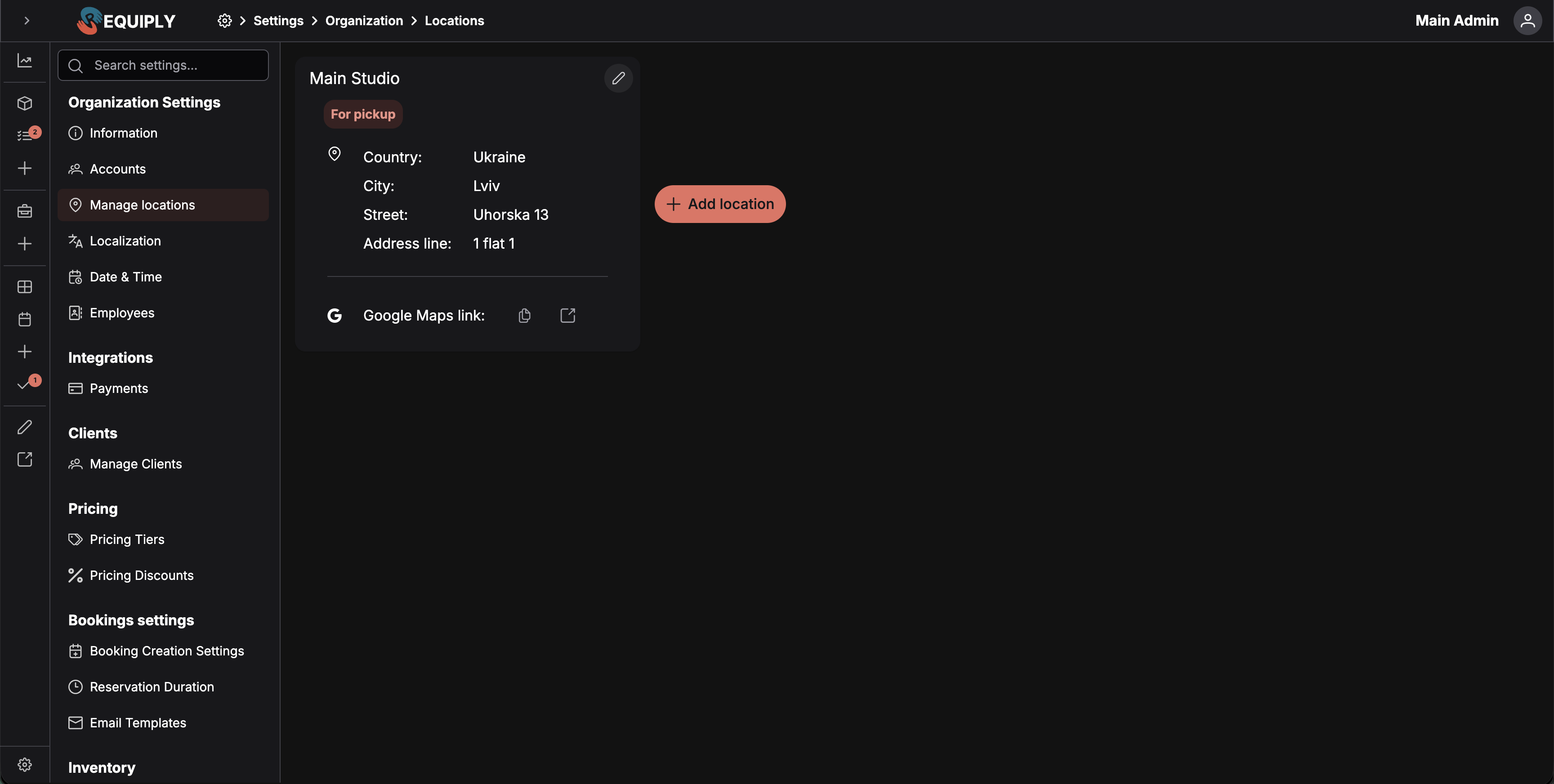
The page shows your locations as cards. Each card gives a quick summary of one place, with an edit action in the top-right corner.
Each location card can show:
- Name - the display name for the location, such as Main Studio or Downtown Pickup Point.
- For pickup badge - appears when the location is marked as a pickup location.
- Address details - country, city, street, and address line when provided.
- Google Maps link - quick actions to copy or open the location's Google Maps URL when one is saved.
- Edit icon - opens the Add or edit location page for that location.
The Add location button appears beside the existing cards and creates a new location. When no locations exist yet, the page shows an empty state with an action to add your first location.
Adding a location
Click Add location to open the Add or edit location page. From there, enter the location name, address details, optional Google Maps link, and whether the location should be used for pickup.
After saving, the new location appears as a card on this page and becomes available in the workflows that use organization locations.
Required fields are configured on the add/edit form. At minimum, the location needs a Name, Country, and City before it can be saved.
Editing a location
Click the edit icon on a location card to update that location. Edits use the same form as adding a location.
Use the edit form when you need to:
- Rename a location.
- Correct the country, city, street, or address line.
- Add or update the Google Maps URL.
- Turn the Pickup Location setting on or off.
Pickup locations
The Pickup Location setting marks a location as a place where customers can collect items. On the Locations page, these cards show the For pickup badge.
Use pickup locations for storefronts, warehouses, desks, lockers, or other collection points that should be available in pickup-related workflows. A location can still represent a normal branch, office, service area, or operating address without being a pickup location. Leave the toggle off when the location is not a customer collection point.
Google Maps link
Locations can store a Google Maps URL. When provided, the location card shows quick actions for the link:
- Copy - copies the saved Google Maps URL.
- Open - opens the saved Google Maps URL in a new tab.
Use a full valid URL, preferably the share link copied from Google Maps. This helps customers and staff find the exact place instead of relying only on the written address.
Where locations are used
| Feature | How locations are used |
|---|---|
| Client portal | Shows customers where to collect the items, at checkout and on their booking. |
| Services | Identifies which services are available at which places. |
| Bookings | Shows where a booking, pickup, return, or service takes place. |
| Pickup flows | Identifies places where customers can collect items. |
| Invoices and receipts | Reuses address information when location context is shown. |
| Notifications | Can include the location address or direction link in customer communication. |
| Internal setup | Keeps branch, service-area, and pickup-point details consistent. |
Common scenarios
Add your first operating address
- Go to Settings → Organization → Locations.
- Click Add location.
- Enter the name, country, city, and any street or address line details.
- Add a Google Maps URL if you want staff or customers to open directions quickly.
- Click Save.
Manage multiple branches
- Add each branch as a separate location.
- Use clear names, such as Downtown Studio, Main Office, or Warehouse Pickup.
- Add the full address and Google Maps URL for each branch.
- Mark only customer collection points as Pickup Location.
Add a pickup point
- Click Add location.
- Enter the pickup point's name and address.
- Turn on Pickup Location.
- Save the location.
Add a virtual or mobile service location
- Create a location with a clear name, such as Online, Virtual, or Mobile Service Area.
- Fill in the required country and city fields using the location that best represents your operating base.
- Leave Pickup Location off unless customers physically collect items there.
- Save the location and connect it to the relevant services or booking flows.
Update a branch address
- Click the edit icon on the location card.
- Update the address fields or Google Maps URL.
- Review the live preview.
- Click Save changes.