

Booking assistant
The booking assistant is an AI chat on your client portal that customers can ask about your catalog, what is free on which dates, what a booking would cost, and how pickup and return work. It can also put together a booking and send it to your team as a request.
It is the customer-facing sibling of the Requiply Assistant your team uses inside the app, and of the AI web widget you can embed on your own website. All three draw on the same AI credits.
Where customers find it
While the switch is on:
- An Ask the assistant card appears on the portal entry page, next to Start from items and Start from dates.
- The chat itself lives at
portal.requiply.com/<your code>/chat.
With the switch off, neither exists and the entry page shows the two booking paths only.
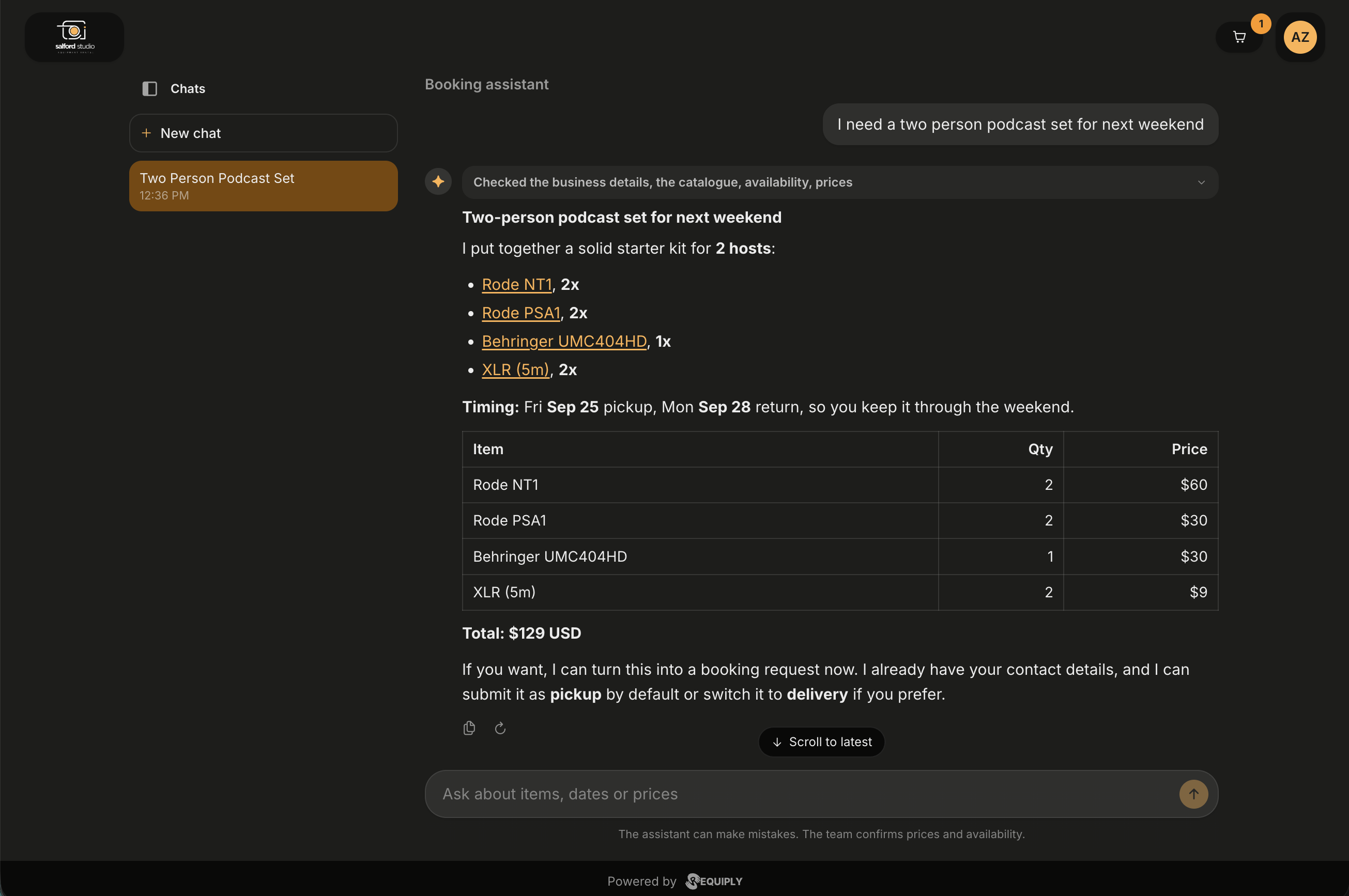
One question, one worked answer. Item names are links straight to their pages on your portal, and the assistant offers to turn the kit into a booking request.
What a conversation looks like
An empty chat greets the customer with Ask {your organization} and four suggested questions to click instead of typing:
- What can I rent for a weekend?
- Is anything free next Saturday?
- How much does a two day booking cost?
- How do pickup and return work?
While the assistant works, it says what it is doing in plain words: Searching the catalogue, Checking availability, Working out the price, Preparing the booking request. Once the answer is ready those steps collapse into a single line above it, for example Checked the business details, the catalogue, availability, prices, which the customer can expand to see what was looked up.
Answers stream in as they are written and are formatted properly: headings, lists, and tables of items with quantities and prices. Item names are links to their pages on your portal, so a customer can open one and add it to the booking. Under each answer sit a copy button and a retry button, a Scroll to latest button appears when the thread runs past the screen, and Stop interrupts a long answer. The composer reads Ask about items, dates or prices, and a footnote reminds the customer that the assistant can make mistakes and that your team confirms prices and availability.
The assistant answers in the language the customer writes in, and a message in Russian gets a Ukrainian answer. When a message shows no language (only a name, a number, a link or an emoji), it answers in the language of the portal. It quotes prices in your currency and links to item pages on your own portal rather than sending customers elsewhere.
What it knows
| It can see | It cannot see |
|---|---|
| Your bookable catalog, with prices and price types | Supplier names, supplier costs, or margins |
| Live availability for the dates asked about | Other customers' bookings or contact details |
| Your pricing tiers and deposits | Anything about your team, accounts, or settings |
| Your business details: contacts, locations, working hours | Data from another organization |
| Who the customer is, when they are signed in, so it does not ask for their details again |
Chats are remembered
A conversation survives moving around the portal and reloading the page. A signed-in customer also gets a Chats panel with their earlier conversations, each given a title of its own from what was discussed (for example Two Person Podcast Set) plus the time it was held, and a New chat button above them. The panel can be collapsed out of the way. For a visitor who is not signed in, a hint offers sign-in as the way to keep the thread.
Each chat holds up to 10 questions. From the eighth the composer says how many are left, and when the chat is full it offers Start a new chat.
Asking about an item
While the portal chat is on, item pages show an Ask about this item button. It opens the chat with the item attached above the composer: a card with Asking about, the item name and its picture, and an × button (Remove item) to drop it. After sending, the card sits above the customer's message and links back to the item page.
Whoever answers knows which item the question is about:
- the AI assistant is told the item and answers about it,
- in the inbox your team sees the Asking about card in the message, and the bar above the thread shows the Catalog item with an Open item page button.
Editing and unsending messages
Customers can change their own messages in the portal chat. Hovering a message shows a pencil (Edit) and a trash can (Unsend); on a phone or tablet the two buttons are always shown.
- Edit opens the message in place, with Save and Cancel. Editing is possible for 15 minutes after sending; after that the customer sees Messages can be edited for 15 minutes after sending. An edited message shows edited, and the assistant reads the new text from the next answer on.
- Unsend asks first: Unsend this message? The team will see that it was removed. Unsending has no time limit. In the inbox the message is replaced with The client unsent this message.
- If a change fails, the customer sees Could not change the message. Try again.
Edits and unsends show up in the Conversations inbox too.
Booking through the assistant
When a customer settles on items and dates, the assistant prepares a preview of the booking, asks them to confirm, and only then sends it. Afterwards it tells them the booking number, says your team reviews and confirms it, and passes on a payment link if one was created.
Those bookings are different from portal checkouts in two ways your team will notice:
| Portal checkout | Assistant | |
|---|---|---|
| Status on arrival | Your Default status for new bookings (New by default), holding the stock | Your Status for booking requests (Request by default), waiting for staff approval, no stock held until you move it on |
| Origin | Booking page | AI assistant |
Both statuses are chosen under Booking creation. So an assistant booking always passes through a human. Approve it in Manage bookings by progressing it out of the request status, which is the moment the stock is actually held. See Booking statuses.
Handing over to your team
With the Conversations inbox on, a customer can ask for a person at any point. The assistant passes the chat on, the customer reads that their message went to the team, and the conversation appears in your inbox marked Booking page, with a short summary of the request. Your team's replies show up in the same portal chat, under {name} from the team with the team member's picture, so the customer never has to switch to another app. When a team member edits a reply in the inbox, the portal shows the new text with an edited label. A reply the team deleted disappears from the customer's chat.
Which situations lead to a handover, and the settings that control it, are described in AI assistant and handoff.
Chat with your team
When the assistant is off, or your plan does not include it, and the Conversations inbox is on, the portal chat connects customers with your team directly:
- The entry page card reads Chat with the team: Ask a question and the team replies in the chat.
- The chat opens with Write to {your organization} and Ask about items, dates or prices. The team replies right here., without suggested questions.
- After sending, the customer sees Your message went to the team. Their reply will appear here. Replies appear in the chat as they come, with the team member's name, picture and any files they attached.
- A customer who is not signed in is reminded: To be sure you get the reply, sign in or add your phone or email to the message.
Your team answers these chats in Conversations, on the web or in the mobile app.
When the assistant cannot answer
Every failure is one short line to the customer, never a technical error:
| The customer sees | What it means for you |
|---|---|
| The assistant is not available right now. Please try again in a moment. | Most often your AI credits have run out. Top them up and it answers again. |
| Too many messages. Please wait a minute and try again. | Rate limiting, a burst of questions from one visitor. |
| No connection. Please check your network and try again. | The customer's own connection. |
| The answer was cut off. Please try again. | The stream ended early. The question can simply be asked again. |
| Your message was not sent. Please try again. | In a chat with your team, the message did not reach Requiply, for example because the connection dropped while sending. |
| The booking system is having trouble right now. Please try again in a moment. | A booking could not be prepared and the assistant had no explanation to give. Nothing was created. When the booking is refused for a known reason, such as a closed day or a time outside working hours, the assistant says so in its own words instead and suggests another time. |
Inside the preview on Portal settings the chat is shown but does not answer, with a note saying it is a preview.
Common scenarios
Trying it as a customer would
Switch AI chat bot on, save, then click Open booking page and use the Ask the assistant card. The preview frame will not answer, so test on the live portal.
The assistant stopped answering overnight
Check the credit balance under AI usage. Credits are shared with the Requiply Assistant and the web widget, so heavy internal use can drain what the portal needs.
Requests pile up unapproved
Assistant bookings wait in your request status (Request by default) and hold no stock, so the items stay on offer to everyone else until you approve them. The second counter on the Manage bookings entry of the sidebar shows how many are waiting. Filter Manage bookings by that status once a day, or add the Origin column to spot them.
Tips and cautions
Customer accounts
How customers sign in to your client portal with a one-time code, follow their bookings, pay a balance, cancel online, and keep their details up to date.
Website embed
Put booking on your own website: rental prices, availability, a date picker and a booking cart on WordPress, WooCommerce or any other site, with checkout on your client portal. Download the WordPress plugin, copy your organization code, find product slugs and pick shortcodes.