

Edit booking services
The Edit services page changes the services on a booking that already exists. Add the delivery the client asked for after booking, drop a setup that is no longer needed, or enter the price you agreed for a quote service, and see the new total before anything is saved.
The booking keeps its identity: dates, client, items, payments, documents, and comments all stay attached, and only the service lines change. Its siblings are Edit booking dates and Edit booking items.
How to open it
Three ways in on the web, all leading to /reservation/{id}/edit-services, plus Actions → Edit services in the mobile app:
- From the Actions menu on the booking detail page: Edit services.
- From the per-row Actions menu on Manage bookings.
- From the pencil on the Services row of the booking detail page.
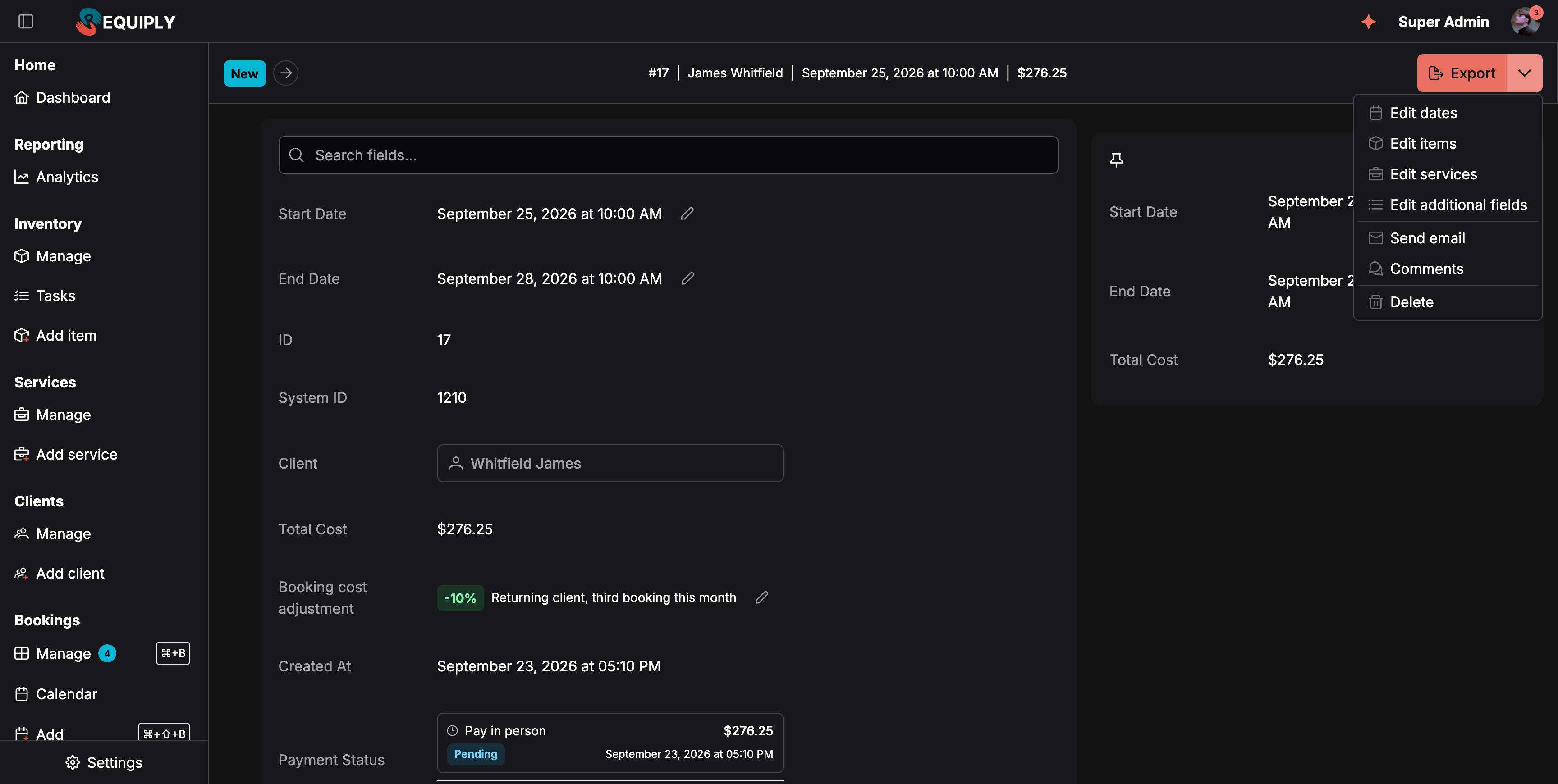
Edit services sits under Edit items in the booking's Actions menu.
What you'll see
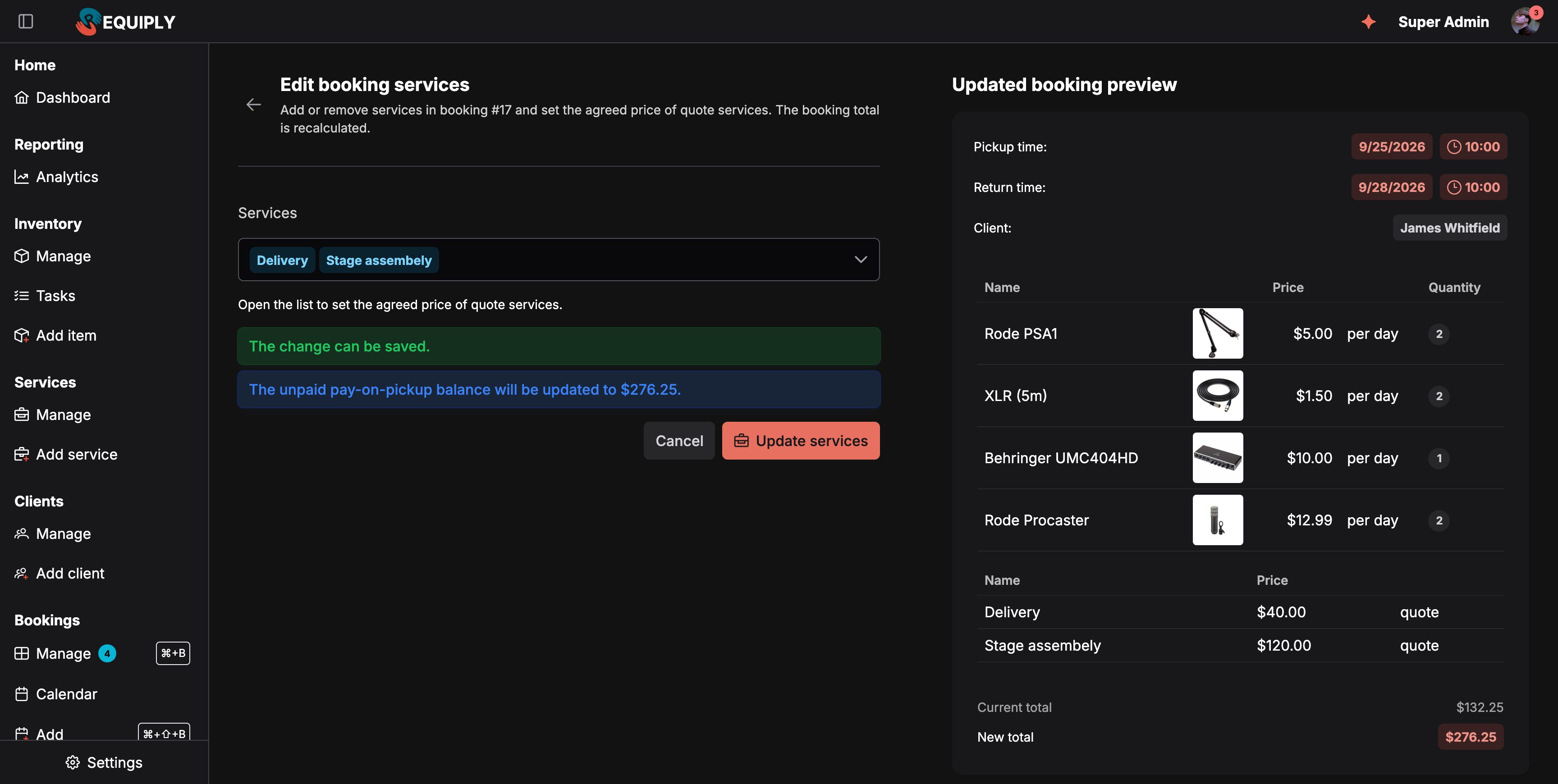
Two quote services added to a booking. Update services is enabled once the check says the change can be saved.
The page is split into two columns:
- Left, the form. A Services selector pre-filled with the services on the booking, then a live status area and the Cancel and Update services buttons.
- Right, the updated booking preview. Pickup and return time, the client, the items, and the services as they will be after the change. At the bottom, Current total, the Deposit when the booking has one, and New total. Both totals include the deposit.
Choosing services and prices
Open the Services selector to tick or untick services. Remove all at the bottom of the list clears the selection.
- The booking's own services come first, at the price they have on the booking. Archived services stay in the list so you can remove them.
- Then come your other active services, at their catalog price.
Only quote services have an editable price. A service with the Quote price type shows a price field with − and + buttons right in the list. Type the price you agreed with the client. Other services show their price and type as a tag, for example $25/day, and keep that price: a service already on the booking keeps the price it was booked at, and a newly added one takes the catalog price. The hint under the selector, Open the list to set the agreed price of quote services., appears whenever a quote service is available.
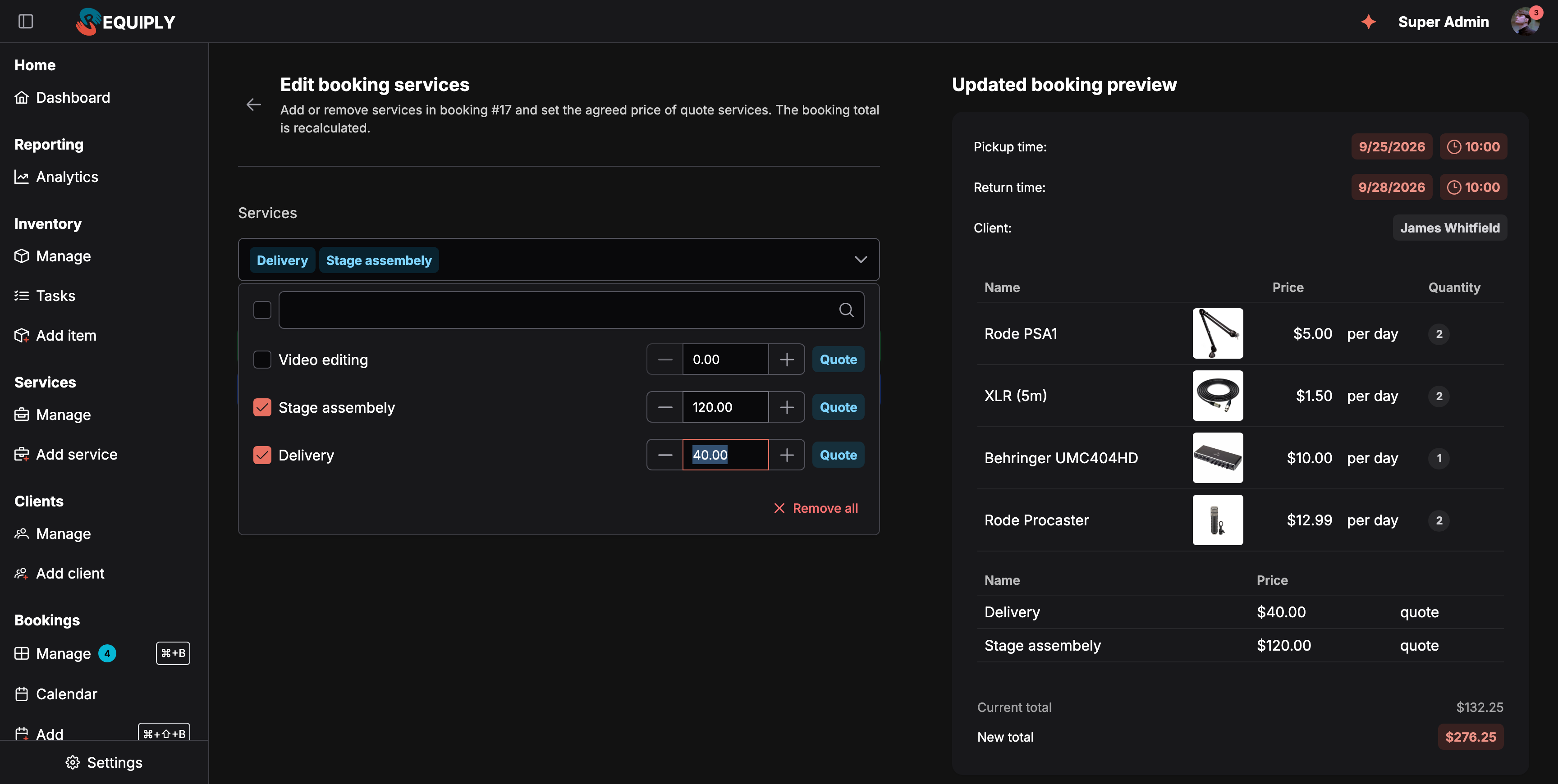
Quote services get a price field inside the list. Tick the service, then type the agreed price.
To change the price of a service that is not a quote service, change its price in Add or edit service. That affects new bookings only.
The live check
About a third of a second after each change, Requiply checks it with the server and shows the result:
- The change can be saved. in green, plus a line about the payment, for example The unpaid pay-on-pickup balance will be updated to $276.25.
- A blue Change the services or their prices. when nothing has changed yet.
- A red message when the change cannot be saved. See the table below.
There is no availability check, because services do not hold inventory.
Reasons a change is blocked
Services stay editable while a booking is active, even after the goods are handed out, because fees are often agreed at or after the handover. They lock once the booking reaches a status with the Completed or Cancelled lifecycle: Edit services then disappears from the Actions menu. See When items can no longer be changed for the full table.
| Message | What it means |
|---|---|
| This booking is completed, so its services can no longer be changed. | The booking reached a status with the Completed lifecycle while you were editing. |
| This booking is cancelled and can no longer be changed. | The booking reached a status with the Cancelled lifecycle while you were editing. |
| The service selection is invalid. Reload the page and try again. | The page sent something unexpected. Reload it. |
| One of the selected services no longer exists. | A service was deleted while you were editing. |
| Archived services cannot be added to a booking. | The service is archived. Services already on the booking can still be removed. |
| The online payment link must be replaced or supplemented before the services can be changed. | An outstanding online payment has to be reissued first. |
| The cheaper booking needs a payment refund before its services can be changed. | The new total is below what has already been paid. Refund the difference through Full refund in the booking's Actions menu, then come back. |
| The booking changed while you were editing. Reload and try again. | Someone else changed the booking. Reload rather than overwrite. |
Warnings
Warnings explain a consequence. They never block the save.
| Warning | When it appears |
|---|---|
| Employee assignments of the removed services are deleted as well: {services}. | You removed a service that had employees assigned to it. Their assignments for this booking, and the payouts counted from them, are removed with it. |
| This booking is completed. Changes will influence historic data. | The booking has ended, so the change moves figures already counted in your reports. |
How the financials are recalculated
Like Edit booking items and Edit booking dates, this page moves the total by the difference between the old and the new services:
New total = current total + price of the new services − price of the old services
Both service prices are calculated for the booking's dates, with the client's pricing discount and any booking cost adjustment. As a result:
- a quote price lands on the booking as typed, less the client's discount when the service is not excluded from discounts,
- any manual difference between the stored total and the calculated total is kept,
- the total never goes below zero.
The deposit never changes on this page, because services do not affect deposits.
The payment balance is adjusted the same way Edit booking dates adjusts it:
| Payment state | What happens |
|---|---|
| Unpaid pay-on-pickup balance | It is updated to the new total: The unpaid pay-on-pickup balance will be updated to {amount}. |
| No balance yet | A pay-on-pickup balance of {amount} will be created. |
| Partly paid | An additional pay-on-pickup balance of {amount} will be created. |
| Pending online payment link | The old payment link will be replaced with a new link for {amount}. |
| Paid online | A new payment link for the additional {amount} will be created. |
| New total below what was already paid | Blocked: A refund of {amount} is required before this change can be saved. |
Saving
Update services is enabled only while the latest check says the change can be made. On save, the services, the total, the removed employee assignments, and the payment adjustment are applied together. Requiply shows Booking services updated and returns you to the booking.
The change is recorded in the booking's comments, for example Reservation services changed: + Delivery (40), Stage assembly 100 → 120, − Video editing. Prices in the comment have no currency.
Who can use it
Anyone with Allow booking management through their permission group, the same permission that covers editing a booking at all. Without it the change is refused with Your permission group does not allow managing bookings.
The public API and the AI assistant cannot change the services of an existing booking yet.
In the mobile app
The booking's Actions menu offers Edit services under the same rules as the web. The Edit booking services screen says Add or remove services in booking #{number} and set the agreed price of quote services. The booking total is recalculated. Tick services under Services and Add services, type the Agreed price of quote services in their price field, and wait for The change can be saved. The Updated booking preview shows the new total, and Update services saves it: Booking services updated. The blocking messages and warnings are the same as on the web.
Common scenarios
The client adds delivery after booking
Open Edit services, tick Delivery, type the agreed price if it is a quote service, and save. The unpaid balance grows by the delivery price.
Setting the final price of a quoted job
The booking was created with Stage assembly at a quote price of 0 while you waited for the venue details. Once agreed, open Edit services, open the list, type 120 in the Stage assembly price field, and save.
The client no longer needs setup
Untick the setup service. If employees were assigned to it, the warning names the service before you save, and their assignments are removed with it.
Tips and cautions
Edit booking items
Add, remove, or requantify the products on an existing booking without cancelling and rebuilding it.
Booking cost adjustment
Give one booking a discount or a surcharge: charge fewer or more days or months than its dates produce, take a percentage off, or move the total by a flat amount. Lower or waive the deposit the same way. The reason is printed on the invoice.