

Sales
Sales lets a rental business sell goods as well as rent them out. Think of the memory card a client buys with a camera, the batteries for a microphone kit, or a roll of gaffer tape bought over the counter. Requiply keeps a stock count for each product, takes the goods off the shelf when you sell them, puts them back when a client returns them, and collects the money together with the booking or on its own.
Goods for sale live in your normal inventory as Equipment for sale. They have a flat price and a stock count instead of individual units, and they never appear in availability, the calendar, or the rental items of a booking.
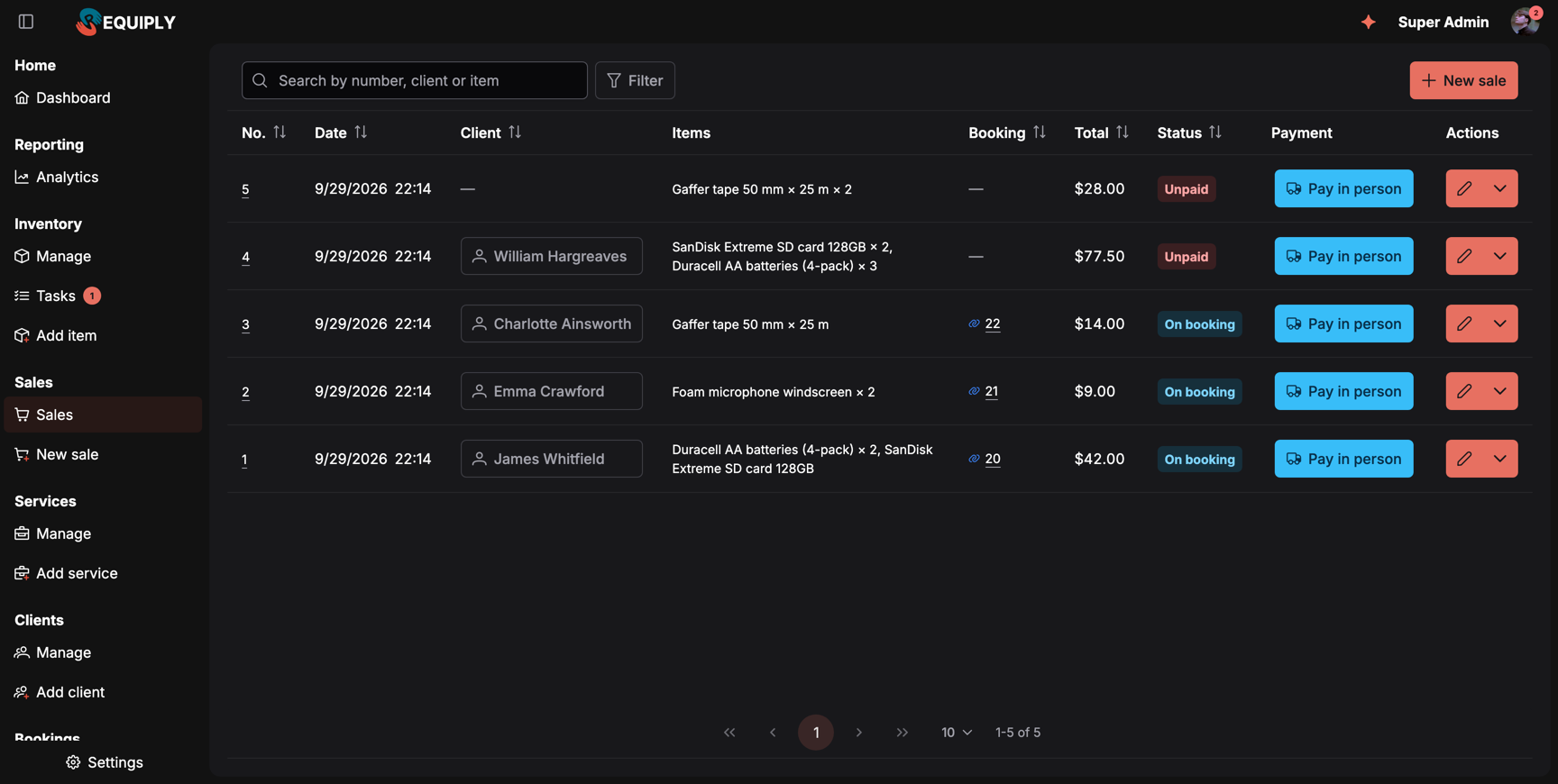
The Sales section in the sidebar and the list of every sale. Standalone sales carry their own payment status, sales made on a booking show On booking and a link to it.
Two kinds of sale
| Kind | Where you record it | How it is paid |
|---|---|---|
| Standalone sale | New sale at https://app.requiply.com/sales/add, or New sale in the mobile app. A walk-in customer, or a client who only needs goods. | The sale has its own payment: pay in person or an online payment link. An unpaid sale with a client counts as the client's debt. |
| Sale on a booking | Sell items on a booking, or the sale items in the item list when you create a booking. See Sell items on a booking. | The booking collects the rental and the goods in one payment (Combined invoice). The goods total is part of the booking total. |
Both kinds appear in the same Sales list and have their own sale page with a number such as Sale #4.
Turning Sales on
Sales is off for every organization until an administrator switches it on:
- Open Settings → Organization → Features at https://app.requiply.com/settings/org/features.
- Turn on Enable sales: Sell consumables like memory cards and batteries, on bookings or on their own, with stock tracking, reorder notifications and returns.
- Click Save.
Sales is part of the Advanced plan. On Core, Enable sales shows an Advanced badge and cannot be switched on, see Features. An organization that moves back to Core keeps its products, stock, and sales, but cannot use them until it is on Advanced again. Scanning product barcodes at the counter uses QR codes and barcodes, also on Advanced. Without it you pick products from the list instead.
While Sales is off, the Sales pages are not reachable: opening a /sales/... address takes you to the Features page. Products already created as Equipment for sale stay in your inventory, and their page says Switch on Sales in Settings > Features to see the stock and sales of this equipment.
When the Sales pages do not show in the menu
The sidebar gets a new Sales section with two pages: Sales (Sales of goods) and New sale (Record a sale). If you or your permission group already customized the menu under Sidebar menu layout, that saved layout keeps the menu you built, so the Sales section starts hidden there. Right after you save the feature, Requiply tells you so in a dialog:
- Title: Sales is on, but not in your menu yet
- You customised your menu, so the new Sales pages stay hidden after saving. Add them to your menu in your account settings.
- To show them to all administrators or another user group, add them to that group's menu on the User groups tab.
- Got it closes it.
Open the menu editor from either link and turn the Sales section on. Members without a custom layout see the section straight away.
Permissions
Sales has its own section in Permission groups, with three permissions:
| Permission | What it allows |
|---|---|
| Allow viewing sales | Shows sale items, their stock and the list of sales. The Sales list, sale pages, sale products in the inventory, and the Sold items of bookings. |
| Allow selling items | Lets members sell items on bookings and on their own, record payments and returns. The New sale page, Sell items and Return items on bookings, editing and cancelling sales, collecting payments. |
| Allow managing stock | Lets members add and edit sale items, record deliveries, write-offs and stock counts, and see purchase prices. The Record delivery, Count stock, and Write off buttons, the net cost, and the margin figures. |
Selling or managing stock includes viewing: while either of them is on, Allow viewing sales is switched on as well and cannot be turned off. The group editor marks it Included with: Allow selling items. The Administrators group starts with all three on, and you can still change them for that group.
Members without any Sales permission do not see the Sales section, sale products in the inventory, or what was sold on a booking. The booking total still includes the goods.
Where Sales shows up
| Place | What changes |
|---|---|
| Sales list | Every sale, with search, filters, payment, and actions. |
| New sale | Record a standalone sale. |
| Sale page | Lines, payment, returns, edit, and cancel. |
| Sale items and stock | Adding Equipment for sale, the stock count, deliveries, write-offs, stock counts, and the product page. |
| Sell items on a booking | The Sold items row on the booking, Sell items, and Return items. |
| Add booking | Sale products can be added while you create a booking. |
| Manage inventory | Sale products are listed with a cart badge and a stock tag. |
| Booking documents | The PDF invoice lists Sold items, and export templates get {{bookingSaleItems}} and {{bookingSaleTotal}}. |
| Client portal | With Selling items on under Portal settings, customers can add products for sale to their booking in an extra step before checkout. Stock is checked, so a customer can never buy more than you have. The booking assistant on the portal and the website widget can offer them too. |
| Client details | Unpaid standalone sales count toward the client's Debt, and the cost of goods toward the client's costs. Debt settlement still collects bookings only. |
In the mobile app
The mobile app has a Sales tab. It is off by default: open More and turn on Sales to pin it to the bottom tab bar, see Choosing the tabs. It appears only while Sales is on and you have Allow viewing sales.
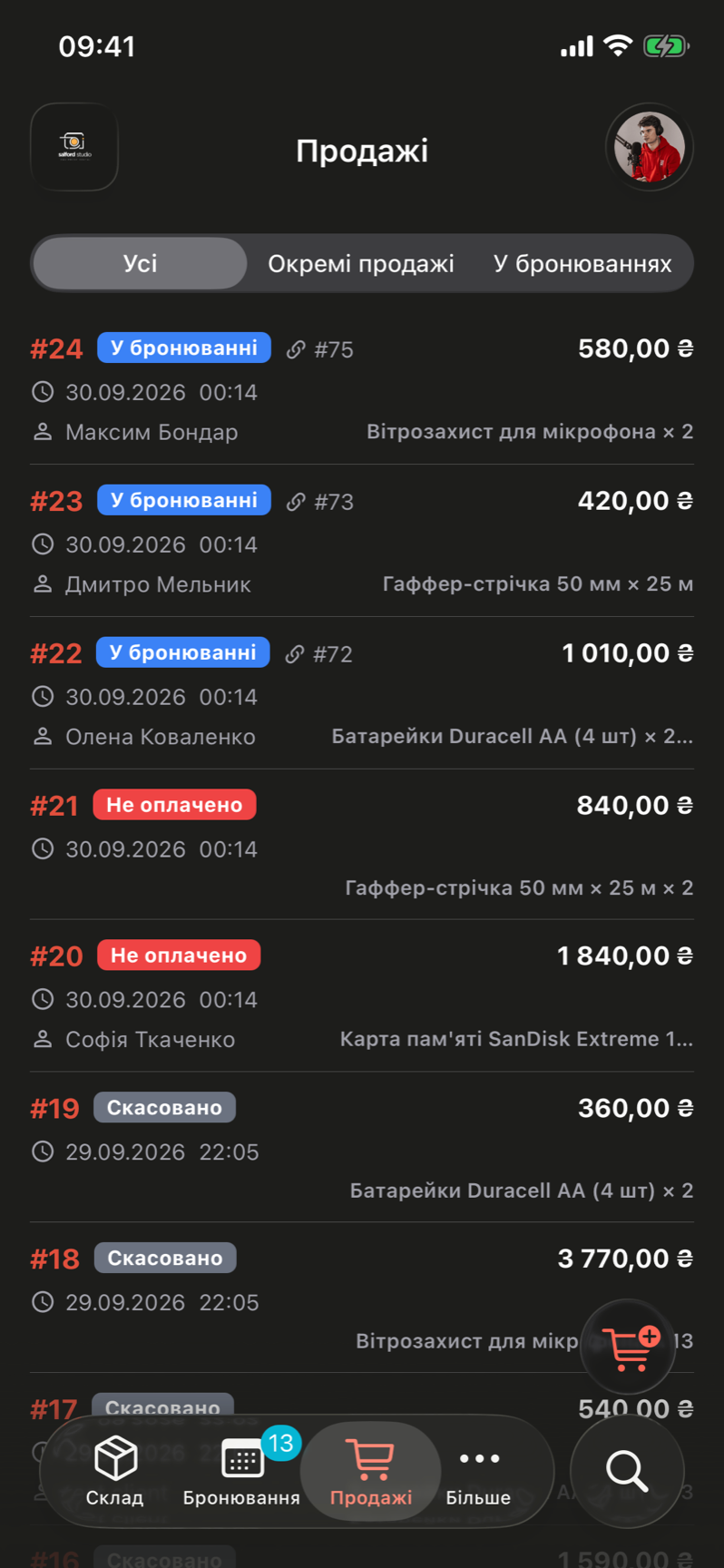
The Sales tab on iPhone, shown here in the Ukrainian interface. The chips switch between all sales, standalone sales, and sales on bookings, and the cart button starts a new sale.
On mobile you can:
- browse sales with the chips All sales, Standalone sales, and On bookings,
- start a sale with the New sale button, pick products by search, Scan, or Enter code, and check out (see New sale),
- open a sale to edit its items, collect the payment, record a return, or cancel it,
- sell items on a booking and return them from the booking's Actions menu,
- see a product's stock and history, and link or remove its package barcode.
Recording deliveries, stock counts, and write-offs, and adding new products, are done on the web.
Through the API and AI assistants
- The public REST API has sale items and sales endpoints, and bookings and quotes accept
saleLines. See API Reference, or Sales and Goods for Sale for the TypeScript SDK. - AI assistants connected through AI integrations can read
sale_itemandsalerecords, record a standalone sale withsales_manage, and add goods to a booking request withsaleLines.
Common scenarios
A camera rental shop that also sells memory cards
Switch on Enable sales, add each card as Equipment for sale with its stock, and give the front desk group Allow selling items. When a client picks up a camera, add the card to the booking with Sell items. It lands on the same invoice and the stock drops by one.
A walk-in customer buys batteries
Open New sale, add the batteries, leave the client empty or pick one, choose Pay in person, and click Add sale. Mark the payment as completed from the sale's Payment button once the money is in.
Warehouse staff count the shelf but do not sell
Give the warehouse group Allow managing stock only. They can record deliveries, write-offs, and stock counts, and see the net cost, but cannot record sales.
Tips and cautions
Notifications
Release notes, announcements, and tips from the Requiply team in the account drawer, plus the push notifications your phone gets when you are assigned a task or service, mentioned, or replied to.
Sales list
The Sales list: every sale of goods in one table, searchable by sale number, client, or item, filterable by payment state, sale type, date, client, and total, with payment and return actions on each row.