

Connect your Instagram professional account and the Direct messages clients send it arrive in Conversations. Your team replies from Requiply on the web or in the mobile app, or the AI assistant answers first. Shared posts, reels, story replies and the ad a client came from are shown right in the chat.
Before you start
| Requirement | Why it matters |
|---|---|
| Beta access for your Instagram account | Email info@requiply.com with your account tag, see above. |
| The Conversations inbox switched on | Instagram conversations live in the inbox. The Instagram card on the Communications page appears only while the inbox is on, see Organization features. |
| An administrator in Requiply | Only administrators connect channels. |
| A Business or Creator Instagram account | Instagram lets apps read messages of professional accounts only. A Facebook Page is not needed. |
| Allow access to messages turned on in the Instagram app | Without it Instagram does not pass messages to Requiply. See the next section. |
| Advanced plan, only for AI answers | Receiving and answering Instagram messages works on every plan. |
Allow access to messages in the Instagram app
On the phone that runs your business account, open the Instagram app and go to Settings › Messages and story replies › Message controls › Connected tools, then turn on Allow access to messages. The names of these menus can differ slightly between app versions and languages.
To switch a personal account to a professional one, use the account type setting in the Instagram app. A personal account is refused when you connect it.
Connecting your Instagram account
- Open Settings → Integrations → Communications, at
https://app.requiply.com/settings/integrations/communications, and click the Instagram card under Global providers. It carries the Instagram Direct tag. - Press Sign in with Instagram. Instagram opens its own sign-in page and always asks which account to use, so you can pick the business account even if your browser is signed in to another one.
- Sign in and allow access.
- Instagram sends you back to Requiply. The page shows Finishing the connection…, then Instagram account connected, and opens the Instagram dialog with the account listed as Connected.
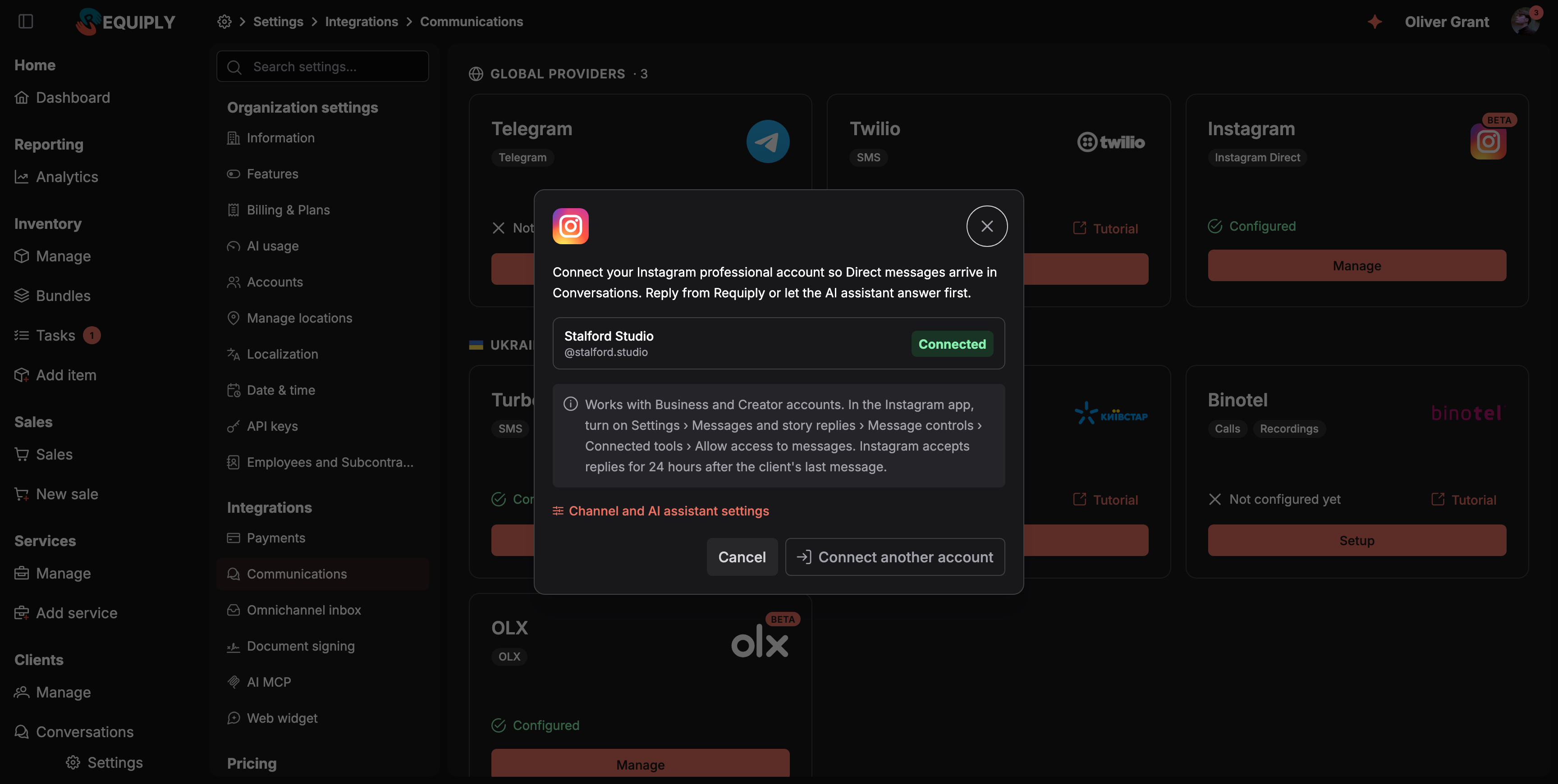
The Instagram dialog with one account connected. Connect another account adds a second one.
You can also press Connect on the Instagram row of the Channels tab in Omnichannel inbox settings. It starts the same sign-in. The row shows Sign in with your Instagram account under Communications until an account is connected.
Once connected, the account appears on the Channels tab with its @handle, where you can pause it, disconnect it, or choose when the AI assistant answers on Instagram. The dialog lists each connected account with its status and a link to Channel and AI assistant settings.
If connecting fails
| Message | What to do |
|---|---|
| Only Instagram Business and Creator accounts can receive messages here. Switch the account to a professional one in the Instagram app. | The account is personal. Switch it to Business or Creator in the Instagram app and connect again. |
| This account is already connected to another organization in Requiply. Disconnect it there first. | One Instagram account can belong to one Requiply organization only. |
| Sign-in was cancelled. Nothing was connected. | You closed or declined Instagram's sign-in page. Start again. |
| The sign-in link expired or was opened by another user. Start connecting again. | Start again from the Instagram card, in the same browser. |
| Beta on request. Email our team at info@requiply.com… | Your account is not on the beta list yet. |
What comes into the inbox
- Text messages from clients, in and out.
- Photos, GIFs, videos, voice and audio messages, and files. Requiply keeps its own copies, because Instagram's links to them expire. A heart sent with the like button arrives as a ❤️.
- Shared posts, reels and stories. They appear as a card inside the message with a picture and the caption: Shared a post, Shared a reel (the video comes as an attachment), Shared a story or Shared a link. See shared posts, stories and items.
- Story replies and mentions. A reply to your story shows Replied to your story with the story picture. A client who tags you in their story shows Mentioned you in their story.
- Anything Instagram cannot pass on shows Not supported here, open the app, so you know to check the Instagram app.
Ads and ig.me links
When a client starts the chat from one of your click-to-message ads, the conversation's right panel gets a Source section reading Instagram ad: {ad title}, and the bar above the thread shows the ad with its title and picture. The AI assistant is told about the ad too and assumes the client's questions are about it.
When a client opens the chat from an ig.me link that carries a ref parameter, Source reads Link with ref "{ref}". Use different refs on your website, in your bio and in print to see where clients come from.
Contacts
Requiply shows each client's Instagram name, @handle and profile picture in the inbox and refreshes them about once a week. Like other channels, the conversation can be linked to a client record, see Linking conversations to clients.
There is one conversation per Instagram user per connected account. When they write again later, the same conversation reopens.
Replying
- From Requiply. Type in the composer. Instagram shows plain text only, so formatting is removed. Instagram limits the length of one message, so a long reply goes out as several messages. Photos, videos, audio and files go out through the + button.
- From the Instagram app. Replies typed in the Instagram app also appear in the thread, labelled Sent from Instagram. Because a person stepped in, a conversation the AI assistant was answering moves to your team.
- No editing or deleting. You cannot edit or unsend your own replies on Instagram, because Instagram does not let other apps change sent messages. The Edit and Delete buttons do not appear in Instagram conversations.
- Client edits and unsends. When a client edits a message in Instagram, the inbox shows the new text with an edited label. When they unsend it, the message is replaced with The client unsent this message, and its text and files are removed from Requiply.
The 24-hour reply window
Instagram accepts replies for 24 hours after the client's last message:
- In the last 6 hours, the composer shows The channel accepts replies until {time}.
- After 24 hours, team members can still reply for up to 7 days after the client's last message. The AI assistant cannot. The composer shows The 24-hour window has passed. Team members can still reply until {time}, the AI assistant cannot.
- After 7 days, the conversation can be read but not answered: The channel allows replies only within 24 hours of the last client message. It opens again as soon as the client writes.
If Instagram refuses a reply, it is marked Not delivered with the reason on hover. For example, The contact blocked this channel means the client blocked your account.
Read status and typing
- Opening a conversation in Requiply marks the client's messages as seen on Instagram.
- Seen by the client. When the client sees a reply from your team or the AI assistant, the message gets the read mark in the inbox.
- Typing. While the AI assistant writes an answer, the client sees the typing indicator in Instagram.
Keeping the connection working
Requiply renews the Instagram sign-in automatically while the account is in use. The channel shows Needs attention when Instagram stops accepting it, for example when the sign-in expired or someone removed Requiply from the account in Instagram. Then:
- the dialog on the Communications page says Instagram stopped accepting the sign-in. Sign in again to keep receiving messages.,
- the Actions dropdown on the Channels tab offers Sign in again.
Sign in again with the same account. Existing conversations stay in the inbox as history either way.
You can connect more than one Instagram account with Connect another account in the Instagram dialog. Each account is its own row on the Channels tab, with its own AI working hours.
If the account owner removes Requiply in Instagram and asks Meta to delete their data, Requiply deletes the connection together with its conversations and stored files.
Common scenarios
- A client replies to your story asking for the price. The message arrives with the Replied to your story card and the story picture, so whoever answers sees exactly which item the client means.
- A campaign brings messages from an ad. Every conversation shows the ad under Source, and the AI assistant answers questions about the advertised item straight away.
- A client wrote on Friday evening and nobody answered until Monday. The 24-hour window has passed, but a team member can still reply until the following Friday. The composer shows until when.
- Instagram stopped accepting the sign-in. The channel shows Needs attention. An administrator presses Sign in again with the same account and messages keep arriving.
Tips and cautions
- Answer within 24 hours when you can. Late replies depend on the 7-day team window, and the AI assistant cannot use it.
- Check what you send before pressing Enter. Your replies cannot be edited or deleted on Instagram.
- Keep the contact question on. Instagram does not share clients' phone numbers, so keep Ask for a phone or email before handing over on in settings.
- Use one Requiply organization per account. An Instagram account already connected elsewhere must be disconnected there first.
Omnichannel inbox
Settings of the Conversations inbox: connect Telegram, OLX and Instagram as channels, pause or disconnect them, activate the AI assistant, choose when it answers in each channel, and set handoff rules, pickups and returns outside working hours, the reply limit and automatic client linking.
OLX
Connect your OLX account so buyers' messages about your OLX listings arrive in the Conversations inbox: sign in with OLX, the listing card above each chat, AI answers, replies from the OLX app, files, read ticks and the limits of the OLX integration.