

Add or edit category
This is the form behind every category: its name, its inventory type, and the parent category it sits under. Picking a parent is how a category becomes a subcategory, for example Microphones under Audio Equipment.
Open it from Settings → Inventory → Categories:
- Add category opens https://app.requiply.com/settings/inventory/categories/add, with the inventory type of the tab you were on already chosen.
- The pencil on a category row opens the edit page for that category.
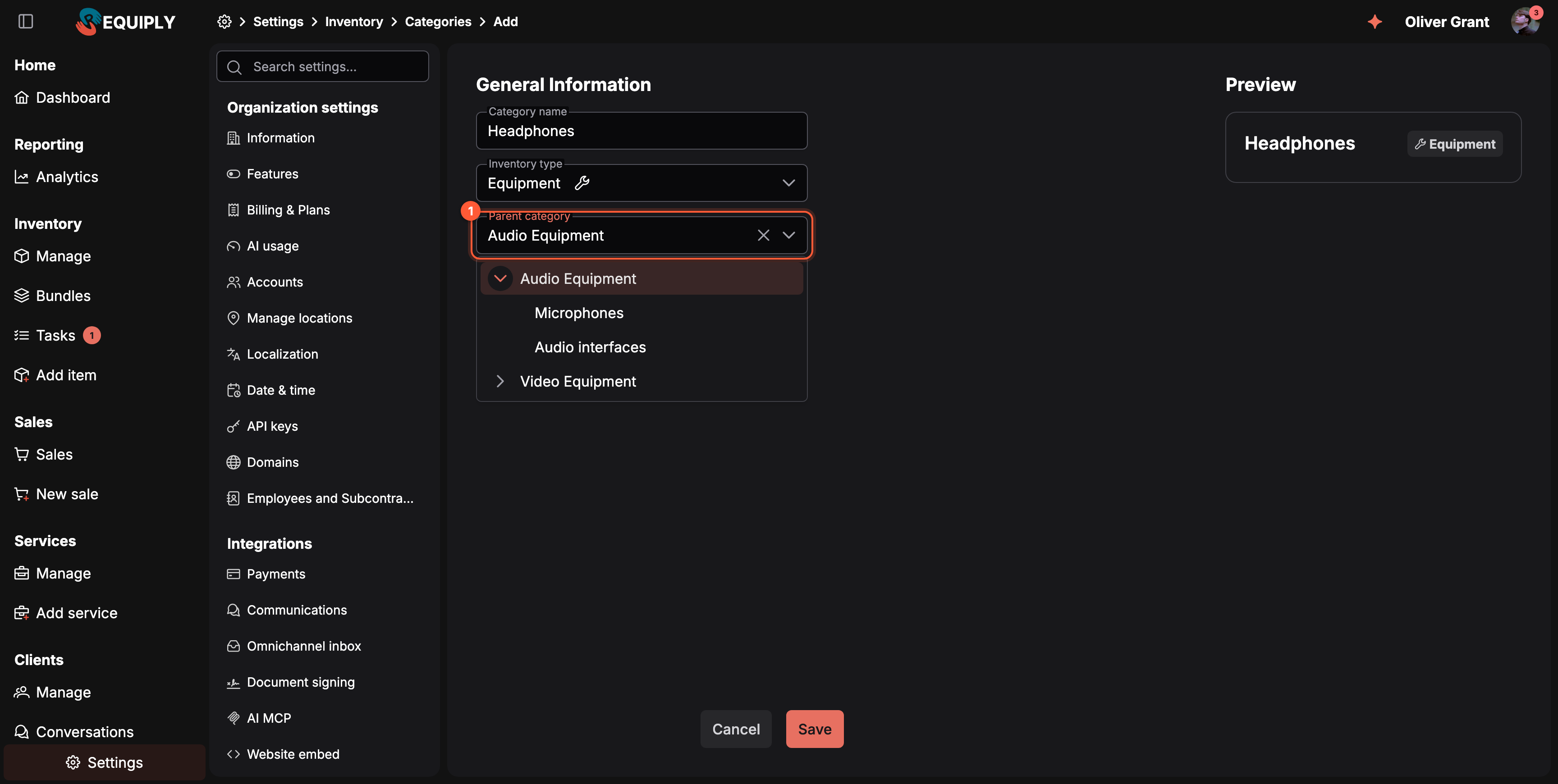
1 Parent category turns the new category into a subcategory. Leave it empty for a top-level category.
Fields
| Field | Required | What it does |
|---|---|---|
| Category name | Yes | Up to 50 characters. Two categories with the same parent and type cannot share a name, but Accessories can exist under both Audio Equipment and Video Equipment. |
| Inventory type | Yes | Equipment, Property or Equipment for sale. Each option has a help icon explaining the type. Products can only be placed in a category of their own type. |
| Parent category | No | A tree of the categories of the same type. Pick one to make this a subcategory, or leave it empty (the × clears it) to keep it at the top level. A search box appears in the list once there are more than eight categories. |
The Preview on the right shows the category card as you type.
Rules for the parent
- Only categories of the chosen Inventory type are offered. Changing the type clears a parent of the other type.
- On the edit page, the category itself and its own subcategories are left out of the list, because a category cannot sit inside its own branch.
- Parents that would push the branch deeper than five levels are left out too.
- A category that still has subcategories cannot change its type: Move the subcategories out before changing the type of this category.
Adding a category
- Open Categories on the tab of the right type and click Add category.
- Enter the Category name.
- Check the Inventory type.
- Pick a Parent category if this is a subcategory.
- Click Save.
Requiply shows Category "Microphones" created successfully and takes you back to the categories list, or to the page you came from. The new category is placed last among its siblings. Drag it to another spot on the Categories page.
If the name is taken at that level, a toast says Category name already exists and the form stays open.
Editing a category
The edit page has the same three fields, filled with the current values.
- Save stays disabled until something changed.
- Changing the Parent category moves the category, with all its subcategories, under the new parent and puts it last among its new siblings. This is saved at once; there is no separate Save order step for it.
- Delete on the bottom left opens the same confirmation as on the list. The category's products move to its parent category (or lose their category if it was top level) and its subcategories move one level up. See What deleting does.
- Cancel goes back to the list without saving.
Creating categories from other places
While adding a product
On Add item, the Category picker has an Add new button at the bottom. It opens a small dialog that asks for a name only and creates a top-level category of the product's type, already selected for the product. To nest it, move it on the Categories page afterwards.
While importing a spreadsheet
The category column of the import template creates missing categories during the import:
| Cell | Result |
|---|---|
Microphones | Uses any existing Microphones category of the product's type, at any level. Creates it at the top level if there is none. |
Audio Equipment > Microphones | Walks the path from the top: finds or creates Audio Equipment at the top level, then finds or creates Microphones under it. |
Names are matched without regard to upper or lower case.
Common scenarios
Adding a subcategory to an existing group
The studio starts renting lavalier mics. The admin clicks Add category, names it Lavalier microphones, picks Audio Equipment › Microphones as the parent and saves. On the portal, the new subcategory shows up under Microphones as soon as a product is placed in it.
Moving a category to another group
Headphones was created at the top level by mistake. The admin opens it with the pencil, sets Parent category to Audio Equipment and clicks Save.
Same name in two branches
Both Audio Equipment and Video Equipment need an Accessories subcategory. Because the names sit under different parents, both can be created.
Tips and cautions
category column creates its own category. Check the spreadsheet for typos before uploading.Overview
Organize your equipment into categories and subcategories (up to five levels), set their order, and see how many products each one holds. The tree drives inventory filters and the catalog customers browse on the client portal and your website.
QR codes and barcodes
Label every unit with a scannable QR code or barcode, print sticker sheets and label-printer PDFs, scan a code to open the unit, and tie a manufacturer's existing barcode to a unit.