

Calendar
The Booking Calendar page is the visual, time-based view of every booking in the organization. It is the schedule-at-a-glance counterpart to Manage bookings, useful when staff need to see what's happening on a given day, week, or month rather than scan rows.
You can find this page under Bookings → Calendar in the main navigation. The current view and date are reflected in the URL as ?mode=month|week|day&date=YYYY-MM-DD, together with any filters, so a specific calendar state can be deep-linked or shared.
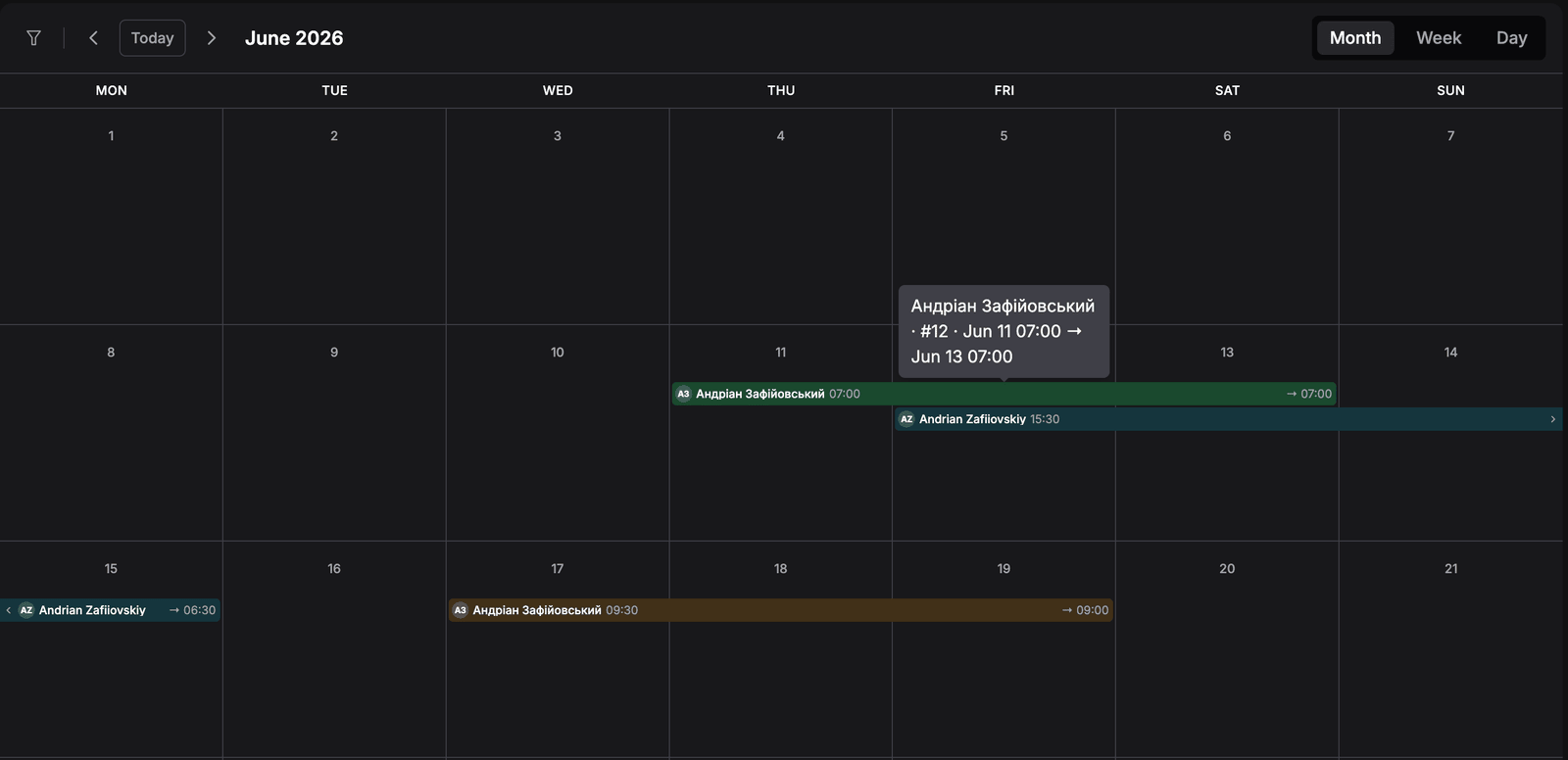
Month view. Booking #12 runs from Thursday 07:00 to Saturday 07:00, and hovering it shows the summary. The blue booking starts on Friday at 15:30 and ends on Monday at 06:30, so its bar breaks at the end of the week with a chevron on each side.
/access-denied. The page also runs the auth and store-refresh middleware so the org context is fresh on entry.Why this page matters
The calendar answers questions the table cannot answer at a glance:
- "What's on today / this week?" — bookings are laid out across the time axis, with their length and overlap visible.
- "When is this item out?" — filter the calendar to one item and only its bookings remain.
- "What does this client have booked?" — filter by client to see all of their bookings in the month.
- "What's the overall load this month?" — the month view shows density at a glance, without scrolling through lists.
- "Who is starting today?" — the day view lists every booking running that day, with times, totals, and item counts.
Status colors carry over from the booking status configuration, so the calendar also doubles as a quick status snapshot.
Who can use this page
- Any user with the Bookings permission.
- Not admin-only.
- The page is read-only at the calendar level — bookings cannot be created, dragged, or resized here. Status changes and edits happen on the booking detail page or the Manage bookings table. Selecting a booking on the calendar is a navigation action (it opens the booking detail page), not an edit.
What you'll see
The page is a single full-height card with a toolbar and the active view. The Filters panel sits to the left of the card. It is open the first time you visit the calendar, and you can close it with the Filter button.
Toolbar (always visible at the top):
- Filter button — opens and closes the Filters panel. A badge on it counts the selected clients and items.
- Previous chevron — navigates back one month / week / day depending on the current view.
- Today button — jumps to today and stays in the current view.
- Next chevron — navigates forward.
- A locale-formatted header label that reflects the current view:
- Month view:
Month YYYY(e.g. May 2026). - Week view:
dd–dd Month YYYYif the week is inside one month, otherwiseMon dd – Mon dd, YYYYacross months. - Day view:
Weekday, Month dd, YYYY.
- Month view:
- View select buttons on the right: Month / Week / Day.
How a booking looks
A booking carries the same label in all three views:
- a round badge with the client's initials, or a person icon when the booking has no client,
- the client's full name, or the booking number such as #128 when there is no client,
- a background tinted with the booking's status color.
Hover a booking in Month or Week view for a one-line summary with the client, the booking number, and the times, plus the dates when the booking spans several days. When space is tight, the label drops the end time first, then the start time, then the name, so the initials stay visible.
Month view
- A 7-column grid with weekday headers across the top (Monday-start). Today's date sits in a brand-red circle, and days outside the current month are dimmed.
- Every booking is a bar across the days it spans. The bar shows the pickup time where it starts and → the return time where it ends, unless that time is 00:00 or 23:59. A bar that continues from the previous week or into the next one has a square edge and a small chevron on that side.
- Bars are stacked into rows so overlapping bookings don't collide, up to six rows per week. When a week needs more, the sixth row shows +N more under each busy day.
- Clicking the day number or +N more opens that day in Day view. Clicking a bar opens the booking.
Week view
Seven day columns under a header with the weekday and date. The view has two parts.
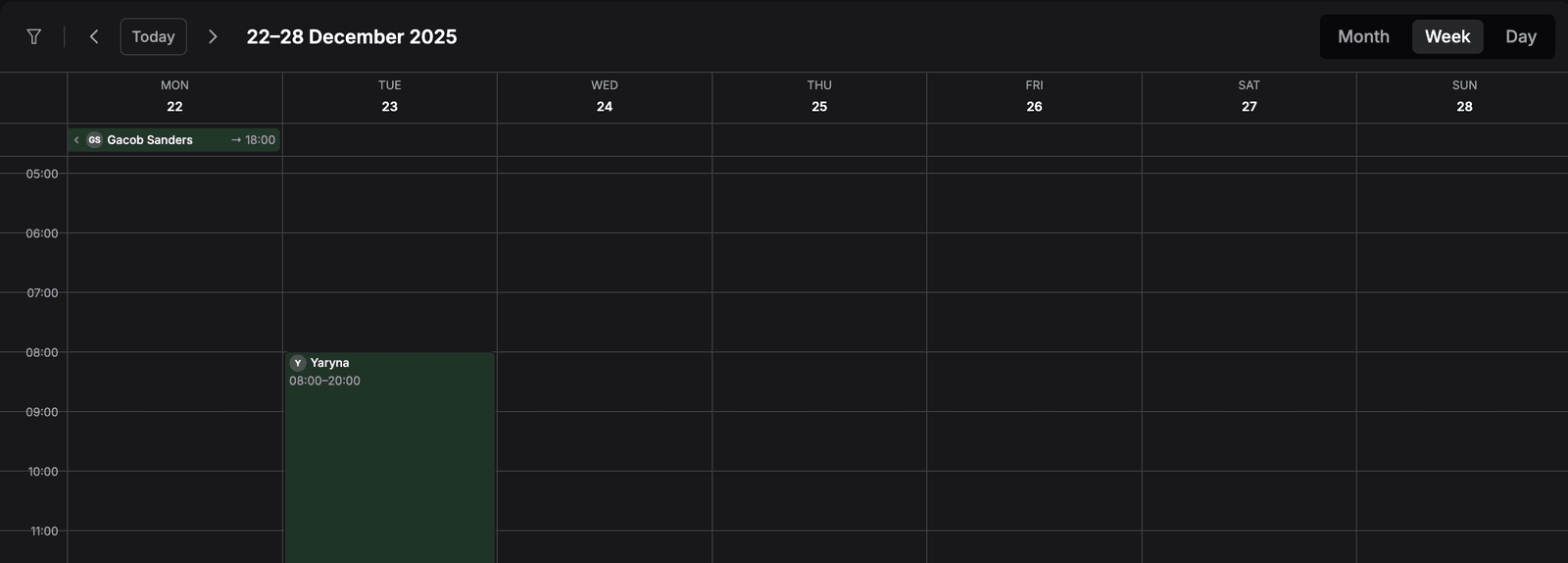
Week view. Gacob Sanders' booking began the week before and ends on Monday at 18:00, so it sits in the multi-day strip with a chevron on its left. Yaryna's booking runs from 08:00 to 20:00 on Tuesday, so it sits in the time grid.
The multi-day strip runs along the top. It holds bookings that cross midnight or fill a whole day from 00:00 to 23:59, drawn as bars across their days, as in Month view. While collapsed, it stays pinned under the day headers as you scroll through the hours.
- Up to five rows of bars are shown. When more are needed, four rows stay and +N more appears under the busy days.
- Click +N more, or the chevron at the left of the strip (Show all multi-day bookings), to show every bar. Click the chevron again (Collapse multi-day bookings) to fold the strip back. Requiply remembers the choice in this browser.
The time grid below holds bookings that start and end on the same day, placed on a 24-hour scale. A red line marks the current time in today's column.
- Overlapping bookings share the day's width, up to four side by side, fewer on a narrow screen. The rest fold into a dashed +N block. Click it for a list of those bookings with their times and numbers, and click one to open it.
- Short bookings are drawn at least 30 minutes tall so they stay clickable.
- A booking that ends exactly at 00:00 belongs to the day before, so an evening rental returned at midnight stays in one column.
Day view
A single wide column with the same 24-hour grid and current-time line, but no multi-day strip. A booking that runs across several days is drawn for the part that falls on this day, with the date added to any start or end on another day — for example 13:30 → Sep 18 08:30.
Day view has room for more detail. A block of about an hour or longer adds a line with the booking number, the total cost, and the number of items, such as #15 · $18.53 · 2 items. Up to 16 bookings fit side by side before the +N block appears.
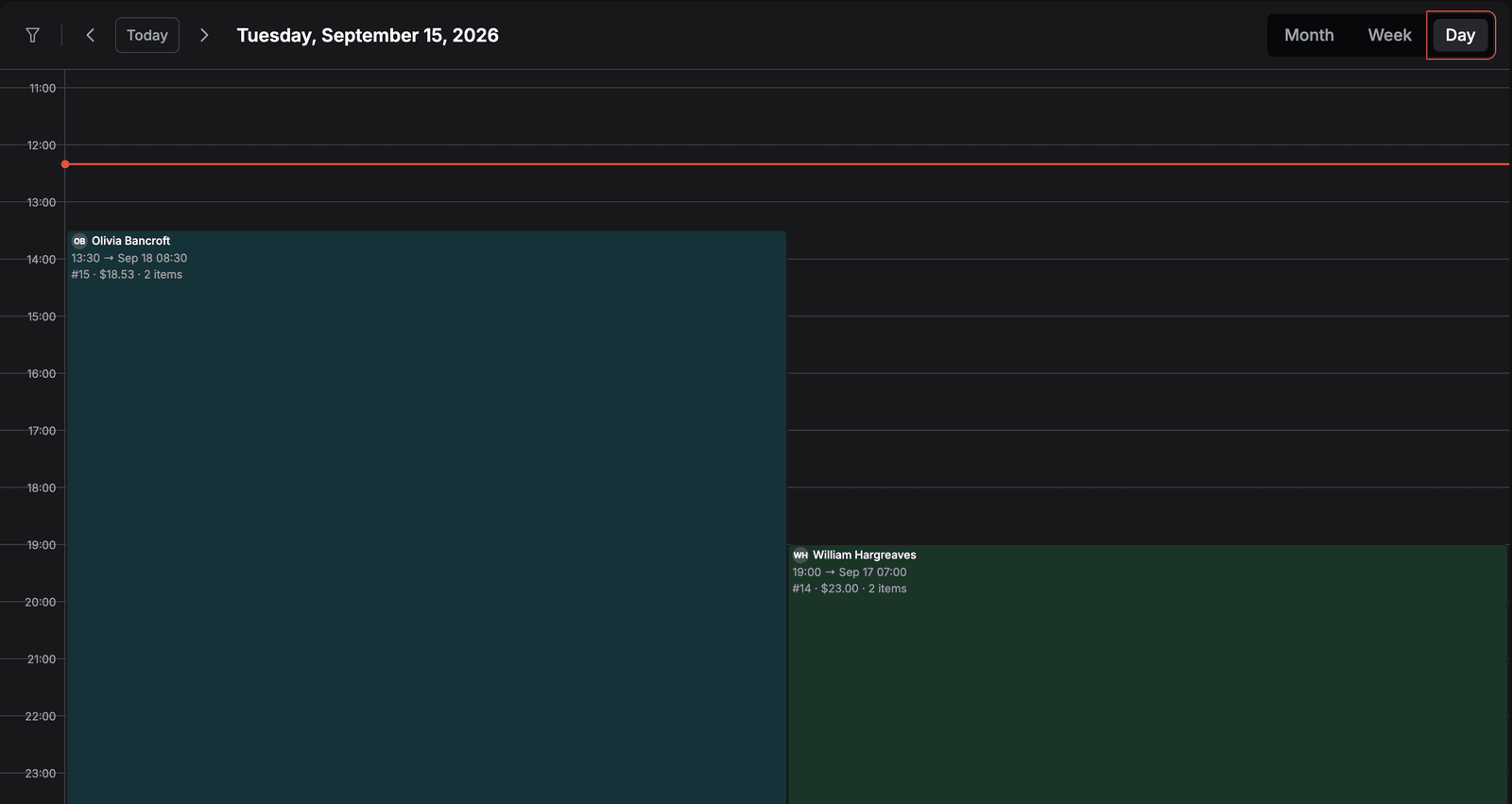
Today in Day view, with the red line at the current time. Both bookings start today and end on later days, so their end dates are spelled out, and they overlap, so they share the width.
The current date defaults to today if no date query param is present, and the default view is Month.
Empty states
The page has three different empty placeholders depending on what's missing:
- No inventory at all — box icon, "Empty inventory" title, "Before making bookings you need to have inventory" subtitle, "Add items" action that navigates to the inventory add page. Takes priority over no-bookings.
- Inventory exists but no bookings yet — calendar icon, the manage-bookings empty title and subtitle, "Add booking" action that navigates to Add booking.
- Bookings exist but none in the visible window — the calendar still renders normally; only the cells / time-slots are blank. There is no full-page empty state for an empty week or month.
Filters that match nothing work the same way as an empty window: the calendar stays blank and the Filters panel reads Matching bookings: 0.
Main actions
Navigating between dates
Use the chevron buttons to step backward or forward. The step size matches the active view: one month for Month, seven days for Week, one day for Day. The Today button always returns to today's date in the current view.
Switching views
Click Month / Week / Day in the segmented control on the right. The view change keeps the currently focused date and re-renders the layout. The selection is persisted to the URL query as mode=....
Filtering the calendar
The Filters panel is open by default. The Filter button at the left of the toolbar hides and shows it (tooltips Hide filters and Show filters), and stays highlighted while the panel is open. The panel has two fields:
- Clients — search by name, email, or phone. Each option shows the client's email and phone under the name.
- Items — search by product name, category, or SKU. Each option shows the product image with its category and SKU. Archived products are listed last with an Archived tag.
Selected values appear as chips in the field; click a chip's × to remove it, or Clear all at the bottom of the list to empty that field. Clear at the top of the panel removes every filter at once.
How the filters combine:
- Values in one field are alternatives: two clients show the bookings of either client.
- The two fields narrow each other: a client and an item show only that client's bookings that include the item.
- Items matches a booking whether the product was booked by quantity or as a specific unit.
The panel footer counts the result, Matching bookings: 1, or reads Showing all bookings when nothing is selected. Filters apply to all three views.
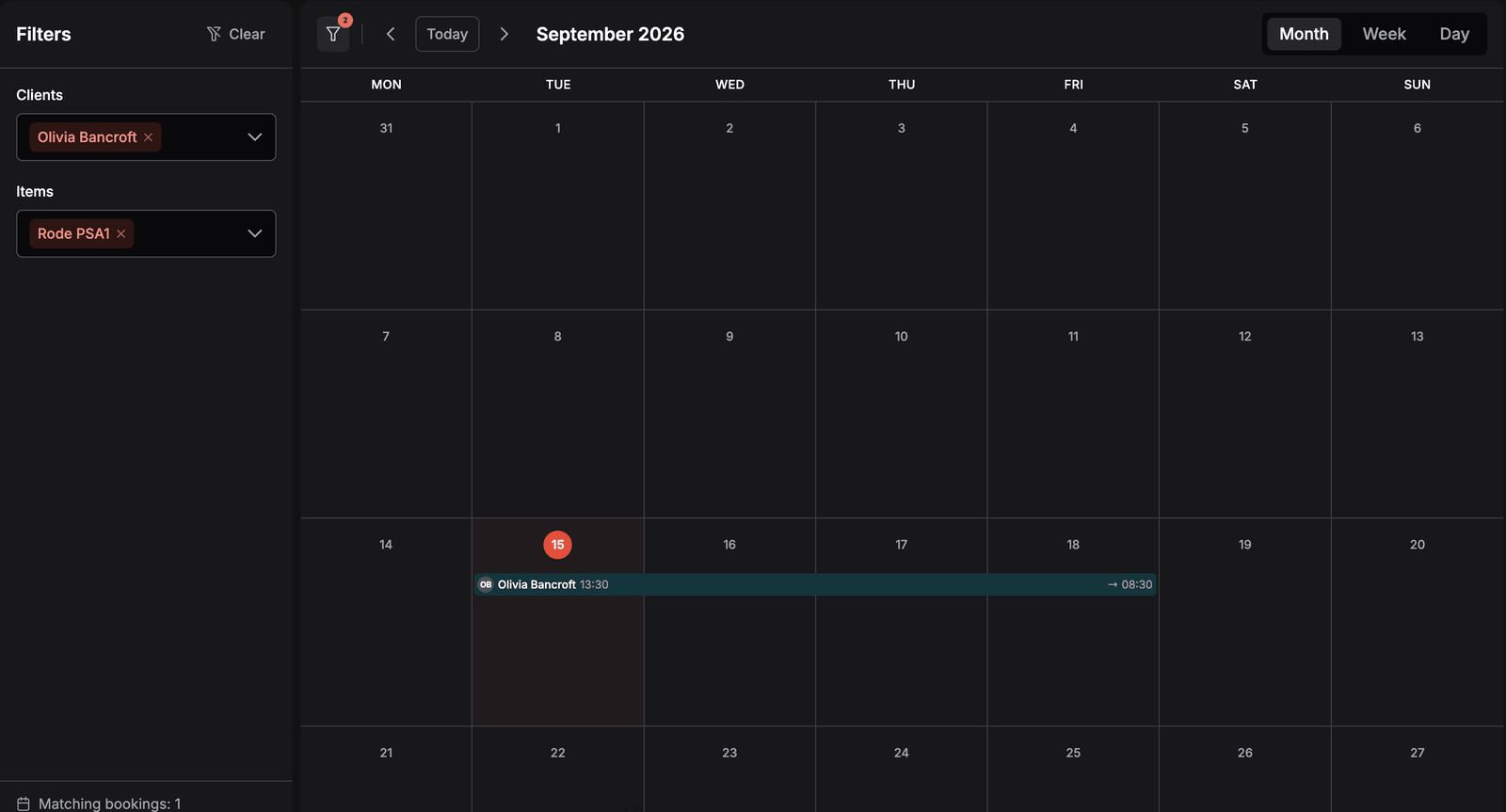
Filtered to one client and one item. The badge on the Filter button counts both selections, and the footer confirms a single matching booking: Olivia Bancroft's, from Tuesday 13:30 to Friday 08:30.
The selection is kept in the page address as clients and items, so it survives opening a booking and going back, and a filtered calendar can be shared as a link. Whether the panel is open is remembered in this browser. When filters change, booking bars fade in and out and slide to their new place, unless your device is set to reduce motion.
Deep-linking and sharing a calendar state
The current mode and date are kept in the URL query string, together with any filters, so any calendar state can be shared by copying the URL — for example /reservations/calendar?mode=week&date=2026-05-04 opens the week of May 4, 2026 directly. Clicking Today or any navigation button updates the URL. Filters are stored as internal client and product IDs, so copy the address rather than typing it.
Drilling into a specific day
In Month view, clicking the day number in any cell, or +N more under it, opens that day in Day view automatically — useful when scanning a busy month and wanting to see exact start/end times.
Opening a booking
Click any booking in any view to navigate to its detail page. In Week and Day view, bookings folded into a +N block open from the list the block shows. The calendar itself does not edit bookings; the detail page is where actions happen.
Status colors
Each booking's background is a light tint of its booking status color, taken from the booking status configuration. The mapping from status severity to the on-calendar color:
| Status severity | Color used on the calendar |
|---|---|
success | green |
info | sky blue |
warn / warning | orange |
danger | red |
contrast | near-black |
secondary | slate |
primary | brand primary color |
| anything else | falls back to a neutral surface color |
Any color customization done at the booking status level (system or organization) flows through here automatically.
Settings that control this page
This page consumes settings configured elsewhere; nothing is configured here.
| Setting | Where it's configured | What it changes here |
|---|---|---|
| Booking statuses and their colors | Organization settings (or system defaults) | Drives the color of every booking. Adding a new status or changing its severity automatically re-colors the calendar. |
| Locale | User / organization locale | Used for the toolbar header (month name, weekday name, year) and the times on bookings. Weekdays in the month view always start on Monday regardless of locale. |
| Inventory existence | Inventory pages | Determines whether the empty-inventory placeholder shows up before the calendar can render. |
| Clients and products | Clients and Inventory | Every client is offered in the Clients filter and every product in the Items filter, archived products included. |
How this page connects to the rest of Requiply
| Feature | How this page affects it |
|---|---|
| Booking detail | Clicking any booking opens the detail page. |
| Add booking | The empty-bookings placeholder's call-to-action and the inventory-empty subtitle both lead here. |
| Manage bookings | Same underlying data, shown as a table instead of a timeline. Status changes made on the table or detail page flow through here on next render. |
| Booking statuses | Colors and names configured on statuses are reflected in the calendar. |
| Inventory | Without inventory the calendar shows the empty-inventory placeholder. Products feed the Items filter. |
| Clients | Clients feed the Clients filter, and each booking shows its client's name and initials. |
Common scenarios
Morning ops scan
Open the calendar, switch to Day, click Today. The day's bookings are laid out by time, each with its total and item count. Click into any one to confirm or progress its status from the detail page.
Spotting overlaps before approving a new booking
Open Filters, pick the item in Items, then switch to Week and navigate to the target week. Only bookings that include the item remain, and overlapping ones sit side by side. If the item is already saturated, that's the cue to either decline or pick different dates.
Seeing everything booked by one client
A regular calls to extend a rental and cannot remember which one. Pick them in Clients and switch to Month: all of their bookings that month are on screen, and a click opens the one to change.
Sharing a specific calendar window with a teammate
Navigate to the date and view you want, set any filters, then copy the URL — the mode, date, clients, and items query params let the recipient land on the exact same calendar state.
Auditing a busy month
Switch to Month view to see the overall density. Use the brand-red highlight to anchor today, and click any day number or +N more to drill into Day view for that date.
Tips and cautions
?mode= and ?date= are persisted, so the link reproduces the exact view.Manage bookings
The bookings list: search by booking number, client name, phone, or email, filter by status, start and end dates, payment, origin, and cost, move bookings through their statuses, take payments, and open any booking.
Overview
Create a rental for a customer: choose equipment and services, set pickup and return dates, assign specific units, pick a payment method, and confirm the total.