

Clients
Clients is where your team maintains the people your business serves — their contact details, pricing discounts, custom field values, and history. It is the source of truth that bookings, invoices, payments, notifications, and discount logic all read from.
Pages in this section
- Manage clients — view, search, multi-select, and maintain every client record. Assign a pricing discount to a whole group at once, delete clients that have no bookings, and jump from any row into the add/edit experience.
- Client details — one client's full picture: contact record, revenue, profit, pending payments and outstanding debt, their Telegram connection and message history, custom field values, and every booking they have made, grouped into Overdue / Today / Active / Upcoming / History.
- Calls — the organization-wide call log from Binotel on the web and in the mobile app: missed calls that still need a call back, unknown numbers you can turn into clients, recordings, and call back from your own Binotel line.
- Debt settlement — collect everything a client owes across all of their bookings in a single pay-on-pickup balance or online payment link, and settle the underlying booking records in one step.
- Add or edit client — create a new client or update an existing one's general information, pricing discount, and custom client fields. Includes a live preview of the client card and supports
fromdeep links so other flows (for example, mid-booking) can pop the form and return. - Import clients — bulk-onboard clients from an
.xlsxor.xlsspreadsheet. Download the template, preview parsed rows, see per-row validation errors, and run the import in progressive batches.
How clients connect to the rest of Requiply
- Bookings pull from this list when selecting who a booking is for.
- Invoices and payments reuse the name, email, and phone on the client record for billing documents.
- Pricing discounts attach to clients here and change the prices that client sees on services.
- Custom entity fields defined for the Client entity level surface as searchable columns on Manage clients and as editable fields on the edit page.
- Notifications (booking confirmations, reminders) are sent to the email and phone captured on the client — which is why phone numbers must carry a country code — or to Telegram once the client has connected to your bot.
- Payments roll up per client on the Client details page, where outstanding debt across every booking can be settled in one payment.
- Sales of goods (when Sales is on) can carry a client. An unpaid standalone sale adds to that client's debt.
Client hover card
Wherever a booking or a sale shows its client as a name button, hovering the name for half a second opens a client hover card. It works on Manage bookings, the booking detail page, the Sales list, and the sale page, for members with Allow client management.
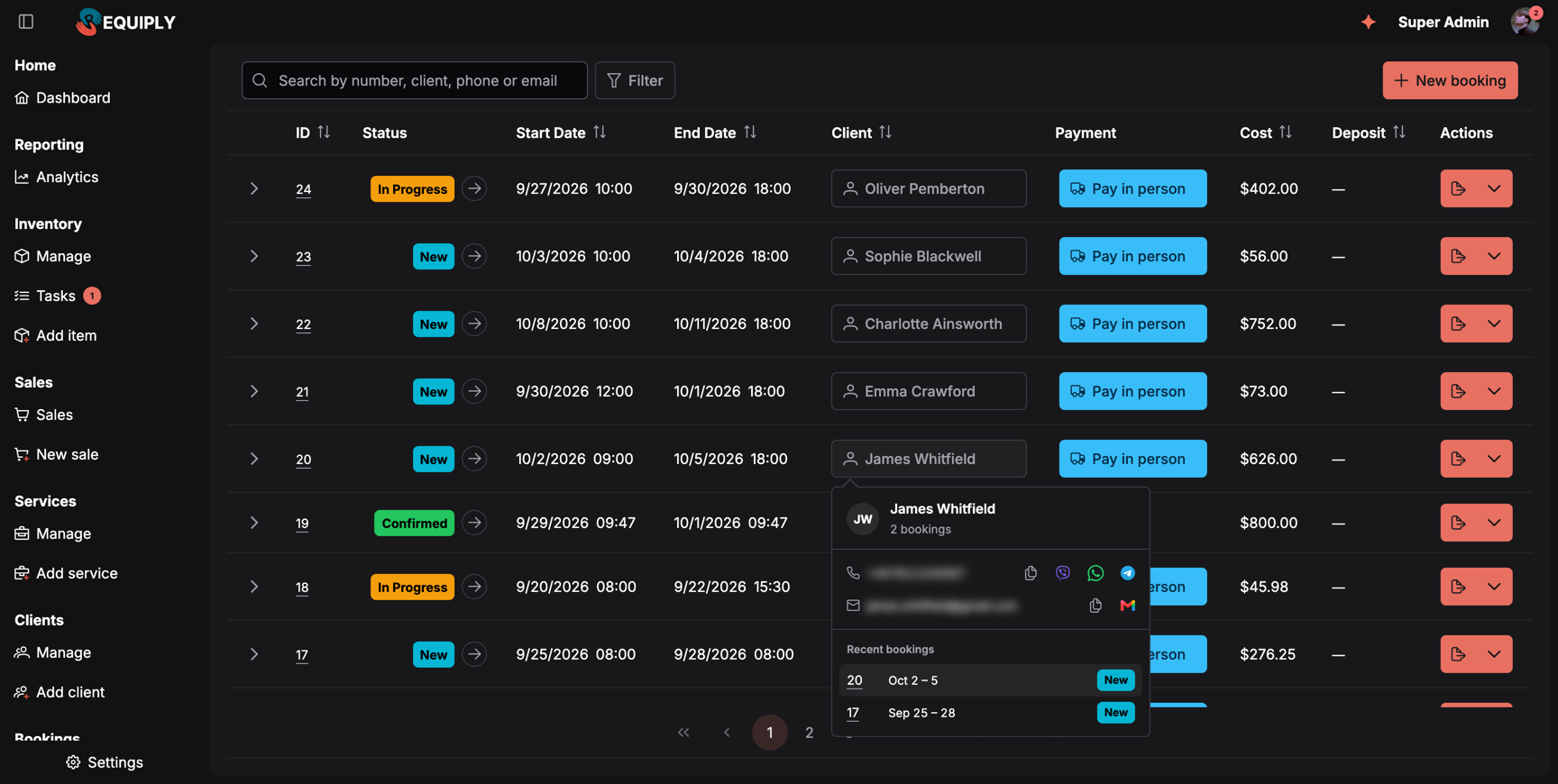
Hovering a client's name shows how to reach them and what they booked recently, without leaving the list.
The card shows:
- the initials, the full name (click it to open Client details), and how many bookings the client has, for example 2 bookings,
- the phone and email, each with quick buttons to copy, message (Viber, WhatsApp, Telegram), or write an email,
- Recent bookings: up to five, each with its number, dates, and status. The booking you are looking at is highlighted (hover: This booking). Click a number to open that booking,
- All bookings (12) when the client has more than five, which opens the client page.
Move the pointer onto the card to keep it open; it closes a moment after the pointer leaves. If loading fails, the card says Couldn't load client details. Hover again to retry. Touch screens do not show the card; tap the name to open the client instead.
Add or edit service
Create or edit a chargeable service such as delivery or setup: its name, price, price type, and whether discounts apply to it.
Manage clients
The customer list: search clients by name, email, phone, or number, filter by discount, client portal account, or custom fields, assign a discount to several at once, delete records with no bookings, and open any client's full history.