

Booking dates
The Booking dates picker on Add booking sets the pickup and the return. What it offers depends on the items you picked, your working hours and holidays, and the member's permissions.
Picking booking dates
In Start from items mode the date picker shows availability against the currently selected items and is disabled until at least one item is selected. In Start from dates mode it comes first and is always enabled. Two layouts exist (controlled by org settings, see below). The Clear all button next to the heading clears both pickup and return values.
By default the picker only offers the working hours from Date & time settings: closed days cannot be picked, and the server rejects pickup or return times outside working hours.
Holidays and closed days. Dates listed under Holidays and closed days are greyed out like a closed weekday. Hover one to see its name, for example Christmas Day. A holiday cannot be the pickup day or the return day, but a booking can run through it: pick December 23 and December 27 and the range covers the 25th. Members allowed to book outside working hours see holidays like any other day and can pick them, with orange time pills and a confirmation on Create booking.
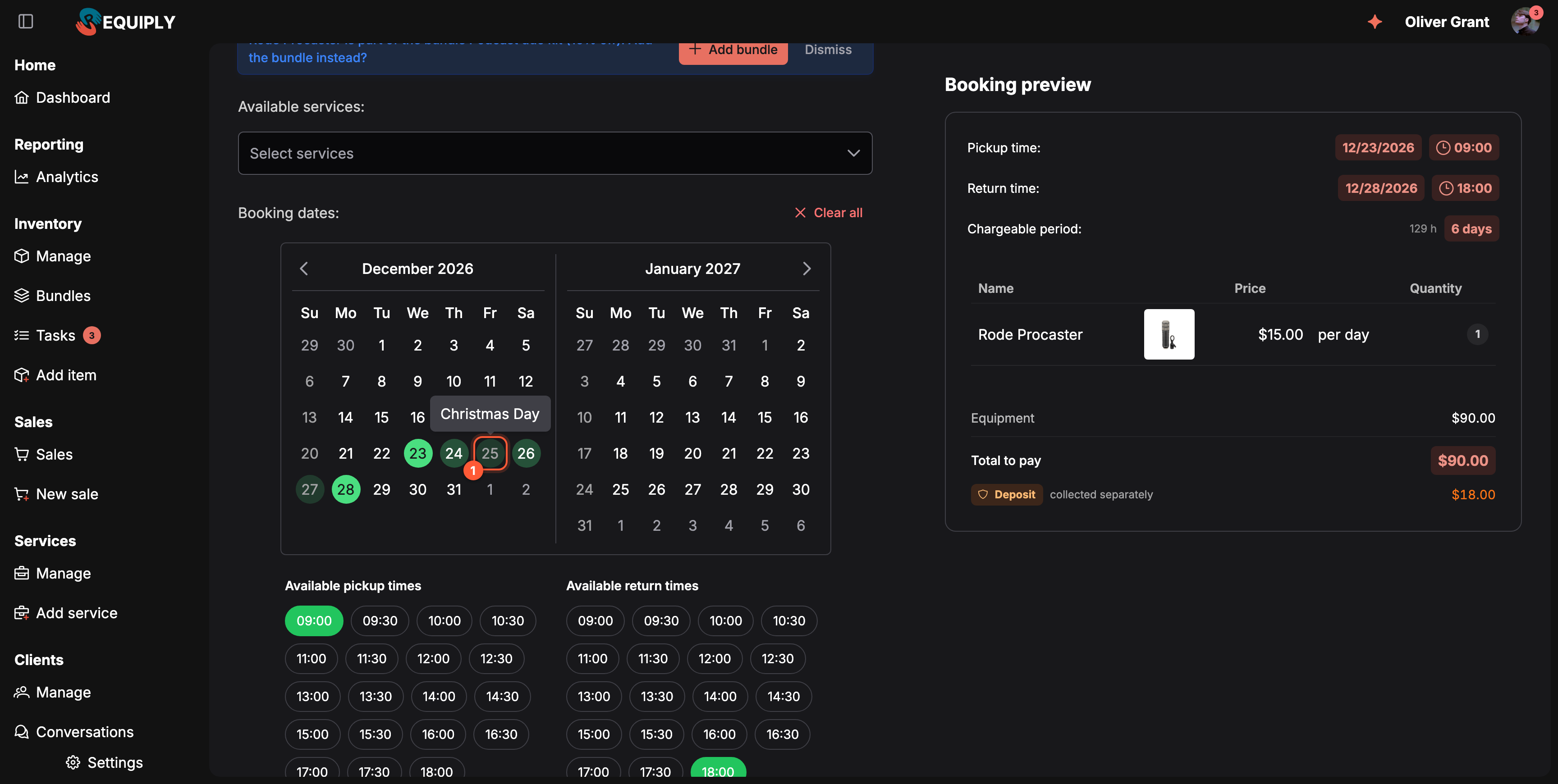
1 A holiday inside the selected range: it cannot be the pickup or return day, and the tooltip names it.
Selecting the dates on the calendar
The calendar marks fully booked days struck through in red and partly booked days in orange. Picking a range works in either direction:
- First click sets one end of the booking.
- Second click completes the range, on either side of the first day: click a later day for the return, or an earlier day to make it the pickup.
- Hovering shows the range a click would give, in a lighter green, before you commit to it.
- With a full range selected, clicking a day moves the nearer end to it: a day before the pickup or closer to it moves the pickup, a day after the return or closer to it moves the return. Clicking the pickup or the return day itself starts a new selection from that day.
- A range never runs through a fully booked day, and it can end on a partly booked day but not continue past it. Days that cannot join the current range are dimmed; clicking one starts a new selection there.
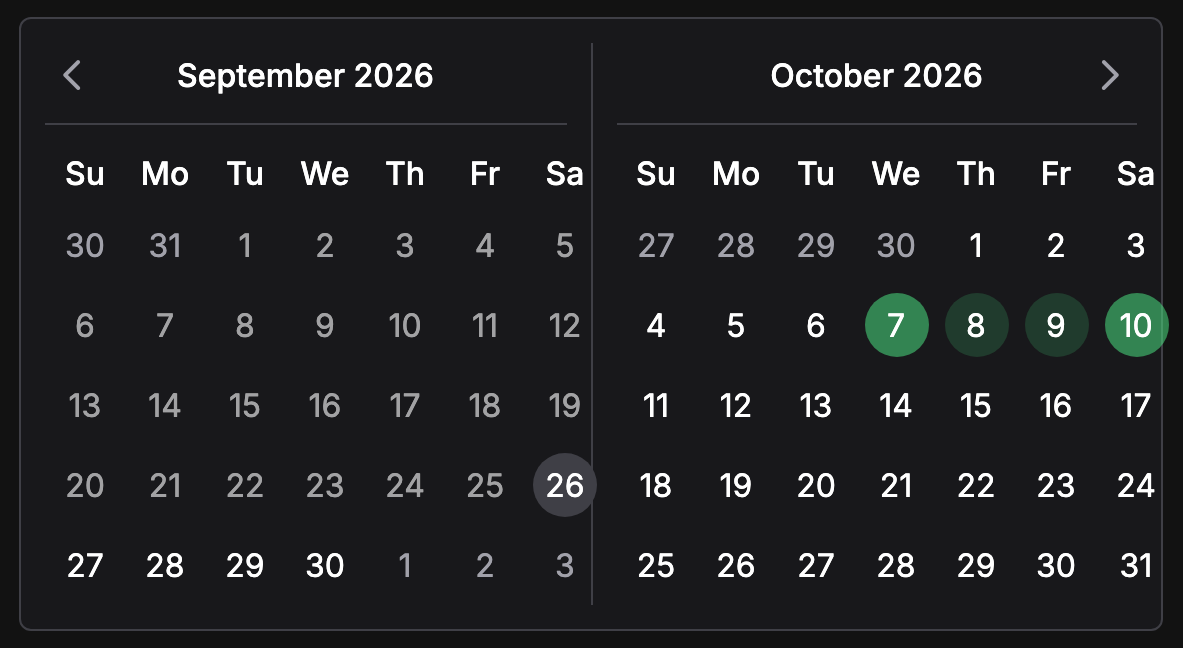
October 7 is picked and the mouse rests on the 10th: the lighter days show the range the second click will select.
When you change the pickup day, only the pickup time is reset; the return time stays as long as it still fits. The same calendar is used on Edit booking dates and in the settings preview. In the mobile app, press and hold a day to see the range before you tap.
Booking outside working hours
Members whose permission group has Allow booking outside of working hours get a wider picker:
- Closed days can be picked.
- Time pills cover the whole day, 00:00 to 23:59.
- Pills outside the working schedule are light orange, with the tooltip Outside of working hours. A selected outside-hours pill is solid orange instead of green.
- The pickup time is still preselected at the opening time and the return time at the closing time.
When you click Create booking with a pickup or return outside working hours, an Outside of working hours dialog asks: Are you sure you want to create a booking that has pickup or return outside of working hours? Click Create booking in the dialog to go ahead, or Cancel to go back and change the times.
The permission sits in the Booking creation section of the group. It is on for Administrators by default and can be switched off for them; new groups start with it off. If a request claims the exception for a member without the permission, the server refuses it with Your permission group does not allow booking outside of working hours.
Overview
Create a rental for a customer: choose equipment and services, set pickup and return dates, assign specific units, pick a payment method, and confirm the total.
Scanning and pinning
Add items to a new booking by typing or scanning a code, and pin the exact physical units the customer gets, on the web and in the mobile app.