

Add or edit client
The Add client and Edit client pages are where you create new client records and update existing ones. They share the same form layout and live preview, and they are the only places in Requiply where a client's core contact details and pricing discount can be changed one record at a time.
You can find these pages under:
- Clients → Manage → Add client for new records.
- Clients → Manage → row pencil icon to edit an existing client.
Both pages can also be reached from other parts of the app that link to the add screen with a from query parameter, in which case you are returned to that origin after a successful save.
Why these pages matter
Client records are referenced everywhere in Requiply — bookings, invoices, payments, pricing discounts, notifications, and custom entity fields all rely on the data captured here. The add page is the front door for new clients (whether typed in manually or created mid-flow from another screen), and the edit page is the only single-record way to correct contact details, attach a pricing discount, or maintain custom client fields.
Getting these forms right keeps downstream work clean:
- Booking confirmations and reminders are sent to the email and phone captured here.
- Invoices and receipts use the name on the client record.
- Pricing discounts assigned here change the prices the client sees on services.
- Custom entity fields entered on edit feed reporting, search, and any logic that depends on those fields.
What you'll see
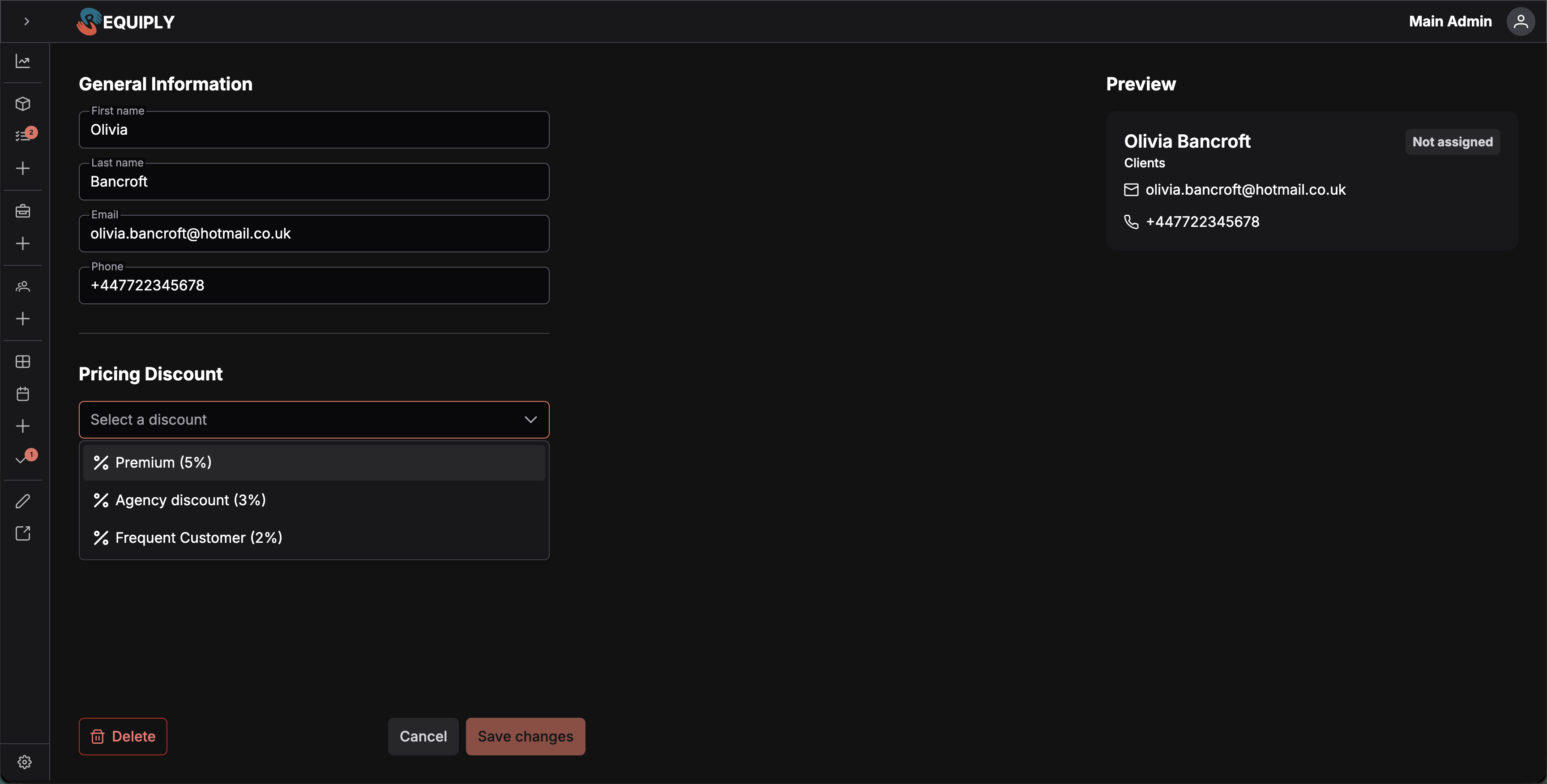
Both pages use the same two-column layout inside a full-height container:
- Left column (form, half the width): a scrollable form with section headers and inputs, and a footer row of action buttons that stays pinned at the bottom.
- Right column (preview, ~5/12 width): a Preview heading and a live client card showing how the client will look once saved, including the selected discount label.
While saving (and on the edit page, while loading) a full-screen overlay disables the page so you cannot double-submit.
Form sections
- General information — first name, last name, email, phone (country picker + number).
- Pricing discount — a single dropdown for the pricing discount.
- Custom client fields: every custom field configured on the Client tab of Level configurations, in its configured order. Fields an admin marked Required carry a red * and must be filled in before the client can be saved.
Edit page additions
- The footer adds a red outlined Delete button on the left, opening a confirmation dialog before the client is removed.
- The Save changes button is disabled until something has actually changed in either the form or the custom fields.
Footer buttons
- Add page: Cancel (returns to Manage clients) and Save.
- Edit page: Delete (left), Cancel, and Save changes (disabled when there are no changes).
Empty, loading, and restricted states
- Loading (edit page only): while the client, discounts, and custom fields load in parallel, the form and preview are hidden and a full-page block overlay is shown. If the client cannot be loaded (invalid id, missing record), an error toast is shown and you are redirected to Manage clients.
- Saving: the block overlay covers the entire page and the Save button shows a loading spinner.
- Unauthenticated: users who are not signed in never reach these pages — they are redirected to the login flow before render.
- No discounts configured: the discount dropdown simply has no options other than its placeholder. The form still saves normally with no discount attached.
There is no traditional "empty state" because both pages are forms, not lists.
Main actions
Creating a new client (add page)
- Open the add page from the Manage clients header, the empty state, or any deep link that includes a
fromparameter. - Fill in First name and Phone (required). Last name, email, and discount are optional.
- Optionally pick a discount; the preview card on the right updates immediately to show the chosen discount.
- Fill in the custom client fields, at least the ones marked *.
- Click Save.
If a required custom field is empty, nothing is saved and a toast names what is missing, for example Fill in the required fields: Company.
On submit, the form first checks whether a client with the same phone already exists in the organization. If one does, an error toast appears (A client with this phone already exists) and the form stays open so you can correct the phone. The same check runs for the email when one is filled in.
If the phone is unique, the client is created. A success toast (Client {name} created) is shown and you are navigated to either the URL passed in from or, if absent, back to Manage clients.
If creation fails for any other reason, a generic Something went wrong toast is shown and the form remains editable.
Editing an existing client (edit page)
- Open the edit page from the row pencil icon on Manage clients.
- The form is prefilled with the client's current values, including any custom field values.
- Edit the fields you need to change. The Save changes button is disabled until at least one field (form or custom field) differs from the loaded values.
- Click Save changes.
A required custom field cannot be emptied: saving shows the same Fill in the required fields: … toast. Only fields that actually changed are saved. After the client update succeeds, the custom fields block is asked to save its own pending changes. If both succeed, a success toast (Client {name} updated) is shown and you are returned to Manage clients.
If either step fails, a generic error toast is shown and you stay on the page so changes are not lost.
Deleting a client (edit page only)
The red outlined Delete button in the footer opens the same delete dialog used on Manage clients. It loads the client's bookings first:
- No bookings — the dialog asks Are you sure you want to delete {client name}?. Yes deletes the client, shows a success toast, and returns you to Manage clients.
- Has bookings — deletion is blocked. The dialog warns that the client cannot be deleted because they have bookings, lists those bookings with their IDs and date ranges, and keeps the confirm button disabled until they are gone.
Deletion is final. There is no undo here.
Cancelling
The Cancel button on either page navigates back to Manage clients without saving. On the add page, any in-progress entries are discarded. On the edit page, unsaved changes (including custom fields) are also discarded.
Forms and fields
| Field | Required | Validation | Notes |
|---|---|---|---|
| First name | Yes | 1–25 characters | Drives the preview card title and the success-toast name. |
| Last name | No | Up to 25 characters | Joined with the first name in toasts and the preview. |
| No | Valid email format, or empty | Empty value is allowed; an invalid email blocks save with an inline error. When filled, it must also be unique within the organization — a duplicate stops the save with A client with this email already exists. | |
| Phone | Add: Yes · Edit: No | Must be a full international number: + followed by a country code and 7–15 digits in total | Entered through a country picker plus number field, so the country code is always present. On the add page, also checked for uniqueness within the organization before the client is created. |
| Pricing discount | No | Must match an existing discount in the dropdown | Cleared via the dropdown's clear icon. The preview card shows the friendly label Name (X%). |
| Custom client fields (edit only) | Depends on each field's own configuration | Validated by the shared custom fields block | Saved in a second step after the main update succeeds. |
The phone field
Phone is entered in two parts: a searchable country selector showing the flag and dial code, and the national number beside it. Requiply stores the two joined as a full international number (for example +380951234567).
The country defaults to your organization's own phone country, falling back to Ukraine when the organization has no phone on file. Pasting a complete international number into the field re-selects the matching country automatically.
Live preview
The right side of both pages renders a live client card bound to the form's current values. It updates as you type, so the team can see how the client's name, contact info, and discount tag will look on the Manage clients card view before saving. The preview is purely visual — nothing is persisted until Save or Save changes is clicked.
How these pages connect to the rest of Requiply
| Feature | How these pages affect it |
|---|---|
| Manage clients | New, edited, and deleted clients are reflected in the table on Manage clients. Both pages return there on Cancel and after most successful actions. |
| Bookings | The contact details and discount entered here are what bookings use when this client is selected. |
| Invoices and payments | Name, email, and phone captured here flow onto billing documents. |
| Pricing discounts | Selecting a discount on this page applies it to every service price the client sees. Clearing it removes that effect. |
| Custom entity fields (Client level) | The edit page is the per-client editor for those fields. Changes here update the values that appear as columns on Manage clients. |
| External entry points | When the add page is opened with a from parameter, you are returned to that URL after a successful create — useful for flows that pop the add screen mid-task (for example, while creating a booking for a brand-new client). |
Common scenarios
Onboarding a single new client
The user opens Add client, types the client's name and phone, optionally adds an email and a "VIP" discount, and saves. They land back on Manage clients and see the new record immediately.
Creating a client mid-booking
While creating a booking, the user clicks an "Add client" entry point that opens the add page with a from parameter pointing back to the booking flow. After saving the new client, they are returned to the booking flow they came from rather than the manage page.
On Add booking itself, Create client opens a shorter dialog instead: the contact fields plus a Details part with only the client fields marked Required or Show at creation. Picking an existing client there that misses a required field opens Complete client details.
Fixing a wrong phone number
The user opens Manage clients, clicks the pencil on the affected row, updates the phone field, and clicks Save changes. Only the phone is sent to the server; other fields are left untouched.
Changing a client's discount
On the edit page, the user picks a different discount from the dropdown (or clears it). The preview updates instantly. After Save changes, future pricing for that client uses the new discount.
Removing a client who is no longer a customer
The user opens the client's edit page, clicks Delete, confirms in the dialog, and the client is removed. They are returned to Manage clients.
Tips and cautions
Client details
Everything Requiply knows about one customer on a single page: contact details, total revenue and profit, what they still owe, and every booking they have made.
Debt settlement
Collect everything one customer owes across several unpaid bookings in a single payment or one online payment link, instead of chasing each booking separately.