

Entity fields
The Entity fields page is where you create and manage custom fields that extend the data captured across your Requiply organization. It is used to tailor the information you collect beyond the built-in fields, and connects to anywhere these custom fields are displayed or filled in across the product.
This is where you go to add an extra field to a client, an item, or a booking when Requiply does not store it by default: a driver's license number or company registration number on a client, a purchase date or serial number on an item, an event name on a booking. Creating the field here is the first of two steps: after it exists, attach it to the records it belongs to under Level configurations, which is what makes it appear on the form.
You can find this page under Settings → Fields → Entity fields.
admin middleware, so non-admin users cannot access or manage entity fields.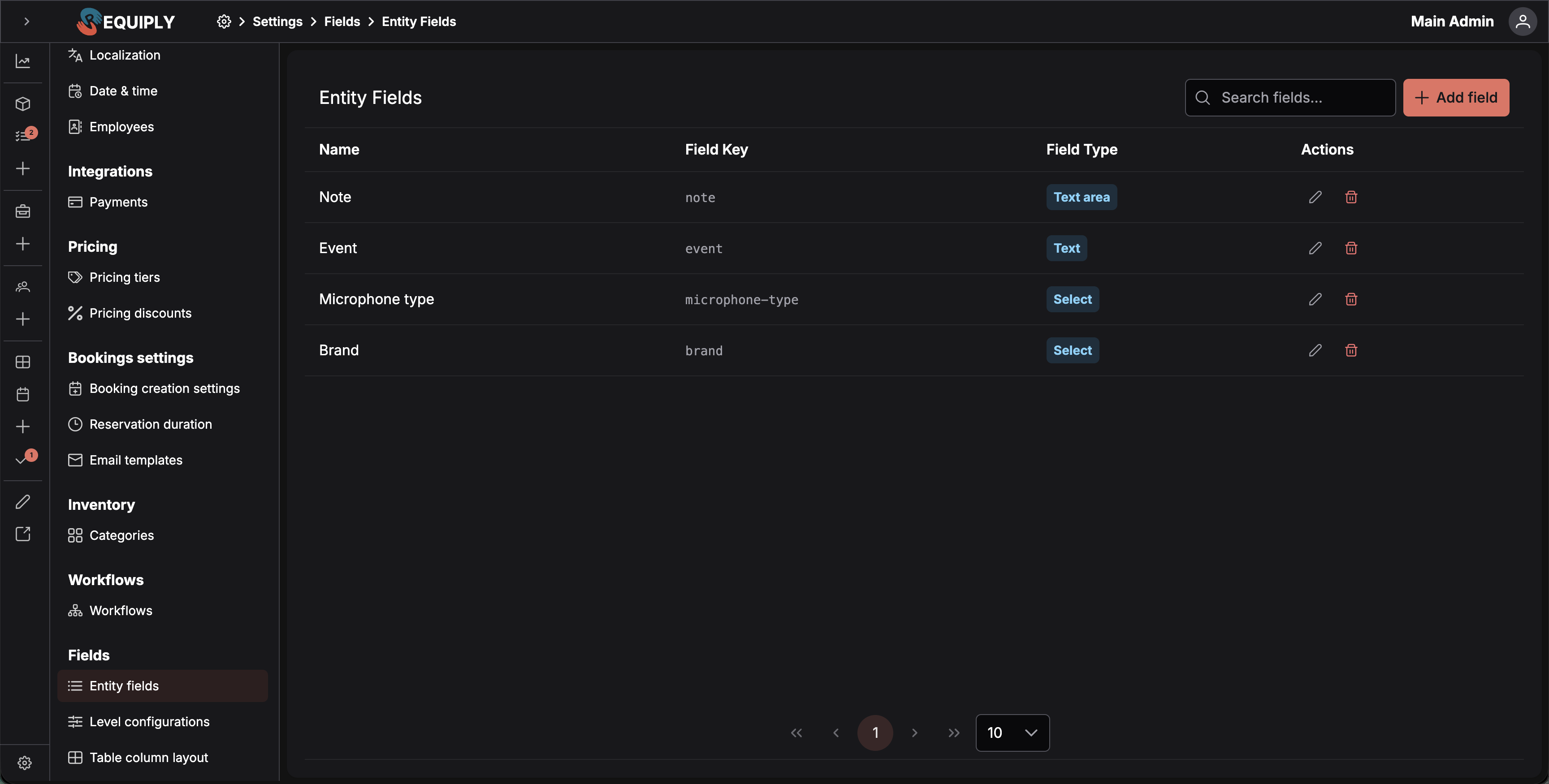
The Entity fields page lists every custom field defined for the organization with its name, field key, and type.
Why this page matters
Entity fields let your organization capture information that is specific to your business. Standard fields cover the basics, but every business has its own data needs — preferred contact method, allergy notes, internal reference numbers, special instructions, and so on.
By defining custom fields once on this page, your team can then collect consistent, structured data wherever those fields are used. Each field has a stable field key that is generated automatically from the field name, so the data stays addressable even if you rename the field later in a UI sense.
Who can use this page
- Administrators only. The page, the Add page, and the Edit page all require admin access.
- Regular staff and employees do not see this area.
- The page also relies on the active organization context — it loads fields for the currently selected organization.
What you'll see
When entity fields exist, the page shows a single card containing a paginated table of all fields in the organization. The table includes:
- A header row with the page title, a global search input, and an + Add field button on the right.
- A Name column with the human-readable field name. Fields provided by Requiply carry a System tag (see System fields).
- A Field Key column showing the auto-generated machine-friendly key in monospaced text.
- A Field Type column displaying the field type as a colored tag (for example, Textbox, Textarea, Number, Select, Multiselect, Checkbox, Date, Phone).
- An Actions column, frozen to the right, with two icon buttons per row: a pencil to edit and a trash to delete. System fields show a lock icon instead.
The table is paginated with a default page size of 10, and the user can switch between 5, 10, 20, or 50 rows per page.
Empty state
When no entity fields have been created yet, the table is replaced with an empty placeholder showing:
- A list icon.
- An empty-state title encouraging the admin to add the first field.
- A primary call-to-action button that takes the admin to the Add entity field page.
The first field is important because it establishes how your team will capture custom data going forward. Choosing a clear name and the right field type up front avoids confusion later.
Main actions
Adding a new entity field
Clicking + Add field (either from the table header or from the empty state) opens the Add entity field page.
The Add page is split into two columns:
- Left: the form to define the field.
- Right: a live Preview card showing how the field will appear once saved.
The form asks for:
- Name — the human-readable label for the field. Required, up to 100 characters. The field key is generated automatically from this name (cyrillic is transliterated, the result is lowercased, non-alphanumeric characters are stripped, and spaces become hyphens).
- Field type: chosen from a dropdown of all supported entity field types: Textbox, Textarea, Number, Select, Multiselect, Checkbox, Date, and Phone.
Depending on the selected type, additional configuration appears:
- Select / Multiselect: an Options input (chip-based) where you add the choices users can pick from.
- Number: a Number format section with
min,max,minFractionDigits, andmaxFractionDigitsrules. Defaults are 0–1000 with 0–2 fraction digits. - Date: a Date Format section with a Show time toggle. Off, the field stores a plain calendar date; on, it stores an instant and the helper note reads "Values are stored in UTC and shown in the organization timezone." The section previews the chosen format as Displayed as: {value} and names the timezone it will render in.
- Phone: no format section. The field renders as a phone input with a country picker and flag, and stores the number in international E.164 form (
+380953370000). The picker opens on the country of your organization phone, falling back to the country of the interface language. - Textbox / Textarea: a Text format section with
minandmaxlength rules. Defaults are 0–500.
Pressing Save creates the field for the current organization and returns you to the entity fields list with a success toast. Cancel returns to the list without saving. While saving, the page is blocked by a full-screen overlay.
Editing an entity field
Clicking the pencil icon next to a field opens the Edit entity field page.
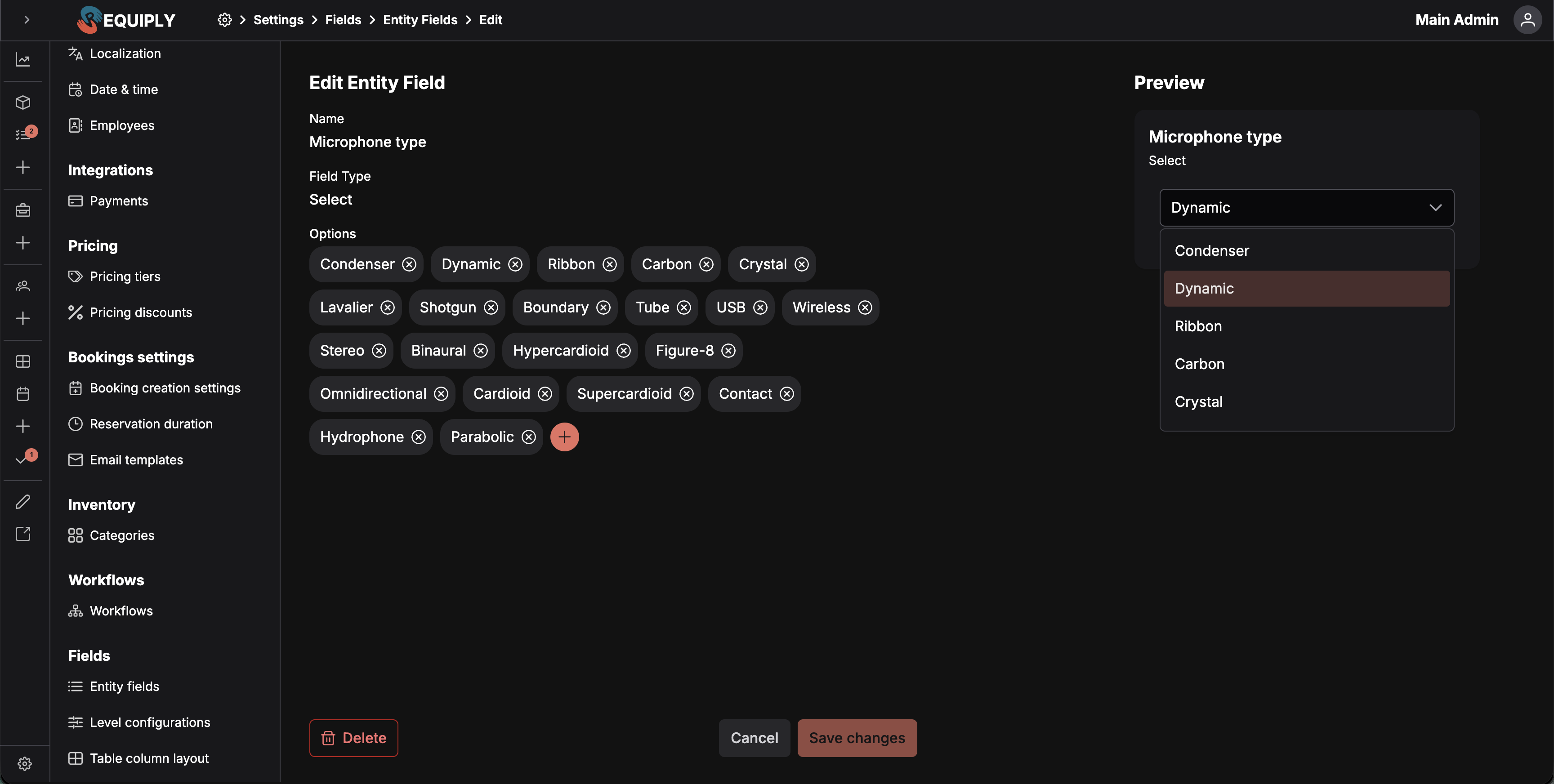
Editing a Select field. Name and field type are read-only; only the options list (and a live preview) can be changed.
The Edit page also uses a two-column layout with a live preview on the right.
On the edit page:
- The Name and Field type are shown as read-only text. They cannot be changed once a field has been created.
- Only configuration relevant to the field's type is editable:
- Select / Multiselect: the Options list.
- Number: the number format rules (min, max, fraction digits).
- Date: the Show time toggle.
- Textbox / Textarea: the text format rules (min, max length).
The Save changes button is disabled until you actually change something compared to the loaded values. Cancel returns to the list without saving. A loading overlay covers the page while data is loading or saving.
Removing an entity field
The page offers two ways to delete a field:
- From the list, click the trash icon in the row's actions.
- From the edit page, click the Delete button in the bottom-left.
Either path opens the Delete entity field confirmation dialog. After confirming, the field is removed and the list refreshes (or, when triggered from the edit page, you are navigated back to the list).
System fields
Some fields are defined by Requiply rather than by you, because other parts of the product read them. They appear in the list with a System tag and a lock in place of the edit and delete buttons — "System field definitions are managed by Requiply. You can configure where they are used."
| Field | Key | Type | Levels | Used by |
|---|---|---|---|---|
| ЄДРПОУ / РНОКПП (ІПН) — the Ukrainian legal-entity code (8-digit EDRPOU) or individual tax number (10-digit RNOKPP / IPN) | system_ua_legal_party_code | Textbox, 8–10 digits | Client, Organization | Sending a document for signing prefills the client's code from this field. |
A system field is created for every organization and behaves like any other field once you attach it on Level configurations — it shows up on the client form (or Organization info), is stored per record, and is available as a template variable. Its input accepts digits only and must be exactly 8 or 10 digits long; it has no default value.
Searching
The header includes a global search input. Typing into it filters the table across all visible columns using a "contains" match, which makes it easy to find a field by name, key, or type label.
Forms and fields
Add page
| Field | Required | Notes |
|---|---|---|
| Name | Yes | 1–100 characters. Used to generate the field key. |
| Field type | Yes | Must be one of the values in EntityFieldType. Defaults to Textbox. |
| Options | When type is Select or Multiselect | Free-form chip list. |
| Number format | When type is Number | min, max, minFractionDigits, maxFractionDigits. |
| Date Format | When type is Date | Show time toggle. |
| Text format | When type is Textbox or Textarea | min, max length. |
Validation visible in code: name is required and capped at 100 characters; field type must be a valid EntityFieldType value.
Edit page
- Name and Field type are read-only.
- The same type-specific configuration sections are shown as on the Add page, pre-filled from the saved field.
- Save changes is only enabled when the relevant configuration differs from what was originally loaded.
The Date and Phone field types
Two field types were added after the original set, and both do more than store a string.
Date
A Date field renders as a date picker and sorts, filters, and compares as a real date rather than as text, which matters in workflow conditions and in table columns.
The Show time toggle decides what is actually stored:
| Show time | Stored as | Shown as |
|---|---|---|
| Off | A calendar date, YYYY-MM-DD. | The same day everywhere, for everyone. Right for warranty expiry, purchase date, license validity. |
| On | An instant, in UTC. | Converted to the organization timezone from Date & time settings. Right for inspection times and anything where the hour matters. |
Because a date-only field carries no timezone, it never shifts by a day when read from another country. Turn Show time on only when the time of day is genuinely part of the value.
Phone
A Phone field renders as a phone input with a searchable country picker and flag, and stores what you type in international E.164 form: a +, the country code, then the national number, with leading zeros stripped. Typing 095 337 0000 with Ukraine selected stores +380953370000.
Storing one canonical shape is what lets the same number work as a link to call it, as a WhatsApp, Viber, or Telegram handle from the quick actions on a client, and as a recipient for the SMS and Viber workflow action without any cleanup.
The picker opens on the country of your organization phone number, and falls back to the country of the interface language when the organization has none.
How this page connects to the rest of Requiply
| Feature | How this page affects it |
|---|---|
| Custom data capture | Fields defined here become the custom inputs your team can fill in for the entities that support them. |
| Field key stability | The auto-generated fieldKey is the stable identifier used to reference the field in stored data, so it should be considered the durable handle for integrations or reporting. |
| Type-specific behavior | Format rules and options chosen here drive validation and selection behavior wherever the field is rendered. |
Common scenarios
Setting up custom data for a new business
An admin opens Settings → Fields → Entity fields, lands on the empty state, and adds the first few fields they want to track — for example a "Preferred contact" select, an "Internal reference" textbox, and a "Discount cap" number with min/max format rules.
Adding a new option to an existing dropdown
A team needs a new value in a Select field. The admin clicks the pencil next to the field, adds the new chip in the Options list, and saves. The name and type of the field stay the same, so existing data continues to line up.
Tightening validation on a free-text field
After noticing that staff are entering very long notes into a textbox, an admin edits the field and lowers the max length in the text format rules. New entries are constrained going forward.
Cleaning up unused fields
An admin reviews the list, searches for fields they suspect are no longer in use, and uses the trash icon to remove them after confirming in the delete dialog.
Tips and cautions
Overview
Add your own fields to Requiply and control where they appear: which fields exist, which records they apply to, which table columns show, and which detail rows show.
Level configurations
Decide which custom fields apply to items, item groups, clients, bookings or the organization, their order on forms, and which client and booking fields are required or shown when a new client or booking is created.