

Open on phone or web
Quick answer
Work often moves between the desk and the counter. You find a booking on the computer and need it on the phone to scan the items in the warehouse, or you are answering a client on the phone and want the full booking page on the big screen. One click sends the record to your other device, with no searching for it there.
Both directions work only between your own devices: the same Requiply account, signed in to the same organization on the web and in the mobile app.
Open on phone
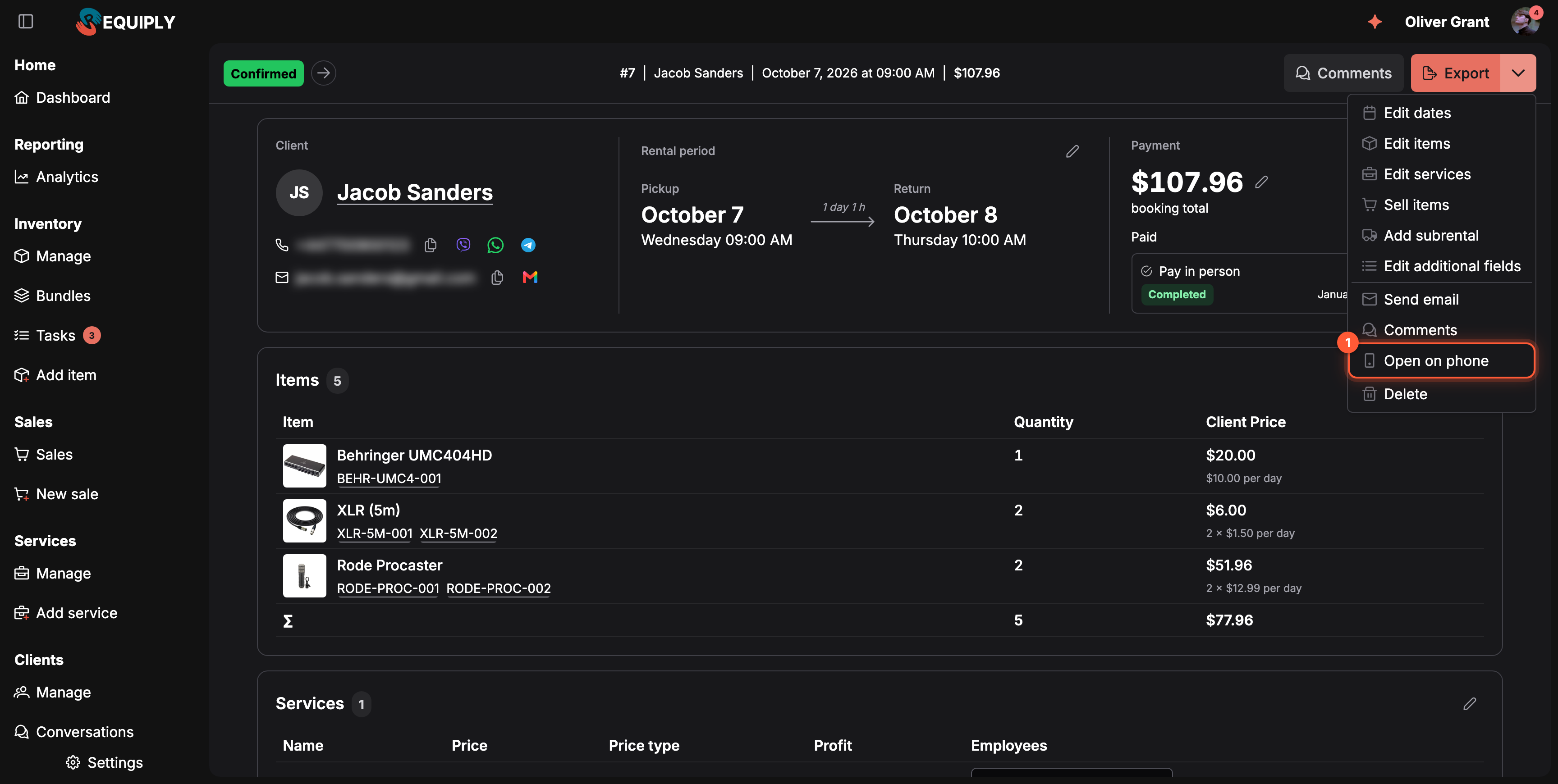
A booking's actions menu on the web.
- Open on phone sends this booking to your phone.
The same menu item is in the actions menu of these records:
| Record | Where the menu is |
|---|---|
| Booking | The arrow next to Export on the booking page and on each row of Manage bookings. |
| Client | The client page and each row of Manage clients. |
| Sale | The sale page and each row of the Sales list. |
| Product | The product page and each product row of Manage items. |
| Unit | The unit page and each unit row under its product. |
| Task | The task page and each row of the task list. |
What happens next depends on your phone:
| The web app says | What happened on the phone |
|---|---|
| Opened on your phone | The Requiply app was open, so it opened the record at once and showed Opened from the web. |
| Sent to your phone as a notification | The app was closed or in the background. A few seconds later the phone gets a notification named after the record, such as Booking #128 or the client's name, with Sent from Requiply on the web. Tap to open. Tapping it opens the record in the app. |
| The Open on phone dialog with a QR code | No phone with the Requiply app is signed in to your account yet: Your phone is not signed in to the Requiply app yet. Scan this code with the phone camera to open it there. Shown for bookings, clients, products and units. |
| Requiply is not open on your phone | The same case for a sale or a task, which have no QR code. |
The notification waits a few seconds on purpose, so an open app can take the record first and you do not get a notification for something already on your screen. A phone that stays offline for more than five minutes does not get it. If you use several phones, each one with the app open opens the record. When none of them has it open, each gets the notification.
The QR code is a regular Requiply QR link: scanned with the phone camera, it opens the Requiply app when it is installed, and the web app otherwise. Sign in to the app after that, and the next Open on phone reaches the phone directly.
Open on web
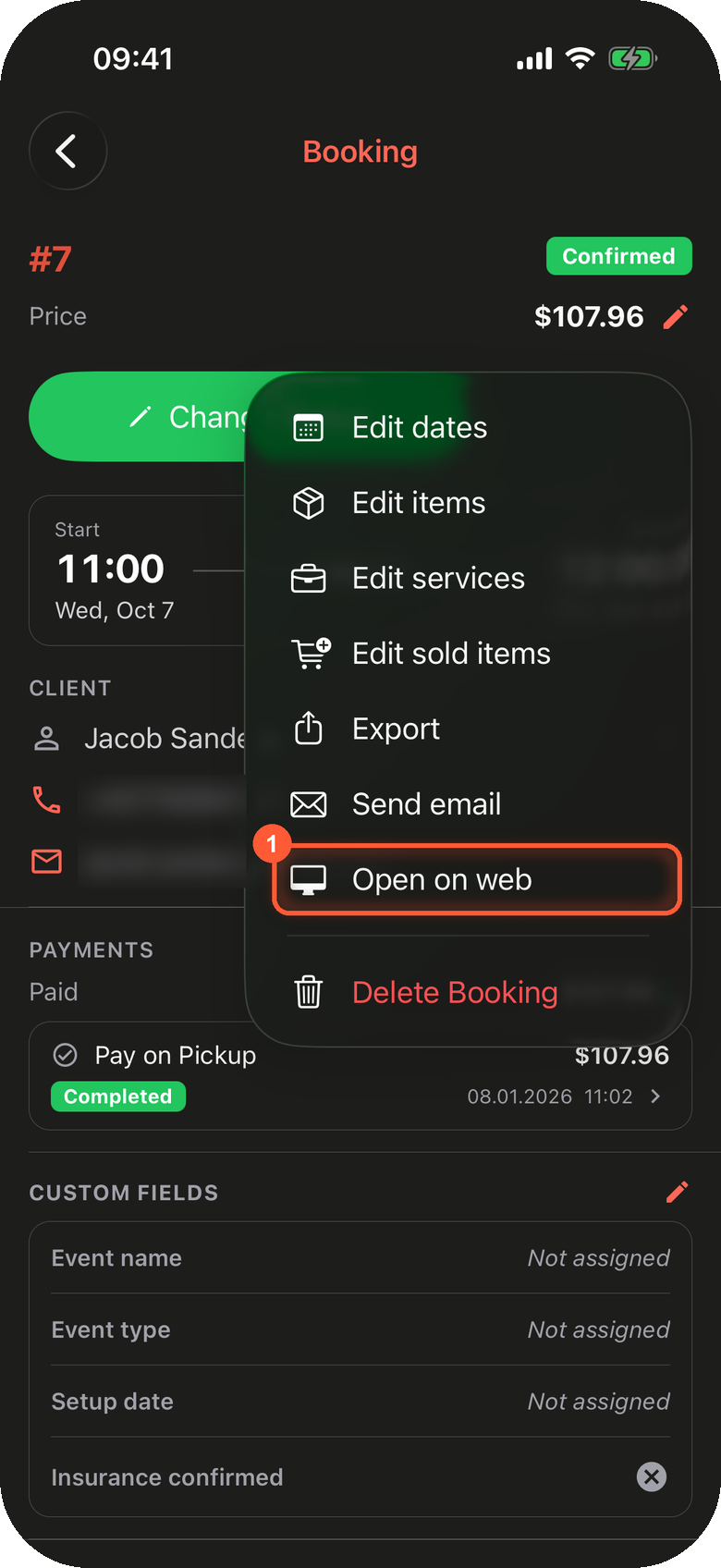
A booking's Actions menu on the phone.
- Open on web sends this booking to your computer.
In the mobile app, Open on web is in these menus:
| Record | Where the menu is |
|---|---|
| Booking | Actions on the booking page, see The Actions menu. |
| Sale | Actions on the sale page. |
| Conversation | ⋯ in the conversation header, see The conversation actions. |
| Client | ⋯ in the client page header. It holds Edit Client and Open on web; editing the client used to be a pencil button in that place. |
The Requiply tab you used last on your computer opens the record and shows Opened from your phone, and the phone says Opened on the web. "Used last" means the tab you last clicked or typed in; tabs nobody has touched for a day are skipped. If Requiply is open in more than one browser, each browser opens the record in its own last-used tab.
The computer gets no notification. If no Requiply tab answers within two seconds, the phone says Requiply is not open in a browser: open app.requiply.com on the computer, sign in to the same organization and tap Open on web again.
Before you start
- The same account on both devices. Records go only to your own phone and your own browser tabs, never to a teammate's. Each device has to be signed in to the organization the record belongs to.
- Notifications allowed on the phone. Without them the phone can still open records live while the app is open, but cannot get the notification. See Push notifications.
- An up-to-date app. If Open on web is missing from the phone's menus, update Requiply from the App Store or Google Play.
- Not while signed in as another user. When a session was opened on behalf of another user, both directions say Not available while signed in as another user.
Common scenarios
Scanning the items of a booking you found on the computer
A client calls to collect today, and you find the booking on the computer. Click the arrow next to Export, then Open on phone. Walk to the shelves: the booking is already open on the phone, so tap Change Status and scan the items in the pickup checklist.
Showing a booking on the big screen
You are at the counter with the phone, and the client wants to go through the price in detail. Open Actions on the booking and tap Open on web. The booking opens on the counter computer, where you can turn the screen to the client.
A new team member without the app
Clicking Open on phone shows the QR code. They scan it with the phone camera, install or open the app, and sign in. From then on, Open on phone reaches their phone directly.
Tips and cautions
Conversations and comments
Answering clients and teammates from the Requiply mobile app: the conversations inbox, starting a booking from a conversation, the long-press menu on messages and comments (reply, copy, edit, delete), linking a client to a conversation, the photo viewer and the Assistant tab.
Overview
The map of everything you can configure in Requiply: organization details, team access, integrations, pricing, booking rules, fields, and automations.